 TL;DR:
Free USB recovery software can restore deleted or formatted files as long as the drive remains physically readable and data is not overwritten, requiring you to select a tool based on specific free export limits and your technical expertise.
● Immediately halt drive use, ignore Windows formatting prompts, avoid running CHKDSK, and strictly save recovered files to a different storage device to prevent permanent data overwriting.
● Select Recuva for simple Windows deletions without an obvious data cap, or use guided tools like Disk Drill (100 MB limit), MiniTool (1 GB limit), and EaseUS (2 GB limit) for smaller recoveries needing file previews.
● Utilize open-source PhotoRec for unlimited recovery on RAW or corrupted drives despite losing original file names, but abandon software entirely for a professional lab if the USB drive overheats, disconnects, or remains undetected.
Ask AI for a summary
 ChatGPT
 Perplexity
 Gemini
 Claude
 Grok
Grok
USB files can disappear after accidental deletion, quick formatting, file-system corruption, virus infection, unsafe removal, or a drive error. When this happens, many users search for free USB data recovery software before buying a paid tool or sending the drive to a recovery lab.
The safest first move is not to format, repair, or keep using the USB drive. A recovery tool can only restore files that still exist on the flash memory and have not been overwritten. The right free USB recovery software also depends on the case: simple deletion, formatted drive, RAW USB, lost partition, or a drive that is physically failing.
This guide compares 8 free USB file recovery software options by recovery limit, ease of use, preview support, platform, and best-fit scenario. It also shows how to recover USB files with Recoverit USB Flash Drive Recovery, a beginner-friendly option for deleted, formatted, corrupted, and RAW USB drive recovery.
In this article
Part 1. What Can Free USB Data Recovery Software Actually Recover?
Free USB recovery software scans the USB drive for deleted files, lost file records, remaining file signatures, and recoverable data fragments. If the files are still present and the drive is readable, a recovery tool may restore them to another storage location.
How USB Recovery Software Works
When a file is deleted from a USB drive, the file content is not always erased immediately. The storage space is often marked as available for new data. A recovery tool reads the drive and tries to rebuild recoverable files before new data overwrites them.
For formatted or corrupted USB drives, recovery software may scan file-system metadata, locate old folder records, or search for known file signatures such as JPG, DOCX, PDF, MP4, ZIP, and other file types.
| Data Loss Type | What Happened | Recovery Outlook | Best Scan Type |
| Deleted files | File records were marked as deleted | Often recoverable if not overwritten | Quick scan first, then deep scan |
| Quick formatted USB | File-system metadata was rebuilt | May be recoverable if new data was not written | Deep scan or signature scan |
| RAW or corrupted USB | Windows cannot read the file system | Depends on remaining metadata and flash condition | Deep scan, raw scan, or partition recovery |
| Physically damaged USB | Controller, connector, or flash chip may be failing | Software may make it worse if the drive is unstable | Professional lab evaluation |
When Free USB Recovery Software Is Enough
Free tools are usually enough when the USB drive is detected normally, the files were deleted recently, the data volume is small, and you only need to recover a few documents, photos, or videos. They can also help you preview whether important files are still recoverable before you decide to upgrade.
When Free USB Recovery Software Is Not Enough
Free tools may not be enough when the USB drive is physically damaged, constantly disconnects, shows the wrong capacity, or is not detected by any computer. They also have limits when files were overwritten, heavily fragmented, encrypted, or stored on damaged flash memory.
Free Scan vs Free Recovery: Why the Difference Matters
Some programs are free to scan and preview files but limit how much data you can export. Others are open-source tools with no fixed recovery volume limit but require more technical skill. Always check the current free recovery limit before spending time on a full scan.
Part 2. What to Do Before Using Any Free USB Recovery Tool
The first few minutes after USB data loss matter. These steps help protect recoverable data.
Stop Using the USB Drive Immediately
Do not copy new files to the USB drive, rename folders, download files to it, or use it as temporary storage. Every write operation can overwrite deleted data that may still be recoverable.
Do Not Format, Run CHKDSK, or Save New Files Yet
If Windows says the USB drive needs to be formatted, do not format it before recovery. Also avoid running repair commands such as CHKDSK before extracting important files. Repair tools can change file-system metadata and may make recovery harder in some cases.
Check Whether the USB Drive Is Detected Safely
Try another USB port, another computer, or a different card reader or adapter if applicable. If the drive is detected in Disk Management but not File Explorer, software recovery may still be possible. If it is not detected anywhere, stop and consider professional help.
Decide Whether You Need Software or a Recovery Lab
Use software only when the drive stays connected and is readable at the hardware level. If the USB drive is bent, cracked, hot, has a burning smell, or disconnects repeatedly, a professional recovery lab is safer than repeated scans.
Always Save Recovered Files to Another Drive
Never save recovered files back to the same USB drive you are scanning. Choose your computer drive, an external drive, or another healthy USB drive as the recovery destination.
Part 3. Common USB Data Loss Scenarios and the Best Recovery Approach
Different USB problems require different recovery decisions. Use this section to match your situation before choosing a tool.
Accidentally Deleted USB Files
Stop using the drive and run a quick scan first. If the deleted files are not found, run a deep scan. Tools with file preview are useful here because they let you confirm whether documents, photos, and videos are intact before recovery.
Formatted the USB Drive by Mistake
If it was a quick format, many files may still be recoverable. Use deep scan or file-signature scan. Do not copy new files to the formatted USB drive before recovery.
USB Shows Empty but Space Is Used
This can happen because files are hidden, the file system is damaged, or malware changed file attributes. First check hidden files safely. If files remain inaccessible, scan the drive with recovery software.
USB Drive Asks to Be Formatted
This prompt usually means Windows cannot read the file system. Do not click Format if the drive contains important data. Use a recovery tool to scan the USB drive first, then repair or format only after important files are saved elsewhere.
RAW or Unrecognized USB Drive
A RAW USB drive has a file system that Windows cannot recognize. Beginner-friendly recovery software may help if the drive is physically healthy. Advanced users can also try PhotoRec or TestDisk, depending on whether they need files or partition repair.
Files Lost After Virus Infection
Disconnect the USB drive from other computers, scan from a trusted machine, and recover important files before removing or repairing damaged structures. Do not open suspicious executable files from the USB drive.
Physically Damaged USB Drive
If the USB connector is broken, the device overheats, or the drive disconnects during scans, stop using software. Repeated attempts can reduce the chance of professional recovery.
Part 4. Best Free USB Data Recovery Software Compared
The tools below are useful for different USB recovery needs. The best option depends on your platform, recovery volume, technical skill, and data-loss scenario.
1. Recoverit USB Flash Drive Recovery
Recoverit USB Flash Drive Recovery is a strong all-round option for users who want a guided interface, file preview, and support for deleted, formatted, corrupted, and RAW USB drive recovery. It supports USB flash drives, pen drives, memory cards, external drives, HDDs, SSDs, and other storage devices.
Recoverit is best for users who want to scan and preview recoverable files before deciding what to restore. The free download can scan and preview lost or deleted data; the available free export allowance may vary by current version, plan, or region, so check the in-app limit before recovering a large USB drive.
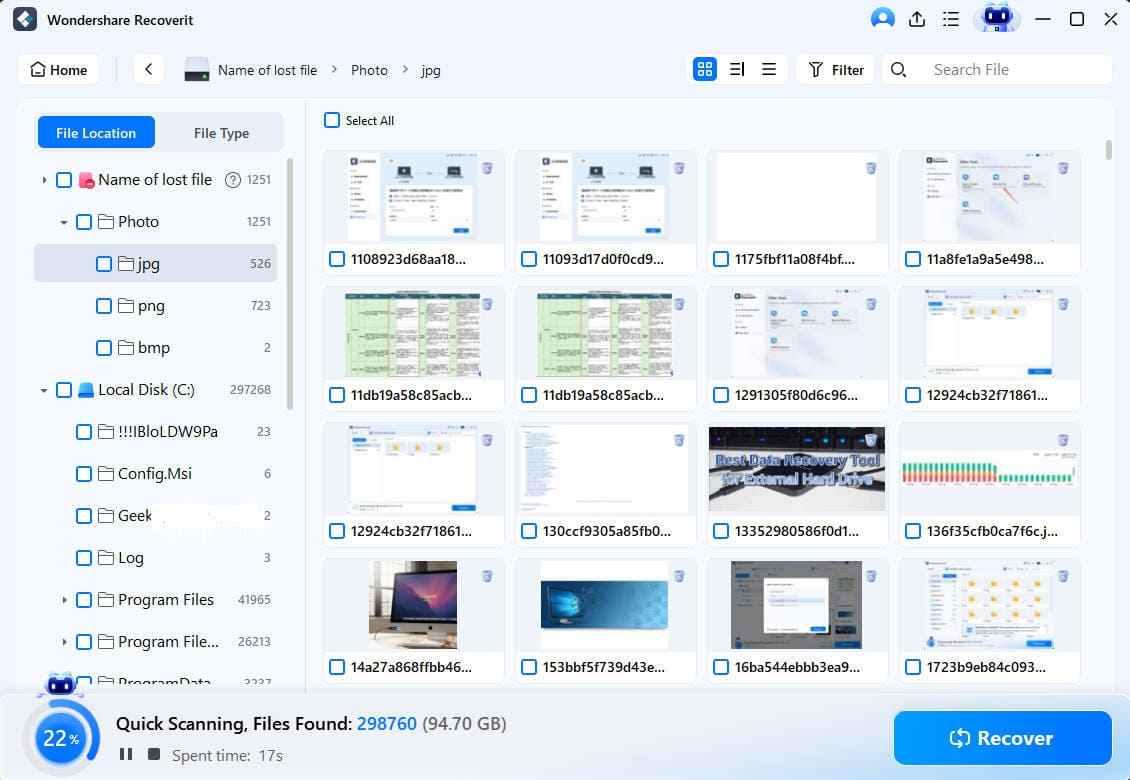
- Best for: Beginner-friendly USB recovery, formatted USB drives, RAW USB scans, and broad file type recovery.
- Pros: Clear workflow, file preview, filters, broad storage support, Windows and macOS support.
- Cons: Full recovery of large data sets may require a paid plan.
2. Recuva
Recuva is a Windows recovery tool for deleted files from computers, memory cards, USB sticks, and other rewriteable media. It is simple and useful for recently deleted files when the USB drive is healthy.
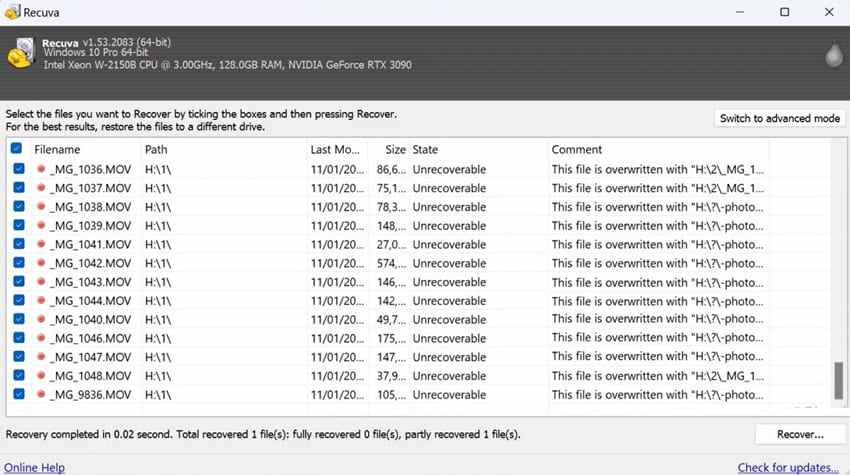
- Best for: Simple deleted file recovery on Windows.
- Pros: Free version, simple interface, deep scan option, no obvious fixed free data cap on the official free edition page.
- Cons: Windows-only and less suitable for severely corrupted or RAW drives than specialized deep recovery tools.
3. Windows File Recovery
Windows File Recovery is Microsoft's command-line recovery tool for Windows users. It uses the winfr command and can recover deleted files from local drives, USB drives, and memory cards when used correctly.
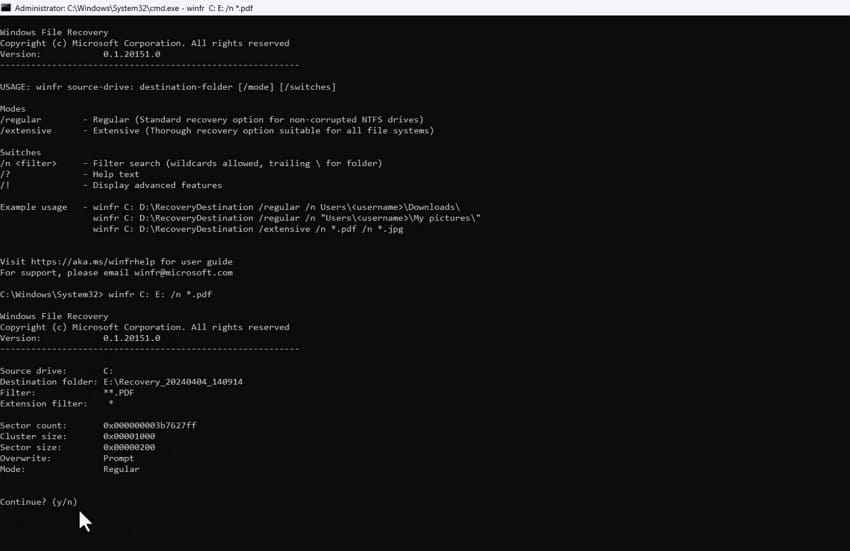
- Best for: Advanced Windows users who are comfortable with command-line recovery.
- Pros: Free Microsoft tool, useful for NTFS and external drive recovery scenarios.
- Cons: No beginner-friendly graphical interface, no visual file preview, and command syntax can be confusing.
4. PhotoRec
PhotoRec is an open-source recovery tool that ignores the file system and searches for file signatures. Its official documentation states that it works even when the media file system is severely damaged or reformatted, and supports USB memory drives, memory cards, hard disks, and more.
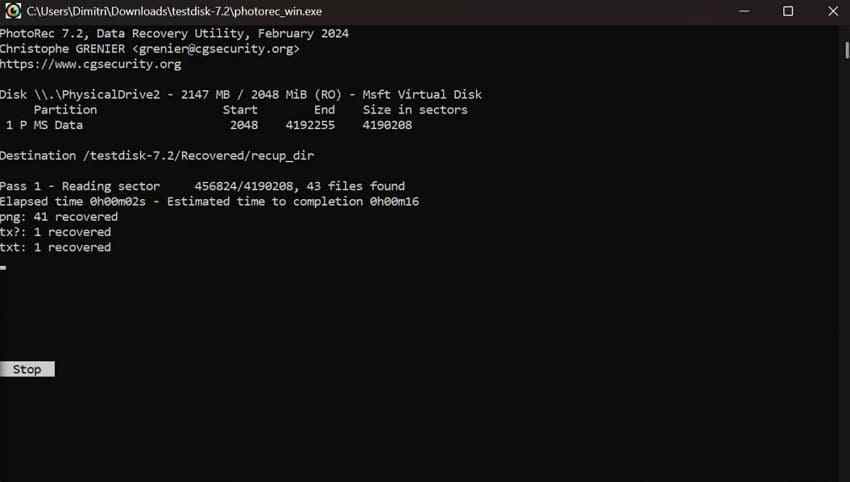
- Best for: RAW, reformatted, or corrupted USB drives when file names and folder paths are less important.
- Pros: Free and open-source, no fixed recovery volume cap, cross-platform, strong signature-based recovery.
- Cons: Recovered files often lose original names and folder structure, and the interface is technical.
5. TestDisk
TestDisk is a companion tool to PhotoRec and is primarily designed for partition recovery, boot sector repair, and selected file-system fixes. It can help when a USB partition was deleted or the partition table is damaged.
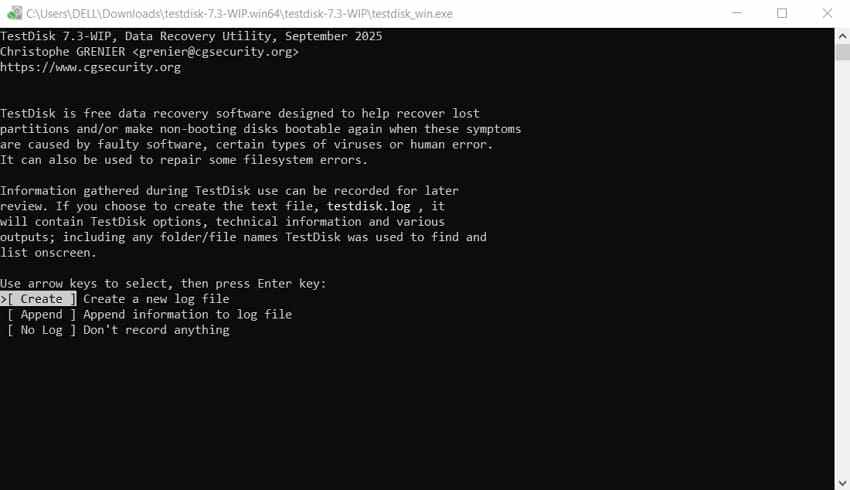
- Best for: Lost USB partitions, damaged partition tables, and advanced repair work.
- Pros: Free and open-source, powerful partition recovery, supports many file systems.
- Cons: Not ideal for beginners and not the first choice for simple photo or document recovery.
6. Disk Drill Free Version
Disk Drill offers a polished interface and a free Windows recovery allowance. Its official Windows page states that users can recover up to 100 MB for free and preview files before recovery.
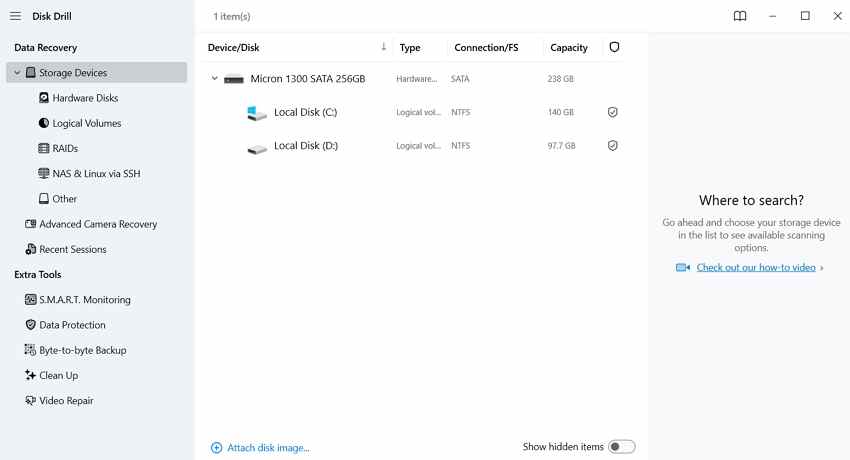
- Best for: Previewing recoverable USB files and recovering a small amount of data.
- Pros: Modern interface, preview support, recovery chance indicators, broad device support.
- Cons: The free Windows recovery allowance is small for large USB drives.
7. EaseUS Data Recovery Wizard Free
EaseUS Data Recovery Wizard Free is a guided recovery tool for Windows users. Its official page states that it can recover up to 2 GB of data for free and supports USB drives, SD cards, HDDs, SSDs, and other devices.
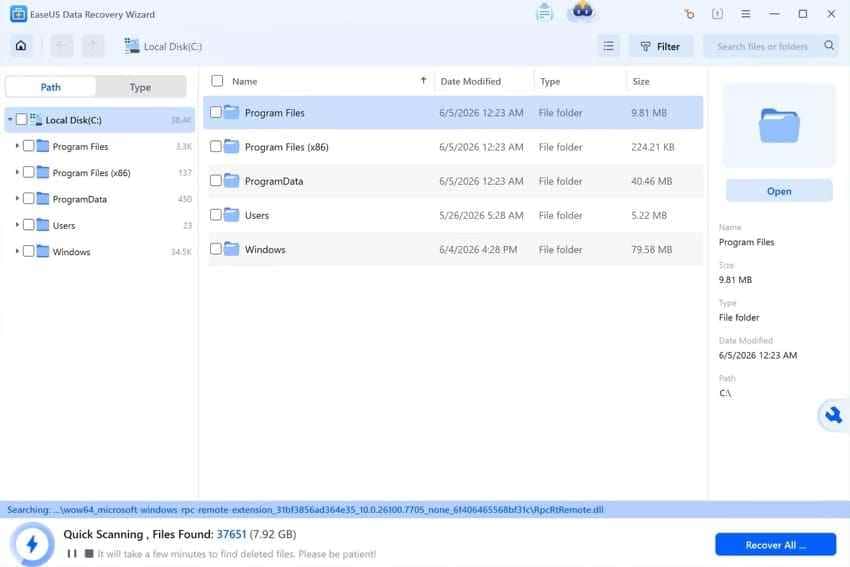
- Best for: Users who want a guided interface and a larger free recovery allowance.
- Pros: Up to 2 GB free recovery, preview support, beginner-friendly workflow.
- Cons: Advanced features and larger recoveries require a paid version.
8. MiniTool Power Data Recovery Free
MiniTool Power Data Recovery Free is a Windows recovery tool for deleted files, formatted drives, and lost partitions. Its official page lists a 1 GB data recovery limit for the free edition.
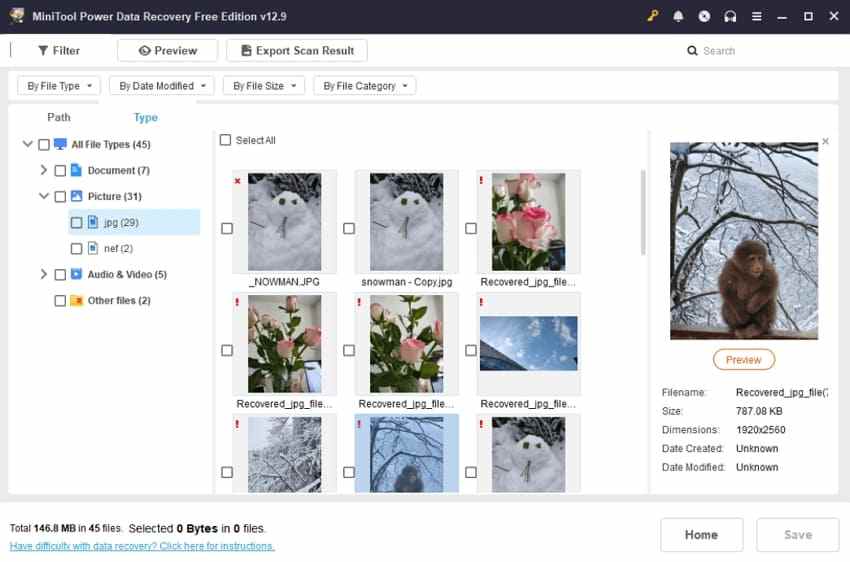
- Best for: Windows users recovering small to medium data sets from USB drives.
- Pros: 1 GB free recovery, preview support, simple interface.
- Cons: Windows-only and full recovery requires upgrading after the free limit.
Free USB Recovery Tools Comparison Table
| Tool | Free Recovery Limit | Ease of Use | Preview | Best Use Case |
| Recoverit | Free scan and preview; export limit depends on current version or plan | Easy | Yes | All-round USB recovery for deleted, formatted, corrupted, and RAW drives |
| Recuva | No fixed free data cap shown on the official free edition page | Easy | Yes | Recently deleted USB files on Windows |
| Windows File Recovery | No fixed recovery volume cap | Advanced | No | Command-line recovery for Windows users |
| PhotoRec | No fixed recovery volume cap | Advanced | No | RAW, corrupted, or reformatted USB drives when names are not critical |
| TestDisk | No fixed recovery volume cap | Advanced | No | Lost partitions and partition table repair |
| Disk Drill Free | Up to 100 MB on Windows | Easy | Yes | Small USB recoveries and previewing recoverable files |
| EaseUS Data Recovery Wizard Free | Up to 2 GB on Windows | Easy | Yes | Guided recovery with a larger free allowance |
| MiniTool Power Data Recovery Free | Up to 1 GB | Easy | Yes | Small Windows USB recoveries and formatted drive scans |
Which Free USB Recovery Tool Should You Choose?
Choose Recoverit if you want a guided USB recovery workflow with file preview and broad data-loss scenario support. Choose Recuva for simple deleted-file recovery on Windows. Choose PhotoRec if you need unlimited open-source file carving and can accept renamed files. Choose TestDisk when the main issue is a lost partition rather than individual deleted files.
For small recoveries, Disk Drill, EaseUS, and MiniTool can be useful because they clearly state free recovery allowances. Always verify the current free limit inside the software before starting a large USB recovery project.
Part 5. How to Recover Files From a USB Drive With Recoverit
Use these steps when the USB drive is detected by your computer and you want a beginner-friendly scan, preview, and recovery workflow.
Step 1. Connect and Select the USB Drive
Connect the USB drive to your computer. Open Recoverit, go to Hard Drives and Locations, and choose the USB drive that contains the lost files.

Step 2. Scan the USB Drive
Start the scan. Recoverit will search the USB drive for deleted, lost, formatted, or inaccessible files. Use filters such as file type, time, size, or keyword to narrow down the results while the scan runs.

Step 3. Preview and Recover Files to Another Drive
Preview recoverable files when available. Select the files you need, click Recover, and save them to a different safe location. Do not save them back to the same USB drive being recovered.

Part 6. What If Free USB Recovery Software Does Not Work?
Even the best free USB data recovery tool cannot solve every case. Stop and reassess if any of the following situations apply.
The USB Drive Is Not Detected Anywhere
If no computer, port, or adapter detects the USB drive, software cannot scan it. The problem may involve the USB controller, connector, flash chip, or power delivery. Professional recovery may be required.
The Drive Disconnects, Overheats, or Shows Physical Damage
Repeated disconnects, overheating, cracked housing, bent connectors, or burning smells suggest hardware failure. Avoid repeated scans because they can stress the drive further.
The Files Were Overwritten
If new data was copied to the USB drive after deletion or formatting, some old files may be overwritten. Overwritten files cannot be reliably reconstructed by normal recovery software.
The Recovered Files Are Corrupted or Missing Names
Corruption, fragmentation, or signature-based recovery can produce files with missing names or damaged content. Try a different scan mode or another tool, but avoid writing anything to the source USB drive during the process.
Part 7. How to Prevent USB Data Loss Next Time
USB drives are convenient, but they should not be the only place where important files exist.
Keep at Least One Backup Outside the USB Drive
Maintain another copy on your computer, external drive, NAS, or trusted cloud backup. A USB drive is easy to lose and can fail without warning.
Eject the USB Drive Safely
Use the operating system's safe eject option before unplugging the drive. This reduces the chance of file-system corruption caused by interrupted writes.
Scan for Malware Before Opening Unknown USB Drives
Do not open suspicious files from unknown USB drives. Scan the drive with reliable security software first, especially if it was used on public or shared computers.
Replace Unstable or Aging USB Drives
If a USB drive disconnects often, becomes very hot, shows wrong capacity, or triggers repeated format prompts, replace it after recovering the data.
Use the Right File System for the Device
Use exFAT for broad compatibility across modern Windows and macOS systems, NTFS for Windows-focused storage, and FAT32 only when older device compatibility matters and file sizes are small.
Conclusion
Free USB data recovery software can help recover files from deleted, formatted, RAW, and corrupted USB drives when the device is still readable and the lost data has not been overwritten. The best tool depends on your case: Recuva for simple Windows deletions, PhotoRec for open-source file carving, TestDisk for lost partitions, and guided commercial tools for easier preview-based recovery.
For users who want a clear workflow for USB drive recovery, Recoverit USB Flash Drive Recovery is a practical choice because it supports USB flash drives, file preview, filtered scanning, and common data-loss situations such as deletion, formatting, corruption, and RAW drives. If the USB drive is physically damaged or not detected anywhere, stop using software and consider professional recovery.
FAQ
-
What is the best free USB data recovery software?
The best free USB recovery software depends on your case. Recoverit is a good guided option for scanning and previewing USB files. Recuva is useful for simple deleted files on Windows. PhotoRec is strong for RAW or reformatted drives if you can handle a technical interface. -
Can I recover files from a formatted USB drive for free?
Yes, in many quick-format cases, files may still be recoverable if no new data was written to the USB drive. Use a deep scan or file-signature recovery tool and save recovered files to another drive. -
Is free USB recovery software safe?
Reputable recovery software is generally safe when downloaded from the official website. Avoid cracked tools, unknown installers, and any program that asks you to save recovered files back to the same USB drive. -
Why should I not save recovered files on the same USB drive?
Saving recovered files back to the same USB drive can overwrite other files that are still recoverable. Always recover to a different drive or folder. -
Can free USB recovery software fix a physically broken USB drive?
No. If the USB drive has hardware damage, overheats, disconnects repeatedly, or is not detected by any computer, software recovery may not work and may increase risk. A professional recovery lab is safer for critical data.



