 TL;DR:
To fix a DUALSHOCK 4 controller that flashes white and fails to connect, bypass charge-only cables and pair the device directly to the PS4 using a confirmed data-capable micro-USB cable.
● If data cable pairing fails, safely shut down the console and use a slender, blunt tool to hold the controller's rear reset button near the L2 shoulder button for at least five seconds before reconnecting.
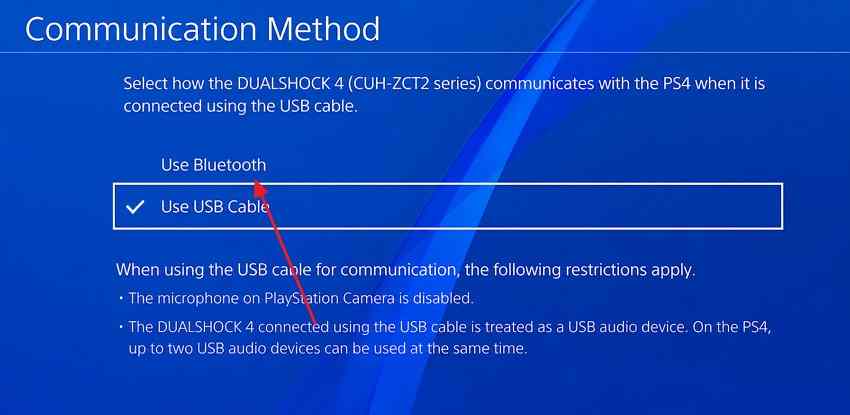
● For CUH-ZCT2 series controllers, you can isolate wireless Bluetooth failures by navigating to Settings > Devices > Controllers and selecting "Use USB Cable" to test if the device works exclusively over a wired connection.
● Verify the flashing white light originates from the controller rather than the PS4 console power indicator, and never initialize the PS4 system software to test connectivity as this will delete your local console data.
Ask AI for a summary
 ChatGPT
 Perplexity
 Gemini
 Claude
 Grok
Grok
A PS4 controller flashing white and refusing to connect can leave you stuck at the user-selection screen, even when the console itself turns on normally. Some DUALSHOCK 4 controllers blink continuously; others flash briefly and switch off or show a steady light without responding. Those symptoms do not all point to the same fault.
The quickest place to start is a USB cable that carries data, not just charging power. If that fails, check the battery and ports, then follow Sony's controller reset and pairing procedure. This guide separates controller lights from the PS4 console indicator, explains what different test results mean, and shows when hardware repair is more appropriate than further software changes.
A player in a real PS4 troubleshooting thread described a white-blinking controller that could not move past the loading screen. They later mentioned using a non-original USB cable and having paired the controller with a Chromebook. Those details suggest two useful checks: verify the cable transfers data, and reconnect the controller to the intended PS4.
In This Article
Part 1. Confirm Which White Light Is Flashing
The light belongs to one of two devices: your handheld controller or the PS4 console. Identifying which one is flashing prevents you from trying controller resets to solve a console power issue.
Controller Light Bar or PS4 Console Indicator?
Look at the light bar along the top edge of your DUALSHOCK 4. The PS4 also has a separate power indicator, and a white console light may be completely normal. Sony explains that solid white on the console means it is powered on, whereas a continuously blinking white console indicator can indicate a frozen system.
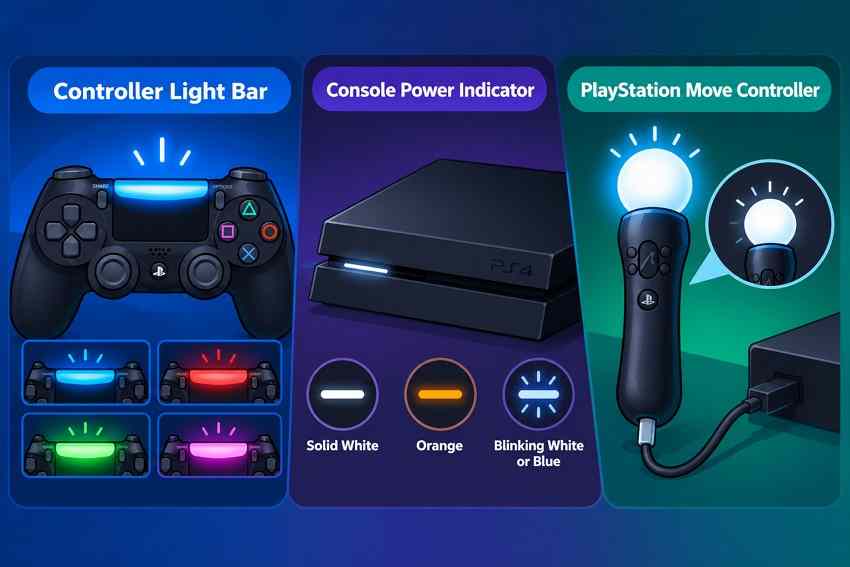
| Light location | Observed behavior | Correct first action |
| DUALSHOCK 4 light bar | Repeated flashes; buttons do not work | Connect the controller directly using a USB data cable and press PS |
| DUALSHOCK 4 light bar | Flashes and then switches off | Test charging, the cable and USB socket before a reset |
| PS4 console power indicator | Solid white | Usually normal: console is powered on |
| PS4 console power indicator | Continues blinking white and fails to load | Follow Sony's console power-indicator troubleshooting instead |
If the white light is on the console, start with Sony's guidance. Recoverit also has a separate PS4 console white-light article, but controller pairing steps are not a fix for the console's power indicator. Avoid reinstalling PS4 system software as an early test: Sony warns that reinstallation deletes local console data.
Read the Controller Light Pattern Without Overdiagnosing It
The controller can flash while it looks for a connection, and the light bar may also change with the game or device. Do not diagnose a dead battery or defective Bluetooth radio from color alone; combine the light with a simple response test.
| Controller symptom | What to check first | What the result means |
| Flashing white, no button response | PS button while connected with a confirmed data cable | Pairing may be incomplete; charging alone does not prove the cable carries data |
| Fast flashes after PS + SHARE | Whether the controller was put into pairing mode for another device | This pattern can be normal during Bluetooth discovery |
| Brief flash, then power off | Known-good cable, charging status and micro-USB port | Low charge or lost connection is possible; not a hardware verdict |
| Solid white, no input | Try PS with USB connected and observe onscreen selection | Color is not a reliable standalone diagnosis; verify actual button response |
For Bluetooth pairing to a computer or mobile device, Apple documents the DUALSHOCK 4 PS + SHARE combination. For a PS4 console, begin with Sony's USB pairing procedure instead of relying on a phone's Bluetooth instructions.
Part 2. Reconnect the Controller With a Data-Capable USB Cable
A cable can recharge the DUALSHOCK 4 yet fail to transmit the data needed for pairing. Because this is an easy and reversible test, try it before changing console settings or assuming the controller is broken.
Pair Directly With the PS4 Over USB
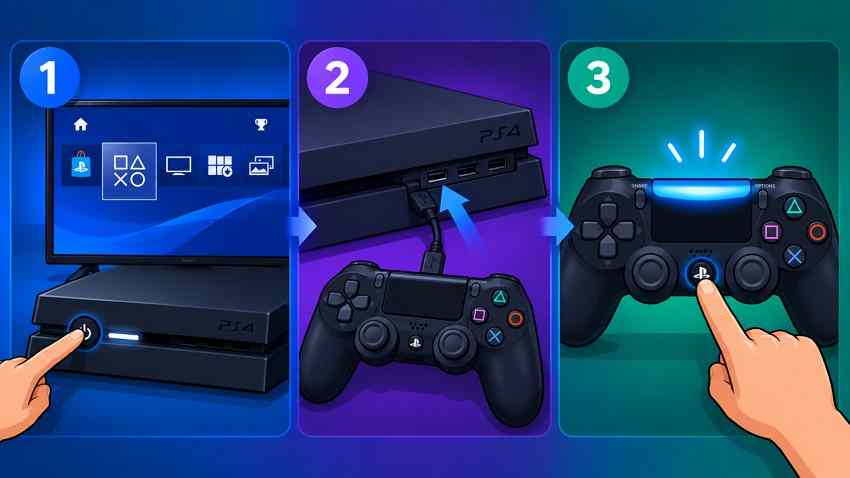
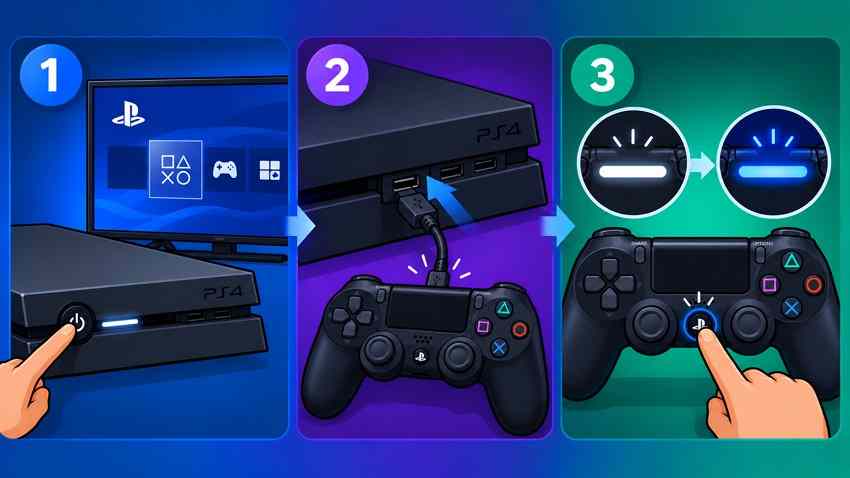
Sony's DUALSHOCK 4 pairing guide tells users to connect the controller by USB with the PS4 switched on, then press PS. Use the supplied cable where possible, or a known-working micro-USB data/sync cable; a charge-only cable will not provide the connection needed for this test.
- Power on the console: Use the power button on the PS4 and wait for its startup screen; an unpaired controller may not power it on.
- Connect directly: Plug a micro-USB data cable into the controller and a USB port on the console. Avoid an untested hub or extension.
- Press PS: Watch for a player assignment and check whether the controller actually selects an account or navigates the menu.
Result check: If the controller now works, leave it connected briefly, then test wireless use once it has enough battery charge. If the light flashes but the PS button still does nothing, swap to another confirmed data cable and a different PS4 USB port before resetting the controller.
Charge the Controller and Check Power to USB Ports
If the controller blinks once and powers down, check whether it is receiving charge. Sony says an empty DUALSHOCK 4 battery typically needs about two hours for a full charge; battery age and conditions can change the result. A controller can charge while the PS4 is on or in Rest Mode when USB power is enabled.
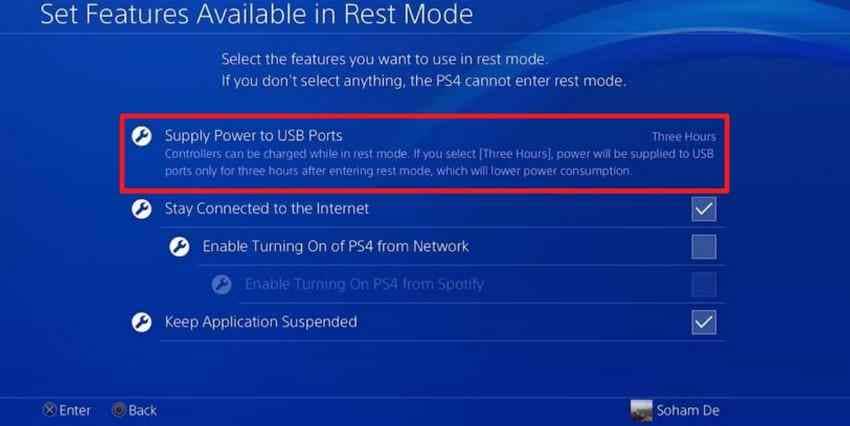
On a working console, open Settings > Power Save Settings > Set Features Available in Rest Mode > Supply Power to USB Ports. Choose a supported power option. While charging in Rest Mode, a DUALSHOCK 4 normally flashes orange slowly and turns off when the charge completes, according to PlayStation's charging instructions.
- Changes with another cable: The original cable may have broken data or power conductors.
- Works through only one USB port: Inspect the failing port; do not force an unstable connector.
- No reliable charging with either cable: A worn micro-USB socket or battery may require service. The indicator alone cannot identify the failed component.
Re-pair After Using the Controller With Another Device
If the same DUALSHOCK 4 was last used with another PS4, Chromebook, phone or tablet, it may need a fresh pairing with your console. Sony states that the controller can pair with one console at a time. Disconnect it from nearby devices, then perform the direct USB pairing steps above.
You do not need to pair the controller to a phone first. If USB pairing succeeds but it repeatedly returns to another device, remove the old Bluetooth pairing on that device and check again.
Part 3. Reset and Pair the DUALSHOCK 4 Using Sony's Procedure
If a confirmed data cable and working USB port do not restore the connection, use Sony's hardware reset procedure. Resetting the controller is different from resetting or initializing the PS4 console; the latter may erase local files.
Shut Down the Console Safely
Follow Sony's DUALSHOCK 4 troubleshooting instructions: first turn the PS4 off, then unplug its power cord and disconnect the USB cable from the controller. Wait for the console power indicator to go out before disconnecting power; do not pull the plug while the system is actively shutting down.
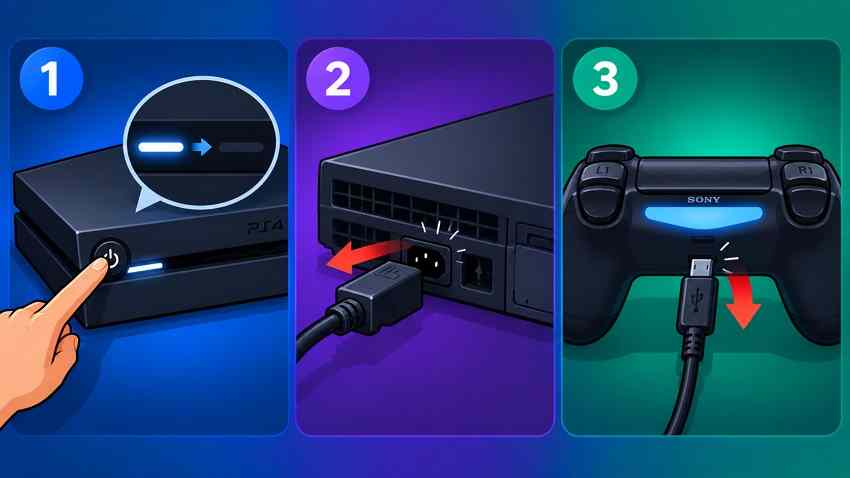
If the controller cannot control the menus, use the console's power button to turn the PS4 off normally. Make sure it is not merely in Rest Mode (orange indicator) when preparing for the controller reset.
Hold the Rear Reset Button for at Least Five Seconds
Turn the DUALSHOCK 4 over. Near the L2 shoulder button, find the tiny opening that contains the reset button. Gently press the button with a small unfolded paper clip and hold it for at least five seconds, then release. This time matches Sony's dedicated reset instructions.
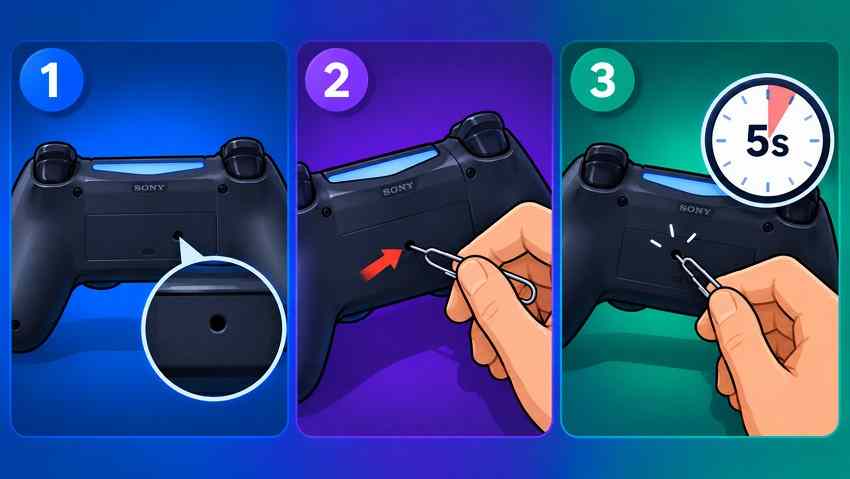
Important: Use a slender, blunt tool and light pressure. The reset is a controller-side operation; it does not erase game saves or reinitialize the PS4.
Reconnect by USB and Confirm the Controller Responds
Plug the PS4 back in, turn it on, connect the controller with the official or verified data-capable USB cable, and press the PS button. You should see the controller assigned to a player and its buttons respond. If pressing PS still produces only a white flash, do not repeat resets indefinitely; move to the diagnostic checks in Part 4.

The embedded video is an additional reference. If its steps differ from the current PlayStation reset instructions, follow Sony's documented procedure for the DUALSHOCK 4.
Part 4. Diagnose What Still Fails
After testing the cable, charging, pairing and reset, the remaining symptom becomes more useful than the original light color. Compare the results below to decide whether the controller, console or wireless connection needs attention.
Works With a USB Cable but Not Wirelessly
This comparison works best with a CUH-ZCT2-series DUALSHOCK 4, which can communicate over the USB cable when the setting is enabled. In Sony's controller settings guidance, the Communication Method menu appears only when a CUH-ZCT2 controller is connected using USB. An earlier CUH-ZCT1 controller does not offer that same wired-communication setting.
With a responsive controller connected, open Settings > Devices > Controllers. If Communication Method appears, inspect the selected option. The original example below shows Use USB Cable selected; choose Use Bluetooth only when you specifically want to test wireless communication, then disconnect the cable and try again.
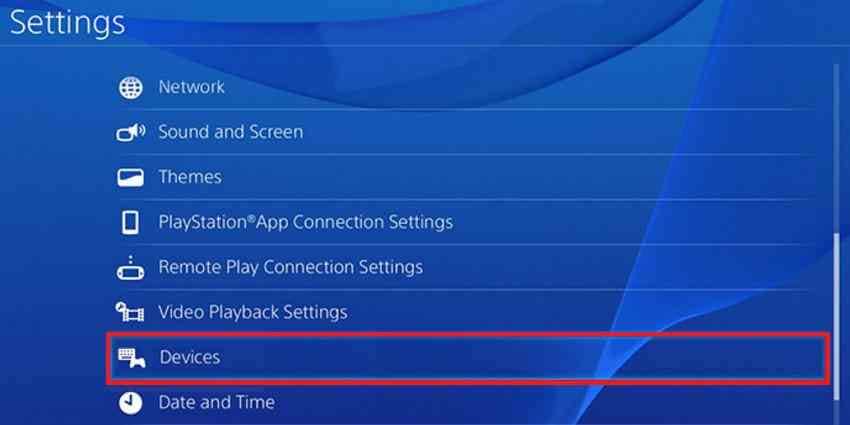
If actual wired input works but wireless input repeatedly fails with the controller charged, a Bluetooth pairing or radio problem becomes more plausible. If no inputs work even while connected, check cables, ports, and the controller itself before blaming Bluetooth.
Flashes White Then Turns Off
A short white flash followed by shutdown does not prove the battery is dead. It can also reflect an unsuccessful connection attempt. Charge using a working cable and console port, then press PS again. Note whether the cable connector feels loose, whether the orange charging indicator appears in Rest Mode, and whether the controller responds while plugged in.
- Works after charging: Low charge was a likely contributor; monitor whether it holds a charge.
- Works only while the plug is held at an angle: Stop stressing the port; seek an inspection or repair.
- Fails on multiple verified cables and a second PS4: Controller-side battery, connector or electronics failure becomes more likely.
Several Controllers Fail on the Same PS4
If you can borrow another known-good DUALSHOCK 4, pair it using the same data-capable cable. If only your original controller fails, investigate that controller. If both fail on one console, test the PS4 USB ports, power-cycle the console properly, and check its system software only after a working input method is available.
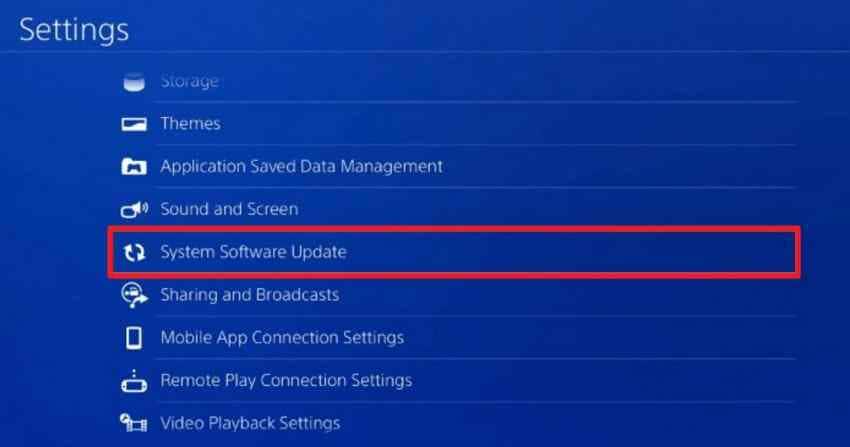
Sony lists Settings > System Software Update for a normal PS4 update. Updating is not the same as Initialize PS4 (Reinstall System Software), which Sony confirms deletes the console's data. Do not factory-reset the PS4 merely to test a blinking controller.
If the console's own power light is continuously blinking white, return to the console-indicator guidance instead. If the controller works on another PS4 but not this one after cable and software checks, the console may require a service diagnosis.
When Repair Is Safer Than More Troubleshooting
Stop experimenting with cables or internal components if the controller becomes unusually hot, the USB socket is physically damaged, or the battery appears swollen. Contact PlayStation hardware support or a qualified repair provider. Have the controller model number, the cables and USB ports tested, the charge response, and whether a second controller connects available for troubleshooting.
If both the controller and PS4 have already passed the safe checks, there is no supported reason to reinstall drivers on a Windows PC to fix the PS4 console connection. Likewise, the controller is not a USB storage drive that file-recovery software can repair.
Separate Problem: Missing Files on a USB Backup Drive
Controller pairing problems do not call for data-recovery software. There is one separate situation worth distinguishing: you may have already copied PS4 screenshots, captured videos, or other files to a USB flash drive and then accidentally deleted them or found the stick unreadable on a computer. If that USB storage device is still detectable and stable, Wondershare Recoverit USB Flash Drive Recovery can scan for eligible lost files. Save recovered results to a different disk; overwritten or encrypted data may not be usable.
Recoverit cannot repair DUALSHOCK 4 pairing, Bluetooth, batteries, the PS4 USB port, or inaccessible console-encrypted save data. If the issue is a PS4 external storage drive rather than the controller, use the separate PS4 external hard drive detection guide instead.
Conclusion
A PS4 controller flashing white is a symptom, not a diagnosis. First confirm that the light is on the DUALSHOCK 4 rather than the console. Reconnect with a working USB data cable, check charging and previous pairings, and follow Sony's five-second reset procedure. Compare a second controller or cable before blaming the PS4 itself. If hardware checks fail, seek PlayStation repair support. Recoverit is relevant only to a separate issue: missing files on a detectable USB backup drive, not controller connectivity.
FAQ
-
Why is my PS4 controller flashing white but not connecting?
It is often attempting to establish a connection, but the light alone cannot identify the fault. Turn on the PS4, attach the DUALSHOCK 4 with a working USB data cable, and press PS. If nothing changes, check another cable or port, then use Sony's rear reset procedure. -
What does a solid white light mean on a PS4 controller?
A solid white controller light does not establish one specific fault. It may reflect the device or game state, so check whether the buttons work and whether USB pairing succeeds. A solid white light on the PS4 console is different: Sony says it normally means the console is powered on. -
Why does my PS4 controller flash white and then turn off?
A drained battery, disrupted charging connection, or failed pairing attempt can cause this symptom. Charge with a verified cable, test another PS4 USB port, and retry pairing. If it still fails on another known-good console, repair may be necessary. -
Can I fix a PS4 controller blinking white without another controller?
Yes. Use the PS4 console power button, a micro-USB data cable, and the rear controller reset button. A second controller is helpful for diagnosing whether the console or first controller is at fault, but it is not required for the initial pairing and reset steps.



