 TL;DR:
To fix a USB drive that refuses to format without causing permanent data loss, first identify its exact status in Windows Disk Management—such as RAW, Unallocated, Write-Protected, or No Media—to determine whether you need a file recovery scan, an attribute reset, or a partition rebuild.
● Always recover essential files to a different physical drive using a tool like Recoverit before executing destructive commands like File Explorer formatting or DiskPart clean, because these operations erase partitioning metadata and are not data recovery methods.
● If the drive shows a plausible capacity but a RAW or Unallocated status, you can safely create a new file system or Simple Volume; however, if it persistently reports No Media or 0 B physical capacity across multiple PCs, the storage is unaddressable and software formatting cannot fix the hardware.
● For a write-protected disk error, verify the USB disk number in an elevated Command Prompt and run the DiskPart attributes disk clear readonly command, noting that this only clears software flags and cannot override physical switches or firmware locks triggered by failing memory blocks.
Ask AI for a summary
 ChatGPT
 Perplexity
 Gemini
 Claude
 Grok
Grok
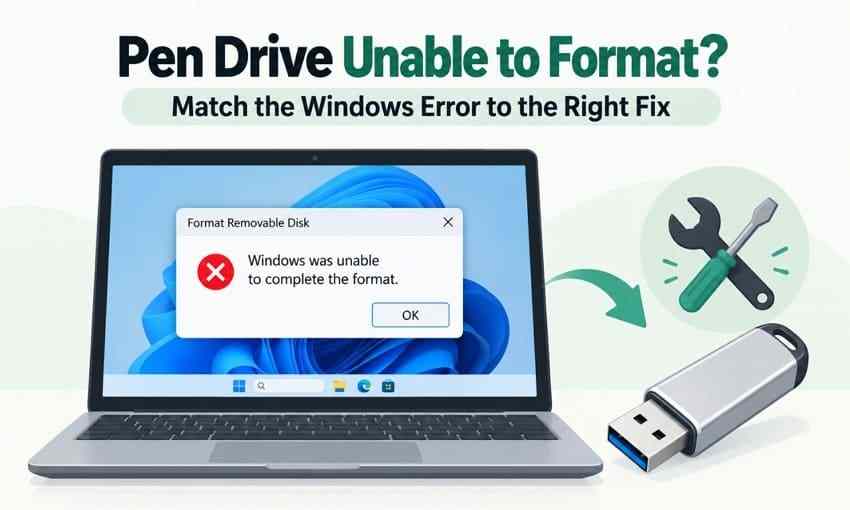
A WindowsHelp user reported "Format failed the system cannot find file specified" in DiskPart, Disk Management, and on another PC. That is why a pen drive unable to format needs diagnosis, not another utility. Windows 10 and 11 may report "Windows was unable to complete the format," "The disk is write-protected," or show RAW, Unallocated, or No Media instead of a volume.
These symptoms can come from connection trouble, a Windows write restriction, damaged partition information, or failing flash memory. First, identify the physical USB and protect any important files. Then follow the branch that matches its actual Windows status. This guide explains safe checks, when Recoverit can scan a detectable stick, and how to test a USB after formatting.
In This Article
Part 1. Identify the Exact Format Failure Before Trying Another Tool
The exact Windows message and Disk Management status decide whether the next step is a simple setting check, a file recovery, or no further software action at all. Do not accept a format prompt before checking whether the stick holds anything you still need.
Match Five USB States to Their Next Safe Action
Use the error wording together with the physical disk capacity. A drive that shows a normal-sized RAW volume is a different case from a device that reports No Media with no addressable storage.
| Windows error or state | What it suggests | First safe action | Do not do yet |
| Windows was unable to complete the format | Open handles, read-only restrictions, damaged volume, or device error | Identify the disk and check write access | Try unrelated third-party formatting tools |
| RAW volume with plausible capacity | The file system cannot be interpreted normally | Recover important files from a stable detectable drive | Run repair or create a new file system |
| Unallocated with plausible disk capacity | Partition not present or not recognized | Recover if files matter; otherwise create a new volume | Repartition before protecting data |
| The disk is write-protected | Physical, attribute, policy, or controller-enforced read-only state | Inspect write protection without forcing a format | Repeat format requests |
| No Media or zero physical capacity | Controller can enumerate but storage is not exposed | Try one trusted port or computer, then stop if persistent | Run DiskPart clean or a software scan |
The message alone cannot establish hardware failure. Persistent No Media, unusual heat, or repeated disconnections are more serious signals than a one-time formatting dialog.
Confirm the USB Disk Number and Reported Capacity
Open Windows Disk Management by right-clicking Start or pressing Windows + X. Find the pen drive using its approximate labeled capacity and, when available, device name. Note its disk number, size, partition, file system, and status; do not identify it solely as Disk 1 or Disk 2.
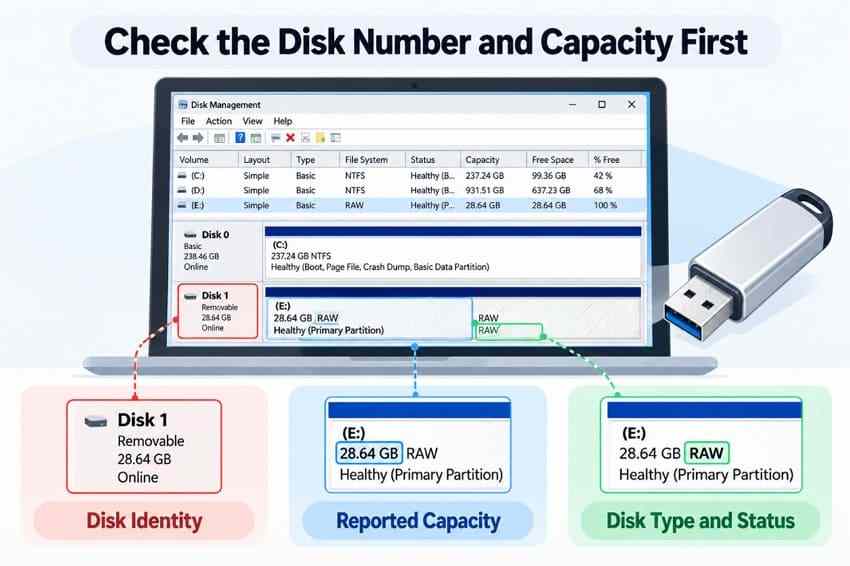
A 64 GB stick will normally display somewhat less usable capacity than the number printed on its label. By contrast, 0 B or No Media at the physical-disk level is not the same as a normally sized RAW partition. If several disks are attached, disconnect other removable drives before any destructive step.
Recover Needed Files Before Any Format or Partition Change
If the pen drive opens, copy readable files to a different healthy disk first. If the USB still exposes readable storage but its volume is RAW, inaccessible, or missing files, Recoverit USB Flash Drive Recovery can scan eligible logical data-loss cases. It cannot make a No Media device expose memory, fix a broken controller, or guarantee restoration after overwriting.
Before installing or scanning anything, make sure the source USB is stable and that the recovery destination is not the same USB stick. If it disconnects during scanning, stop rather than repeatedly stressing the hardware.
Step 1. Select the affected USB. In Recoverit, open "Hard Drives and Locations" and select the original USB drive by capacity.

Step 2. Scan without writing to the source. Let the scan find available file records and content, then narrow results using file-type or location filters.

Step 3. Preview and save elsewhere. Preview supported files, choose recoverable items, and save them to another physical drive. Open several saved files before considering a format.

For a visual walkthrough of a corrupted USB, the following Recoverit video covers the symptoms, safe checks, recovery before repair, and when to stop troubleshooting. The demonstration is broader than formatting alone.

Part 2. Rule Out Connection and Access Problems
A USB port problem and a Windows write block can both look like a formatting failure. Use limited, non-destructive tests to separate a problem with the stick from one imposed by the computer.
Test One Direct USB Port and a Second Computer
Try a direct USB port instead of a hub, then test the drive once on another trusted computer. Close any programs using its files. If its reported capacity and write access return on another PC, inspect the first computer before treating the stick as damaged.
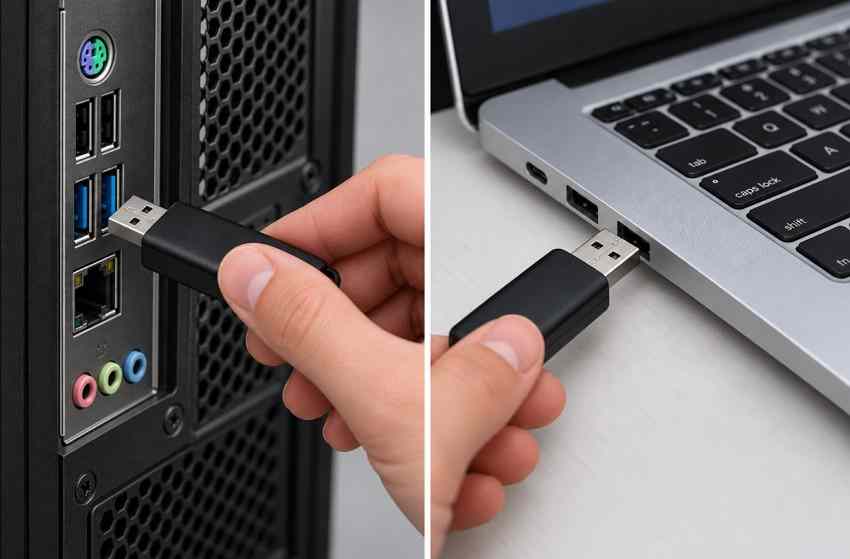
If the drive becomes unusually hot, disconnects repeatedly, or needs to be held at an angle, stop testing. A persistent physical issue is not a good candidate for repeated formatting attempts.
Read Disk Attributes Without Changing the Wrong Disk
Microsoft documents the DiskPart attributes disk command for displaying and clearing a configurable read-only flag. This is a targeted setting check, not a way to override firmware locks or managed-device policies.
Step 1. Open Windows PowerShell or Command Prompt as administrator. Enter diskpart, then list disk. Confirm the stick by capacity before continuing.
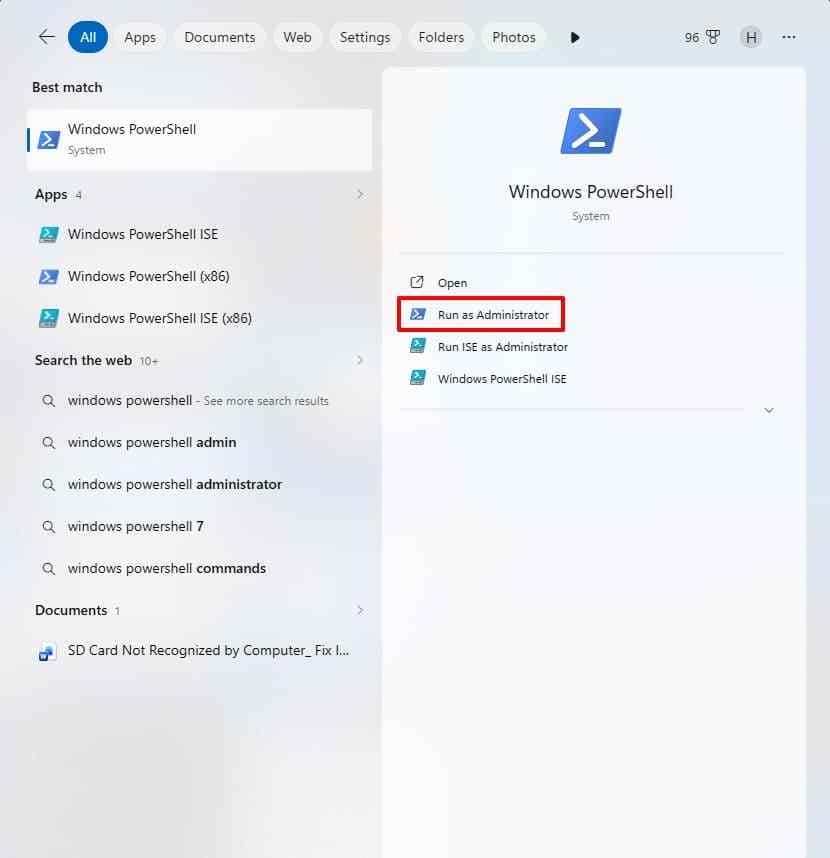
Step 2. Type select disk N, replacing N with the verified pen-drive disk number. Run detail disk to inspect the selected device and attributes disk to read "Current Read-only State" and "Read-only." Only if the software read-only flag is present, run attributes disk clear readonly and check again.
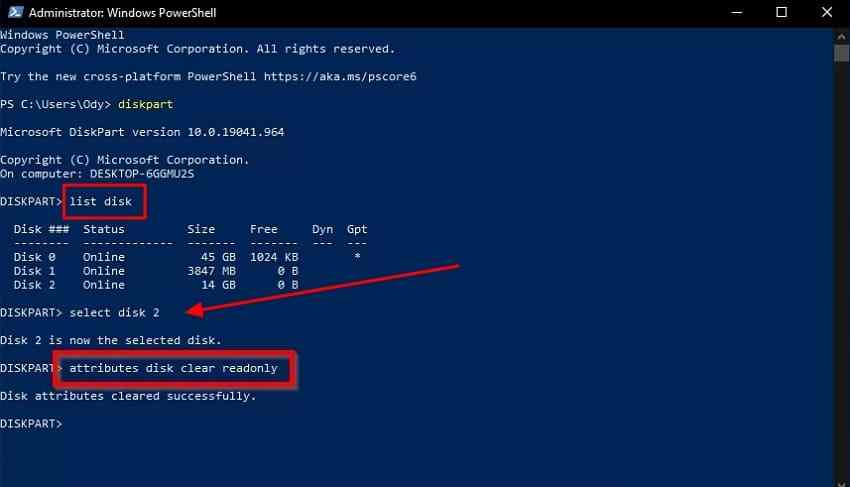
If the current read-only state persists, investigate Windows removable-storage write policies or BitLocker requirements, particularly on work or school PCs. Ask the administrator rather than disabling security controls. A command that reports success does not prove a locked controller has become writable.
Route Persistent Write Protection to Its Actual Cause
For the specific error "The disk is write-protected," follow the dedicated read-only flash drive troubleshooting guide instead of repeating this formatting procedure. Physical switches on certain media adapters, Windows settings, and firmware-enforced read-only states require different responses.
SanDisk has documented that some flash drives enter read-only mode when too many storage blocks become unusable. If the stick remains locked on different computers, formatting software may not be able to restore it; protect accessible files and consider replacement.
Part 3. Format a Healthy, Detectable Existing Volume
Only format after the correct USB appears with a plausible capacity, stays connected, and accepts writes. Formatting changes the volume and removes normal access to existing data, so this is a reuse step rather than data recovery.
Format the Writable USB Volume in File Explorer
When File Explorer displays a healthy, writable USB with its own drive letter, close files or applications that may still have it open. Verify that it is the USB, not another storage volume.
Step 1. In "This PC," right-click the confirmed USB and choose "Format."
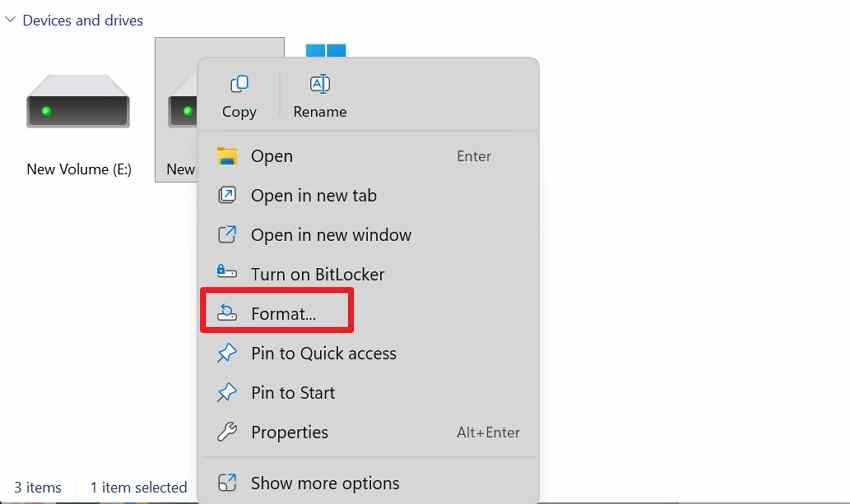
Step 2. Choose the required file system, leave allocation unit size at "Default" unless your device specifies otherwise, and select "Quick Format" for an otherwise healthy stick. Click "Start" only after confirming the USB is backed up.
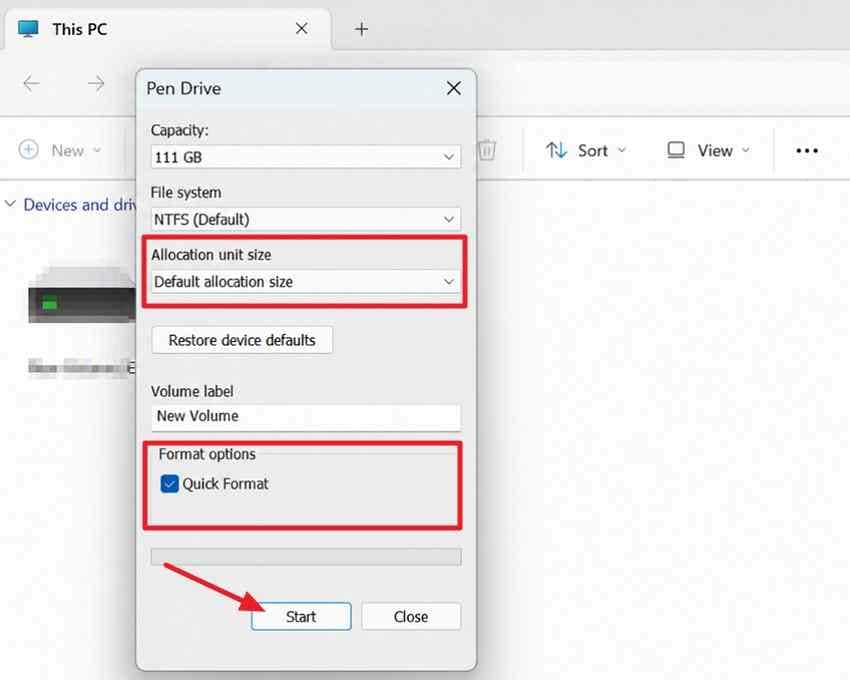
You can also format an existing healthy volume through Disk Management. If that option is unavailable or another error appears, stop and record the new state instead of trying multiple tools indiscriminately.
Choose a File System for the Actual Device
Select the file system that the destination devices actually support. Formatting cannot fix faulty hardware, but an incompatible file system can make a functional pen drive appear unusable elsewhere.
| File system | Best fit | Important limitation |
| FAT32 | Older cameras, TVs, media players, and equipment that specifies FAT32 | A single file cannot exceed 4 GiB minus one byte; Windows formatting size limits depend on tool and release |
| exFAT | Modern Windows and Mac sharing, videos and other large files | Some older embedded devices do not support it |
| NTFS | Primarily Windows PCs, permissions and Windows-managed storage | macOS generally reads NTFS but does not write to it without added software |
For a mixed Windows/Mac thumb drive that stores files larger than 4 GB, exFAT is often the practical default. For a camera or game console, check the device manual rather than assuming every file system is supported.
Stop and Record the Exact Error if Formatting Fails Again
If the same volume still refuses to format, write down the full message and check whether the disk remains visible with its original capacity. The Microsoft format command documentation explains that /Q selects quick format and /X forces dismounting if necessary. Both formatting actions are destructive to the existing file system.
On a backed-up, stable and confirmed volume, a command such as format X: /FS:exFAT /Q (replace X: with the USB letter) can sometimes return a more specific failure. Do not use it as a diagnostic on a USB that still contains needed files. If Windows instead reports write protection or No Media, go to that branch rather than retrying the command.
Part 4. Rebuild a Broken Partition Layout Only After Protecting Files
If the physical USB disk is stable, readable to Windows and has a believable capacity but no usable volume, rebuilding the partition layout may make it reusable. First recover or confirm that no needed data remains: creating a partition or running clean changes on-disk structures.
Create a Volume Only When the USB Is Unallocated
In Disk Management, locate the unallocated region on the USB disk row, not on Disk 0 or another internal drive. After confirming the physical USB and protecting its old contents, right-click that region and choose "New Simple Volume." Follow the wizard to set the size, assign a letter, and format. Microsoft documents this exact new-volume workflow.
Important: Before choosing New Simple Volume, check that Unallocated is on the USB disk row, not on Disk 0 or any internal disk. If the target is unclear, stop and identify the drive first.
Use DiskPart Clean Only on a Positively Identified USB
When the existing partition table is incompatible or unusable and the USB is known to be writable, DiskPart can recreate it. This is a last-resort reuse operation, not a repair that preserves lost files.
Step 1. Open an elevated Command Prompt, type diskpart and list disk. Match the removable device by capacity and disconnected devices.
Step 2. Enter select disk N with the verified number, then detail disk. Verify the model, capacity, and displayed volumes. If it identifies the Windows system disk or anything uncertain, stop.
Step 3. With files already protected, run clean, create partition primary, format fs=exfat quick, then assign. For older devices that specifically require FAT32, use format fs=fat32 quick when supported by Windows for that volume size. The illustrated legacy-device example below formats as FAT32.
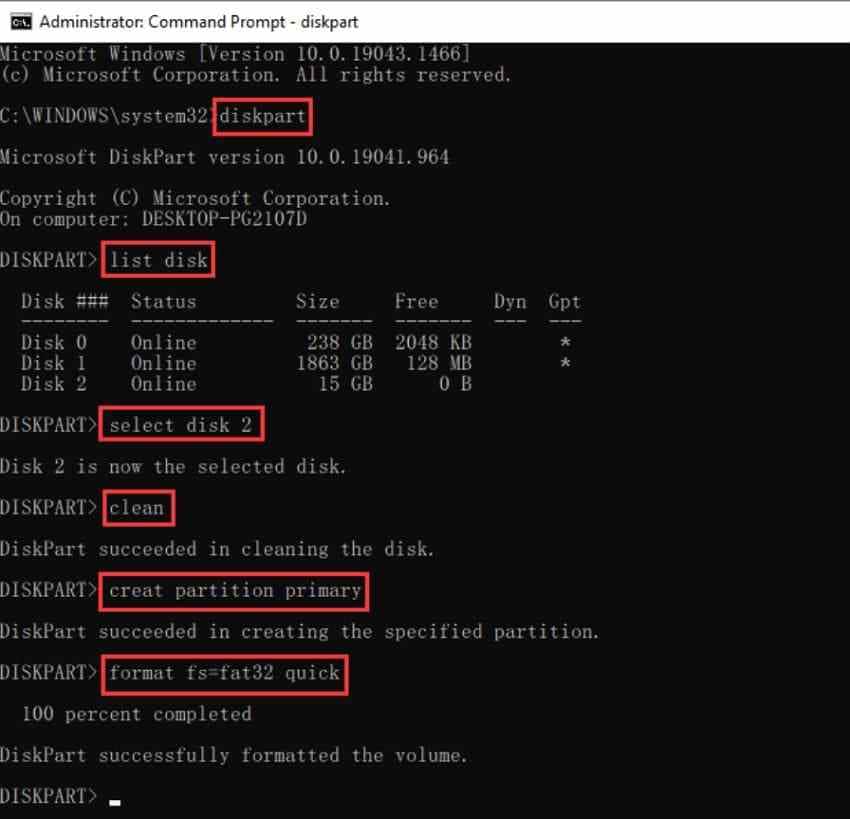
DiskPart may return errors when the stick is still read-only or no physical storage is exposed. Do not keep repeating clean on such a device.
Know Why Clean and Clean All Are Not Recovery Methods
As Microsoft distinguishes in its DiskPart clean command reference, clean removes partitioning metadata, while clean all writes zeros to addressable sectors. Neither command locates lost files or repairs worn flash memory. For an ordinary reformatting failure, there is generally no reason to escalate to clean all.
Recover missing files before either command; once data is overwritten, normal software recovery is not expected to restore it.
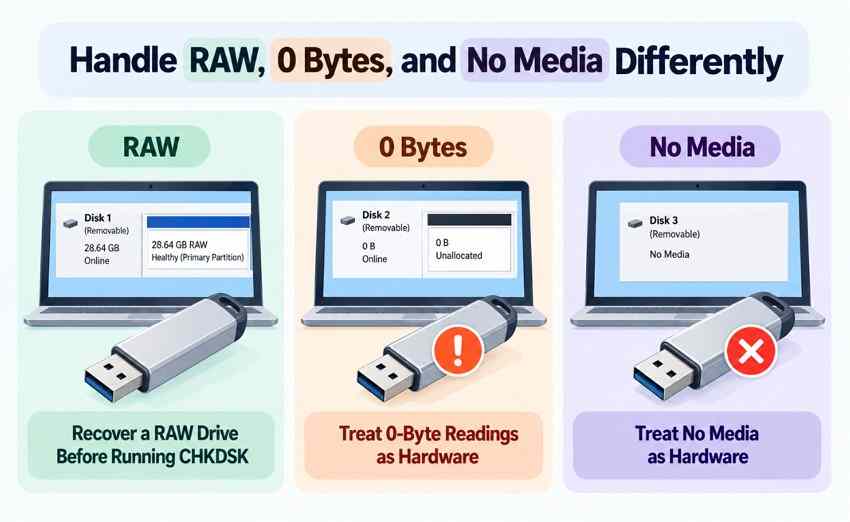
Part 5. Handle RAW, 0 Bytes, and No Media Differently
RAW, zero bytes, and No Media can all prevent formatting, but they describe different failures. The key question is whether Windows still exposes readable sectors on the original USB.
Treat RAW as a File-System Problem First
If Disk Management shows a RAW volume with plausible capacity, Windows cannot interpret the file system normally. Do not treat formatting as the recovery method. Copy accessible files or scan the stable USB first, as described in the dedicated RAW USB recovery guide.
A repair command such as chkdsk /f can change file-system information; Microsoft states that CHKDSK with repair switches modifies volume errors. Protect needed files before trying a repair on a damaged but readable USB.
Distinguish No Media from an Empty or RAW Volume
A No Media entry with 0 B physical capacity means Windows sees a USB interface but no addressable storage to partition or format. Check one other trusted computer. If the same reading persists, standard formatting and file-recovery software have no usable sectors to work with.
By contrast, a RAW volume with normal capacity or a stick reporting zero used bytes in File Explorer is not automatically dead. The USB detection and No Media guide explains this distinction in more detail.
Stop DIY Attempts for Unstable or Overheating Devices
Repeated disconnections, unusual heat, burning smells, damaged connectors, and I/O errors should end DIY write attempts. If files matter and the physical device remains unstable, a professional recovery lab is safer than continued scanning or formatting. If no irreplaceable files remain, replacing the USB is usually more sensible.
Part 6. Confirm the USB Is Usable Again
A successful format message proves that the file system was created, not that the flash drive will remain reliable. A short read/write check helps confirm it can actually hold data after the fix.
Verify Capacity, Read/Write Access, and Safe Ejection
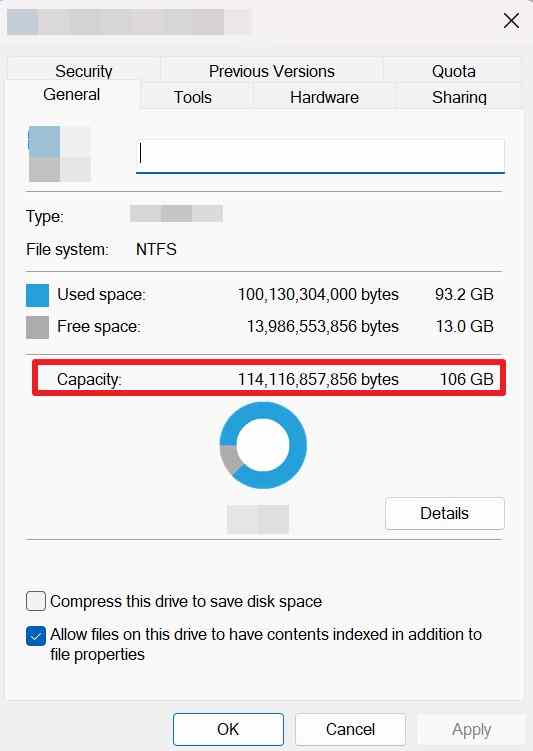
Step 1. In File Explorer, open the formatted USB Properties and check whether the reported capacity is plausible for its labeled size. The screenshot below is an example of the Properties view; its capacity is not a universal USB value.
Step 2. Copy a non-sensitive test file to the USB, safely eject the stick, reconnect it and open that copied file. Confirm that the content is readable and no new error appears.
Optional integrity check: On Windows, Get-FileHash can compare an original and USB copy using their full paths, for example Get-FileHash "C:\Temp\test.zip" and Get-FileHash "E:\test.zip". Matching SHA-256 hashes indicate the tested file contents match.
Retire a Stick That Immediately Fails the Reuse Test
If the drive immediately becomes RAW again, loses files, changes capacity unexpectedly, or fails the test after reconnection, do not keep it as the sole copy of important data. Replace it and keep at least one independent backup elsewhere.
Conclusion
A pen drive unable to format needs an error-specific fix. Start by checking its physical capacity, connection, write-protection state, and partition layout. Use File Explorer for a healthy writable volume, Disk Management for confirmed unallocated USB space, and DiskPart only when the correct disk and backups are verified.
Before destructive steps, Recoverit may help recover eligible files from a stable, detectable USB. Persistent No Media, zero physical capacity, or repeated disconnections suggest replacing the stick or consulting a specialist. Finally, verify a test file before trusting the USB again.
FAQ
-
Why does Windows say it was unable to complete the USB format?
That generic message can result from open files, write protection, a corrupted volume, or hardware problems. First inspect Disk Management and the full error wording. A normal-capacity RAW volume, a write-protected disk, and No Media require different actions. -
How do I format a USB drive that shows as RAW?
If files matter, stop writing and recover them before formatting. If the USB is stable and has a plausible physical capacity, you can then create a fresh file system using Disk Management or File Explorer. Formatting a RAW volume does not recover the files it held. -
Can I fix a pen drive that cannot be formatted without losing data?
Some checks are non-destructive: trying a direct port, checking a second PC, and inspecting read-only attributes. But formatting, rebuilding partitions, and DiskPart clean change storage structures. Copy or recover files to another drive before those operations. -
Why does my USB drive show 0 bytes and refuse to format?
If Disk Management shows No Media or a physical disk capacity of 0 B across more than one computer, the controller may no longer expose readable flash storage. Software formatting cannot create capacity where none is addressable. A RAW volume showing normal physical capacity is a different case.



