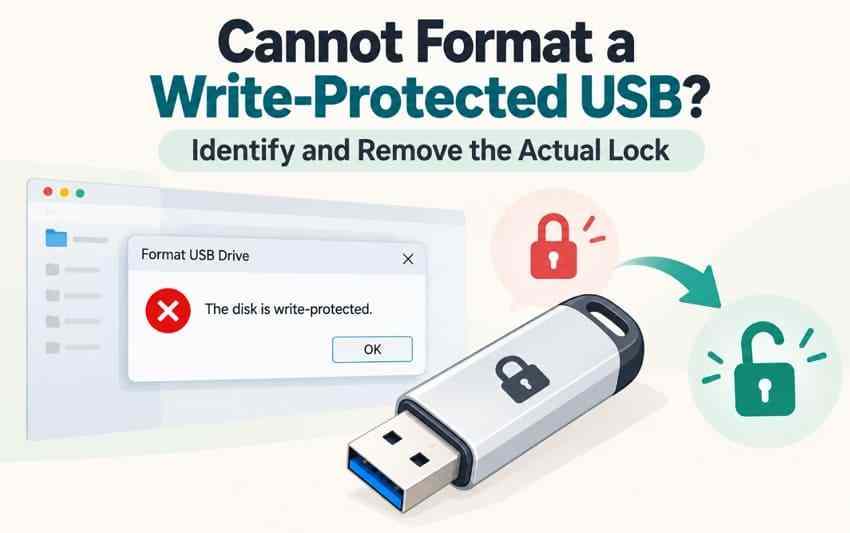
Windows 10 and 11 may refuse to format a USB flash drive with “The disk is write-protected”, even when existing files are readable. The error can also block deleting files or saving new ones. It does not identify the cause: a physical switch, a disk attribute, removable-storage policy, BitLocker requirement, or failing controller may stop writes.
If you cannot format a write-protected USB, first copy readable files to another healthy device. As one real USB owner reported, a drive without a lock switch can suddenly become read-only. The guide below separates Windows restrictions from device faults, explains when DiskPart can help, and shows when recovering missing files or formatting the drive is appropriate.
In This Article
Part 1. Why Does a USB Stay Write-Protected During Format?
The error describes a blocked write operation, not a diagnosis. Locating the restriction matters because a command that clears a Windows setting cannot force a defective USB controller to accept new data.
Five Sources of a Write Lock
Use the symptom and the first non-destructive check to narrow down the possible cause. More than one restriction can apply at once, so one successful command does not prove that the whole device is healthy.
| Possible Source | Typical Signal | Useful First Check |
| Physical lock switch | A switch-equipped USB stick or SD adapter is set to LOCK. | Inspect the device and reconnect after unlocking. |
| DiskPart disk attribute | The selected disk reports Read-only: Yes. | Check the disk number and run attributes disk. |
| Windows removable-storage policy | Writing fails on one managed or configured computer. | Inspect applied policy or contact the administrator. |
| BitLocker write-access requirement | An unprotected removable drive mounts read-only on a policy-managed PC. | Ask about the organization's removable-drive encryption rules. |
| Device-side firmware or hardware problem | The same stick remains read-only on multiple independent PCs. | Copy readable files; consider manufacturer support or replacement. |
Microsoft documents both removable-disk write restrictions and a BitLocker policy that can mount unprotected removable drives as read-only. Neither should be mistaken for a broken physical switch.
File Read-Only Is Not a Disk-Wide Lock
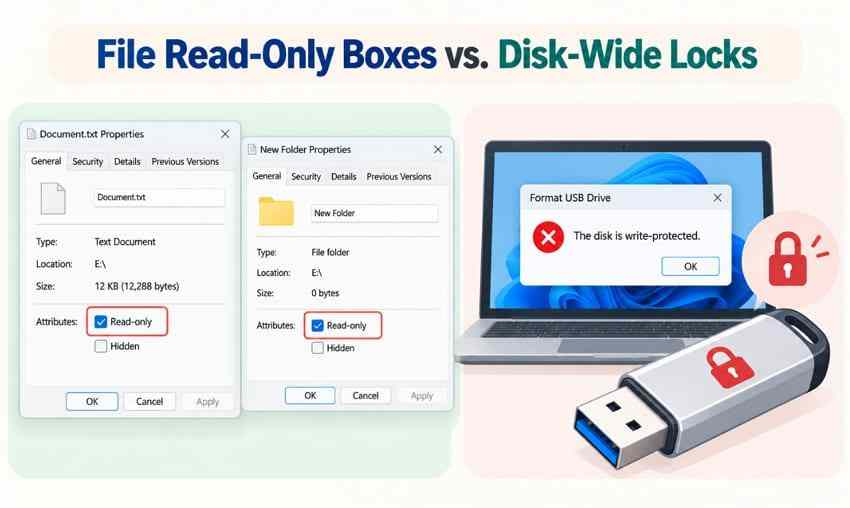
Windows has a Read-only checkbox for individual files, but that checkbox does not make the whole flash drive unformattable. The file-level attrib command can change a file's attribute; it is not a fix for disk-wide write protection. A folder's checkbox is also not proof of a locked USB controller.
Practical distinction: If only one document refuses editing while new files can be saved to the USB, investigate that file's permissions or attributes. If creating any folder or formatting the device fails, continue with the disk, policy, and hardware checks below.
Protect Readable Files Before Troubleshooting
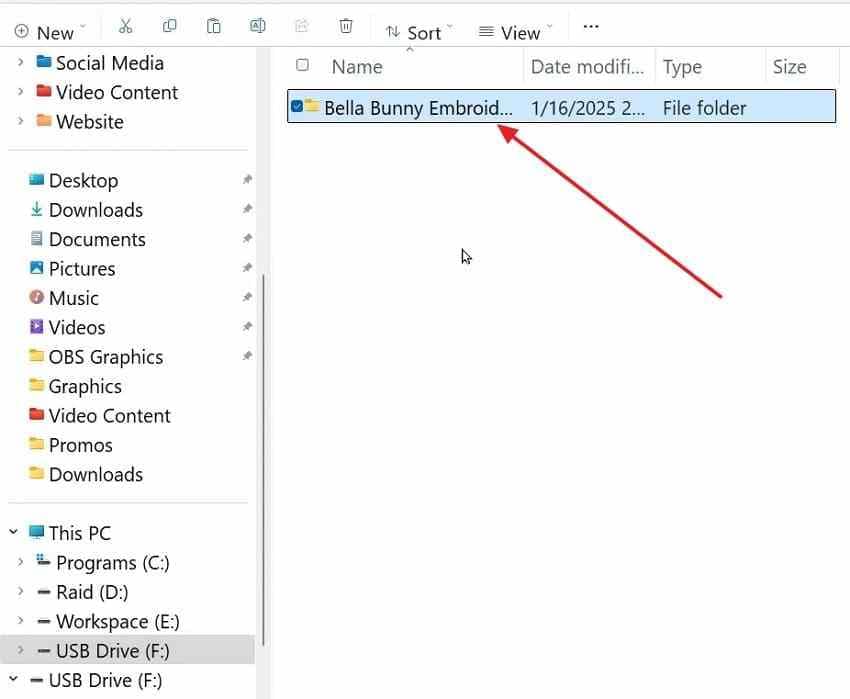
If the USB opens normally in File Explorer, copy the files you need to another healthy disk first, then open several copied files to confirm that they work. Do not move the only copies, overwrite existing files, or format the stick to "unlock" it. If a drive repeatedly disconnects, becomes unusually hot, or is physically damaged, stop repeated attempts and seek appropriate device support or professional recovery.
If the files are actually missing, deleted, or inaccessible, and the drive is still detectable, read the recovery guidance in Part 5 before doing anything that writes to the USB. If all files are visible and readable, a normal backup is preferable to a recovery scan.
Part 2. Check Hardware and Cross-PC Signals
Before changing system settings, find out whether write protection follows the USB stick or follows one computer. These low-risk checks often save more time than trying a sequence of formatting commands.
Look for a Physical Lock Switch
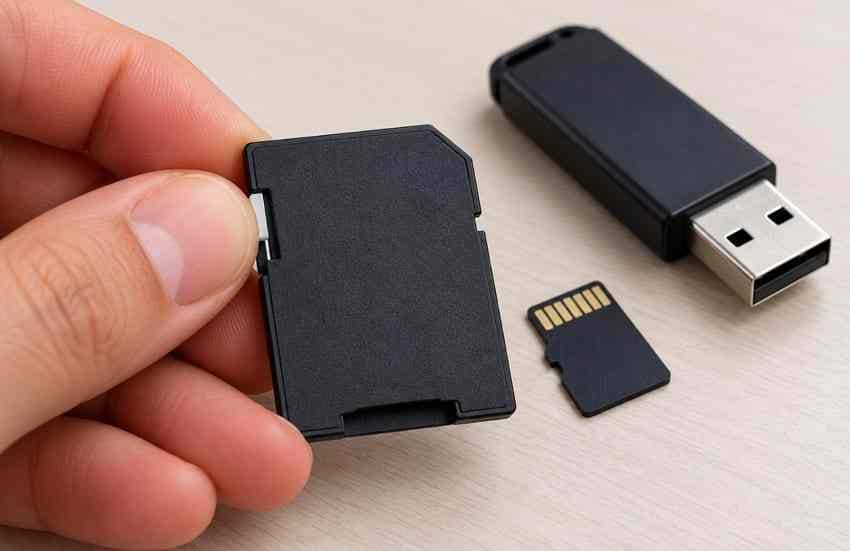
Some specialized USB flash drives have a physical write-protection switch, and many full-size SD cards or SD adapters have a LOCK tab. A typical USB stick has no such switch, so do not assume one must be present. Integral Memory's SD card guidance describes moving the card's tab out of the locked position.
Instructions. Disconnect the device, inspect its sides, and, if a genuine lock switch exists, set it to unlock before reconnecting. On an SD adapter, reseat the card and verify that the tab did not slip back into LOCK. The SD switch is normally interpreted by the host or reader, rather than acting as an electrical lock on the card itself, as Cactus Technologies explains.
Compare a Direct USB Port and Another PC
After accessible data has been copied, use a direct port instead of a hub or dock. If the device appears stable, try saving a new, disposable text file or creating an empty test folder; do not delete or replace any existing content. A failing or unstable drive should not be stressed with repeated write tests.
Instructions. Unplug the USB safely, reconnect it to a direct port, and observe whether Windows can write. Then repeat on another trusted, personally managed computer, if available. Do not connect an unknown or untrusted USB to additional computers, and do not use another machine to bypass a workplace policy.
| Result | What It Suggests | Next Step |
| Writes work on another PC | A local port, configuration, policy, or driver issue is more plausible. | Check DiskPart and applied Windows policy. |
| Writes fail on both PCs | A device-side restriction becomes more plausible, but is not proven. | Preserve accessible files and check the disk state. |
| USB disconnects or is not detected | The issue may be beyond write protection alone. | Stop repeated attempts; investigate detection or device failure. |
A USB that is not detected at all is a different problem. Use the separate USB flash drive not recognized guide instead of repeatedly attempting to format an invisible device.
Recognize a Possible Device-Side Failure
Flash storage cells have a finite write/erase life, and controllers manage worn or bad blocks. Some devices may respond to serious internal faults by refusing further writes. That is a possible explanation when the same stick is read-only on multiple PCs, not a diagnosis you can establish from Windows alone.
If reads still work, copy the files while you can. If a manufacturer confirms a controller-level lock or hardware failure, Windows registry edits, permission changes, and DiskPart commands will not repair the underlying storage. Retire an unreliable drive rather than trusting it with new files.
Part 3. Inspect the Windows Disk Attribute Safely
DiskPart is useful here because its first checks do not need to erase files. The safety-critical step is to identify the correct physical disk before issuing any command that changes an attribute.
Confirm Which Disk Is the USB
Step 1. Open Disk Management (right-click Start and choose Disk Management) and note the USB drive's approximate capacity and any available model or volume details. Disconnect other removable drives to reduce ambiguity.
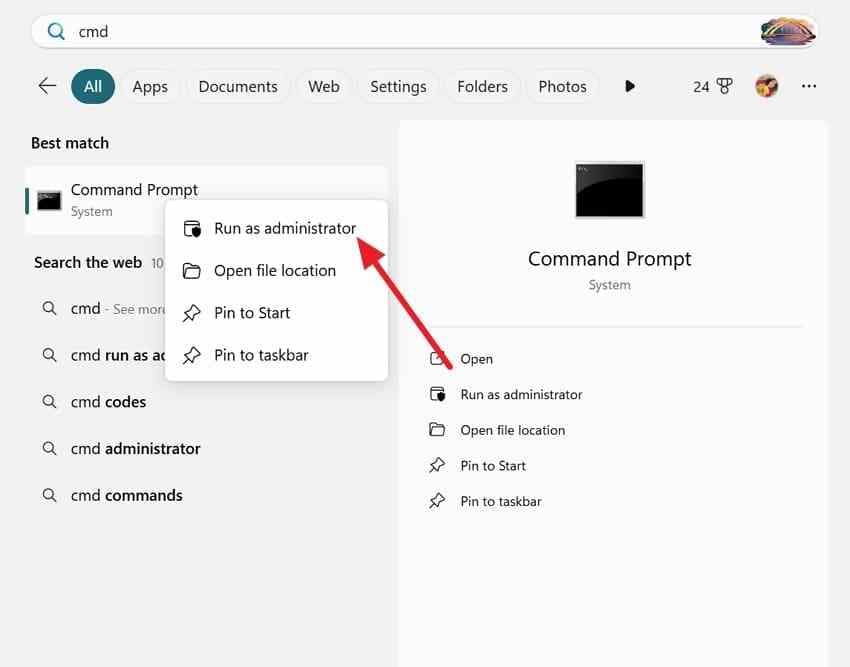
Step 2. Search for Command Prompt, choose Run as administrator, and enter diskpart, followed by list disk.
Step 3. Match the USB using the capacity and information from Disk Management. A 64 GB advertised drive may display roughly 59 GB because manufacturers and Windows report capacity differently, but capacity alone is not sufficient proof. If there is any doubt, stop without selecting or changing a disk.
Step 4. Only after confirming its identity, enter select disk N, replacing N with the actual USB disk number shown on your computer. Never copy a disk number from a screenshot. You can then use detail disk to review the selected disk before proceeding.
Understand the Two Read-Only Values
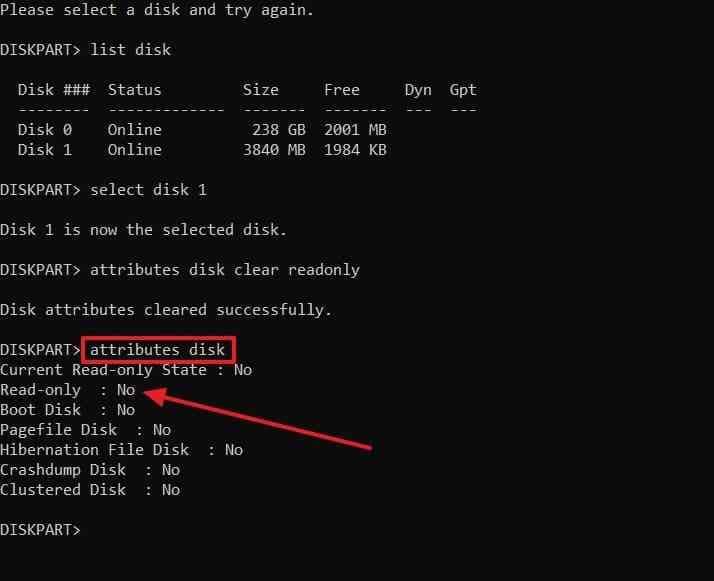
With the confirmed USB disk selected, enter attributes disk. The output can contain Read-only and Current Read-only State; they are related but not interchangeable.
| DiskPart Output | Meaning | What to Do |
| Read-only: Yes | The configurable disk read-only attribute is set. | Consider clearing this attribute on the confirmed USB. |
| Read-only: No, Current Read-only State: Yes | Windows still considers writes blocked despite that configurable flag being clear. | Investigate policy, other restrictions, and device-side state. |
| Read-only: No, Current Read-only State: No | DiskPart is not reporting a present disk-wide read-only condition. | Check whether the actual write error persists; the cause may lie elsewhere. |
Microsoft's attributes disk documentation confirms that DiskPart displays, sets, and clears disk attributes only after the correct disk has been selected. A successful attribute command is not evidence that defective flash memory has been repaired.
Clear the Attribute Only When Applicable
If the selected USB reports Read-only: Yes, you have a specific software attribute worth testing. This is different from running destructive commands such as clean, which are not part of this fix.
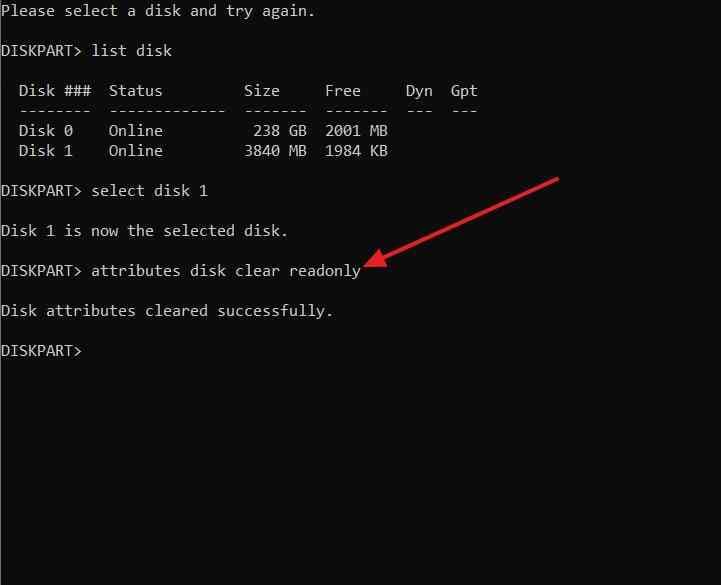
Step 1. While DiskPart is focused on the confirmed USB, enter attributes disk clear readonly.
Step 2. Run attributes disk again. Check that Read-only now shows No, and separately inspect Current Read-only State.
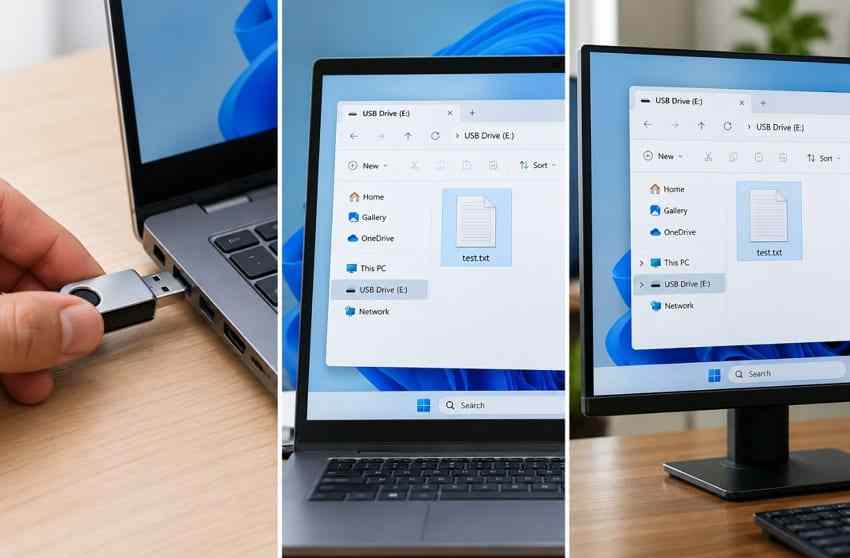
Step 3. Enter exit to leave DiskPart. If the USB is stable and important files are already safe, test a small new file or empty folder. Only a successful write confirms that the original symptom has changed.
Do not run clean, clean all, or create partition primary as a shortcut for removing write protection. Those commands are unrelated to identifying the lock and may destroy the partition information you need for recovery.
What If Current Read-Only State Remains Yes?
If Read-only is now No but Current Read-only State stays Yes, do not repeat the same command indefinitely. Go back to the cross-PC result: a restriction limited to one computer points toward Windows policy; the same result everywhere raises concern about the USB device itself.
DiskPart also has separate volume attributes, but a volume-level setting is not a universal fix for a device-side write lock. Avoid changing unrelated volumes just because the disk attribute was not the cause.
Part 4. Resolve Windows Policy Only When It Is the Cause
If the USB works on another computer but refuses writes on your Windows PC, investigate computer-specific restrictions before touching the registry. An organization may be deliberately enforcing removable-media security.
Treat Work and School Restrictions as Managed Settings
On a work or school device, ask the administrator whether Removable Disks: Deny write access or Deny write access to removable drives not protected by BitLocker applies. Microsoft's policies can intentionally block writes to removable disks; changing them without authorization can violate security requirements.
Do not disable BitLocker or Defender, import generic registry files, or move confidential data to another PC to work around the restriction. Ask for an approved removable drive, an encryption process, or permission to use the device.
Inspect Local Group Policy on a Personal PC
If you control the Windows computer yourself, first identify the applied policy rather than guessing. Windows Pro, Enterprise, and Education editions generally provide the Local Group Policy Editor; Windows Home does not include that editor in the normal installation.
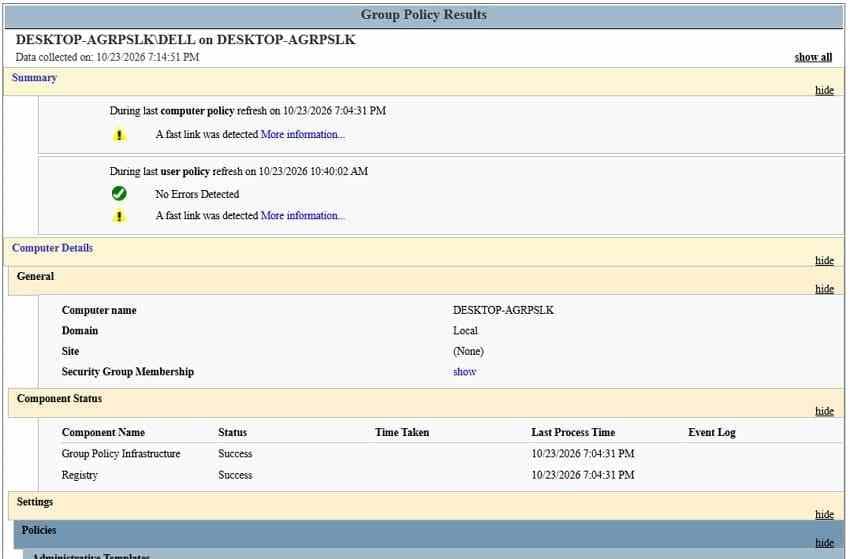
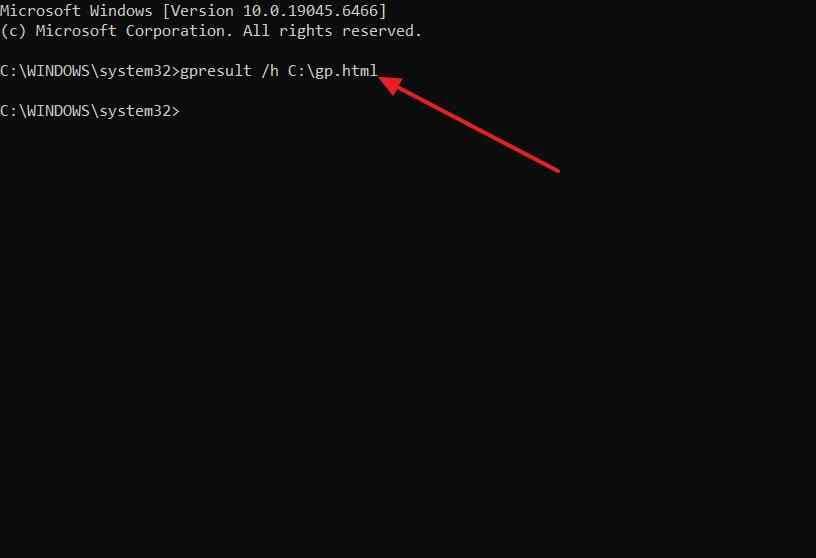
Step 1. In Command Prompt, run gpresult /h "%TEMP%\usb-policy-report.html" to save a local HTML report of applied Group Policy settings, if your account has the required permissions. Open the generated report and inspect removable-storage policy entries. Microsoft documents the reporting command in its gpresult reference.
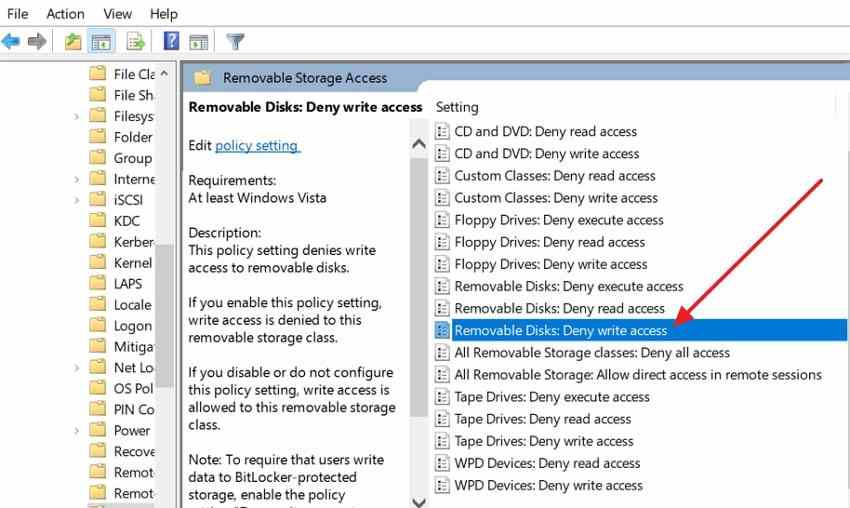
Step 2. On a supported personally managed Windows edition, run gpedit.msc. Check Computer Configuration > Administrative Templates > System > Removable Storage Access > Removable Disks: Deny write access. Also check any corresponding user-level restriction, if applicable.
Step 3. If you find a restriction that you personally configured and no longer need, restore the intended local setting, apply the change, and retest. A managed or inherited policy may reapply automatically; only its administrator should change it.
Step 4. If a BitLocker requirement appears to be responsible, do not treat it as a generic error. Review the requirement with the device administrator or use an approved encryption workflow. Microsoft describes the removable-drive encryption requirement separately from ordinary removable-storage write restrictions.
Check the Registry Without Blanket Changes
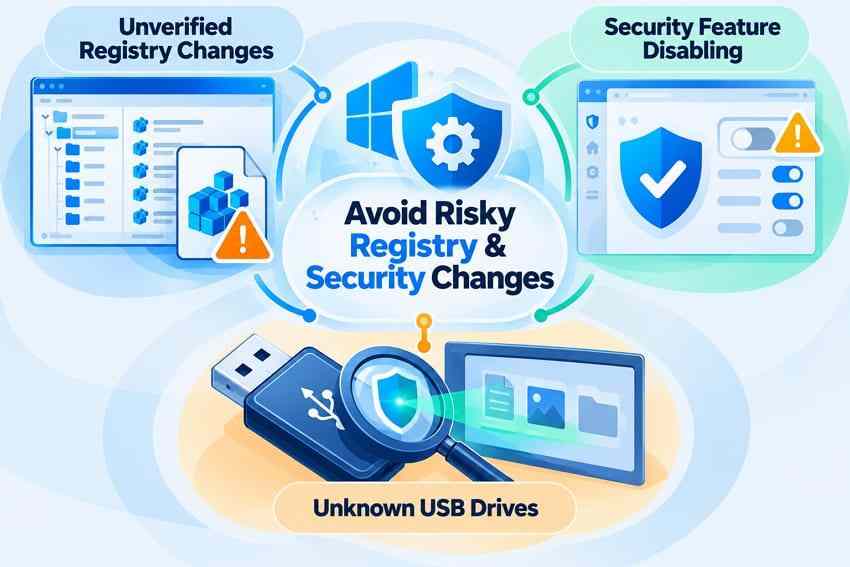
Some troubleshooting guides suggest creating a StorageDevicePolicies key or changing WriteProtect to zero on every Windows computer. That is not a safe default. The key may not exist at all, an organization may manage the setting elsewhere, and a registry edit cannot fix damaged USB hardware.
On a personally managed PC, you may inspect an existing HKEY_LOCAL_MACHINE\SYSTEM\CurrentControlSet\Control\StorageDevicePolicies key to see whether a WriteProtect value is present. Do not create the key merely because it is absent. Before any authorized, targeted registry change, export the specific key following Microsoft's registry backup instructions.
If a policy or registry setting is not clearly responsible, leave it alone. Do not turn off security features for an unknown USB. Check unfamiliar devices using your organization's established security procedures.
Part 5. Format Only After the USB Becomes Writable
Formatting does not override an active hardware lock, and it can make missing files harder to recover. Proceed only when a harmless write test succeeds, you have verified your backups or recovery, and you are sure which volume you will erase.
Format the Confirmed USB Volume
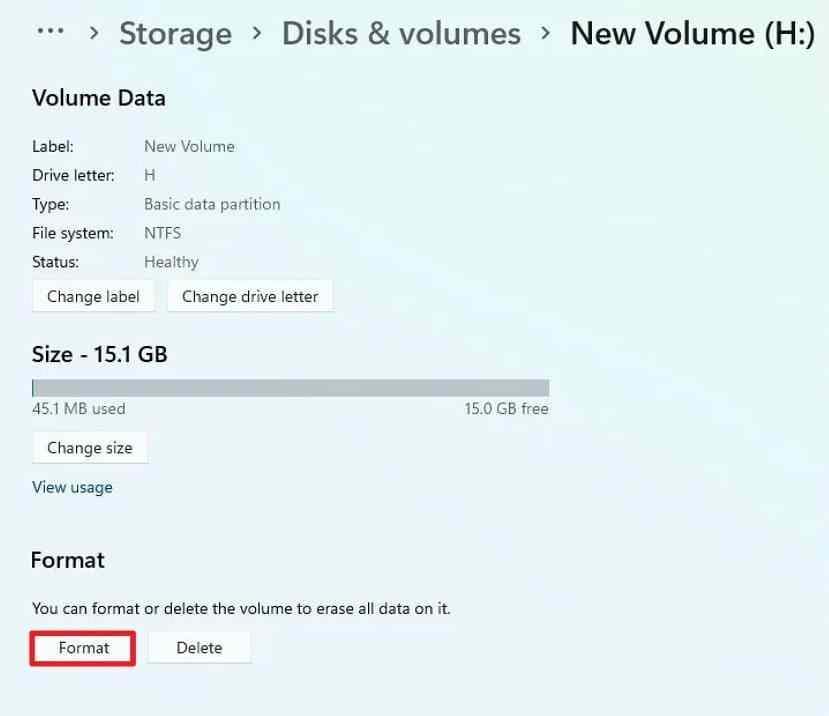
Step 1. On Windows 11, open Settings > System > Storage > Advanced storage settings > Disks & volumes. Identify the USB by drive letter and capacity, open the correct volume's properties, and choose Format. The original article's Windows 11 volume screenshots can be retained after verifying they still match the publishing environment.
Step 2. Select the file system required by your devices. exFAT is a practical choice for many cross-platform USB uses; choose FAT32 only when the target device requires it, or NTFS when you specifically need Windows-oriented features. Confirm the correct volume label and device before approving the format.
Windows 10 or alternative route: Open File Explorer > This PC, right-click the confirmed USB drive, and select Format. Formatting changes the file system and can remove existing files; Microsoft's format documentation explains the destructive effect. It is not a data-preserving way to remove an unknown lock.
Success check: After formatting completes, safely reconnect the USB and try a small disposable file, then read it back. If Windows immediately reports write protection again, stop using the stick as dependable storage.
Stop Reusing a Drive That Rejects Writes Everywhere
If the same flash drive remains read-only across independent computers, its disk attribute is already clear, and no physical switch is engaged, a device-side fault becomes more likely. Preserve what is readable, check the exact model's manufacturer support instructions, and replace the drive if reliability cannot be established.
Manufacturer-specific recovery or reset tools are not universal fixes. Some reset utilities erase everything, and their supported models vary. Never run an unknown low-level formatter on a USB containing data you still need.
Recover Missing USB Files Before Formatting
Write protection and data loss are separate problems. If the USB is visible and its existing files can be copied normally, use File Explorer to back them up. If files are deleted, missing, or inaccessible but the original USB remains detectable and sufficiently readable, Wondershare Recoverit USB Flash Drive Recovery can scan for recoverable content before you format or replace the drive.
Recoverit can scan supported logical USB data-loss cases, help preview recovered files, and save selected results to a different healthy disk. It cannot remove a physical write-protect switch, bypass organizational encryption policy, repair a failing controller, or guarantee recovery. If the USB is not detected at all or is physically damaged, software recovery may not be suitable.

Write-Protected USB? Find Missing Files Before Formatting
Your USB won't format, but your missing files may still be recoverable. If the flash drive is stable and readable, Recoverit can scan for lost photos, videos, and documents. Preview supported files and save recoverable data to another drive before formatting.
If a recovery scan is appropriate, follow this sequence rather than attempting to unlock the USB through Recoverit:
Step 1. Select the detected USB. Connect the drive, open Recoverit, and select the relevant external storage device. Check the device identity before scanning.

Step 2. Scan for missing files. Allow the scan to search for available lost data. A scan may not find all files, particularly if the storage cannot be read reliably or previous data has been overwritten.

Step 3. Preview and save elsewhere. Review the results, select the files you need, and save them to a different healthy drive. Check that the recovered files open before considering any destructive format.

For the current application workflow, consult the official Recoverit guide to external-device recovery. If formatting, rather than file recovery, is your original goal, the separate USB format error overview covers broader causes outside write protection.
Conclusion
When you cannot format a write-protected USB, first find the actual lock instead of forcing a format. Check the physical switch, compare trusted computers, read both DiskPart status lines, and inspect Windows or BitLocker policy only when the evidence points there. An existing registry setting may be relevant, but indiscriminate edits are not a repair method.
If the stick remains read-only everywhere, preserve readable files and consider replacing it. Back up before formatting, and use Recoverit only for eligible missing-file recovery on a detectable USB, not to remove write protection.
FAQ
-
Why does my USB drive say it is write-protected when it is not?
The USB may have a Windows disk attribute or removable-storage policy that is not visible as a physical switch. BitLocker rules can also prevent writes. If the same error occurs on different computers, a device-side fault becomes more plausible. Check DiskPart's two read-only values and compare devices before changing settings. -
Can I format a write-protected USB drive using CMD?
Only after the restriction actually allows writes and the files you need are safe. DiskPart can clear a configurable read-only disk attribute, but the format command cannot bypass hardware or policy restrictions. Confirm the USB identity carefully; avoid clean and clean all as general-purpose unlock commands. -
Why does DiskPart fail to remove write protection from my USB?
DiskPart's attributes disk clear readonly command controls one software attribute. A Windows policy, BitLocker requirement, another disk or volume restriction, or device firmware can still block writes. If Read-only is No but Current Read-only State is Yes, investigate the remaining restriction rather than repeating the command. -
Can a permanently write-protected USB flash drive be repaired?
Some manufacturers offer model-specific service or reset utilities, but they may erase the drive and are not guaranteed to work. If the stick remains read-only on multiple computers, copy accessible files and consider replacement. Recoverit can help with some missing-file cases while the drive is readable, but cannot repair a failed USB controller.


