 TL;DR:
A Windows hard drive malfunction caused by file system errors or bad sectors can often be resolved using built-in system tools like CHKDSK, SFC, and DISM, or by reinstalling disk drivers.
● To repair logical disk errors without wiping your data, run chkdsk C: /f and sfc /scannow via an administrator Command Prompt, or use the Error Checking utility in File Explorer for a graphical interface.
● If logical repairs fail and you must recover inaccessible files using software like Wondershare Recoverit, you must save the restored files to a completely different drive to prevent permanent data overwriting.
● Software tools cannot fix physical hardware damage; if the drive emits unusual sounds, generates excessive heat, or suffers physical shock, immediately stop heavy usage to avoid total hardware failure.
Ask AI for a summary
 ChatGPT
 Perplexity
 Gemini
 Claude
 Grok
Grok
A hard drive is the main place where your files live. It keeps your photos, work files, videos, and system data. When it stops working well, your daily work may slow down or fail. A simple issue may lead to file loss or long delays.
Many people fear that a sudden Windows hard drive malfunction means a dead drive. This is not always true. Sometimes signs appear early. If you pay attention, you may save your data. This guide explains how to fix certain Windows hard drive malfunction problems. It also helps you understand how to repair a malfunctioning hard drive on Windows without panic.
You learn what to do if you lose files and how to recover data from malfunctioning hard drive on Windows.
Table of Contents
Part 1: Common Causes: Windows Hard Drive Malfunctions
A Windows hard drive malfunction can appear for many reasons. Some issues come from inside the drive. Some come from outside. You need to learn the main risks. This helps you find solutions for Windows hard drive malfunction before data is gone.
- Overheating High heat stops the drive from spinning well. Poor air flow plays a role. When heat has no exit, your disk may slow or freeze. Over time, this may turn into a full Windows hard drive malfunction.
- Old Age Hard drives wear out with time. When a drive is very old, bad parts appear inside. This can lead to slow reads and file errors.
- Power Loss Sudden power cuts harm a disk. Your system may fail to write data. This may cause file system problems or damaged sectors.
- File System Errors The file system keeps track of your files. If it fails, your files may become lost. You may need to repair a malfunctioning hard drive on Windows with tools.
- Virus or Malware A virus can change file paths. It may harm system files that help the disk work. It can lead to a Windows hard drive malfunction.
- Bad Sectors Bad sectors are broken spots on a disk. Files stored there may fail to open. Large bad areas may cause constant errors.
- Loose Cable or Port Damage If a cable is loose, your system may not see the drive. Bad ports also cause read or write errors.
- Hardware Impact or Shock A strong hit may break parts inside. That may lead to heavy damage. At that point, you must recover data from malfunctioning hard drive on Windows before more loss occurs.
Part 2: How to Fix Certain Windows Hard Drive Malfunction Issues?
This part explains how to fix certain Windows hard drive malfunction situations. The steps show simple and safe ways to repair local hard drives on Windows computer.
Fix 1: Run CHKDSK (Check Disk Utility)
You may repair a malfunctioning hard drive on Windows by using CHKDSK. This tool scans the drive. It can fix bad file paths. It helps find bad sectors. It can help reduce errors in time. A good scan may fix file read problems. The tool does not fix every issue. Still, it offers real value.
Steps:
- Open Command Prompt as admin.
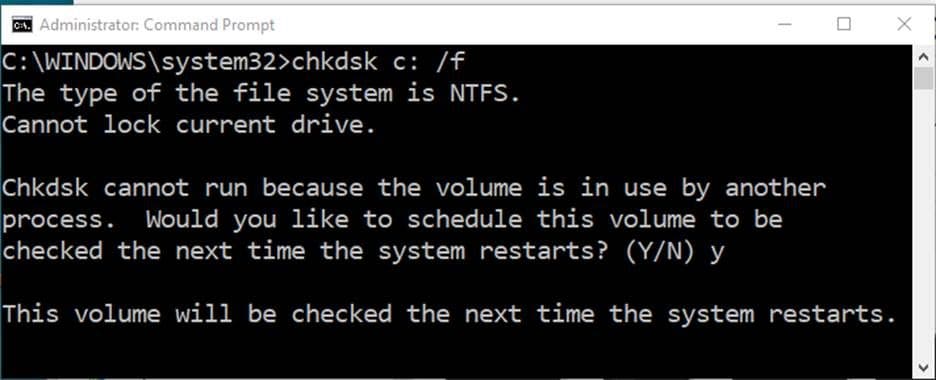
- Step 2: Type chkdsk C: /f and press Enter.
This is a simple way to try solutions for Windows hard drive malfunction.
Fix 2: Use Windows Error Checking Tool
The built-in error check tool can help fix how to fix certain Windows hard drive malfunction tasks in an easy way. It checks disk health. It finds parts that do not work as planned. When issues appear, it may try to fix them. Since many users fear commands, this tool offers a safe choice.
Steps:
- Open File Explorer.
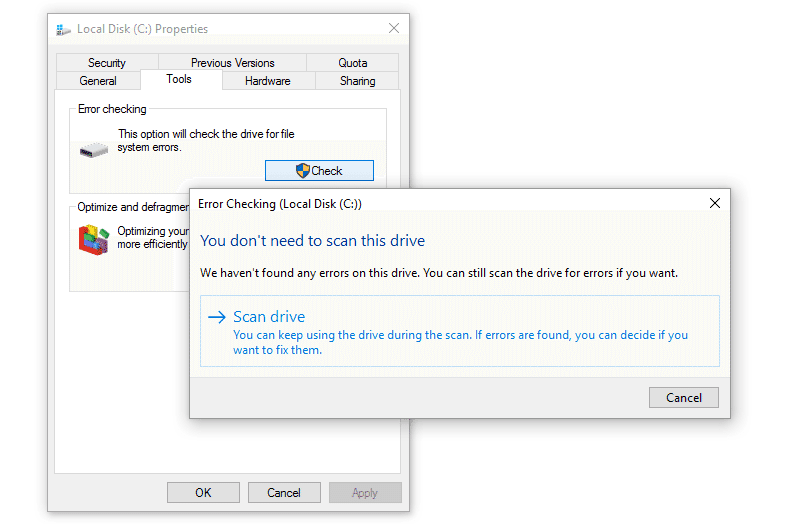
- Right-click the drive, pick Properties, and check for errors.
This is a calm way to repair local hard drives on a Windows computer.
Fix 3: Update or Reinstall Disk Drivers
Old drivers may trigger a Windows hard drive malfunction. Drivers help your system talk to the disk. If they fail, your disk may not show. It may show the wrong space count. You can reinstall drivers to refresh that link.
Steps:
- Open Device Manager.
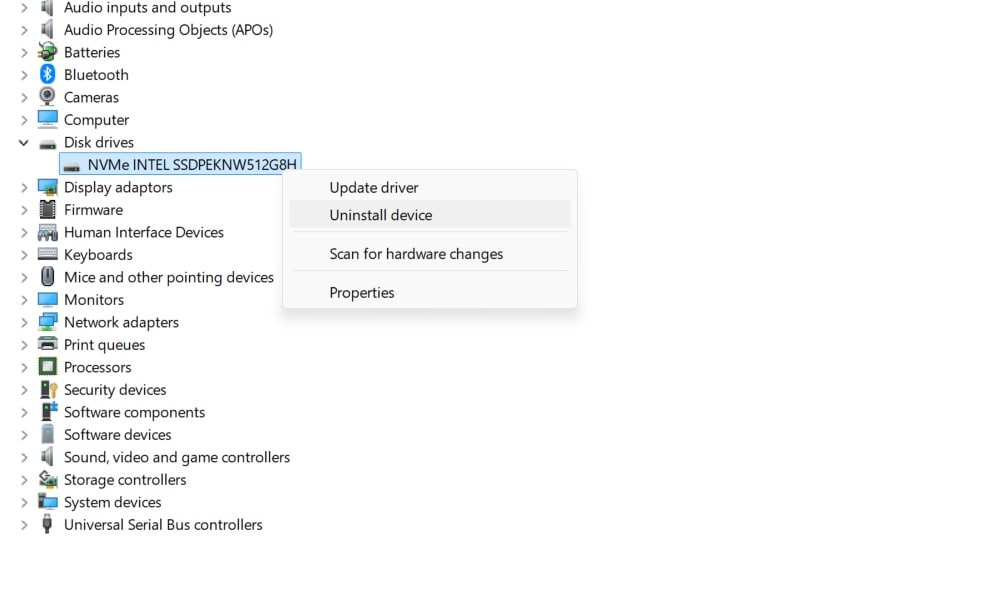
- Uninstall the disk driver and restart.
This may repair a malfunctioning hard drive on Windows without extra tools.
Fix 4: Run SFC and DISM Commands
System files help the disk work. If these files break, you see errors. That may lead to a Windows hard drive malfunction. SFC checks system files. DISM helps repair core image files. Together, they help reduce system-level errors.
Steps:
- Open Command Prompt as admin.
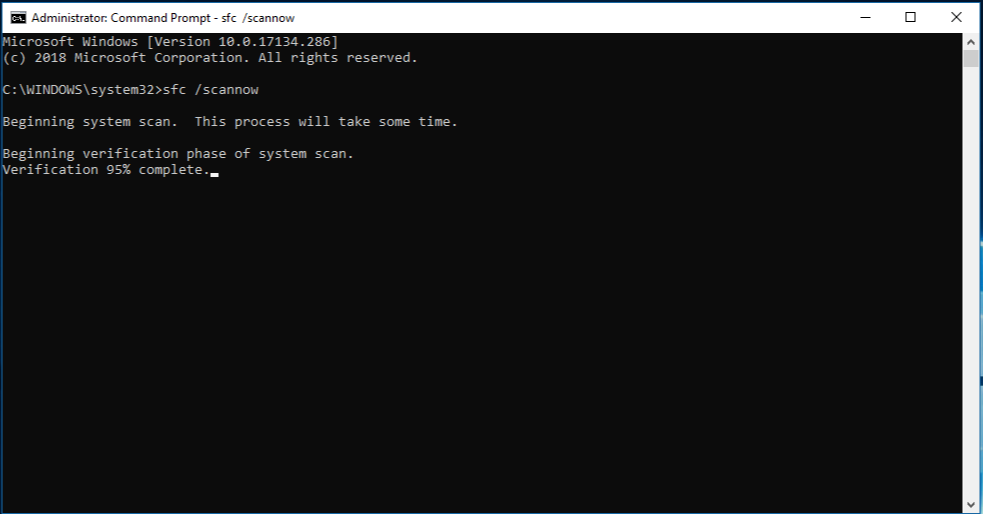
- Type sfc /scannow, then run DISM commands.
This may solve deep problems with how to fix certain Windows hard drive malfunction.
Fix 5: Check for Physical Damage
Some issues come from inside parts. If the disk falls, parts may break. If you see strange sounds, back up at once. Physical harm can grow fast. If this takes place, stop heavy use. It may lead to more loss.
Steps:
- Look for sounds or heat.
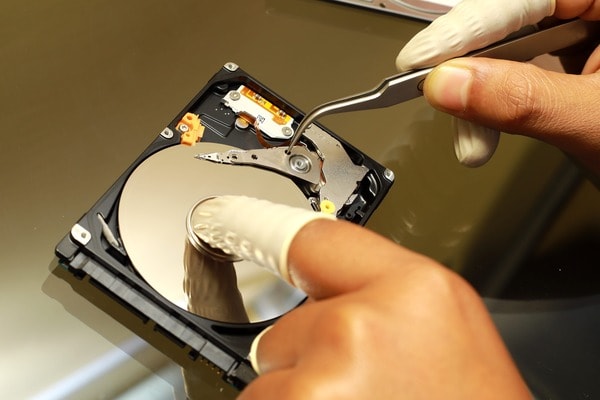
- Remove and test on another system.
If the issue stays, try solutions for Windows hard drive malfunction with care.
Fix 6: Backup and Format the Drive
If errors stay, create a backup. Move your files to a safe place. Format the disk to clear errors. This wipes the drive. So take care. Once done, copy files back.
Steps:
- Save files to a safe location.
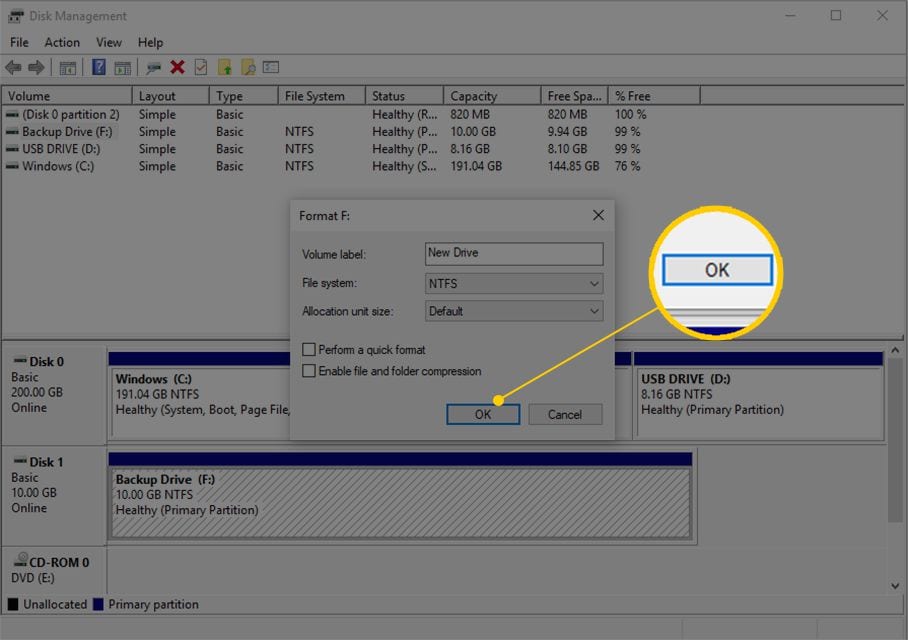
- Format the drive from Disk Management.
This is often the final step to repair a malfunctioning hard drive on Windows. Use this if earlier steps fail.
You now know how to fix certain Windows hard drive malfunction. If you lost files, keep reading.
Part 3: Lost Data Due to Hard Drive Malfunction? Use Recoverit Today
You may feel stress if you cannot see your files. This may happen during a Windows hard drive malfunction. Maybe your photos sit on a drive with bad sectors. Maybe you need to recover data from malfunctioning hard drive on Windows. If so, you may use data recovery software like Recoverit. This tool helps even when files seem gone.
Some users try many steps to repair a malfunctioning hard drive on Windows. They run tests and scans. Yet the data stays out of reach. This is the right time to try a special tool. A good option may help find lost files that normal tools cannot see.
Recoverit is known for safe work. It guides you step by step. Many users like that it helps solve problems for Windows hard drive malfunctions, where other tools fail. The setup is simple. The layout is clean. You can act fast.
How to use:
Step 1: Open Recoverit on your Windows system. The home screen shows all drives. Pick the drive that has the issue. This may be the main disk or an external disk. The tool reads it and gets ready for a safe scan.

Step 2: Start the scan. Recoverit checks your drive and looks for lost files. This may take time. The tool shows results on the screen as it finds them. You can pause to review. You may check the file name, size, or type. Pick what you want to save. The preview option helps you see if a file is still fine.

Step 3: Click Recover. Restore files to a safe place. Choose a folder on another drive. Do not save to the same disk that failed. This keeps files safe from new damage. Wait till the process ends. When done, check your files. You can now open or move them as you wish.

This tool is one of the best ways to recover data from malfunctioning hard drive on Windows. Use it when you cannot fix certain Windows hard drive malfunction issues, yet need your data.
Part 4: Pro Tips to Avoid Hard Drive Malfunction Issues
You can take steps to help stop Windows hard drive malfunctions. These habits protect your data. Drive life improves when you act early. Simple care helps avoid damage to local hard drives on Windows computers.
• Keep air flow clean
Heat harms parts. Keep fans clean to lower the heat.
• Watch drive health
Use tools to see disk status. Early signs help avoid loss.
• Update often
New updates fix bugs. Keep drivers and the system clean.
• Avoid shock
Do not drop your device. A drop may harm the disk.
Conclusion
A failure in your disk can stop work in a moment. But you can act before the worst happens. You learned how to fix certain Windows hard drive malfunction tasks. You saw simple tools like CHKDSK and SFC. You also saw ways to reinstall drivers.
When you face a Windows hard drive malfunction, stay calm. Most issues come from small file errors. You can try many safe steps. If files get lost, recover data from a malfunctioning hard drive on Windows with the right tool. Think ahead. Back up your disk. Use the best tips to protect your system. These steps offer strong solutions for Windows hard drive malfunctions.
Try Recoverit to Recover Lost Data
 Security Verified. Over 7,302,189 people have downloaded it.
FAQs:
-
Q1. Why does a drive fail?
A drive fails when parts wear out. It may fail due to heat or a virus. Power loss and file errors also cause trouble. -
Q2. Can I repair local hard drives on a Windows computer at home?
Yes. You can use built-in tools. You can scan with CHKDSK. You can reinstall drivers. If the issue is worse, try a shop. -
Q3. Can I get my data back if the drive fails?
You may get your data back if parts still work. Use a recovery tool. Recoverit can help. If parts break, you may need a pro.



