

 TL;DR:
Stop using your Helium hard drive immediately to prevent data overwriting, and attempt recovery using software like Recoverit for logical errors or consult certified professional services if you suspect mechanical failure.
● Save all restored files to a separate, healthy storage device, and never select the format option if you need to assign a missing drive letter using Windows Disk Management.
● Run the built-in CHKDSK tool (`chkdsk X: /f`) via an administrator Command Prompt to repair minor file system errors, provided the drive is still accessible and physically intact.
● Power off the system immediately if the drive emits unusual clicking sounds; because Helium drives are tightly sealed, opening them outside a professional clean room laboratory will destroy the internal components.
Ask AI for a summary
 ChatGPT
 Perplexity
 Gemini
 Claude
 Grok
Grok
Helium hard drives are widely used for storing large amounts of data. Many businesses rely on them in servers and storage systems. These drives are designed for heavy workloads and long operating hours. They are known for stability and high capacity. However, even advanced storage devices can fail. Files may disappear due to mistakes, system errors, or hardware issues. In such cases, users begin searching for solutions related to Helium drive recovery.
Losing important data can be upsetting. Work documents, project files, videos, or personal photos may suddenly become inaccessible. The situation feels serious, especially when there is no recent backup. The good news is that data is often recoverable if proper steps are followed.
This detailed guide explains how to restore lost data from Helium hard drive systems using practical and safe methods. It also explains how to recover lost data from Helium hard drive devices without causing further damage.
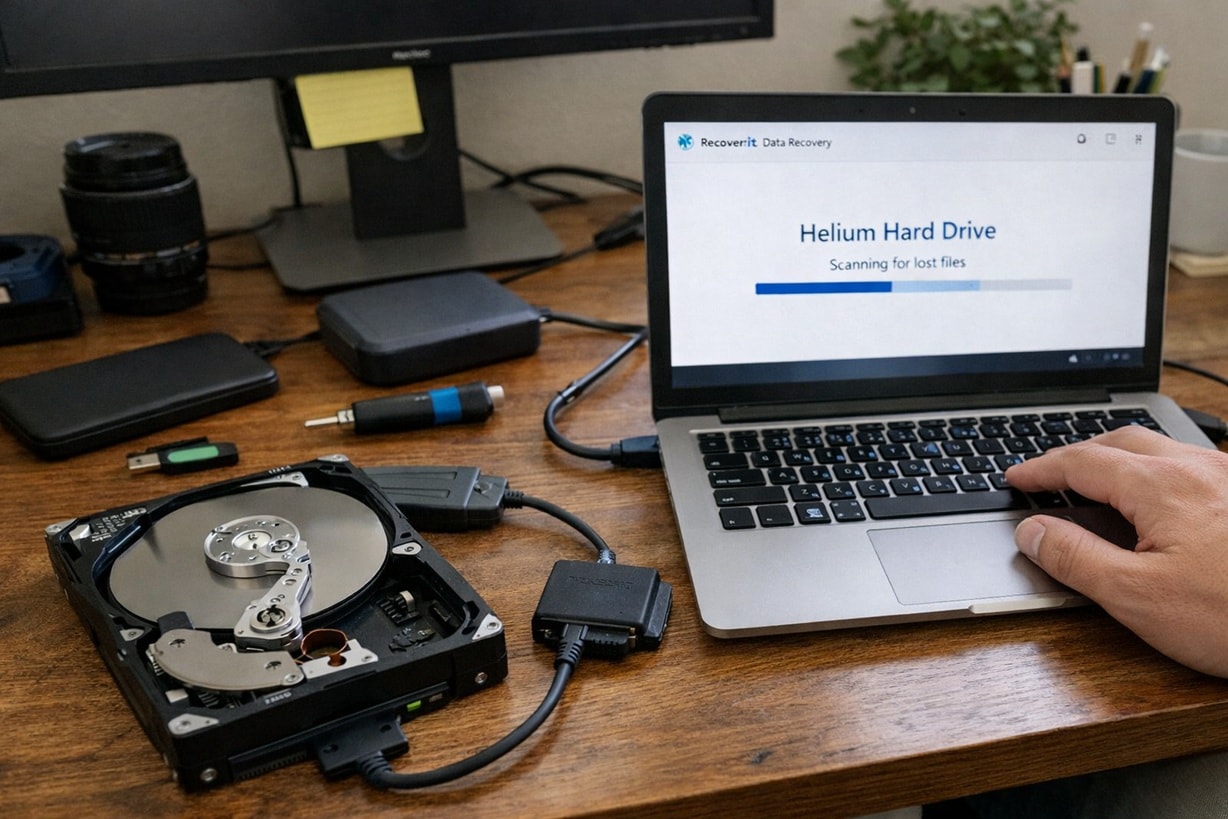
Table of Contents
What is a Helium Hard Drive?
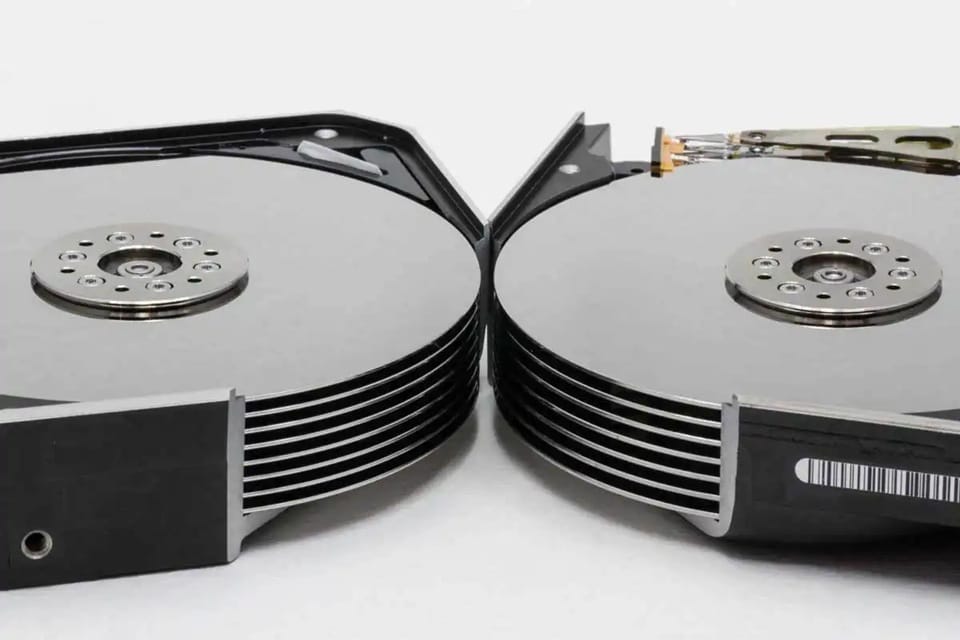
A helium hard drive is a type of traditional hard disk drive that uses helium gas inside its sealed casing. Normal hard drives are filled with air. Helium is much lighter than air. This reduces internal resistance when the disks spin at high speed. Because friction is lower, the drive can hold more platters inside the same physical space. As a result, storage capacity increases significantly.
These drives are commonly used in enterprise environments such as data centers, cloud servers, and business backup systems. They are designed to operate continuously for long periods. Their sealed design also reduces contamination from dust particles. Although they are reliable, they are still mechanical devices with moving parts. Over time, errors, HAMR failures, corruption, or accidents may occur, which can create the need for Helium drive recovery.
Benefits of Using Helium Hard Drive
Helium hard drives are built for performance and efficiency. They are especially useful when large data storage is required over long periods.
- Higher storage capacity: More internal platters can be added due to reduced friction. This allows businesses to store massive amounts of data in one unit.
- Lower power consumption: The drive requires less energy to spin smoothly. This reduces electricity costs in large server environments.
- Reduced heat generation: Lower friction produces less internal heat. Cooler operation increases overall lifespan.
- Quiet performance: Helium reduces turbulence inside the drive. This results in smoother and quieter operation.
- Improved durability: The sealed design protects internal components. It lowers the risk of contamination damage.
- Stable long-term performance: These drives are built for 24-hour usage. They are suitable for heavy workloads.
- Better efficiency in storage systems: High capacity reduces the need for multiple drives. This improves rack space efficiency.
Ideal for enterprise use Many companies use them for backups and archives. They are trusted in professional environments.
6 Quick Fixes to Recover Lost Data from Helium Hard Drive
When data loss occurs, remain calm. Immediate panic can lead to mistakes. Stop using the drive to avoid overwriting important files. Helium drive recovery success often depends on how quickly you act and how carefully you proceed.
Below are six effective methods explaining how to recover lost data from Helium hard drive systems.
Method 1: Use the Recoverit Tool
Recoverit is a professional data recovery program designed to retrieve lost or deleted files from different types of storage devices. It performs a deep scan of the selected drive and searches through each sector carefully. This allows it to locate files that were deleted, formatted, or lost due to system errors. The software supports high-capacity drives, including enterprise-level disks, and it works with many file types such as documents, photos, videos, and archives.
This solution is useful when the helium hard drive is still visible in the system. However, the stored files cannot be opened. The program performs a deep sector-level scan. It checks each part of the drive carefully. It searches for remaining data fragments. Then it attempts to rebuild them into complete files. Even if the partition is damaged, the tool can detect file signatures. In many cases, it restores usable data.
For users learning how to restore lost data from Helium hard drive devices safely, reliable recovery software is often the first step. It lowers the risk of further damage. It also provides a clear and organized recovery process. This approach should be tried before seeking advanced or professional services.

Steps:
Step 1: Install Recoverit on a separate healthy drive. Launch the program and select the affected helium hard drive for scanning.

Step 2: Start a full scan. Preview recoverable files.

Step 3: Save restored data to a different storage device.

Method 2: Check Connections, Cables, and Ports
Sometimes the problem is not actual data loss. The helium hard drive may still contain all files, but the system fails to detect it because of a simple hardware connection issue. A loose cable, unstable power supply, or damaged port can interrupt communication between the drive and the computer. In such cases, the data remains intact, but the drive does not appear in File Explorer or Disk Management.
Before assuming a serious mechanical failure or starting any recovery procedure, inspect these physical components carefully.
Step 1: Shut down the computer completely. Disconnect and reconnect all data and power cables securely. Replace cables if possible.

Step 2: Restart the system. Enter BIOS if needed and confirm whether the drive is detected.
Method 3: Use Windows Disk Management
Windows Disk Management can reveal hidden partitions. Sometimes the drive appears without a letter.
The disk may show as unallocated or offline. This does not always mean total data loss.
Step 1: Right-click the Start button and open Disk Management. Locate the helium drive in the list.

Step 2: If no letter is assigned, right-click and assign one. Avoid choosing the format option.
Method 4: Run CHKDSK
CHKDSK is a built-in repair tool in Windows. It fixes minor file system errors.
This tool is useful when the drive shows logical corruption but is still accessible. It is not meant for physical damage repair.
Step 1: Open Command Prompt as administrator. Type chkdsk X: /f and press Enter. Replace X with the correct drive letter.
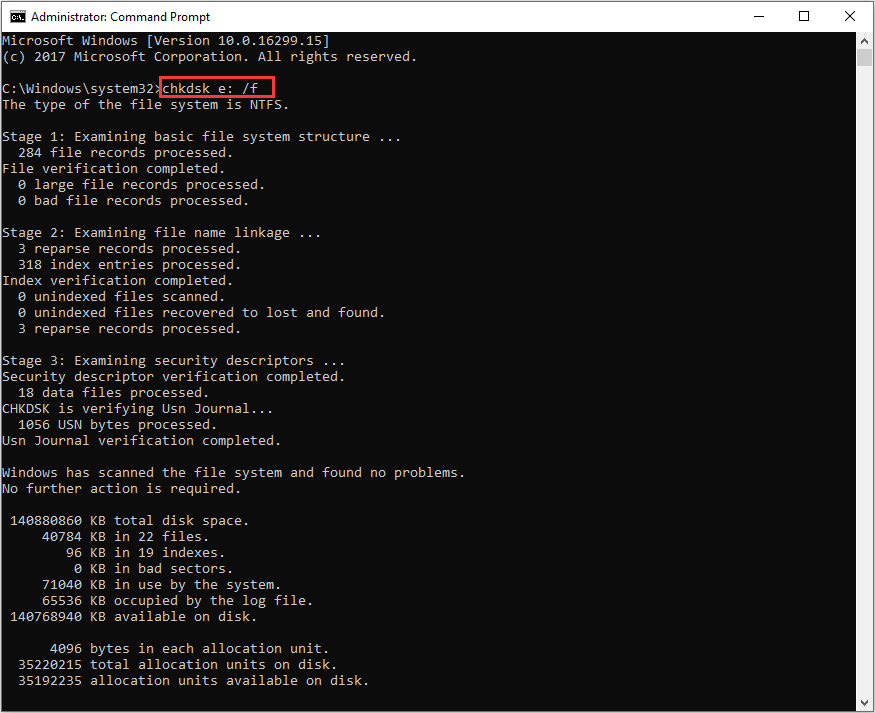
Step 2: Allow the scan to complete. Restart the computer and check file access.
Method 5: Try Recovery from Backups or Cloud Storage
Backups are the safest recovery solution. Many businesses use automatic backup systems. Individuals often use cloud storage services.
Before performing complex recovery steps, always verify whether copies exist elsewhere.
Step 1: Open your backup software or cloud account, like Google Drive or Dropbox. Search for the missing files by name or date.
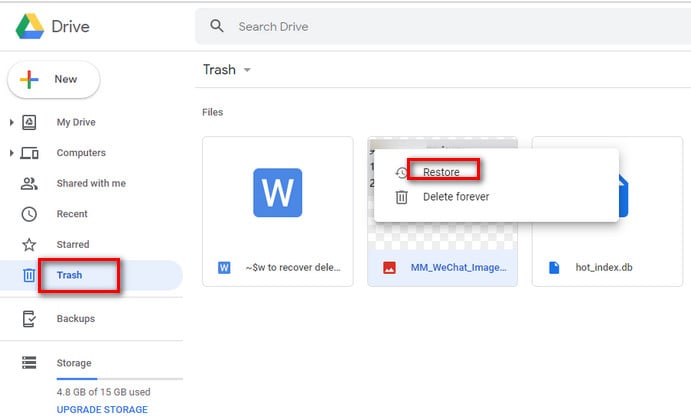
Step 2: Restore selected files to a secure and separate location.
Method 6: Seek Professional Data Recovery Services
If the drive makes unusual clicking sounds, stop using it immediately. Helium drives are tightly sealed units. Opening them outside a controlled environment can destroy internal parts.
Professional laboratories use clean rooms and advanced tools. They repair damaged components and extract data directly from platters.
Step 1: Power off the system and disconnect the drive carefully.

Step 2: Contact a certified recovery service and request an evaluation.
Essential Tips Before Starting Data Recovery
Before beginning any recovery attempt, take time to assess the situation. Careless actions can permanently reduce recovery chances.
People often search for how to recover lost data from Helium hard drive systems and immediately try risky methods. A planned approach gives better results.
- Stop using the affected drive immediately. Continued use may overwrite lost data.
- Avoid reinstalling the operating system. This may replace important sectors.
- Do not save recovered files to the same drive. Use a separate storage device.
- Ensure stable electricity during scanning. Interruptions may corrupt recovery progress.
- Avoid free unknown software tools. They may cause further damage.
- Listen for unusual sounds. Clicking may indicate mechanical failure.
- Be patient with large drives. Scans on high-capacity disks take hours.
- Consult professionals when unsure. Expert advice prevents costly mistakes.
Conclusion
Helium hard drives are advanced storage solutions built for high-capacity and enterprise environments. They offer durability, efficiency, and stable performance. However, no storage device is completely immune to data loss. Accidental deletion, corruption, hardware faults, or malware can create serious problems. In such cases, Helium drive recovery becomes necessary.
By following structured steps and safe practices, users can significantly improve their chances of restoring files. You have now learned how to restore lost data from Helium hard drive systems using practical methods.
You also understand how to recover lost data from Helium hard drive devices through software tools, hardware checks, and professional services when needed.
FAQs
-
Can data always be recovered from a helium hard drive?
Data cannot always be recovered from a helium hard drive. The success of recovery depends on the cause of the problem. If the issue is logical, such as accidental deletion or minor file system corruption, recovery chances are usually high. However, if the drive has serious physical damage, such as failed read heads or platter damage, recovery becomes more complex and may only be possible in a professional laboratory environment. -
Is professional recovery expensive?
Professional data recovery services can be expensive, especially for enterprise-level helium hard drives with large storage capacity. The cost depends on the type of damage, the complexity of the repair process, and the amount of data involved. In cases of mechanical failure, clean room procedures and specialized tools increase the price. Despite the cost, professional recovery may be the safest choice when the lost data is critical for business or legal purposes. -
Can I prevent most data loss problems?
Many common data loss problems can be prevented with proper precautions. Creating regular backups ensures that copies of important files are always available. Using a stable power supply and avoiding sudden shutdowns helps prevent file system corruption. Careful handling of external drives and routine monitoring of drive health also reduces risk. Preventive measures are usually simpler and more reliable than attempting recovery after data loss occurs.


