

 TL;DR:
Secure internal and external hard drives against unauthorized access using built-in Windows encryption, system-level passwords, or third-party apps, and rely on data recovery software if credentials are lost.
● Windows users can encrypt drives at the file level using BitLocker with a saved recovery key, while BIOS or UEFI settings block access at the system boot level.
● External hard drives can be locked by installing third-party security applications like VeraCrypt or Comodo Disk Encryption to assign custom passwords.
● If a locked drive becomes corrupted or the password and recovery key are forgotten, use Wondershare Recoverit to scan the drive and extract inaccessible files.
Ask AI for a summary
 ChatGPT
 Perplexity
 Gemini
 Claude
 Grok
Grok
Your computer holds personal files, work documents, and private pictures. If your drive is not protected, anyone can take your data. A hard drive security lock gives protection. It stops unwanted access. It keeps your digital life safe.
A good security method helps you sleep peacefully. It lowers the risk of theft. It even saves you in public places. Many users want to know how to lock hard drive or how to unlock hard drive.
This guide explains how to set a hard disk security lock and how to remove it later. It also explains how to recover data from a locked hard drive when needed.
Try Recoverit to Recover Lost Data
 Security Verified. Over 7,302,189 people have downloaded it.
Table of Contents
How to Lock and Unlock Hard Drive Security Lock?
You can lock or unlock your drive in different ways. Each method is easy. Some work on Windows. Some work on the hardware level. All help you use a hard drive security lock or a hard disk security lock. They work with a lockable external hard drive too. These tools help you understand how to lock hard drive with password. Later, they also help with how to unlock hard drive.
Each method improves safety. If you face issues, you can still learn how to recover data from locked hard drive.
Fix 1: Use BitLocker Encryption (Windows)
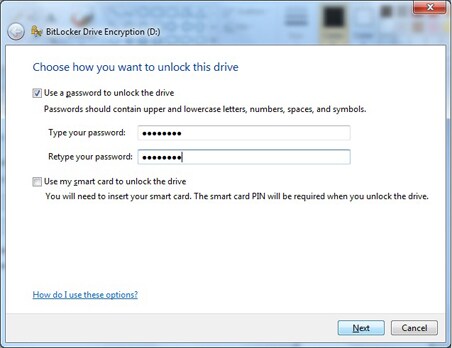
BitLocker is made for Windows. It is known for its strength. It protects your files with encryption. This tool is helpful when you want a strong layer of security. When you learn how to lock hard drive, BitLocker is a good choice. It also helps users who want a hard disk security lock. You need a password to open it later. The protection works for personal and office tasks.
How to Use BitLocker Encryption (Windows):
- Open BitLocker. Right-click your drive. Choose Turn on BitLocker.
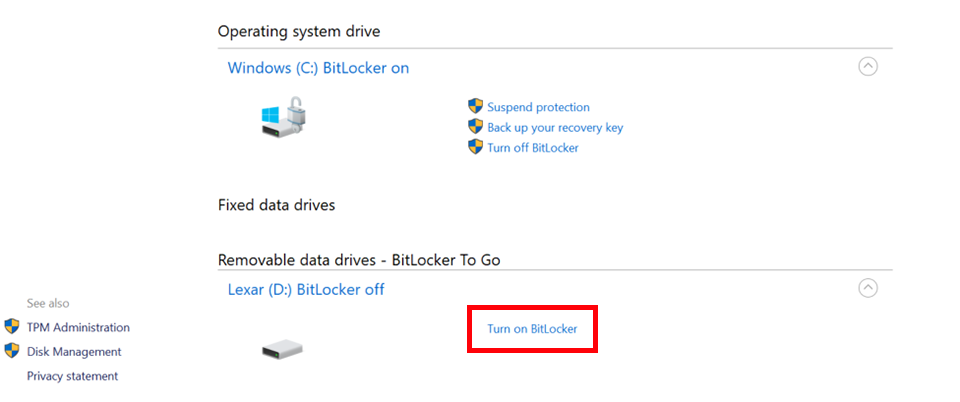
- Set a password. Save the recovery key. Finish setup.
Fix 2: Set BIOS or UEFI Password Protection
This method works before the system loads. It adds strong control. It stops anyone from booting the system. If someone tries to access your hard disk security lock, they cannot. It helps with how to lock a hard drive at the system level. To unlock, you use the password. If you forget the code, it may get tricky. Still, this step helps protect files inside a lockable external hard drive sometimes, depending on support.
How to Set BIOS or UEFI Password Protection
- Enter BIOS or UEFI settings during startup.
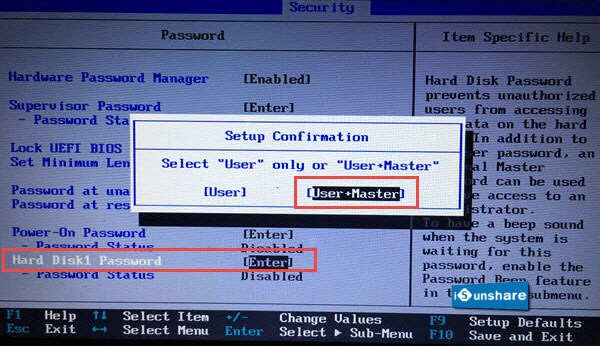
- Set a drive password. Save and exit.
Fix 3: Use Third-Party Encryption Software
Some apps provide powerful protection. You can use them to set a hard drive security lock. They help with how to lock a hard drive with a password. These apps support many file types. They also help users who want a lockable external hard drive. Many people choose this because of the simple tools. You can learn how to unlock the hard drive inside the app. They also help you understand how to recover data from a locked hard drive.
How to Use Third-Party Encryption Software:
- Install the Comodo Disk Encryption or a similar software.
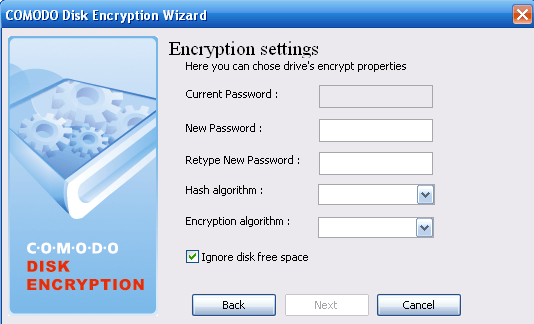
- Create a password. Lock your drive.
Fix 4: Lock External Drives with Security Apps
A lockable external hard drive works well with apps. These tools help with how to lock hard drive quickly. You enter a password. The tool protects files. Some apps also set a hard disk security lock. Many people use this to protect files while traveling. You can later learn how to unlock hard drive using the app. Some tools even help you learn how to recover data from locked hard drive.
How to Lock External Drives with Security Apps:
- Download a drive security app like VeraCrypt.
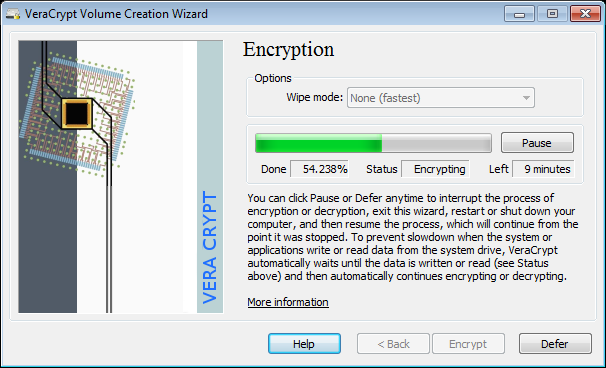
- Select your external drive. Set a password.
Fix 5: Unlock via Recovery Key or Password
If your drive is locked, you can open it with the right details. You need to know how to unlock a hard drive. Enter a password. Or use a recovery key. Some tools help. This step helps open a hard disk security lock. If you forget the password for a lockable external hard drive, use the key saved earlier. If nothing works, you can learn how to recover data from a locked hard drive.
How to Unlock via Recovery Key or Password:
- Enter the password when asked.
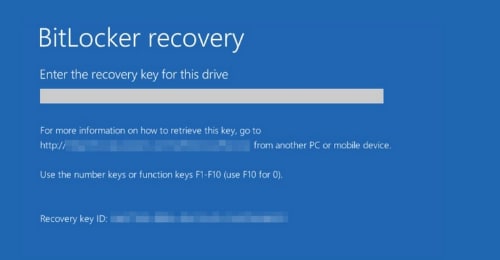
- Use the recovery key if needed.
Fix 6: Disable Lock via Control Panel or BIOS
If you no longer want a hard drive security lock, you can turn it off. You can do this from the Control Panel or the BIOS. This helps if you need free access. It also helps when you remove a hard disk security lock. Later, you can again learn how to lock a hard drive. If something fails, you can use how to recover data from a locked hard drive.
How to Disable Lock via Control Panel or BIOS:
- Open the Control Panel or BIOS.
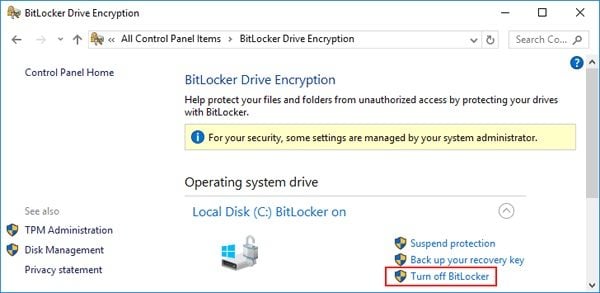
- Turn off the password or encryption.
Lost Access to Locked Drive? Use Recoverit
Sometimes users face trouble. The password is lost. The key is gone. The drive is corrupted. They want to know how to recover data from a locked hard drive. Here, recovery tools help. Recoverit is a strong tool. Users trust this brand to fix lost files. When you set a hard drive security lock, problems may appear if you forget details. The same is true for a hard disk security lock or a lockable external hard drive.
Recoverit is useful. It helps when you do not know how to unlock a hard drive. It also helps when you forget how to lock a hard drive with a password. Many people choose Recoverit because it is simple. It has a friendly layout. You select a drive. The system scans. It shows results. Then you save your data.
People find this tool helpful in many cases. If encryption fails. If Windows crashes. If an external drive does not open. If you try to remove a hard drive security lock and fail. You can still learn how to recover data from a locked hard drive. This tool is known for good results.
Steps:
Step 1. Install Recoverit on your computer. Open the program and wait for it to load.

Step 2. Choose the locked drive shown on the screen. Run a full scan.

Step 3. After the scan finishes, preview the files and save the recovered data to a safe location.

Conclusion
Your files are important. A hard drive security lock protects them. A hard disk security lock stops strangers. A lockable external hard drive helps when you travel. Know how to lock a hard drive. It keeps data safe. Know how to lock a hard drive with a password. Learn how to unlock a hard drive.
If something fails, do not panic. You can still learn how to recover data from a locked hard drive. Many tools help. Recoverit is one tool that works in many cases. With strong habits, your data stays safe.
Try Recoverit to Recover Lost Data
Security Verified. Over 7,302,189 people have downloaded it.
FAQs:
-
1. Can I use password protection on my Windows drive?
Yes. Windows supports a hard drive security lock tool like BitLocker. It helps you learn how to lock a hard drive with a password. Later, you can also learn how to unlock a hard drive. If you fail, you may need to know how to recover data from a locked hard drive. -
2. What if I forget the password for my drive?
You can use a recovery key. This helps open a hard disk security lock. A lockable external hard drive may need a special app. If nothing helps, try a tool that knows how to recover data from a locked hard drive. -
3. Are external drives safe with security apps?
Yes. These apps help with how to lock a hard drive. They set a strong code. They help manage a lockable external hard drive. If something fails, they guide how to unlock the hard drive. If needed, you can use how to recover data from a locked hard drive.


