 TL;DR:
The correct Western Digital repair tool depends strictly on your exact drive model and operating system, with Kitfox serving supported HDDs on Windows 11 and WD Drive Utilities handling specific external enclosures, though neither can repair mechanical failures or restore missing data.
● Kitfox is limited strictly to Windows 11, targeting major WD internal HDD product families and WD_BLACK P10/D10 drives to run hardware health checks and diagnostic tests, while explicitly excluding macOS compatibility.
● WD Drive Utilities manages specific direct-attached products like My Passport and My Book on Windows 11 and listed macOS versions, but it lacks ARM processor support and contains destructive functions like Drive Erase and RAID reconfiguration that will permanently delete stored files.
● Operations such as Windows CHKDSK, Mac Disk Utility First Aid, or Complete Drive Tests must only be executed after securing irreplaceable files, as these logical file-system fixes involve heavy read activity that can cause further damage to unstable, clicking, or repeatedly disconnecting hardware.
Ask AI for a summary
 ChatGPT
 Perplexity
 Gemini
 Claude
 Grok
Grok
Which Western Digital hard drive repair tool should you use? For a supported WD HDD on Windows 11, Western Digital Kitfox checks drive health and runs hardware tests. For specific WD My Passport, My Book, easystore, and other supported external drives, WD Drive Utilities offers diagnostics and model-dependent management features. Windows CHKDSK and macOS Disk Utility First Aid address certain logical file-system errors instead. None can replace damaged heads, motors, or platters.
The correct choice depends on the exact drive model, whether your computer can still detect the device, and whether its files are safe. If photos or work files have disappeared, protect or recover them before running a write-based repair, complete drive test, erase, format, or RAID change. This guide compares current tools, shows safe diagnostic workflows, and explains when to use file recovery or a specialist instead of trying another repair.
In This Article
Part 1. Which WD Hard Drive Tool Should You Use?
The phrase WD hard drive repair tool covers different jobs: checking S.M.A.R.T. health, testing media, repairing a Windows or Mac file system, and making a drive usable again. Start with the symptom and the drive model instead of downloading every WD utility listed in an older tutorial. WD does not provide a single diagnostic and repair program for every HDD, SSD, and external enclosure.
Comparison: Kitfox, WD Drive Utilities, CHKDSK, and Disk Utility
| Tool | Current platform and drive fit | What it can do | What it cannot do |
| Western Digital Kitfox | Windows 11; specified WD internal HDD families and WD_BLACK P10/D10 external HDDs | Drive health, temperature, S.M.A.R.T. data, short/extended diagnostics; supported erase options | Does not undelete files, repair file-system metadata, or fix mechanical components |
| WD Drive Utilities | Windows 11 or WD-listed macOS versions; eligible direct-attached WD models; ARM processors not supported | Drive Status Check, Quick/Complete tests, selected Sleep Timer or RAID functions, Drive Erase | Not a universal WD tool; erase and RAID changes can remove all data |
| CHKDSK | Supported Windows volumes on WD or non-WD storage | Reports errors; /f repairs logical metadata; /r adds a read-intensive sector check |
Cannot repair failing hardware or restore intentionally deleted files |
| Disk Utility First Aid | macOS and supported local storage/file systems | Examines and repairs some formatting or directory-structure problems | Cannot find lost data by file carving or fix physical media damage |
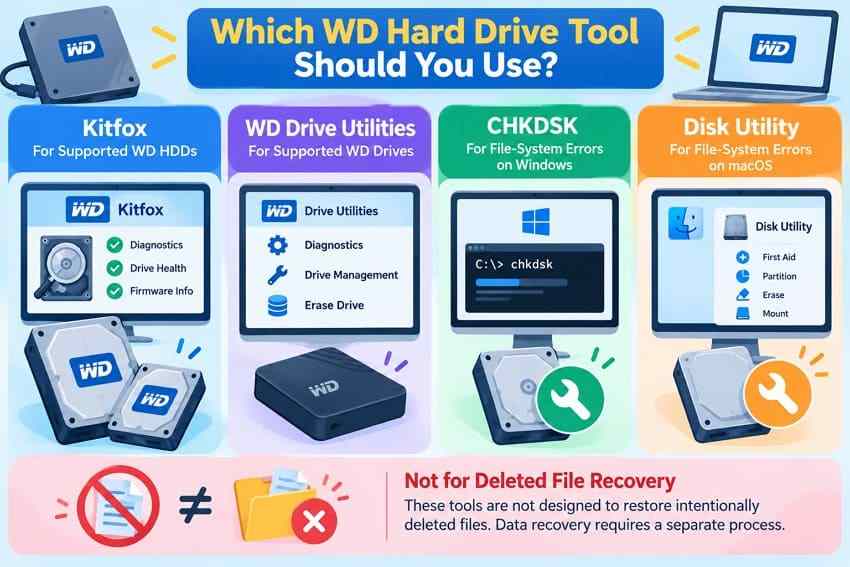
WD publishes separate official guides for Kitfox and WD Drive Utilities. The model lists and supported operating systems are more reliable than assuming software will work because the label says Western Digital. In particular, a program seeing a drive does not necessarily mean WD lists that model as supported.
Kitfox: Supported WD HDDs, Not Every WD Storage Device
Kitfox is WD's current health and diagnostic utility for specified internal HDD product families (WD_BLACK, Black, Blue, Green, Red, Purple, and Gold) and the WD_BLACK P10 and D10 external HDDs. WD currently lists Windows 11 as the supported operating system and explicitly states that Kitfox does not support macOS. It can report device capacity, firmware details and health information, monitor temperature, and perform short or extended tests.
A WD Elements portable hard drive, generic USB enclosure, SSD, or unsupported RAID-connected disk should not be treated as Kitfox-compatible merely because it appears in its device list. For unsupported models, check the separate drive-specific tool or use appropriate OS-level diagnostics only after protecting the data.
WD Drive Utilities: External-Drive Functions Depend on the Model
WD Drive Utilities supports a WD-maintained selection of direct-attached products, including certain My Book, My Book Duo, My Passport, easystore, WD Elements SE, and related models. Its current supported-OS list includes Windows 11 and macOS 14 Sonoma, 15 Sequoia, and 26 Tahoe; the same WD guide states that ARM processors are not supported. Mac users should check the processor and OS as well as the drive model before installing.
Supported models may expose Drive Status Check, Quick or Complete Drive Test, sleep configuration, or RAID controls. Do not use an available function as proof it is harmless: Drive Erase deletes data, a RAID mode change may reformat member disks, and a Complete Drive Test checks all sectors and may insert bad-sector markers as needed.
Retired Programs: Data Lifeguard Diagnostics and WD Dashboard
Older repair guides frequently link to Data Lifeguard Diagnostics (WinDLG) or Western Digital Dashboard. WD states that Data Lifeguard Diagnostics ended support on October 1, 2021 and is no longer offered for download. WD also confirms that Western Digital Dashboard is no longer supported. Kitfox is the newer WD HDD utility for supported models, while SanDisk Dashboard addresses supported SSD products.
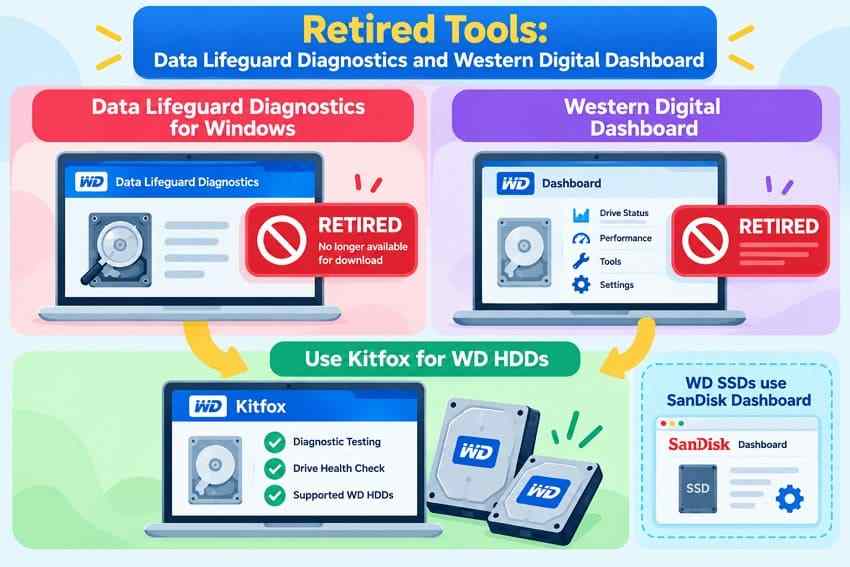
Avoid old download mirrors or repackaged installers claiming to be a current universal WD repair solution. They may not support the drive, operating system, or firmware involved, and they are not a substitute for an up-to-date WD support page.
Part 2. Protect WD Drive Data Before Testing or Repair
The safest order changes depending on whether the problem is only a failed health check or whether valuable files are already missing. A stable drive with a recent backup can usually be checked more freely than a clicking disk containing the only copy of a photo archive. Do not perform destructive actions while files are still needed.
Recover or Back Up Needed Files Before Repairs
If the drive still opens normally, copy irreplaceable files to a different physical disk and check that several copied files open. If files are deleted, the drive is RAW, or the volume is inaccessible despite being detectable, stop normal use and prioritize a suitable recovery workflow from Part 6 rather than writing more data onto the source.
- If files are visible: Copy the most important data first; do not move the only copy and do not run a long diagnostic on a noisy or unstable drive.
- If files are missing but the disk is stable: Stop saving new files, avoid new partitions, and use a recovery scan or appropriate imaging workflow before repair.
- If the disk clicks, grinds, overheats, or disconnects repeatedly: Power it down and consider specialist recovery. Repeated test runs and attempts to copy everything may cause additional damage.
This order matters for warranty handling as well: WD states that returned drives are securely erased during the warranty-return process. A warranty replacement provides replacement hardware, not your original files.
Verify the Drive Model, Connections, and System-Level Detection
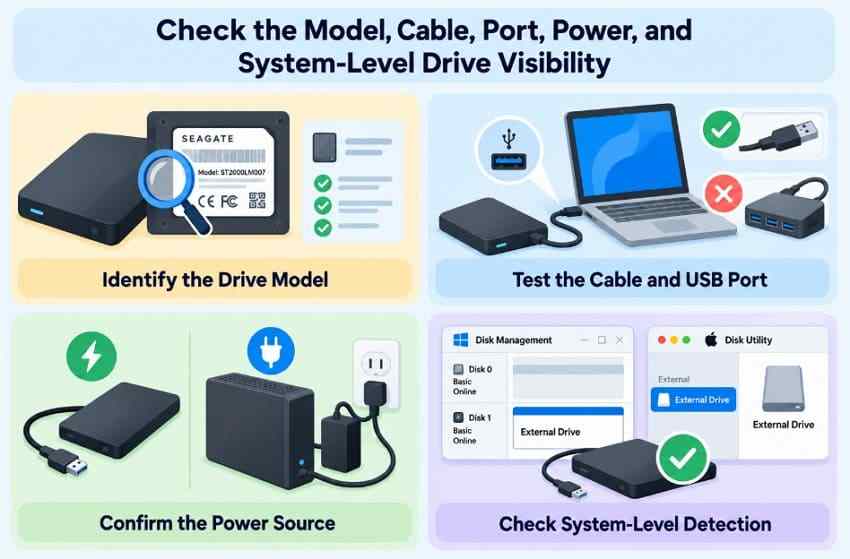
Check the physical product label or the original device model before choosing a tool. An external My Book that requires its own power adapter has a different troubleshooting path from a bus-powered My Passport. On a stable device with no mechanical warning signs, make one controlled connection check:
- Exact model: Match the device label to the official utility compatibility list; do not assume all My Passport or WD Elements variants qualify.
- Connection: Try a known-good USB or SATA cable and direct port once; use the proper AC adapter for desktop enclosures.
- Windows: Open Disk Management to see whether the drive appears, even if File Explorer shows no letter. Do not click Initialize or Format.
- Mac: Open Disk Utility and choose View > Show All Devices. A visible physical disk with an unmounted volume differs from no disk appearing at all.
- Persistent failure: Stop when the drive is unstable, absent after a basic check, or giving mechanical failure signs.
Know Which Operations May Modify or Erase Data
| Operation | Data effect | Use before missing-file recovery? |
| S.M.A.R.T. status or temperature read | Normally reads drive health data; no user-file repair | Reasonable only on a stable drive; not a substitute for backup |
| Kitfox Short/Extended Test | Diagnostic read activity, especially sustained during extended testing | Avoid repeated testing of a clicking or unstable disk |
| WD Drive Utilities Complete Drive Test | Checks every sector and may insert bad-sector markers | No; protect irreplaceable data first |
| CHKDSK without repair switches | Reports logical status without fixing it; still reads the disk | Only on a stable, readable volume |
CHKDSK /f, /r, First Aid |
May write file-system metadata or repair structures | No; save or recover files first |
| Kitfox Write Quick/Full Zeros, Drive Erase, Format, RAID mode change | Writes, erases, or rebuilds the layout; may make files unrecoverable | Never when missing data is still needed |
WD explicitly warns that Kitfox has both Write Quick Zeros (overwrites the beginning and end of the disk) and Write Full Zeros (overwrites the medium). Neither is a normal bad-file recovery method; using them to "repair" a hard drive can destroy the only remaining copy of data.
Part 3. Diagnose a Supported WD Hard Drive With Kitfox
Use Kitfox only when the WD HDD model, operating system, and connection meet the conditions in its official guide. A diagnostic can help identify a drive that should be replaced; it cannot mechanically repair the failed part, and a PASS result does not guarantee a drive will remain reliable indefinitely.
Confirm Windows 11 and an Officially Supported HDD Family
WD's current Kitfox installation and diagnostics page lists Windows 11 support, the major WD internal HDD color families, and WD_BLACK P10/D10. Kitfox is not the native Mac repair utility, and an unsupported USB bridge, docking station, RAID interface, or third-party enclosure can hide device information. Check the exact model and connection before interpreting a missing result as physical drive failure.
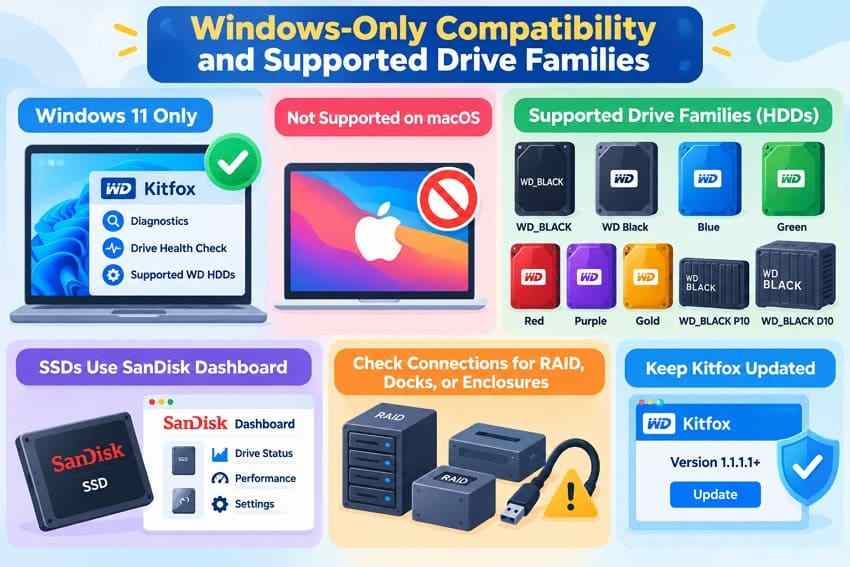
Download Kitfox through the official WD support article, not from an older utility archive. Close large file transfers before a diagnostic test, and if the drive holds irreplaceable files, secure them first. Do not run a lengthy test on a drive already clicking, grinding, or frequently disconnecting.
Review Drive Health, Temperature, and Run an Appropriate Test
Step 1. Select the WD disk. Open Kitfox, choose the correct drive under My Devices, and review its model, capacity, temperature and Device Health panel. Confirm you are not looking at another disk or a connected backup target.
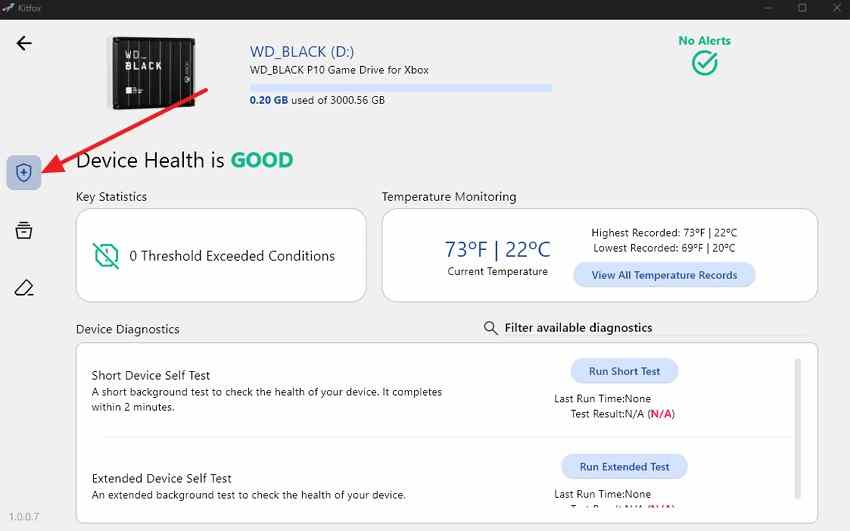
Step 2. Choose one diagnostic test. For a stable drive whose data is already protected, select Run Short Test for a brief check. Choose Run Extended Test only if a more thorough diagnostic is justified and the drive is responding normally. Allow the operation to finish and record its PASS/FAIL result and any error code.
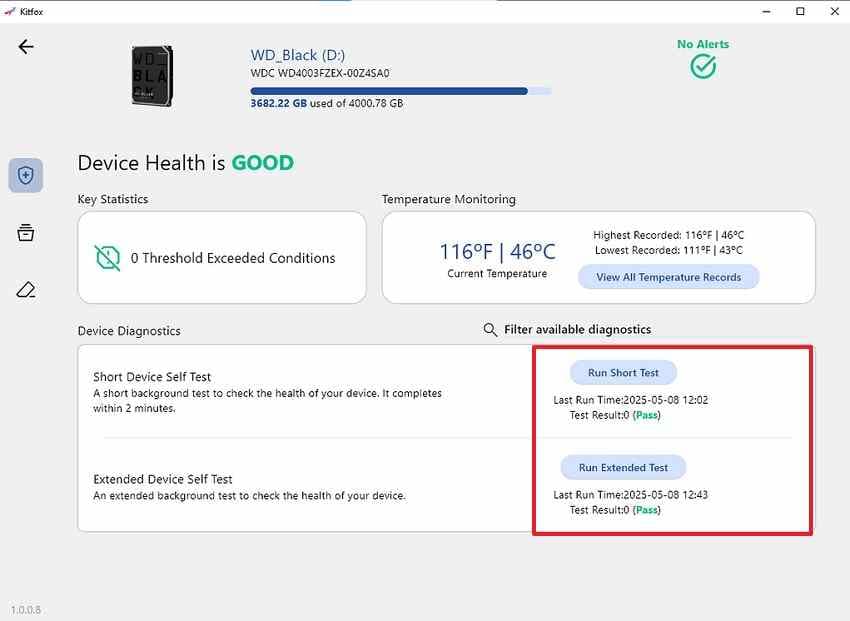
Step 3. Interpret the result. A PASS is useful but not a promise that the disk is healthy forever. A repeatable FAIL, worsening S.M.A.R.T. condition or persistent read errors means the drive should not be trusted with the only copy of valuable data. Do not switch to erase functions to clear a diagnostic failure.
What to Do After a Failed Test
Consult WD's Kitfox self-test error code list rather than guessing what a code means. WD recommends checking connections and retesting when appropriate, then replacing a disk if the failure repeats. If the HDD is mechanically noisy or unstable, skip retesting and seek professional assessment; additional power cycles and extended reads may increase the risk.
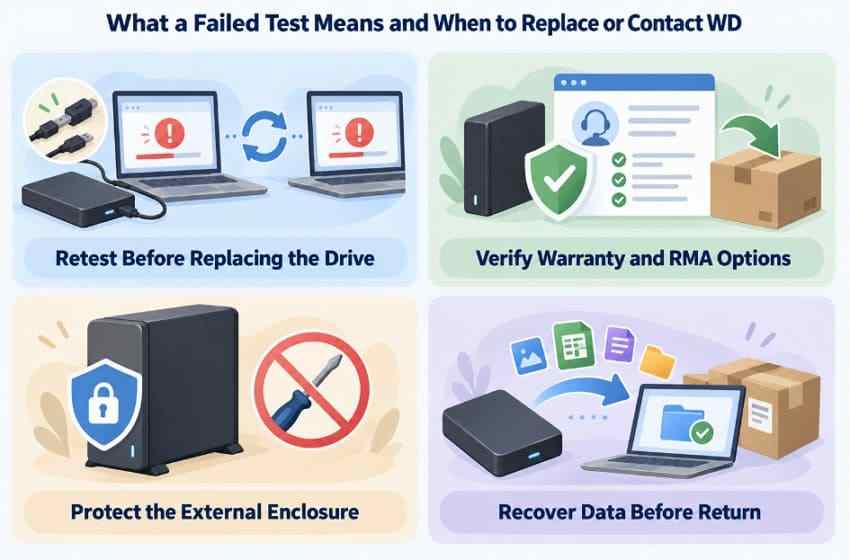
Check WD warranty and data recovery requirements only after securing the data or discussing specialist recovery. WD does not itself promise to recover files as part of an RMA. If you must send the drive for warranty replacement, expect the original data to be erased on return processing.
Part 4. Check a Supported External WD Drive With WD Drive Utilities
WD Drive Utilities is the more relevant official option for many supported USB-attached WD desktop and portable HDDs, but it is still model-specific. It is not a universal Western Digital external hard drive repair tool and does not restore deleted files.
Match the Model Against WD's Current Compatibility List
Look up the precise My Book, My Passport, easystore, WD Elements SE, or other product name on the official WD Drive Utilities support page. Confirm OS compatibility and processor support at the same time. The current WD article lists Windows 11 and selected macOS versions and says ARM processors are not supported; that matters for Apple silicon Mac owners.
Step 1. Read the label on the enclosure, then compare the product name with the WD-listed compatible direct-attached storage models. Do not rely on the fact that another WD external disk worked with this utility.
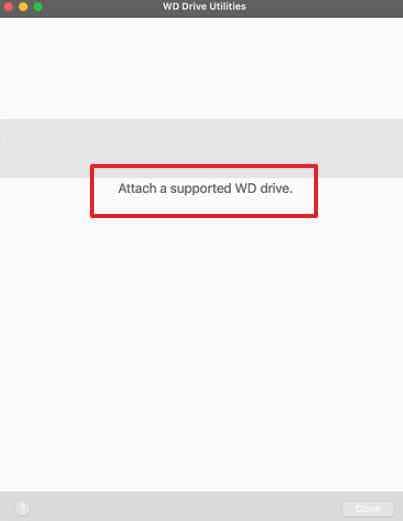
Step 2. On a compatible computer, open WD Drive Utilities with the WD drive attached and verify that it is shown in the app. If it displays Attach a supported WD drive, check the WD compatibility list and system-level detection first. This older source screenshot illustrates the message; layouts can differ by application version.
Drive Status, Quick/Complete Tests, RAID, and Sleep Functions
For supported models, the Drive Status Check reads selected S.M.A.R.T. indicators and Quick Drive Test checks for major drive problems. A Complete Drive Test checks every sector and WD says it can insert bad-sector markers. This can be time-consuming and should not precede recovery of missing or unbacked-up files.
- Sleep Timer: Available only on selected models and intended to manage drive inactivity, not repair a failing disk.
- RAID controls: Exposed on supported multi-drive products such as My Book Duo. Changing RAID configuration can erase the array; do not reconfigure a degraded array to attempt file recovery.
- Diagnostic failure: WD advises replacing a drive that fails its drive tests; confirm the result and warranty route without subjecting unstable hardware to repeated testing.
The app may include a management control without that control being an appropriate fix for a data-loss incident. Keeping a broken filesystem separate from a healthy RAID configuration is especially important: one problem cannot safely be solved by changing the other.
Why Drive Erase and RAID Reconfiguration Must Wait
The WD Drive Utilities Drive Erase function destroys stored data. On a supported My Book Duo, a RAID-level or configuration change can also reformat the drives. When the array is degraded, encrypted, or contains files that are not backed up, stop and document the current setup before considering any write operation or member swap. Use WD's product-specific instructions or a qualified recovery provider instead.
If your goal is to put an already backed-up WD disk back into ordinary service, an erase or format may become a last step after recovered files are independently verified. It is not the first step for a drive that is suddenly RAW or missing folders.
Part 5. Repair Logical File-System Errors Only After Data Is Safe
A hard drive can pass S.M.A.R.T. and hardware tests yet still have an unreadable folder tree or file-system metadata problem. CHKDSK and Disk Utility First Aid address some of these logical issues. They are not WD-exclusive products, deleted-file recovery applications, or hardware repair services.
Windows CHKDSK: What /f and /r Actually Do
Microsoft's current CHKDSK command reference distinguishes a status check from a repair. In an elevated Windows Command Prompt, replace the example letter E: with the correct affected WD volume. If you have not yet recovered valuable missing data, do not advance to the repair commands.
| Command | Operation | Recommended sequencing |
chkdsk E: |
Reports file-system status without repair switches | Only as a basic check on a stable drive |
chkdsk E: /f |
Repairs logical file-system errors; may change on-disk metadata | After necessary data is copied or recovered |
chkdsk E: /r |
Includes /f, searches for bad sectors and attempts to recover readable information |
Avoid on physically failing drives; it can produce heavy read activity |
chkdsk E: /x |
Forces dismount as needed and includes /f |
Only when the data is safe and dismounting is appropriate |
Example: After verifying the drive letter and saving your files, chkdsk E: /f can address some file-system errors. If Windows asks to schedule the repair because it cannot lock the volume, understand that a reboot may be needed. Do not use the command to undelete files, repair heads, or cure a disk making abnormal sounds.
Mac Disk Utility First Aid: When and How to Use It
On macOS, Apple's First Aid guide recommends having a current backup before running repair. If the WD drive is stable and important files are protected, open Disk Utility, choose View > Show All Devices, and inspect the WD device and its volumes. First Aid checks and repairs certain directory and formatting structures; it does not recover permanently deleted content.
Step 1. Select View > Show All Devices. Identify the correct WD storage device, any containers, volume groups, and volumes beneath it; do not confuse it with the Mac startup disk.
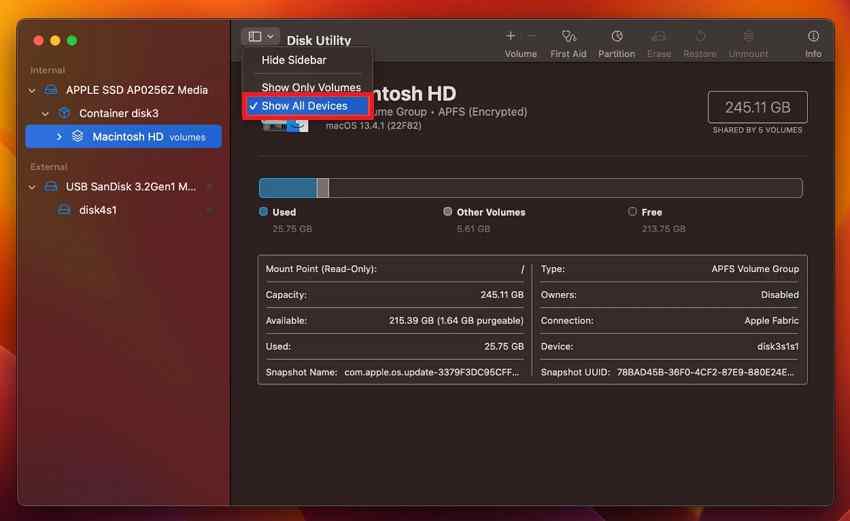
Step 2. Once needed data is safe, run First Aid > Run beginning with the last volume, then work upward through remaining volumes, volume groups and containers, finishing with the physical device. If the disk is missing from Disk Utility, First Aid has no detected source to repair.
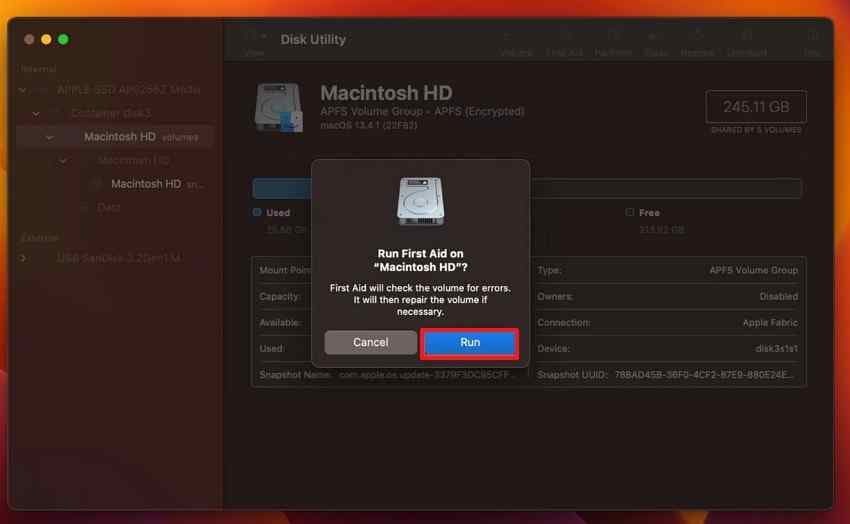
If First Aid reports that a drive cannot be repaired or is about to fail, do not repeatedly erase and reformat it while files remain missing. Apple directs users to backup and service or replacement paths when physical failure is suspected.
Logical Repair Is Not Deleted-File Recovery or Mechanical Repair
A common source of confusion is that CHKDSK /r says it can "recover readable information." That describes handling information in problematic sectors during a filesystem check, not recovering arbitrary deleted folders or physically healing damaged disk surfaces. Neither CHKDSK nor First Aid replaces a failed read head, motor, controller, or platter. If files were deleted, prioritize recovery; if a mechanism is failing, prioritize an expert evaluation.
For more detail on protecting files from a corrupted external drive before changes to its filesystem, see this Recoverit guide to corrupted external HDD recovery. It covers recovery choices separately from repair operations.
Part 6. Recover Missing Files Before Replacing or Reformatting
If the WD drive is visible in Windows Disk Management or macOS Disk Utility, remains stable, and the loss is primarily logical, software may be able to find still-readable data. This is where Recoverit is relevant. It is not a substitute for Kitfox diagnostics, does not repair a failed controller or mechanical part, and cannot scan a storage device absent from the operating system.
When Recoverit Fits a Readable WD Drive

Wondershare Recoverit Hard Drive Recovery can scan supported internal and external WD drives for missing files after deletion, accidental quick formatting, RAW volume errors, or damaged partitions, provided the device remains readable and the data has not been overwritten. Previewing supported files before saving them helps you decide whether to proceed with recovery. If the drive is unstable or reports severe repeated read errors, stop instead of repeatedly rescanning.
- Detected WD drive with deleted or missing data: Consider a recovery scan before formatting, applying repair switches, or putting the drive back into use.
- External WD My Passport or My Book: See the dedicated WD external hard-drive recovery walkthrough for more device-specific recovery situations.
- Drive disappeared altogether: First distinguish no drive letter from no system-level detection. A software scanner cannot scan hardware that the OS cannot access.
- Encrypted drive or RAID unit: Required credentials, the original controller, supported array configuration, and safe access conditions may determine whether software scanning is possible.
Scan a Detected WD Drive and Save Results Elsewhere
Before launching any scan, close active programs writing to the WD device and prepare another healthy disk with enough free space. Install recovery software on a separate disk where possible. Avoid selecting the WD source itself as the recovery destination.
Step 1. Select the WD source. Connect the drive if it is a stable external model. In Recoverit, open Hard Drives and Locations, identify the correct WD device by capacity and location, and select it to begin scanning.

Step 2. Scan and inspect the results. Let Recoverit search the selected disk. Use its available file type, location, and name filters to narrow the list; if files are not found immediately, allow the supported scan to proceed as long as the drive remains stable.

Step 3. Preview and recover to a different disk. Preview representative files when available, select the required folders or files, and click Recover. Save to a different healthy physical drive, then open a selection of recovered copies to confirm they are usable.

A free download does not imply unlimited free file recovery. Check the current Windows or Mac edition and its recovery allowance in the product before purchasing, and do not interpret a successful preview as a guarantee that every file will be complete.
No Detection, Mechanical Failure, and Warranty Service
If a drive is absent from system-level disk tools after a careful cable/power check, or it clicks, grinds, overheats, or disappears during access, stop DIY recovery and diagnostic testing. See how to distinguish a missing drive letter from an undetected disk for preliminary checks, and contact a professional service if symptoms point to hardware failure.
WD's official data recovery and repair guidance explains that it does not provide in-house drive repair or data recovery services; external recovery partners handle those requests independently. Preserve any original enclosure, cables and RAID configuration when consulting a specialist. If data must be recovered, do not send the drive for a warranty return before discussing that recovery, because returned disks are erased.
Conclusion
There is no one-click Western Digital hard disk repair tool for every failure. Use Kitfox only with officially supported WD HDDs on Windows 11; choose WD Drive Utilities for a listed compatible external model and system; and reserve CHKDSK or First Aid for logical file-system errors after important files are safe. An erase, RAID reconfiguration or repeated test does not recover deleted data or repair broken mechanics. For stable, detected WD storage with lost files, check backups or use suitable recovery software first; for clicking, missing or unstable hardware, stop and seek professional guidance.
FAQ
-
What Is the Current Western Digital Hard Drive Repair Tool?
Western Digital currently offers Kitfox for specified internal HDDs and WD_BLACK P10/D10 drives on Windows 11. WD Drive Utilities supports selected WD external drives on WD-listed operating systems and compatible processors. CHKDSK and macOS First Aid are separate operating-system file-system repair tools. -
Can Western Digital Kitfox Repair Bad Sectors?
Kitfox reports drive health and runs diagnostic tests but cannot physically repair bad sectors, heads or platters. A failed test may indicate a drive that should be replaced. CHKDSK /r can identify bad sectors and attempt to recover readable information at the file-system level, but it also does not repair physical damage. -
Is WD Data Lifeguard Diagnostics Still Available?
No. WD Data Lifeguard Diagnostics for Windows ended support in October 2021 and is no longer provided for download by Western Digital. For a currently supported WD HDD on Windows 11, check the official Kitfox download and compatibility guidance instead. -
Which WD Repair Tool Should I Use for an External Hard Drive?
Check the exact WD model first. Many eligible My Passport, My Book and easystore products use WD Drive Utilities, while WD_BLACK P10/D10 are among the externally supported Kitfox HDDs. For file-system errors use CHKDSK on Windows or First Aid on a compatible Mac after your data is safe; stop if the drive is clicking or repeatedly disconnecting.


