
 TL;DR:
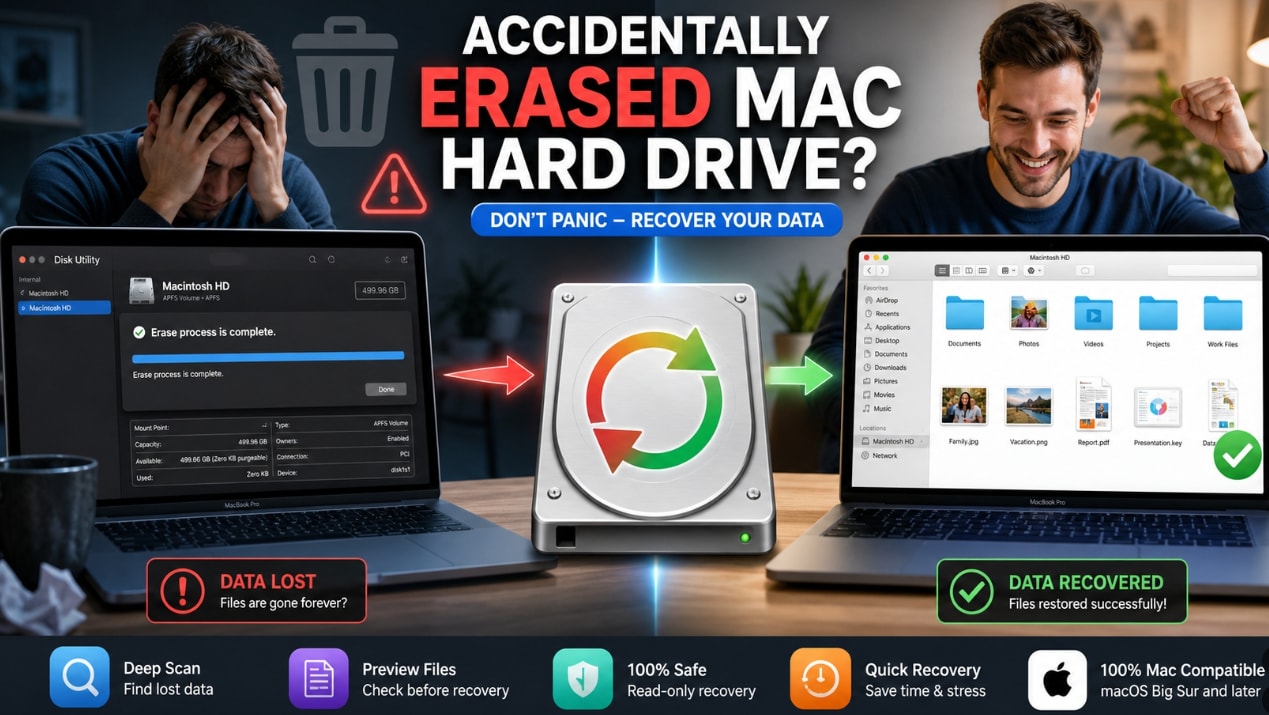
To recover files from an accidentally erased Mac hard drive, immediately stop writing to the disk to prevent permanent data overwriting, check existing Time Machine backups, and use Wondershare Recoverit to scan readable storage if no backups are available.
● Never install recovery software, copy new files, or save recovered data directly onto the erased drive; you must prepare a separate storage device with sufficient free space to hold your recovered files.
● Recovery outlook is generally better for erased external HDDs but significantly lower for internal Mac SSDs, securely erased drives, or FileVault encrypted volumes where you lack the legitimate password or recovery key.
● Do not run Disk Utility First Aid to attempt file restoration; instead, check your cloud backups like iCloud Drive, which typically keeps deleted files in the Recently Deleted folder for up to 30 days.
Ask AI for a summary
 ChatGPT
 Perplexity
 Gemini
 Claude
 Grok
Grok
When you erase a hard drive in Disk Utility, macOS removes the file system structures that tell Finder where files are stored and creates a new format such as APFS, Mac OS Extended, exFAT, or FAT. Apple warns that erasing a storage device deletes everything on it, so the safest first step is to stop writing to the drive.
Recovery may still be possible, especially if the erased drive is an external HDD, external SSD, USB drive, SD card, or memory card and you have not reused it. Internal Mac SSDs, FileVault-protected drives, secure erase operations, and drives that were erased and reused are harder cases. This guide explains what to do first, how to check Time Machine and cloud backups, and when Wondershare Recoverit for Mac can help recover files from readable storage.
Data safety note: Do not install recovery software, download files, reinstall macOS, copy recovered files, or create new projects on the erased drive. Save recovered files to another drive. Recoverit can help recover files from readable storage, but it cannot recover overwritten data, bypass FileVault, decrypt data without the legitimate password or recovery key, or recover from physically failed storage that is not detected.
Try Recoverit to Perform Data Recovery
 Security Verified. 3,591,664 people have downloaded it.
In this article
Part 1. What Happens When You Erase a Hard Drive on Mac?
Disk Utility's Erase action reformats the selected disk or volume. After that, Finder no longer shows the old files because the previous file system and directory information have been removed or replaced.
Whether recovery is realistic depends on the drive type, erase method, encryption, and what happened after the erase.
| Situation | Recovery Outlook | What to Do |
|---|---|---|
| External HDD erased and not reused | Often better than SSD cases because old sectors may remain until overwritten. | Disconnect it and scan from another Mac or startup drive. |
| External SSD erased and not reused | Possible, but SSD behavior and TRIM may reduce recoverable data. | Stop using it immediately and scan before writing anything new. |
| Internal Mac SSD erased | Harder, especially on Apple silicon or T2 Macs with strong storage security. | Check Time Machine, iCloud, and backups first. |
| FileVault encrypted drive erased | Recovery depends on encryption state and having the legitimate password or recovery key. | Do not try bypass tools; use only valid credentials and backups. |
| Drive erased and reused | Lower because new files can overwrite old data. | Stop using it and scan as soon as possible. |
| Secure erase or overwrite used | Very low because old data may have been overwritten intentionally. | Rely on backups or professional advice. |
| Time Machine backup exists | Best path if the erased files were backed up. | Restore from Time Machine before scanning the erased drive. |
Part 2. What to Do Immediately After Accidental Erase
Do these steps before trying repairs, formatting, or reinstalling anything:
- Stop using the erased drive immediately.
- If it is an external drive, eject or disconnect it safely.
- Do not copy new files to the erased drive.
- Do not install recovery software onto the erased drive.
- Do not reinstall macOS onto the erased startup disk if you need old files from it.
- Do not erase, initialize, repartition, or format the drive again.
- Check Time Machine, iCloud Drive, external backups, and other synced devices.
- Prepare another drive with enough free space to save recovered files.
The main goal is simple: reduce overwriting. Recovery software can only search for data that still exists on the storage media and can still be read.
Part 3. Check Backups Before Scanning the Drive
Backups are safer than recovery scans. If a backup has the missing files, use it first.
Restore from Time Machine
If Time Machine backed up the erased files before the mistake, restore them from backup.
- Connect the Time Machine backup drive if it is external.
- Open the folder where the missing files used to be stored.
- Open Time Machine from the menu bar, System Settings, or Spotlight.
- Use the timeline to browse backups from before the erase.
- Select the files or folders you need.
- Click Restore.
Apple says restored items return to their original location. If the original drive was erased and you do not want to write to it yet, restore to another safe drive or copy the restored files away before further testing.
Check iCloud Drive and Other Cloud Backups
If Desktop, Documents, or project folders were synced, cloud recovery may be faster than scanning the erased drive.
- Check iCloud Drive on your Mac and at iCloud.com.
- Open Recently Deleted in iCloud Drive. Apple typically keeps deleted iCloud Drive files for up to 30 days.
- Check Dropbox, Google Drive, OneDrive, Adobe Creative Cloud, or other cloud portals.
- Look for Trash, deleted files, recycle bin, or version history options.
- Check whether another Mac, iPhone, iPad, or external backup still has a local copy.
Check Local Copies and Other Devices
Before scanning, check any place that may already contain a copy:
- Another external drive or old migration backup.
- Photos Library, Music library, video editing library, or project archive stored elsewhere.
- Email attachments or chat transfers.
- Camera cards, SD cards, USB drives, or NAS folders.
- Exports from apps such as Final Cut Pro, Logic Pro, Photoshop, or Lightroom.
Part 4. Recover an Erased Hard Drive on Mac with Recoverit
If no backup has the missing files, Wondershare Recoverit for Mac can scan the erased drive and look for recoverable files. This is most useful when the erased device is still detected by macOS, Disk Utility, or the storage interface.
When Recoverit Is a Good Fit
Use Recoverit when:
- You accidentally erased an external hard drive on Mac.
- Disk Utility formatted the wrong external drive.
- A USB drive, SD card, or external SSD was erased and not reused.
- Files disappeared after reformatting or partition damage.
- The drive shows as empty after erase.
- You need photos, videos, documents, archives, audio files, or project files from readable storage.
Recoverit supports common Mac and external drive scenarios such as APFS, HFS+, exFAT, FAT, NTFS, and unreadable or RAW-like disk states where the storage device is still detectable. Recovery results depend on the actual drive condition and overwriting.
How to Recover Files from an Erased Hard Drive
- Select Drive or Location to Start Recovery
Upon launching Recoverit, access the "Hard Drive and Location" interface. Then select the affected internal disk or external drive from the displayed list.
- Scan Drive and Locate Recoverable Files
After that, Recoverit automatically scans the selected drive for lost data. Now, recoverable files appear organized by location and file type categories.
- Preview Files and Complete Recovery Process
Lastly, preview files to verify integrity before recovery begins, select the required files, and click "Recover" to proceed safely.
After recovery, open the recovered files from the safe destination and confirm they work before reformatting or reusing the erased drive.
When Software Recovery May Not Work
Software recovery may not work well if:
- The erased drive has been heavily reused after formatting.
- The data was securely erased or overwritten.
- The SSD has already discarded old blocks through TRIM or controller cleanup.
- The drive is FileVault encrypted and you do not have the legitimate password or recovery key.
- The drive is physically damaged, clicking, overheating, or not detected by macOS at all.
- The storage device was erased as part of a hardware security reset on a modern Mac.
For physically damaged or business-critical drives, stop using the device and contact a professional data recovery service.
Part 5. Use Disk Utility Only After Data Recovery
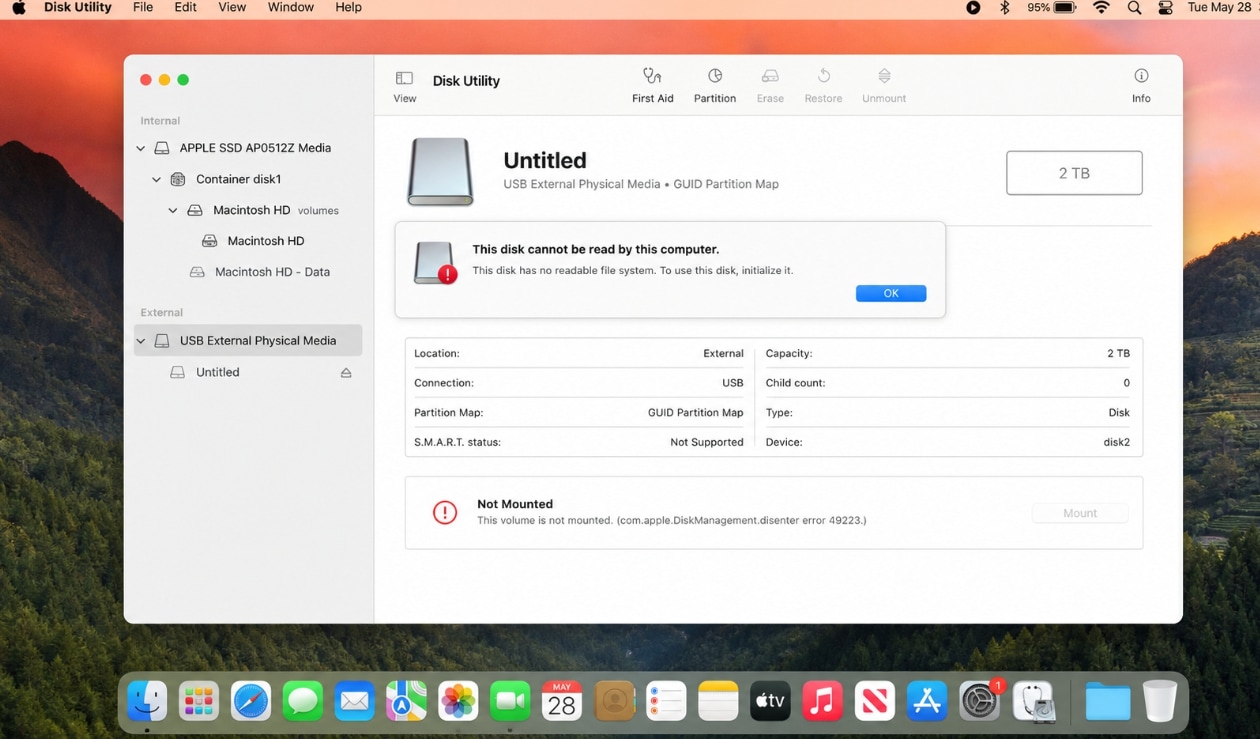
Disk Utility can erase, format, mount, and repair disks, but it is not a data recovery tool. First Aid may repair directory or formatting errors on an existing file system, but it does not restore files removed by an erase.
Use Disk Utility to erase or reformat only after:
- You restored files from Time Machine, iCloud, or another backup.
- You recovered the needed files with recovery software.
- You no longer need data from the erased drive.
- You understand that reformatting again can reduce recovery chances.
If macOS asks you to initialize, erase, or repair the drive and you still need data from it, cancel first and recover data before proceeding.
Part 6. How to Prevent This From Happening Again
- Keep Time Machine enabled and test restores periodically.
- Use a separate external backup before erasing any drive.
- Name drives clearly, such as work backup or camera archive, so Disk Utility selections are easier to verify.
- Before clicking Erase, confirm the physical device name, size, and connection type.
- Disconnect drives that should not be modified before formatting another disk.
- Keep cloud sync or versioned backups for active work folders.
- For business-critical projects, use the 3-2-1 backup rule: three copies, two storage types, one offsite copy.
Conclusion
If you accidentally erased a hard drive on Mac, stop using the drive immediately. Check Time Machine, iCloud Drive, cloud backups, and other devices first. If no backup contains the missing files, Recoverit may help scan a readable erased hard drive, external SSD, USB drive, or memory card before the data is overwritten.
Keep the limits clear: no tool can guarantee recovery from overwritten data, secure erase, unavailable encryption keys, or physical failure. Save recovered files to a different drive, then use Disk Utility to reformat the erased disk only after the important files are safe.
FAQ
-
What should I do if I accidentally erased hard drive Mac?
Stop using the erased drive immediately. Do not copy files, reinstall macOS, erase again, or save recovered data to the same drive. Check Time Machine, iCloud, and other backups first, then scan the erased drive with recovery software if no backup is available. -
Can I recover files after Disk Utility erased a hard drive?
Sometimes. Recovery is more likely if the drive is readable, not securely erased, and not reused after formatting. External HDD cases are often better than internal SSD or encrypted drive cases. Recovery depends on overwriting, encryption, drive type, and detectability. -
Can Recoverit recover an erased Mac hard drive?
Recoverit can help scan readable Mac and external storage devices for recoverable files after accidental erase or formatting. It cannot guarantee recovery, recover overwritten data, bypass FileVault, decrypt without the proper key, or recover from storage that is not detected. -
Should I run First Aid after accidentally erasing a drive?
Not as the first step if you need the erased files. Disk Utility First Aid can check and repair file system errors, but it does not restore files deleted by an erase. Check backups and recover files first. -
Where should I save recovered files?
Save recovered files to a different safe drive. Do not save them back to the erased hard drive during recovery because new data can overwrite files that are still recoverable.



