
 TL;DR:
The "Apple could not verify app is free of malware" warning indicates macOS Gatekeeper cannot confirm the app's signature or notarization status, requiring you to either download an updated version from the official developer or safely override the block exclusively for fully trusted software.
● To launch a legitimate app blocked by this security feature, navigate to System Settings > Privacy & Security and click "Open Anyway," or Control-click the application in Finder and select "Open."
● Never bypass this protection for applications downloaded from cracked software sites, torrents, or unknown mirrors, and immediately move the file to Trash if macOS specifically warns that the app "will damage your computer."
● If you accidentally delete files while cleaning up unverified applications, Wondershare Recoverit can restore local data from readable Mac storage, but it strictly functions as a data recovery tool and cannot remove malicious software or bypass Gatekeeper.
Ask AI for a summary
 ChatGPT
 Perplexity
 Gemini
 Claude
 Grok
Grok
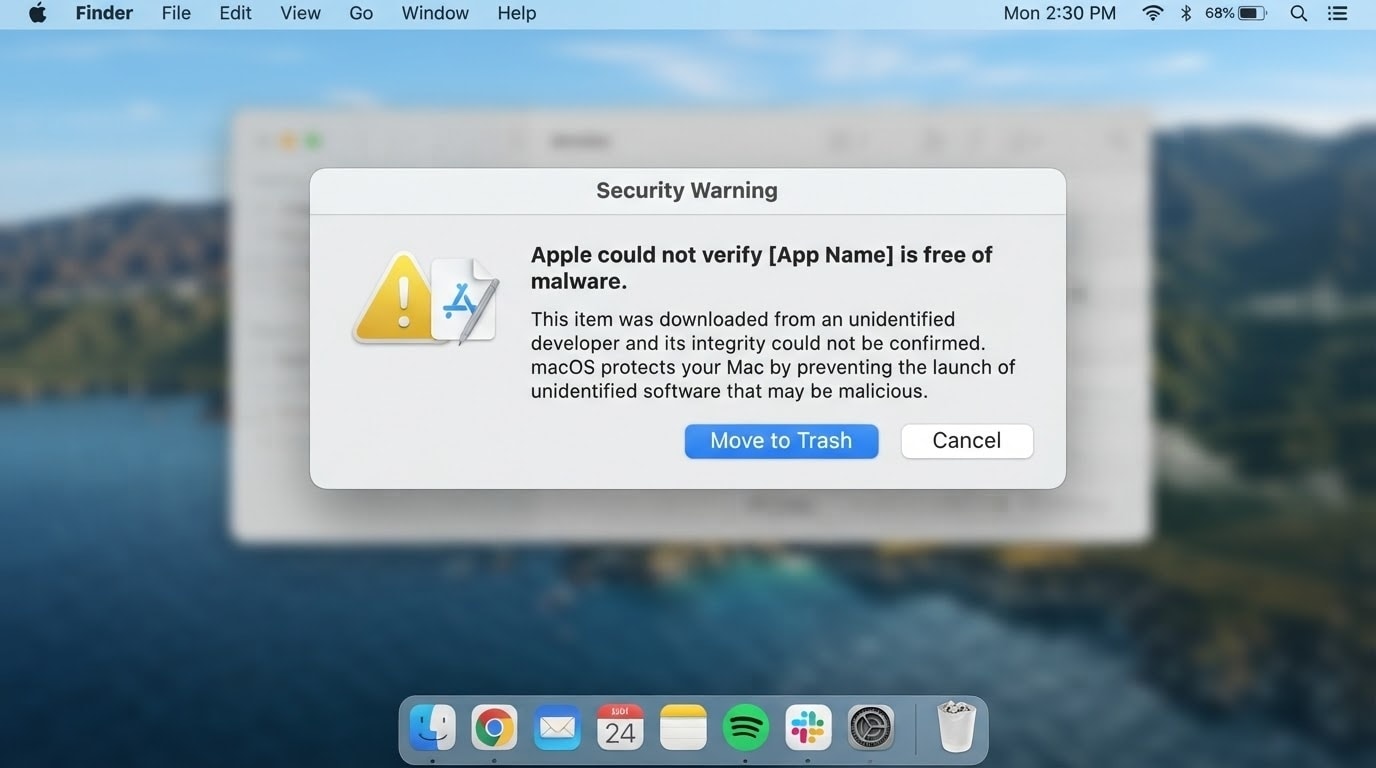
If you see apple could not verify app is free of malware when opening an app on Mac, do not rush to bypass it. The message does not always mean the app is definitely malicious, but it does mean macOS Gatekeeper cannot complete its normal trust check.
Apple recommends getting apps from the App Store or identified developers. For apps downloaded outside the App Store, macOS may check whether the app is signed with a Developer ID and notarized by Apple. If that check fails, the safest path is to verify the source, download an updated version, or remove the app if it looks suspicious.
Data safety note: Wondershare Recoverit is not an antivirus, malware scanner, Gatekeeper bypass, or app verification tool. It can help recover local files deleted during app removal, cleanup, formatting, or accidental Trash emptying, but it cannot remove malware, repair macOS security, recover stolen data, bypass passwords, or decrypt FileVault without the legitimate key.
Try Recoverit to Perform Data Recovery
 Security Verified. 3,591,664 people have downloaded it.
In this article
Part 1. What Does This Apple Malware Warning Mean?
The warning means macOS cannot verify that the app is safe to open. Gatekeeper is part of macOS security and helps make sure downloaded apps come from trusted sources before they run.
You may see the warning when:
- The app was downloaded outside the App Store.
- The developer is not identified through Apple Developer ID.
- The app is not notarized by Apple.
- The app package was modified after signing.
- The app is damaged, incomplete, or too old for current macOS checks.
- macOS cannot check the app for known malicious software.
If a message says the app will damage your computer, treat it as higher risk. Do not open it. Move it to Trash and use a trusted source if you still need the software.
Part 2. Why macOS Cannot Verify the App
Use this table to understand the likely cause before deciding whether to open, update, delete, or replace the app.
| Reason | What It Means | Safest Action |
|---|---|---|
| App is not notarized | Apple has not confirmed the app passed its notarization check for known malware. | Download an updated notarized version from the developer. |
| Unidentified developer | The app is not signed by an Apple-identified developer. | Avoid opening unless you can verify the developer and source. |
| Unofficial download source | The app came from a mirror, forum, file-sharing site, or repackaged installer. | Delete it and download from the App Store or official website. |
| Modified or damaged app | The app may have changed after signing, or the download may be incomplete. | Delete the app and download a fresh copy. |
| Old app version | The developer may not have updated the app for current macOS security checks. | Install the latest version or contact the developer. |
| Real malware risk | macOS may block harmful software for your protection. | Do not bypass the warning. Remove the app and scan the Mac if needed. |
Part 3. Safe Fixes Before Opening the App
Follow these steps from safest to riskier. Only override macOS security when you are confident the app is legitimate.
Fix 1. Check Whether the App Is Trustworthy
Before bypassing the warning, ask:
- Did you download the app from the App Store or the developer's official website?
- Is the developer well-known and easy to verify?
- Does the developer provide a current macOS version?
- Is there a checksum, release note, or support page confirming the download?
- Did the file come from a cracked app site, torrent, random mirror, email attachment, or forum link?
If you are unsure, do not open the app.
Fix 2. Download from the App Store or Official Website
Apple says the App Store is the safest place to get apps. If the app exists in the App Store, use that version. If it does not, download only from the official developer website.
Avoid cracked apps, unofficial installers, modified packages, and repackaged tools. These are common ways malware reaches Macs.
Fix 3. Update the App
The app may be legitimate but outdated. A newer version may be properly signed and notarized.
- Delete the old installer or app copy.
- Visit the official developer website.
- Download the latest Mac version.
- Install it normally.
- Open the app again.
If the warning disappears, the old package likely lacked current verification or was damaged.
Fix 4. Use Open Anyway Only for Trusted Apps
If you are certain the app is safe, Apple allows an exception for a blocked app from Privacy & Security. This should be used only for trusted apps from verified sources.
- Try opening the app once so macOS records the blocked attempt.
- Open System Settings.
- Go to Privacy & Security.
- Scroll to the Security section.
- Find the message about the blocked app.
- Click Open Anyway.
- Confirm by clicking Open.
This creates an exception for that app. It is not a reason to open unknown or suspicious software.
Fix 5. Control-Click and Open a Trusted App
You can also open a trusted app through Finder without disabling Gatekeeper globally.
- Open Finder.
- Go to the app location.
- Control-click or right-click the app.
- Choose Open.
- Read the warning carefully.
- Click Open only if you trust the app and source.
Fix 6. Check Privacy & Security Settings
Make sure your Mac is set to allow trusted sources, not unknown sources.
- Open System Settings.
- Go to Privacy & Security.
- Under Allow applications downloaded from, use App Store or App Store and identified developers.
If the Mac is managed by a company or school, an administrator may control these settings.
Fix 7. Update macOS
macOS updates can improve Gatekeeper, notarization checks, security protections, and compatibility with modern apps.
- Open System Settings.
- Go to General > Software Update.
- Install available updates.
- Restart the Mac.
- Download a fresh copy of the app from the official source and test again.
Part 4. When You Should Not Open the App
Do not bypass the warning if:
- The app came from a cracked software site, torrent, random download mirror, or unknown link.
- macOS says the app will damage your computer.
- The app asks for administrator access without a clear reason.
- The app claims to remove malware but comes from an unknown developer.
- The app installer name, developer, or icon looks different from the official product.
- Your work or school Mac is managed by IT policy.
Instead, move the app to Trash, remove leftover installers, restart the Mac, update macOS, and use trusted security software or your IT team if you suspect malware. If you entered passwords after opening a suspicious app, change those passwords from a different trusted device.
Part 5. Recover Files Deleted During App Cleanup
Sometimes users delete more than the app while trying to fix the warning. Project folders, presets, documents, downloads, app libraries, or external drive files may disappear after cleanup.
When Recoverit Is Relevant
Use Recoverit only for local data recovery situations, such as:
- You deleted files while removing an unverified app.
- You emptied Trash by mistake.
- Project files disappeared after uninstalling software.
- You removed an app folder that also contained user files.
- An external drive used by the app was formatted during cleanup.
- Photos, videos, documents, archives, or downloads are missing after manual cleanup.
Recoverit does not verify whether the app is safe and does not remove malware. Recovery also depends on drive condition, overwriting, encryption, and detectability.
How to Recover Deleted Files on Mac
Step 1. Select and Scan a Location

Step 2. Preview and Recover Files

Conclusion
The warning "Apple could not verify app is free of malware" means macOS cannot fully trust the app package. Start by checking the source, downloading from the App Store or official developer website, updating the app, and using Open Anyway only for software you genuinely trust.
If you remove the app and later discover missing files, Recoverit can help recover deleted local data from readable Mac storage. Keep the boundary clear: Recoverit is for file recovery, not malware removal, app verification, password bypass, or Gatekeeper repair.
FAQ
-
What does "Apple could not verify app is free of malware" mean?
It means macOS cannot fully verify that the app is safe, signed, notarized, or from a trusted developer. It does not always prove the app is malware, but you should verify the source before opening it. -
Is it safe to click Open Anyway on Mac?
Only click Open Anyway if you trust the developer and downloaded the app from an official source. Do not use it for cracked apps, unknown installers, suspicious downloads, or apps that macOS says will damage your computer. -
How do I fix Apple could not verify app is free of malware?
Download the app from the App Store or official developer website, install the latest version, update macOS, and use Privacy & Security Open Anyway only for a trusted app. Delete the app if the source is suspicious. -
Can Recoverit remove malware or bypass Gatekeeper?
No. Recoverit cannot remove malware, verify apps, bypass Gatekeeper, repair macOS security, or unlock encrypted data. It can help recover local files deleted during app removal or cleanup when the storage is readable. -
What if files are missing after deleting the suspicious app?
Stop using the affected drive, check Trash and backups first, then scan the original location with Recoverit if needed. Save recovered files to another safe location to reduce overwriting risk.



