
 TL;DR:
To fix a MacBook Pro that receives power but displays a blank screen, first test an external monitor to isolate display hardware faults, then boot into macOS Recovery to run Disk Utility First Aid or reinstall macOS without erasing the drive.
● Resolving firmware issues requires a second Mac running macOS Sonoma 14 or later connected via a USB-C data cable; always select the Revive option first to preserve your data, as the Restore option will completely erase the Mac to factory settings.
● System Management Controller (SMC) resets are restricted to Intel-based Macs and require different key combinations depending on the presence of a T2 Security Chip, while Apple Silicon models must use the Startup Options menu to access Safe Mode or Apple Diagnostics.
● Do not repeatedly restart the MacBook Pro if liquid or physical damage is suspected; extract inaccessible files by creating a bootable USB recovery drive on a secondary working Mac before executing any troubleshooting steps that overwrite the internal storage.
Ask AI for a summary
 ChatGPT
 Perplexity
 Gemini
 Claude
 Grok
Grok
A blank screen MacBook Pro can point to anything from a simple display issue to a macOS startup, disk, firmware, or hardware problem. The key is identifying whether the Mac has no power or turns on without displaying an image.
This guide walks through quick checks, Safe Mode, macOS Recovery, Disk Utility, Apple Diagnostics, and firmware repair. It also explains how Recoverit can help recover important files when your Mac cannot start normally or data becomes inaccessible.
Try Recoverit to Perform Data Recovery
 Security Verified. 3,591,664 people have downloaded it.
In this article
Part 1. Identify the Problem First
Before you try to fix the MacBook Pro blank screen, review this table and see which issue you are facing:
| What You Notice | What It May Indicate | First Check |
| No Power or Startup Response | Power supply, battery, or hardware problem | Check power connection and startup response |
| Turns On but Display Stays Blank | Display, macOS startup, or hardware problem | Force restart and check the display |
| External Monitor Works | Built-in display system more likely | Check the built-in display and connections |
| Blank Screen During Startup | macOS, startup disk, or firmware problem | Start in macOS Recovery |
| Recovery Displays Normally | macOS or startup disk problem more likely | Run Disk Utility First Aid |
Blank Screen vs a MacBook That Will Not Turn On
A Mac that won't turn on and a blank screen MacBook Pro are different problems. A Mac that won't turn on shows no signs of power or startup activity. In contrast, a blank-screen MacBook Pro powers on but displays no usable image, even though you may notice signs such as keyboard backlighting, sounds, or other startup activity.
Part 2. Why Is the MacBook Pro Display Blank?
Once you know the symptoms, go through the following 5 points to understand the causes of MacBook Pro display blank issues:

- Power or Startup-Power Problem: A faulty adapter, cable, outlet, battery, or other power issue can prevent the Mac from turning on or showing normal startup activity.
- macOS Startup or Software Problem: A blank screen MacBook Pro may power on but remain blank because a software or startup issue prevents macOS from loading normally.
- Startup Disk or File-System Error: Startup disk or file-system errors can prevent macOS from loading correctly, even when the Mac’s power and display hardware remain functional.
- Built-In Display or Connection Problem: The Mac may start normally while its built-in display remains blank, making the panel, backlight, or internal display connection likely suspects.
- Firmware or Other Hardware Problem: Firmware faults or hardware problems involving components such as the logic board or display system can cause a blank screen when normal startup fails.
Part 3. Quick Checks for a Blank Screen MacBook
Work through these checks in order before moving to Recovery-based fixes for a blank screen MacBook Pro issue:
Check Power and Display Brightness
- This helps rule out basic power and display issues before moving to more advanced troubleshooting.
- Connect the correct power adapter for your MacBook Pro and confirm the outlet works properly.
- Press the brightness-up key several times to ensure the display is not set to its lowest brightness.
- If the battery is fully discharged, connect the Mac to power and allow some time to charge before retrying.
- Check for fans, warmth, keyboard backlighting, sounds, or other signs indicating the Mac is receiving power.
Disconnect External Accessories
Disconnecting external accessories can resolve a Mac Pro blank screen when a problematic device interferes with startup. Remove external drives, hubs, docks, and nonessential adapters, then restart with only essential connections attached.
Force Restart the MacBook Pro
If the Mac still shows nothing after disconnecting external accessories, it may be stuck during startup. A force restart shuts down the Mac and starts the boot process again. Follow these steps to force restart your MacBook Pro:
Instructions. Hold the “Power” or “Touch ID” button for up to 10 seconds until the Mac turns off. Wait a few seconds, then press the “Power” button again to turn it on. Check whether the Apple logo or startup options appear.

Test with an External Display
When you are stuck on a Mac Pro blank screen, testing an external monitor can help narrow down the cause. If the external display works, the built-in display system becomes a more likely source of the problem, while also confirming that the Mac is producing a video output.
Step 1. Use an appropriate USB-C, HDMI adapter, or Thunderbolt cable to connect your MacBook Pro to an external monitor, TV, or projector. Make sure the external display is plugged in and turned on.
Step 2. Check your monitor's input settings and match them to the connected port. If nothing shows up, disconnect and reconnect the display. Apple also suggests putting the Mac to sleep and waking it, closing the lid for a few seconds and opening it again, or restarting the Mac.
Mac Pro Blank Screen: Check the Display Chain
A Mac Pro blank screen needs a slightly different check because it has no built-in display.
- Confirm the monitor has power and is set to the correct input.
- Replace the display cable, and test without any adapter if the connection allows.
- Bypass hubs, docks, and KVM switches by connecting directly.
- Try a second monitor, and check the Mac Pro's status light to confirm it is starting.
Part 4. How to Fix a Blank Screen During Startup
If the quick checks do not resolve the issue, the next stage focuses on macOS startup and system-level problems. These fixes for a blank screen MacBook progress from safer troubleshooting to more advanced options, some of which can erase your data.
Start the Mac in Safe Mode
Safe Mode starts macOS while preventing certain software from loading during startup. If the Mac works normally in Safe Mode, startup-loaded software may be contributing to the blank screen MacBook issue. Follow these steps based on your Mac model:
For Apple Silicon MacBook
Step 1. Shut down your Mac completely. Press and hold the “Power” button until “Loading Startup Options” appears.

Step 2. Select your startup volume, then press and hold the “Shift” key and click “Continue in Safe Mode.” Log in when prompted.
For Intel MacBook
Instructions. Turn on or restart the Mac, then immediately press and hold the “Shift” key until the login window appears. Log in to continue in Safe Mode.

Start the MacBook Pro in macOS Recovery
When Safe Mode does not help, macOS Recovery provides a separate environment for checking the startup disk and macOS. If the Recovery screen appears normally, the MacBook Pro display is working in that environment, making a startup disk or macOS issue more likely. The process differs between Apple Silicon and Intel-based Macs, as explained below:
For Apple Silicon MacBook
Step 1. Shut down the Mac. If it does not respond, press and hold the “Power/Touch ID” button for up to 10 seconds until it turns off.

Step 2. Press and hold the “Power/Touch ID” button until “Loading Startup Options” appears. Select “Options” > “Continue.” If prompted, select a volume, choose an administrator account, and enter its password.

For Intel MacBook Pro
Step 1. Turn on the Mac and immediately press and hold “Command + R” until you see the Apple logo or another startup screen.

Step 2. If prompted, select an administrator account > “Next” > Enter the account password > Press “Continue” to access macOS Recovery.

Run Disk Utility First Aid
Once inside Recovery, check the startup disk before reinstalling macOS. First Aid can find and repair errors related to a storage device’s formatting and directory structure that may prevent the Mac from starting normally. To address a potential Mac Pro blank screen caused by disk errors, follow these steps:
Step 1. Select “Disk Utility” from the macOS Recovery window and click “Continue.” Then choose “View” > “Show All Devices.” The sidebar will display the storage device along with its containers and volumes.

Tip: For an APFS startup disk, start with the last volume listed, such as Macintosh HD - Data, and work your way upward through the remaining volumes. Once finished, run First Aid on each container and, lastly, on the physical storage device.
Step 2. Select the last volume listed under the startup disk, such as “Macintosh HD - Data.” Click “First Aid” > “Run” or “Repair Disk.” After it finishes, move upward through the sidebar and repeat First Aid for each volume, then each container, and finally the physical storage device.

Step 3. When First Aid finishes, exit Disk Utility. From the Apple menu, choose “Restart,” then check whether your Mac starts normally.

Reinstall macOS from Recovery
If First Aid reports no errors but the Mac Pro blank screen persists, reinstalling macOS is the next software troubleshooting step. Apple explains that reinstalling macOS does not remove your apps or personal data, although backing up first is recommended when possible. Erasing the startup disk is a separate process that removes its data. To reinstall macOS without erasing the disk, follow these instructions:
Step 1. From the macOS Recovery utilities window, select “Reinstall macOS,” then click “Continue.” Do not open Disk Utility to erase or reformat the startup disk.

Step 2. Follow the on-screen instructions and select your current macOS startup disk, such as “Macintosh HD,” when prompted. Continue with the installation without erasing the disk to preserve your apps and personal data.
Reset the SMC on Supported Intel Macs
This method applies only to Intel-based Macs. According to Apple, resetting the System Management Controller (SMC) might help resolve certain power-related issues that can affect startup. If your MacBook Pro display is blank and you have an Intel-based model, follow these steps to reset the SMC:
Reset the SMC on a MacBook with a T2 Chip
Step 1. Shut down your Mac completely. Press and hold “Left Control,” “Left Option,” and “Right Shift” for 7 seconds. Your Mac might turn on during this process.
Step 2. Without releasing these keys, press and hold the “Power/Touch ID” button for another 7 seconds. Release all four keys, wait a few seconds, then press the “Power” button to turn on your Mac.

Reset the SMC on MacBook without a T2 Chip
Step 1. With your Mac turned off, press and hold “Left Shift,” “Left Control,” and “Left Option (Alt).”
Step 2. While holding them, press and hold the “Power” button for 10 seconds. Release all four keys, then press the “Power” button again to turn on your Mac.

Revive or Restore Mac Firmware
These are two different firmware-recovery operations with very different consequences. For a blank screen MacBook, Apple recommends trying Revive first because it does not erase the Mac:
| Operation | What It Does | Effect on Your Data | When to Use |
| Revive | Updates the firmware and recoveryOS | Does not erase the Mac | Try this first |
| Restore | Updates firmware and restores the Mac to factory settings | Erases the Mac | Use if Revive fails |
What You Need:
A second Mac running macOS Sonoma 14 or later and connected to the internet.
An affected Mac with Apple silicon or the Apple T2 Security Chip.
Both Mac laptops are connected to power.
The affected MacBook Pro shut down before beginning.
Step 1. Connect the two Macs with a USB-C cable that supports data and charging, not a Thunderbolt 3 cable.
Step 2. Immediately press and hold “Left Control,” “Left Option,” “Right Shift,” and the “Power” button together on the built-in keyboard. After 10 seconds, release the three keyboard keys but continue holding the “Power” button for up to 10 more seconds, until the affected Mac appears in Finder on the working Mac in DFU mode.

Note: The required DFU port and key sequence vary depending on whether the affected Mac is an Apple silicon laptop, a T2-equipped laptop, or a desktop Mac.
Step 3. On the host Mac, select the affected Mac in the Finder sidebar to open its DFU window, then choose “Revive Mac.” If the revive process fails, put the affected Mac back into DFU mode and choose “Restore Mac.”

Part 5. When It May Be a Hardware Problem
If the Mac Pro blank screen issue continues after these fixes, certain symptoms may point to a hardware problem. The table below shows what to look for and the recommended action:
| Symptom | Possible Hardware Area | Recommended Action |
| External Display Works, Built-In Does Not | Built-in display, backlight, or internal connection | Arrange display diagnosis |
| Flickers or Changes with Lid Movement | Display assembly or internal cable | Seek hardware inspection |
| No Image Even in Recovery | Display system, firmware, or logic board | Run Apple Diagnostics or seek service |
| Physical or Liquid Damage | Display, logic board, or other internal hardware | Stop repeated startup attempts |
| Startup Storage Not Detected | Internal storage or logic board | Protect data and seek diagnosis |
Run Apple Diagnostics
Before booking a service appointment, run Apple Diagnostics to check your Mac for hardware problems. It tests internal components and provides reference codes that can help identify the affected hardware. Follow these steps to run the diagnostic test:
Prerequisites:
Hold the power or Touch ID button for 10 seconds.
Unplug everything except the keyboard, mouse, display, and power.
Place it on a flat, ventilated surface with AC power connected.
Step 1. On a Mac with Apple silicon, press and hold the “Power/Touch ID” button. Release the button when you see “Options,” then press and hold “Command + D” until the Mac restarts into Apple Diagnostics.

Step 2. On an Intel-based Mac, turn it on and immediately press and hold the “D” key. Release it when you see a progress bar or are asked to choose a language. If the D key does not work, try “Option + D” instead.

Step 3. Select “I Agree" > Connect to Diagnostic Server> Checking will start.

Part 6. Recover Data from a Blank Screen MacBook Pro
A blank screen MacBook Pro does not automatically mean your files are lost. Important data may remain intact even when macOS cannot start normally, or the built-in display is unusable. Data recovery becomes important before performing any procedure that can erase internal storage, such as erasing and reinstalling macOS or using Firmware Restore. If you do not have a recent backup, consider recovering important files first with Recoverit.
It can scan accessible storage and recover files when normal startup is unavailable. Its crashed-system recovery mode creates bootable media using a working Mac. You can then connect the bootable media to the affected MacBook Pro and use it to access recoverable data without relying on a normal macOS startup. Recovered files can be saved to separate external storage, helping avoid writing recovered data back to the source drive.
Key Features
- iCloud Save Support: Recovered files on Mac can be saved directly to iCloud, giving users an additional destination for storing recovered data.
- ExFAT Path Support: Recoverit addresses an issue where ExFAT file paths could be lost during recovery, helping preserve the original path information.
- SD Card Recovery: Beyond internal Mac storage, Recoverit supports recovery from connected SD cards and detects image and video formats from devices such as cameras.
Guide to Recover Your Files from Mac with Recoverit
While fixing a Mac Pro blank screen, prepare a second working Mac and an external drive with enough space for the recovered files. Then, follow these steps to recover your data:
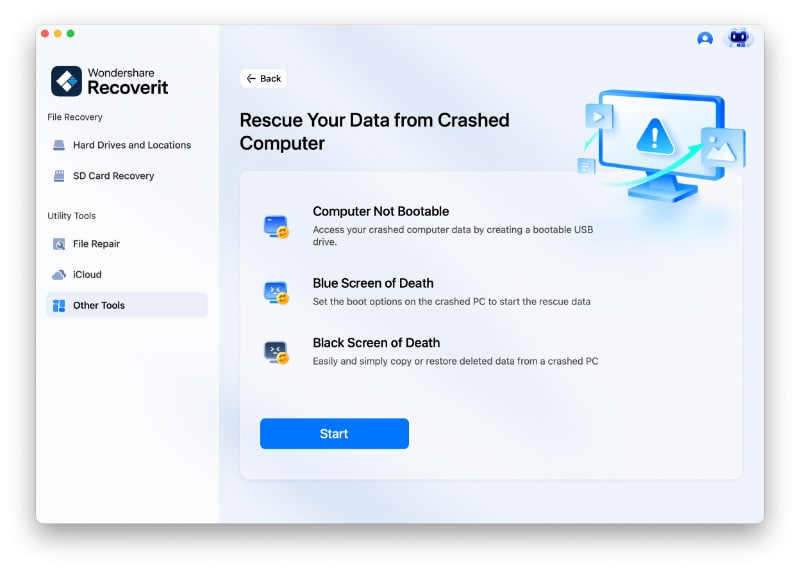
Step 1. Prepare the Recovery Media
Set up Recoverit on a working Mac, access the “System Crashed Computer” feature, and press “Start.”
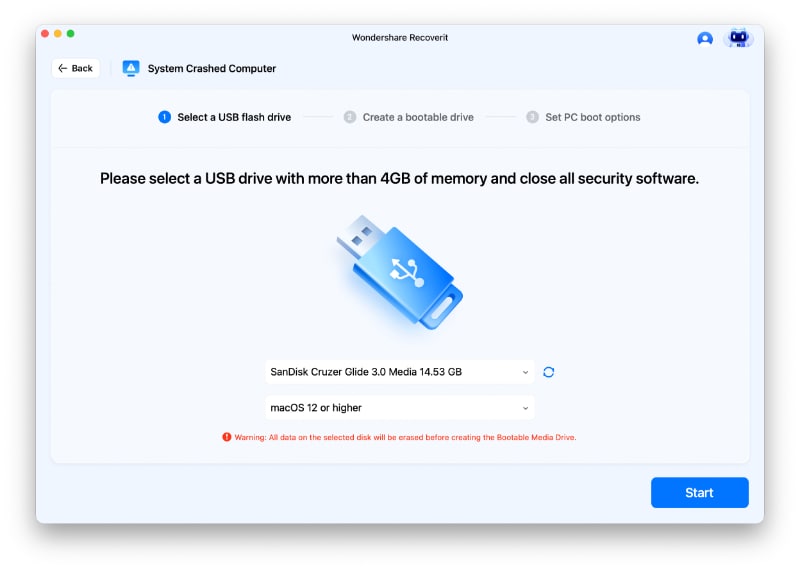
Step 2. Create Bootable Recovery USB
Connect a blank USB flash drive to the working Mac, select it in Recoverit, and click “Start.” Confirm the erase prompt, then wait while Recoverit creates the bootable recovery media.
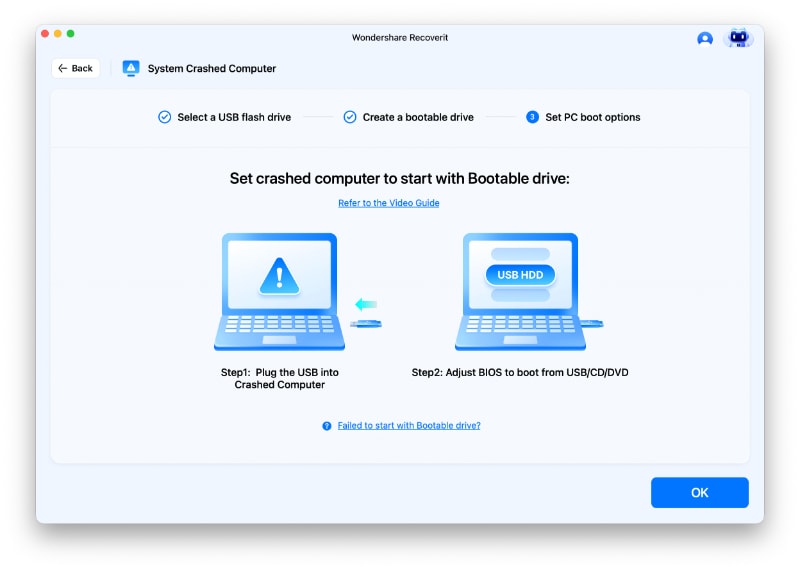
Step 3. Export Your Recovered Files
Once the bootable media is ready, safely eject the USB and connect it to the blank-screen MacBook Pro. Attach a separate external drive for the recovered data, start the Mac from the recovery USB, then select the files or folders you want to recover and save them to the external drive.
Part 7. What Not to Do with a Blank Screen MacBook Pro
When troubleshooting a Mac Pro blank screen, avoid actions that could cause data loss, worsen hardware damage, or complicate recovery. The table below highlights what not to do:
| Avoid This | Why |
| Erasing or Reformatting the Startup Disk | Erasing the startup disk removes data that a standard macOS reinstall may preserve. |
| Assuming the SSD Has Failed | A blank screen can also result from display, startup, firmware, or other hardware problems. |
| Using Intel Reset Steps on Apple Silicon | Apple Silicon Macs do not use the same SMC reset procedures as Intel-based Macs. |
| Running Firmware Restore Too Early | Restore erases the Mac, while Revive is designed to preserve data. Try Revive first when applicable. |
| Repeatedly Restarting After Liquid or Physical Damage | Additional power cycles may worsen hardware damage and reduce the chances of safely recovering data. |
Conclusion
To conclude, a blank screen MacBook can result from display, startup, disk, firmware, or hardware problems. Start with basic checks, then move through Safe Mode, macOS Recovery, Disk Utility First Aid, and hardware diagnostics when needed. Firmware Revive preserves data, while Restore erases the Mac. If important files are inaccessible, Recoverit can help recover them before attempting data-erasing procedures.
FAQ
-
Why is my MacBook Pro screen blank but the keyboard is still lit?
Keyboard lighting confirms that the Mac is receiving power, but macOS may not have fully started. With a blank-screen MacBook Pro, possible causes include the display, startup software, firmware, or other hardware. Testing an external monitor can help narrow down the source. -
Will reinstalling macOS fix a blank screen without deleting my files?
Reinstalling macOS from Recovery can fix a blank screen caused by damaged or missing system files without erasing personal data. However, erasing the startup disk before reinstalling removes its data, so avoid that option unless necessary. -
Can I recover data from a MacBook Pro with a completely blank screen?
Yes, if the internal storage remains accessible. A blank-screen MacBook may still allow data recovery through supported bootable recovery media, even when macOS cannot start normally.



