 TL;DR:
Choosing the best EaseUS alternative for Mac depends on your source media and data limits: Wondershare Recoverit is optimal for fragmented camera media, Disk Drill excels at byte-to-byte imaging, Stellar provides a transparent 1GB free allowance with a 100MB per-file cap, and DMDE lets technical users recover 4,000 files per directory at no cost.
● For advanced technical recovery, R-Studio handles complex RAID reconstructions but requires verifying host compatibility for macOS 26 Tahoe, while UFS Explorer offers a strict image-first APFS workflow with a 256KB file save limit in its trial.
● PhotoRec serves as a completely free open-source raw signature carver with no commercial data limits, but it is unable to restore original filenames, timestamps, or intact folder structures.
● Regardless of the chosen software, no application can decrypt a locked FileVault volume without valid credentials, nor can they retrieve internal Apple silicon or T2 Mac SSD data that has been cryptographically erased or cleared by TRIM.
Ask AI for a summary
 ChatGPT
 Perplexity
 Gemini
 Claude
 Grok
Grok
EaseUS is easy to use, but its conditional 2GB free offer, listed upgrade price, and Mac recovery limits do not fit every case. This guide compares seven current alternatives for APFS, FileVault, Apple silicon, SSDs, camera media, and RAID.
Fact-checked on August 18, 2026: Compatibility, free recovery allowances, and feature boundaries were verified against vendor documentation. Prices and promotions can vary by country and checkout date.
TL;DR: The Best EaseUS Alternative Depends on What You Lost
- Best for photos, videos, camera cards, and an approachable Mac workflow: Wondershare Recoverit for Mac.
- Best Mac-native toolkit for byte-to-byte imaging and local Time Machine snapshot discovery: Disk Drill.
- Best clearly defined free graphical option: Stellar Data Recovery Free for Mac, with up to 1GB total recovery and a 100MB cap per file.
- Best advanced free allowance: DMDE, which permits up to 4,000 files from one selected directory per recovery operation.
- Best for RAID, network recovery, and technical operators: R-Studio for Mac, but macOS Tahoe users should verify host compatibility before buying.
- Best image-first workflow for a single APFS disk: UFS Explorer Standard Recovery.
- Best fully free signature carver: PhotoRec, if original names and folder structure are not essential.
- Most important limitation: No app can decrypt a locked FileVault volume without valid credentials or restore SSD blocks already cleared by TRIM or made inaccessible when an Apple silicon or T2 Mac was erased.
In this article
Part 1. Quick Verdict: Which EaseUS Alternative Should You Choose?
There is no responsible single winner for every Mac. Recovering a deleted ProRes clip from a CFexpress card is not the same task as rebuilding a damaged APFS container, accessing a FileVault volume, or reconstructing a RAID. Choose by source device, failure mode, encryption state, and the value of the missing data.
Best Choice by Mac Recovery Scenario
| Mac recovery scenario | Best first choice | Why it fits | Critical limitation |
| Deleted photos or videos on an SD, CFexpress, USB, or external drive | Recoverit | Beginner-friendly scan, file preview, broad media support, and an Enhanced Recovery workflow for fragmented video. | Use another drive for recovered files. No software can restore overwritten media blocks. |
| Need a disk image before scanning an unstable external drive | Disk Drill or UFS Explorer | Both provide image-oriented workflows. Disk Drill includes a free byte-to-byte backup utility. | An image does not repair failing hardware. Stop if the drive disconnects, clicks, or vanishes. |
| Need the largest simple free graphical allowance | Stellar Free | Up to 1GB total recovery is stated clearly. | Each recovered file must be 100MB or smaller in the free edition. |
| Need a generous free option and can handle a technical interface | DMDE | Up to 4,000 files from one selected directory per operation, with repeated operations allowed. | The directory rule matters, and write-capable tools demand caution. |
| Need RAID reconstruction or recovery over a network | R-Studio | Strong RAID, image, network, file-system, and technical inspection features. | Its current Mac host list needs checking if the recovery computer runs macOS 26 Tahoe. |
| Need to unlock a known-password encrypted APFS volume and work from an image | UFS Explorer | Documents encrypted APFS access with a password or recovery key and supports disk imaging. | Its trial saves only files no larger than 256KB. Apple hardware-bound encryption still applies. |
| Need a completely free raw file carver | PhotoRec | Open source, read-only access, and broad signature recognition. | Recovered files commonly lose original names and folders. Fragmented files may be incomplete. |
| Deleted a file that exists in Time Machine | Time Machine | Restores the intact backed-up copy with its original name and folder. | Only works if the file was included in a backup before deletion. |
| Internal SSD was erased on an Apple silicon or T2 Mac | Backup or specialist assessment | Apple hardware encryption can make old data cryptographically inaccessible after an erase. | Downloading multiple recovery apps onto the same SSD can only add writes, not recreate destroyed keys. |
When to Use a Backup Instead of Recovery Software
If the missing file exists in Time Machine, iCloud Drive, Dropbox, OneDrive, a NAS snapshot, or an application version history, restore that known-good copy first. A backup preserves the file system's metadata and usually costs nothing. Recovery software is the fallback for a deleted, formatted, corrupted, or inaccessible source when no usable copy exists.
Apple's Time Machine restore guide explains how to open the folder that originally contained the item, enter Time Machine, browse snapshots, and restore the selected version. Do not scan a Time Machine disk as if it were ordinary deleted storage unless the backup itself is damaged.
Part 2. Why Mac Data Recovery Needs a Different Buying Test
APFS, FileVault, Apple Silicon, and T2 Security
A Mac compatibility badge is not enough. A credible EaseUS Data Recovery Wizard alternative must be evaluated against the actual storage layer:
- APFS support: The app needs to recognize APFS volumes, snapshots, containers, and the specific damage present. Listing APFS in a feature table does not guarantee repair of every container.
- FileVault access: Recovery software does not bypass encryption. A locked encrypted volume normally needs the correct login password or recovery key before its files can be interpreted.
- Apple silicon and T2 Macs: Apple states that internal storage on these Macs uses hardware-backed encryption through the Secure Enclave. Even with FileVault turned off, data on the built-in SSD is encrypted by the hardware architecture.
- Erase operations: Apple's current security documentation explains that erasing the volume can remove the relevant media and volume keys. When that happens, old blocks may remain physically present but are cryptographically inaccessible.
- Full Disk Access: macOS privacy controls may prevent a recovery app from seeing protected folders or Time Machine data until you grant permission in System Settings. Grant access only to software you intentionally downloaded from its official publisher.
These are security boundaries, not missing product features. Read Apple's FileVault and Apple storage encryption documentation before paying any vendor that implies it can defeat a missing password or destroyed encryption key.
SSD TRIM and the Startup Disk Problem
On an HDD, deleting a file usually removes its directory reference before its data sectors are overwritten. On an SSD, TRIM can tell the controller that deleted blocks are no longer needed. Garbage collection may then clear them. This is why an app can sometimes display a filename from surviving metadata while the recovered file will not open: the name survived, but some or all content blocks did not.
The risk is higher on the active startup disk because macOS, browsers, sync clients, caches, and installation processes continue writing. If a valuable file disappeared from an internal SSD, stop ordinary use. Do not install seven trial applications onto that same disk. If the data is irreplaceable, shut down and ask a qualified lab whether a non-destructive path exists before more writes occur.
| Source | Recovery outlook | Safest immediate action |
| External HDD | Often reasonable after accidental deletion if it was not overwritten. | Disconnect it, then image or scan it from another healthy drive. |
| External SSD | Variable because TRIM behavior depends on the enclosure, bridge, OS, and drive. | Disconnect it. Do not format, repair, or copy files onto it. |
| Internal Apple silicon or T2 SSD | Often poor after deletion plus TRIM; potentially impossible after cryptographic erase. | Stop use and check backups before attempting software recovery. |
| SD or CFexpress card | Often reasonable after deletion or quick format if no new recording occurred. | Lock the card if supported, stop recording, and scan through a reliable reader. |
| Physically failing drive | Software scans can worsen a marginal device. | Power it down and use a professional lab if the files justify the cost. |
Part 3. EaseUS for Mac Baseline: What Are You Replacing?
Before calling another app an EaseUS alternative, establish what the current EaseUS product actually offers. The official EaseUS Data Recovery Wizard for Mac page lists support for APFS, HFS+, HFS X, FAT, exFAT, and NTFS, plus current macOS versions including macOS 26.
Current EaseUS Free and Paid Limits
- The headline free allowance is conditional: EaseUS describes 500MB of default free recovery plus another 1.5GB after sharing the product on social media. A user who does not complete that promotion should not assume 2GB is available.
- The trial and free editions are not the same: The current comparison on the vendor page indicates that the trial can scan and preview but does not save recovered data. The free edition provides the conditional saving allowance.
- The current page displays a $89.95 Pro offer: License terms, renewals, taxes, and regional checkout prices should be confirmed before purchase.
- Higher-tier features matter: The vendor positions Time Machine recovery, iTunes recovery, cloud recovery, bootable USB, and corrupt media repair as Pro capabilities.
EaseUS remains a valid choice for users who like its interface and whose device is supported. The purpose of this comparison is not to claim it is ineffective. It is to identify alternatives that are better aligned with a specific budget, source device, free-saving requirement, or technical workflow.
Good Reasons to Switch
- You need a genuinely unlimited free carver: PhotoRec has no commercial save quota, although it sacrifices names and folders.
- You need a larger no-payment allowance without social sharing: Stellar documents 1GB total, while DMDE permits 4,000 files from one selected directory per operation.
- You want image-first recovery: Disk Drill and UFS Explorer make a disk image or clone central to safer work on questionable storage.
- You are recovering fragmented camera media: Recoverit and Disk Drill both offer workflows aimed at photo and video storage rather than only generic office files.
- You need RAID or remote recovery: R-Studio is designed for technical storage work beyond a typical home recovery wizard.
- You dislike the license model or current checkout price: Free, perpetual, and subscription options differ widely. Compare the final checkout, not an old review screenshot.
Part 4. How We Compared EaseUS Alternatives for Mac
This is a documentation-led, scenario-based comparison. We did not invent laboratory recovery percentages or treat a vendor's marketing success rate as a repeatable benchmark. A meaningful recovery test needs the same device, file system, deletion method, overwrite state, encryption state, file set, scan mode, and pass/fail rules for every app. Without that protocol, a single percentage is not comparable.
Each recommendation was assessed against the following questions:
- Can it run on a current Mac? We checked the vendor's published host operating systems and Apple chip support, not just whether APFS appears in a file-system list.
- Can it interpret the source? APFS, HFS+, encrypted APFS, removable media, disk images, RAID, and network storage are separate capabilities.
- Can the free edition save files? Scan, preview, and recover are three different permissions. We state the saving limit and any file-size or folder rule.
- Can it reduce source-disk risk? Read-only behavior, byte-to-byte imaging, and saving to a separate disk are more important than a flashy scan animation.
- Does it fit the lost data? Photos and fragmented video, office files, formatted APFS volumes, and RAID failures need different strengths.
- Are its limitations visible before checkout? Encryption keys, SSD TRIM, physical failure, and host compatibility should be explained, not buried.
Editorial disclosure: This article is published on the Recoverit website, and Recoverit is included as one option. To keep the comparison useful, it also names cases where a backup, Disk Drill, Stellar, DMDE, R-Studio, UFS Explorer, PhotoRec, or a professional lab is a better first move.
Part 5. The 7 Best EaseUS Data Recovery Alternatives for Mac
1. Wondershare Recoverit for Mac: Best for Photos, Videos, and Everyday Mac Recovery
Wondershare Recoverit for Mac is the strongest EaseUS alternative here for users who value a guided interface and need to recover media from a Mac, external drive, Time Machine disk, SD card, CFexpress card, camera, or USB storage. The current Recoverit V14 page lists macOS 26 Tahoe through macOS 10.15, Intel Macs, T2-equipped Macs, and Apple M1 through M4 chips.
The product lists APFS, HFS/HFS+, exFAT, FAT16/32, NTFS, ReFS, RAW, JFS, and ext4 among its recognized file systems. Its differentiator is not a generic promise to find documents. It is the media workflow: photo and video scanning plus Enhanced Recovery for video content that may be fragmented across a card or drive. That makes it a logical fit for creators recovering ProRes, HEVC, AV1, 4K, or 8K material after deletion, card formatting, an interrupted transfer, or a damaged directory.
Where Recoverit Fits Better Than EaseUS
- Camera-media recovery: The interface provides dedicated photo and video-oriented recovery paths for memory cards and camera storage.
- Damaged video workflow: Enhanced Recovery is designed to locate and combine video fragments instead of relying only on ordinary file records.
- Current Mac coverage: The official Mac page explicitly lists Tahoe and Apple M-series hardware through M4.
- Preview before saving: Users can filter scan results and preview supported files before selecting what to recover.
Limitations to Know
- Free saving is limited: The current free edition allows up to 500MB of recovery, so it is best treated as a compatibility and preview test for larger jobs.
- Internal SSD deletion may be unrecoverable: Recoverit cannot reverse TRIM, reconstruct destroyed Apple encryption keys, or decrypt FileVault without valid access.
- It is not the first choice for complex RAID reconstruction: R-Studio or a suitable UFS Explorer edition is more appropriate when virtual RAID assembly is the central task.
- Do not install it onto the affected volume: Use another disk or another Mac where practical, and save recovered files to separate storage.
Best for: Photographers, videographers, creators, and everyday Mac users who want a visual recovery workflow for internal or removable storage. For a narrower task, see the Recoverit guides for recovering deleted files on Mac, recovering emptied Mac Trash, memory card recovery, and video recovery.
Try Wondershare Recoverit to Perform Data Recovery
 Security Verified. Over 7,302,189 people have downloaded it.
2. Disk Drill for Mac: Best Mac-Native Toolkit and Byte-to-Byte Backup
Disk Drill 6.3 is a polished EaseUS alternative for users who want a Mac-centered interface plus supporting disk utilities. CleverFiles currently lists macOS 10.15 through macOS 26, Apple M1 through M5, and T2 support. Its byte-to-byte backup tool can create a sector-level image before recovery, which is a meaningful safety feature when an external drive is readable but unstable.
Disk Drill also integrates recovery paths for Time Machine backup disks and local snapshots and offers Advanced Camera Recovery for fragmented media. Its preview, filters, recovery-chance indicators, and scan result organization are approachable for non-specialists.
Where Disk Drill Fits Better Than EaseUS
- Free disk imaging: Byte-to-byte backup can preserve a readable source before a deep scan.
- Mac-focused extras: Snapshot discovery, S.M.A.R.T. monitoring where supported, cleanup, and duplicate tools create a broader utility bundle.
- Current Apple hardware documentation: CleverFiles explicitly lists Apple M1 through M5 and T2.
- Camera recovery: Advanced Camera Recovery targets fragmented video from cameras and drones.
Limitations to Know
- Free scan does not mean free ordinary recovery on Mac: Disk Drill Basic scans and previews. Its own help page says free recovery applies to allocated existing data and data protected in advance by Guaranteed Recovery. Recovering ordinary deleted files generally requires PRO.
- Protection features are not retroactive: Guaranteed Recovery cannot protect a file deleted before the feature was enabled.
- A disk image is not a hardware repair: Do not repeatedly image a drive that clicks, stalls, overheats, or disconnects.
Best for: Mac users who want a polished interface, a byte-to-byte image, Time Machine snapshot awareness, and a broad set of Mac storage utilities. Verify current license terms at the official Disk Drill website.
3. Stellar Data Recovery Free for Mac: Best Transparent 1GB Free Option
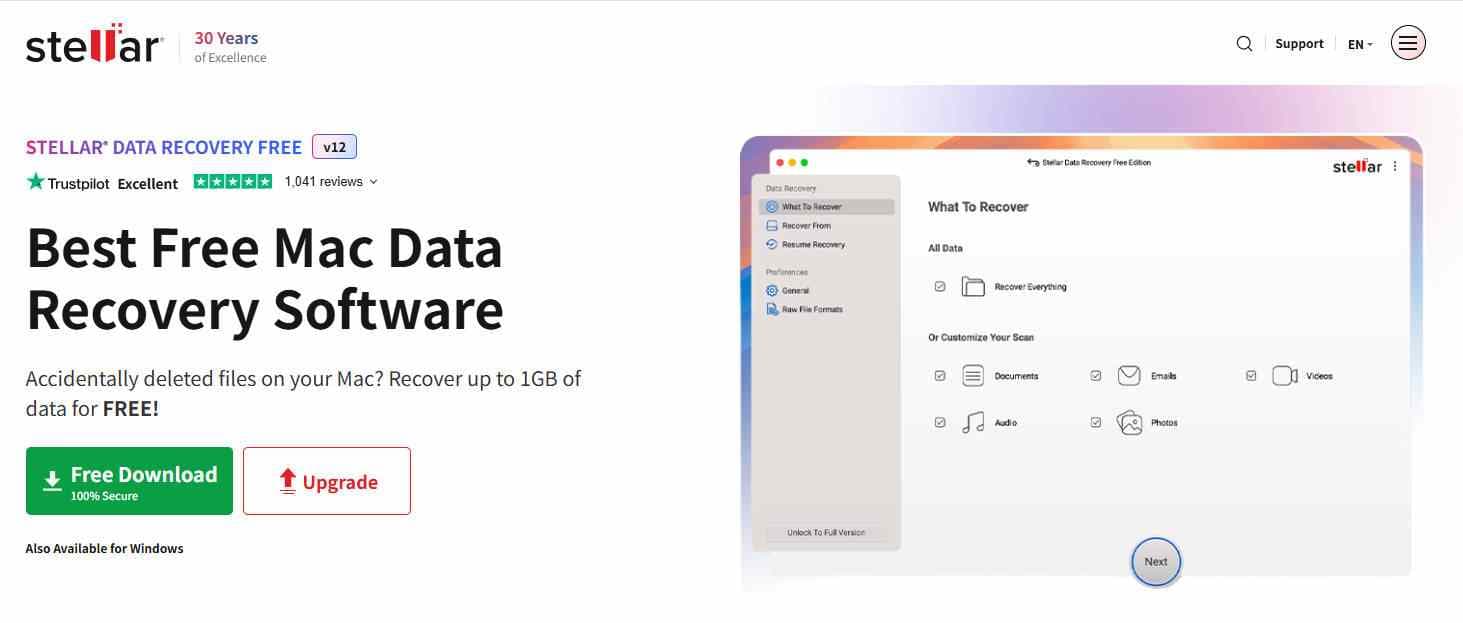
Stellar Data Recovery Free for Mac stands out because its free saving rule is clear: up to 1GB total, with no individual recovered file larger than 100MB. Version 12.7, released in May 2026, lists macOS Tahoe 26 and Apple M1 through M5 plus T2. The supported file systems include APFS, encrypted APFS, HFS+, NTFS, exFAT, and FAT.
That combination makes Stellar a practical first test for documents, modest photo collections, and many small files. It can also preview data, pause and resume scans, and search Time Machine storage. Higher editions add capabilities, so compare the edition table carefully if you need disk imaging, S.M.A.R.T. monitoring, NAS, RAID, or repair functions.
Where Stellar Fits Better Than EaseUS
- Clearer free terms: The 1GB total allowance does not depend on social sharing.
- Explicit encrypted APFS listing: The vendor documents APFS Encrypted support, subject to valid credentials.
- Current chip support: The official page lists Apple M1 through M5 and T2.
Limitations to Know
- 100MB per-file cap: A 700MB video does not qualify for free saving even if the total allowance remains unused.
- Features vary by edition: Do not assume every capability shown on the product family page is included in Free.
- Encryption credentials remain mandatory: Encrypted APFS support is not a password bypass.
Best for: Users who need to restore many small Mac files and want a graphical free edition with a plain, published allowance. Confirm the current conditions on the official Stellar Free for Mac page.
4. DMDE: Best Advanced Free Allowance
DMDE is one of the most capable low-cost and free options in this list, but it is not designed like a consumer wizard. The current 4.4.4 release supports macOS and file systems including APFS, HFS+/HFSX, NTFS, ReFS, FAT/exFAT, ext2/3/4, and btrfs. The free edition can recover up to 4,000 files from one selected directory per operation, and the operation may be repeated.
It also includes disk images or clones, a RAID constructor, partition search, preview, and a disk editor. That toolset is valuable for an experienced operator examining a lost partition or damaged file-system structure. It also raises the cost of a mistake: a write-capable editor should never be used casually on the only copy of valuable data.
Where DMDE Fits Better Than EaseUS
- Generous free recovery rule: The 4,000-file directory allowance can exceed commercial byte quotas for many small-file jobs.
- Technical visibility: Partition, file-system, imaging, and RAID tools expose more of the storage structure.
- Cross-platform file systems: Useful when a drive moves between Mac, Windows, and Linux environments.
Limitations to Know
- Steeper learning curve: The interface assumes more storage knowledge than EaseUS, Recoverit, Disk Drill, or Stellar.
- Folder rule: Free recovery is limited to the selected directory per operation, not an unrestricted one-click restore of the whole volume.
- High-risk tools are present: Work from an image and avoid editing the source disk unless you fully understand the change.
- Encrypted APFS needs separate verification: The current overview lists APFS, but does not present the same explicit encrypted APFS workflow as UFS Explorer or R-Studio.
Best for: Technical users who need a generous free allowance, lost-partition inspection, or image-based work and are comfortable with storage terminology. Download it only from the official DMDE website.
5. R-Studio for Mac: Best for RAID and Network Recovery
R-Studio is the specialist choice in this comparison. Its Mac edition supports APFS including encrypted APFS, HFS, FAT, NTFS, ReFS, ext, UFS, and XFS, plus disk imaging, RAID reconstruction, network recovery, S.M.A.R.T. data, and a hex editor. The current product page lists Apple M1 through M4 and explains workflows for FileVault, Fusion Drive, Apple software RAID, and direct access to a system disk with System Integrity Protection enabled.
For a storage administrator who understands RAID parameters and can validate a virtual array before saving, R-Studio offers far more control than a consumer recovery wizard. It is also a poor choice for a panicked first-time user who only wants one deleted Pages document back.
Where R-Studio Fits Better Than EaseUS
- RAID reconstruction: Supports common and nested RAID layouts and custom parameter work.
- Remote recovery: Designed to recover over a network when the source and operator are on different systems.
- Forensic-style inspection: Disk images, maps, S.M.A.R.T. data, and hex-level inspection help technical diagnosis.
- Advanced Mac structures: The vendor documents encrypted APFS, FileVault, Fusion Drive, and Apple software RAID.
Limitations to Know
- Not beginner-first: More controls also create more ways to choose the wrong source, parameters, or destination.
- Verify Tahoe host support: At fact-check time, the official host OS list shown on the Mac product page extended through macOS 15 Sequoia, not macOS 26 Tahoe.
- Paid specialist tool: The current page lists pricing from $79.99. Confirm edition features and final checkout before purchase.
Best for: Technicians, administrators, RAID users, and complex multi-file-system cases. Check the official R-Studio for Mac specifications against the Mac that will run the recovery.
6. UFS Explorer Standard Recovery: Best Image-First APFS Workflow
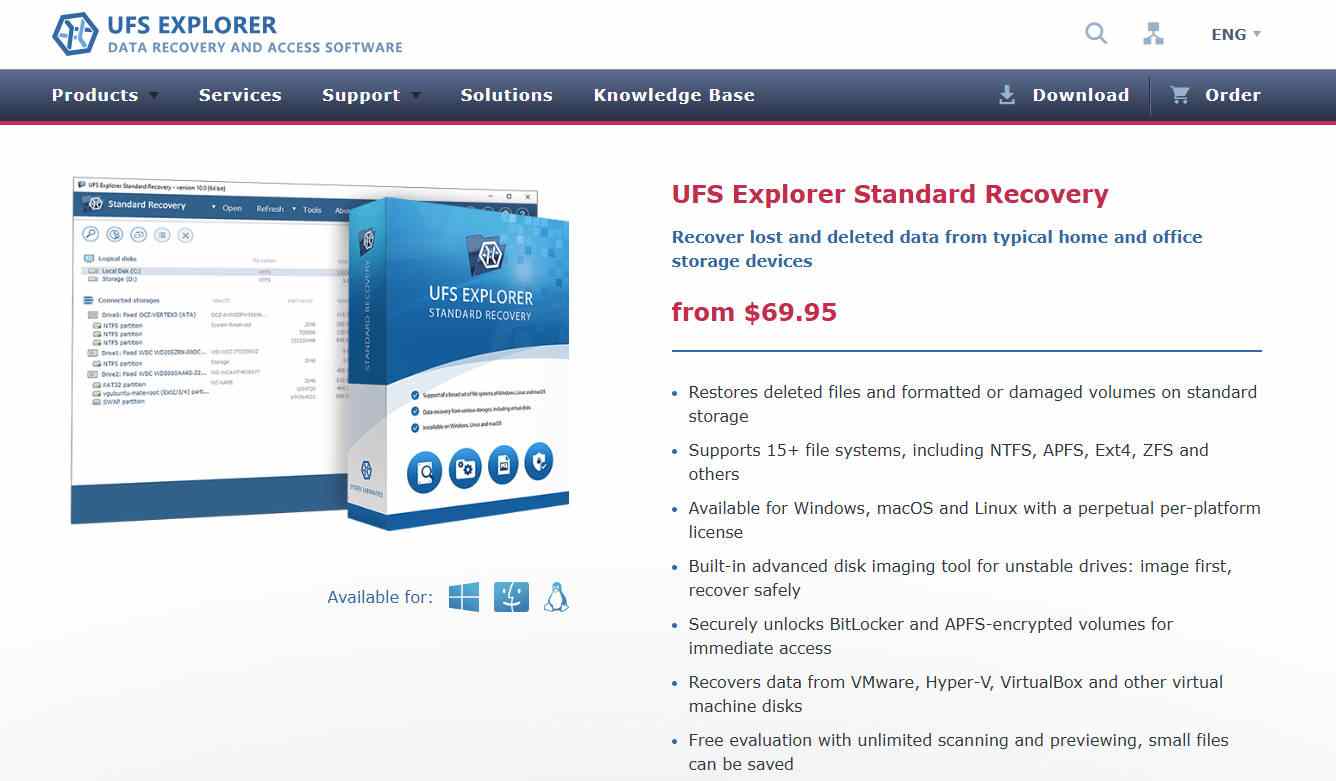
UFS Explorer Standard Recovery is a technical but more structured choice for a single drive, disk image, or virtual disk. It supports macOS, APFS, HFS+, NTFS, ext4, ZFS, and other file systems, and the current product page lists advanced imaging and read-only source access. Its separate APFS guidance explains how to unlock encrypted APFS with a valid password or recovery key.
The important word is valid. On Apple silicon and T2 Macs, internal storage is tied to the Secure Enclave and hardware keys. UFS Explorer cannot convert a missing password, destroyed key, or erased hardware-bound volume into recoverable plaintext. Its documentation is useful because it says so more clearly than many sales pages.
Where UFS Explorer Fits Better Than EaseUS
- Image-first discipline: Advanced disk imaging and read-only source access support a conservative recovery workflow.
- Encrypted APFS documentation: The vendor describes password and recovery-key requirements instead of suggesting universal access.
- Broad file-system analysis: Useful for external and cross-platform storage beyond a typical Mac-only disk.
- Perpetual per-platform license: Standard Recovery currently starts at $69.95, subject to checkout and region.
Limitations to Know
- Tiny trial saving limit: The trial can scan, preview, and make images, but saves only files no larger than 256KB.
- Standard is not the RAID edition: Choose the appropriate UFS Explorer RAID product if virtual array reconstruction is required.
- Technical interface: The terminology and storage tree are less friendly than mainstream Mac recovery apps.
- Verify the current Mac build: Match the downloaded version to the recovery Mac's exact OS and processor before purchase.
Best for: A technically confident user who wants to image a single APFS or mixed-file-system disk before analysis. Review the official UFS Explorer Standard Recovery page and its encrypted APFS recovery explanation.
7. PhotoRec: Best Fully Free Signature Carver
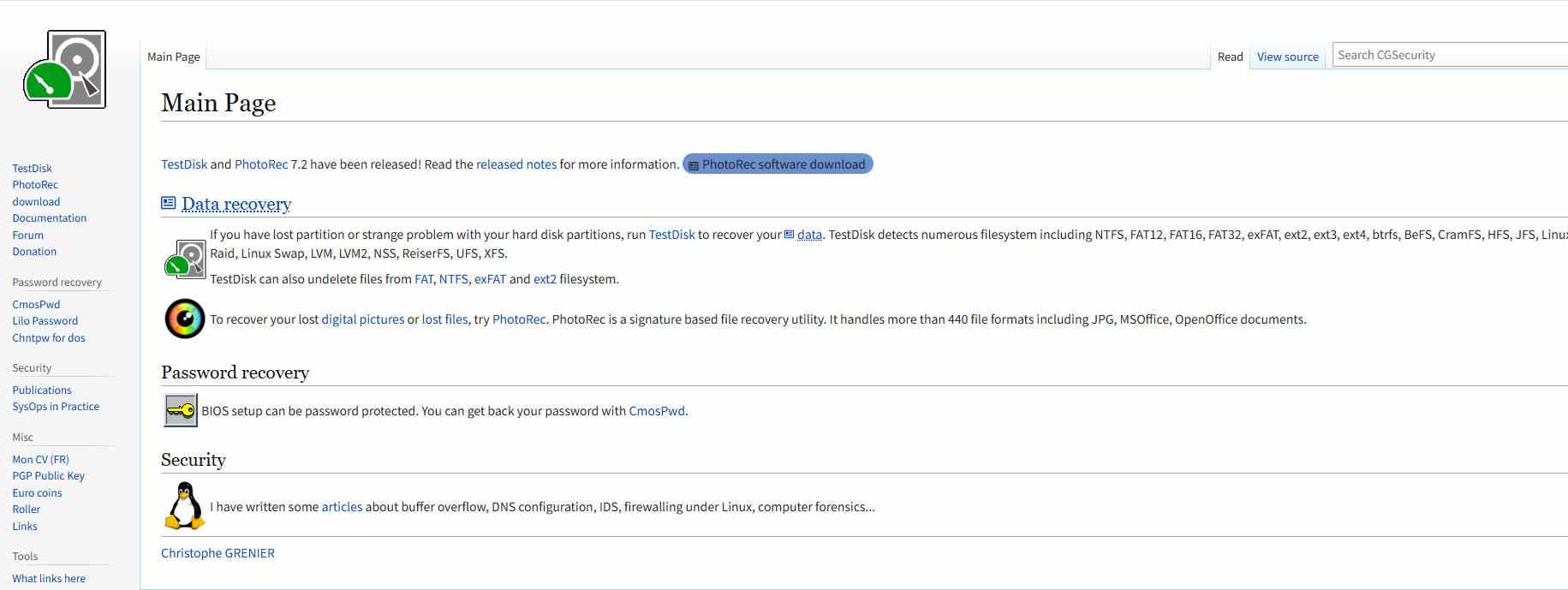
PhotoRec is the no-cost answer when commercial saving quotas are the main barrier. It is free and open source under GPL v2+, works on macOS and other platforms, uses read-only access to the source, and recognizes more than 480 file extensions grouped into about 300 file families. Rather than depending on intact folder metadata, it searches raw storage for known file signatures.
That is both its strength and its weakness. Signature carving can recover content after a file system was formatted or badly damaged, but the result usually loses original filenames, timestamps, and folder hierarchy. Files stored in fragments may not reconstruct correctly. A recovered video named f123456.mov is better than no video, but sorting thousands of anonymous files is a real workload.
Where PhotoRec Fits Better Than EaseUS
- No recovery quota: It can save found files without a commercial byte limit.
- Read-only source access: It is designed not to write to the source being recovered.
- File-system independence: Raw signature search can work when directory structures are damaged.
- Transparent open-source model: The software and documentation are publicly available.
Limitations to Know
- Names and folders are commonly lost: Expect manual sorting and validation.
- Fragmented media is difficult: Raw carving does not magically reassemble every fragmented video or database.
- Less approachable interface: PhotoRec is not as guided or visual as EaseUS, Recoverit, Disk Drill, or Stellar.
- Encryption is still encryption: PhotoRec can carve only from data it can read. It cannot decrypt a locked volume without access.
Best for: Users who need an unlimited free recovery path and can accept anonymous output files. Use the official PhotoRec documentation, not a repackaged third-party download.
Part 6. EaseUS vs. the Best Mac Alternatives
| Product | Best use | Published Mac coverage | Free saving rule | APFS or encryption note | Main tradeoff |
| EaseUS Data Recovery Wizard for Mac | General guided recovery | Lists macOS 26 and current Mac hardware | 500MB default, up to 2GB after social sharing; trial saves nothing | Lists APFS; valid encrypted-volume access is still required | Conditional headline allowance and paid feature tiers |
| Recoverit for Mac | Photos, videos, cards, and guided recovery | macOS 10.15 to 26; Intel, T2, M1-M4 | Up to 500MB | Lists APFS and current Apple hardware | Not a substitute for RAID reconstruction or destroyed encryption keys |
| Disk Drill for Mac | Mac toolkit, byte-to-byte image, snapshots | macOS 10.15 to 26; T2, M1-M5 | Free scan and preview; qualifying existing or pre-protected data only | APFS-oriented Mac workflow; volume must be accessible | Ordinary deleted-file saving generally requires PRO |
| Stellar Free for Mac | Small files with a graphical free workflow | Lists macOS 26; T2, M1-M5 | Up to 1GB total; maximum 100MB per file | Explicitly lists APFS Encrypted | Edition and per-file limits |
| DMDE | Technical free recovery and partition work | macOS build available | Up to 4,000 files from one selected directory per operation | Lists APFS; encrypted workflow not prominent in overview | Steep interface and dangerous write-capable tools |
| R-Studio for Mac | RAID, remote, images, technical recovery | M1-M4; official host list shown through macOS 15 | Evaluation limits apply; paid pricing starts at $79.99 | Encrypted APFS and FileVault documented | Complex, and Tahoe host compatibility needs verification |
| UFS Explorer Standard Recovery | Single-disk image-first APFS work | macOS build available | Trial saves files no larger than 256KB | Encrypted APFS with valid password or recovery key | Technical; Standard is not the RAID edition |
| PhotoRec | Unlimited raw signature carving | macOS build available | Unlimited and open source | Can scan readable data, not bypass encryption | Loses names and folders; weak on fragmentation |
How to read this table: A larger free quota is not automatically a better recovery engine. If the missing item is a 12GB fragmented camera clip, Stellar's 1GB allowance and DMDE's file count are less important than the tool's media reconstruction. If the source is a damaged RAID, a beginner-friendly interface matters less than correct virtual array assembly. If the blocks were cleared by TRIM, every row has the same result: no recoverable content remains.
Part 7. How to Recover Mac Files With Recoverit
Use this workflow only after checking Trash and backups. If the source is an internal SSD and the lost data is valuable, minimize use of the Mac. Install and run the software from another storage location when practical, and prepare a separate healthy drive for the output. The screenshots below are from the current official Recoverit for Mac product workflow.
- Launch Recoverit and select the source: Open Recoverit, identify the affected internal volume or connected external storage under Hard Drives and Locations, and choose the exact source. Do not scan a backup disk if an intact backup copy can simply be restored.

- Scan the selected location: Let the scan begin, then use file type, path, status, size, and date filters to narrow the results. If the source disconnects, makes unusual sounds, or becomes extremely slow, stop the scan and consider a professional service.

- Preview and recover to another drive: Preview representative files, not just filenames. Open a few recovered photos, documents, or videos to confirm that content is intact. Select the files you need and save them to a different healthy disk, never back to the source being scanned.

If normal scanning finds a large video but the preview is incomplete, try the product's Enhanced Recovery mode for the camera card or video source. This mode is relevant to fragmented recording formats, but it still cannot reconstruct blocks that were overwritten, securely erased, or cleared by the storage controller.
Part 8. How to Choose Without Making Recovery Harder
The Safe Decision Sequence
- Classify the source: Internal SSD, external SSD, HDD, SD or CFexpress card, Time Machine disk, disk image, or RAID.
- Classify the failure: Trash deletion, formatting, lost partition, file-system corruption, encryption lockout, logical non-detection, or physical failure.
- Stop new writes: Pause downloads, recording, syncing, updates, and repair attempts. Disconnect removable media when safe.
- Check intact copies: Look in Trash, Time Machine, iCloud Drive, cloud trash, NAS snapshots, email attachments, exports, and application version history.
- Confirm access: Make sure you have the FileVault password or recovery key and that macOS permits access to the source.
- Image questionable media: If an external drive is stable enough to read but shows file-system trouble, create a sector-level image on a larger healthy drive and scan the image.
- Test before paying: Scan, preview several important files, and confirm the exact free or paid save rule. A listed filename is not proof that the content is intact.
- Recover elsewhere: Save output to a different physical device. Validate recovered files before wiping or repairing the source.
- Stop for physical symptoms: Clicking, repeated disconnects, no spin, burn smell, severe overheating, or inconsistent capacity belongs in a professional lab, not a marathon software scan.
Do Not Make These Common Mistakes
- Do not run First Aid before preserving valuable data: A repair changes file-system metadata and may make a later forensic reconstruction harder.
- Do not erase or reformat to make a drive mount: Formatting creates new structures and may trigger more SSD cleanup.
- Do not save recovered files to the same volume: The output can overwrite data that has not been recovered yet.
- Do not trust preview thumbnails alone: Open full-size files and play recovered videos through several points.
- Do not buy before confirming the boundary: Recovery software cannot solve missing encryption credentials, destroyed secure keys, or mechanical failure.
Why Data Rescue and Softtote Are Not Top Picks Here
The older CleverFiles comparison includes Data Rescue and Softtote. That made more sense when the article was updated in 2021. It is not enough for a 2026 Mac recommendation.
Prosoft's current Data Rescue system requirements shown at fact-check time extend through macOS 13 Ventura and list M1/M2. That does not prove the software fails on every newer Mac, but it is not adequate official confirmation for a Tahoe buying recommendation. Data Rescue may remain useful on a documented compatible recovery Mac, so verify directly with Prosoft before purchasing.
Softtote was excluded because we could not find comparably clear, current public documentation for macOS 26, recent Apple silicon generations, free saving terms, encrypted APFS behavior, and a 2026 release baseline. Absence from this list is not a claim that it never recovers data. It means the evidence was not strong enough to rank it above products with current, verifiable Mac specifications.
Part 9. Final Verdict
The best EaseUS Data Recovery alternative for Mac is the one that fits the source and preserves the remaining evidence.
Choose Wondershare Recoverit for Mac for an accessible, current Mac interface and strong photo, video, card, and external-drive workflows. Choose Disk Drill when a byte-to-byte backup, local snapshot discovery, and a Mac utility bundle matter most. Choose Stellar when your recoverable files fit its transparent 1GB total and 100MB-per-file free limits. Choose DMDE or PhotoRec when cost is the deciding factor and you can accept a technical workflow or lost metadata. Choose R-Studio for RAID and remote recovery, and UFS Explorer for disciplined image-first analysis of a single disk.
Do not choose any app when the drive has physical symptoms, the FileVault credentials are missing, or an Apple silicon or T2 internal SSD was cryptographically erased. In those situations, a backup or professional assessment is more honest than another scan.
FAQs
-
What is the best EaseUS Data Recovery alternative for Mac?
Recoverit is a strong all-around alternative for photos, videos, memory cards, external drives, and a guided Mac workflow. Disk Drill is better if byte-to-byte imaging and Mac utilities are priorities. R-Studio is better for RAID, while DMDE and PhotoRec suit technical users seeking free recovery. -
What is the best free alternative to EaseUS Data Recovery for Mac?
PhotoRec has no commercial recovery quota but usually loses filenames and folder structure. DMDE allows up to 4,000 files from one selected directory per operation. Stellar offers the clearest graphical allowance at up to 1GB total, with a 100MB maximum per file. -
Why does EaseUS show 2GB free if only 500MB is available?
The current EaseUS Mac page describes 500MB of default free recovery and an additional 1.5GB after sharing the product on social media. The separate trial edition can scan and preview but does not save recovered files. Check the edition and promotion status inside the app before relying on the 2GB headline. -
Can recovery software restore deleted files from an M-series Mac SSD?
Sometimes, but the odds can be low after deletion from the active internal SSD because TRIM, garbage collection, continued system writes, and hardware-backed encryption all matter. Stop using the Mac and check Time Machine or cloud backups first. No program can restore blocks that the controller has already cleared. -
Can an EaseUS alternative bypass FileVault?
No. A tool may support encrypted APFS after the volume is unlocked, but it still needs a valid login password, FileVault recovery key, or authorized access path. It cannot lawfully or technically recreate a destroyed Secure Enclave key. -
Why does Mac recovery software need Full Disk Access?
macOS protects certain folders, application data, administrative settings, and backup data. Full Disk Access allows an authorized recovery app to inspect locations that ordinary app permissions may hide. Grant it only to software downloaded from the official publisher and remove the permission when the job is complete. -
Can files be recovered after Erase All Content and Settings on a Mac?
Usually not from the erased internal storage of an Apple silicon or T2 Mac. Apple explains that erasing can remove the relevant media and volume encryption keys, making old encrypted data cryptographically inaccessible. Restore from Time Machine, iCloud, another backup, or a synced copy instead. -
Should I install recovery software on the same Mac drive?
Avoid installing it on the affected volume. Installation, browser downloads, caches, and normal macOS activity can overwrite recoverable data. Use another Mac or an external drive where practical, and always save recovered files to separate healthy storage. -
Does finding a filename mean the file can be recovered?
No. Directory metadata or a thumbnail may survive after the underlying content blocks were overwritten or cleared by TRIM. Preview the full file and test the recovered copy. For video, play several points from beginning to end.



