
 TL;DR:
To resolve a flickering MacBook Pro screen, identify whether the cause is software or hardware by disconnecting external hubs and testing in Safe Mode, then stabilize the display using default resolutions and fixed refresh rates.
● Correct unsupported or unstable display states by temporarily turning off True Tone and automatic brightness, and changing the monitor's refresh rate from Variable to a fixed setting such as 60 Hz in System Settings.
● Software conflicts are the likely cause if the flickering stops in Safe Mode, but persistent flashing at the login window, color blocks, or changes when moving the lid point to physical hardware faults that require Apple Diagnostics.
● Back up local files before resetting NVRAM on an Intel Mac, reinstalling macOS, or sending the device for service; Recoverit can retrieve missing data from readable drives after a reset, but it cannot repair physical GPUs, cables, or LCD panels.
Ask AI for a summary
 ChatGPT
 Perplexity
 Gemini
 Claude
 Grok
Grok
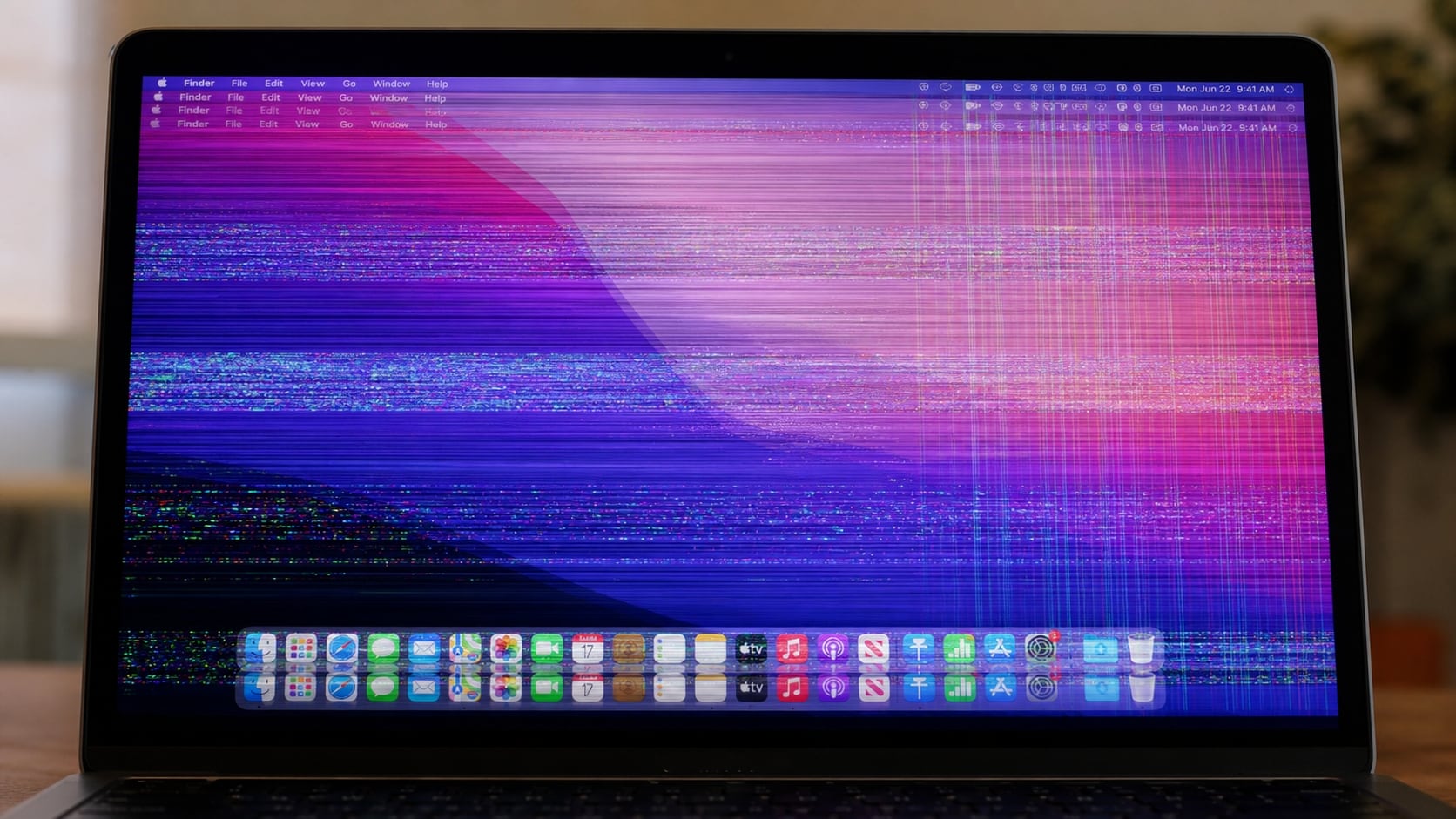
If you notice a flickering macbook pro screen, determine whether the flicker affects the built-in display, an external monitor, one app, or the entire system. Possible causes include the refresh rate, resolution, cable, dock, software, heat, or hardware.
The display flickering macbook pro symptom may appear as brightness pulses, horizontal lines, black flashes, color changes, or flicker after sleep. This guide shows how to isolate the cause without erasing macOS.
If files become inaccessible after a reset, reinstall, display repair, or storage problem, Recoverit may help recover them from readable Mac storage. It does not repair display or graphics hardware.
Try Recoverit to Perform Data Recovery
 Security Verified. 3,591,664 people have downloaded it.
In this article
Part 1. Why Is My MacBook Pro Screen Flickering?
The flicker pattern helps identify the right first check. An external-monitor problem usually needs a different approach from flicker on the built-in screen before login.
| What you see | Possible cause | Best first check |
|---|---|---|
| Flicker appears only in one app or video | App rendering, browser settings, or specific content | Test another app and update the affected app |
| Built-in screen flickers but an external monitor is stable | Built-in settings, panel, cable, or display hardware | Test the built-in display in Safe Mode |
| External monitor flickers but the MacBook Pro screen is stable | Cable, adapter, dock, refresh rate, or monitor setting | Connect the monitor directly and use a fixed supported refresh rate |
| Both built-in and external displays flicker | macOS, graphics processing, power, temperature, or a wider hardware issue | Restart, disconnect accessories, and test Safe Mode |
| Flicker begins after waking or changing resolution | Display state or unsupported display setting | Restore the default resolution and restart |
| Lines, blocks, color distortion, or flicker appear at startup | Possible display or graphics hardware fault | Back up files and run Apple Diagnostics |
Take a screenshot while the problem is visible. If it looks normal while the physical panel flickers, the issue may be in the display path. This is only a clue, not a diagnosis.
Apple's Displays settings guide explains that options vary by Mac model and connected display. Use settings supported by your MacBook Pro and monitor.
Part 2. How to Fix a Flickering MacBook Pro Screen
Try these fixes from the least disruptive to the more advanced. Back up important files before testing resets, reinstalling macOS, or arranging hardware service.
Fix 1. Confirm Whether Flicker Is System-Wide
Before changing settings, find out when the flicker occurs.
- Save your work and close the app showing the problem.
- View the desktop, Finder, and a system menu for several seconds.
- Test another app, browser tab, or local video.
- If available, connect a separate monitor and compare the displays.
If only one app flickers, troubleshoot it first. If the built-in display flickers while an external monitor is stable, focus on display settings and hardware. If both displays flicker, continue with system checks.
Fix 2. Restart the Mac and Check Power and Temperature
A restart can reload display services and clear a temporary graphics state.
- Save open documents and disconnect unnecessary accessories.
- Connect the MacBook Pro to power if the battery is very low.
- Choose Apple menu > Restart.
- After startup, test the display before opening demanding apps.
If the Mac is hot, close intensive apps and let it cool on a hard, flat surface. Do not cover the vents or use it if the flicker worsens, artifacts appear, or there is a burning smell.
Fix 3. Disconnect Docks, Adapters, and External Displays
External devices can introduce a separate cable, adapter, power, or refresh-rate variable. This is especially important when the display flickering macbook pro problem appears only after connecting a monitor.
- Disconnect external monitors, USB-C hubs, docks, and video adapters.
- Remove other nonessential USB and Thunderbolt devices.
- Restart the Mac and test the built-in screen alone.
- If an external monitor is required, connect it directly with a compatible cable.
Apple recommends checking display power and cables and connecting a display directly when a hub or dock may be involved. See the display connection guide.
Fix 4. Restore the Default Resolution and a Supported Refresh Rate
An unsupported or unstable resolution or refresh rate can cause flashing, black frames, or an unstable picture.
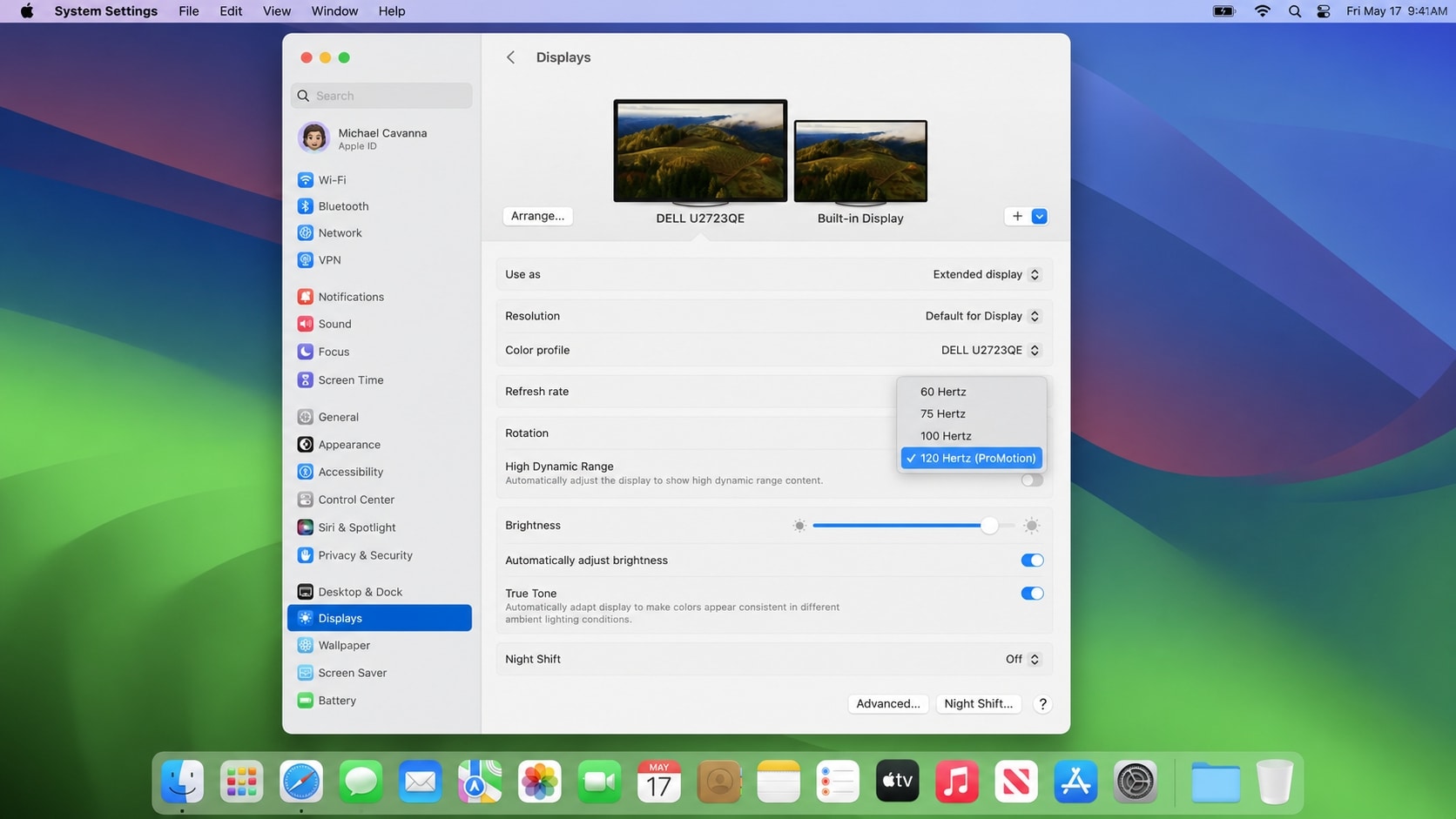
- Open Apple menu > System Settings > Displays.
- Select the built-in display or affected external display.
- Choose Default for Resolution when available.
- Choose the recommended fixed Refresh Rate.
- Temporarily turn off Variable or Adaptive refresh on an external display.
- Test the display again.
On supported MacBook Pro models, ProMotion may offer adaptive refresh rates. As a test, select a fixed rate such as 60 Hz when available. Check the monitor documentation before using a higher rate. An unsupported rate can make the screen go black; see Apple's Mac display settings.
If the picture disappears after changing resolution, wait about 15 seconds and press Esc to return. See Apple's resolution guide if it does not recover.
Fix 5. Temporarily Turn Off True Tone, Auto-Brightness, and Night Shift
Automatic display adjustments can sometimes make brightness changes look like flicker.
- Open Apple menu > System Settings > Displays.
- Select the MacBook Pro display.
- Turn off True Tone if available.
- Turn off automatic brightness or ambient light compensation temporarily.
- Turn off Night Shift for testing.
- Set a steady brightness level and observe the screen.
These settings do not repair a damaged panel or cable. If flicker continues, continue with the software and hardware checks.
Fix 6. Update macOS, Display Firmware, and Affected Apps
Software updates can address compatibility, display detection, and graphics issues.
- Open Apple menu > System Settings > General > Software Update.
- Install available macOS updates from Apple.
- Update the affected app, browser, game, or display utility.
- Check the monitor manufacturer's instructions for firmware updates.
- Restart and test before reinstalling optional display utilities.
Do not force a shutdown during an update. If files later go missing, protect the data before reinstalling or erasing macOS.
Fix 7. Test the MacBook Pro in Safe Mode
Safe Mode can help identify whether software that loads during startup is involved. It does not repair the screen, but a stable display in Safe Mode is useful evidence.
First check your Mac type in Apple menu > About This Mac. If the window shows Chip, it is an Apple silicon Mac. If it shows Processor, it is an Intel Mac.
For Apple silicon:
- Choose Apple menu > Shut Down.
- Press and hold the power button until startup options appear.
- Select the startup volume.
- Hold Shift and choose Continue in Safe Mode.
For Intel:
- Restart or turn on the Mac.
- Immediately hold Shift until the login window appears.
- Sign in and test the display.
If the screen is stable in Safe Mode, review login items, virtual display tools, color utilities, recently installed software, and browser extensions. See Apple's Safe Mode guide.
Fix 8. Test a Different macOS User Account
Display utilities and user-level settings may load only in one account. A new account can separate a profile problem from a system-wide problem.
- Open Apple menu > System Settings > Users & Groups.
- Add a temporary standard user account if you have permission.
- Sign in and view the desktop, menus, and a local video.
- Compare the result with your normal account.
If the flicker happens only in the original account, review its login items, display profiles, and app settings. Do not delete account data before backing up important files.
Fix 9. Reset NVRAM on a Supported Intel Mac
NVRAM stores certain settings that can affect startup and display behavior. The traditional manual key combination applies to Intel-based Macs; Apple silicon Macs do not use the same reset procedure.
For an Intel MacBook Pro:
- Shut down the Mac.
- Turn it on and immediately press and hold Option-Command-P-R.
- Continue according to Apple's startup guidance, then let the Mac start normally.
- Recheck the resolution, refresh rate, and display behavior.
Resetting NVRAM can restore some settings to defaults. If you are unsure which processor your Mac uses, check About This Mac first.
Fix 10. Run Apple Diagnostics or Arrange Service
Arrange service when the flickering macbook pro screen continues at the login window or during startup, appears in Safe Mode, changes when the lid position changes, or is accompanied by lines, blocks, color distortion, physical damage, or liquid exposure.
Before running diagnostics, save or back up important files if the Mac is still usable. Disconnect external devices except the required keyboard, mouse, display, network connection, and power.
For Apple silicon:
- Shut down the Mac.
- Press and hold the power button until startup options appear.
- Continue holding Command-D until Apple Diagnostics starts.
For Intel:
- Turn on the Mac.
- Immediately hold D. If that does not work, try Option-D.
- Follow the onscreen instructions and record any reference code.
Apple Diagnostics checks certain internal hardware, but not every software or external-device problem. Give the reference code to Apple or a qualified technician. Do not open the display assembly or press on the panel.
Part 3. Protect Files Before Reinstalling macOS or Sending the Mac for Repair
Many display fixes are non-destructive, but persistent flicker can lead to macOS reinstallation, erasing the startup disk, replacing storage, or service. These actions can make local files inaccessible.
Before taking a high-risk step:
- Back up documents, photos, videos, project files, downloads, and local recordings to another drive.
- If the screen is unstable, use an external display or another working computer to copy important data when possible.
- Do not erase or reinstall macOS just because changing the refresh rate did not help.
- Do not save new files to a drive if existing files have already disappeared.
- If the Mac is going to service, protect local files before handing it over.
If files disappear after a reset, reinstall, accidental deletion, or storage problem, Recoverit may help scan supported readable Mac storage. It cannot repair the display, cable, or GPU.
Pro Tip. Recover Missing Mac Files Before Display Repair with Recoverit
Recoverit is a data recovery tool, not a MacBook Pro display repair utility. It cannot stop screen flickering, repair the LCD panel, fix a display cable, update graphics firmware, or resolve a macOS graphics conflict.
Its use case is recovering local documents, photos, videos, project files, downloads, and other files missing after a macOS reinstall, accidental deletion, storage problem, or service visit. Recoverit can scan supported readable internal and external storage before you erase the Mac or send it for service.
Key Features
- Recovery for supported data-loss situations: Scan for files lost through accidental deletion, formatting, system crashes, failed troubleshooting, or other supported scenarios.
- Mac storage support: Scan supported internal volumes, SSDs, HDDs, USB drives, SD cards, and other compatible storage.
- Filtering and preview: Filter results by file type, location, or filename and preview available files before saving them.
- Separate-destination recovery: Save recovered files to another drive to reduce the chance of overwriting the source data.
How to Recover Missing Mac Files
Step 1. Select the storage location
Install Recoverit on a working Mac or another supported computer. Select the readable Mac volume or connected external drive where the missing files were stored.

Step 2. Scan for lost data
Start the scan and filter results by file type, folder, or filename. A large or unstable drive may take longer.

Step 3. Preview and recover the files
Preview available results, select the files you need, and save them to an external drive or another safe destination.

Recovery depends on detection, overwriting, drive condition, and encryption. Recoverit cannot bypass FileVault, repair failing hardware, or guarantee recovery from unreadable storage.
Conclusion
When you see a flickering macbook pro screen, determine whether it affects one app, the built-in display, or an external monitor. Disconnect docks and adapters, restore the default resolution, choose a supported fixed refresh rate, update macOS, and test Safe Mode.
For a display flickering macbook pro problem that continues at startup or in Safe Mode, especially with lines, color artifacts, damage, or lid-angle changes, arrange qualified service. Back up local files before reinstalling macOS, erasing the drive, replacing storage, or handing over the Mac. Recoverit can recover missing files from readable storage, but does not repair the display or graphics problem.
FAQ
FAQ
-
Why is my flickering macbook pro screen happening?
Possible causes include an unsupported refresh rate or resolution, an external cable or dock, third-party display software, heat, or hardware trouble. Test another app, disconnect accessories, and check Displays settings. -
How do I troubleshoot display flickering macbook pro symptoms?
Check whether it affects the built-in display, an external monitor, or one app. Restore the default resolution, use a fixed supported refresh rate, update macOS, and test Safe Mode. Flicker at startup needs professional diagnosis. -
Can changing the refresh rate stop MacBook Pro screen flickering?
It may help when the selected rate is unsupported or unstable. In System Settings > Displays, choose the recommended fixed rate or temporarily use 60 Hz. For an external display, turn off Variable or Adaptive refresh while testing. -
Why does my MacBook Pro screen flicker only with an external monitor?
The cable, adapter, dock, monitor firmware, resolution, refresh rate, or Adaptive Sync may be involved. Connect the monitor directly, try a compatible cable, and select a supported fixed rate. -
Can Recoverit fix a flickering MacBook Pro screen?
No. Recoverit does not repair the display panel, cable, GPU, graphics software, or macOS. It may recover local files missing after a reset, reinstall, accidental deletion, storage problem, or repair visit. -
Where should recovered Mac files be saved?
Save them to an external drive or another safe destination, not the source Mac volume. Saving recovered files to the source disk may overwrite data that is still recoverable.



