
 TL;DR:
If your SanDisk Professional or G-Technology G-DRIVE is not showing up on a Mac, first check Disk Utility to manually mount the volume, but strictly avoid clicking Erase or Initialize until critical files are secured.
● Verify that your Mac is configured to display external storage by enabling the "External disks" option in Finder Settings, and bypass USB hubs by connecting the device directly using its original cable and power adapter.
● Check System Information under the USB or Thunderbolt sections to confirm if the hardware is detected at all; if it appears here but fails to mount in Disk Utility, carefully run First Aid to evaluate directory errors.
● Use data recovery software like Wondershare Recoverit to extract inaccessible files from readable drives before reformatting to APFS or exFAT, keeping in mind that software cannot fix physically failing hardware, damaged ports, or decrypt files without the key.
Ask AI for a summary
 ChatGPT
 Perplexity
 Gemini
 Claude
 Grok
Grok
A G Drive not showing up on Mac usually refers to a SanDisk Professional or older G-Technology G-DRIVE external hard drive or SSD that does not appear on the desktop, in Finder, or in Disk Utility after you connect it through USB-C, Thunderbolt, USB-A, or a hub.
The problem can come from a cable, port, power supply, Finder setting, unmounted volume, file system error, unsupported format, damaged partition table, or failing hardware. This guide starts with safe checks, then moves to Disk Utility and recovery steps so you do not lose files by clicking Erase too early.
Data safety note: If the G Drive contains important files, avoid Erase, Initialize, Format, or partition changes until the files are backed up or recovered. Wondershare Recoverit for Mac can help recover files from readable external drives before formatting or repair, but it cannot fix damaged cables, ports, enclosures, firmware, physical drive failure, or decrypt data without the legitimate password or key.
Try Recoverit to Perform Data Recovery
 Security Verified. 3,591,664 people have downloaded it.
In this article
Part 1. Why Is Your G Drive Not Showing Up on Mac?
When a G Drive does not appear on Mac, identify where it disappears. A drive missing from Finder but visible in Disk Utility is a different problem from a drive that never appears in System Information.
| Cause | What It Means | Best First Step |
|---|---|---|
| Cable, port, hub, or power issue | The Mac may not receive a stable data or power connection from the G Drive. | Connect directly, use another cable, and test another port. |
| Finder hides external disks | The drive may be mounted but not shown on the desktop or sidebar. | Enable External disks in Finder Settings. |
| Volume is detected but not mounted | Disk Utility sees the drive, but macOS has not mounted the readable volume. | Use Disk Utility Mount, then copy files if it opens. |
| File system or directory error | The drive is visible but cannot mount normally because the file system has errors. | Recover important files, then try First Aid carefully. |
| Unsupported or damaged format | The drive may use a format macOS cannot fully use, or the partition table may be damaged. | Do not erase before recovering files. |
| Hardware failure | The drive, enclosure, bridge board, or cable may be physically damaged. | Stop using the drive and consider professional service. |
Part 2. Check Whether the G Drive Is Hidden, Unmounted, or Undetected
Before fixing anything, locate the level where macOS can still see the drive.
Desktop, Finder, Disk Utility, and System Information
- Check whether the G Drive appears on the desktop.
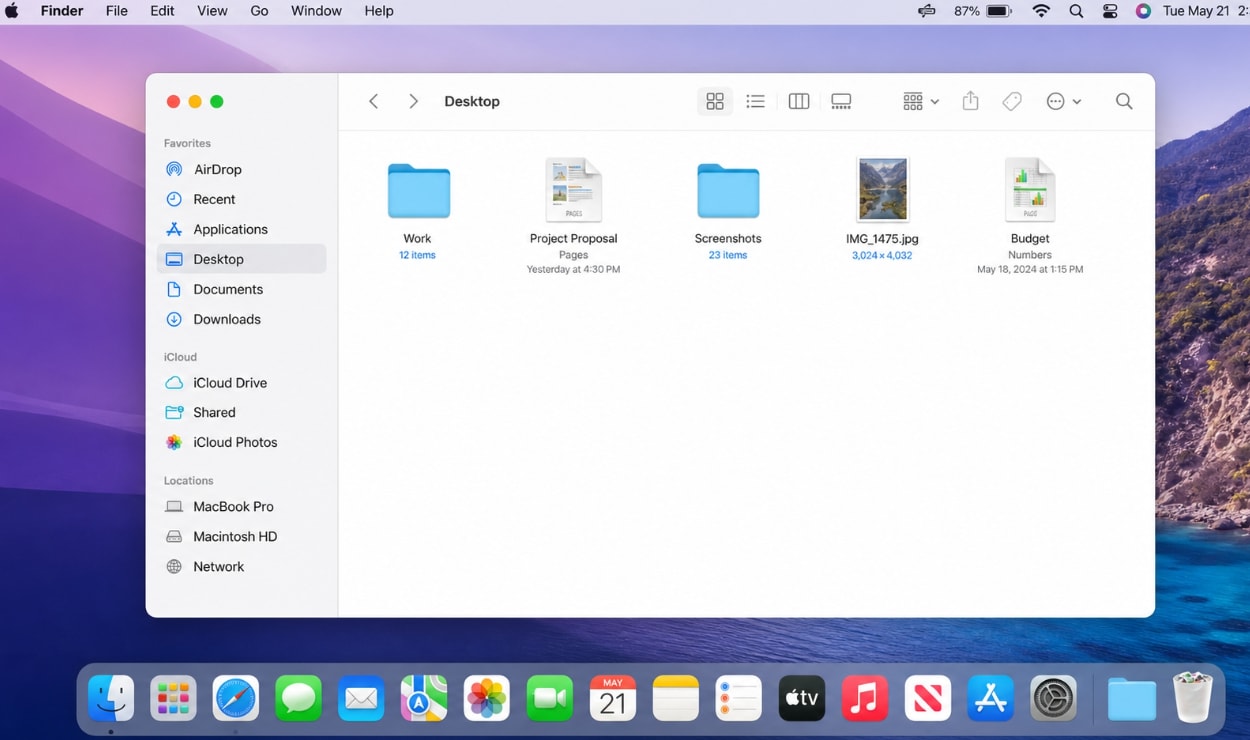
- Open Finder and look under Locations in the sidebar.
- Open Disk Utility, then choose View > Show All Devices.
- Check whether the physical G Drive, container, or volume appears in the sidebar.
- If Disk Utility does not show it, open System Information and check USB, Thunderbolt/USB4, or storage-related sections.
What Each Detection Result Means
| Where It Appears | Likely Meaning | What to Do |
|---|---|---|
| Desktop or Finder | The drive is mounted and usable. | Copy important files to another location, then monitor the drive. |
| Disk Utility only | The hardware is detected, but the volume may be unmounted or damaged. | Try Mount. If it fails, recover files before First Aid or erase. |
| System Information only | The Mac detects hardware, but storage layers may not expose a usable disk. | Test cable, port, power, and another Mac before formatting. |
| Nowhere | The Mac does not detect the device at all. | Try another cable, port, power adapter, or computer. Software cannot scan an undetected drive. |
Part 3. Fix G Drive Not Showing Up on Mac
Work through these fixes from low risk to high risk. Stop before any erase or format option if you still need files from the G Drive.
Fix 1. Check Cable, Port, Hub, and Power
Connection problems are the simplest reason a G Drive is not showing up on Mac. SanDisk Professional G-DRIVE models can depend on the right cable, enough bus power, a compatible USB-C or Thunderbolt port, or an external power adapter for desktop drives.
- Connect the G Drive directly to the Mac instead of through a hub.
- Try another USB-C, USB-A, or Thunderbolt cable that supports data transfer.
- Try another port on the same Mac.
- Use the original power adapter if the G Drive model requires external power.
- Disconnect other nonessential USB devices.
- Test the drive on another Mac or Windows computer.
If the drive never lights up, spins, vibrates, or appears on any computer, treat it as a possible hardware issue and avoid repeated plugging attempts.
Fix 2. Show External Disks in Finder
The G Drive may be connected and mounted but hidden from Finder.
- Open Finder.
- Select Finder > Settings or Preferences.
- Open the General tab.
- Enable External disks for desktop display.
- Open the Sidebar tab.
- Enable External disks under Locations.
- Reconnect the G Drive and check Finder again.
Fix 3. Mount the G Drive in Disk Utility
If the G Drive appears in Disk Utility but not Finder, the volume may be unmounted.
- Open Disk Utility.
- Choose View > Show All Devices.
- Select the G Drive volume in the sidebar.
- If it is greyed out, click Mount.
- If it mounts successfully, copy important files to another safe drive immediately.
If Mount fails or macOS asks to initialize the drive, do not erase it yet.
Fix 4. Run First Aid Carefully
Apple says Disk Utility First Aid can check and repair errors related to formatting and directory structure. It cannot fix every disk problem, and a failing drive should be copied or recovered before deeper repair.
- Open Disk Utility.
- Choose View > Show All Devices.
- Select the last volume under the G Drive.
- Click First Aid > Run.
- Repeat for other volumes, then containers, then the physical device if shown.
If Disk Utility reports that the disk is about to fail, recover or back up data and replace the drive.
Fix 5. Check System Information
System Information helps tell whether macOS detects the G Drive hardware even when Disk Utility does not show a mountable volume.
- Click the Apple menu.
- Hold Option and choose System Information.
- Open USB or Thunderbolt/USB4.
- Look for the G Drive, SanDisk Professional, G-Technology, or WD device entry.
If it appears in System Information but not Disk Utility, the issue may be file system, partition, or enclosure related. If it appears nowhere, return to cable, port, power, and another-computer testing.
Fix 6. Restart Mac and Try Safe Mode
A temporary macOS process, login item, extension, or third-party utility can interfere with external drive mounting.
- Eject other external drives safely.
- Restart the Mac.
- Reconnect the G Drive after macOS fully loads.
- If it still does not appear, start the Mac in Safe Mode and test again.
Apple silicon Mac: Shut down the Mac, press and hold the power button until startup options appear, select the startup disk, hold Shift, then choose Continue in Safe Mode.
Intel Mac: Restart the Mac and hold Shift during startup, then sign in and test the G Drive.
Fix 7. Check File System Compatibility
G Drives may be formatted as APFS, Mac OS Extended, exFAT, FAT, NTFS, or another file system depending on the model, previous setup, and computer used. macOS can read NTFS volumes but cannot write to them natively. If the file system is corrupted or unsupported, the drive may fail to mount.
If the G Drive is visible in Disk Utility but macOS asks you to erase, initialize, or format it, stop if you need the files. Recover data first, then reformat the drive to a file system that fits your workflow.
Fix 8. Update macOS and G-DRIVE Utilities
macOS updates can include improvements for USB, Thunderbolt, storage devices, and security behavior. Manufacturer utilities may also affect device management for some G-DRIVE models.
- Open System Settings.
- Go to General > Software Update.
- Install available macOS updates if your Mac supports them.
- Restart the Mac.
- Check SanDisk Professional or Western Digital support for model-specific utilities or firmware notes.
Part 4. Recover Files Before Erasing or Formatting the G Drive
If Disk Utility sees the G Drive but cannot mount or repair it, formatting may become the final local fix. Recover files first because formatting removes the file system and can make recovery harder.
When Recovery Should Come Before Repair
Recover or back up important files before continuing if:
- The G Drive appears in Disk Utility but will not mount.
- Disk Utility First Aid fails or reports file system errors.
- macOS asks to initialize or erase the drive.
- The drive appears as unreadable, uninitialized, or with a damaged partition.
- Files disappear after a failed transfer, forced eject, crash, or repair attempt.
- You plan to format, repartition, erase, replace, or send the drive for service.
Recover Files from G Drive on Mac with Recoverit
Recoverit for Mac can help recover files from readable external hard drives, SSDs, USB drives, SD cards, and other storage devices. It is suitable when the G Drive is detected by macOS or Disk Utility but files are inaccessible, deleted, formatted, or hidden behind file system damage.
Recoverit may help in these cases:
- The G Drive appears in Disk Utility but does not mount.
- The drive asks to be initialized or erased.
- The partition becomes unreadable or damaged.
- Files were deleted from the G Drive by mistake.
- Important files are missing after a failed copy, forced eject, or disk repair.
Basic recovery workflow:
Step 1. Select the drive. Open Recoverit from another drive, go to Hard Drives and Locations, select the HDD, SSD, USB drive, or external drive, and click Scan.

Step 2. Check found files before recovery. Wait for the scan to finish.

Step 3. Recover to another drive. Select the files you need, click Recover, and save them to a different drive.

Part 5. Last Options After Files Are Safe
Erase and Reformat the Drive
After important files are safe, you can erase and reformat the G Drive if Disk Utility sees the hardware but the file system is unusable.
- Open Disk Utility.
- Choose View > Show All Devices.
- Select the physical G Drive, not only an old damaged volume.
- Click Erase.
- Choose a format such as APFS for Mac-only SSD use, Mac OS Extended for older Mac hard drive workflows, or exFAT for Mac and Windows sharing.
- Confirm the erase.
Erase removes existing file system structures and should be treated as destructive.
Replace or Service the Drive
If the G Drive clicks, disconnects repeatedly, overheats, fails First Aid, disappears from all computers, or shows warnings that it may fail, do not keep forcing repairs. Replace the drive or contact SanDisk Professional/Western Digital support or a qualified data recovery lab if the files are critical.
Conclusion
When a G Drive is not showing up on Mac, start with safe checks: cable, port, power, Finder settings, Disk Utility, Mount, First Aid, System Information, Safe Mode, file system compatibility, and macOS updates. The goal is to determine whether the drive is hidden, unmounted, file-system damaged, or not detected at all.
If the drive contains important files and Disk Utility can still detect it, recover files before erasing, formatting, partitioning, or sending the drive for service. Recoverit can help recover files from readable G Drive storage, but it does not repair hardware failure, cables, ports, encryption, or the underlying disk problem.
FAQ
-
Why is my G Drive not showing up on Mac?
A G Drive may not show up on Mac because of a bad cable, incompatible hub, insufficient power, hidden Finder settings, unmounted volume, file system error, unsupported format, damaged partition, or hardware failure. -
What should I do before erasing a G Drive on Mac?
Check whether the drive appears in Disk Utility or System Information, try Mount and First Aid if appropriate, and recover or back up important files first. Erase, Initialize, Format, and repartition actions can make files harder to recover. -
Can Recoverit fix a G Drive that is not showing up on Mac?
No. Recoverit cannot fix hardware, cables, ports, firmware, Disk Utility, or macOS mounting problems. It can help recover files from readable G Drive storage before formatting, repair, replacement, or service. -
Why does my G Drive show in Disk Utility but not Finder?
The volume may be hidden in Finder settings, unmounted, corrupted, or using a format macOS cannot mount normally. Enable External disks in Finder, try Mount in Disk Utility, and recover files before erasing if Mount fails. -
Can macOS read NTFS G Drives?
macOS can read NTFS volumes but cannot write to them natively. If the drive is NTFS and healthy, it may appear read-only. If it does not mount, the issue may also involve file system damage, partition problems, or hardware failure.



