
 TL;DR:
To resolve Google Chrome not opening on a Mac, force quit any stuck background browser processes using Activity Monitor or the Option+Command+Escape shortcut and restart macOS before modifying cache files or reinstalling the application.
● Test if corrupted extensions or settings are preventing startup by launching Chrome via Terminal using the disable-extensions and temporary profile flags before permanently removing any original data.
● Do not delete the ~/Library/Application Support/Google/Chrome folder without a backup when attempting repairs, as this specific directory holds your local bookmarks, history, and active user profiles.
● Wondershare Recoverit can retrieve personal files accidentally deleted from readable Mac storage during troubleshooting, but it cannot repair the corrupted Chrome installation or fix underlying macOS permission errors.
Ask AI for a summary
 ChatGPT
 Perplexity
 Gemini
 Claude
 Grok
Grok
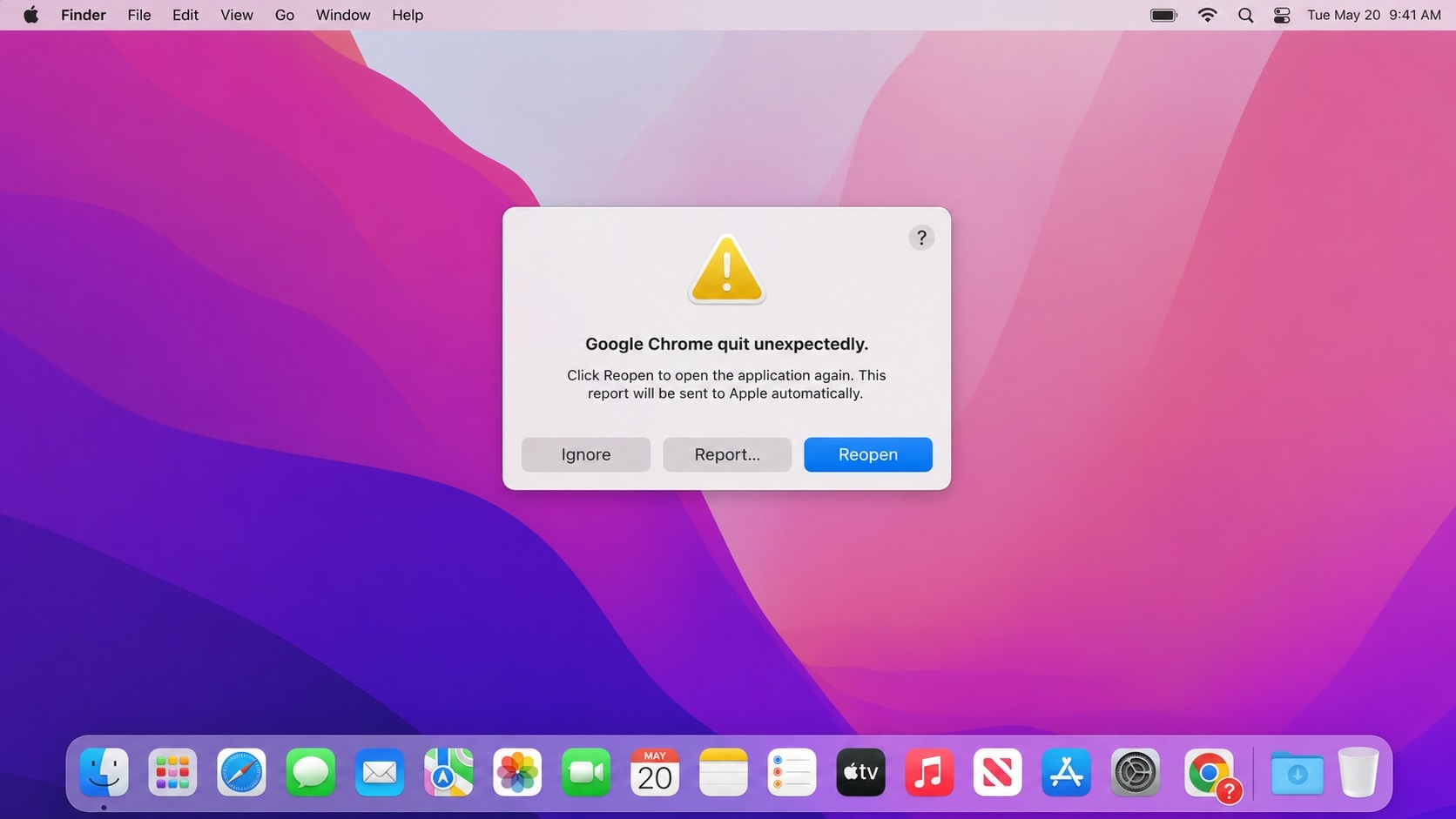
When Google Chrome won't open on Mac, the app may bounce in the Dock and close, freeze before a window appears, or do nothing at all. Start with low-risk checks for stuck processes, hidden windows, damaged profile data, permissions, and compatibility before deleting browser data or reinstalling macOS.
If you are searching for google chrome wont open on mac, why wont chrome open on my mac, or why wont google chrome open on my mac, the most likely causes include a background Chrome process, corrupted cache or profile data, blocked macOS permissions, an outdated installation, or a conflict after a system update.
Chrome launch problems do not usually delete personal files, but files can become inaccessible if you remove the wrong profile folder, erase the startup disk, or reinstall the system without a backup. Protect important local files before taking those steps. Recoverit can help recover files from readable Mac storage, but it does not repair Chrome or macOS.
Try Recoverit to Perform Data Recovery
 Security Verified. 3,591,664 people have downloaded it.
In this article
-
- Fix 1. Force Quit Chrome and Reopen It
- Fix 2. Restart Your Mac
- Fix 3. Check for a Hidden Chrome Window
- Fix 4. Test Chrome Without Extensions or a Custom Profile
- Fix 5. Clear Chrome Cache Carefully
- Fix 6. Check macOS Privacy and Security Settings
- Fix 7. Update macOS and Chrome
- Fix 8. Reinstall Chrome Without Removing Your Data First
- Fix 9. Start the Mac in Safe Mode
- Fix 10. Test a New macOS User Account
Part 1. Why Won't Chrome Open on My Mac?
Check what happens immediately after you click the Chrome icon. The symptom often points to the best first fix.
| What you see | Likely cause | Best first check |
|---|---|---|
| Chrome bounces in the Dock and closes | Stuck process, damaged cache, or incompatible extension | Force quit Chrome and restart the Mac |
| Nothing happens after clicking Chrome | Chrome is running in the background or the app is blocked | Check Activity Monitor and Privacy and Security |
| Chrome opens briefly, then freezes | Corrupted profile data, extension, or graphics setting | Test a new profile or disable extensions |
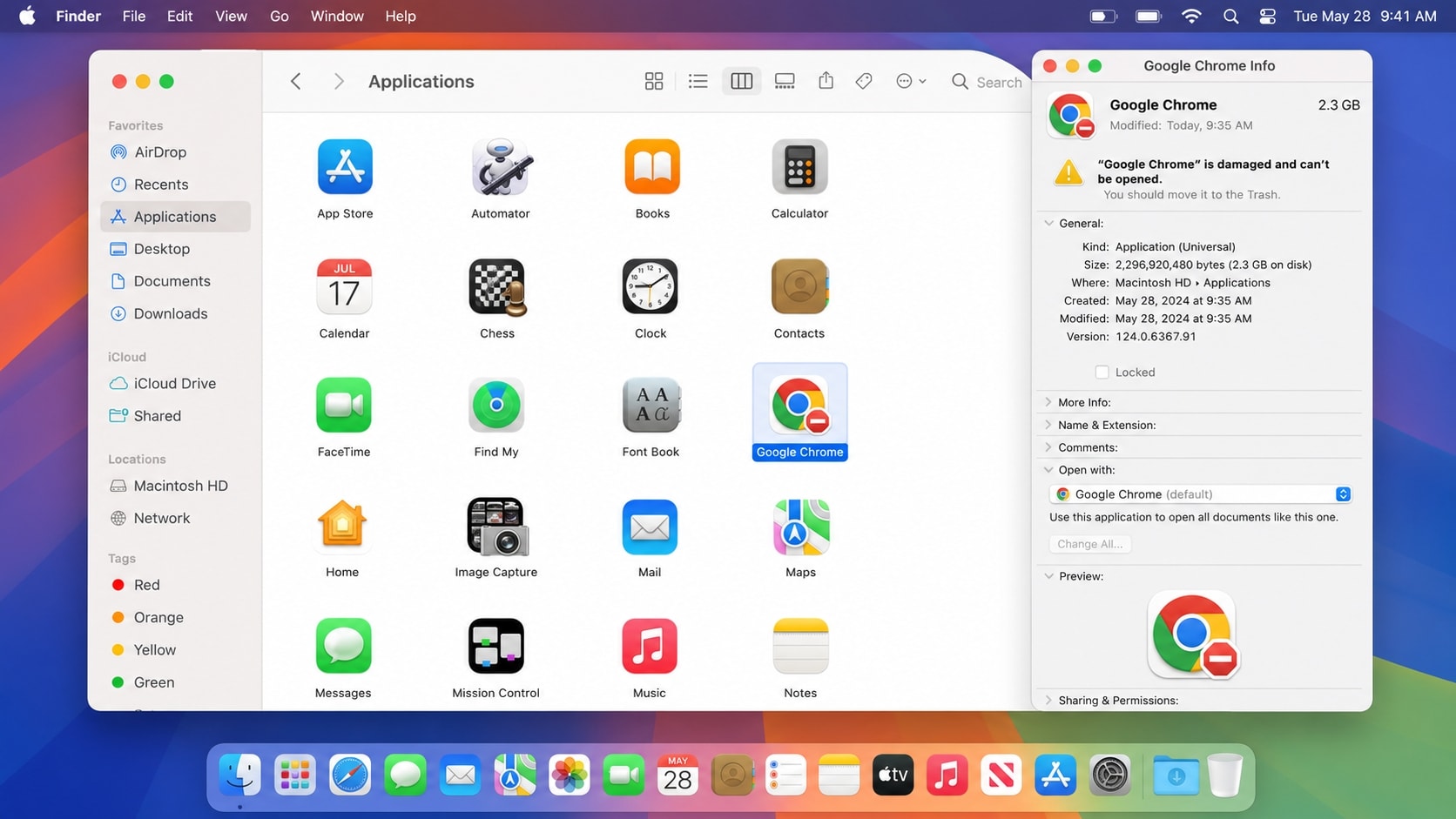
| A message says the app cannot be opened | Permission, quarantine, or damaged app bundle | Review macOS security settings and reinstall Chrome if needed |
| Chrome stopped opening after a macOS update | Version compatibility or incomplete update | Update macOS and install the current Chrome version |
| Only one Chrome profile fails | Damaged profile preferences or local cache | Create a test profile before changing the original |
Keep browser troubleshooting separate from data recovery. Chrome fixes address the app, while Recoverit may help locate missing documents, photos, videos, or downloads if local files become inaccessible during risky troubleshooting.
Part 2. How to Fix Google Chrome Won't Open on Mac
Begin with a complete quit, a normal restart, and a check for hidden windows. Continue to profile, permission, and installation checks only as needed.
Fix 1. Force Quit Chrome and Reopen It
A hidden Chrome process may prevent a new window from appearing.
- Press Option + Command + Escape.
- Select Google Chrome in the Force Quit Applications window.
- Click Force Quit.
- Wait a few seconds, then open Chrome again from Applications.
If Chrome is not listed, open Activity Monitor from Applications > Utilities. Search for Chrome-related processes, select one, and click the Stop button. Choose Quit first and use Force Quit only when the process does not close normally.
Fix 2. Restart Your Mac
Restarting clears temporary process and memory states that can prevent Chrome from launching.
- Open the Apple menu.
- Choose Restart.
- Wait for macOS to finish loading.
- Try Chrome before opening other applications.
If the Mac itself is frozen, hold the power button until it shuts down. A forced shutdown can cause unsaved work to be lost, so use it only when normal restart commands are unavailable.
Fix 3. Check for a Hidden Chrome Window
Chrome may be running while its window is hidden or positioned outside the visible desktop after a monitor or resolution change.
- Click Chrome in the Dock.
- Open Window in the menu bar.
- Select Zoom or Bring All to Front if available.
- Disconnect an external display or dock and test Chrome again.
Open Mission Control to check whether a Chrome window is on another Space.
Fix 4. Test Chrome Without Extensions or a Custom Profile
Extensions and profile settings can stop Chrome during startup. Test the installation without deleting your original profile.
Open Terminal and run:
/Applications/Google\\ Chrome.app/Contents/MacOS/Google\\ Chrome --disable-extensions --user-data-dir=/tmp/chrome-test-profile
If Chrome opens with this temporary profile, an extension or the original profile is likely involved. Disable recently installed extensions, or create a new Chrome profile and sign in again. Do not delete the original profile until bookmarks, downloads, and other required files have been backed up.
Fix 5. Clear Chrome Cache Carefully
A damaged cache can block startup, but deleting the wrong folder may remove local browser information. Quit Chrome first and back up the profile folder before making changes.
- Open Finder.
- Select Go > Go to Folder.
- Enter
~/Library/Caches/Google/Chrome. - Copy the folder to an external drive if you need to preserve it.
- Remove only cache contents, then restart the Mac and test Chrome.
Avoid deleting ~/Library/Application Support/Google/Chrome unless you have a backup. It may contain profiles, bookmarks, history, extensions, and other local Chrome data.
Fix 6. Check macOS Privacy and Security Settings
macOS may block an app when its permissions or downloaded-app security state is inconsistent.
- Open System Settings > Privacy and Security.
- Look for a message related to Google Chrome near the bottom of the page.
- If you downloaded Chrome from Google, confirm that the installer completed successfully.
Do not bypass security warnings for an unknown or modified copy. If the Mac is managed by an organization, an administrator may control which applications can open.
Fix 7. Update macOS and Chrome
An old Chrome build may fail after a system update, while an incomplete macOS update can also affect application launch services.
- Open System Settings > General > Software Update.
- Install available macOS updates from Apple.
- Restart the Mac.
- Download the current Chrome installer from Google's official Chrome website if the installed copy is outdated.
Check whether your Mac uses Apple silicon or Intel before downloading or troubleshooting compatibility. Chrome provides builds for both architectures.
Fix 8. Reinstall Chrome Without Removing Your Data First
If the Chrome application bundle is damaged, reinstalling it can restore missing application files. This step does not require deleting your Chrome profile.
- Quit Chrome.
- Open Applications in Finder.
- Move Google Chrome to the Trash.
- Confirm that needed downloads and local files are backed up before emptying the Trash.
- Download and install Chrome again from Google's official website.
Removing the app is different from removing the profile. Avoid deleting Chrome data folders unless you have exported bookmarks and copied important local files.
Fix 9. Start the Mac in Safe Mode
Safe Mode helps identify whether third-party login items, extensions, fonts, or system software interfere with Chrome.
For an Apple silicon Mac:
- Shut down the Mac.
- Press and hold the power button until startup options appear.
- Select the startup disk.
- Hold the Shift key.
- Select Continue in Safe Mode.
For an Intel Mac, restart and immediately hold the Shift key until the login window appears.
If Chrome works in Safe Mode but not during normal startup, review login items, recently installed system utilities, antivirus tools, and display or network software.
Fix 10. Test a New macOS User Account
If Chrome opens in a new macOS user account, the issue may be limited to the original account's permissions, preferences, or local profile.
- Open System Settings > Users and Groups.
- Add a temporary standard user.
- Sign in to that account.
- Launch Chrome.
Do not delete the original account based only on this test. First copy or recover the files you need.
Part 3. Recover Files After Chrome or macOS Troubleshooting
If Chrome will not open, the browser may still be unrelated to missing files. Data can become inaccessible after deleting the wrong Chrome folder, emptying the Trash, reinstalling macOS, resetting the Mac, or repairing an unstable startup disk.
Before erasing or servicing the Mac, check whether the startup disk is still detectable. If it is readable, Wondershare Recoverit for Mac can help scan the storage for missing documents, photos, videos, downloads, and other files.
Recoverit does not repair Chrome, restore macOS permissions, or fix the underlying operating system or hardware problem. Its role is to help recover local data before more destructive troubleshooting.
When Recoverit May Help
| Situation | Recommended next step |
|---|---|
| Chrome troubleshooting accidentally removes files from Downloads or Desktop | Stop writing new data and scan readable storage for missing files |
| Documents or photos disappear after a failed macOS update | Check whether the drive is readable, then recover files before more repairs |
| Files are missing after emptying the Trash | Scan the source drive and save recovered files elsewhere |
| Files are inaccessible after disk repair or reinstallation | Recover data before erasing or servicing the Mac |
How to Recover Missing Mac Files
Recovery depends on whether the storage is detected, whether new data has overwritten the deleted files, the condition of the drive, and whether FileVault or another protection method prevents access. If the drive is not detected at all or shows signs of physical failure, stop using it and consider professional data recovery support.
Conclusion
When google chrome wont open on mac, begin with Force Quit, Activity Monitor, a Mac restart, and a check for hidden windows. Next, test Chrome with extensions disabled, review permissions, update macOS and Chrome, and reinstall the app only after backing up important local data.
If Chrome troubleshooting or macOS repair leaves files missing, Recoverit can help recover data from readable Mac storage. Recover the files to another drive before you erase, reinstall, or send the Mac for service.
FAQ
-
Why won't Chrome open on my Mac after I click the icon?
Chrome may already be stuck in the background, or its cache, profile, permissions, or application files may be damaged. Force quit Chrome in Activity Monitor, restart the Mac, and test it without extensions before reinstalling it. -
Why won't Google Chrome open on my Mac after a macOS update?
The installed Chrome version may be outdated, or the update may have changed permissions or startup services. Install available macOS updates, restart the Mac, and download the latest compatible Chrome build from Google. -
Will reinstalling Chrome delete my bookmarks and downloads?
Removing the application does not normally remove the Chrome profile, but local downloads and unsynced data should still be backed up first. Avoid deleting the Chrome profile folder unless you have exported or copied the data you need. -
Can Recoverit fix Chrome if it will not open?
No. Recoverit is a data recovery tool, not a browser repair utility. It can help recover missing local files from readable Mac storage after accidental deletion, reinstallation, reset, or other troubleshooting. -
Where should files recovered from my Mac be saved?
Save recovered files to an external drive or another safe storage location. Saving them to the same Mac drive can overwrite deleted data that may still be recoverable.



