 TL;DR:
To successfully recover missing iPhone notes, immediately check the "Recently Deleted" folder in the Notes app or on iCloud.com, as Apple permanently deletes iCloud-synced notes after a strict 30-day window.
● iCloud device backups exclude actively synced data, meaning restoring an earlier backup will only retrieve local notes saved under "On My iPhone" and will overwrite your newer device data.
● Missing notes linked to third-party accounts like Gmail or Yahoo must be retrieved directly from that specific provider's Trash folder, while deleted shared notes you do not own bypass deletion folders entirely and require the original sharing link to reopen.
● Once notes are permanently removed from Apple's servers, recovery relies entirely on scanning for locally exported files, attachments, or supported data on a Mac using third-party software like Wondershare Recoverit.
Ask AI for a summary
 ChatGPT
 Perplexity
 Gemini
 Claude
 Grok
Grok
“My dad cleared our iCloud and my sister lost important notes. They aren't in the "recently deleted folder," and there are no iCloud backups. Is there anything that can be done to recover the notes?”-Beautiful_Bug_6378
That last detail matters because the backup was never going to help. Notes synced to iCloud stay on Apple’s servers, not inside device backups. Restoring a device can therefore return everything except the note you needed.
Answering how do I recover my notes from iCloud starts with its storage location. Your missing note may still exist in iCloud, another Notes account, local storage, or a separate exported copy. This guide explains each method, including Recoverit as another option for checking recoverable iCloud data.
Recover Note Files From a Mac With Recoverit
 Security Verified. Over 7,302,189 people have downloaded it.
In This Article
Part 1. Can You Recover Notes From iCloud?
Recovery starts with identifying where the missing note was stored. For how do I recover my notes from iCloud, the table below matches each storage situation with the most suitable recovery route:
| Situation | Where to Check | Recovery Possible | Best Method |
| Note Still Exists in iCloud | iCloud.com or another signed-in device | Yes | Method 3 |
| Note is in Recently Deleted | Notes app or iCloud.com | Usually recoverable within 30 days | Method 1 or Method 2 |
| iCloud Notes Sync Was Off | iCloud.com and iCloud settings | Possible if still stored in iCloud | Method 3 |
| Note Is Stored On My iPhone | Local Notes account or device backup | Depends on available backup | Method 5 |
| Note Belongs to Gmail or Yahoo | That provider's Trash folder | Depends on provider | Method 4 |
| Deleted More Than 30 Days Ago | Local or exported copies | Not recoverable from iCloud | Method 6 |
| Shared Note You Did Not Own | Original sharing link | Possible if still shared | Reopen the shared link |
That final row matters because shared notes follow different recovery rules. Apple states that deleting a shared note you do not own will not place it in “Recently Deleted.” The owner and other participants still retain access, and you can reopen the note through the original sharing link as long as the owner has not stopped sharing it.
The 30-Day Window
Apple keeps deleted iCloud notes in Recently Deleted for up to 30 days. After that period, they are permanently removed from iCloud and connected devices. Permanently deleting one sooner removes it immediately across the account.
You can't edit notes in Recently Deleted until you recover them. That distinction matters when a note opens but appears unavailable for normal editing.
Why Backups Rarely Help
Notes already synced with iCloud are not stored inside an iCloud device backup. Computer backups also exclude data already synced and stored in iCloud. After restoring a device, existing iCloud notes can sync back from Apple's servers. However, restoring a backup cannot recover an iCloud note already deleted from iCloud.
Local notes work differently. Notes stored under On My iPhone remain on that device and can be included in an iCloud device backup.
Part 2. Check These Things Before Recovering iCloud Notes
Before working out how do you retrieve notes from iCloud, narrow down where the note may still exist. The 6 checks below help separate deletion from account, folder, sync, or storage issues before you move to the recovery methods:
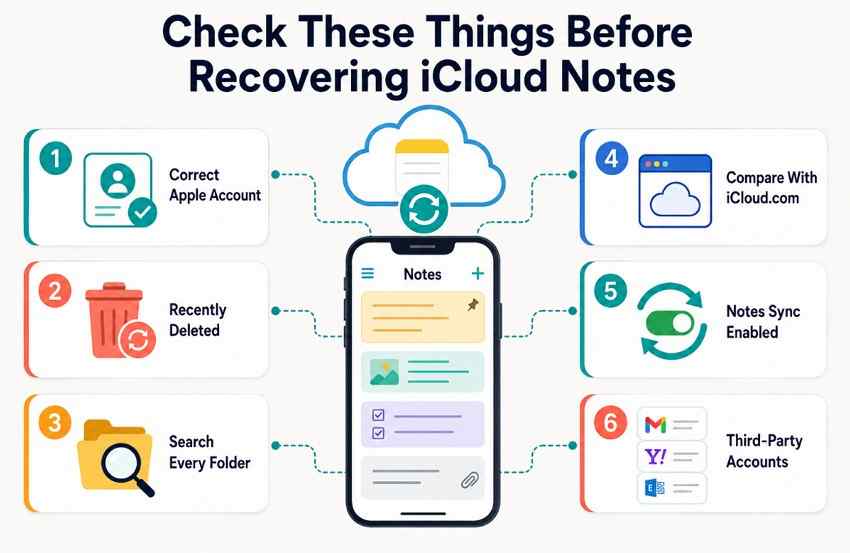
Confirm the Correct Apple Account
iCloud notes are tied to the Apple Account used to store them. Signing into a different Apple Account can therefore make existing notes appear missing. Apple recommends using the same Apple Account on devices that access iCloud Notes.
Check Recently Deleted
Deleted iCloud notes normally remain in Recently Deleted for up to 30 days. If that folder is missing, there are currently no recoverable notes inside it. Notes permanently removed from the folder cannot be recovered through iCloud.
Search Every Folder
A missing note may simply be sitting in another folder or account. Apple recommends searching across All Accounts and checking folders when notes appear missing. Locked notes may also reveal only their titles during a search.
Compare Notes With iCloud.com
iCloud.com Notes provides a useful reference for what is currently stored in iCloud. It displays iCloud-based notes rather than notes saved through Google, Yahoo, or other accounts. If a note appears online but not on one device, that usually points to an account or syncing issue on the iPhone.
Confirm iCloud Notes Sync Is Enabled
Check whether iCloud Notes syncing is active on the affected device. Devices with syncing disabled may stop showing notes that still remain stored in iCloud.
Check Third-Party Notes Accounts
Some notes shown inside the Notes app may actually belong to Gmail, Yahoo, Exchange, or another account. These notes are separate from iCloud and will not appear on iCloud.com. Apple recommends checking every account with Notes enabled when content appears to be missing.
Part 3. How to Restore Notes From iCloud
Each route below targets a different storage location, which is why the order matters. The following 6 methods answer how do you restore notes from iCloud in practice, starting with the quickest:
Method 1. Restore From Recently Deleted
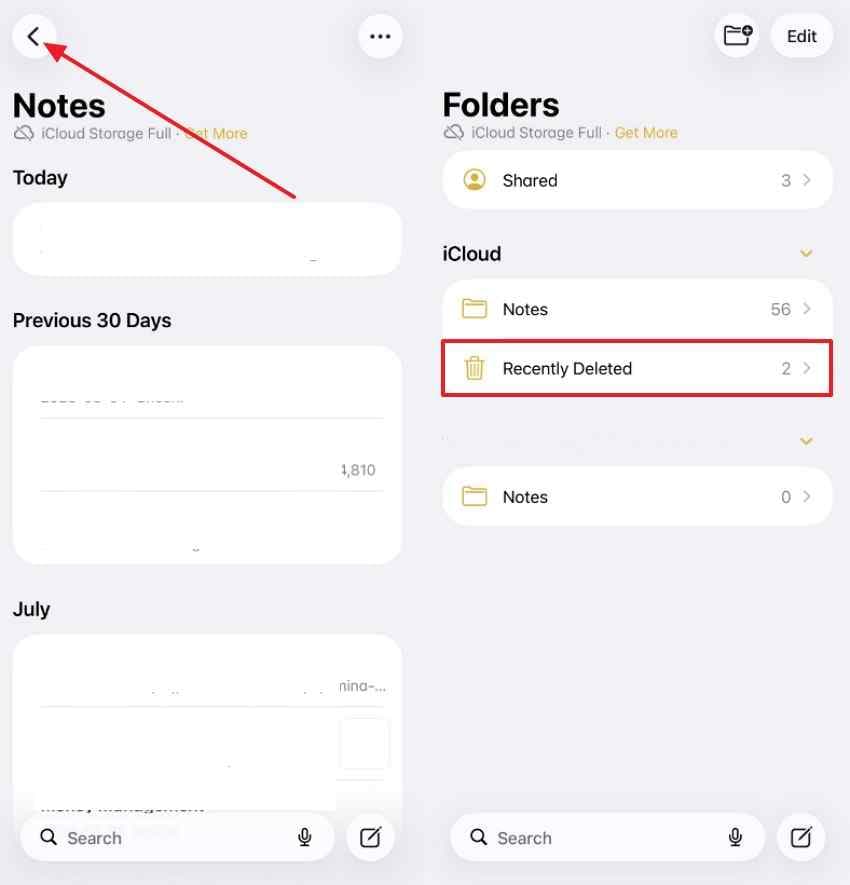
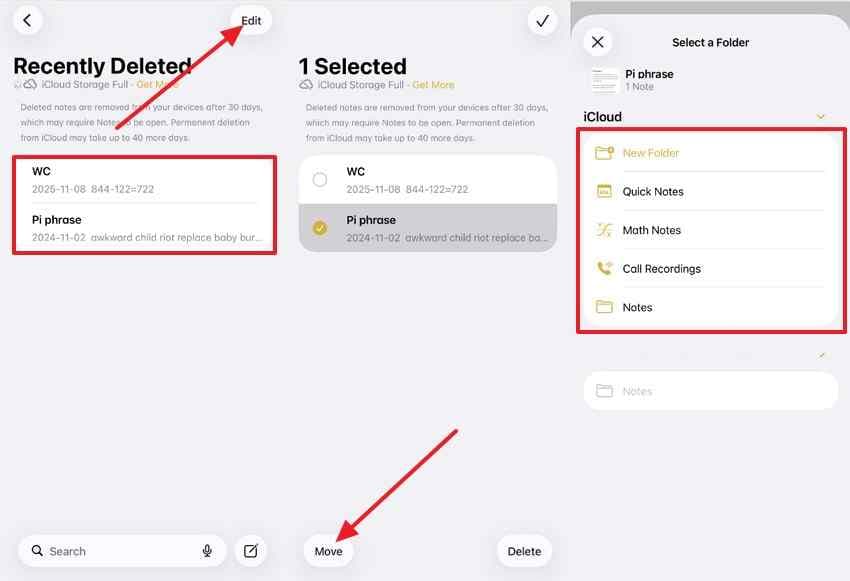
Deleted iCloud notes usually move to Recently Deleted instead of disappearing immediately. Apple keeps them there for up to 30 days, giving you a limited window to restore them before permanent removal. If the missing note is still in that folder, recover it directly from the Notes app with the steps below:
Step 1. Open “Notes,” tap the back arrow until the “Folders” list appears, then choose “Recently Deleted.”
Step 2. Tap “Edit,” select the note, select “Move,” then choose the folder where you want to restore it.
Method 2. Retrieve Notes From iCloud.com
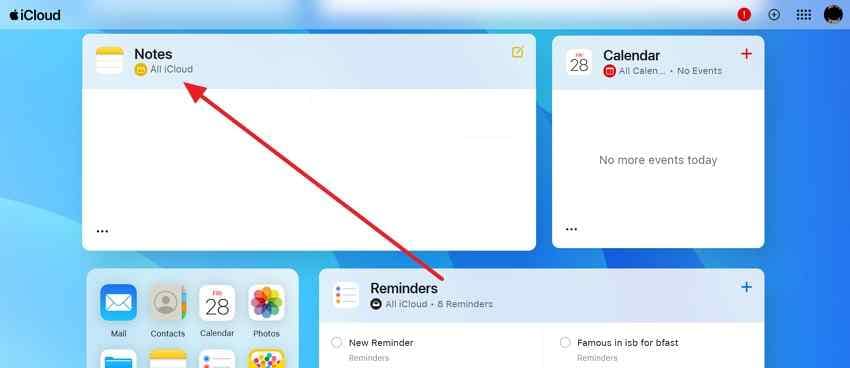
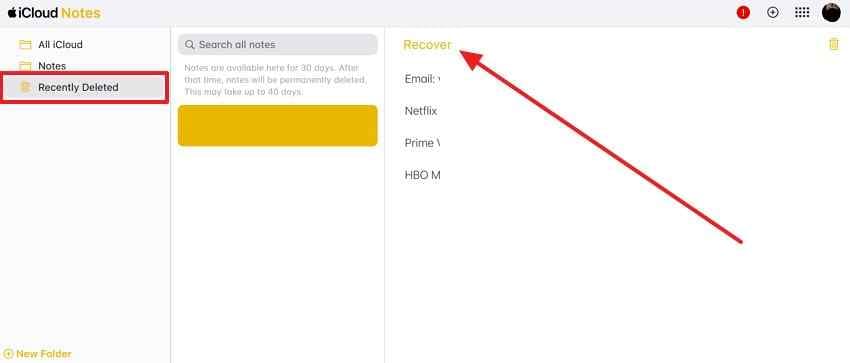
If you are wondering how to restore notes from iCloud without relying on the Notes app, iCloud.com gives direct browser access to the server-side copy of your notes. This is useful when your usual device is unavailable or not syncing. Once recovered, the note can sync back to other devices using the same Apple Account with iCloud Notes enabled. Use these steps to recover the note through iCloud.com:
Step 1. Sign in to “iCloud.com” with your Apple Account > Click “Notes” from the home screen.
Step 2. Select “Recently Deleted” > Choose the note you want back > Press “Recover” at the top.
Method 3. Turn iCloud Notes Sync Back On
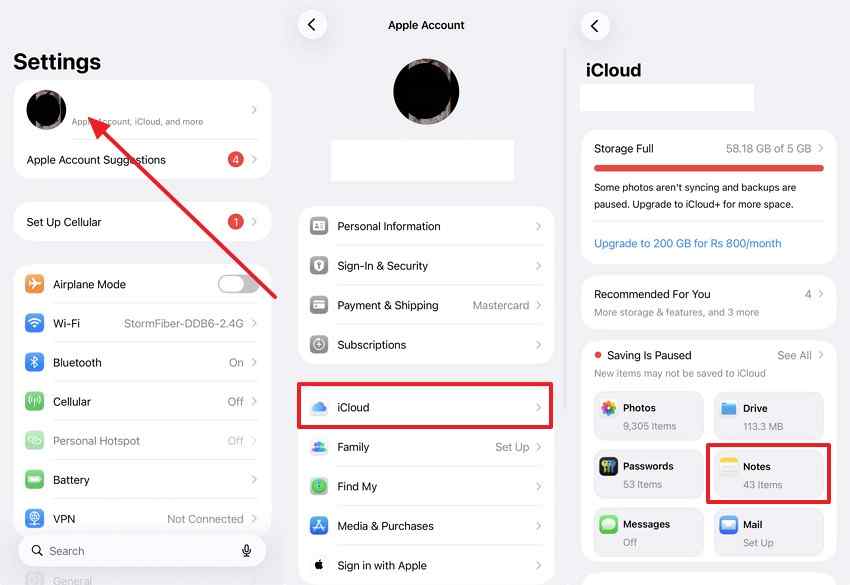
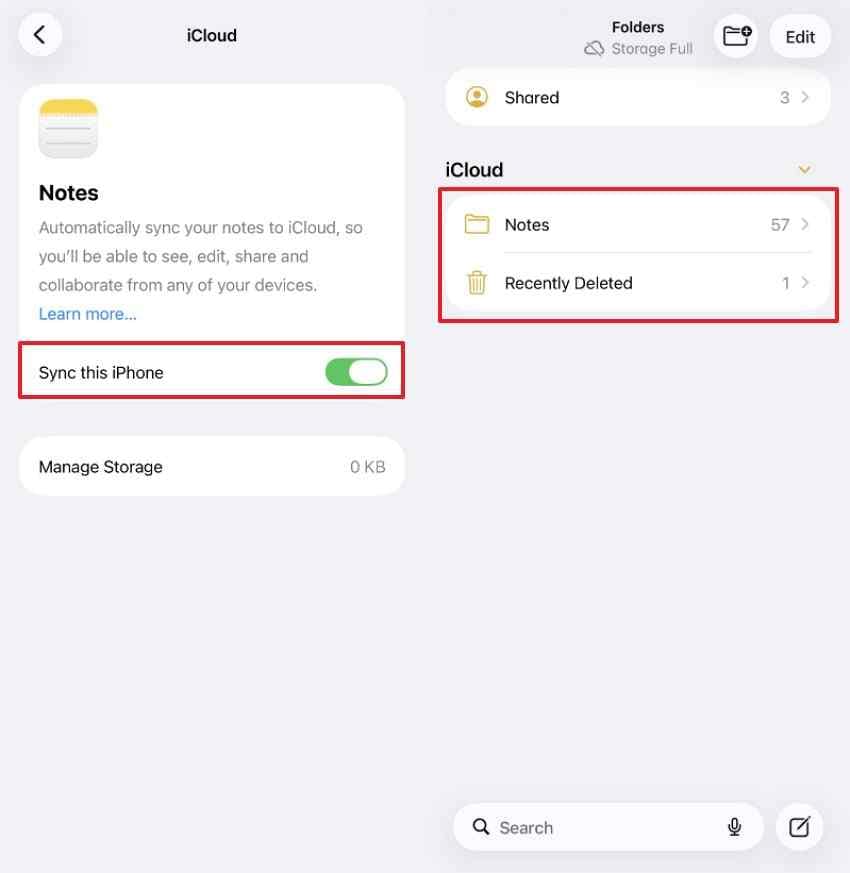
If you are asking, how do you retrieve notes from iCloud when nothing was deleted, check syncing first. Apple says previously synced iCloud content should reappear after Notes sync resumes on the same Apple Account. If the notes remain stored in iCloud, use these steps to reconnect your iPhone:
Step 1. Open “Settings > [your name] > iCloud.” Under “Saved to iCloud,” choose “Notes.”
Step 2. Turn on “Sync this iPhone,” then open “Notes > Folders > All iCloud” and check whether your notes reappear.
Method 4. Check Gmail, Yahoo, or Other Accounts
Notes linked to Gmail, Yahoo, Exchange, or another provider are stored with that account instead of iCloud. If one goes missing, identify the account it belongs to, then check that account’s Trash or Bin for the deleted note. Follow these steps to identify the account and recover the missing note:
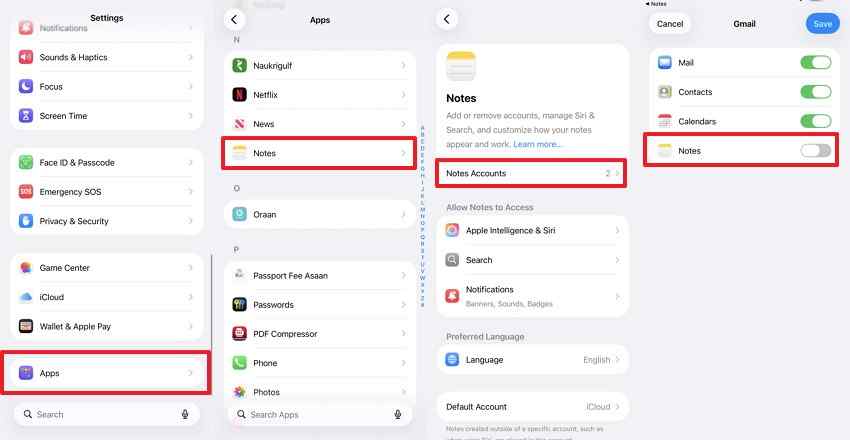
Step 1. From “Settings > Apps > Notes > Notes Accounts,” select the Gmail, Yahoo, Exchange, or other account, and confirm “Notes” is turned on.
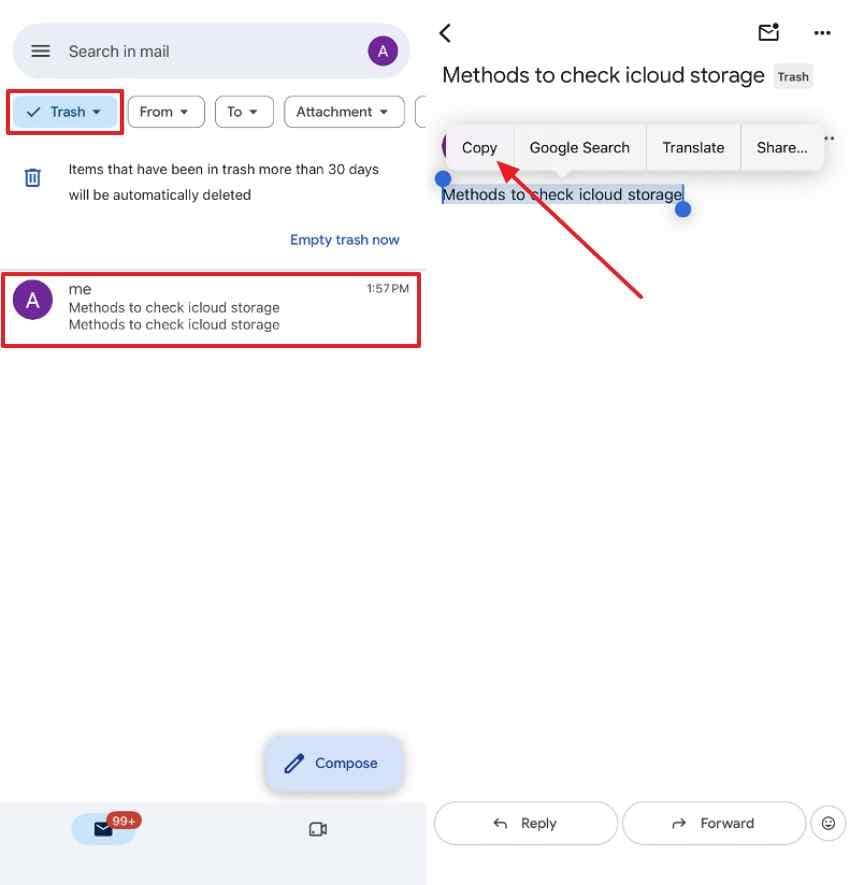
Step 2. Access “Mail > Mailboxes,” select the same account’s “Trash” or “Bin,” then find the deleted note. Copy its contents, open “Notes,” create a new note, and paste the content there.
Method 5. Restore Local Notes From an Earlier Backup
A previous iPhone backup can help when the missing note was stored locally under On My iPhone. For anyone searching how do I recover my notes from iCloud, this distinction matters because iCloud-synced notes return through syncing rather than from the backup itself. Choose a backup created before the note disappeared. Use the relevant steps below for Mac or Windows:
Important: Restoring an older iPhone backup can replace newer data and settings on the device. Back up current information before proceeding.
For Mac
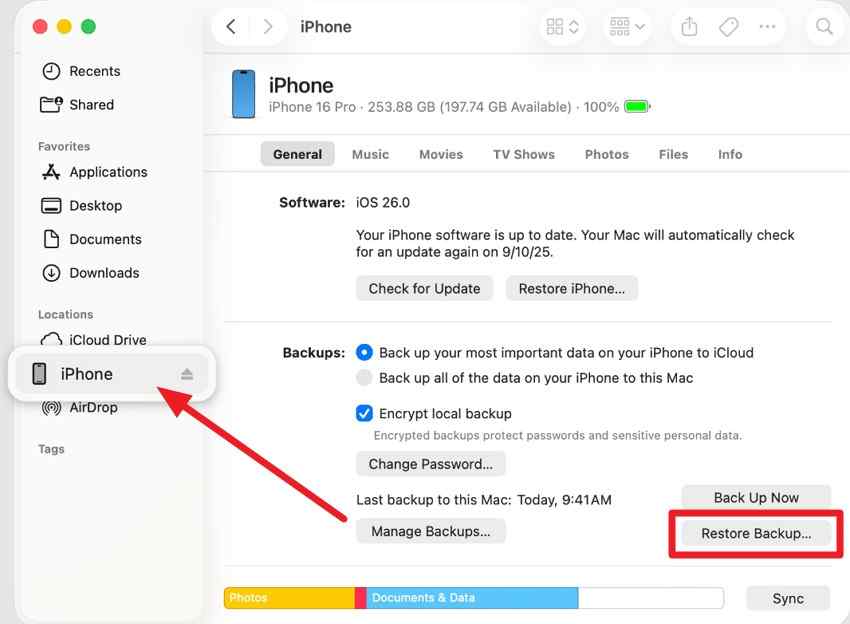
Step 1. Connect the iPhone to your Mac, open “Finder,” select the “iPhone” in the sidebar, then click “Restore Backup.”
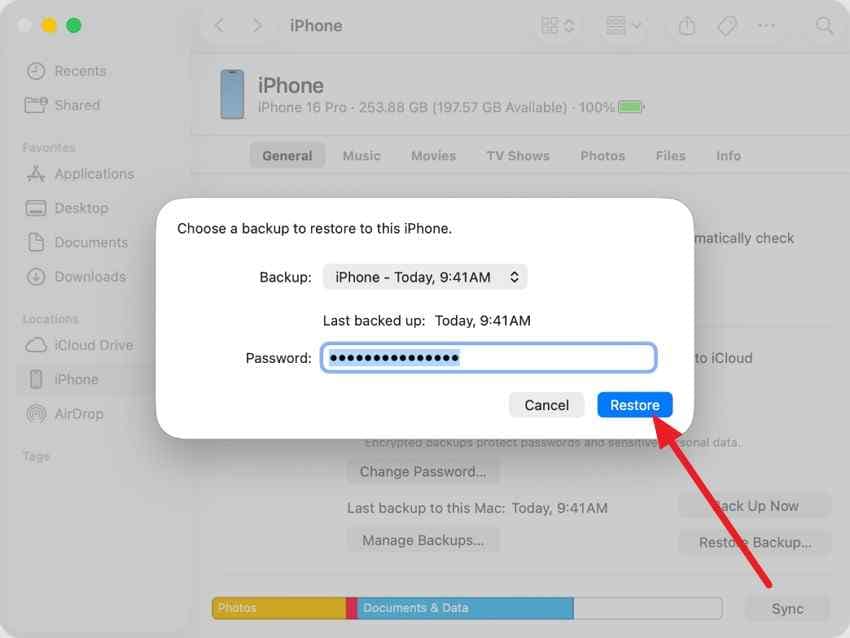
Step 2. Choose a backup created before the notes disappeared, press “Restore,” and keep the iPhone connected until the process finishes.
For Windows
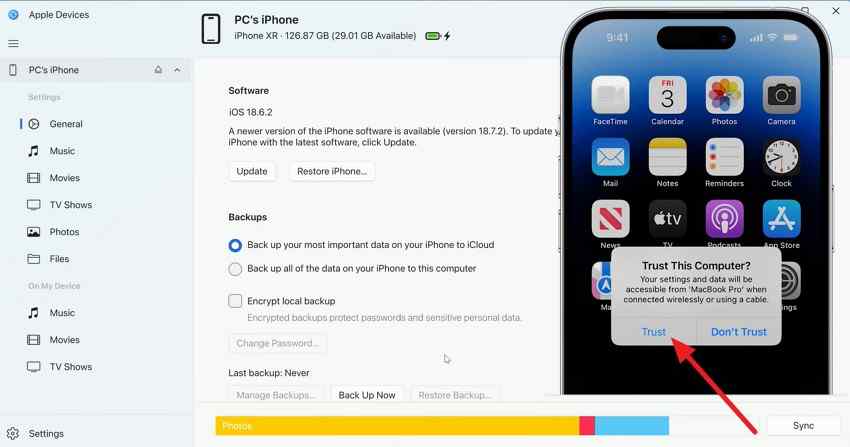
Step 1. Connect the iPhone to your Windows PC and open “Apple Devices.” Select the iPhone in the sidebar, then tap “Trust” on the iPhone if prompted.
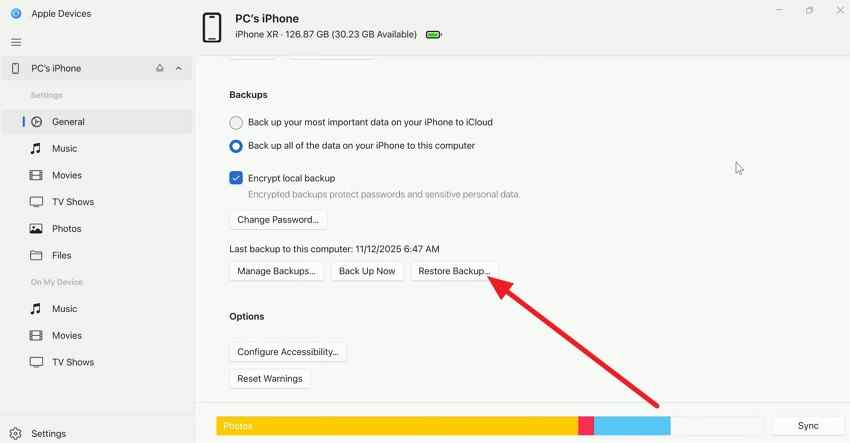
Step 2. Open “General,” scroll to the “Backups” section, and choose “Restore Backup.”
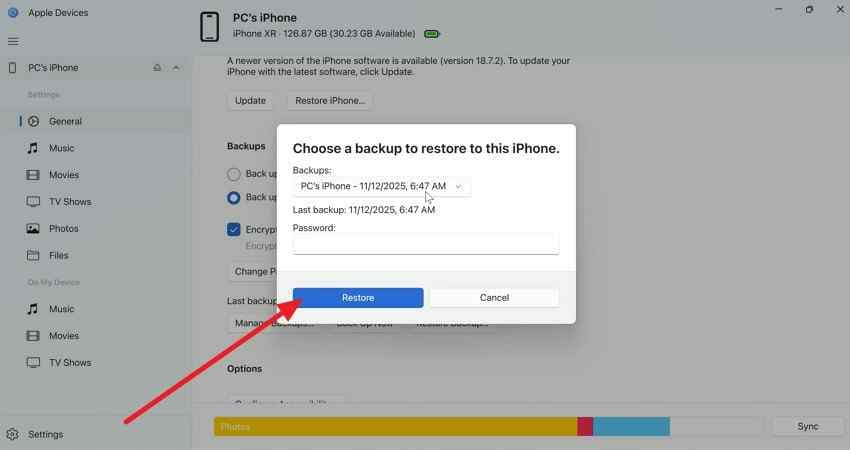
Step 3. Select a backup created before the notes disappeared, enter the backup password if required, then click “Restore.”
Method 6. Recover Note Files From a Mac With Recoverit
When built-in recovery options do not restore the missing notes, another approach is to check whether recoverable data is still available in iCloud. This provides an additional route for how do I recover my notes from iCloud when the note is no longer accessible through the usual Recently Deleted or syncing methods.
Wondershare Recoverit offers an iCloud recovery mode on Mac that lets users sign in with their Apple Account, complete verification, scan available iCloud data, and preview supported items before recovery. Recovery depends on whether the missing note data is still available and supported by the scan.

Key Features
- iCloud Save Destination: On Mac, you can save recovered files directly to iCloud after recovery.
- Folder-Level Scanning: Targets a specific location such as the iCloud Drive folder, rather than scanning an entire disk.
- Plain-Language AI Search: Finds a note by describing what it contained, working alongside the format and date filters.
- Document and Attachment Coverage: Handles the PDF, RTF, and image files note exports produce, including photos attached inside notes.
- Deep Scan Recovery: Searches the selected storage location for deleted, lost, or hidden files that simpler checks may miss.
How to Recover iCloud Note Files on a Mac
Follow these steps to scan the relevant location and recover the missing iCloud notes with Recoverit:
Step 1. Sign in to iCloud
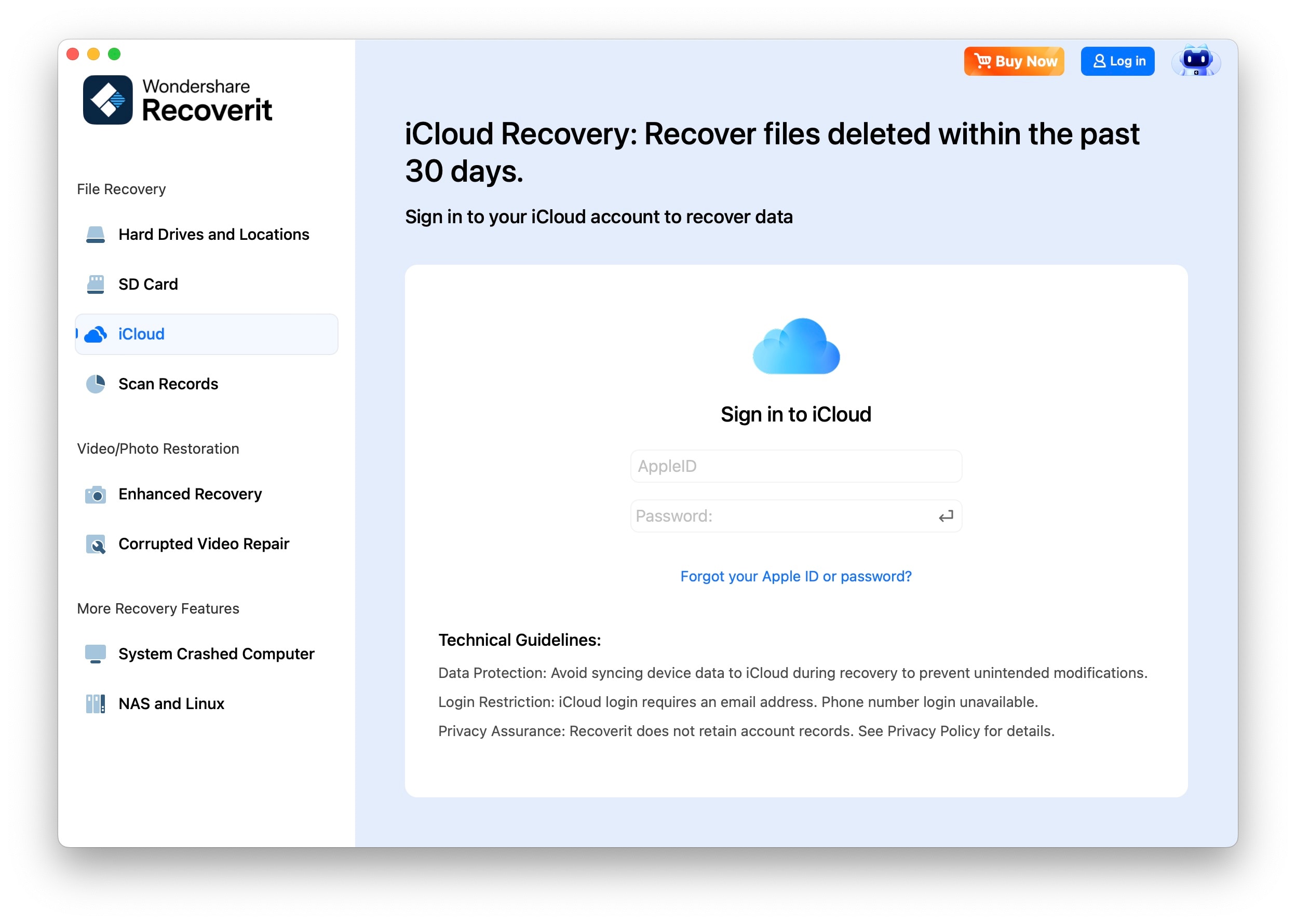
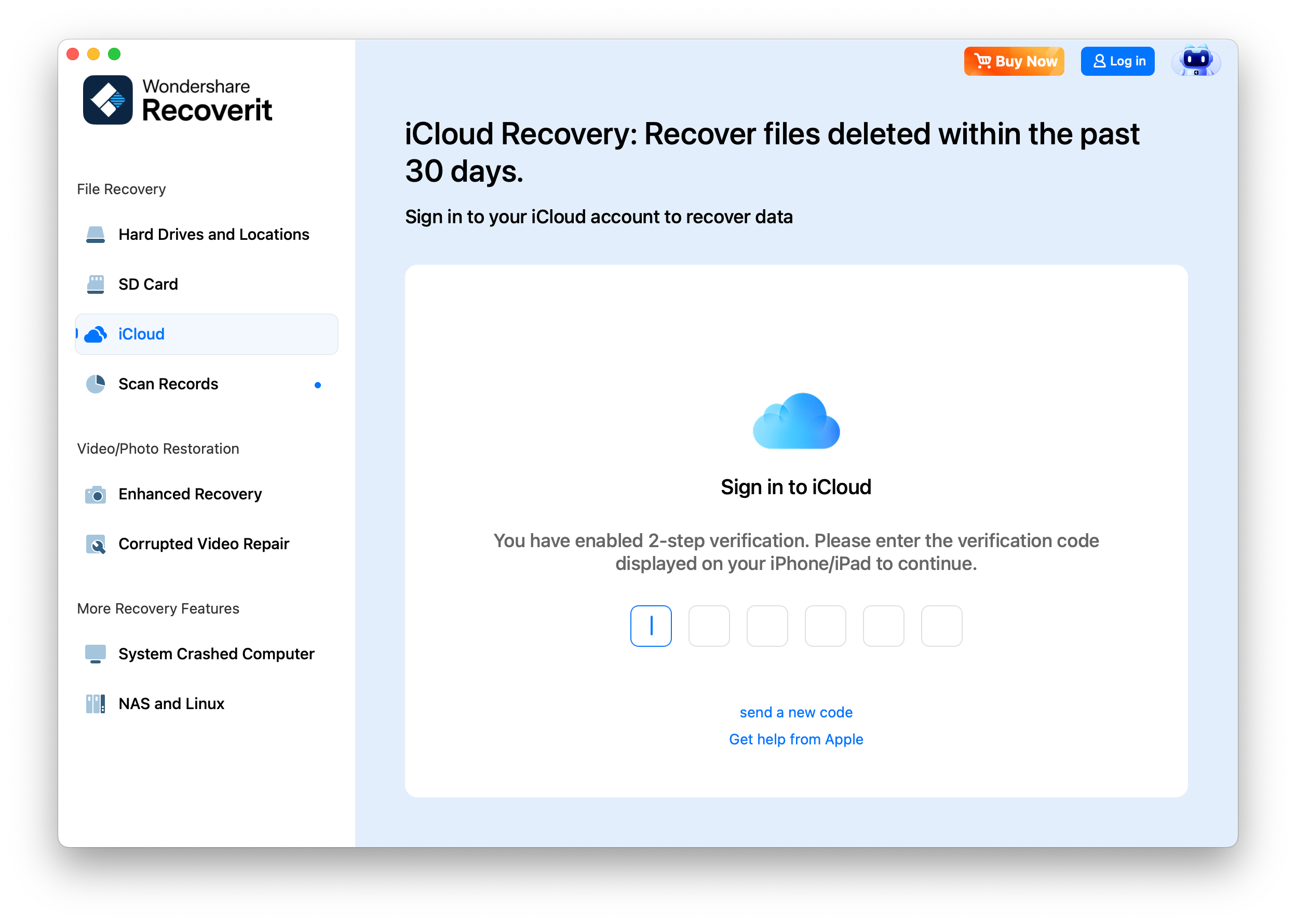
Open “Recoverit,” select “iCloud” from the left sidebar, then enter your Apple Account email and password to sign in.
Step 2. Complete Two-Factor Verification
If two-step verification is enabled, enter the “Verification Code” sent to your trusted iPhone, iPad, or other Apple device.
Step 3. Scan and Recover the File
Let Recoverit scan iCloud, then use “Filter” to locate the file. Select the item you want and click “Recover.”
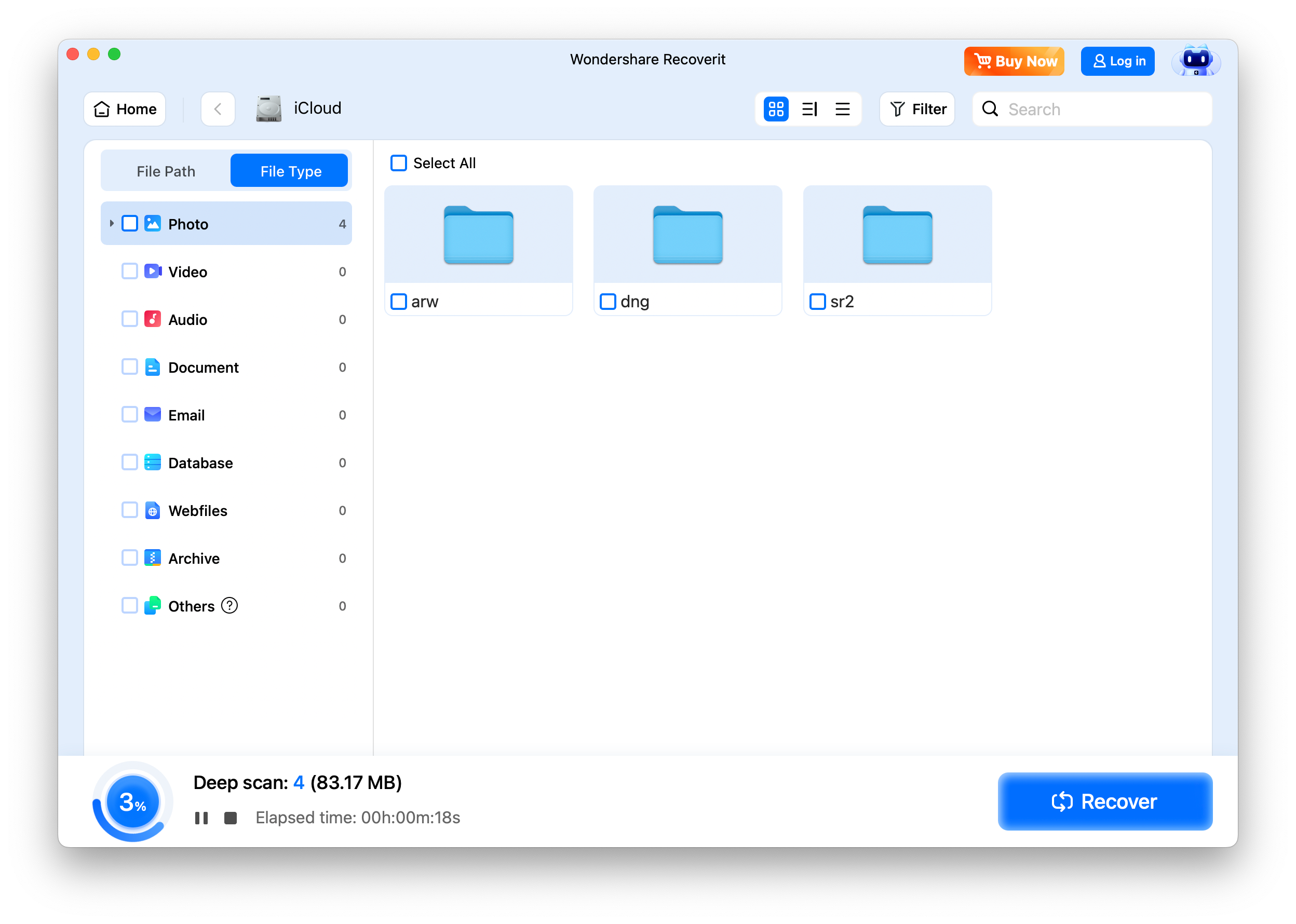
Note: Recoverit states that deleted iCloud data is generally recoverable within 30 days unless another backup or copy exists.
Recover Note Files From a Mac With Recoverit
Security Verified. Over 7,302,189 people have downloaded it.
Part 4. Which iCloud Notes Recovery Method Should You Use?
To answer how to get notes back on iPhone from iCloud, match your situation below and identify the right method:
| Problem | Best Method | Requires Backup | Main Limitation |
| Recently Deleted Note | Method 1 or Method 2 | No | Only within 30 days |
| On iCloud.com, Not On iPhone | Method 3 | No | Requires the note to remain stored in iCloud |
| Missing After Sync Was Disabled | Method 3 | No | Notes must have synced originally |
| Stored Under Another Account | Method 4 | No | Retention varies by provider |
| Local Note Lost From iPhone | Method 5 | Yes | Restoring replaces current data |
| Permanently Deleted iCloud Note | Method 6 | No | Only if a copy reached a Mac |
Backup restores can replace newer device data, while drive scans avoid that risk but require an external copy. Neither method can recover notes permanently deleted after existing only in iCloud.
Part 5. What if Notes Disappeared After Changing iPhones?
When notes are missing on a new iPhone, how to get notes back on iPhone from iCloud usually starts with checking account access and sync status. If the notes still exist online, recovery may not be necessary. Work through these 6 checks first:
- Check the Apple Account: Make sure the new iPhone is signed in with the same Apple Account that was used to store and sync the original iCloud notes.
- Enable Notes Sync: Open the iCloud settings for Notes and confirm that Sync this iPhone is turned on.
- Check iCloud.com: If the missing notes appear on iCloud.com, they still exist in iCloud, so the problem is more likely related to syncing on the new iPhone.
- Check Other Accounts: Add the relevant Gmail, Yahoo, Outlook, Exchange, or other account to the new iPhone and make sure Notes is enabled for it.
- Allow Syncing to Finish: Keep the iPhone connected to a stable internet connection and give Notes enough time to complete syncing.
- Avoid Erasing the Device: Do not use “Erase All Content and Settings” until you confirm that no important notes remain stored only on the old or current device.
Part 6. Why You Cannot Find Deleted iCloud Notes
If every recovery route comes up empty, how do I recover my notes from iCloud depends on why the note is no longer available. These 6 situations explain where recovery can stop:
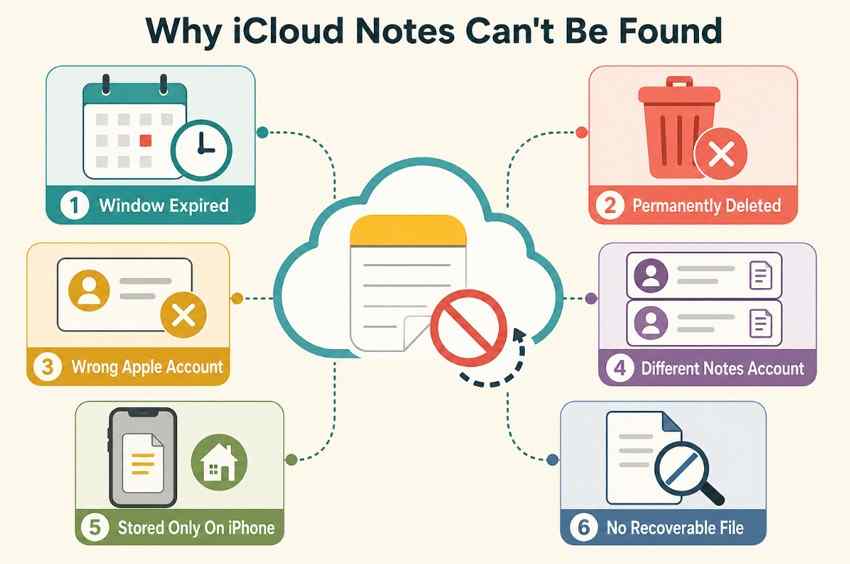
- Recovery Window Expired: Apple keeps deleted iCloud notes in Recently Deleted for up to 30 days. After that period, they are permanently removed from iCloud.
- Note Was Permanently Deleted: Manually removing a note from Recently Deleted deletes it immediately and ends the normal iCloud recovery option.
- Wrong Apple Account: The missing note may still exist under another Apple Account. Check the account originally used to create or sync the iCloud note.
- Different Notes Account: Notes stored with Gmail, Yahoo, Exchange, or another account are separate from iCloud. Check every connected Notes account when content appears missing.
- Stored Only on iPhone: Notes saved under On My iPhone are stored locally instead of syncing with iCloud. If one is lost, an earlier device backup may provide another recovery route.
- No Recoverable Copy Remains: If no iCloud copy, backup, exported file, attachment, or other recoverable version remains, restoring the missing note may no longer be possible.
Part 7. How to Avoid Losing Important Notes Again
The following habits reduce note loss and simplify the question: how do you retrieve notes from iCloud?
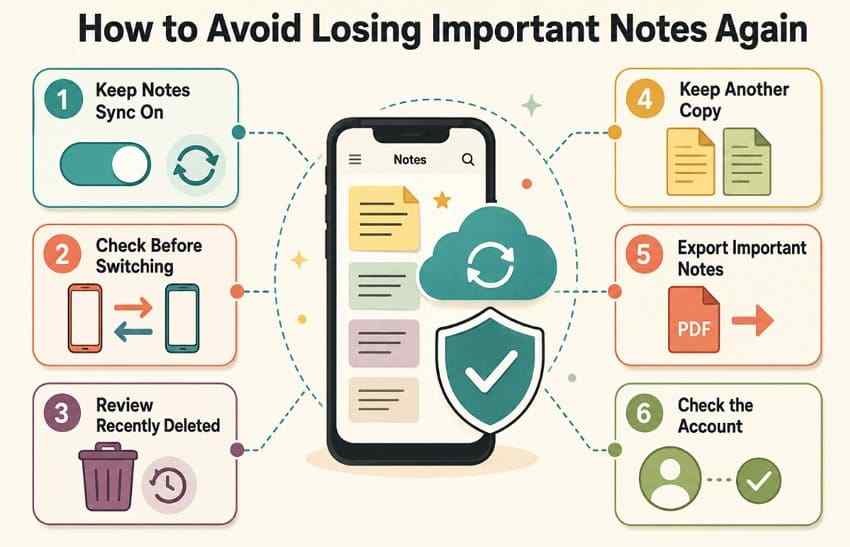
- Keep Notes Sync Enabled: Keep iCloud Notes turned on for devices using the same Apple Account so important notes continue syncing across them.
- Check Before Switching Devices: Confirm your notes appear on the new iPhone and iCloud.com before erasing, resetting, or giving away the old device.
- Review Recently Deleted Quickly: Check the Recently Deleted folder as soon as a note goes missing because iCloud keeps deleted notes there for a limited period.
- Keep a Separate Copy: Store especially important notes in another trusted location instead of relying on a single Notes account or device.
- Export Critical Notes: Save essential notes as PDFs or other separate files when needed, then keep those copies in a secure location.
- Verify the Notes Account: Before deleting or moving a note, check whether it belongs to iCloud, Gmail, Yahoo, Exchange, or another connected account.
Conclusion
To conclude, note recovery depends on where the note was stored. Understanding how do you restore notes from iCloud helps distinguish between Recently Deleted, sync issues, third-party accounts, and backups. For exported Mac files deleted locally, Recoverit offers another recovery option.
Recover Note Files From a Mac With Recoverit
Security Verified. Over 7,302,189 people have downloaded it.
FAQ
-
Can I recover iCloud notes after 30 days?
No, not through Apple. Once the 30-day window closes, the note is removed from every device on the account. Only a copy stored outside iCloud, such as an export on a Mac, remains recoverable. -
Why are my notes on iCloud.com but not my iPhone?
Sync is off or incomplete on the device, while the server copy remains intact. Enabling iCloud Notes in Settings and waiting on Wi-Fi is how to get notes back on iPhone from iCloud here. -
Does signing out of iCloud delete my notes?
Signing out does not delete properly synced iCloud Notes from iCloud itself. On current iOS versions, what remains on the iPhone depends on the sign-out option you choose. Before signing out, confirm that important notes appear on iCloud.com or another synced device. -
Can I restore notes without resetting my iPhone?
Yes. Recently Deleted, iCloud.com, iCloud Notes syncing, and third-party account methods do not require resetting your iPhone. A full device restore is mainly relevant when recovering a local note from an older backup.


