

 TL;DR:
Use System Information to review hardware and software details, Console to inspect repeated errors, Disk Utility to check a detected volume, and csrutil status in macOS Recovery to check System Integrity Protection. Use fsck only for a suitable file-system check after data is protected. If personal files are missing, use a backup or a separate recovery tool instead of modifying system files.
- Identify whether the issue is system behavior, disk structure, or missing personal data.
- Review System Information and Console logs.
- Run Disk Utility First Aid only after important data is backed up.
- Check SIP status without disabling it unnecessarily.
- Use data recovery software only for missing files, not as a system-file repair tool.
Ask AI for a summary
 ChatGPT
 Perplexity
 Gemini
 Claude
 Grok
Grok
Mac system files help macOS start, launch applications, manage hardware, and apply security rules. When these files or the file system become damaged, you may see crashes, slow startup, missing services, or repeated error messages.
Checking Mac system files does not mean opening or changing every protected file. Start with safe inspection tools such as System Information, Console, Finder, Disk Utility, and System Integrity Protection status. Run repair commands only when you understand the file system and have protected important data.

fsck can repair file-system structures, but they are not deleted-file recovery tools. Back up or recover important data before repair operations.This guide explains how to check Mac system files, inspect system health, review logs, and recover missing personal files without confusing diagnosis with data recovery.
Which Mac Tool Should You Use?
| Your Goal | Recommended Tool | What It Does Not Do |
| View hardware, macOS, and software details | System Information | Does not repair damaged files |
| Check a detected disk or volume | Disk Utility | First Aid is not deleted-file recovery |
| Check protected system status | csrutil status in macOS Recovery |
Does not scan personal files |
| Investigate repeated crashes or service errors | Console | Logs do not automatically identify every root cause |
| Recover deleted or inaccessible personal files | Backup or recovery software | Cannot guarantee overwritten data recovery |
Part 1: Why Check Mac System Files?
Checking system files is useful when macOS behaves unexpectedly, but each symptom may require a different tool.
- Slow startup: Review storage, login items, disk health, and repeated system errors.
- Application crashes: Use Console to match crash times with repeated warnings.
- File-system errors: Use Disk Utility to inspect a detected volume and run First Aid after data is protected.
- Security concerns: Check SIP status and review installed software rather than deleting protected files manually.
- Hidden files: Use Finder's hidden-item shortcut only to inspect files; do not modify system files without a clear reason.
- Missing personal data: Check Trash and backups, then use a separate recovery workflow if needed.
Part 2: How to Check Mac System Files Safely
Use a least-invasive workflow. Start by collecting information and logs, then check the disk structure. Do not edit or delete protected system files simply because their names are unfamiliar.
- Review System Information and available storage.
- Inspect Console for repeated errors at the time of the problem.
- Use Disk Utility to confirm that the startup disk and volumes are detected.
- Run First Aid only after important files are backed up.
- Check SIP status from macOS Recovery without disabling it unnecessarily.
- Use
fsckonly for a suitable file-system check and only when you understand the command. - Use backups or data recovery software separately when personal files are missing.
If your Mac includes an APFS encrypted sparse bundle, do not modify the source until you have the correct password or recovery key. Refer to APFS Encrypted Sparse Bundle Recovery Methods when relevant.
Method 1: Use Disk Utility First Aid
Disk Utility can show whether a disk or volume is detected, mounted, and using a recognizable file system. First Aid checks and repairs some logical file-system problems. It does not inspect every macOS system file and cannot restore deleted personal files.
- Back up important files before repair.
- Open Applications > Utilities > Disk Utility.
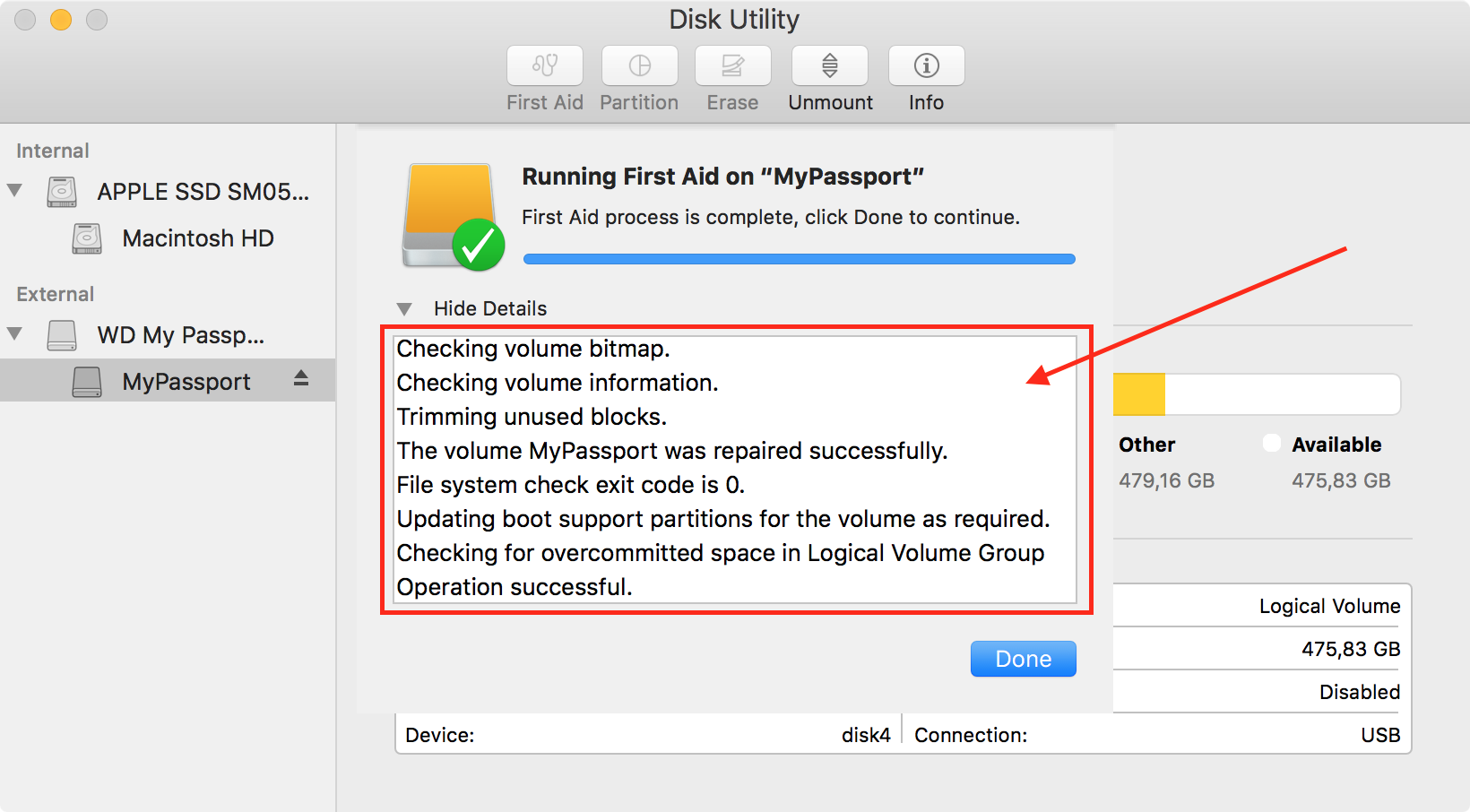
- Choose View > Show All Devices.
- Select the relevant volume and click First Aid.
- Review the warning and click Run only after data is protected.
- Wait for the check to finish without disconnecting the disk.
Method 2: Use Terminal with fsck Carefully
fsck checks and, depending on the command and file system, may repair disk structures. It is not a general system-file viewer or deleted-file recovery tool. A repair command can change the source volume, so use it only after data is backed up or imaged.
- Back up important data first.
- Start the Mac in macOS Recovery when the command requires an unmounted startup volume.
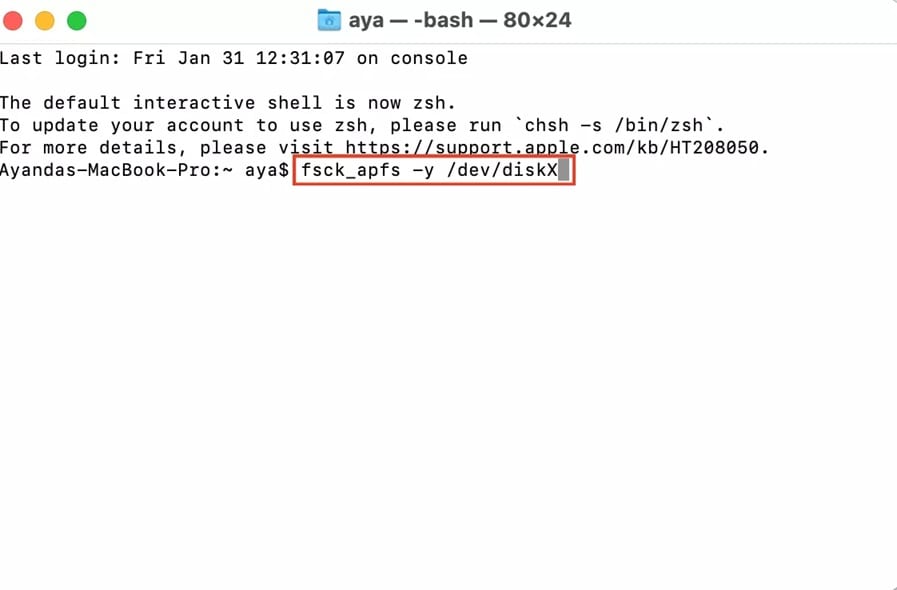
- Open Utilities > Terminal.
- Use
diskutil listto identify the correct disk and file-system type. - Run only a file-system-specific
fsckcommand that matches the volume and your recovery plan. - Do not use erase, partition, or destructive flags on a source disk containing needed files.
Method 3: Check System Integrity Protection with csrutil
System Integrity Protection, or SIP, limits changes to protected macOS locations. Checking its status is different from checking whether a personal file is corrupted.
- Start the Mac in macOS Recovery.
- Open Utilities > Terminal.
- Run
csrutil status.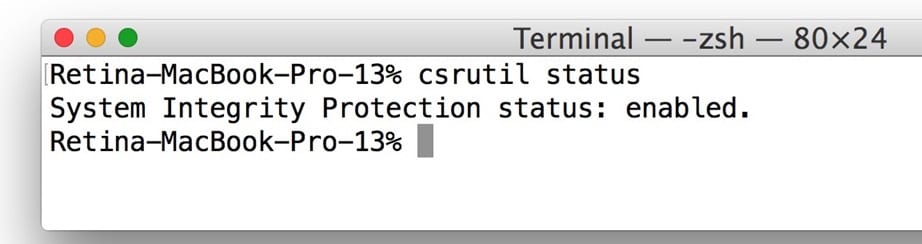
- Record whether SIP is enabled.
- Do not disable SIP just to inspect or delete an unfamiliar file. Change security settings only for a specific, understood requirement.
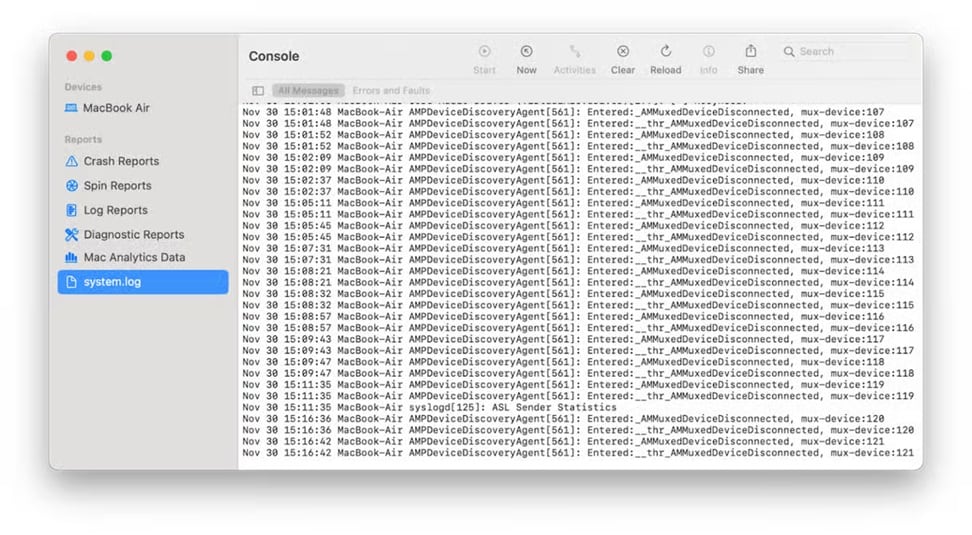
Method 4: Use Console to Review System Logs
Console helps you correlate crashes, service failures, storage messages, and application errors with a time. Logs are evidence for troubleshooting, not proof that a specific system file is corrupt.
- Open Applications > Utilities > Console.
- Reproduce the problem only if doing so will not risk important data.
- Review messages around the time of the crash or failure.
- Search for repeated process names, disk identifiers, error codes, or storage events.
- Record the time and message before changing settings or deleting files.
Part 3: Recover Missing Personal Files with Recoverit for Mac
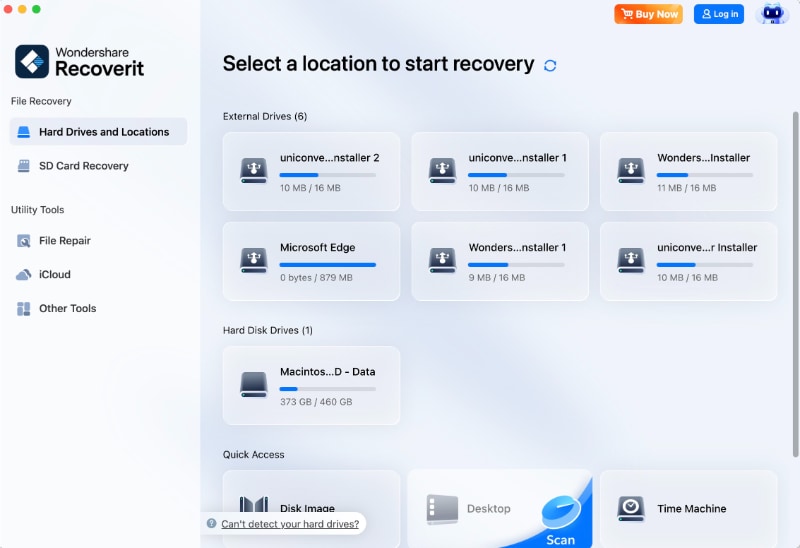
Wondershare Recoverit is a file recovery tool, not a macOS system-file integrity checker. Use it when personal files are deleted, formatted, inaccessible, or missing from a detected storage device.
Do not use recovery software to replace Disk Utility, SIP checks, or Console diagnosis. If the Mac detects the source drive, Recoverit may scan it for recoverable files. Recovery is not guaranteed for overwritten data, physically failing storage, encrypted data without credentials, or a device that macOS cannot detect.
Steps to Recover Missing Files
- Protect the source: Stop copying new data to the affected location.
- Select the location: Open Recoverit and choose the detected internal drive, external device, or Trash.
- Scan: Start the scan and avoid disconnecting the source.

- Preview: Filter and preview supported files.
- Recover elsewhere: Click Recover and save results to another healthy location.

- Verify: Open several files before modifying the source disk.
Conclusion
Checking Mac system files requires more than one tool. Use System Information and Console for diagnosis, Disk Utility for detected disk and file-system checks, csrutil status for SIP status, and carefully selected fsck commands only when the volume and risk are understood.
These tools do not automatically recover deleted personal files. If files are missing, use a backup or a separate recovery workflow and save results to another healthy device. Back up data before First Aid, repair commands, reinstalling macOS, or any operation that can change the disk.
FAQ About Checking Mac System Files
-
What is the safest first step when my Mac starts behaving strangely?
Back up important files, review Console for repeated errors, and use System Information or Disk Utility to identify the affected component. -
Should I run First Aid before backing up my Mac?
No. Back up or recover important data first because repair operations may unmount or modify the volume. -
Can I delete unfamiliar files from macOS system folders?
No. File names alone do not show that a file is malicious or unnecessary. Check its path, signature, related process, and trusted security guidance first. -
Is csrutil status the same as a system-file scan?
No. It reports System Integrity Protection status. It does not scan personal files or verify every macOS component. -
Can Recoverit repair corrupted Mac system files?
Recoverit is designed to recover accessible personal files. Use macOS Recovery, Disk Utility, system updates, or Apple-supported repair paths for operating-system problems. -
Where should I save files recovered from a Mac disk?
Save them to another healthy internal or external location, never back to the source disk being scanned.


