 TL;DR:
Restoring a WhatsApp backup from iCloud on an iPhone requires reinstalling the app and verifying it with the exact phone number and Apple Account used to create the backup, provided both your device and iCloud have free space equal to at least 2.05 times the backup size.
● The restore prompt only appears during the initial app setup, and the process will fail entirely if WhatsApp is not specifically toggled on under Apps Syncing to iCloud Drive in your device settings.
● End-to-end encrypted backups cannot be restored without the original password or 64-digit key, and video files will remain excluded unless the Include Videos option was enabled prior to the latest backup.
● If a full chat restore fails due to backup corruption, Wondershare Recoverit cannot decrypt or restore the chat history itself, but it can scan your account via iCloud Recovery to extract supported media files stored separately in iCloud Drive.
Ask AI for a summary
 ChatGPT
 Perplexity
 Gemini
 Claude
 Grok
Grok
“ …I noticed that WhatsApp restored my chats from the iCloud backup instead of the local device data. The iCloud backup is mostly up to date, but some very old chats never came back…”- Certain-Jellyfish167
WhatsApp gives you one chance to restore a backup during setup, and a few things need to match for it to work. If something is off, you may never see the restore option, even though your backup is still in iCloud.
That is why how to restore WhatsApp backup from iCloud begins with a few checks before uninstalling the app. Below, we cover those checks, the restore process, and what to try if the option is missing. Recoverit can also help locate supported media stored separately in iCloud Drive when the WhatsApp backup itself cannot be restored.
In This Article
Part 1. Before You Restore WhatsApp From iCloud
Before attempting how to retrieve a WhatsApp backup from iCloud, check the 6 requirements in the table below to avoid restore problems:
| Requirement | What to Check | Why It Matters |
| An iCloud Backup Exists | WhatsApp > Settings > Chats > Chat Backup | No backup means no prompt during setup |
| Same Phone Number | The number shown in WhatsApp | Backups are tied to the number that made them |
| Same Apple Account | Settings, then your name | The backup sits in that account's iCloud Drive |
| WhatsApp Enabled in iCloud Drive | Apps Syncing to iCloud Drive | WhatsApp cannot reach a backup it is blocked from |
| Enough Free Storage | iCloud and iPhone space | WhatsApp requires 2.05 times the backup size |
| Encryption Credentials | Password, passkey, or 64-digit key | An encrypted backup will not open without one |
Most iCloud restore failures come down to two overlooked requirements: available storage and WhatsApp’s individual access to iCloud Drive. WhatsApp recommends having iCloud storage at least 2.05 times larger than the backup and enough free space on the iPhone to complete restoration. That can catch people who free up only enough space to match the backup itself.
The other common problem is the app-level setting. WhatsApp must be enabled under Apps Syncing to iCloud Drive, which is separate from turning on iCloud Drive itself. An iPhone can have iCloud Drive enabled while WhatsApp remains turned off for iCloud access.
Part 2. How to Restore WhatsApp Backup From iCloud
Once the requirements are in place, follow the steps below for how to restore WhatsApp backup from iCloud correctly:
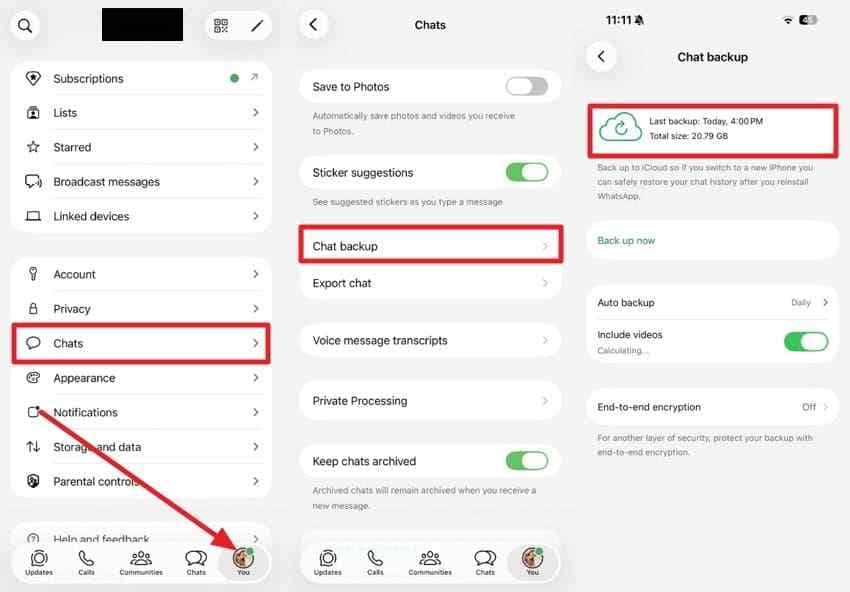
Step 1. Confirm the Backup Exists
Check the latest backup before uninstalling WhatsApp. Its date shows how recent the recoverable chats are, while its size helps confirm that enough storage is available. If no iCloud backup exists, this restore method cannot be used. Use the path below to verify the backup details before moving on:
Instructions. Open “WhatsApp” > Tap on the “Profile” > “Chats” > “Chat Backup” > Read the last backup date > Note the backup size for the storage check.
Step 2. Uninstall and Reinstall WhatsApp
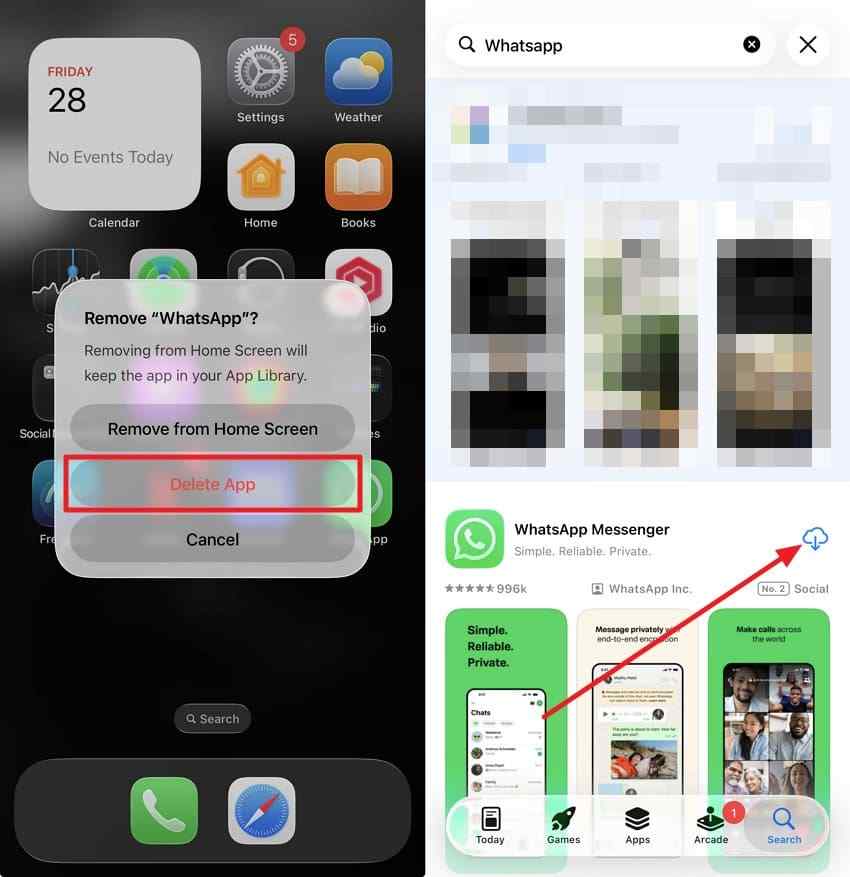
For how to restore WhatsApp backup from iCloud, WhatsApp must be reinstalled because the restore option appears only during initial setup. Once you have confirmed the backup exists, use the instructions below to restart the restore process:
Instructions. Press and hold the WhatsApp icon > Choose “Delete App” and confirm > Open the “App Store” > Search for WhatsApp and install it again.
Step 3. Verify the Same Number and Account
Use the same phone number and Apple Account connected to your WhatsApp backup. A different number or account may stop WhatsApp from finding your saved backup. Here is how to check both:
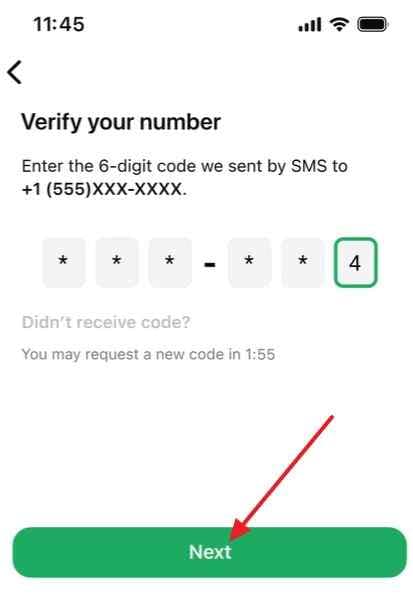
For Phone Number
Step 1. Enter your country code and phone number.
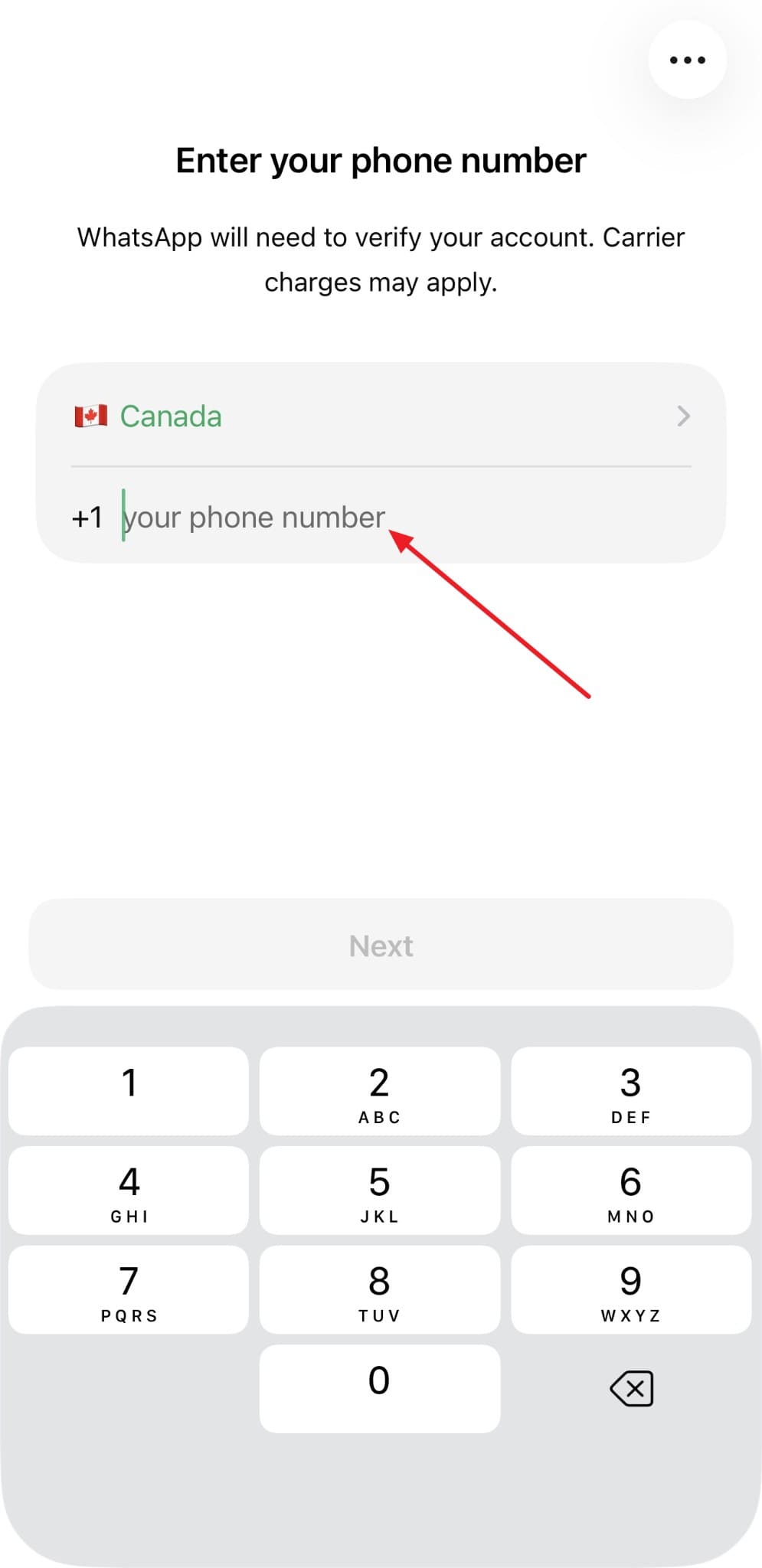
Step 2. Verify your phone number by entering a 6-digit code > Tap “Next” > Complete identical checks.
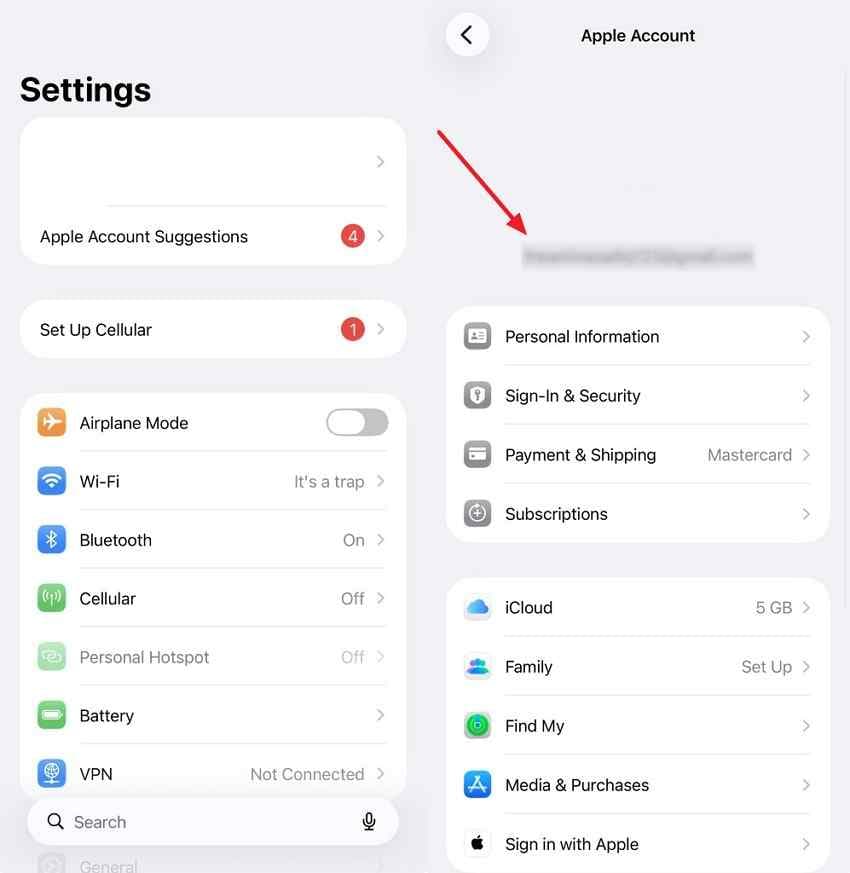
Verify Your Apple Account
Open “Settings > [Your Name].” Check that you're signed into the Apple Account used for the WhatsApp backup.
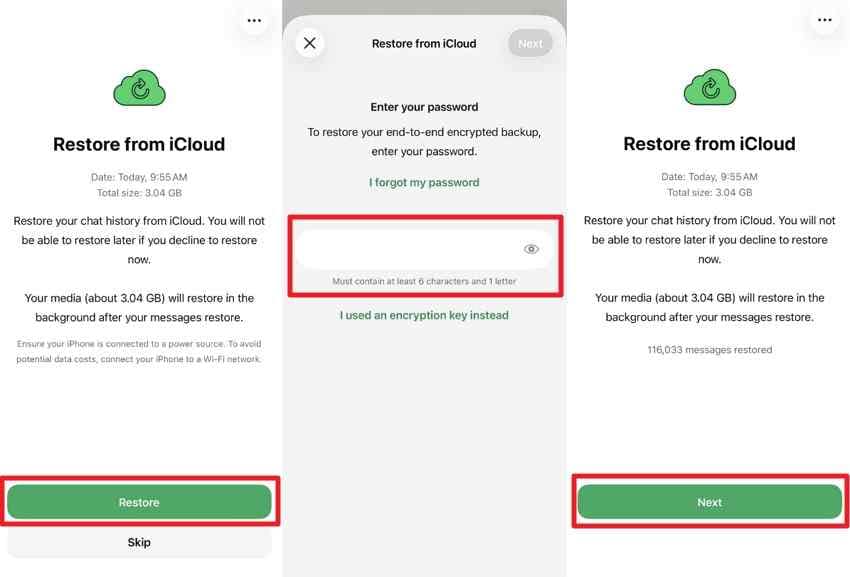
Step 4. Tap Restore Chat History
Compare the backup details with the date and size you noted in Step 1. If they match what you expected, follow the instructions below to begin the restore:
Instructions. Check the backup details > Tap “Restore” > Enter the password or key if prompted > Tap “Next” when finished.
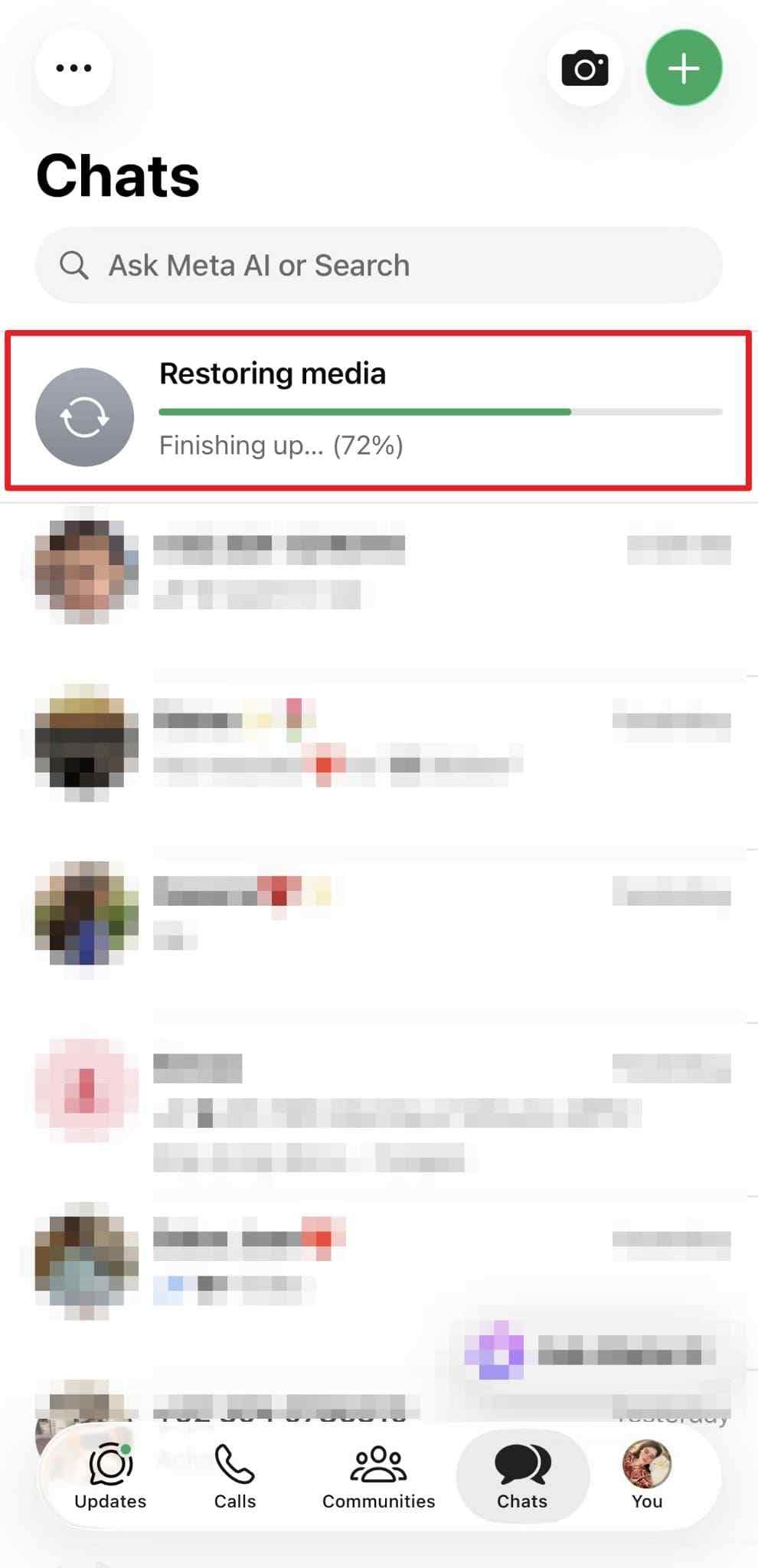
Step 5. Stay Connected While Media Downloads
Chats may appear before all media has finished restoring, so seeing the conversation list does not always mean the process is complete. Keep the iPhone connected and allow WhatsApp time to finish loading the remaining media.
Instructions. Keep the iPhone on Wi-Fi and plugged in > Leave WhatsApp open > Watch media progress inside chats > Wait until images load without a spinner.
Part 3. What Gets Restored From a WhatsApp iCloud Backup?
To see exactly what comes back, how to restore WhatsApp chat from iCloud depends on the backup contents listed below:
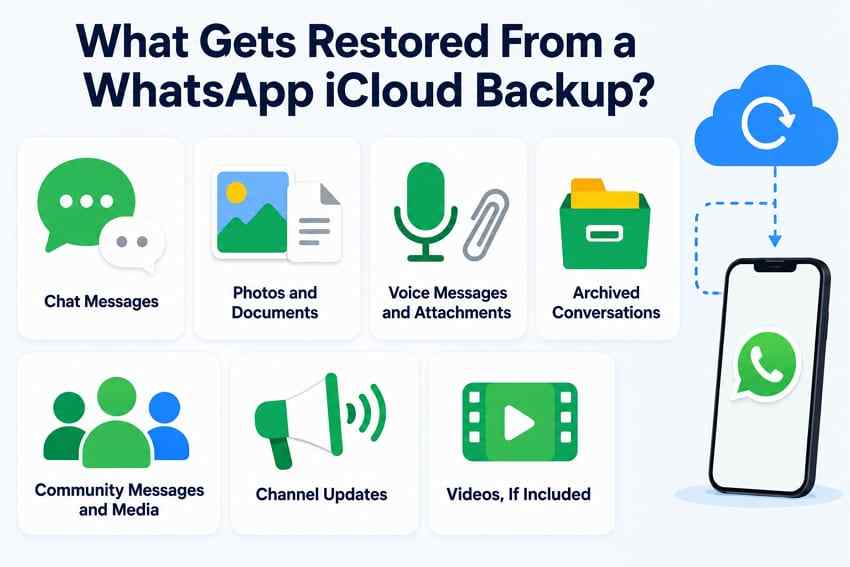
- Chat Messages: Individual and group conversations saved before the most recent backup can be restored.
- Photos and Documents: Media included with your chats can return along with the conversation history.
- Voice Messages and Attachments: Supported media saved in the backup is restored with the chats it belongs to.
- Community Messages and Media: Messages and supported media sent or received in WhatsApp Communities are included in backups.
- Archived Conversations: Archived individual and group chats remain part of chat history and return when included in the restored backup.
- Channel Updates: WhatsApp Channel updates may be included, although channel media is backed up only for channel admins.
- Videos, If Included: Videos return only when Include Videos was switched on before the latest backup was created.
Anything sent or received after the latest backup will not return. WhatsApp confirms that restored chat history is limited to what was included in the backup, so the backup date determines how much recent content can be recovered.
Part 4. Why WhatsApp Is Not Finding or Restoring the Backup
If how to restore WhatsApp iCloud backups hits a dead end, the 6 issues below are the most common causes:
| Problem | Likely Cause | Fix |
| No Backup Found | Different phone number or iCloud account | Use the same number and iCloud account that created the backup |
| Restore Option Never Appears | WhatsApp blocked in iCloud Drive | Enable it under Apps Syncing to iCloud Drive |
| Restore Stops or Fails | Insufficient storage | Free space to 2.05 times the backup size |
| Media Missing After Chats | Download still in progress | Stay on Wi-Fi and wait it out |
| Videos Missing Entirely | Include Videos was off | Videos were never in the backup |
| Encrypted Backup Will Not Open | Incorrect or unavailable encryption credential | Enter the correct password, passkey, or 64-digit encryption key |
A WhatsApp backup just will not restore after trying every fix. WhatsApp says this can happen when the backup itself has become corrupted. The backup may get damaged if something interrupts it while being created.
A damaged backup may not work anymore. If that happens, see Part 9 for other ways to get your data back.
Part 5. How to Restore WhatsApp From iCloud on a New iPhone
Restoring WhatsApp on a new iPhone still depends on the same iCloud backup requirements. For how to restore WhatsApp from iCloud, the new device must use the same iCloud account and phone number associated with the backup. Follow the steps below to restore the existing iCloud backup on the new iPhone:
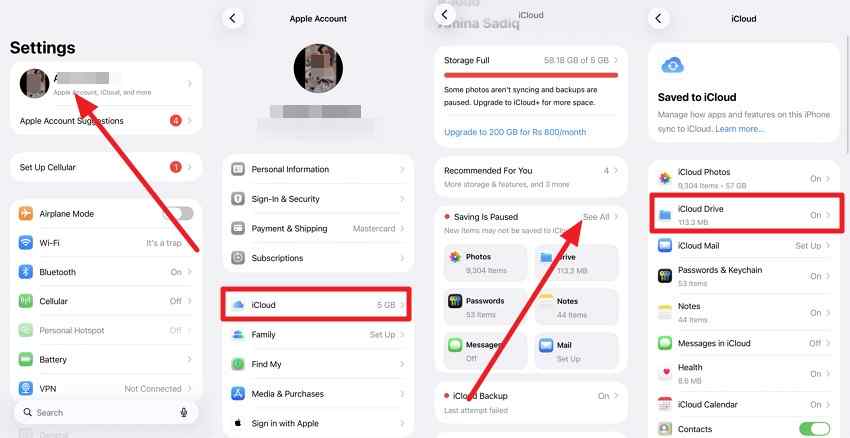
Step 1. Open “Settings > [your name] > iCloud,” then tap “iCloud Drive.” Make sure the iPhone is using the same Apple Account linked to the WhatsApp backup.
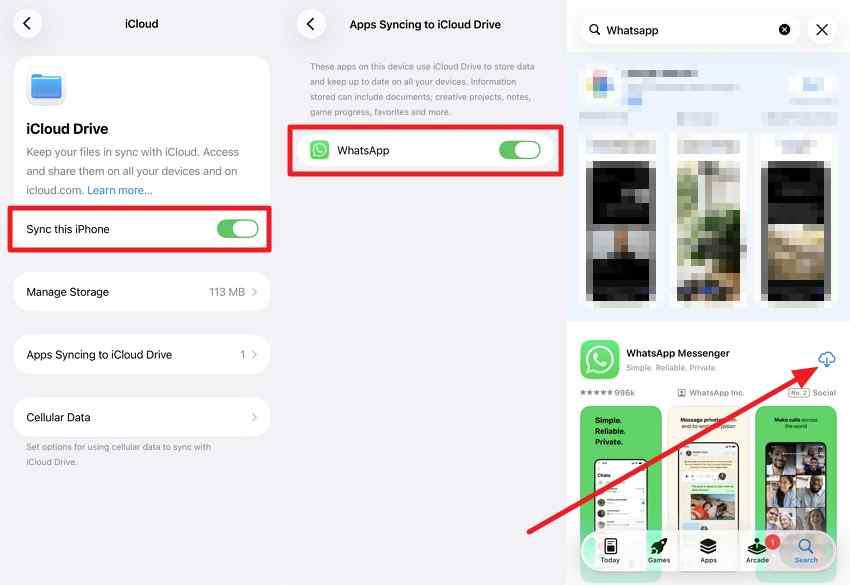
Step 2. Turn on “Sync this iPhone,” then open “Apps Syncing to iCloud Drive” and make sure “WhatsApp” is enabled. Install WhatsApp from the App Store if needed.
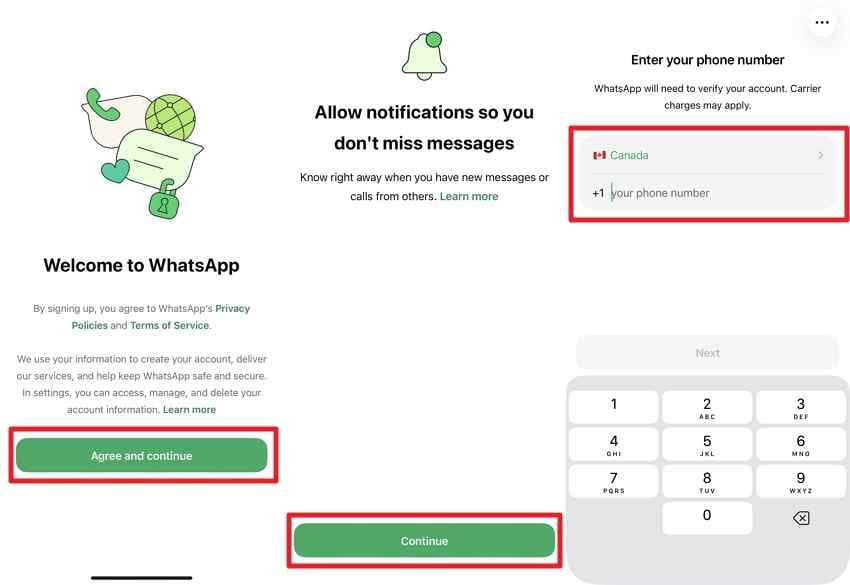
Step 3. In WhatsApp, tap “Agree and Continue,” complete the setup prompts, and verify the same phone number used to create the iCloud backup.
Step 4. When the backup appears, tap “Restore.” Enter the encrypted backup password or key if prompted, tap “Next” after the chats return, and keep the iPhone connected while WhatsApp finishes restoring media.
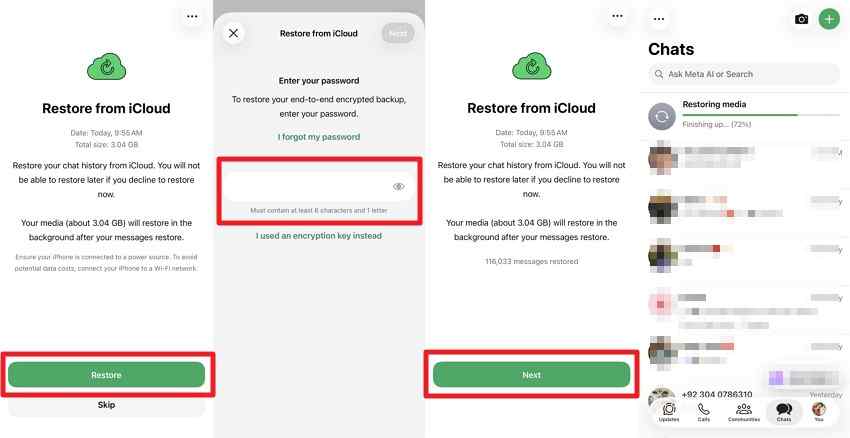
Note: Media continues downloading after the chats appear, so leave the phone on Wi-Fi. Check the backup date on the old phone while it still works, since that number is what the new device has to match.
Part 6. What if You Changed Your Phone Number?
Changing your phone number can affect the WhatsApp backup saved in iCloud. Knowing how to restore WhatsApp iCloud backups becomes important when switching to another number. Go through the steps below to prepare your backup before changing your number:
Step 1. On your older iPhone, tap your “Profile” icon > Press “Account.” Then, choose “Change Phone Number.”
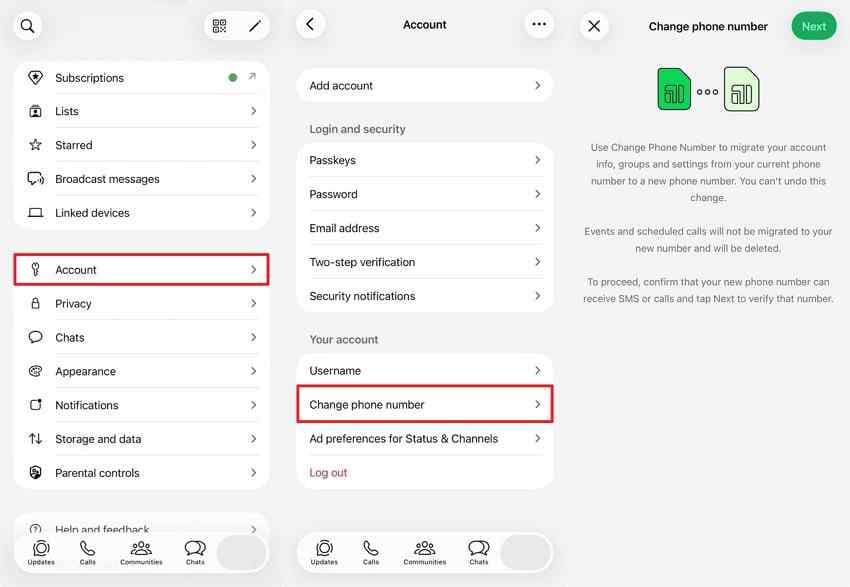
Step 2. After that, enter your current and new number > Tap > “Next” > Complete the verification process.
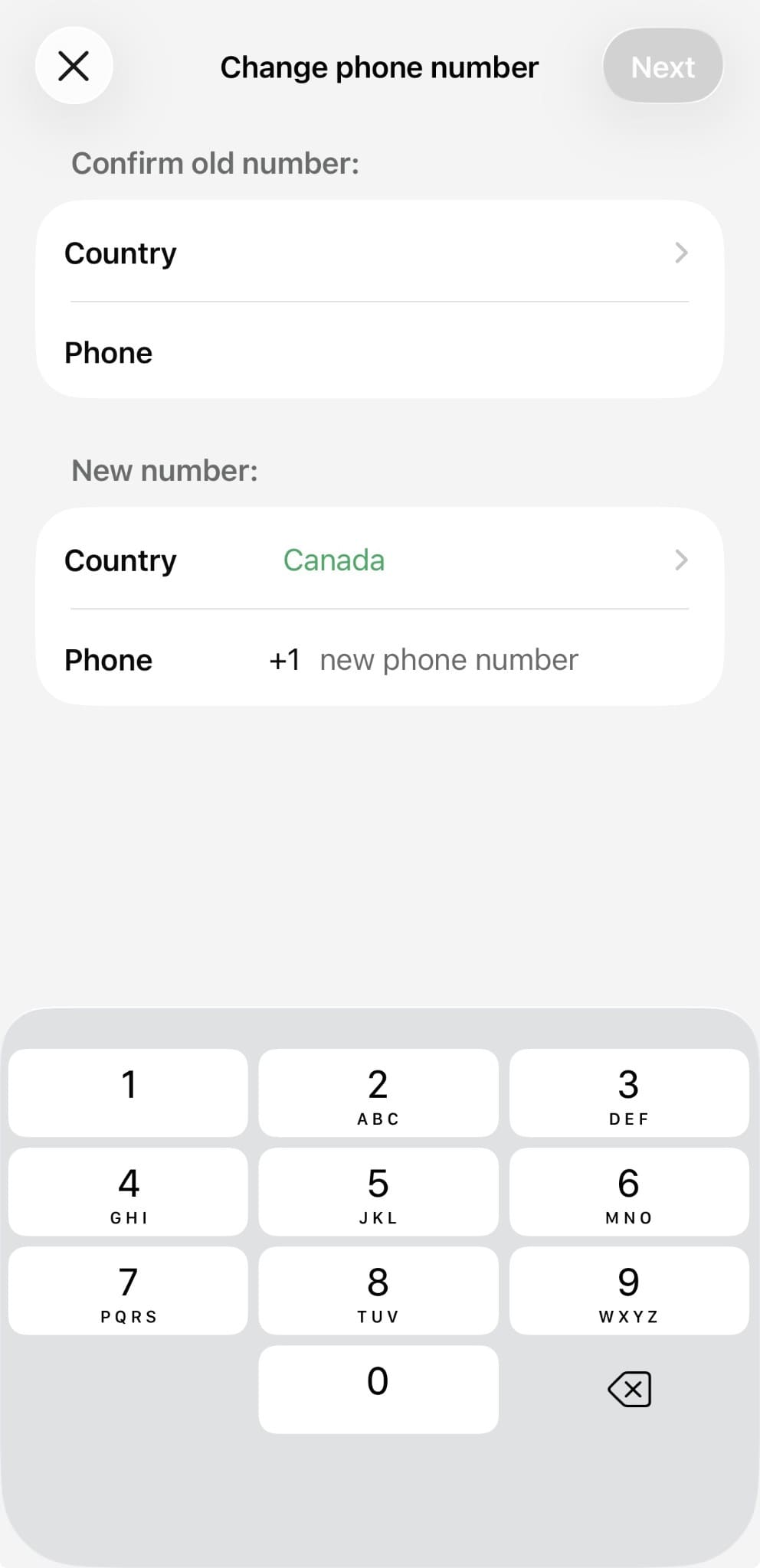
Step 3. In your profile, create a backup by following Step 1 in Part 2. Next, set up your WhatsApp on your new iPhone with the new number and restore your chats using the method above.
WhatsApp confirms that backups can only be restored with the number used when created. If your number changed, create a new backup before restoring on another iPhone.
Part 7. What if Your Backup Is End-to-End Encrypted?
If you want to know how to restore WhatsApp messages from iCloud, an encrypted backup needs to be unlocked first. Here is what you can do:
- Enter Your Backup Password: Use the password you set up for this backup.
- Use Your 64-Digit Key: Enter your encryption key if you chose this option instead.
- Try Available Recovery Options: Use a passkey or other recovery method if one was previously configured and is available.
- Avoid Guessing the Password: Check saved passwords or recovery information before entering credentials you are unsure about.
- Know When Restoration Is Not Possible: Without the required credential or an available recovery option, the encrypted backup cannot be restored.
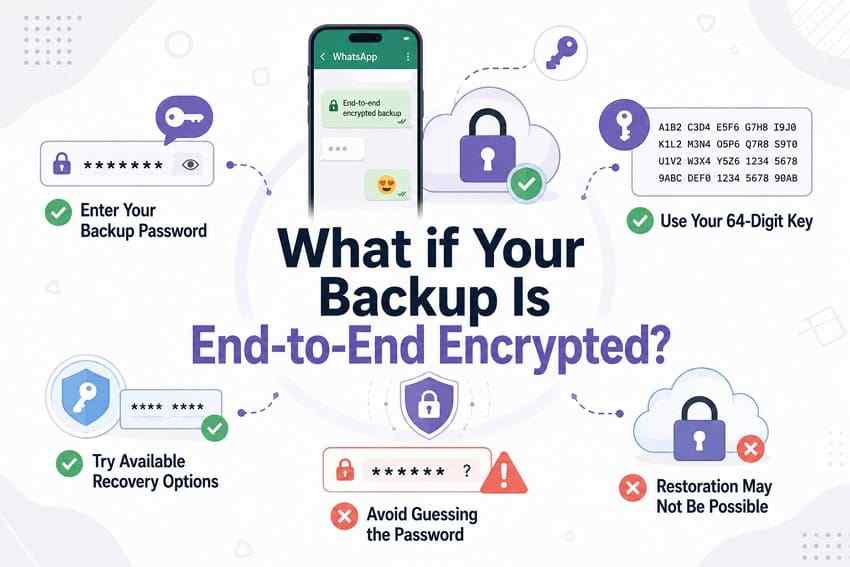
End-to-end encryption keeps your backup protected so even WhatsApp cannot access its contents. If you lose the required credentials, WhatsApp support cannot unlock the backup for you.
Part 8. WhatsApp Backup vs. Full iPhone iCloud Backup
WhatsApp and full iPhone iCloud backups work differently and follow separate restore methods. Understanding how to retrieve WhatsApp backup from iCloud helps you choose the right method:
| Feature | WhatsApp Chat Backup | Full iPhone iCloud Backup |
| What It Holds | WhatsApp chats and included media | Supported device data, apps, and settings |
| When It Restores | During WhatsApp setup after reinstalling | During iPhone setup |
| Device Requirement | Same phone number and Apple Account | New or erased iPhone |
| Main Risk | Removing WhatsApp without confirming a backup | Erasing the iPhone before confirming a backup |
| Best Used For | Restoring WhatsApp chats | Restoring the iPhone from a backup |
Important: A full iPhone iCloud restore and a WhatsApp chat backup restore are separate workflows. Do not assume a full device backup contains a usable standalone WhatsApp iCloud chat backup.
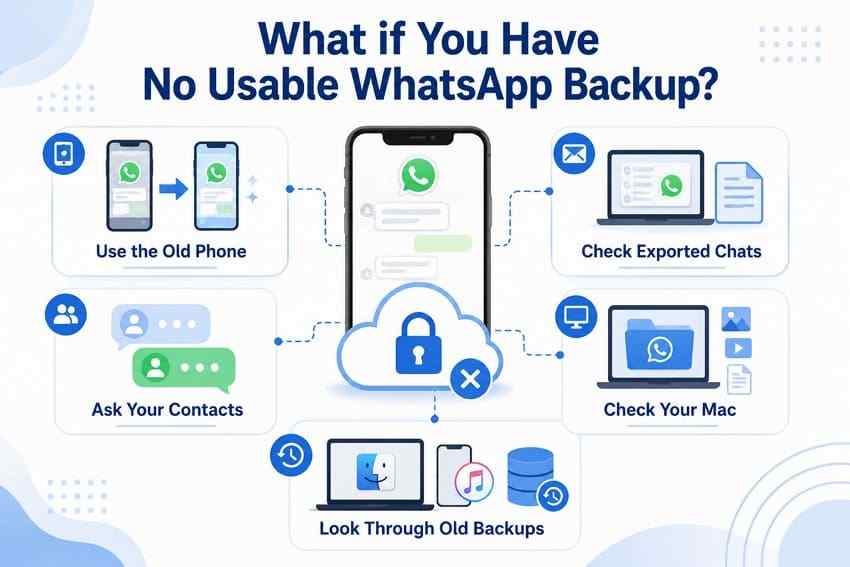
Part 9. What if You Have No Usable WhatsApp Backup?
If you are wondering “How do I restore WhatsApp from iCloud?”, you need a usable backup. These are other options when your WhatsApp backup cannot be restored:
- Use the Old Phone: Transfer available WhatsApp chats directly from your old iPhone to the new device before losing access.
- Check Exported Chats: Search your email or Mac for WhatsApp conversations or media you previously exported and saved separately.
- Ask Your Contacts: Request important messages, photos, videos, or documents again from contacts who may still have copies.
- Check Your Mac: Look for WhatsApp photos, videos, documents, or exported chats that may still be stored locally.
- Look Through Old Backups: Review Finder, Apple Devices, or iTunes backups that may contain older WhatsApp-related data.
Recover Separately Stored WhatsApp Media From iCloud With Recoverit

While the WhatsApp chat backup itself is encrypted, some photos, videos, documents, or exported files may also be stored separately in iCloud Drive or Photos app. Recoverit cannot open or recover the encrypted WhatsApp backup, but it can help recover these separately stored files as regular iCloud data.
Recoverit provides an iCloud Recovery option for scanning supported data stored separately in iCloud. After signing in with your Apple Account and completing verification, you can scan the available cloud data, filter the results, and recover individual files that remain accessible.
Key Features
- Video Playback Verification: Confirms recovered clips play properly rather than returning files that fail to open.
- High-Bitrate Video Preview: Handles 4K and 8K footage during preview, so large clips can be checked before recovery.
- Targeted Folder Scans: Points the search at one location, such as Downloads or the iCloud Drive folder, rather than sweeping a whole drive.
- AI Search in Plain Language: Locates media by description when the file name is forgotten and combines with format and date filtering.
- Direct iCloud Export: Sends recovered items into iCloud from the Mac, instead of restricting output to a local destination.
Guide to Scan a Mac for Saved WhatsApp Media with Recoverit
Follow the steps below to access iCloud Recovery, verify your account, scan the available data, and recover the required files.
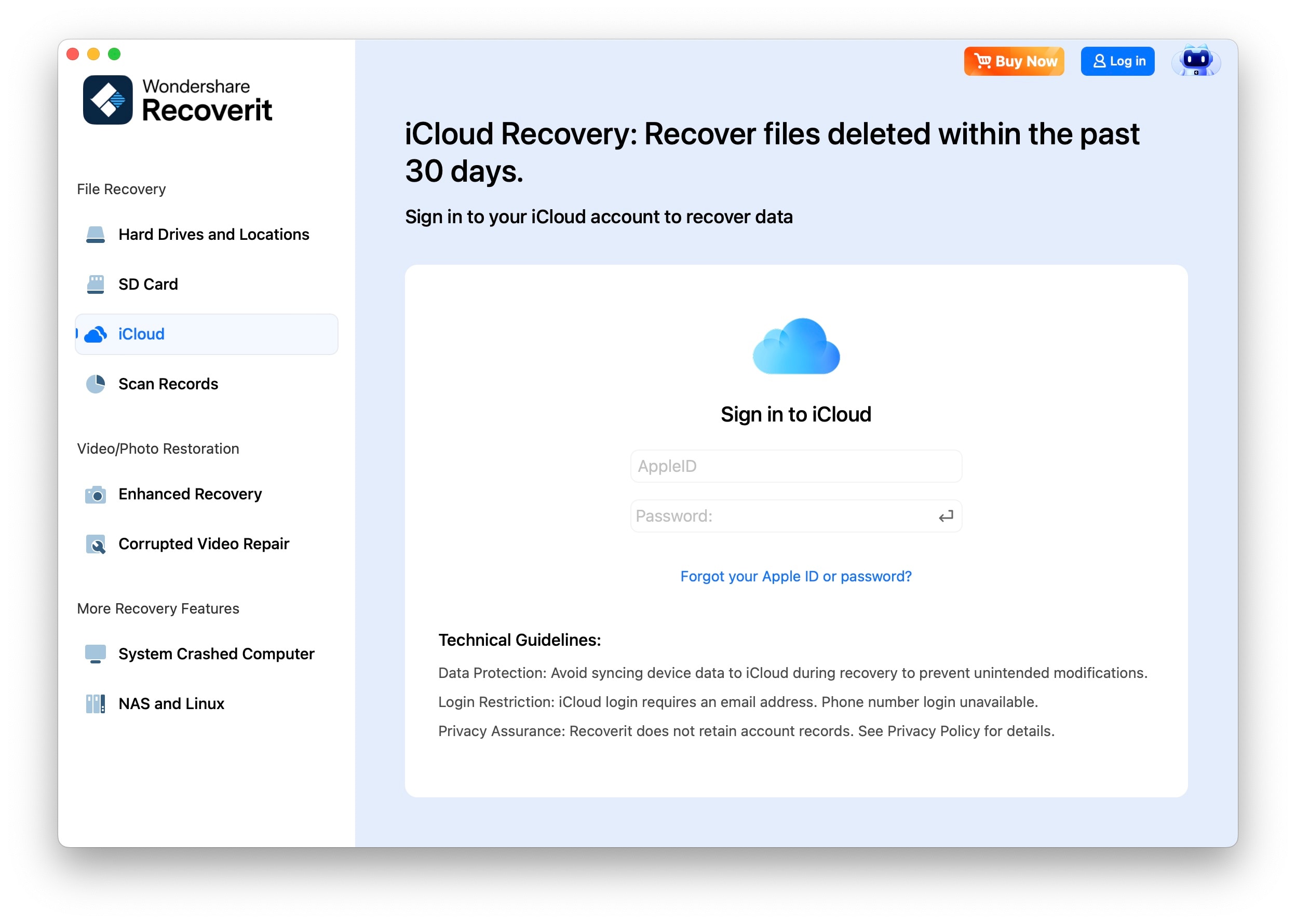
Step 1. Open the iCloud Recovery Option
Start Recoverit and select “iCloud” > Sign in with your Apple Account details so Recoverit can access the supported data stored in iCloud.
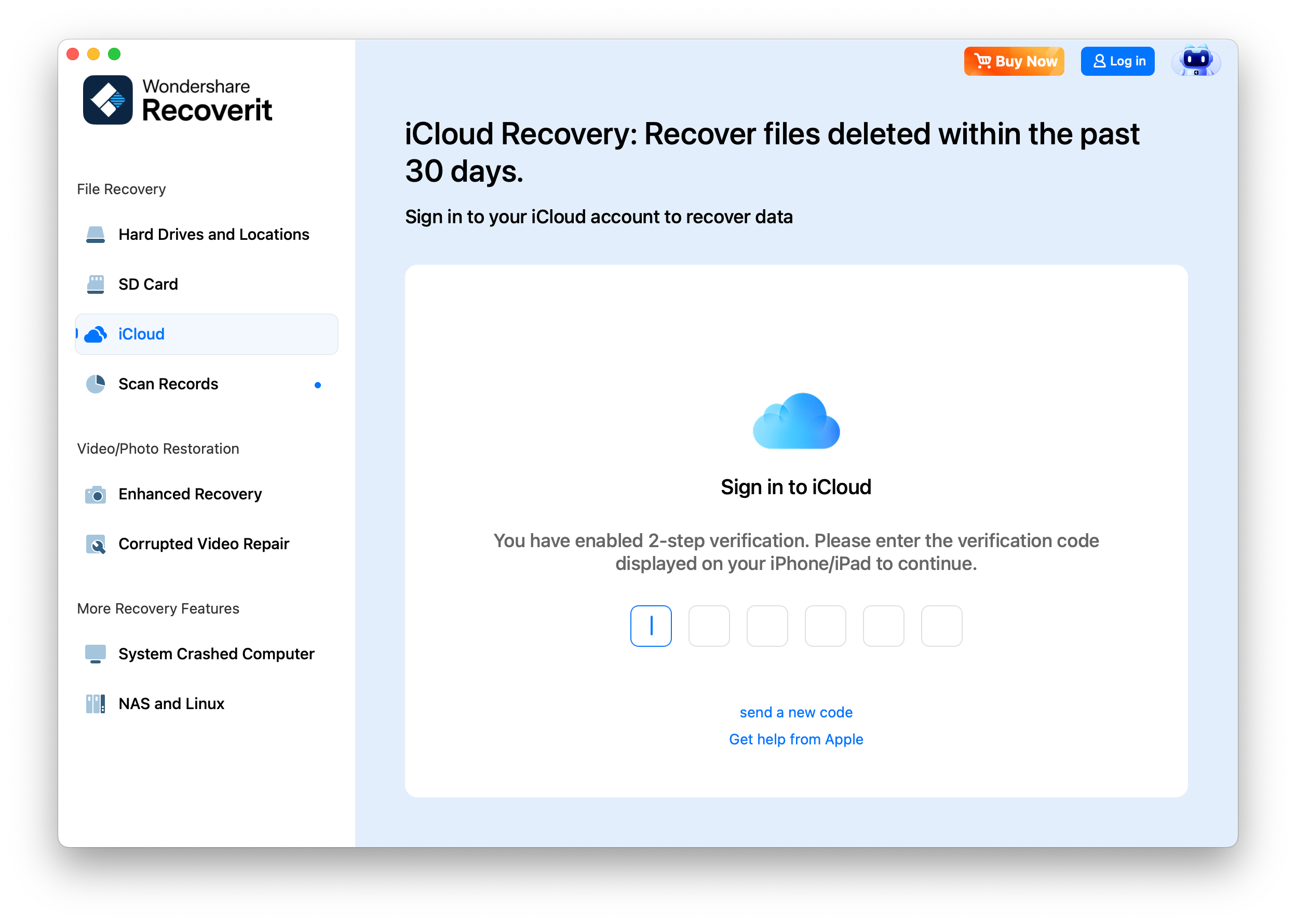
Step 2. Complete Apple Account Verification
When two-factor authentication is enabled, Apple sends a “Verification Code” to a trusted device. Enter that code in Recoverit to confirm the sign-in and continue.
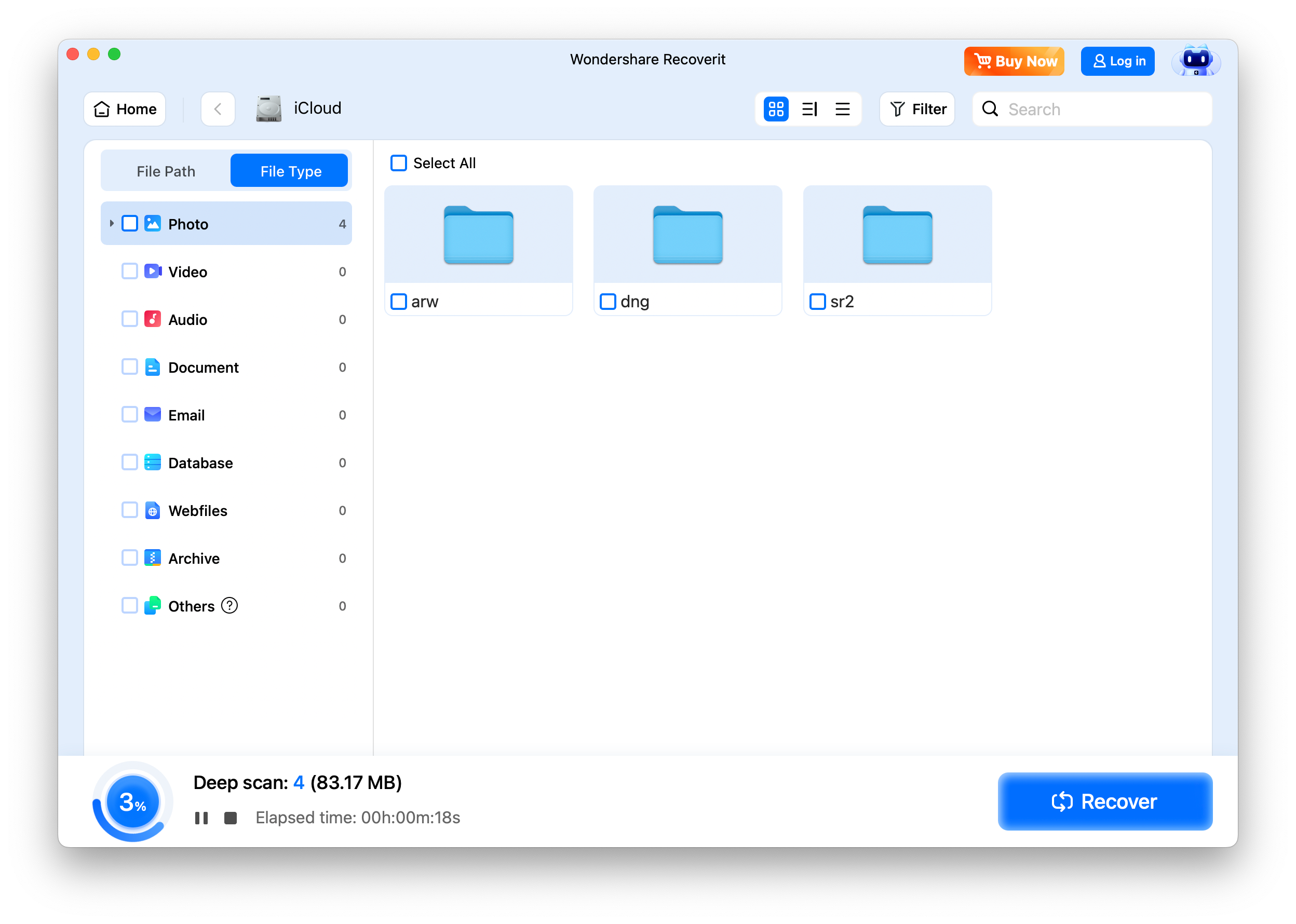
Step 3. Scan iCloud and Recover the File
Let Recoverit scan iCloud Drive > Use the “Filter” tools to narrow the results, then click “Recover” and save it to a suitable location.
Try Wondershare Recoverit to Perform Data Recovery
 Security Verified. Over 7,302,189 people have downloaded it.
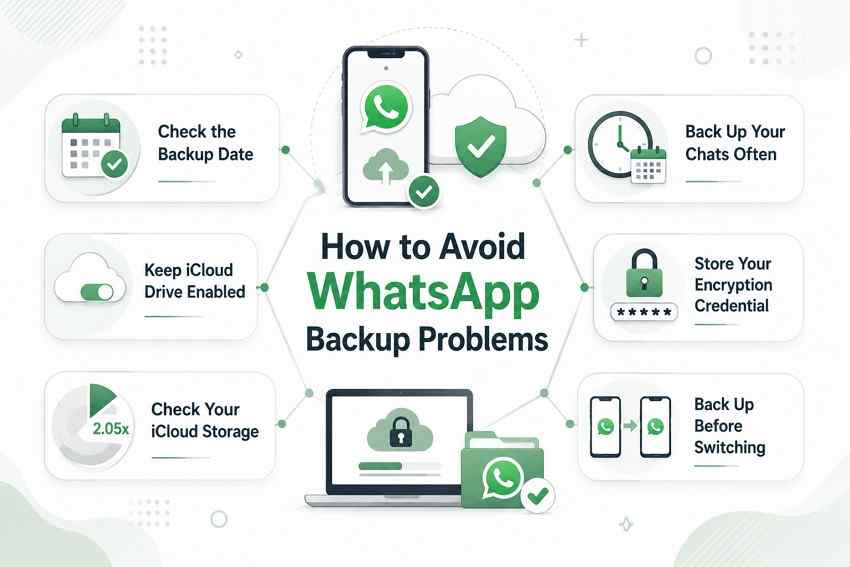
Part 10. How to Avoid WhatsApp Backup Problems
Knowing how to restore WhatsApp chat from iCloud helps, but preventing problems works better. Let’s look at some simple steps that can keep your WhatsApp backups safe:
- Check the Backup Date: Review Chat Backup regularly to confirm automatic backups are still running and saving recent conversations.
- Keep iCloud Drive Enabled: Keep iCloud Drive active and confirm WhatsApp remains enabled under apps syncing with iCloud Drive.
- Check Your iCloud Storage: Maintain enough free iCloud storage, ideally at least 2.05 times the current WhatsApp backup size.
- Back Up Your Chats Often: Choose daily or weekly automatic backups so recent messages and media are saved more consistently.
- Store Your Encryption Credential: Keep your backup password, passkey, or encryption key somewhere secure because WhatsApp cannot recover it for you.
- Back Up Before Switching: Create a fresh WhatsApp backup before changing your iPhone, phone number, or Apple Account.
Conclusion
To conclude, how to restore WhatsApp from iCloud depends on meeting WhatsApp’s restore requirements before reinstalling the app. Check the phone number, Apple Account, iCloud Drive access, and available storage first. If separately stored WhatsApp media is missing from supported iCloud data, Recoverit can provide an additional file-recovery option.
FAQ
-
Can I restore WhatsApp from iCloud without reinstalling the app?
No. How to restore WhatsApp from iCloud always requires a reinstall, since the offer appears only during first-time setup. Check the backup date before deleting the app, because uninstalling removes the local chats. -
Can I restore an older WhatsApp iCloud backup instead of the latest one?
No. WhatsApp only reads the most recent backup in your iCloud account, and each new backup overwrites the previous one rather than adding to a list. -
Can Recoverit restore a WhatsApp iCloud backup directly?
No. Recoverit can access supported iCloud data, but it cannot decrypt or restore a WhatsApp iCloud chat backup. Use WhatsApp's official restore process for the backup itself. -
Why did my WhatsApp messages restore but not my photos or videos?
WhatsApp messages may restore before media finishes downloading. Keep your iPhone on Wi-Fi. Videos only restore if “Include Videos” was enabled in the backup.


