

 TL;DR:
A black Mac screen displaying a lock or password field is a security prompt rather than a hardware display failure, requiring you to identify the lock type to apply the correct authorized credential.
● A padlock icon signifies a firmware password exclusive to Intel-based Macs; forgetting this password requires an in-person Apple Service appointment with original proof of purchase, as it cannot be bypassed.
● Find My Lost Mode prompts require an Apple Account password on Apple silicon Macs, whereas Intel-based Macs mandate the specific numeric passcode generated when the device was marked as lost.
● If the screen becomes completely blank after a successful unlock, disconnect nonessential accessories and start up from macOS Recovery to run Disk Utility First Aid or reinstall macOS without erasing the disk.
Ask AI for a summary
 ChatGPT
 Perplexity
 Gemini
 Claude
 Grok
Grok
A login password will not work if the screen requires another credential. A black Mac screen with a lock can indicate a firmware password, Activation Lock, Find My Lost Mode passcode, or normal login screen rather than a failed display.
Traditional firmware passwords apply only to Intel Macs, while Apple silicon uses different startup security mechanisms. Identify the exact prompt first because each lock has a different authorized recovery path. This guide covers each lock and explains how Recoverit can help recover inaccessible files afterward.
Try Recoverit to Perform Data Recovery
 Security Verified. 3,591,664 people have downloaded it.
In this article
Part 1. Mac Black Screen With Lock: Identify the Screen First
Start by matching what appears on your Mac black screen with lock to the descriptions in the table below:
| Screen or Symbol | What It Means | Credential Needed | First Action |
| Padlock with Password Field | Firmware password, Intel only | The firmware password | Enter the firmware password |
| Activation Lock Message | Activation Lock is enabled | Apple Account or authorized device credential | Complete Activation Lock verification |
| Find My Lost Mac/Lock Screen | Mac was locked through Find My | Apple Account password on Apple silicon or Lost Mode passcode on Intel | Enter the authorized credential |
| Organization Lock With 6-Digit PIN | Mac remotely locked through MDM | Organization's 6-digit PIN | Contact IT administrator |
| Normal User Login Window | Standard macOS login | Mac user password | Sign in as usual |
| Completely Blank Screen | Display or startup problem | None required | Follow black-screen troubleshooting |
Note: Apple confirms that the firmware-password padlock applies only to Intel-based Macs. Find My Lost Mode uses an Apple Account password on Apple silicon. On Intel Macs, it uses a numeric Lost Mode passcode instead. An organization-managed Mac can request a separate 6-digit MDM PIN. A normal login window uses the Mac user password, which can also unlock FileVault-protected storage.
Lock Screen vs. a Truly Blank Mac Screen
If you see a black screen with a lock on a Mac, first determine whether it is a security prompt or a genuinely blank startup screen. The table below explains the difference between the two:
| What You See | Security or Login Prompt | Truly Blank Screen |
| Lock icon, Login, User Account, or Credential Prompt | Visible | Absent |
| Password or PIN Field | Present | Absent |
| What it Proves | Screen is rendering a prompt | No image is being displayed |
| Likely Cause | Security or credential prompt | Startup, software, firmware, or display issue |
| What You Need | The correct credential | Startup troubleshooting |
| Where to Go Next | Parts 2 and 3 | Part 4 |
Note: A visible padlock confirms that the Mac can render a startup prompt, so the screen is not truly blank. However, it does not rule out every storage, logic board, or other hardware issue.
This distinction determines the next step. A security prompt requires the appropriate credential, while Apple recommends separate troubleshooting for a blank black, gray, or blue startup screen, including macOS Recovery and Disk Utility.
If the screen becomes blank only after you successfully unlock the Mac, treat that as a separate startup problem and continue to Part 4.
Part 2. What Each Lock Means
After identifying the screen, review the points below to understand what your MacBook black screen with lock means:

Firmware Password: Apple documents this as an Intel-only security feature. It prevents startup from macOS Recovery or a disk other than the selected startup disk unless the firmware password is entered. A lock icon with a password field can appear when this protection is triggered.
FileVault Unlock or Normal Login: A normal macOS login uses your Mac user password. If FileVault is enabled, an authorized user password can also unlock the encrypted startup disk before macOS finishes loading.
Activation Lock: Turning on Find My automatically enables Activation Lock on supported Macs. It helps prevent unauthorized use, reactivation, or changes to Find My without the required Apple Account credentials or an authorized device passcode. Find My also provides Lost Mode, which can separately lock a missing Mac.
Managed Mac Lock: An organization using MDM can remotely lock a managed Mac with a 6-digit PIN. The Mac cannot resume normal startup until the correct PIN is entered, so contact your organization or IT administrator if you do not have it.
Visible Lock Prompt: A visible lock, login, or password prompt confirms that the Mac is producing an image and accepting input at that stage of startup. It does not rule out storage, logic-board, software, display, or other hardware problems.
Part 3. How to Unlock Each Type of Mac Lock
Follow the methods below to unlock a black screen with a lock on a Mac using the correct authorized credential:
Method 1. Enter the Firmware Password on an Intel Mac
On an Intel Mac, a firmware password can show a padlock on the black startup screen when Recovery or another startup disk is requested. Enter the correct firmware password to access Recovery. If you also want to remove this protection afterward, you can optionally turn it off from Recovery using the steps below:
Step 1. Restart the Mac while holding “Command + R.” When the black padlock screen appears, enter the “Firmware Password” to continue into “macOS Recovery.”

Step 2. In Recovery, open “Startup Security Utility” or “Firmware Password Utility.” Select “Turn Off Firmware Password,” enter the password again, and restart the Mac.

Method 2. Use the User Password at the Login Window
If the Mac black screen with lock still shows your user account and a password field, it is likely the normal macOS login or FileVault unlock screen. This method works the same on both Intel and Apple silicon Macs. Use your Mac user password, not a firmware password or Apple Account password.
If FileVault is enabled, the same authorized user password also unlocks the encrypted startup disk before macOS finishes loading. Follow the instructions below to sign in from the black login screen:
Instructions. Select your “User Account” > Enter the “Mac User Password” > Press “Return” or click the arrow.

Method 3. Use the Authorized Activation Lock or Find My Credential
An Activation Lock or Find My Lost Mode screen means the Mac is still protected through Find My. The required credential depends on the prompt and Mac type. A local Mac login password or reinstalling macOS will not bypass these protections. Use the authorized credential shown on the screen to continue. Try the steps below to understand how to make your Mac operational again:
Instructions. If the Mac shows an “Activation Lock” screen, enter the associated “Apple Account” email address or phone number and password > Click “Next” or continue > Complete any requested verification > Follow the on-screen prompts to unlock the Mac.

Note: If the Mac was specifically locked through Find My Lost Mode, the unlock credential depends on the Mac type. On a Mac with Apple silicon, enter the associated Apple Account password. On an Intel-based Mac, enter the numeric passcode created when the Mac was marked as lost. If you forgot this passcode, sign in to Find Devices on iCloud.com, select the Mac, choose “Unlock,” verify your identity with your Apple Account, and retrieve the passcode to enter on the Mac.
Method 4. Contact IT for a Managed Mac
Seeing a black screen with a lock on a Mac on a work or school device can mean the Mac was remotely locked through device management. Contact your IT administrator for the required PIN or recovery instructions.
Apple confirms that administrators can remotely lock a managed Mac with a 6-digit PIN, which must be entered before macOS can start again. Avoid attempting to bypass management controls, as access is governed by the organization’s device-management policies.

Method 5. Arrange Apple Service for a Forgotten Firmware Password
If you forget the firmware password on an Intel Mac, Apple requires in-person service rather than a normal password-reset procedure. Bring the Mac and its original receipt or invoice as proof of purchase. Apple advises scheduling an appointment with an Apple Store or Apple Authorized Service Provider. There is no supported user procedure in macOS Recovery for resetting a forgotten firmware password.
Part 4. What to Do if the Mac Is Still Black After Unlocking
If a MacBook with a black screen and lock remains blank after unlocking, use the methods below to diagnose it:
Fix 1. Restart the Mac and Disconnect Accessories
Disconnecting external accessories and restarting can reveal whether a peripheral or cable is interfering with startup. Apple recommends removing nonessential devices and power-cycling a Mac with a blank screen first. Use the instructions below to disconnect nonessential accessories, restart the Mac, and check whether the startup screen returns:
Instructions. Disconnect drives, hubs, docks, and secondary displays > Hold “Power” for up to 10 seconds until the Mac turns off > Press Power again → Check whether startup proceeds normally.

Fix 2. Start Up From macOS Recovery
macOS Recovery provides built-in tools for checking the startup disk and reinstalling macOS. Reaching Recovery shows the Mac can display its recovery environment but does not rule out hardware problems. Choose the instructions below for your Mac type to enter macOS Recovery and continue diagnosing the black screen:
For Apple Silicon Mac
Instructions. Hold “Power” for up to 10 seconds to shut down > Press and hold “Power” again > Release at Loading startup options > Select “Options > Continue.”

For Intel Mac
Instructions. Hold “Power” for up to 10 seconds to shut down> Turn it on > Immediately hold “Command + R” until the Apple logo appears > Wait for Recovery to load.

Note: If an Apple Silicon or T2-equipped Mac cannot enter Recovery, Apple may recommend a firmware revive or restore using another Mac. Try Revive first because it does not erase the Mac. Restore erases the Mac and should be used only when necessary, after important data has been secured if possible.
Fix 3. Run Disk Utility First Aid
When a Mac black screen with lock remains blank after unlocking, use Disk Utility from macOS Recovery. First Aid can check and repair disk errors that may prevent startup. Once macOS Recovery is visible, follow the steps below to check the startup disk with First Aid:
Step 1. From “macOS Recovery” > Select “Disk Utility > Continue.”

Step 2. In "Disk Utility > View > Show All Devices” to display volumes, containers, and the physical disk.

Step 3. Select the last volume under the startup disk, choose “First Aid > Run.” Continue upward through the remaining volumes, containers, and finally the physical drive.

Note: Important files that are already missing should be backed up or recovered before repairs when the drive remains readable. For signs of physical failure, avoid repeated scans or repairs and consider professional recovery.
Fix 4. Reinstall macOS Without Erasing the Disk
A MacBook black screen with a lock that remains blank after disk checks may point to damaged macOS system files. Reinstalling macOS can replace them without normally removing personal data. Enter macOS Recovery with the steps in Fix 2, then complete the reinstall with the instructions below:
Instructions. Select “Reinstall macOS [version] > Continue.” Follow the on-screen prompts > If asked to choose between “Macintosh HD” and “Macintosh HD - Data,” select Macintosh HD. Do not erase the startup disk first.

Note: Keep the Mac connected to the internet, and back up your data first if possible. Do not choose an erase option unless you specifically intend to remove the existing data.
Fix 5. Check Whether the External Display Is the Problem
If the Mac uses an external display, a blank screen can result from the monitor, cable, adapter, or incorrect input selection even when the Mac is running. Check power, connect directly, swap cables, and test another display.
Part 5. When the Lock Requires Service or Ownership Proof
For a Mac black screen with lock, review the cases below requiring authorized ownership assistance:

Forgotten Firmware Password: An Intel Mac with a forgotten firmware password requires in-person service from Apple or an Apple Authorized Service Provider. Bring the Mac and original proof of purchase.
Used Mac Activation Lock: Ask the previous owner to remove the Mac from their Apple Account. If that is not possible, submit an Activation Lock support request with valid proof of purchase.
Managed Mac Lock: A work or school Mac locked through MDM requires the organization’s 6-digit PIN or administrator assistance. Contact the IT department for authorized unlocking instructions.
Rejected Correct Credential: Confirm that the screen is requesting the credential you entered. If the correct credential continues to fail, contact Apple or the organization administrator for assistance.
Missing Purchase Proof: Apple may require valid ownership documentation before providing certain lock-related services. Check the required proof before arranging service or submitting a support request.
Part 6. Recover Files Only After the Mac Becomes Accessible
Data recovery should come only after the MacBook black screen with lock has been cleared through the correct authorized method. Once the Mac or its storage becomes accessible, you can focus on files that were already missing or need to be secured before further repair.
Wondershare Recoverit can then scan accessible Mac storage, including APFS and HFS+ volumes, for recoverable files. Save recovered data to another drive to avoid overwriting the source. Recoverit does not bypass firmware passwords, Activation Lock, Find My protection, MDM locks, or encrypted storage without the required credential.
Key Features
Deleted File Recovery: Retrieves documents, photos, and video removed from a Mac volume you can already reach and browse normally.
APFS and HFS+ Support: Handles both current and older Mac formats, including encrypted containers once they have been unlocked with the correct password.
Unbootable Mac Access: Supports recovery workflows for an unbootable Mac when the original storage remains accessible and readable.
AI Search for Scan Results: Uses natural-language search and filtering to help locate specific recovered files more quickly within scan results.
Save Recovered Files to iCloud: On Mac, Recoverit can save recovered files directly to iCloud, providing another destination away from the source drive.
How to Recover Files After the Mac Becomes Accessible
Follow the steps below to recover files safely after the Mac becomes accessible, using a separate external drive for recovered data:
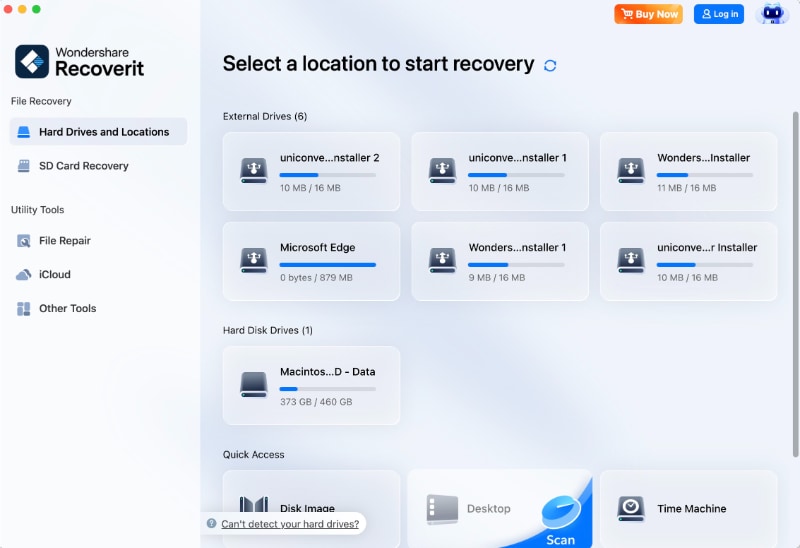
Step 1. Select the Drive
Open “Recoverit > Hard Drives and Locations” > Choose the drive or location containing the lost files > “Scan.”
Step 2. Scan for Lost Files
Browse results by “File Path” or “File Type” > Use “Filter” or search to narrow the results.

Step 3. Preview and Recover Files
Preview files to confirm the content > Click “Recover” > Save them to a different drive or location.

Part 7. What Not to Do With a Mac Black Screen and Lock
Avoid the mistakes below when handling a black screen with a lock on a Mac during troubleshooting:

Avoid Bypass Attempts: Do not use unofficial bypass methods for firmware passwords, Activation Lock, Find My, or MDM protections. They may damage macOS without restoring authorized access.
Avoid Erasing the Mac: Erasing can destroy personal data without clearing a firmware password or Activation Lock. Identify and resolve the security prompt before considering an erase.
Recognize Login Screens: A visible login or credential prompt means the Mac is producing an image. Use the requested credential before starting black-screen troubleshooting.
Avoid Intel-Only Fixes: Firmware-password procedures apply only to Intel Macs. Apple silicon uses different startup security and Recovery mechanisms.
Do Not Evade Security: macOS Recovery is intended for repair and reinstallation, not lock bypassing. Firmware protection can also restrict Recovery access on Intel Macs.
Conclusion
To conclude, a black screen with a lock on a Mac should be identified before any startup troubleshooting begins. Use the credential required by the specific lock, or seek Apple or administrator support when necessary. After authorized access is restored, address any remaining startup issues separately. If important files are still missing, Recoverit can scan accessible storage and help recover data before further repairs.
FAQ
-
Why does a padlock appear when I try to enter Recovery Mode?
On an Intel Mac, a padlock can appear when a firmware password is enabled, and you attempt to enter macOS Recovery or start from another disk. Enter the firmware password to continue. -
Is a Mac firmware password the same as my login password?
No. A firmware password protects alternate startup options on an Intel Mac, while your Mac user password signs you into your account and can unlock FileVault-protected storage. -
Does an Apple silicon Mac have a firmware password?
No. Apple silicon Macs do not use the traditional Intel firmware-password feature. Startup security is handled through Apple silicon's secure boot and RecoveryOS architecture, with user authentication and FileVault providing protection where applicable. -
Can I recover files from a Mac with a firmware lock?
A firmware password does not erase or decrypt files, but it can block Recovery and alternate startup disks on Intel Macs. Enter the authorized password or seek Apple service. FileVault-encrypted storage also requires the correct FileVault credential. Once the storage is legitimately accessible, recovery software like Recoverit can scan it for recoverable data.



