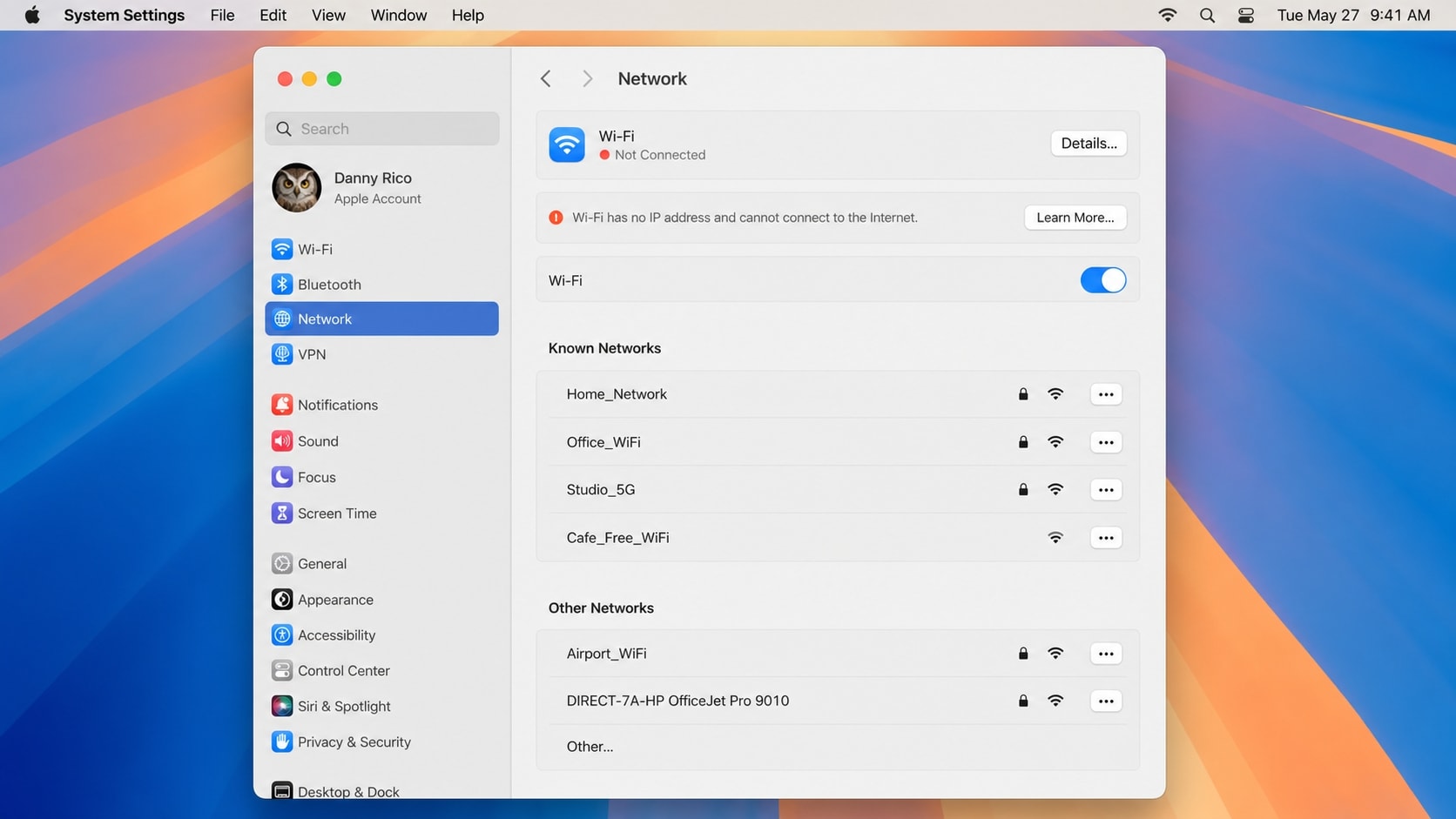

 TL;DR:
To resolve Mac Wi-Fi and internet connection failures, isolate the hardware source by testing another device on the same network, then sequentially renew the DHCP lease, clear saved network credentials, and disable interfering VPN or proxy software before altering system configurations.
● If the Mac joins the network but cannot load websites, navigate to Network settings and click Renew DHCP Lease to request a valid local IP address from the router, and remove any outdated custom DNS or proxy entries.
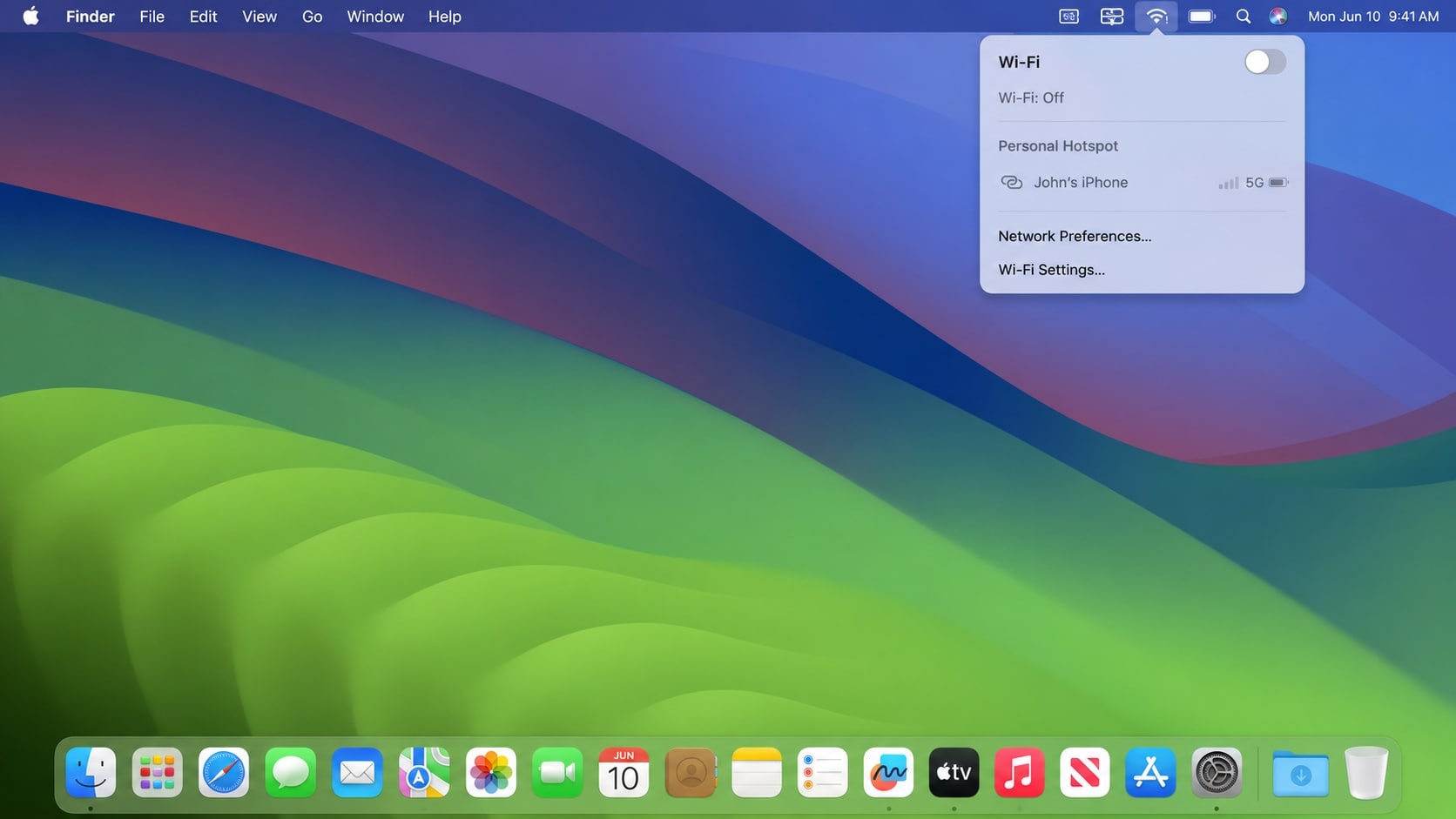
● For wireless connections that repeatedly drop, hold the Option key while clicking the Wi-Fi menu to launch Apple's built-in Wireless Diagnostics, and temporarily turn off Wi-Fi 6E mode from the Wi-Fi Details menu if that band is active.
● If troubleshooting escalates to a macOS reinstall or system reset that causes data loss, Wondershare Recoverit can scan readable storage for missing files, provided the recovered data is saved to a separate external drive to avoid overwriting the source disk.
Ask AI for a summary
 ChatGPT
 Perplexity
 Gemini
 Claude
 Grok
Grok
mac wont connect to internet problems can mean that the Mac cannot join a Wi-Fi network or connects without opening websites. When a macbook wont connect to internet, testing another device and another network can show whether the problem is on the Mac, router, or internet service.
If a macbook pro won t connect to wifi, the cause may be an incorrect password, weak signal, a DHCP or DNS problem, outdated macOS, VPN or security software, or a router configuration issue. If your macbook won t stay connected to wifi, interference, overloaded networks, old router firmware, or unstable 5 GHz or 6 GHz connections are common possibilities.
This guide explains how to diagnose and fix Mac Wi-Fi connection problems without immediately resetting the Mac. If important files become inaccessible after a system reset, macOS reinstall, disk repair, or a failed external-drive connection, Recoverit may help recover files from readable Mac storage.
Try Recoverit to Perform Data Recovery
 Security Verified. 3,591,664 people have downloaded it.
In this article
Part 1. Why Won't My Mac Connect to the Internet?
The quickest way to choose the right fix is to compare what the Mac shows with what other devices can do on the same network.
| Symptom | Likely cause | Best first check |
|---|---|---|
| Wi-Fi does not appear in Network settings | Wi-Fi service is disabled or not configured | Open System Settings > Network and check whether Wi-Fi is listed |
| Your network is visible but the Mac will not join it | Wrong password, weak signal, interference, or router security settings | Re-enter the password and move closer to the router |
| Mac joins Wi-Fi but websites do not open | Router, ISP, DHCP, DNS, VPN, or proxy problem | Test another device and renew the DHCP lease |
| Wi-Fi works briefly and then drops | Interference, unstable band, router firmware, or third-party network software | Test another network and temporarily disable VPN or security tools |
| Only one Wi-Fi network fails | Problem with that router, saved network profile, or password | Forget the network and join it again |
| Mac cannot connect to any Wi-Fi network | macOS network settings, software conflict, or Wi-Fi hardware issue | Try a personal hotspot or Wireless Diagnostics |
Apple's guidance recommends checking the Wi-Fi connection, restarting the Mac, verifying the date and time, updating macOS, reviewing VPN or security software, restarting the router, and using built-in wireless diagnostics. See Apple's official Wi-Fi troubleshooting guide for the current checklist.
Part 2. How to Fix MacBook Won't Connect to Internet or Wi-Fi
Work through the fixes in order. The early steps are reversible and help identify the source before you change network settings.
Fix 1. Check Whether the Problem Affects Other Devices
Connect a phone, tablet, or another computer to the same Wi-Fi network. If every device is offline, the Mac is probably not the only problem.
- Check whether the router has power and whether its internet indicator looks normal.
- Open a website on another device connected to the same network.
- If all devices are offline, restart the router and modem according to the manufacturer's instructions.
- Check your internet provider's service-status page or contact the ISP.
Fix 2. Turn Wi-Fi Off and Restart the Mac
A temporary network process or expired IP address can prevent a connection. Turn Wi-Fi off, wait a few seconds, and turn it on again from Control Center or System Settings > Wi-Fi.
If that does not help, restart the Mac. Apple notes that restarting can automatically renew the internet address assigned to the Mac by the router. After restarting, test the connection before opening VPNs, antivirus tools, or other network utilities.
Fix 3. Check the Wi-Fi Password and Forget the Network
Wi-Fi passwords are case-sensitive. If the router password has changed, the Mac may keep trying to use an old saved credential.
- Choose Apple menu > System Settings.
- Click Wi-Fi in the sidebar.
- Find the affected network and click Details or the More button.
- Choose Forget This Network or Remove From List.
- Select the network again and enter the current password.
Forgetting a network removes its saved credentials, not personal files. If several Apple devices use iCloud Keychain, the saved network information may also change on those devices.
Fix 4. Renew the DHCP Lease
If the Mac joins Wi-Fi but shows no internet access, it may have an invalid or conflicting local IP address. Renewing the DHCP lease asks the router for a current address.
- Open Apple menu > System Settings.
- Click Network, then select Wi-Fi.
- Click Details next to the connected network.
- Choose TCP/IP.
- Click Renew DHCP Lease, then click OK.
- Close Settings and test a website again.
Fix 5. Check the Date, Time, and macOS Version
Incorrect date or time settings can interfere with secure websites, certificates, and some network services. Open System Settings > General > Date & Time and enable automatic date and time when appropriate.
Then open System Settings > General > Software Update and install available macOS updates. If the Mac cannot access the internet through its usual router, connect temporarily to a phone hotspot or another trusted network to check for updates.
Do not interrupt a macOS update by closing the lid, disconnecting power, or forcing a shutdown. If an update later causes missing files or the Mac needs to be reinstalled, protect important data before using destructive recovery options.
Fix 6. Temporarily Disable VPN, Security, and Proxy Software
VPN clients, antivirus applications, firewalls, content filters, proxy tools, and enterprise network agents can change how macOS routes traffic. They may allow the Mac to join Wi-Fi while blocking websites or repeatedly reconnecting the network.
- Quit the VPN or network-monitoring application.
- Check System Settings for VPN, filters, login items, or network extensions.
- Temporarily disable only software you recognize and trust.
- Test the connection again.
- Re-enable protection after the test.
If the Mac works only when a security or VPN tool is disabled, update or reconfigure that tool instead of leaving protection off permanently. On a work or school Mac, ask the administrator before changing managed settings.
Fix 7. Check DNS and Proxy Settings
DNS translates a website name into the server address your Mac needs. If the Mac can connect to Wi-Fi but only some websites fail, a custom DNS or proxy setting may be involved.
- Open Apple menu > System Settings > Network.
- Select Wi-Fi and click Details.
- Review the DNS section and remove an outdated custom entry if you know it is no longer needed.
- Review Proxies and turn off a proxy that you did not configure or no longer use.
- Click OK, reconnect to Wi-Fi, and test several websites.
If the Mac is on a managed network, do not remove organization-provided DNS or proxy settings without permission. DNS changes cannot repair a failed router or ISP connection.
Fix 8. Use Wi-Fi Recommendations and Wireless Diagnostics
macOS includes tools that can identify common wireless problems.
- Click the Wi-Fi menu in Control Center or the menu bar and check for Wi-Fi Recommendations.
- Hold the Option key while clicking the Wi-Fi menu.
- Choose Open Wireless Diagnostics.
- Follow the onscreen instructions and save the report if you need help from an administrator or ISP.
Wireless Diagnostics is useful when a macbook won t stay connected to wifi because of signal quality, interference, or a channel problem. See Apple's Wireless Diagnostics instructions for the current steps. It may not identify every router, account, or hardware issue.
Fix 9. Restart and Review the Router
If only your home or office network fails, review the router rather than repeatedly changing Mac settings.
- Restart the modem and router using the manufacturer's recommended process.
- Check whether the router firmware is current.
- Move the Mac closer to the access point and test without a dock or USB hub.
- If possible, test both the 2.4 GHz and 5 GHz networks.
- If you use Wi-Fi 6E or Wi-Fi 7, try turning Wi-Fi 6E mode off temporarily from Wi-Fi > Details when that option is available.
For reliability, Apple recommends current router firmware, a consistent network name across supported bands, modern WPA2 or WPA3 security, automatic channel selection, and only one DHCP server. See Apple's recommended router settings for details. Old security modes, duplicate DHCP services, hidden network configurations, or interference can make a Mac connect unreliably.
Fix 10. Restore the Wi-Fi Service or Test Another Network
If Wi-Fi is missing from Network settings, the wireless service may not be configured.
- Open Apple menu > System Settings > Network.
- Click the Action menu, then choose Add Service.
- Select Wi-Fi from the Interface menu.
- Enter a service name and click Create.
- Turn Wi-Fi on and join a trusted network.
If Wi-Fi appears but the Mac still cannot connect, test a phone hotspot or another trusted network. If it works there, the original router, password, signal, or ISP is the likely source. If it fails on every network, update macOS if possible and arrange Apple or authorized service if Wi-Fi remains unavailable.
Part 3. What to Do Before Resetting or Reinstalling Your Mac
Most Wi-Fi fixes do not delete personal files. However, some users respond to persistent connection problems by resetting the Mac, reinstalling macOS, deleting system configuration folders, or replacing the internal drive. These actions can create a separate data-loss problem.
Before a reset or reinstall:
- Copy Desktop, Documents, Downloads, Photos, and other local files to an external drive.
- Confirm that important iCloud files are synchronized and available elsewhere.
- Avoid saving new files to a Mac drive if data has already disappeared.
- Do not erase or format an external drive just because it is not mounting.
- If the Mac is going to service, recover or back up files first when possible.
If a failed update, reset, disk operation, or external-drive problem leaves files missing, use a separate working computer and destination drive for recovery.
Pro Tip. Recover Missing Mac Files with Recoverit
Recoverit does not fix Wi-Fi, DNS, VPN, router, or ISP problems. It is relevant when troubleshooting is followed by missing or inaccessible local files, especially after a macOS reset, reinstall, disk repair, accidental deletion, or external-drive issue.
Recoverit can help scan supported readable storage for deleted, lost, formatted, or inaccessible documents, photos, videos, downloads, and other files. It may be useful when the Mac cannot stay online long enough to complete a backup or when files on a connected drive are no longer visible.
Key Features
- Recovery for Common Data-Loss Situations: Scan for files lost through deletion, formatting, system crashes, failed troubleshooting, or other supported scenarios.
- Support for Internal and External Storage: Work with supported Mac volumes, HDDs, SSDs, USB drives, SD cards, and other compatible storage devices.
- Filtering and Preview: Narrow results by file type, folder, or filename and preview available files before recovery.
- Separate-Destination Recovery: Save recovered files to another drive to reduce the risk of overwriting data on the source storage.
How to Recover Missing Mac Files
Step 1. Select the Storage Location
Install Recoverit on a working Mac or another supported computer. Select the readable internal volume or connected external drive where the missing files were stored.

Step 2. Scan for Lost Files
Start the scan and filter the results by file type, location, or filename. A large or unstable drive may take longer to scan.

Step 3. Preview and Recover the Files
Preview available results, select the files you need, and save them to an external drive or another safe location.

Recovery depends on whether the storage is detected, whether deleted data has been overwritten, the drive condition, and whether FileVault or another protection method prevents access. Recoverit cannot bypass encryption, repair failing hardware, or guarantee recovery from storage that is no longer readable.
Conclusion
When your mac wont connect to internet, first compare the Mac with other devices and test another network. Then restart the Mac and router, forget and rejoin the Wi-Fi network, renew the DHCP lease, check date and time, review VPN and proxy software, and use Wireless Diagnostics.
If the macbook wont connect to internet on every network, or your macbook pro won t connect to wifi after these checks, the problem may involve macOS network settings or Wi-Fi hardware. For a macbook won t stay connected to wifi, focus on signal quality, interference, router firmware, Wi-Fi bands, and third-party network software.
Before resetting or reinstalling macOS, back up or recover important files. Recoverit can help scan readable Mac storage for missing data, but it is a recovery tool rather than a Wi-Fi or operating-system repair utility.
FAQ
-
Why does my mac wont connect to internet even though Wi-Fi is turned on?
Wi-Fi being enabled only means that the Mac can communicate with the router. The router, DHCP lease, DNS, VPN, proxy, or ISP may still prevent internet access. Test another device, renew the DHCP lease, and review VPN and DNS settings. -
What should I do if my macbook wont connect to internet but my phone works?
Forget the Wi-Fi network on the Mac, join it again with the current password, restart the Mac, and renew the DHCP lease. If the Mac still fails, test a phone hotspot to determine whether the home router or the Mac is the source. -
Why does my macbook pro won t connect to wifi after a macOS update?
The update may have changed network services, exposed a router compatibility problem, or conflicted with a VPN or security extension. Restart the Mac, update related software, check managed network settings, and use Wireless Diagnostics. -
How can I stop my macbook won t stay connected to wifi?
Move closer to the router, test another band, restart and update the router, check for interference, and temporarily disable VPN or network-monitoring software. If Wi-Fi 6E is enabled and the connection is unstable, test with Wi-Fi 6E mode turned off when the option is available. -
Will forgetting a Wi-Fi network delete my Mac files?
No. Forgetting a network removes its saved Wi-Fi credentials and connection settings, not personal files. You will need to enter the current network password again. -
Can Recoverit fix my Mac's Wi-Fi connection?
No. Recoverit is a data recovery tool, not a Wi-Fi, router, DNS, VPN, or macOS network repair utility. It can help recover missing files before or after a reset, reinstall, disk operation, or service visit. -
Where should I save files recovered from my Mac?
Save them to a separate external drive or another safe destination. Saving recovered files to the same source disk may overwrite data that is still recoverable.



