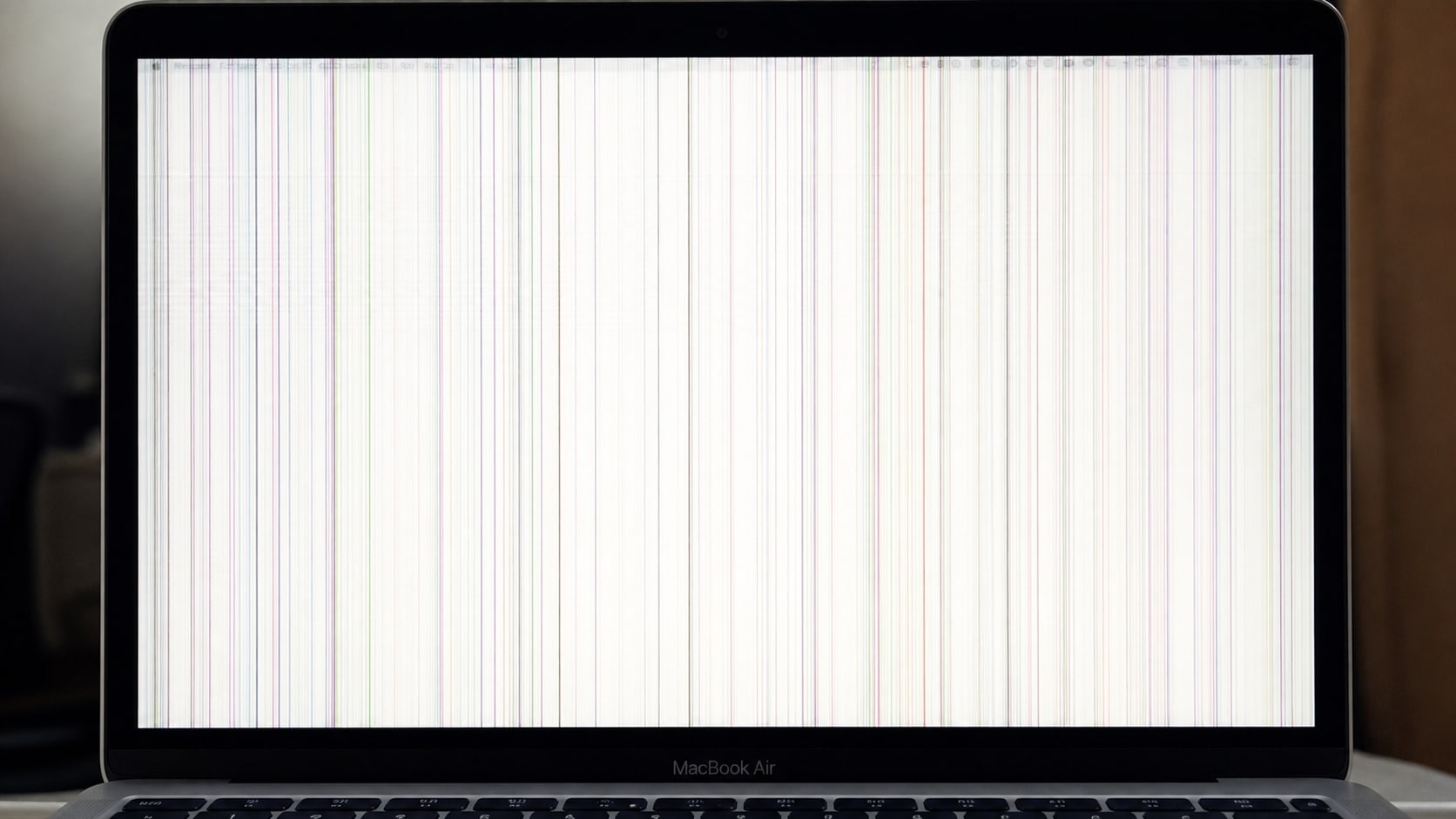

A white screen with lines on a MacBook Air can come from a startup glitch, a display connection problem, a bad cable, or a failing panel. The safest move is to protect your files first, then narrow down whether the issue is software, storage, or hardware.
A MacBook Air white screen with lines, a MacBook Air white screen with colored lines, or a MacBook Air white screen with lines can appear during startup, after an update, or when the built-in display or an external monitor doesn't initialize correctly.
If the Mac still shows a white screen with colored lines, do not rush into erase or reinstall. If the startup disk is still readable, Recoverit can help recover files before more destructive troubleshooting.
Try Recoverit to Perform Data Recovery
 Security Verified. 3,591,664 people have downloaded it.
In this article
Part 1. What a MacBook Air White Screen with Lines Usually Means
A white screen with lines does not always have one single cause. The timing and pattern of the problem can help identify whether the issue is software-related or connected to the display hardware.
| Symptom | Possible cause |
|---|---|
| White screen appears during startup | macOS loading failure, startup disk issue, or interrupted update |
| Colored lines appear only on an external monitor | Cable, adapter, monitor, or display mode problem |
| Lines change when the lid moves | Display cable or panel connection issue |
| Screen is white, but the Mac still makes sounds | Display output or graphics initialization issue |
| White screen appears after an update | Incompatible software, corrupted settings, or incomplete installation |
| Lines appear on every screen | A graphics, firmware, or hardware problem may be involved |
The phrase "MacBook Air white screen of death" is sometimes used online, but a white screen does not automatically mean that the Mac or its files are lost. The first priority is to avoid actions that could overwrite or erase data.
Whether the issue is on a MacBook Air, MacBook Pro, or another Mac with a white screen with lines, the safest approach is the same: protect the data first, then troubleshoot the startup problem.
Part 2. How To Fix MacBook Air White Screen with Lines
Before doing anything advanced, shut the Mac down fully, disconnect external devices, and restart it once. If the screen is still white, continue with low-risk checks before reinstalling macOS.
Fix 1. Force Shut Down and Disconnect Accessories
External devices can interfere with startup or display detection. Begin with a complete shutdown.
- Disconnect USB hubs, external drives, docks, adapters, and printers.
- Hold the power button until the Mac turns off. If it does not respond, hold it for up to 10 seconds.
- Wait a few seconds, then turn on the MacBook Air again.
- If the screen returns to normal after disconnecting an accessory, reconnect devices one at a time to identify the source.
Fix 2. Test Another Display or Cable
If the MacBook Air is connected to an external monitor, check whether the white screen with lines appears on the built-in display, the external display, or both.
- Try another compatible cable.
- Remove the adapter or dock temporarily.
- Connect the Mac directly to the display if possible.
- Test the monitor with another computer.
If only one external display shows the problem, the Mac may not be the source of the issue.
Fix 3. Start in Safe Mode
Safe Mode can help determine whether login items, extensions, caches, or recently installed software are involved.
For a MacBook Air with Apple silicon:
- Shut down the Mac.
- Press and hold the power button until startup options appear.
- Select the startup disk.
- Hold the Shift key.
- Select Continue in Safe Mode.
For an Intel-based MacBook Air:
- Turn on the Mac.
- Immediately hold the Shift key until the login window appears.
If the Mac works in Safe Mode, restart it normally and remove recently installed display utilities, login items, or system extensions.
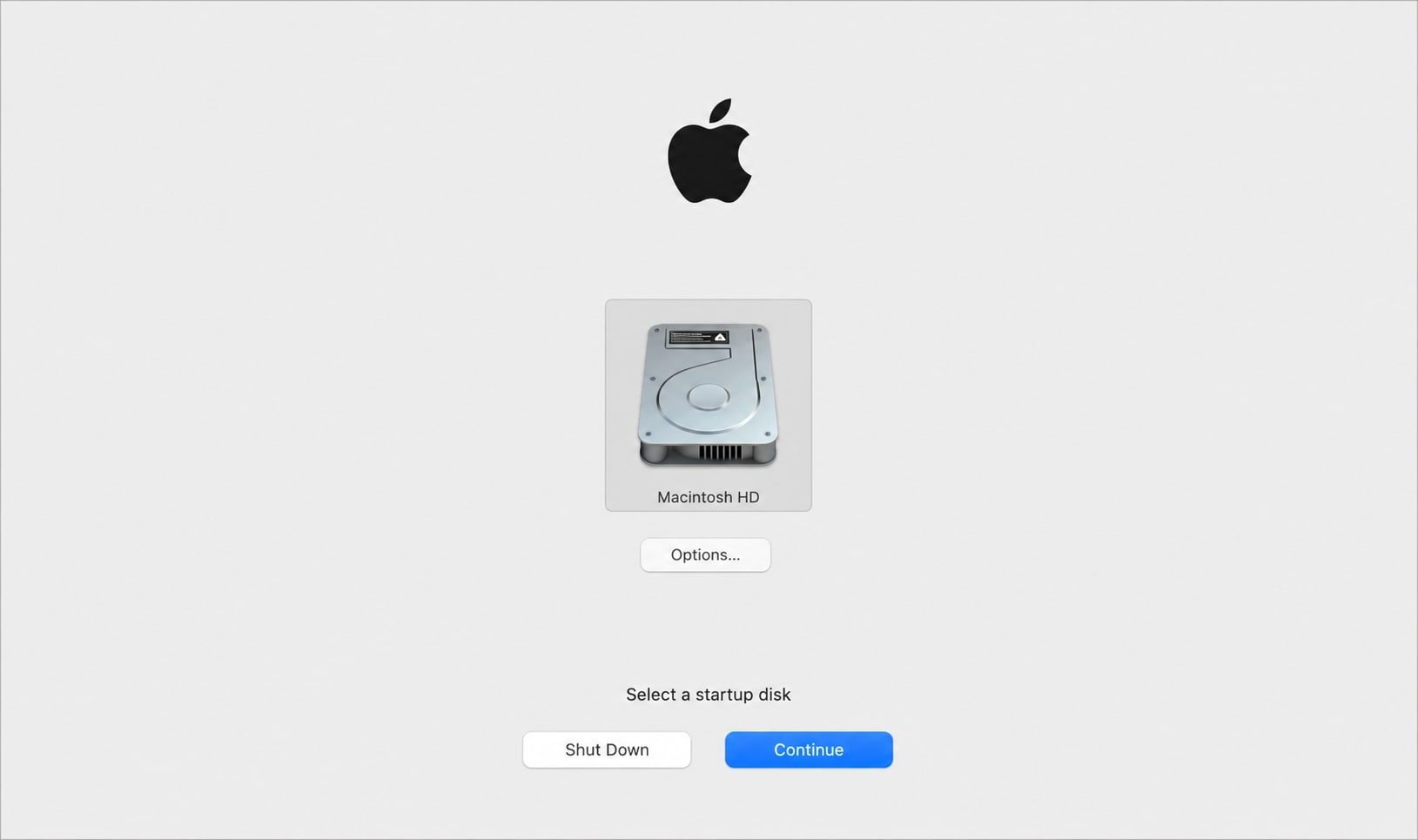
Fix 4. Open macOS Recovery and Run First Aid
If the white screen appears during startup, macOS Recovery can help check the startup disk without immediately erasing it.
- Start macOS Recovery.
- On Apple silicon, press and hold the power button until startup options appear, then choose Options. On Intel Macs, use Command-R to open Recovery.
- Open Disk Utility.
- Select the internal startup volume.
- Click First Aid.
- Let the check finish.
- Restart the Mac.
If Disk Utility reports that the disk cannot be repaired or may be failing, stop running repeated repairs. Recover important files before continuing with reinstall or erase operations.
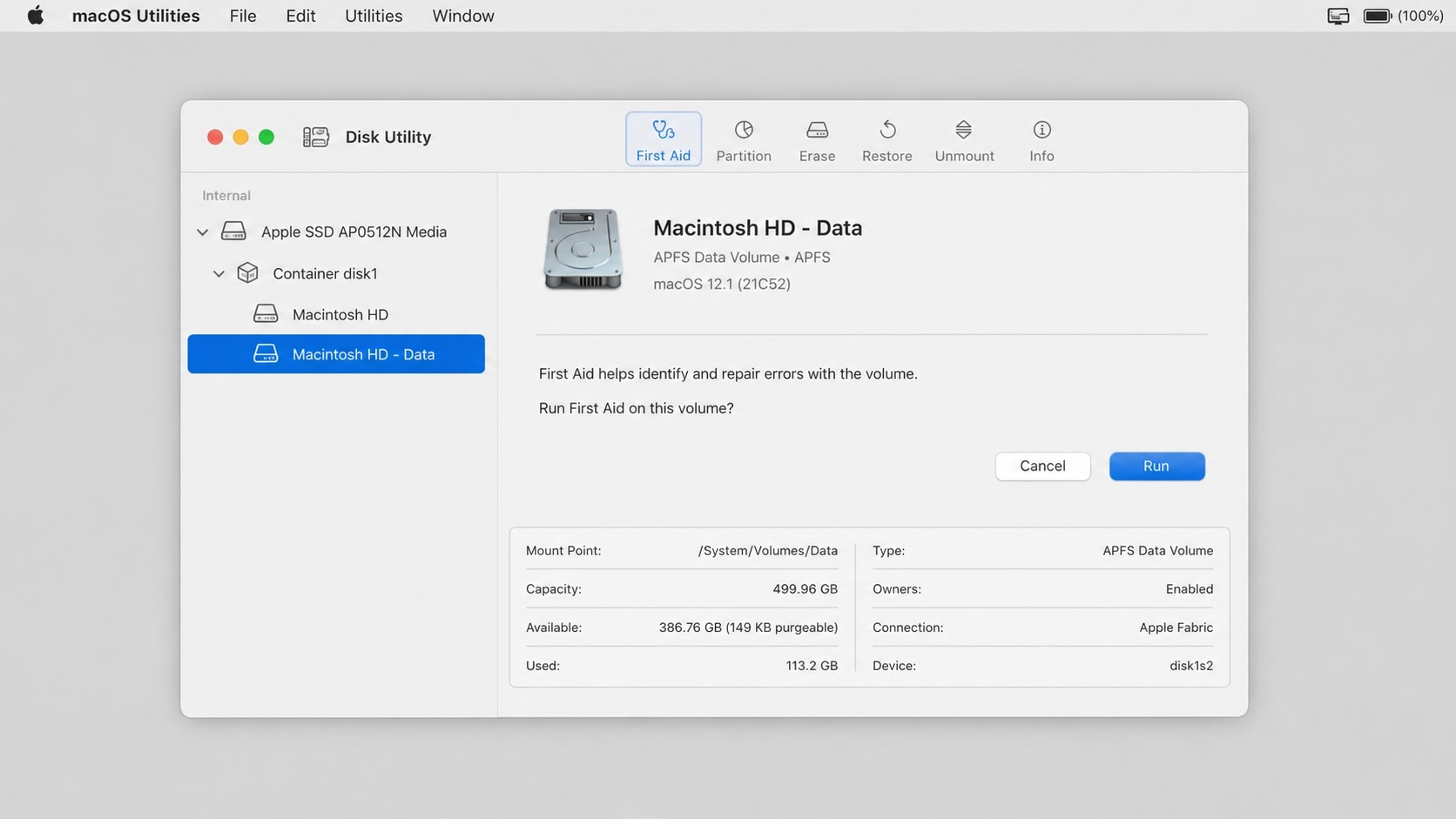
Fix 5. Reinstall macOS Without Erasing the Drive
If First Aid does not solve the problem, reinstalling macOS from Recovery may replace damaged system files. However, important files should be backed up or recovered first whenever possible.
- Start the Mac in macOS Recovery.
- Choose Reinstall macOS.
- Select the current startup disk.
- Follow the installation instructions.
- Wait for the installation to finish without disconnecting power.
Do not select Erase Mac or erase the APFS volume unless a backup is available. Erasing the drive can make later data recovery more difficult.
Fix 6. Run Apple Diagnostics
If colored lines remain after macOS troubleshooting, Apple Diagnostics can help identify certain hardware-related problems.
- Disconnect nonessential accessories.
- Shut down the Mac.
- Start Apple Diagnostics using the method for the Mac model.
- Record any reference code that appears.
Persistent lines on the built-in screen, especially lines that change when the lid moves, may require professional display or hardware service.
Part 3. Recover Missing Files After a White Screen Problem
A display problem does not normally delete files. However, files may become inaccessible after forced shutdowns, failed updates, Disk Utility operations, macOS reinstallation, accidental erasure, or drive replacement.
Before erasing or servicing the MacBook Air, check whether the startup disk is still detectable. If it is readable, Wondershare Recoverit can help scan the storage for missing documents, photos, videos, and other files.
Recoverit does not repair the MacBook Air display or fix the white screen itself. Its role is to help recover files before more destructive troubleshooting steps are taken.
When Recoverit May Help
| Situation | Best next step |
|---|---|
| Files disappear after a failed macOS update | Check whether the drive is still readable, then scan it if needed |
| Documents are missing after a forced shutdown | Recover the files before more repairs |
| Data becomes inaccessible after disk repair | Recover files before reinstalling or erasing |
| Files are lost after accidental formatting or erasure | Try recovery if the drive is still detected |
| An external drive connected to the Mac is no longer showing files | Connect it to a working Mac and scan it |
| Important files need to be recovered before the Mac is sent for service | Back up or recover the files first |
How To Recover Files from a Readable Mac Drive
Do not save recovered files back to the affected MacBook Air.
Step 1. Select the storage location
Select the readable Mac connected external drive where the missing files were stored.

Step 2. Scan for lost data
Start the scan and filter results by file type, folder, or filename.

Step 3. Preview and recover the files
Preview available results, select the files you need, and save them to an external drive or another safe destination.

Recovery depends on whether the drive is detectable, whether data has been overwritten, the condition of the storage, and whether encryption prevents access.
If the drive is not detected at all, makes unusual sounds, or shows signs of physical failure, software recovery may not be enough. In that case, stop using it and consider a professional data recovery service.
Conclusion
When a macbook air white screen with lines, macbook air white screen with colored lines, or macbook air screen white with lines issue appears, start with low-risk checks: disconnect accessories, test another display connection, force a full shutdown, and try Safe Mode. If the problem continues, open macOS Recovery and run Disk Utility First Aid before considering reinstall or erase operations.
If important files become missing or inaccessible after the problem, Recoverit can help recover data from readable Mac storage. Recover the files to another drive before erasing, reinstalling, or sending the MacBook Air for service.
FAQ
-
Is a white screen with lines on a MacBook Air always a hardware problem?
No. It can be caused by macOS loading issues, display cables, adapters, external monitors, corrupted settings, or hardware. If the lines remain on every display and also appear in Recovery, hardware service becomes more likely. -
Can Recoverit fix the MacBook Air white screen?
No. Recoverit is a data recovery tool, not a display or macOS repair tool. It can help recover missing files from readable storage before or after troubleshooting. -
Should I erase my MacBook Air when the screen turns white?
No. Erasing should not be the first step if important files are stored on the Mac. Try Recovery and First Aid first, and recover or back up files before destructive actions. -
Why does my MacBook Air screen turn white with colored lines?
The cause may be a display connection problem, graphics initialization issue, interrupted macOS update, corrupted startup files, or a failing display component. Testing another monitor and entering Safe Mode can help narrow it down. -
Where should recovered files be saved?
Save recovered files to a separate external drive or another safe location. Saving them back to the affected startup disk may overwrite data that is still recoverable.



