
 TL;DR:
Resolving a MacBook Pro grey screen requires systematically isolating software, disk, or hardware faults by testing Safe Mode and macOS Recovery before attempting destructive repairs.
● For Apple Silicon or T2 Mac models stuck on a grey screen even in macOS Recovery, perform a Firmware Revive via DFU mode using a second host Mac to refresh the system without erasing volumes, reserving Firmware Restore strictly as a last resort since it wipes all data.
● Connecting an external monitor helps determine if the issue is isolated to the built-in display, but if identical visual artifacts appear on both screens or Apple Diagnostics returns a reference code, the device requires professional service for internal hardware failure.
● Never erase the startup disk immediately or apply Intel-specific resets to Apple Silicon models; instead, reinstall macOS directly from Recovery to preserve files, or utilize bootable recovery media like Recoverit to extract inaccessible data before attempting a Firmware Restore.
Ask AI for a summary
 ChatGPT
 Perplexity
 Gemini
 Claude
 Grok
Grok
A MacBook Pro grey screen of death describes a Mac that powers on but becomes stuck on a gray or blank screen before macOS finishes loading. Apple does not use “grey screen of death” as an official error name. Instead, it treats persistent gray, black, or blue startup screens as blank-screen startup problems.
The cause may involve macOS, the startup disk, connected hardware, firmware, or internal hardware. Troubleshooting should begin with low-risk startup checks before moving to Recovery, firmware repair, or service. If important files become inaccessible before a destructive repair, Recoverit can be considered first.
Try Recoverit to Perform Data Recovery
 Security Verified. 3,591,664 people have downloaded it.
In this article
-
- Fix 1. Force Restart the MacBook Pro
- Fix 2. Disconnect External Devices
- Fix 3. Start the MacBook Pro in Safe Mode
- Fix 4. Enter macOS Recovery
- Fix 5. Repair the Startup Disk With Disk Utility First Aid
- Fix 6. Reinstall macOS Without Erasing the Startup Disk
- Fix 7. Revive Mac Firmware When Recovery Cannot Help
- Fix 8. Restore Firmware or Seek Service if the Grey Screen Persists
Part 1. MacBook Pro Grey Screen of Death: Identify the Startup Pattern
Where the startup stops helps determine what causes the Mac grey screen of death. The table below shows 5 startup patterns and what each pattern can indicate:
| What You See | What It May Indicate | First Check |
| Plain Gray, No Apple Logo | Startup or display problem | Restart, then test macOS Recovery |
| Gray After the Logo or Progress Bar | Startup process stalling | Check Safe Mode, then test the startup disk in Recovery |
| Gray Normally, Recovery Works | macOS, startup software, or disk issue | Diagnose software and disk |
| Gray Even in macOS Recovery | Firmware or hardware may be involved | Check firmware and run Apple Diagnostics |
| Gray With Lines or Artifacts | Display, graphics, or logic board may be involved | Test an external display |
Grey Screen vs a MacBook Pro That Will Not Turn On
No power response requires checking the adapter, cable, outlet, and power connection first. Apple recommends checking power connections first when a Mac shows no response after pressing power. Seeing a MacBook grey screen of death confirms power and some display output. However, grey output does not prove the graphics or display hardware works correctly.
Reaching the Apple logo shows startup progress, though firmware faults can remain possible. Startup behavior helps distinguish problems involving power, display, software, firmware, or hardware.
Part 2. What Causes the MacBook Pro Grey Screen of Death?
Several issues can cause a Mac grey screen of death during the startup process. Below are the 5 common causes that can prevent your Mac from starting:
- macOS Startup or System Software Failure: Damaged system files, an interrupted macOS update, or incompatible startup software can prevent macOS from loading normally.
- Startup Disk or APFS File System Errors: File-system or directory errors can prevent macOS from properly accessing the startup disk and stall the startup process.
- Problematic Startup Software or Connected Hardware: Login items, system extensions, drivers, external drives, hubs, or other accessories can interfere with the normal startup process.
- Firmware Failure on Apple Silicon or T2 Macs: Rare firmware problems can prevent these MacBook Pro models from starting correctly or loading macOS Recovery.
- Display, Graphics, or Logic Board Failure: Problems with the built-in display path, graphics hardware, or logic board can produce a persistent gray screen, flickering, lines, blocks, or other visual artifacts.

Part 3. Check Whether the Grey Screen Is a Software or Hardware Problem
These tests help determine whether a MacBook grey screen of death involves software. Testing Safe Mode, Recovery, and displays can reveal signs pointing toward hardware problems.
Test Whether Safe Mode Starts
Safe Mode helps determine whether the grey screen is associated with normal macOS startup. Check whether the Mac can reach Safe Mode without becoming stuck on the grey screen. Use these instructions to test Safe Mode:
For Apple Silicon Mac
Instructions. Shut down the Mac > Press and hold the “Power” button until startup options appear > Select the startup disk > Hold “Shift” > Click “Continue in Safe Mode.”

For Intel Mac
Instructions. Turn on or restart the Mac > Immediately press and hold “Shift” until the login window appears.

Note: If Safe Mode works, recently added login items, extensions, drivers, or background software become stronger suspects. Restart normally afterward to see whether the problem returns.
Check macOS Recovery
macOS Recovery can reveal whether the Mac grey screen of death extends beyond startup. It also helps confirm whether the internal startup disk remains detectable in Recovery. On Intel Macs, “Option + Command + R” can start Internet Recovery when local Recovery is unavailable. Follow the methods below based on processor:
For Apple Silicon Mac
Instructions. Shut down the Mac > Press and hold the “Power” button until “Loading startup options” appears > Click “Options > Continue.”

For Intel Mac
Instructions. Turn on or restart the Mac > Immediately hold “Command + R” until the Apple logo or another startup screen appears.

Note: If Recovery works but normal startup does not, macOS, startup software, or the startup disk becomes more likely. If the internal disk is missing in Disk Utility, storage is a stronger suspect. If the grey screen also prevents Recovery from loading, firmware or hardware becomes more likely.
Test an External Display
Connecting a well-working external monitor helps compare output against your MacBook's built-in display. Use a compatible cable or adapter and connect straight into the Mac where possible. Check whether the external monitor shows a working desktop without grey screen problems.
Matching lines, artifacts, or grey output across both screens may indicate broader problems. A working external display raises suspicion around built-in display components without proving failure.

Part 4. How to Fix the MacBook Pro Grey Screen of Death
These 8 fixes address a MacBook Pro stuck on a grey screen after software confirmation. Start with safer options before moving toward repairs that create greater data risks. Follow each fix in sequence, proceeding when the previous method does not work.
Fix 1. Force Restart the MacBook Pro
Try a force restart when the grey screen prevents your MacBook Pro from progressing. Hold the “Power” or “Touch ID” button for up to 10 seconds until the Mac turns off. Leave it off for several seconds, then press the button once to boot again. Check whether macOS loads past the grey screen before trying the next fix.

Fix 2. Disconnect External Devices
Connected devices can interfere with startup and cause the MacBook Pro grey screen. Disconnect external drives, USB accessories, hubs, docks, displays, and unneeded adapters before restarting. Start the Mac again with just its required power connection left in place.
This removes possible hardware conflicts that may interrupt macOS during the startup process. If startup succeeds, reconnect each device one at a time to identify the culprit.

Fix 3. Start the MacBook Pro in Safe Mode
Safe Mode can isolate software behind the MacBook grey screen of death. It also performs startup checks and clears some system caches during boot. Here is how to apply this fix:
Step 1. Start the Mac in “Safe Mode” using the instructions provided in Part 3. If the Mac starts without the grey screen, open “System Settings > General > Login Items & Extensions.”

Step 2. Review “Open at Login” and “App Background Activity” > Temporarily disable suspected startup software > Restart the Mac normally > Re-enable disabled items one at a time if the grey screen disappears.

Fix 4. Enter macOS Recovery
macOS Recovery provides repair tools when normal startup cannot reach the desktop screen. It also confirms whether the internal startup disk remains visible during the Recovery environment. To check the startup disk, use these steps:
Step 1. Enter “macOS Recovery” using the instructions provided in Part 3. Click “Disk Utility > Continue” from the available recovery options.

Step 2. Check whether the internal startup disk appears in “Disk Utility.” If it is detected, keep Disk Utility open and continue with “First Aid” in the next fix.

Fix 5. Repair the Startup Disk With Disk Utility First Aid
First Aid can repair disk errors behind the Mac grey screen of death. It checks file-system structures and repairs supported disk errors that may prevent macOS from starting properly. Disk Utility can find and repair certain errors related to the disk's formatting and directory structure. Follow these simple steps to repair errors:
Step 1. Once you enter “Disk Utility” > Choose “View > Show All Devices” > Select the last volume on the startup disk > Click “First Aid.”

Step 2. Press “Run” to begin the check > Repeat “First Aid” for each remaining volume, followed by the container and physical disk > Restart the Mac after completion.

Note: If the disk contains important inaccessible files, reports imminent failure, or is behaving like a failing drive, prioritize recovery or backup before repeated repair attempts.
Fix 6. Reinstall macOS Without Erasing the Startup Disk
Damaged macOS system files can prevent the MacBook Pro from completing normal startup. Reinstalling macOS installs a fresh copy of macOS without requiring the startup disk to be erased first. Here is how to reinstall macOS:
Instructions. Select “Reinstall macOS Tahoe” from the Recovery window > Follow the on-screen prompts > Choose the existing startup disk for installation. Do not erase the startup disk, since erasing removes its stored data.

Fix 7. Revive Mac Firmware When Recovery Cannot Help
On an Apple Silicon or T2 Mac, firmware Revive may be appropriate when a blank startup screen persists, and macOS Recovery cannot resolve the problem. Apple documents a revive as refreshing firmware and RecoveryOS without erasing volumes. It requires another Mac and supports Apple Silicon and T2 Mac models. Let's see how firmware revive works:
Instructions. Connect both Macs to power. Connect the affected MacBook Pro’s “DFU port” to a host Mac running macOS 14 or later using a USB-C cable (no Thunderbolt 3 cable). Keep other USB ports on the affected Mac disconnected, then shut down the affected Mac.
For Apple Silicon: Press and release “Power” > Immediately hold “Left Control + Left Option + Right Shift + Power” for about 10 seconds > Release all keys except “Power” > Keep holding “Power” for up to 10 seconds until the DFU window appears on the host Mac.
For T2 MacBook Pro: Press and release “Power” > Immediately hold “Left Control + Left Option + Right Shift + Power” for about 3 seconds until the DFU window appears on the host Mac.
On the host Mac connected to the internet, click “Revive Mac > Continue” in Finder > Keep the host Mac awake and both Macs connected until the revive finishes. The affected Mac should restart after the process completes.

Note: Use Apple's model-specific DFU-port diagram because the correct port varies by MacBook Pro model.
Fix 8. Restore Firmware or Seek Service if the Grey Screen Persists
Firmware Restore erases Mac data, so consider it only after safer repairs fail. Here is how to restore firmware safely:
Instructions. Recover important files first using Part 6. Before restoring, run “Apple Diagnostics” if the Mac can access it and recover important files where possible. If Firmware Restore is required, connect both Macs and enter “DFU Mode” using the previous fix > Select the affected Mac in “Finder” > Click “Restore Mac > Restore and Update” and wait for completion. Seek Apple or authorized service if hardware problems continue.

Part 5. When the MacBook Pro Grey Screen Indicates Hardware Failure
Hardware warning signs can show when a Mac grey screen of death persists. Recognizing these signs prevents repeated software repairs when professional hardware service becomes necessary:
- Gray Screen Appears Even in macOS Recovery: A persistent gray screen in Recovery makes firmware or hardware problems more likely than a normal macOS startup issue.
- Lines, Blocks, Flickering, or Artifacts: Distorted graphics, lines, blocks, flickering, or corrupted colors can point toward display, graphics, or logic board problems.
- Same Corruption Appears on External Display: Matching artifacts on both the built-in and external displays make an isolated built-in panel problem less likely and suggest a broader graphics or system hardware issue.
- Apple Diagnostics Returns a Reference Code: A reference code from Apple Diagnostics indicates that the test detected a potential hardware issue. Record the code and use it when contacting Apple or an authorized service provider.
- Physical, Liquid, or Display Damage Exists: Cracked displays, liquid exposure, impact damage, or known internal damage are strong reasons to seek professional inspection.

Run Apple Diagnostics
Apple Diagnostics checks hardware when a MacBook grey screen of death persists. Reference codes can identify hardware areas that may require further inspection or service. To run Apple Diagnostics, use these simple instructions.
Instructions. Disconnect all external devices except the required power, then shut down the Mac. On Apple Silicon, press and hold the “Power” button until startup options appear > Press and hold “Command + D.” On Intel Macs, turn on the Mac and immediately hold “D” during startup. If prompted, choose “Run Offline.”

Note: Wait for Apple Diagnostics to complete, then record any reference codes shown for hardware service. On macOS Tahoe 26 or later, Apple Diagnostics may let you choose a specific test, such as the built-in display diagnostic.
A Note on 2011 MacBook Pro Models
Some 2011 MacBook Pro models had documented issues linked with graphics problems. Apple previously offered a repair program covering certain affected MacBook Pro models. Reported symptoms included distorted, scrambled, or missing video output on affected machines.
However, that repair program ended and applied only to specific older MacBook Pro models. A grey screen on a modern MacBook Pro does not by itself indicate GPU failure.
Part 6. Recover Data From a MacBook Pro Stuck on a Grey Screen
A MacBook Pro stuck on a grey screen can leave important files inaccessible even when the internal storage is still readable. Data recovery becomes especially important before troubleshooting steps that could remove files from the internal storage.
In this situation, Recoverit can help recover files from a Mac that cannot start normally. Its crashed-computer recovery workflow can create bootable recovery media on another working computer. Supported Macs can then access and scan the internal storage without erasing it first. Recovered files can then be saved to a separate healthy drive instead of the affected startup disk.
Key Features
- Startup-Independent Reading: Recovers files from a Mac that cannot boot using prepared external recovery media.
- APFS and HFS+ Recovery: Reads both Mac file systems directly, including volumes Finder can no longer open properly.
- Clear Result Viewing: Previews recoverable documents, images, and other files before selecting them for recovery.
- AI + S.M.A.R.T. Monitoring: Provides AI health checks and S.M.A.R.T. disk monitoring to identify potential drive issues.
- Cloud Output Option: Allows recovered files to be saved to iCloud alongside available local storage options.
How to Recover Data From a Grey Screen MacBook Pro
Prepare a second working Mac and an empty external drive with enough storage space. Follow the steps below to recover your data from the affected MacBook Pro:
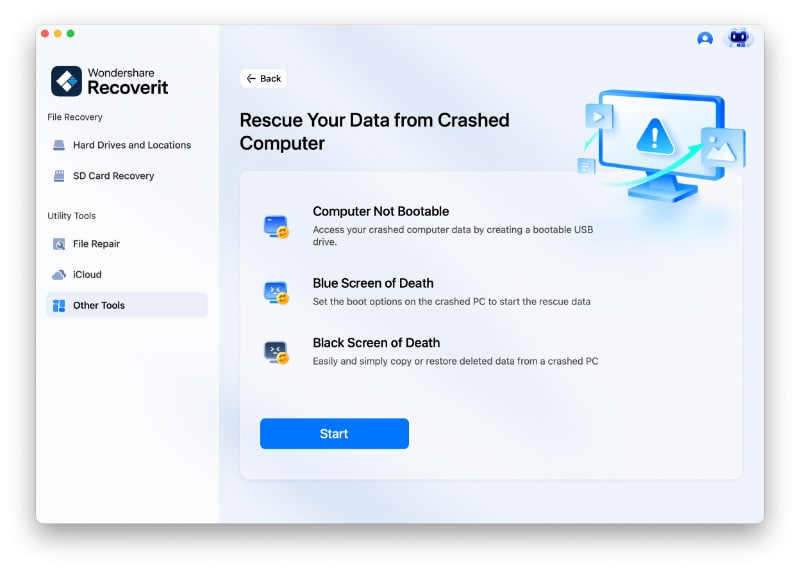
Step 1. Access Mac Crash Recovery
Install and launch Recoverit on a working Mac. Select “Other Tools” > Choose “Computer Not Bootable” > Click “Start" to begin recovering data from the grey-screen MacBook Pro.
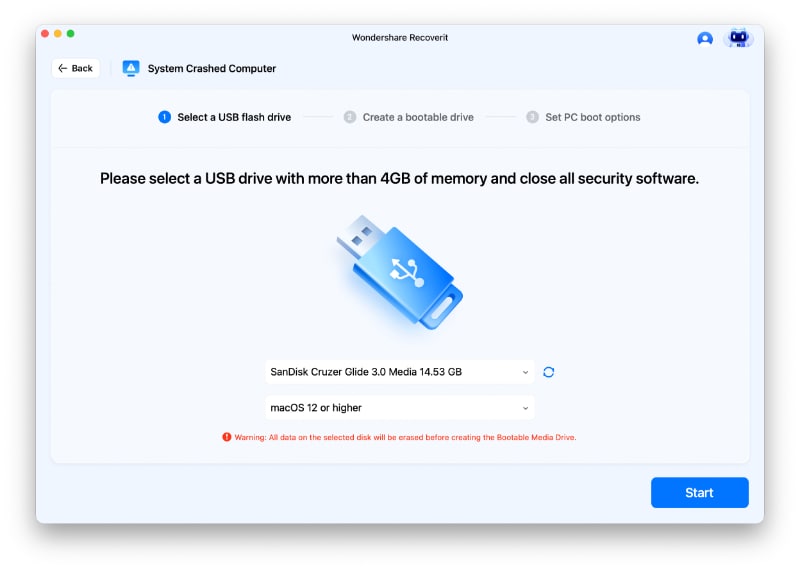
Step 2. Create a Bootable USB
Connect an empty USB drive to the working Mac. Select the connected USB drive > Confirm the required macOS version > Click “Start” to create the bootable recovery drive.
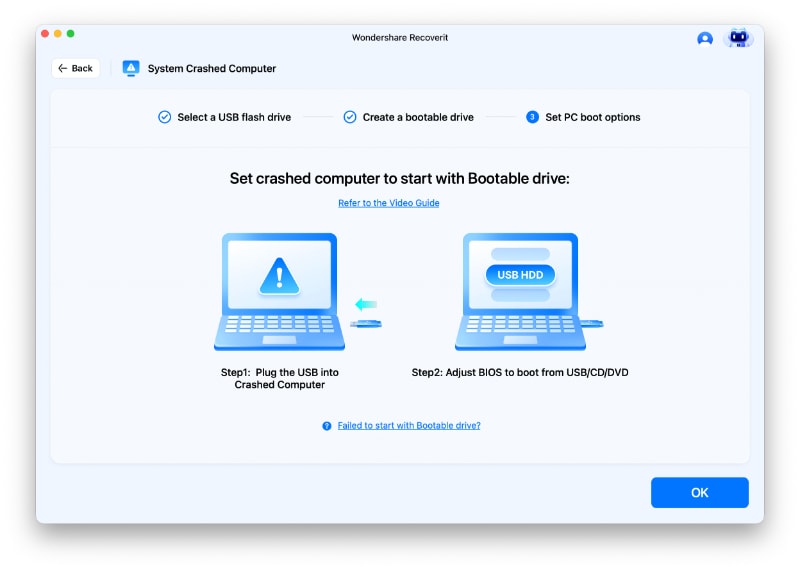
Step 3. Recover Files From the Affected Mac
Connect the bootable USB to the affected Mac and boot the Mac from it. Scan the internal storage > Preview the scanned files > Click “Recover” to export them.
Part 7. What to Avoid When a MacBook Pro Is Stuck on a Grey Screen
These actions can risk data or waste time during a MacBook grey screen of death. Let's review what you should avoid before attempting more repairs on your MacBook:
- Do Not Erase the Startup Disk Immediately: Erasing removes data that reinstalling macOS may otherwise preserve intact. Apple confirms reinstalling macOS preserves apps and personal data, though backups remain recommended beforehand.
- Do Not Assume Every Grey Screen Is GPU Failure: A gray screen can result from macOS, the startup disk, firmware, display hardware, or other internal components. GPU failure should not be assumed without supporting symptoms or diagnostics.
- Do Not Use Single User Mode or Bypass Tricks: Legacy commands, GPU-disable methods, or hardware workarounds may not apply to modern macOS versions and can complicate troubleshooting.
- Do Not Apply Intel Resets to Apple Silicon: Apple Silicon Macs do not use the traditional SMC reset process, so Intel-specific reset instructions should not be treated as universal fixes.
- Do Not Restore Firmware Without Considering Data Loss: Firmware Restore erases the Mac. On supported Apple Silicon or T2 Macs, try Firmware Revive first because it refreshes firmware without erasing volumes.

Conclusion
A MacBook Pro grey screen of death can point to problems with macOS, the startup disk, firmware, or hardware. Start with low-risk checks such as restarting, disconnecting accessories, Safe Mode, macOS Recovery, and First Aid. Move to firmware repair or hardware service only when simpler fixes fail. If important files remain inaccessible before a data-erasing repair, Recoverit can help recover them.
FAQ
-
Why does my MacBook Pro stall on a grey screen after the Apple logo?
The Apple logo means the Mac has found a startup disk, but macOS can still stall while loading. Safe Mode, Recovery, and First Aid can help identify whether startup software or the disk is involved. -
Can a startup disk error cause the MacBook Pro grey screen of death?
Yes, disk errors can cause a Mac grey screen of death. First Aid can check and repair supported file-system errors from Recovery. -
Why does my MacBook Pro show a grey screen even in Recovery Mode?
Recovery failure can point beyond macOS, but does not prove hardware. Firmware or hardware issues remain possible, so further diagnosis is needed. -
Will reinstalling macOS fix a grey screen without deleting my files?
Reinstalling macOS from Recovery normally does not remove your apps or personal data. Do not erase the startup disk first, because erasing removes stored data.



