

 TL;DR:
Fix a MacBook Pro purple screen by disconnecting all external accessories and running Disk Utility First Aid via macOS Recovery to repair the startup disk before attempting a macOS reinstall.
● Access macOS Recovery by holding the power button until startup options appear on Apple silicon models, or by pressing Command-R during startup on Intel Macs.
● Use Recoverit to extract missing files from readable Mac storage if data is lost during forced shutdowns or system repairs, as the software performs data recovery but cannot resolve the underlying purple screen error.
● Save all recovered files to a different external drive or alternate location rather than the affected Mac to avoid overwriting remaining recoverable data.
Ask AI for a summary
 ChatGPT
 Perplexity
 Gemini
 Claude
 Grok
Grok
MacBook Pro purple screen, MacBook purple screen, and purple screen MacBook issues usually point to a startup, display, or macOS loading problem. If purple lines appear too, the problem may be related to the display chain, graphics output, or a corrupted startup process.
Try Recoverit to Perform Data Recovery
 Security Verified. 3,591,664 people have downloaded it.
In this article
Part 1. What MacBook Pro Purple Screen Usually Means
A purple screen on a Mac can mean different things depending on when it appears. If it shows up during startup, the issue may involve macOS loading, the startup disk, or system files. If it only appears on one monitor, the problem may be connected to the cable, adapter, or external display.
| Where the purple screen appears | What it usually suggests |
|---|---|
| At startup before login | Startup disk, macOS loading, or system file issue |
| Only on an external monitor | Cable, adapter, or display problem |
| After an update or forced shutdown | Corrupted settings or interrupted system process |
| With purple lines across the screen | Display output, graphics, or panel-related problem |
Whether the issue is on a Mac Pro, MacBook Pro, or MacBook, the safest approach is the same: protect the data first, then troubleshoot the startup problem.
Part 2. What To Do First and How To Fix It Safely
Before doing anything advanced, shut the Mac down fully, disconnect external devices, and restart it once. If the screen is still purple, continue with low-risk checks before reinstalling macOS.
- Disconnect external drives, docks, adapters, printers, and other accessories.
- If the purple screen only appears on an external display, try a different cable, port, or monitor.
- Shut the Mac down completely, then turn it back on.
- Start up from macOS Recovery and repair the startup disk with Disk Utility.
- Check the startup disk selection before reinstalling macOS.
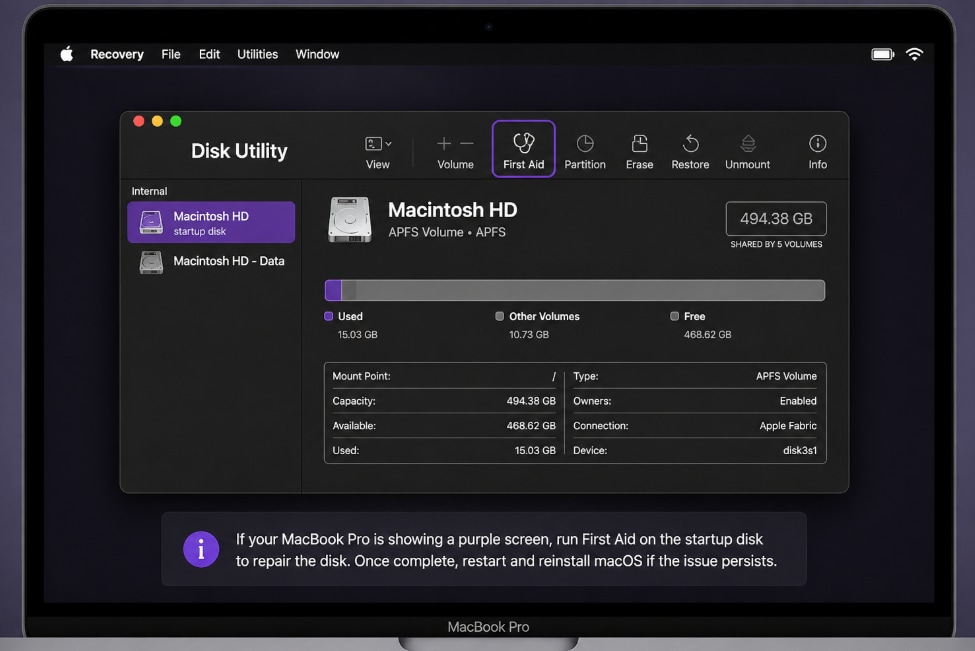
Apple support recommends using macOS Recovery when a Mac does not finish starting up normally. On Apple silicon, hold the power button until startup options appear, then choose Options. On Intel Macs, use Command-R to open Recovery.
Once in Recovery, open Disk Utility and run First Aid on the startup disk. If First Aid repairs errors, restart and test the Mac again. If the problem continues, check Startup Disk settings or choose a different startup disk before reinstalling macOS.
Note: Do not erase the disk first unless the files are already safely backed up. If Recovery cannot see the startup disk or the issue returns after reinstalling macOS, the Mac may need service.
Part 3. Recover Missing Files After Purple Screen Troubleshooting
A purple screen itself does not usually delete files, but files can go missing after a forced shutdown, disk repair attempt, reinstall, or hardware service. That is where Recoverit fits naturally.
Recoverit does not fix the purple screen, but it can help recover documents, photos, videos, and other files from readable Mac storage before or after risky troubleshooting.
| Situation | Best next step |
|---|---|
| Purple screen after an update | Check whether files are still visible, then scan the readable drive if needed |
| Purple screen after Disk Utility or reinstall | Recover files before more repairs or erasing |
| Purple screen on an external drive | Connect the drive to a working Mac and scan it |
| Purple screen and missing work files | Recover files first, then continue with OS repair |
How to Scan and Recover Your Important Data Using Recoverit
Follow these steps to scan an unreadable disk with Recoverit and safely recover your important files:
Step 1. Choose the Unreadable Drive
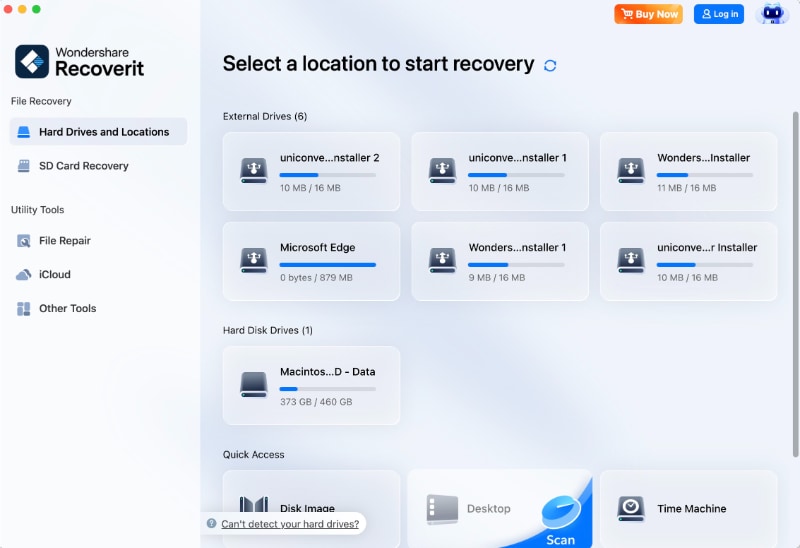
Open Recoverit and select “Hard Drives and Locations > External Drives” > Find the affected external drive.
Step 2. Find Files in the Results
Once the scan begins, browse the detected files using “File Path” or “File Type.”

Step 3. Confirm and Recover Files
Preview the available files, click “Recover,” and save the restored files to your Mac or another external drive.

Conclusion
If you are seeing a MacBook Pro purple screen, MacBook purple screen, or purple screen MacBook, start with low-risk troubleshooting first: disconnect accessories, check any external display connection, enter macOS Recovery, and run Disk Utility First Aid before reinstalling macOS.
If the purple screen has already led to missing files, Recoverit can help recover data from readable Mac storage before more changes are made. It is a safer next step than erasing or reformatting the drive too early.
FAQ
-
Is the MacBook Pro purple screen of death always hardware?
No. It can also be caused by software, startup disk problems, display settings, or a bad cable. If Recovery cannot see the disk or the issue returns after reinstall, hardware service becomes more likely. -
Can Recoverit fix the purple screen?
No. Recoverit is a data recovery tool, not a screen repair tool. It can help recover missing files before or after repair, reinstall, or disk replacement. -
Should recovered files be saved back to the same Mac?
No. Recovered files should be saved to another drive or safe location to reduce the risk of overwriting data that may still be recoverable.



