
 TL;DR:
Apple's Migration Assistant copies data without deleting original files, meaning your missing data remains safely on the old Mac or is simply relocated on the new Mac within a different user account, a renamed home folder, or the Shared directory.
● Locate transferred files by checking "System Settings > Users and Groups" for newly created accounts, mounting disk images inside the "Deleted Users" folder, or running a "Command-F" Finder search with the "File Visibility" criterion enabled to reveal hidden items.
● Restore incomplete transfers by manually copying missing folders from the old Mac, running Migration Assistant again for skipped categories, or extracting individual files from a Time Machine backup, ensuring you do not erase the source Mac until cloud syncs finish.
● Use Wondershare Recoverit (compatible with macOS 10.13 through macOS 26 and M1-M4 chips) if the source drive was permanently erased, first restoring access to unbootable hardware via Share Disk for Apple silicon Macs or Target Disk Mode for supported Intel Macs.
Ask AI for a summary
 ChatGPT
 Perplexity
 Gemini
 Claude
 Grok
Grok
Seeing empty folders on a new Mac after migration can feel alarming. Apple confirms Migration Assistant copies files without deleting anything from your old Mac. Therefore, your files often exist somewhere, even when they seem completely missing.
Most Migration Assistant lost files cases involve another user account or a renamed home folder. This guide explains what Migration Assistant transfers and 6 folders to check first. It also covers recovering anything that failed to transfer during the migration. Finally, you’ll learn when Recoverit becomes the appropriate recovery tool.
Try Recoverit to Perform Data Recovery
 Security Verified. 3,591,664 people have downloaded it.
In this article
Part 1. Does Migration Assistant Delete or Lose Files?
Transferred data does not always appear where you expect on the new Mac. These 5 Migration Assistant behaviors explain what gets transferred and where to look for it.
What Migration Assistant Transfers
Understanding what gets transferred helps explain where Migration Assistant lost files may actually be located. It transfers documents, applications, user accounts, and settings between Macs. According to Apple’s Mac User Guide, Migration Assistant can transfer information from another Mac, a Time Machine backup, or a Windows PC. Email data may also transfer, although some accounts require you to sign in again before messages appear.
Does It Remove Files from the Old Mac?
No. Apple states directly that Migration Assistant does not delete information from your old Mac and does not replace macOS on the new one. Everything it transfers is a copy, so the original remains intact until you erase it yourself.
Transferred Files vs Files That Failed to Migrate
Transferred files may appear under a different user account or home folder than expected. Files can also seem missing when permissions, account conflicts, or migration settings affect their destination. Therefore, check each transferred user account and the Shared folder before assuming the files failed to migrate.
What Happens When the Same Account Already Exists
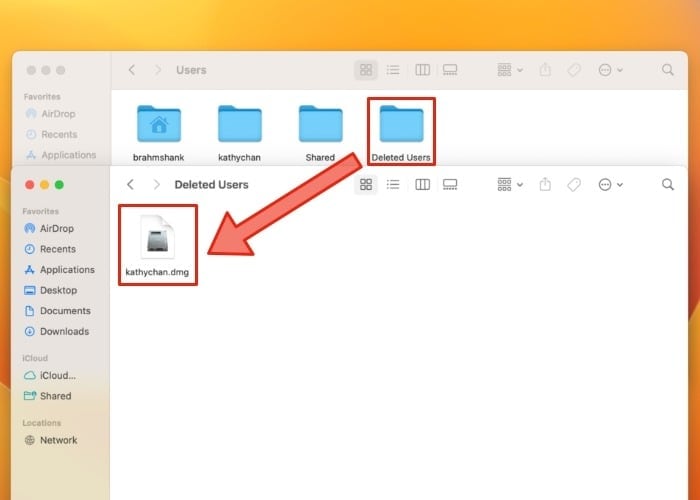
Account conflicts are one reason transferred files can appear to be missing. Apple lets you replace an existing account or rename it before transferring the incoming account. When replacing an account, you can choose to keep its data in the “Deleted Users Folder.” The saved home folder may appear as a disk image, which you can open to access its files.
Where Transfer Problems Are Reported
Migration Assistant may display a message when certain items cannot be transferred successfully. That message can indicate where affected files are located, so review it before continuing. This information can help you recover lost data after Migration Assistant lost files on Mac without searching every folder manually.
Part 2. Why Are Files Missing After Migration Assistant?
Once you know what Migration Assistant transfers, the next question is why files still appear missing. The following 6 causes explain where transferred data may end up and when actual data loss becomes possible:
| Cause | What Is Really Happening |
| Logged Into the Wrong Account | Migration created another user account, and the files remain inside that account’s home folder. |
| Categories Left Unselected | A category was excluded during setup, so its files were not transferred to the new Mac. |
| Account Replaced or Renamed | A retained replaced account may appear in Deleted Users, while renamed accounts can have separate home folders. |
| Transfer Interrupted | Some files may remain only on the source Mac because the migration did not finish successfully. |
| Files in a Different Location | Some transferred files may appear under another account, home folder, or destination than you expected. |
| Cloud Files Still Downloading | iCloud and other cloud services may display placeholders while files continue downloading to the new Mac. |
Part 3. Where to Look for Missing Files After Migration
When dealing with Migration Assistant lost files, those causes point toward 6 locations worth checking. Search them in order before assuming your data is permanently gone, since several checks take less than a minute.
Check 1. The Migrated User Account
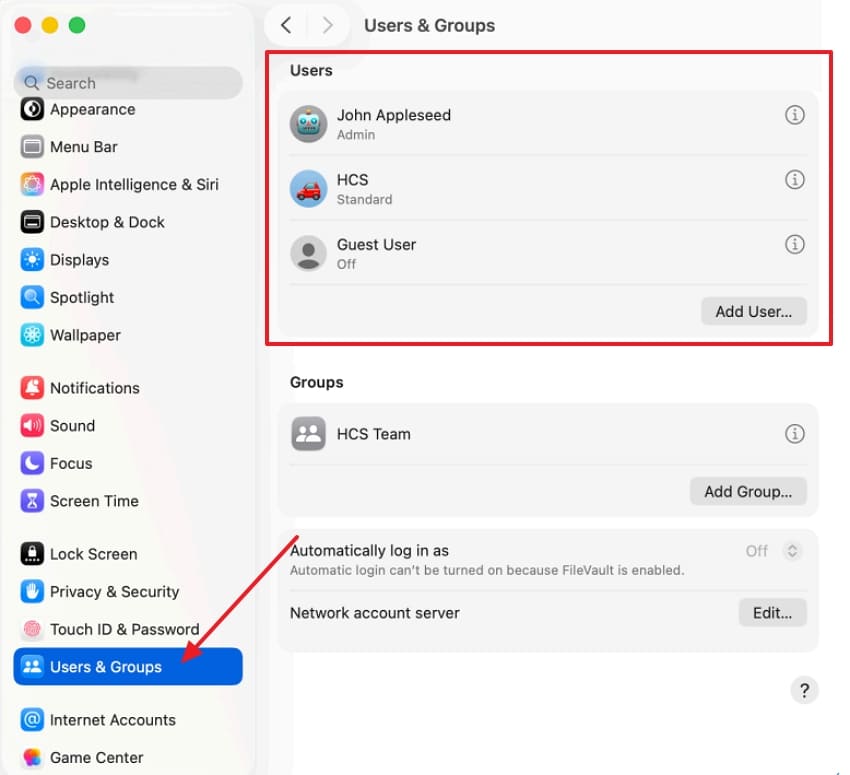
Migration Assistant frequently creates a new account matching the one on the old Mac, and every account on macOS sees only its own home folder. Open “System Settings > Users and Groups,” and look for an account you did not create yourself. Logging out and signing into it is the single most productive thing to try first.
Check 2. The Standard Home Folders
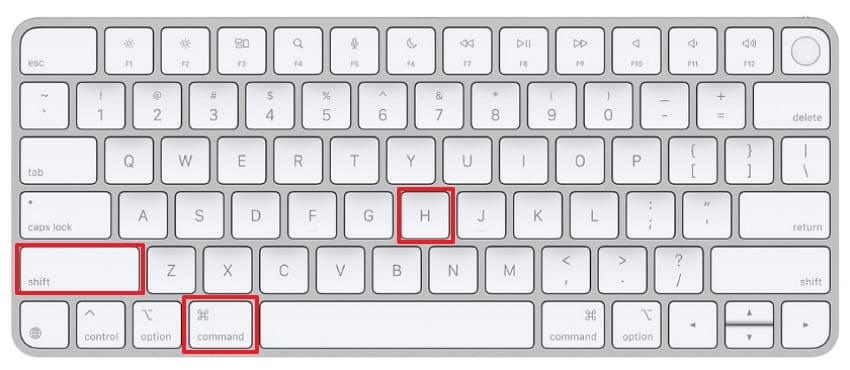
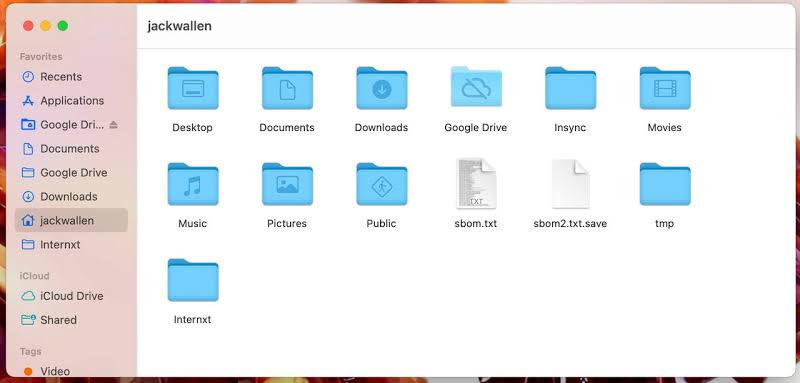
Finder shortcuts may stop pointing to the expected location when a migrated home folder has a different name. Press Shift + Command + H to open your current home folder, then check Documents, Desktop, Downloads, Pictures, Movies, and Music. Apple confirms that user home folders are stored in the /Users folder. Check there as well, since a migrated home folder may use a different name when Migration Assistant handles an account-name conflict.
Check 3. The Shared Folder
Windows migrations can place transferred content in the Shared folder, making it worth checking when files seem missing. In Finder, choose Go > Computer, open the startup disk, then go to Users > Shared. This location may help you recover lost data after Migration Assistant lost files on Mac when transferred content is not under the expected user account.
Check 4. The Deleted Users Folder
If you replaced an existing account during migration and chose to keep its data, check the Deleted Users folder. Apple stores the retained home folder there, potentially as a disk image. Open “Users” on your startup disk, select “Deleted Users,” and double-click the .dmg file to mount it and browse the preserved files.
Check 5. A Finder Search Across the Whole Mac
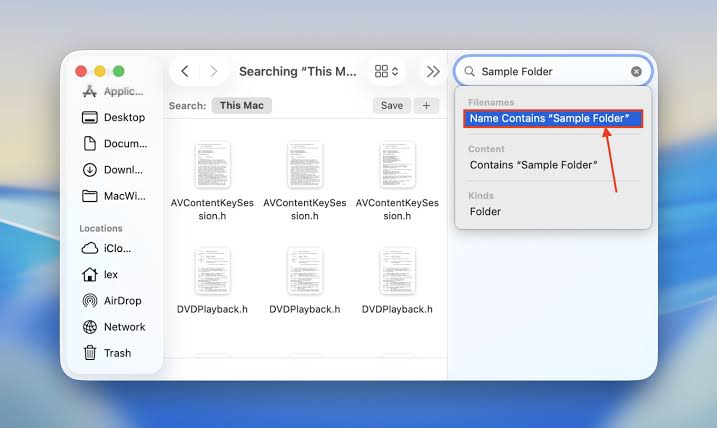
When tracking down Migration Assistant lost files, a basic Spotlight search may not surface everything expected. Press “Command-F” in a Finder window, then select “This Mac” instead of the current folder to widen the search. Add the “File Visibility” criterion and set it to include hidden items when checking locations that Finder normally keeps out of view.
Check 6. iCloud and Other Synced Storage
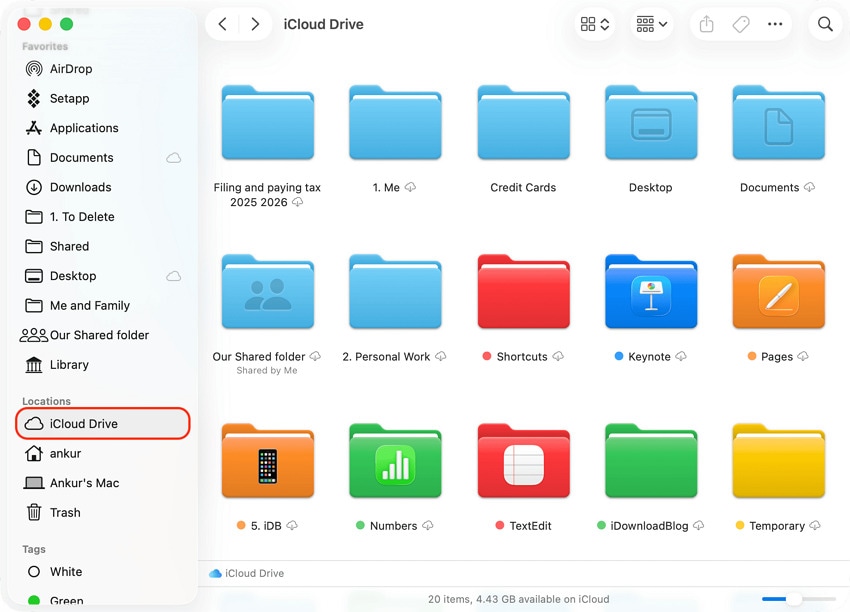
Files showing a cloud download icon may still be stored primarily in the cloud rather than fully downloaded. After migration, synced services may need time to restore local access to cloud-based content. Check iCloud Drive in Finder, followed by Dropbox, Google Drive, and OneDrive if you use them. Keep the Mac connected to power and the internet while synchronization finishes.
Part 4. How to Restore Files That Migration Assistant Did Not Transfer
If those locations are empty, your missing files likely never reached the Mac. These methods help you recover lost data after Migration Assistant lost files on Mac safely:
Method 1. Copy the Files Directly from the Old Mac
This method works best when both Macs function and only several folders remain missing. You can select specific files, verify transfers, and avoid creating new account conflicts. Here is how to copy them manually:
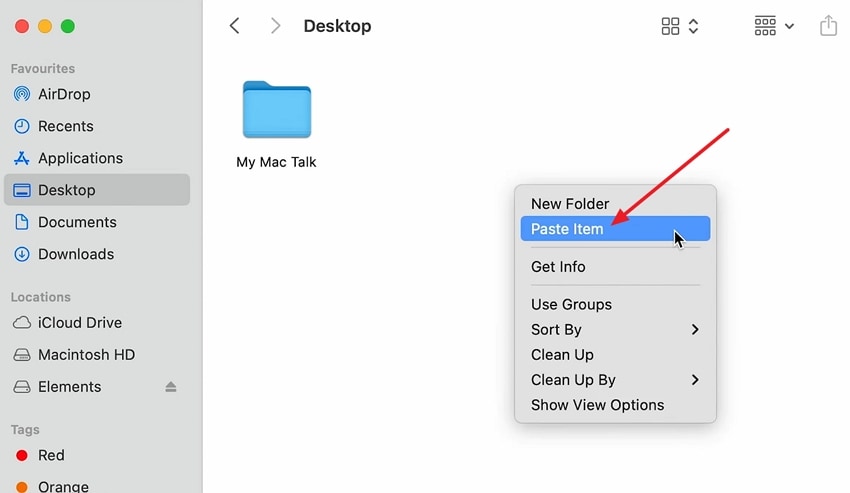
Step 1. First, attach an external storage device to the old Mac and copy the files into it. Eject the drive properly.
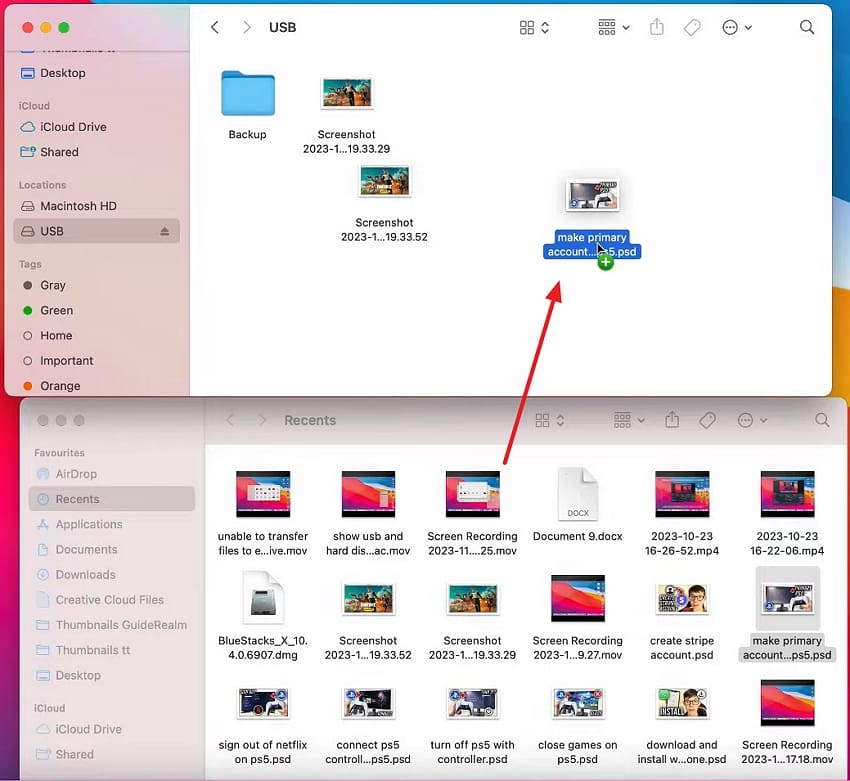
Step 2. Next, attach the drive to the new Mac > Copy files > Paste them to your Mac.
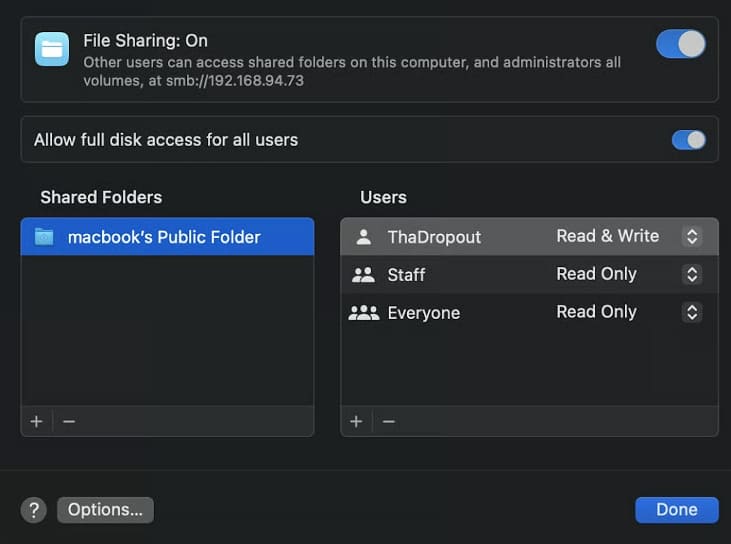
Optional: Use “File Sharing” when both Macs share the same network. Enable “File Sharing” on the old Mac > Connect through Finder > Copy and paste missing files.
Method 2. Run Migration Assistant Again
This method works when Migration Assistant lost files because categories were skipped. Running Migration Assistant again transfers missing categories without repeating the entire process. To avoid conflicts, handle existing accounts using the steps below:
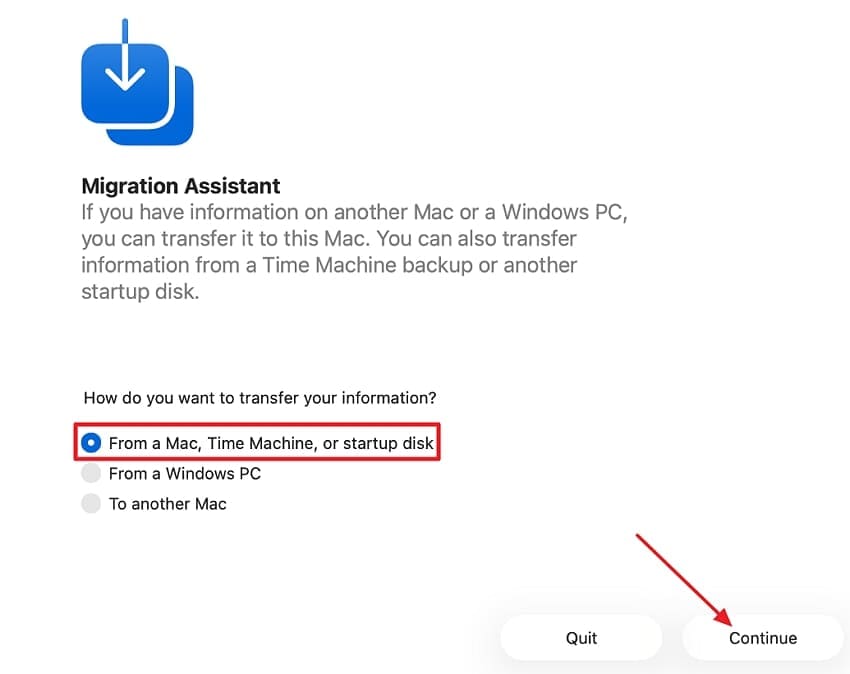
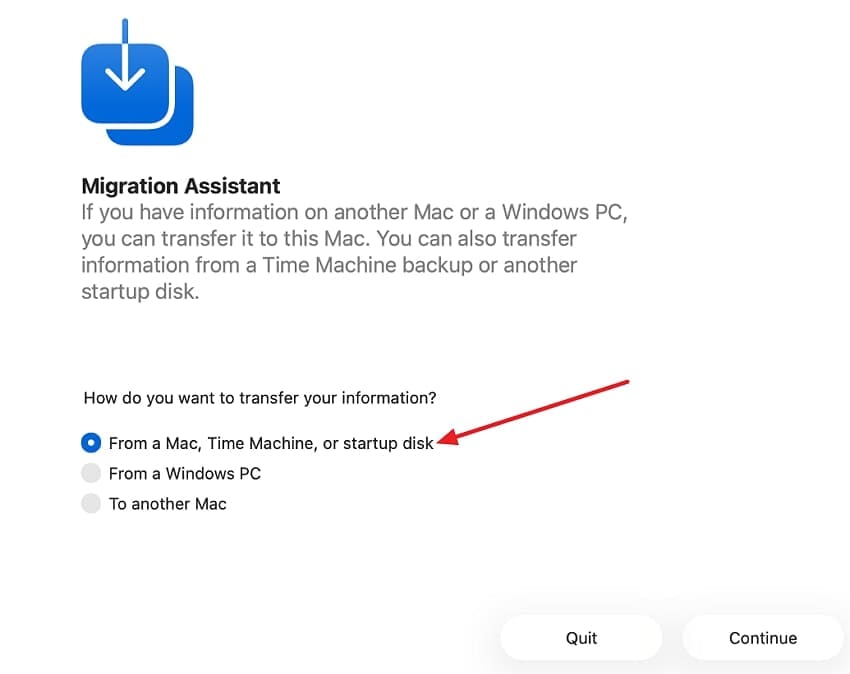
Step 1. On your new Mac, open “Migration Assistant” > Choose “From a Mac, Time Machine, or Startup Disk” > Press “Continue.” On the old Mac, choose “To Another Mac.”
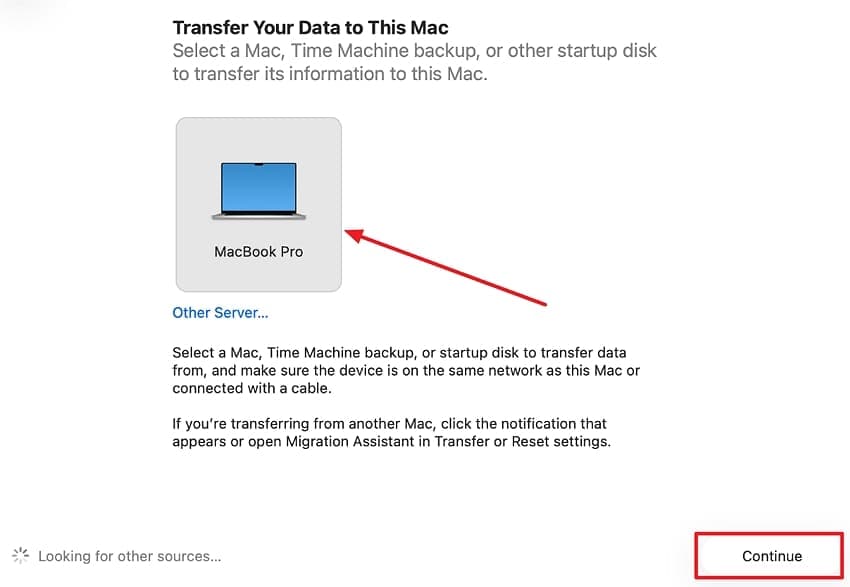
Step 2. On your new Mac, choose the old Mac when it appears > Press “Continue.”
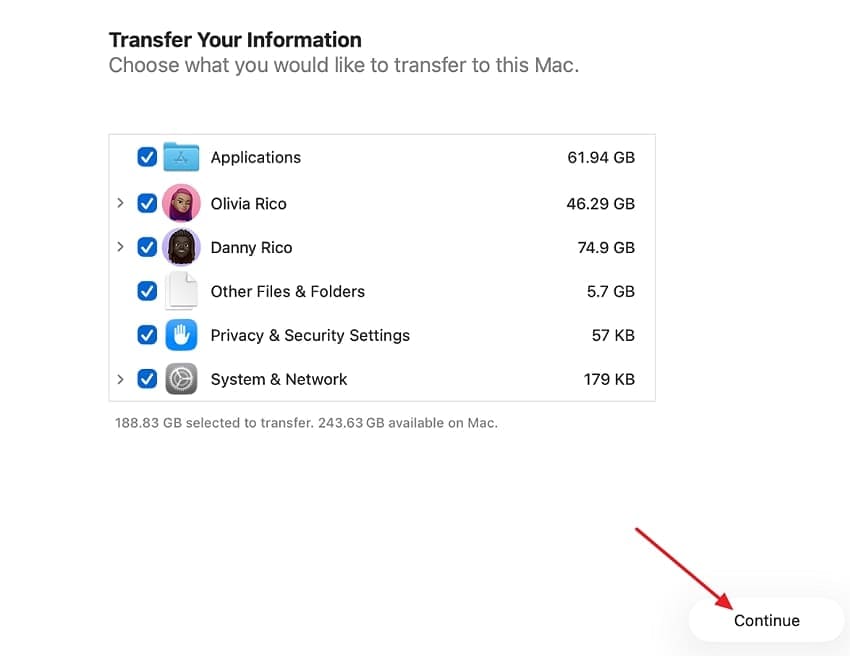
Step 3. Choose the information you want to transfer > Click “Continue” again. Wait for the transfer to complete > Check the migrated files.
Method 3. Restore Specific Files from Time Machine
Time Machine restores specific missing files without changing other data on your Mac. It can recover lost data after Migration Assistant lost files on Mac safely. Apple confirms that Time Machine can restore individual files and return them to their original locations. To restore specific files, use the steps below:
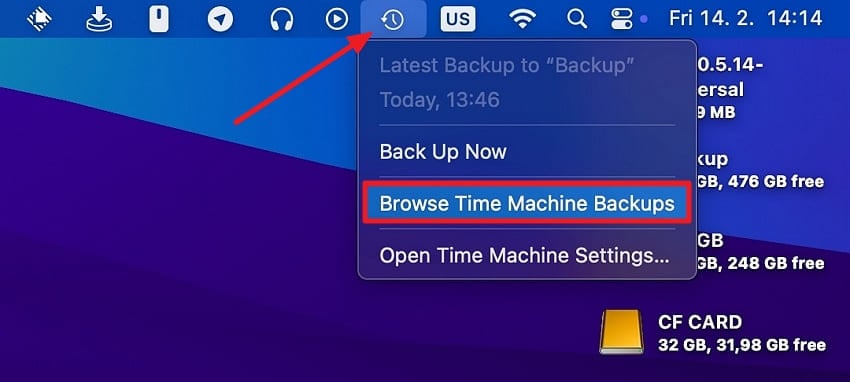
Step 1. Connect the Time Machine backup > Open the folder where the missing file was previously stored > Click “Time Machine” > Select “Browse Time Machine Backups.”
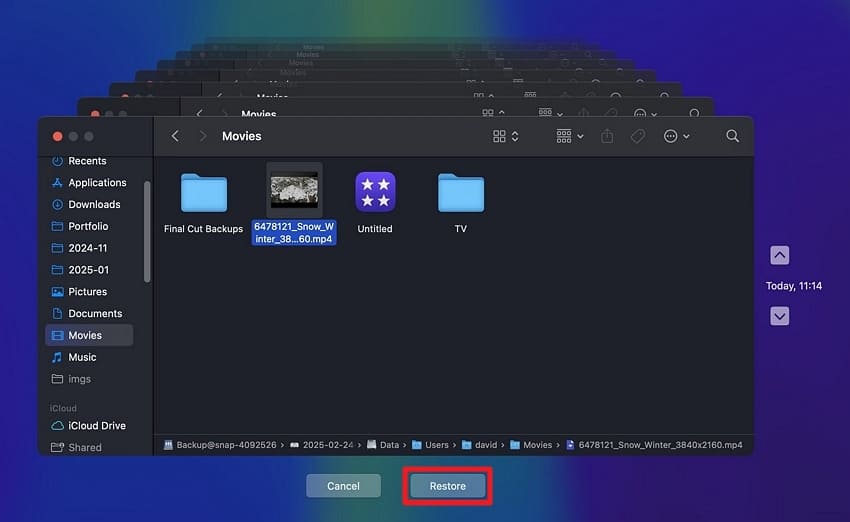
Step 2. Use the timeline on the right > Select the file > Click “Restore.”
Method 4. Migrate Again from a Backup or Startup Disk
This method works when your old Mac is unavailable, but backups remain accessible. Migration Assistant transfers data directly from Time Machine backups or connected startup disks. Follow these steps to migrate again:
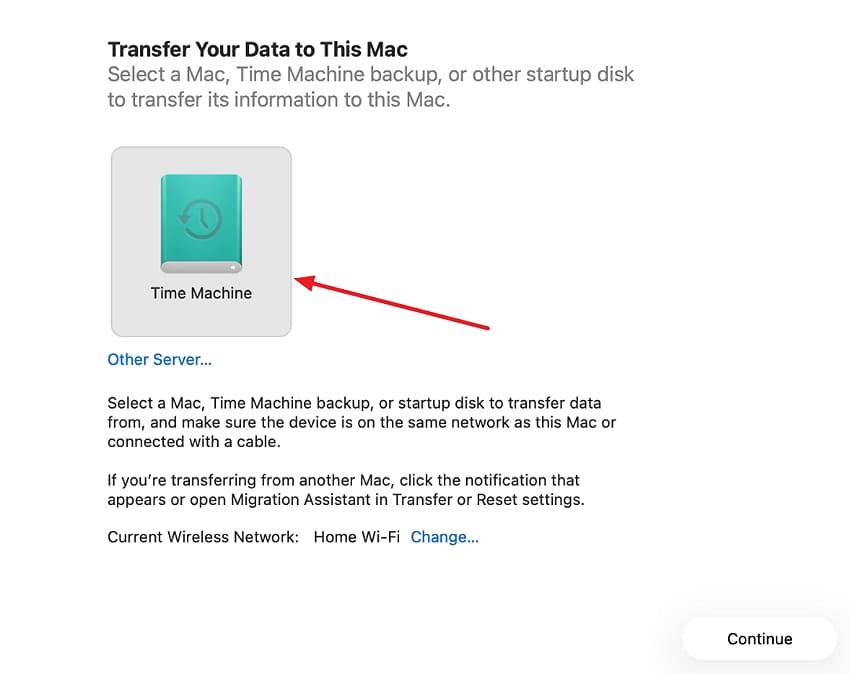
Step 1. Connect your backup drive or the old startup disk > Open “Migration Assistant” > Select “From a Mac, Time Machine, or Startup Disk” > Press “Continue.”
Step 2. Choose the connected backup drive > Pick missing categories > Let the migration run.
Method 5. Restore From an External or Cloud Backup
External drives and cloud storage may still contain copies missing after migration. These backups remain separate from Migration Assistant, making them useful when Time Machine is unavailable. Check these sources before considering the files permanently lost:
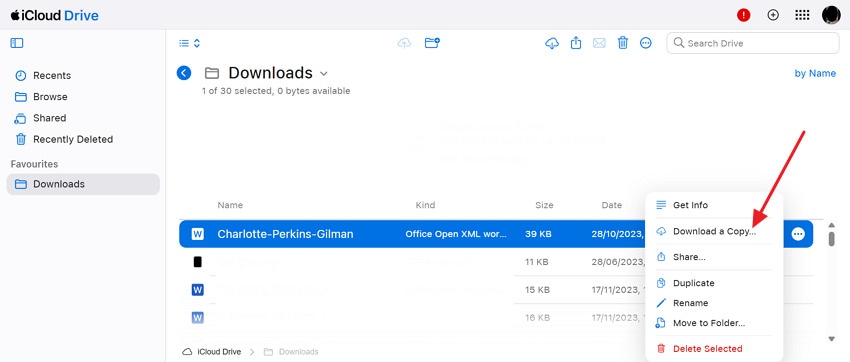
Instructions. First, use any external drive to restore files. If you don’t have it, access iCloud Drive and see if the missing files are there. If you find that, press “Three-Dots” > Click “Download” > Save to your Mac.
Part 5. Recover Lost Data After Migration Assistant
Previous methods work when original files or backup copies are still available. When Migration Assistant loses files permanently, recovery software becomes the practical solution.
When Data Recovery Software Is Needed
Recovery software becomes useful when files are no longer available on the original storage device or any backup. This can include files deleted after migration or lost after a drive was erased or reformatted. It may also help with deleted files on external transfer drives. Recovery results depend on whether the missing data remains recoverable and has not been overwritten.
Recover Lost Mac Files with Wondershare Recoverit
Deleted, erased, or unreadable source drives can leave important files completely inaccessible. This is where Recoverit can scan storage and recover missing data. It supports over 1,000 file types across documents, photos, videos, and more. Advanced filters help narrow scan results by file type, size, and date, while preview lets users check files before recovery.
Its AI-powered recovery features are designed to improve the restoration of damaged or fragmented photos and videos during supported recovery scenarios. AI algorithms can also help reconstruct severely corrupted video files found during scanning. Avoid writing new data to the affected drive, as new files may overwrite recoverable data.
Key Features
- Targeted Folder Scanning: Scans specific Mac locations, such as user folders, to focus recovery on the areas where missing files were stored.
- Advanced Recovery Modes: Uses advanced scanning methods to locate deleted, formatted, or otherwise inaccessible files across supported Mac storage devices.
- File Structure Recovery: Preserves original file names, paths, and folder structures when sufficient file-system information remains available during recovery.
- External Drive Recovery: Scans supported external HDDs, SSDs, USB drives, and other connected storage devices for recoverable files.
- macOS 26 (Tahoe) Ready: Compatible with macOS 10.13 through macOS 26 and supports Macs powered by M1, M2, M3, and M4 chips.
How to Recover Lost Mac Files with Recoverit
Now, follow the step-by-step tutorial provided below to recover lost data after Migration Assistant lost files on Mac using Recoverit:
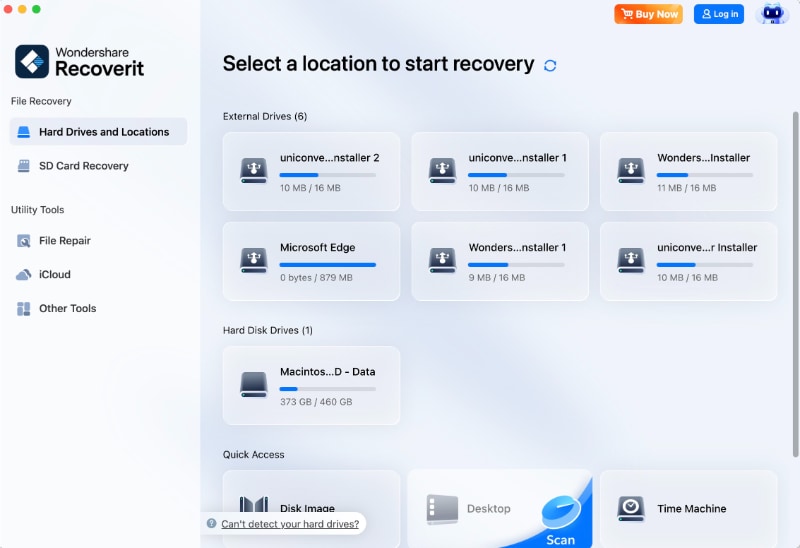
Step 1. Select the File Location
First, access the “Hard Drives and Location” tab > Select a particular drive.
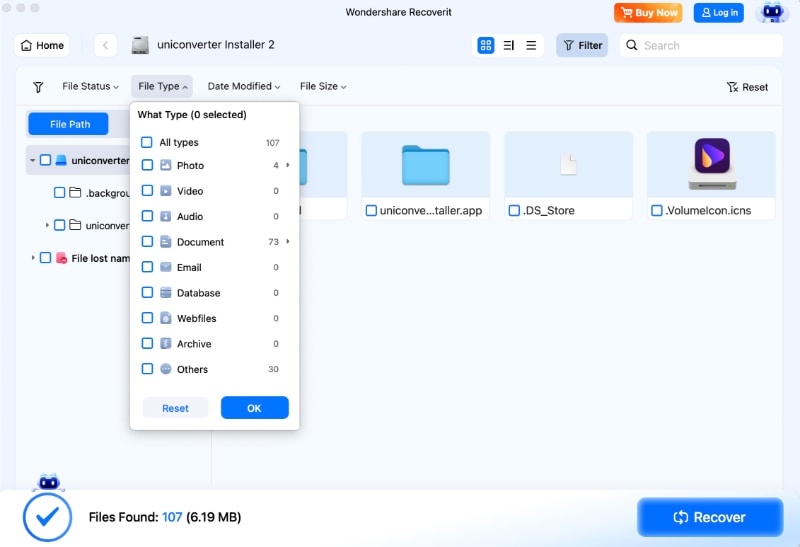
Step 2. Add Required File Filters
Next, press “Filter” > Change the “File Type” and “File Size” to speed up the recovery process.
Step 3. Preview the Recovered Files Before Saving
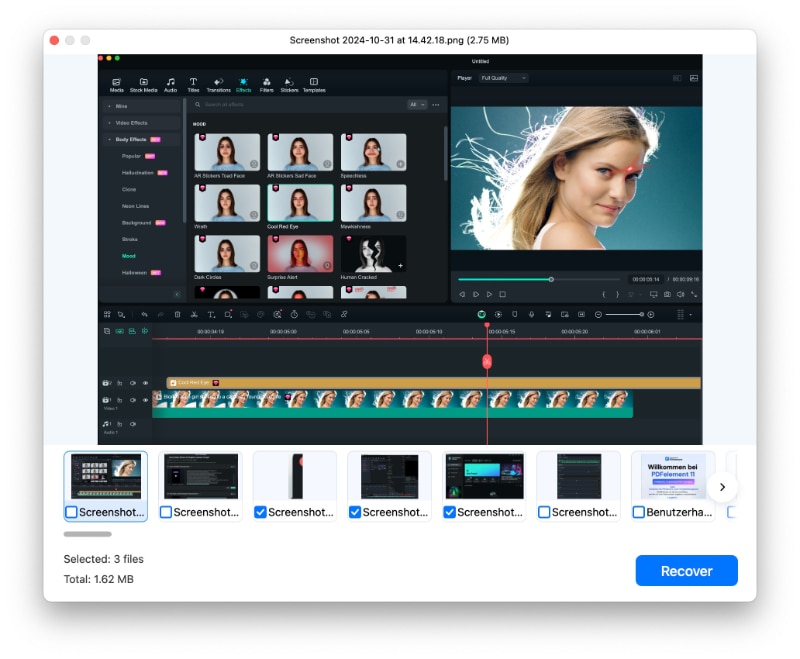
Once the scan is complete, preview the recoverable files > Select the files you need > Click “Recover” > Choose a safe location to save them.
Part 6. What to Do if the Source Mac or Drive Is Not Accessible
Recovery requires the source Mac or drive to remain detectable before scanning begins. To recover lost data after Migration Assistant lost files on Mac, first restore source access:
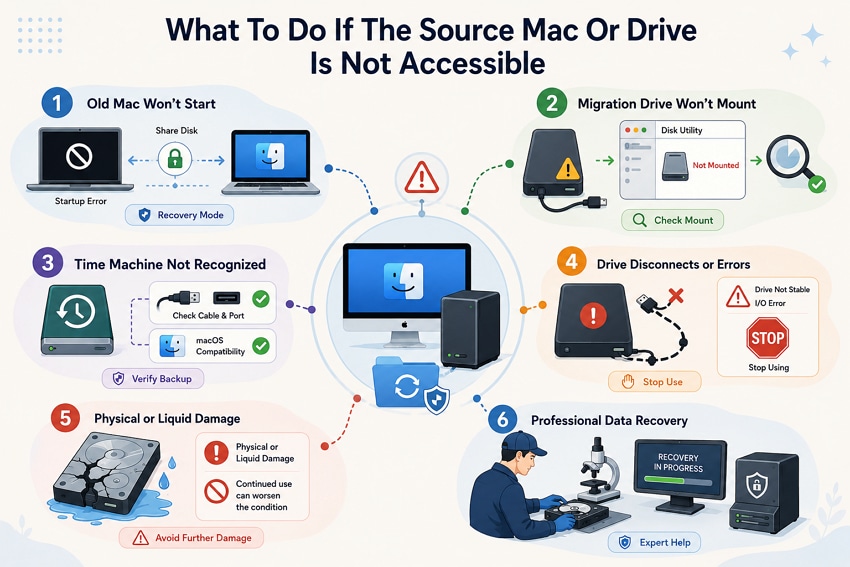
- The Old Mac Will Not Start: On Apple silicon, use Share Disk in macOS Recovery. Supported Intel Macs can use Target Disk Mode.
- The Migration Drive Will Not Mount: Check Disk Utility. If the drive appears there, try mounting it or running First Aid before recovery.
- The Time Machine Backup Is Not Recognized: Try another port or cable, then check whether Disk Utility detects the backup drive.
- The Drive Disconnects or Reports Errors: Stop repeated recovery attempts if the drive disconnects, makes unusual noises, or develops persistent read errors.
- The Storage Device Has Physical or Liquid Damage: Stop using damaged storage because continued operation may worsen the damage and affect recovery.
- Use Professional Data Recovery for Severe Hardware Failure: Contact a professional recovery service when the storage device cannot be accessed safely with software.
Part 7. How to Prevent File Loss During the Next Mac Migration
Many Migration Assistant lost files problems are easier to prevent than troubleshoot afterward. These 6 precautions reduce migration risks and make it easier to verify that important data arrived safely:
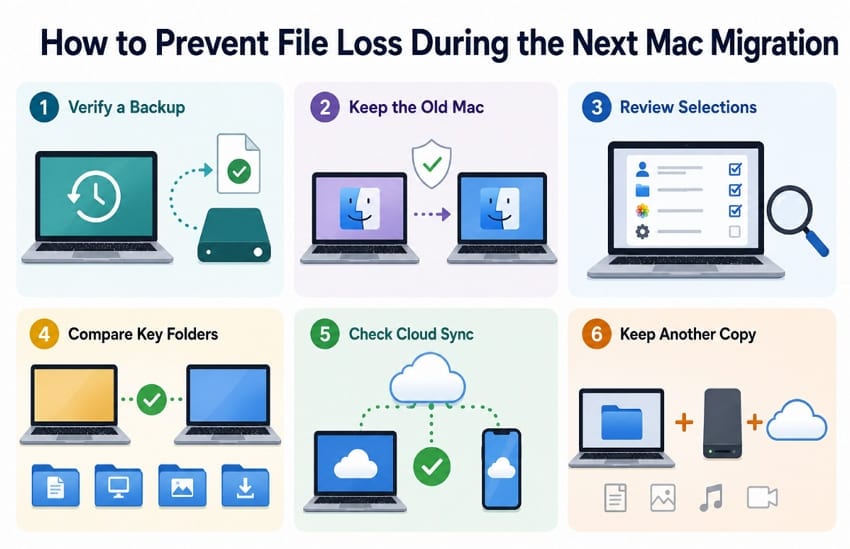
- Verify a Backup: Create a Time Machine backup before migrating, then restore a test file to confirm the backup is usable.
- Keep the Old Mac: Do not erase or trade in the source Mac until you have checked your important files on the new one.
- Review Selections: Review the accounts and information selected for migration, since anything you deselect will not be transferred.
- Compare Key Folders: Check important files in Documents, Desktop, Pictures, and other essential folders on both Macs before erasing the source.
- Check Cloud Sync: Confirm important iCloud and other cloud files are accessible and allow pending synchronization to finish where necessary.
- Keep Another Copy: Maintain a separate backup of important data so the migration and primary backup are not your only copies.
Conclusion
To conclude, Migration Assistant usually leaves source files untouched, so check other accounts and folders first. Search the new Mac carefully and keep the old Mac unchanged until everything transfers. To recover lost data after Migration Assistant lost files on Mac, act quickly after deletion. If backups fail and source files are deleted, we recommend Recoverit for AI-powered recovery.
FAQ
-
Can Migration Assistant be used between Macs running different macOS versions?
Yes, Apple states that both Macs do not need the same version, though each should be up to date. Transferring to an older macOS than the source causes more problems than the reverse. -
Does Migration Assistant transfer hidden files and user library data?
Migration Assistant transfers application support files, preferences, and most data inside Library folders. Files requiring unavailable permissions may appear inside Relocated Items on the new Mac. -
Why does the new Mac use more or less storage than the old one?
Less usually means iCloud is still downloading, or applications were not transferred. More often reflects duplicate copies left in Deleted Users or a second account. -
Should you keep the old Mac after migration is complete?
Yes, keep the old Mac for several weeks until verifying all transferred files. Erasing it too early can turn missing transferred files into permanent data loss.



