

 TL;DR:
Fix the DNS_PROBE_FINISHED_NXDOMAIN error in Chrome on macOS by first testing the exact hostname in Safari and on a cellular network to isolate whether the failure requires changing Chrome internal settings, updating Mac network configurations, or waiting for the domain owner to fix their DNS records.
● If the site loads in Safari but not Chrome, resolve browser-specific conflicts by clearing the Chrome host cache via chrome://net-internals/#dns, toggling the Secure DNS provider to automatic mode, or isolating extension interference using an Incognito window.
● If both browsers fail on your Mac but work on other devices, do not immediately switch to public DNS servers; instead, verify your macOS System Settings for required proxy rules, filtering policies, or disconnected corporate VPNs that restrict private hostnames.
● If the hostname fails across multiple independent networks and devices, the domain's authoritative DNS records are missing or misconfigured, meaning local macOS cache flushes like sudo dscacheutil -flushcache will not repair the connection.
Ask AI for a summary
 ChatGPT
 Perplexity
 Gemini
 Claude
 Grok
Grok
When Google Chrome displays DNS_PROBE_FINISHED_NXDOMAIN on a Mac, the browser cannot resolve the requested hostname because its DNS lookup received a response indicating that the name does not exist. The message may appear after a mistyped address, an outdated cached response, a resolver change, or interference from a VPN or network filter. Sometimes the website's own DNS records are the problem, so changing Mac settings will not help.
This guide shows how to locate the failure before changing anything: compare browsers, networks, and devices, then review Chrome Secure DNS and macOS network settings only when the test results justify it. The steps apply to supported current Chrome and macOS versions, although labels can differ by release.
In This Article
Part 1. Identify Where the DNS Failure Occurs
NXDOMAIN is a DNS response about a name, not a diagnosis of your Mac's hardware or an instruction to reinstall Chrome. A resolver can return it for a genuinely absent hostname, a cached negative result, or a filtering policy. Start with the same complete address throughout your tests; otherwise, apparently contradictory results may simply involve different subdomains.
1. Check the Exact Hostname and Test Other Websites
Google's Chrome connection troubleshooting starts with checking the URL and whether other sites are affected. Run three quick checks:
- Retype the address: Check the spelling and any prefix such as www or portal. Chrome autocomplete may have saved an incorrect address.
- Compare the subdomain: If portal.example.com fails, test example.com. A working parent domain does not prove that its subdomain exists.
- Open two unrelated sites: If they both load, you probably do not have a complete Wi-Fi outage. Focus on the original hostname or a domain-specific DNS policy.
Result: If you made a typing correction and the website loads, stop. There is no reason to flush caches or change DNS servers.
2. Compare Chrome With Safari
Step 1. Copy the full address from Chrome, including the subdomain, into Safari's address bar.
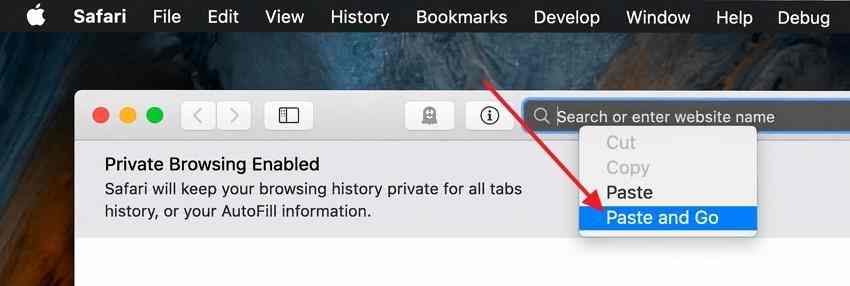
Step 2. If Safari loads the page but Chrome does not, proceed to Part 2 and investigate Chrome's cached host entries, Secure DNS selection, extensions, or management policies.
Step 3. If both browsers fail, check the Mac's DNS and VPN configuration in Part 3 before blaming Chrome. Safari succeeding once is a useful clue, not proof that its DNS route is identical to Chrome's.
3. Test Another Device and Network
Try the same hostname on a phone connected to the same Wi-Fi, then switch the phone to cellular data. If practical, connect your Mac to a trusted phone hotspot. These comparisons help separate computer-specific settings, local router DNS, and an issue with the domain.
| Observed result | Most useful next check |
| Fails only in Chrome; Safari works on the same Mac | Chrome Secure DNS, host cache, and extensions |
| Fails on several devices on one Wi-Fi network; works on cellular | Router or network DNS, VPN, and filtering settings |
| Fails on your Mac but works on another device using the same network | Mac DNS, proxy, VPN, or other local software |
| Fails on unrelated networks and devices | Hostname registration, DNS delegation, or authoritative records |
| Fails only for a private work/school name when off the VPN | Reconnect the required VPN or contact the administrator; do not substitute public DNS |
Note: A phone can use its own encrypted-DNS or filtering service, so this table gives clues rather than definitive proof.
Part 2. Fix a Chrome-Specific Resolution Problem
Use these changes when Safari or another browser reaches the site but Chrome does not. Retest the same hostname after each action instead of changing multiple variables at once.
1. Restart Chrome, Check for Updates, and Isolate Extensions
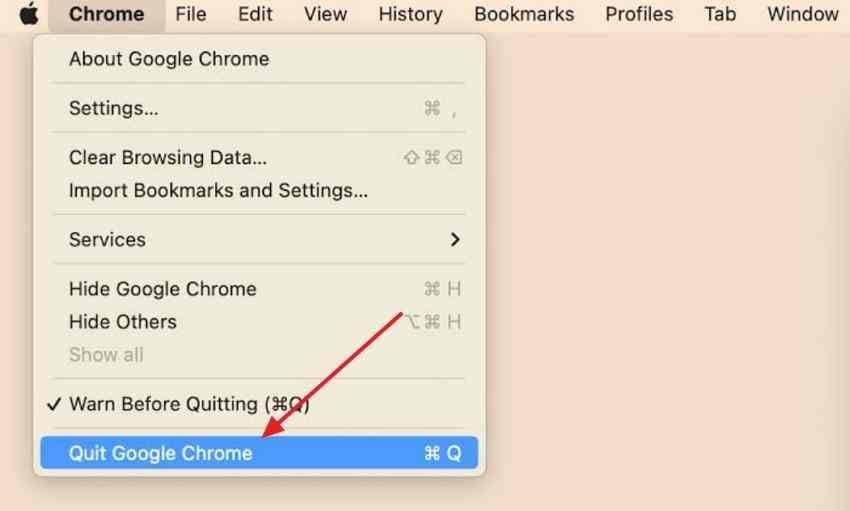
Step 1. In the macOS menu bar, choose Chrome > Quit Google Chrome. Reopen it and test the website. Closing one tab is not the same as fully quitting Chrome.
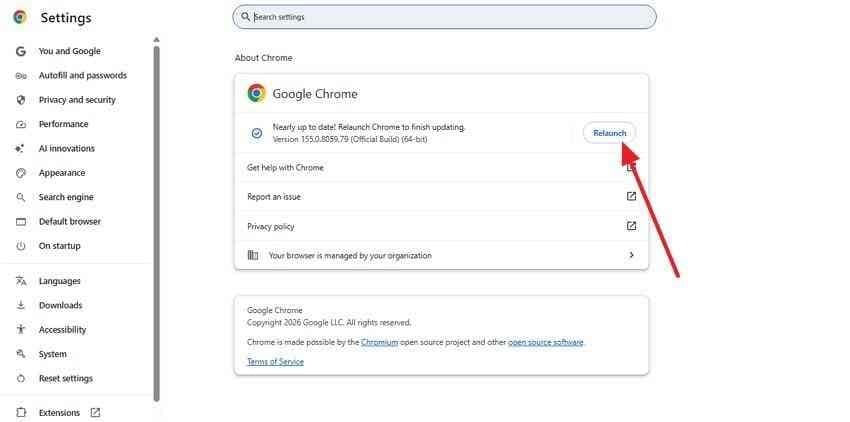
Step 2. Open More > Help > About Google Chrome. Install any available update and select Relaunch when offered; Google documents the steps in its Chrome update instructions.
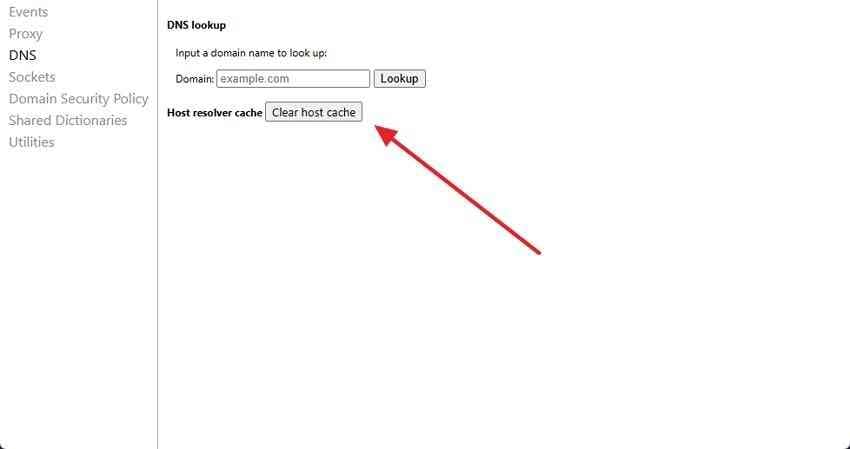
Step 3. If this diagnostic page is present in your Chrome build, enter chrome://net-internals/#dns in the address bar and select Clear host cache. This targets Chrome's stored host lookups rather than deleting your personal files or saved passwords.
Step 4. Try the same URL in a new Incognito window using File > New Incognito Window. If the page loads there, temporarily disable applicable extensions in chrome://extensions, then enable them one by one to identify a conflict. Incognito behavior is a clue, not a conclusive test of all extensions.
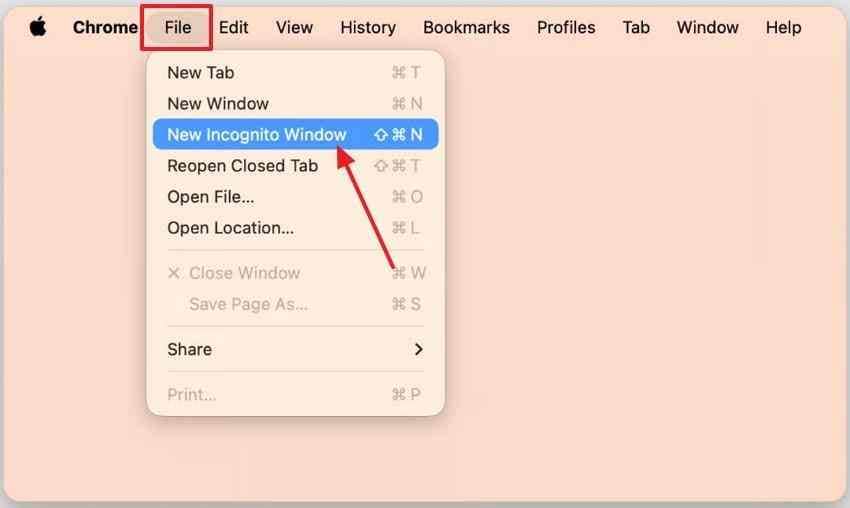
If it still fails in Incognito, continue with the DNS provider check instead of repeatedly deleting browsing history.
2. Review Chrome's Secure DNS Provider
Open Chrome Settings > Privacy and security > Security, then find Use secure DNS. Google's current Secure DNS help page distinguishes automatic mode from a custom provider.
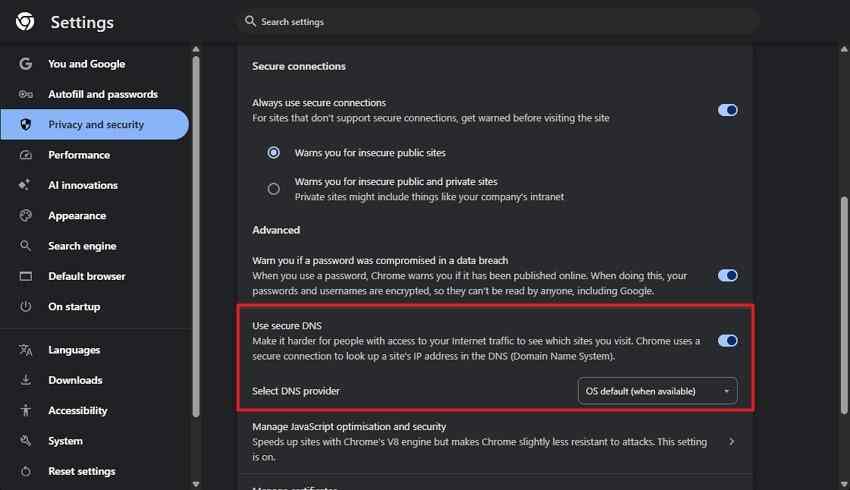
| Chrome setting | What to expect | Safe troubleshooting action |
| Current service provider / automatic | Uses the current service where supported; Chrome can fall back to a conventional lookup | Good baseline for testing a personal connection |
| Specified Secure DNS provider | Queries the selected encrypted provider without an automatic unencrypted fallback | Temporarily compare with current-provider mode, if permitted |
| Secure DNS off | Leaves Chrome's encrypted resolver choice out of the test | Use only as a temporary diagnostic; turn it back on as appropriate |
If a custom public provider cannot resolve an internal work hostname, changing the provider is unlikely to create that private DNS record. Restore your organization's required setting instead. Do not permanently disable a security feature to fix an unrelated domain that genuinely does not exist.
3. Check Whether Chrome Is Managed
Open Chrome's menu and look for Managed by your organization, or enter chrome://management. The separate page chrome://policy lists active browser policies; both methods are described in Google's managed-browser guidance.
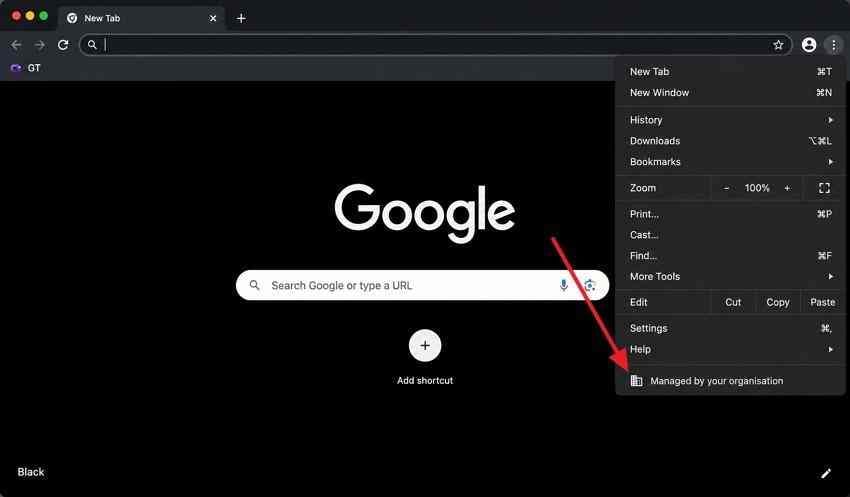
If Secure DNS controls are locked, ask your administrator whether a proxy, split-DNS VPN, network filter, or DNS policy is required. Do not try to remove work policies or security software as a generic Chrome fix.
Part 3. Check the Mac Network and DNS Configuration
If Chrome and Safari both fail, investigate the active network settings. Record their existing values first, particularly on Macs with company VPNs or custom search domains.
1. Record DNS Servers, Proxy Rules, and VPN Status
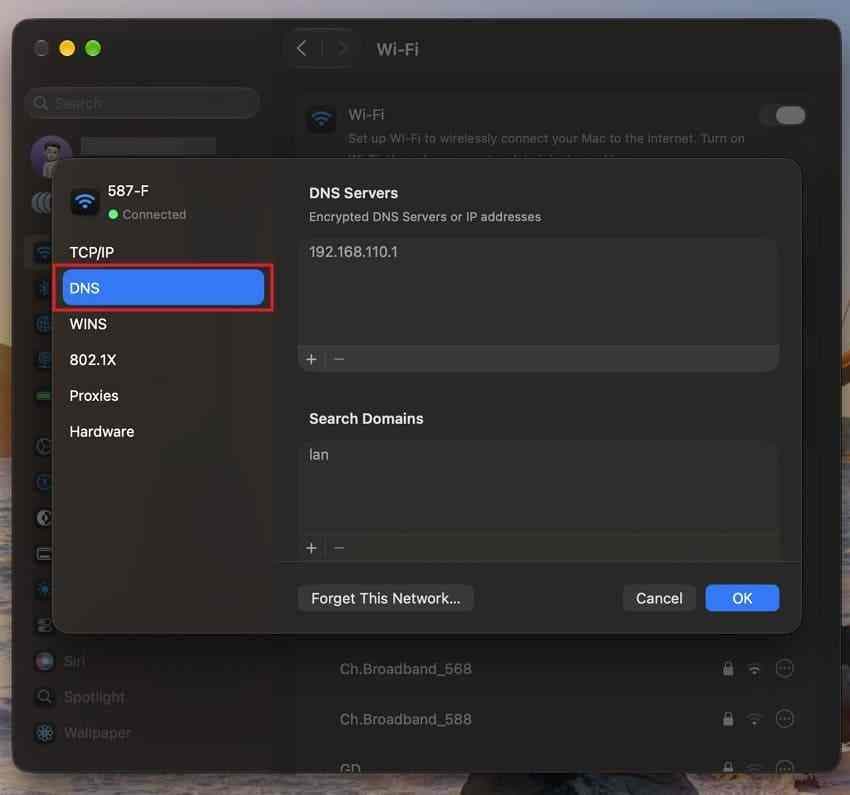
DNS: Open Apple menu > System Settings > Network, select your active connection, then choose Details > DNS. Copy the DNS server addresses and search domains before editing them. Apple's Mac DNS settings guide explains these fields.
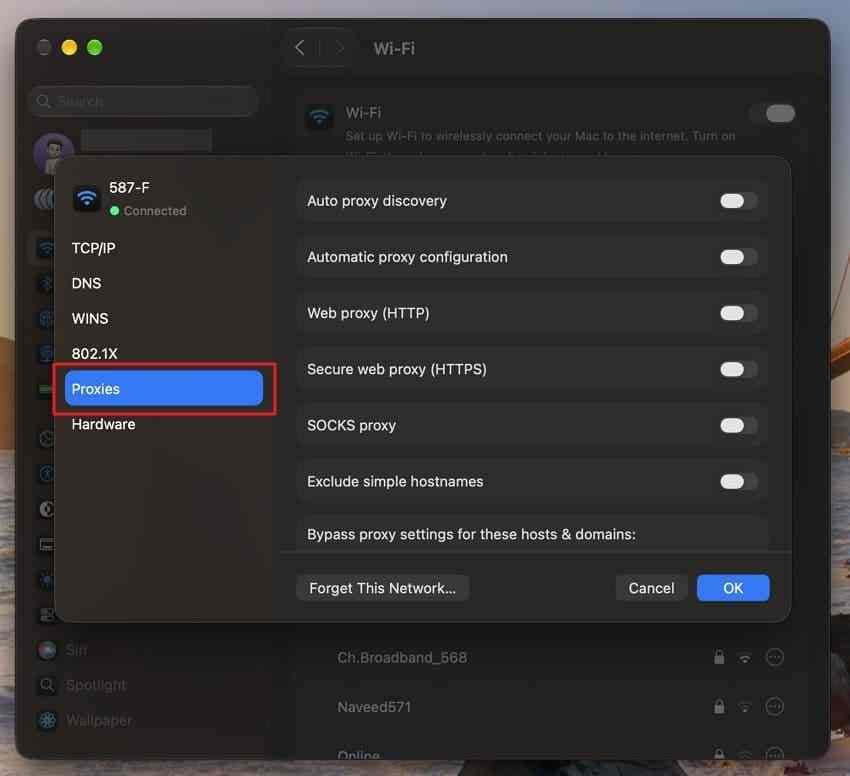
Proxy: In the same network details, choose Proxies and note any automatic proxy configuration or HTTP, HTTPS, and SOCKS settings. Such settings may be required by an organization; see Apple's proxy settings reference.
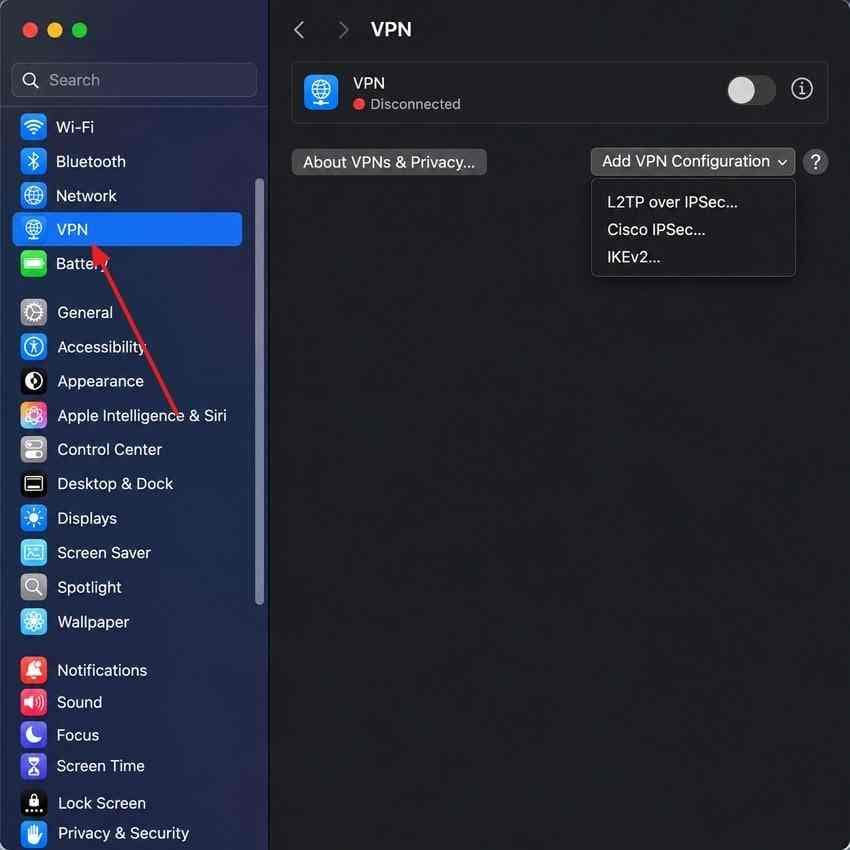
VPN: Check System Settings > VPN and any installed VPN client's status. Apple's Mac VPN setup guide identifies settings supplied by an administrator or VPN provider.
2. Compare DNS Resolvers Before Switching Servers
When your network allows direct DNS queries, Terminal's dig command can compare a hostname's lookup results. Replace example.com in both commands with the same exact hostname that fails in Chrome.
Step 1. Open Applications > Utilities > Terminal and enter:
dig example.com A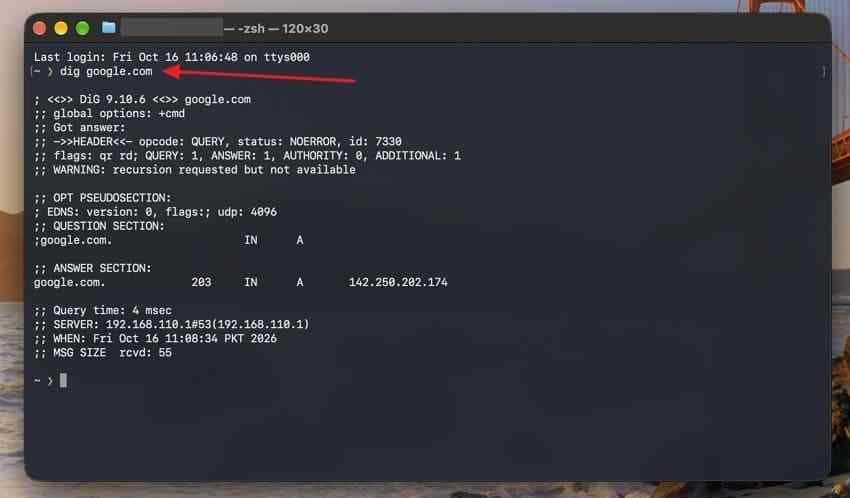
Step 2. With permission to use a public resolver, enter:
dig @8.8.8.8 example.com A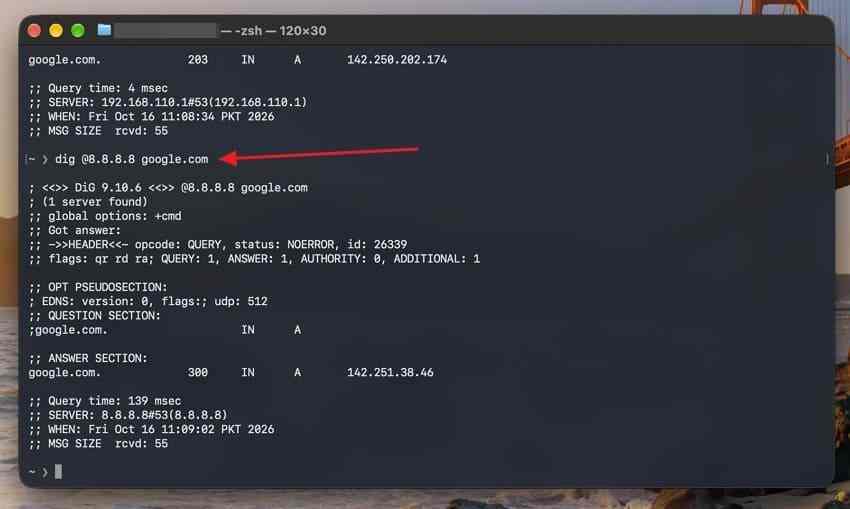
Compare the status values and answer sections, not just the returned IP addresses. Google describes how to interpret such results in its Public DNS troubleshooting reference. A direct dig query does not always follow the same split-DNS, VPN, or encrypted-DNS path as Chrome.
Optional: If you specifically need to check that direct UDP queries reach Google Public DNS, run the documented probe below. The expected TXT answer identifies Google's resolver and is not a test of whether your website exists.
dig @8.8.8.8 test.dns.google.com TXT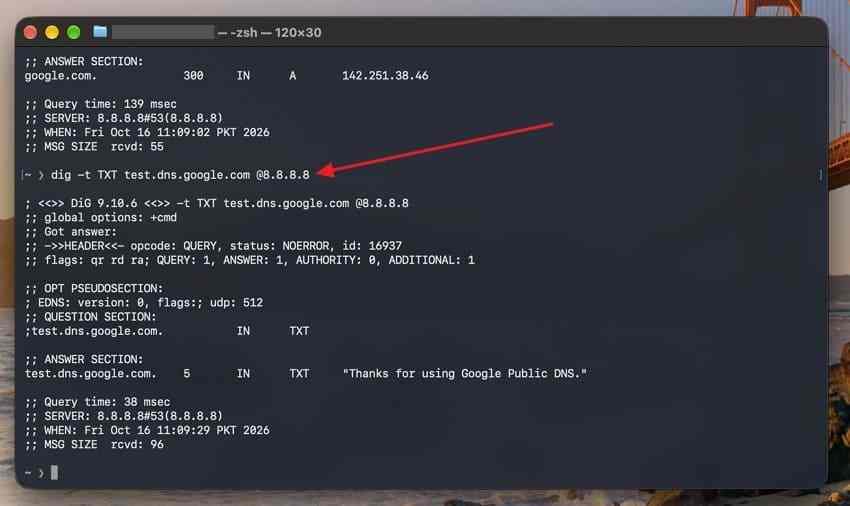
If your company blocks external DNS or uses private hostnames, skip these comparisons and consult its network administrator. To temporarily change the Mac's DNS servers, follow Google's configuration and rollback guidance, record the originals, and restore them after testing.
3. Reconnect Wi-Fi and Check Wider Network Failures
If multiple unrelated sites fail on the same network, toggle Wi-Fi off and on from Control Center, then reconnect. Restart the Mac. If other devices are also affected, restart the router only if you administer it and doing so will not interrupt other users.
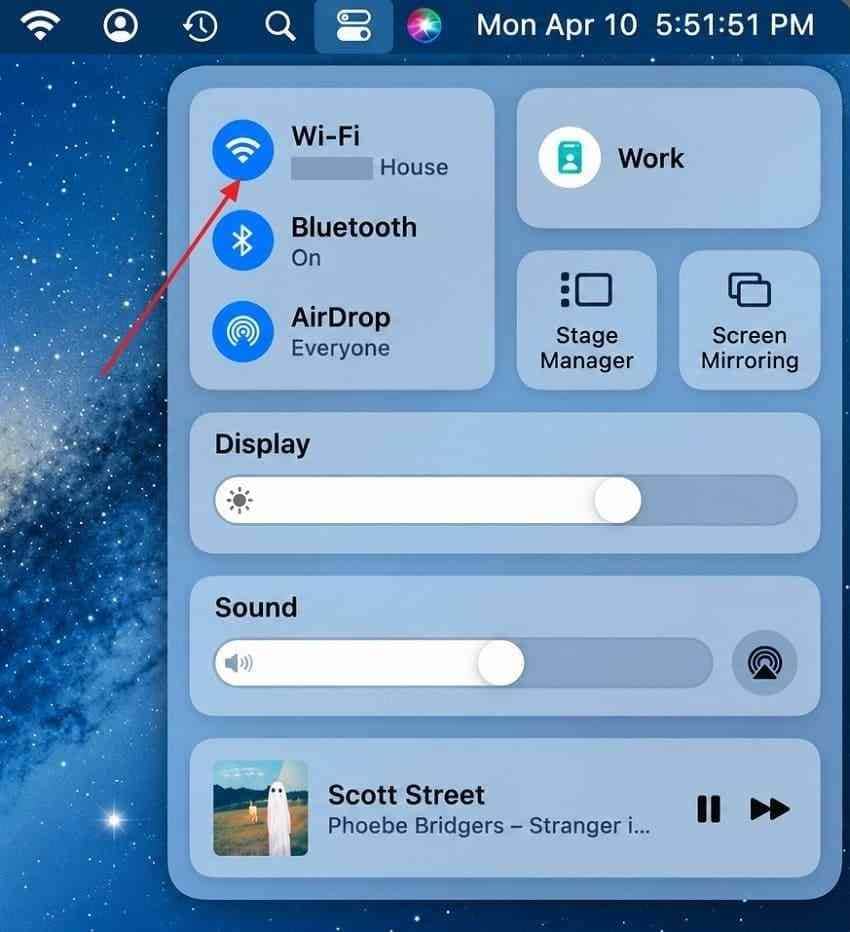
For a persistent Wi-Fi problem, hold Option, select the Wi-Fi menu, and choose Open Wireless Diagnostics. Apple's Wireless Diagnostics instructions explain that the tool analyzes connectivity without changing network settings.
For a more detailed explanation of user and system caching (rather than DNS alone), the existing Recoverit article on clearing caches on Mac covers separate cache types. Do not delete arbitrary system cache folders to fix NXDOMAIN.
4. Renew a DHCP Lease Only When IP Addressing Is Faulty
If your Mac has no valid DHCP-assigned address, cannot reach its router, or has other connection symptoms beyond one failing hostname, a DHCP renewal may help. It does not create missing public DNS records.
Step 1. Open System Settings > Network and choose the affected Wi-Fi or Ethernet connection.
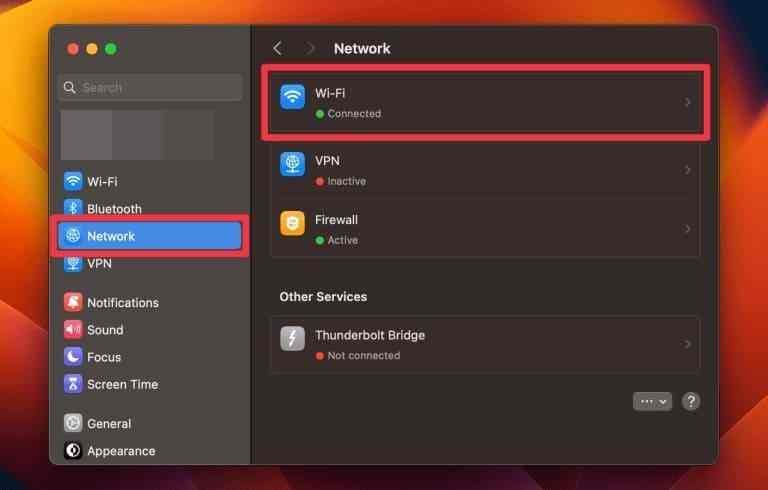
Step 2. Choose Details > TCP/IP > Renew DHCP Lease, then OK, if the connection uses DHCP. See Apple's DHCP renewal instructions.
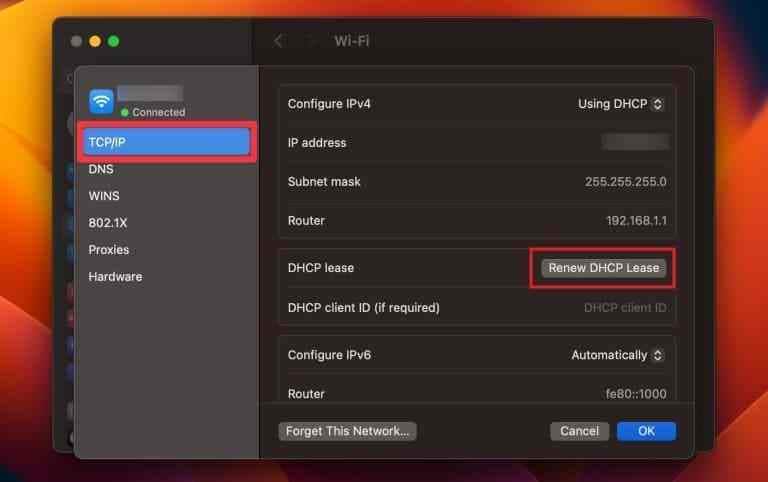
Note: Do not renew a manually assigned corporate IP address without authorization. If only one hostname fails and other connections work, return to the domain diagnostics below instead.
Part 4. Investigate a Domain That Fails Across Devices
When the same public hostname fails on independent networks, investigate its DNS records. A real domain-level fault requires action from the website owner, its registrar, or its DNS provider; repeated browser resets cannot publish missing records.
1. Distinguish NXDOMAIN From Other DNS Responses
Use the same hostname and record type when comparing DNS servers. Google's domain troubleshooting guide recommends checking public resolvers and, when needed, authoritative name servers.
| DNS result | Meaning | Next step |
| NOERROR with an answer | The queried record exists at that resolver | Check browser caching, proxies, and local routing |
| NOERROR without an answer | The name may exist, but not with the queried record type | Check A vs. AAAA vs. other requested records |
| NXDOMAIN | The resolver reports that the queried DNS name does not exist | Confirm spelling and compare another allowed resolver |
| SERVFAIL | The resolver could not complete the lookup | Check authoritative servers, DNSSEC, and provider health |
| Timeout | No response was received in time | Check network reachability, firewalls, and blocked DNS traffic |
Important: DNS filtering services may intentionally answer NXDOMAIN for a blocked hostname. A single NXDOMAIN result does not establish that the public domain registration is missing.
2. Check Registration, Delegation, and Authoritative DNS
If you administer the domain, first check its registration status with ICANN Lookup, then compare the nameservers delegated at the parent zone with those serving your DNS zone.
Use these example commands after replacing the domain with one you control:
dig example.com NS
dig example.com SOA
A missing subdomain, incorrect nameserver delegation, expired registration, or stale authoritative configuration needs a change by the domain owner or DNS provider. DNSSEC failures more commonly appear as SERVFAIL, not necessarily NXDOMAIN.
3. Report Reproducible Results to the Right Owner
Send the website operator or network administrator the full hostname, exact error, time, Chrome and macOS versions, and a brief comparison of results across browsers, networks, and DNS resolvers. Remove personal credentials, internal hostname details, and other sensitive information from screenshots before sharing.
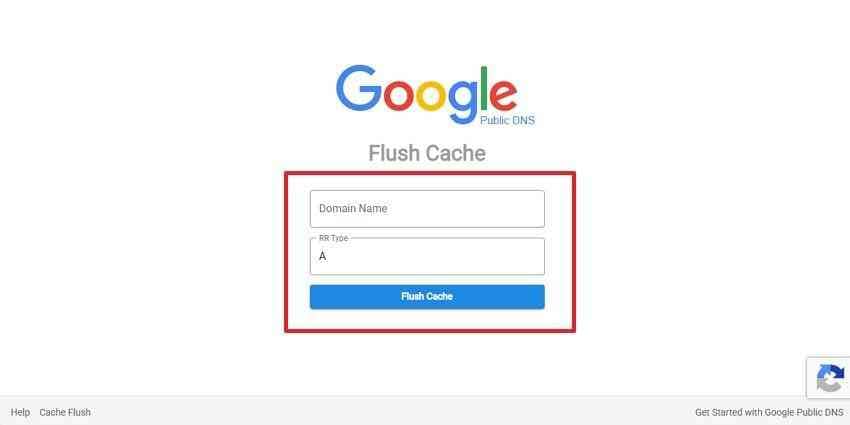
If a domain's records were recently corrected but Google Public DNS itself still has an outdated cached result, its Flush Cache page is a specialized troubleshooting option. It does not repair incorrect authoritative DNS data or flush every resolver on the internet.
Part 5. Verify the Fix and Restore Required Settings
The last check is not whether any website opens; it is whether the original hostname now resolves on the connection you actually need to use.
1. Retest the Same Hostname and Refresh Local DNS if Needed
Return to Chrome, reload the same full URL, and compare with Safari. If the authoritative DNS records have been corrected but the Mac still seems to use an older response, fully quit and reopen Chrome before considering a macOS DNS cache flush.
For users comfortable with Terminal, this command refreshes macOS resolver caches on supported versions without deleting browsing history or personal files:
sudo dscacheutil -flushcache; sudo killall -HUP mDNSResponder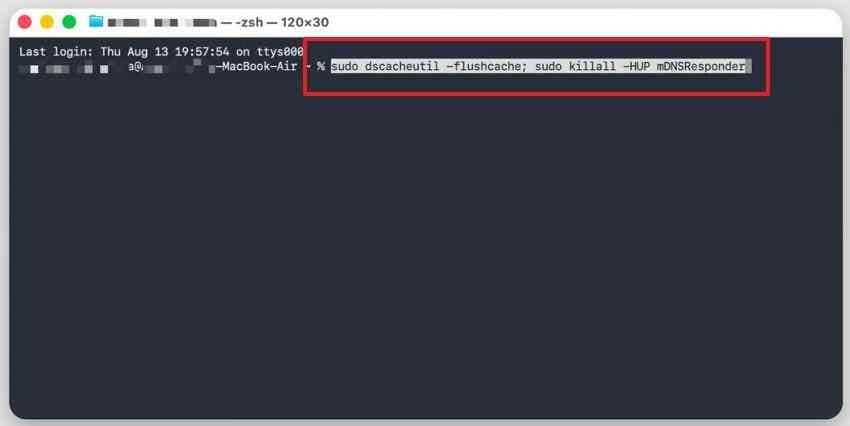
Enter your administrator password only in your local Terminal. The command cannot fix a hostname that authoritative DNS servers still say does not exist. Negative DNS responses may also persist temporarily in upstream caches, as described by RFC 2308.
2. Restore Necessary DNS, VPN, and Proxy Configuration
Remove test DNS servers if they did not help, restore your recorded network settings, reconnect required corporate VPNs, and re-enable any permitted security features you temporarily paused. If you switched Chrome away from its approved Secure DNS provider, restore that configuration as well.
Retest private company sites after reconnecting the VPN and public sites on the ordinary network. What works on a public hotspot may not match your office's split-DNS environment.
3. Keep Only Changes That Solved the Problem
If the domain fails everywhere but other sites work, document the evidence and wait for its owner to correct the DNS issue instead of repeatedly changing resolvers. If a Mac-only problem persists, ask the network administrator or ISP to interpret the results. DNS troubleshooting does not require formatting a drive, reinstalling macOS, or running data-recovery software.
Separate file-loss situation: If an unrelated storage issue has actually deleted files from readable Mac storage, Wondershare Recoverit may help recover them. It does not repair Chrome, DNS, or your network connection.

Conclusion
A DNS_PROBE_FINISHED_NXDOMAIN error in Chrome on Mac is best resolved by identifying where the failed lookup occurs. Check the exact hostname, compare Chrome with Safari, and test another network before modifying settings. For Chrome-only failures, review its host cache, extensions, and Secure DNS choice. If multiple browsers fail, investigate macOS DNS, proxies, VPNs, and connectivity. Domain-wide NXDOMAIN results may require the website owner to correct DNS records. Restore temporary changes afterward, and avoid unnecessary system resets when the problem is only name resolution.
FAQ
-
Why does DNS_PROBE_FINISHED_NXDOMAIN appear only in Chrome on my Mac?
Chrome may use a different Secure DNS provider, saved host entries, extensions, or browser policies from Safari. Compare the exact address in both browsers, then test Chrome with its current service provider and, where available, clear the host cache. Do not assume a Chrome-only failure means the public domain is unavailable. -
Does clearing the DNS cache on Mac delete browsing history or personal files?
No. Clearing macOS DNS cache information or Chrome's host cache does not erase documents, bookmarks, stored passwords, or browsing history. That is different from the separate Chrome command to delete browsing data. A DNS cache refresh also cannot repair missing records at the website's authoritative servers. -
Why does DNS_PROBE_FINISHED_NXDOMAIN affect only one website?
The specific hostname may be mistyped, missing from public DNS, filtered, or cached as nonexistent. Compare its exact spelling and DNS results with another known-working site. If independent networks and resolvers cannot find it, the website owner or DNS administrator may need to correct its registration, delegation, or records. -
Can a macOS update cause DNS_PROBE_FINISHED_NXDOMAIN errors?
An update may expose a conflict with VPN software, a proxy, a network filter, or a previously customized resolver, but the error alone does not prove macOS is defective. Compare Chrome and Safari, check the current DNS and VPN settings, and review applicable software updates or organizational policies before changing network configurations.


