 TL;DR:
If your external bootable backup disappears from Startup Disk after upgrading to macOS 27 Golden Gate 27.0, do not erase the drive, as cloning developers have identified this as a startup-selection visibility bug that can be resolved by updating to SuperDuper 4.0.7 or Carbon Copy Cloner 7.2 and running your next scheduled backup.
● To confirm you are experiencing this specific visibility bug rather than hardware failure, check if the physical SSD appears in Disk Utility under View > Show All Devices and successfully mounts readable files in Finder before attempting any repairs.
● SuperDuper 4.0.7 applies the necessary boot-registration workaround automatically during the next Smart Update, preventing the need to manually reduce Apple silicon security policies or run terminal commands in the macOS Recovery environment.
● If files are genuinely missing and require Wondershare Recoverit, you must connect the external drive to a Mac running macOS 26 Tahoe or earlier due to September 22, 2026 compatibility limits, and you must use your credentials to unlock FileVault-protected APFS volumes prior to scanning.
Ask AI for a summary
 ChatGPT
 Perplexity
 Gemini
 Claude
 Grok
Grok
If an external bootable backup disappeared from Startup Disk or the Apple silicon startup-options screen after upgrading to macOS 27 Golden Gate, do not assume the SSD is damaged or the backup was erased. On September 14, 2026, Shirt Pocket, the developer of SuperDuper, reported that correctly created bootable copies could fail to appear as startup choices in Golden Gate 27.0 even though the copies themselves remained bootable. The developer identified the report as FB24210103. This is a developer report, not an Apple-published known issue.
That distinction changes the safest response. A volume that still mounts in Finder or Disk Utility and contains readable files is a very different case from an external SSD that is absent from Disk Utility, repeatedly disconnects, will not unlock, or contains missing data. Start by establishing which case you actually have. Do not erase, repartition, run repair writes, or recreate a clone over the only copy simply because the drive is missing from a boot picker.
In This Article
Part 1. First Decide Whether the Drive Is Missing or Only Missing From Startup Choices
Apple supports using an external USB or Thunderbolt storage device as a Mac startup disk, and macOS normally exposes usable startup volumes through System Settings and the startup-options screen. But a drive can remain perfectly readable as storage even when it is not offered as a startup choice. That is the key diagnostic split for this Golden Gate issue.
Apple's public macOS 27 Golden Gate release notes, published September 14, do not document this specific external-boot visibility behavior. As of September 22, the strongest public evidence is therefore developer reporting rather than an Apple official known-issue notice.
1.1 What Developers Reported in macOS 27 Golden Gate
Shirt Pocket's September 14 Golden Gate release-day report says that a SuperDuper backup can be properly configured to boot yet fail to appear in both Startup Disk and the startup picker. The developer also notes that the copy operation can finish without an error. Later that day, Shirt Pocket published a separate test showing a Mac Studio booted from such a copy, with additional testing on a MacBook Neo and MacBook Pro.
On September 16, Shirt Pocket updated the situation again. In its SuperDuper 4.0.7 explanation, the developer said Golden Gate's startup-drive code was filtering selections based on a value that Apple's replication and blessing tools had not been setting. Shirt Pocket added a workaround to 4.0.7 and said it is applied automatically the next time the backup runs, including a Smart Update.
There is also independent developer evidence that the symptom was not limited to one cloning app. Carbon Copy Cloner's current CCC 7.2 release notes describe a Golden Gate-specific fix for bootable copies that were not appearing in Startup Disk or Startup Manager. That corroborates the existence of a startup-selection visibility problem, but it still does not turn the issue into an Apple-confirmed known issue.
1.2 Use the Symptom to Choose the Right Path
| What You See | What It Most Likely Means | Safest Next Step |
| The external volume mounts in Finder, files open, but it is absent from Startup Disk and startup options | Boot-selection visibility or registration issue is plausible, especially for a recently created or updated bootable clone | Keep the data intact. Check the cloning app's current Golden Gate update before making disk changes. |
| The physical SSD appears in Disk Utility, but its volume is gray or not in Finder | The hardware is detected, but the volume may be unmounted, locked, or have a file-system problem | Try a normal mount or unlock first. Protect readable files before repair operations. |
| The volume mounts, but expected folders or files are missing | This is a data-availability problem, not merely a boot-picker problem | Stop writing to the drive, check another intact backup, then evaluate data recovery from the external disk. |
| The device does not appear in Disk Utility and repeatedly reconnecting does not help | Connection, enclosure, power, controller, or hardware failure is more likely | Test a known-good cable, compatible port, and power path. Avoid software scans until detection is stable. |
| The APFS volume is visible but asks for a password or stays locked | Encryption is blocking access | Use the valid password, recovery key, or FileVault credential. Do not confuse encryption with deletion. |
| The disk appears in the startup picker but startup fails after selection | The drive is being discovered; the failure is later in the boot process | Troubleshoot the installed system or clone separately. Preserve data before reinstalling or recreating the disk. |
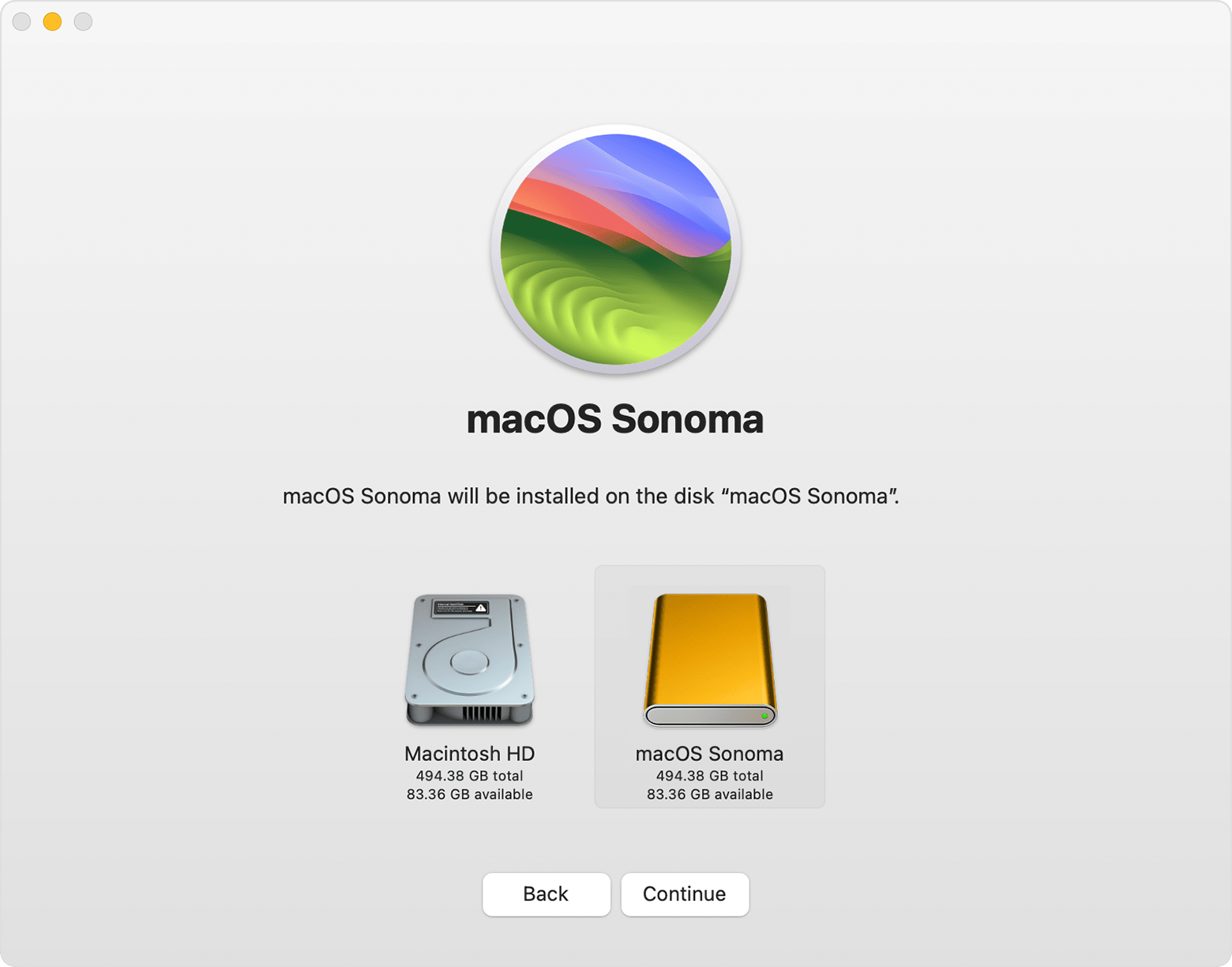
Apple's current external-startup documentation still illustrates the basic concept of installing macOS onto a separate disk. The support image below is a real Apple example using macOS Sonoma, not a Golden Gate screenshot; it is included only to show the difference between an external macOS installation and the internal Macintosh HD.
Part 2. Check the External SSD Without Modifying Its Data
The safest diagnosis starts with visibility, not repair. You are trying to answer three questions in order: Does the Mac detect the physical device? Can macOS mount and read the volume? Does macOS offer that volume as a startup choice? Those are separate layers.
2.1 Confirm Hardware Detection and Mount State
Step 1. Reconnect the drive directly.
Shut down any backup job, eject the disk if possible, and reconnect it directly to a compatible USB or Thunderbolt port. Temporarily remove hubs, docks, adapters, and unnecessary peripherals. If the enclosure needs external power, confirm that it is powered. A clone that disappears only when connected through one hub is a connection problem until proven otherwise.
Step 2. Check Finder and Disk Utility.
Open Disk Utility and use View > Show All Devices. Look for both the physical device and the APFS container or volume beneath it. If the volume is present but unmounted, Apple's Disk Utility mount instructions say to select the volume and click Mount. A successful mount that restores Finder access is strong evidence that the storage itself is still readable.
Apple's Disk Utility example below shows where View > Show All Devices exposes the physical disk, containers, and volumes in the sidebar. The screenshot is from an earlier macOS release, so use it to identify the control rather than as a Golden Gate-specific UI reference.

Step 3. Open representative files before you change anything.
If the backup volume mounts, browse folders that matter and open several documents, photos, project files, or other irreplaceable items. If the data is readable, make a separate copy of the most important files before testing repairs or recreating a bootable clone. A missing Startup Disk entry is not a reason to overwrite a readable backup.
Do not run First Aid, erase the disk, repartition it, or reinstall onto it as the first diagnostic action when the backup contains the only copy of important data. These operations can change the source. Protect the data first.
2.2 Check Startup Disk and Apple Silicon Startup Options Separately
macOS 27 runs on Apple silicon Macs. To check the one-time startup picker, shut down the Mac, then press and hold the power button until startup options load. Apple's startup-options documentation explains that each available startup disk should appear alongside the Options gear.

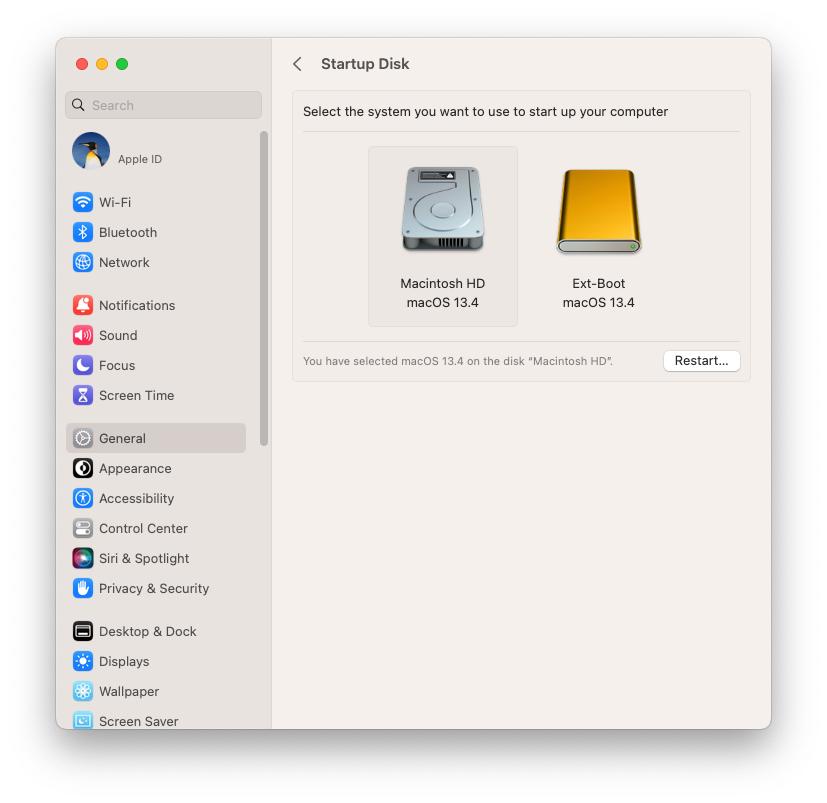
Check the same drive in System Settings > General > Startup Disk. If the volume is readable in Finder and Disk Utility but absent from both startup-selection interfaces, that symptom lines up with the developer-reported Golden Gate behavior. If the disk is absent from Disk Utility as well, it does not.
The following real Startup Disk example shows the distinction visually: macOS can list an internal startup volume and a separate external boot volume in the same settings pane. This screenshot is from Prosoft Engineering and predates Golden Gate, so it illustrates the startup-disk control rather than the macOS 27 bug itself.
Apple also documents that an external macOS installation is specific to the Mac model used for the installation. Its external startup disk guidance warns not to expect an external installation made for one Mac model to start another model. That is a compatibility check, not evidence of lost data.
Part 3. If It Is a SuperDuper Bootable Copy, Use the Current Developer Fix First
For a SuperDuper clone that remains readable but disappeared only from startup choices after Golden Gate, the current developer guidance is more relevant than generic disk-repair advice. The reported problem is about how the copy is presented as a startup choice, not about files vanishing from the SSD.
3.1 Update to SuperDuper 4.0.7 and Run the Next Backup
Shirt Pocket says SuperDuper 4.0.7 applies its workaround automatically on the next backup, including a Smart Update. If you already use SuperDuper, update through the application's built-in updater, connect the expected source and destination, confirm that the destination still contains the data you intend to keep, and run the planned backup job.
Before that job changes the destination, protect any unique files that exist only on the external disk. A clone should not be treated as expendable merely because it is normally derived from another Mac; in real workflows, users sometimes add data to the external volume after the clone was created.
3.2 Do Not Treat the Old Terminal Workaround as the Default Fix
Shirt Pocket's September 14 post described an emergency path involving Recovery, a security-policy change, and the bless command, but the developer explicitly discouraged using it unless necessary. Two days later, SuperDuper 4.0.7 provided a product-level workaround intended to avoid that manual process.
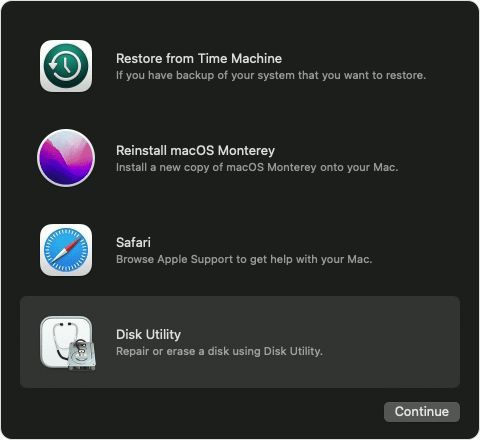
Apple's Recovery image below shows the macOS Recovery utilities window with Disk Utility available. It is an official Apple screenshot from macOS Monterey, not Golden Gate, and is included only to orient readers to the Recovery environment referenced by the developer workaround.
That matters because startup security is not a cosmetic setting. Apple documents Full Security as the default policy on Apple silicon, while Reduced Security relaxes which signed operating-system software can run. Changing security policy should therefore be a deliberate, well-understood administrative choice, not a routine first response to a missing external disk icon.
3.3 If You Use Another Cloning Tool, Check Its Golden Gate Release Notes
Do not apply a SuperDuper-specific procedure to every cloned disk. If the backup was created by Carbon Copy Cloner or another cloning product, use that developer's current Golden Gate documentation. A clone's bootability depends on the tool's replication process, the installed macOS version, the destination configuration, and the specific Mac.
Also distinguish a bootable backup from a bootable installer. An installer is a deployment/reinstallation medium; a cloned backup is intended to preserve a working system or data set. Recreating one does not automatically replace the other.
Part 4. Preserve or Recover Files When Bootability Is Not the Real Problem
A bootable copy can be useful even when it will not boot. If the volume mounts, the immediate recovery objective may simply be to extract files safely. If files are genuinely deleted, formatted, or inaccessible, then the external SSD becomes a data-recovery source rather than merely a startup-disk troubleshooting target.
4.1 If the Volume Mounts and Files Open, Copy Critical Data First
If Finder can read the external volume, copy the irreplaceable data to another healthy device before you repair, erase, or rebuild anything. Prioritize unique work: project folders, photos, source footage, documents, archives, and any backup data that no longer exists on the internal Mac.
Do not assume a backup has to boot to be useful. Shirt Pocket explicitly notes that a drive does not have to boot in order to be restored. In practical terms, the ability to read the data can be more important than the ability to start macOS from the external device.
If you are dealing with a Mac that will not start normally and need to preserve accessible data before system repairs, Recoverit's Mac Recovery Mode data-preservation guide explains the same safety principle: unlock or mount accessible storage, copy critical files first, and avoid repair writes until the data is protected.
4.2 If Files Are Deleted or Inaccessible, Recover From the Actual External Drive
If the external SSD is stable, detected by macOS, and contains genuinely deleted or inaccessible files for which no intact backup exists, Wondershare Recoverit can be considered for logical data recovery from the external drive itself. Recoverit's hard drive recovery workflow covers scanning connected internal and external storage and saving recovered files to another device.
Compatibility note: Recoverit supports macOS 27 Golden Gate. If files are missing from a stable, detectable external SSD or other storage device, you can connect the drive to your Mac, scan the affected storage with Recoverit, and save recovered files to a different healthy drive. Avoid writing new data to the source before recovery, as overwritten data may no longer be recoverable.
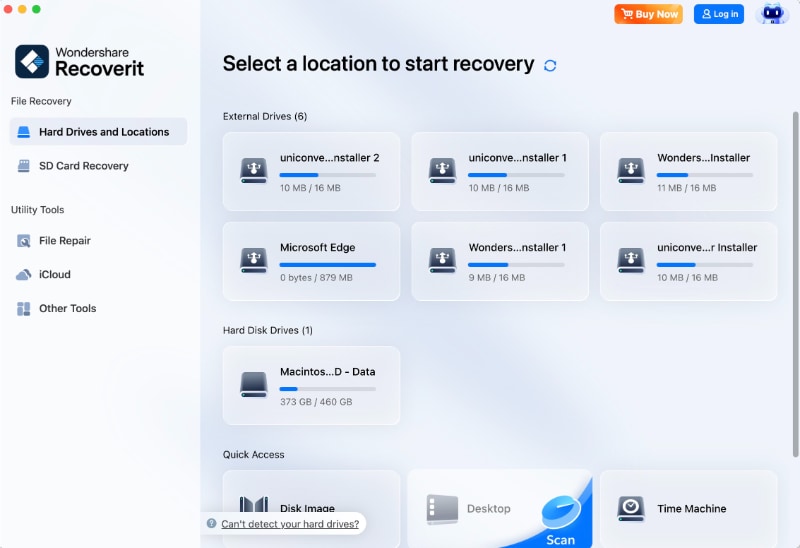
Step 1. Select the actual external drive.
Connect the affected SSD to the compatible recovery Mac. In Recoverit, identify the external device by capacity and label and select that disk as the source. Do not scan an unrelated internal disk simply because the missing backup was once used with that Mac.
Step 2. Scan and narrow the results.
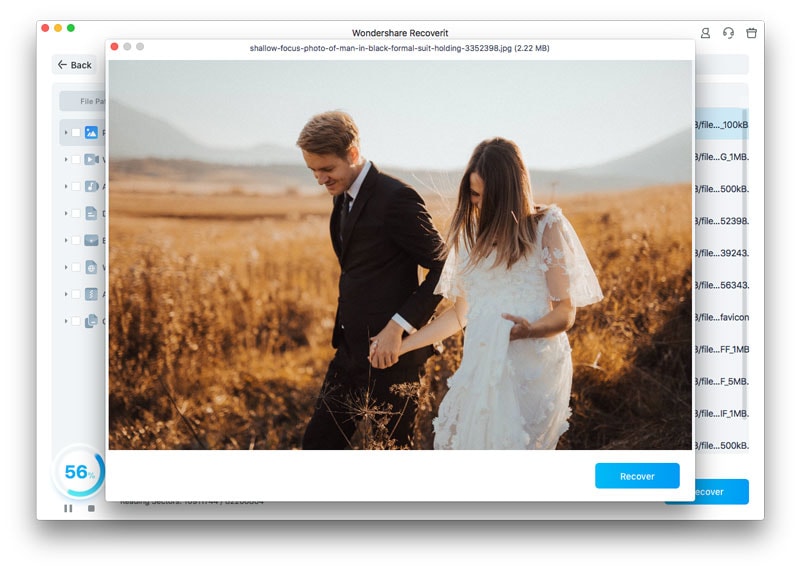
Start the scan and leave the source connected. Use file path, file type, date, and other available filters to find the data that is actually missing. If the volume's directory metadata is damaged, some recoverable files may appear without their original names or folders.

Step 3. Preview candidates and recover to a different drive.
Preview supported files to identify the correct items, then recover them to a separate healthy storage device. Do not save recovered data back to the affected bootable SSD; doing so can overwrite other recoverable content. A successful preview is useful evidence, but the final check is whether the saved file opens and contains the expected content.
No recovery application can restore bytes that have already been overwritten, and software recovery is not appropriate for a drive that clicks, overheats, repeatedly disconnects, or cannot maintain a stable hardware connection.

Part 5. Handle Encrypted APFS or FileVault-Protected Backups Correctly
An encrypted external startup volume can be fully present while remaining inaccessible until it is unlocked. If Disk Utility shows an APFS volume but Finder does not expose its contents, look for an unlock requirement before assuming that the file system is gone.
For encrypted APFS or HFS volumes, Recoverit's current encrypted APFS recovery guidance correctly sets an important boundary: readable file recovery generally requires a valid login password, recovery key, or FileVault credential to unlock the volume first. Recovery software is not a practical way to bypass modern Mac encryption.
If the volume unlocks and the files are visible, copy critical data before making structural changes. If the volume unlocks but files are missing, then assess logical recovery. If the credential is unavailable, search your password manager, documented recovery keys, Apple account records, or organization-managed recovery information before attempting anything destructive.
Part 6. If the External Drive Is Not Detected at All, Stop Calling It a Startup-Disk Problem
A drive that is absent from Startup Disk but present in Disk Utility can fit the Golden Gate developer report. A drive that is absent from Disk Utility, drops offline, reports an impossible capacity, or produces abnormal physical symptoms is a different problem.
- Try a known-good direct connection: change the USB or Thunderbolt cable, use another compatible port, remove hubs and adapters, and verify enclosure power.
- Check whether the physical device appears in Disk Utility: use View > Show All Devices. If only the volume is hidden or unmounted, that is different from the entire device being absent.
- Do not initialize or erase the disk to make it appear: those actions change storage structures and can destroy the easiest recovery path.
- Stop repeated software scans when detection is unstable: frequent disconnects, unusual noises from an HDD, overheating, liquid damage, or a damaged connector can require professional diagnosis.
After the data is protected, Recoverit's broader drive-not-showing recovery checklist can help separate operating-system detection problems from software visibility issues. The important order is still detection first, data protection second, repair or reformatting last.
Part 7. Build a Safer macOS 27 Backup Plan That Does Not Depend on Bootability Alone
The Golden Gate report is a useful reminder that bootability is one property of a backup, not the definition of a backup. A robust recovery plan should still work when the startup picker does not.
- Keep at least one independent data backup: maintain a copy that can be restored without depending on external boot. A versioned backup is especially useful for recovering files deleted before the most recent clone.
- Test file readability, not just the green backup status: mount the destination periodically and open representative files. A completed cloning job does not prove every future restore path has been tested.
- Test the boot path after major macOS changes only after data is safe: verify Startup Disk and the Apple silicon startup picker, but do not erase a readable destination merely because the boot icon is missing.
- Keep cloning software current: Golden Gate-specific behavior changed quickly in the first days after release, and both SuperDuper and CCC issued developer-side changes.
- Document encryption credentials and recovery keys: an encrypted backup that cannot be unlocked is not an immediately usable recovery source.
- Separate your recovery source from your recovery destination: when files are lost, never write recovered data back to the storage you are scanning.
For macOS 27 specifically, avoid carrying forward Intel-era troubleshooting by habit. Golden Gate supports Apple silicon Macs, so the relevant one-time startup selection is the hold-power startup-options workflow rather than the old Intel Option-key Startup Manager instructions.
Conclusion
An external boot drive disappearing from Startup Disk after macOS 27 Golden Gate does not automatically mean the SSD failed or the backup vanished. Shirt Pocket documented a Golden Gate 27.0 startup-selection problem affecting correctly created SuperDuper copies, then shipped a workaround in SuperDuper 4.0.7. Carbon Copy Cloner also documented a Golden Gate-specific fix for bootable copies not appearing in Startup Disk or Startup Manager. Apple had not listed this behavior as an official known issue in its public macOS 27 release notes as of September 22.
The safe decision is therefore evidence-based: if the volume mounts and the files are readable, protect the data and address boot visibility separately. If the disk is detected but files are genuinely missing, stop writes and recover from that external storage to another healthy drive. If the device itself is unstable or absent from Disk Utility, treat it as a hardware or connection problem rather than a startup-picker bug.
FAQ
-
Is my external bootable backup broken if it disappeared after macOS 27 Golden Gate?
Not necessarily. Shirt Pocket reported that properly created SuperDuper bootable copies could remain bootable while failing to appear in Startup Disk and the startup picker in Golden Gate 27.0. First confirm whether the volume still appears in Disk Utility, mounts in Finder, and contains readable data. -
Has Apple officially confirmed the macOS 27 external boot drive issue?
As of September 22, 2026, Apple's public macOS 27 release notes reviewed for this article do not list this specific behavior as a known issue. The current evidence comes from backup developers, including Shirt Pocket and Carbon Copy Cloner release documentation. -
Should I erase or reformat an external SSD that is missing from Startup Disk?
No, not as a first response when the drive contains data you need. If the volume is readable, copy critical files first. If files are missing, preserve the source and evaluate recovery before repair, erase, repartition, or clone-over operations. -
Can I recover files from an external boot drive even if the Mac cannot boot from it?
Yes, bootability and file readability are separate. If the external volume mounts and files open, copy them normally. If files are deleted or inaccessible but the storage is stable and detected, logical recovery may be possible from that external drive. Save recovered files to a different device. -
Can Recoverit scan a macOS 27 Golden Gate external boot SSD?
Recoverit can scan supported, stable external storage for logical data loss, but its current public Mac system requirements list support through macOS 26 Tahoe rather than macOS 27. Confirm the current specifications first and, when necessary, connect the external SSD to another Mac environment that the current Recoverit release supports. Encrypted APFS volumes must be unlocked with valid credentials before normal readable-file recovery.


