

 TL;DR:
To resolve rapid Mac battery drain, diagnose the root cause by identifying high-energy applications in Activity Monitor and verifying that the battery's maximum capacity remains above 80% in System Information before applying hardware fixes.
● If the battery depletes while plugged in, check for a "Slow Charger" message on macOS Tahoe 26.4 or later, which indicates the power adapter lacks sufficient wattage for your current hardware demands.
● To stop overnight power loss, disable Power Nap and Wake for Network Access in Battery Options, and quit processes flagged in the Preventing Sleep column of Activity Monitor.
● When attempting a system reset for persistent power failure, Apple silicon Macs only require a standard restart, whereas Intel MacBooks require a specific System Management Controller (SMC) key combination depending on the presence of a T2 chip.
Ask AI for a summary
 ChatGPT
 Perplexity
 Gemini
 Claude
 Grok
Grok
“I've had my 2021 MacBook Pro since 2022 and have had no battery issues until a few days ago. It's not warning me that it has 15% of battery left and just shuts off on me when close or passes the 15% mark. When I plug it in to charge it after it shuts down on me the battery life will say it's at 10% or 11% when it wasn't near that and just jumps to 16% or higher. And when the laptop turns back on after it shuts down like this the screen looks kind of glitchy…...” - SEGAjunky
Is your Mac battery draining fast even during light use? A Mac that once lasted all day may suddenly lose power within hours, leaving you unsure whether software, charging, or battery health is responsible. Identifying the pattern first can help you avoid unnecessary changes and focus on the actual cause.
This guide explains why Mac batteries drain quickly and provides 10 practical fixes for common power issues. You will also learn how to distinguish rapid battery drain from a Mac dead battery. If the Mac stops booting and your files become inaccessible, Recoverit can help recover important data before service.
Try Recoverit to Perform Data Recovery
 Security Verified. 3,591,664 people have downloaded it.
In this article
-
- 1. Quit Apps with High Energy Usage
- 2. Disable Unnecessary Login Items and Background Activity
- 3. Turn On Low Power Mode
- 4. Reduce Display and Video Power Use
- 5. Fix Mac Battery Drain While Sleeping
- 6. Disconnect Unnecessary Accessories
- 7. Update macOS and Power-Intensive Apps
- 8. Fix Charger, Cable, and Power Delivery Problems
- 9. Reduce Excessive Heat
- 10. Restart the Mac or Reset the SMC Where Applicable
Part 1. Identify the Pattern First
A Mac battery draining fast during video calls differs from one emptying overnight. Matching your pattern below narrows the diagnosis before you open a single setting:
| Battery Symptom | Likely Area to Check | First Diagnostic |
| Drains Fast During Normal Use | Apps or heavy workload | Check Activity Monitor |
| Drains While Sleeping | Sleep or background activity | Check apps preventing sleep |
| Started After a macOS Update | Indexing, syncing, or software | Review battery and energy usage |
| Drops While Plugged In | Charger wattage or workload | Check the charger and power source |
| Shuts Down Soon After Unplugging | Battery condition or capacity | Check battery health and cycle count |
Normal Battery Use vs Abnormal Drain
No fixed percentage-per-hour figure defines Mac battery draining fast behavior. Runtime varies by Mac model, workload, brightness, battery age, and connected accessories. Instead, compare current runtime with your usual performance. If a Mac that lasted all day suddenly runs for only three hours under similar use, investigate the change. Gradual decline is normal as batteries age, while a sudden drop may indicate an underlying problem.
Part 2. Why Is My Mac Battery Draining Fast?
The pattern identified above helps narrow the possible causes. Here are 5 common reasons why your Mac battery is draining quickly:

- High-Energy Apps: Apps can keep using power even when not actively used. Browsers, video calls, and sync tools often run in the background and shorten battery life.
- Display and Accessories: Higher brightness uses more power. Connected devices like external drives, plus heavy tasks like gaming, add to the drain.
- Background macOS Activity: Tasks like indexing, syncing, and updates raise energy use for a while. This shows up most right after a macOS update or a big data sync.
- Battery Aging: Mac batteries lose capacity as they age chemically. As capacity drops, runtime falls even if your usage habits stay the same.
- Charging or Hardware Issues: A weak power source or a charging fault can affect battery behavior. High temperatures or hardware problems can also cut into available runtime.
Part 3. Find What Is Causing Mac Battery Drain
These 5 checks can help identify the possible causes of battery drain on MacBook Pro and determine where the problem starts:
Check Energy Usage in Activity Monitor
Activity Monitor shows how much energy individual apps and processes consume. Apple’s Activity Monitor guide explains the indicators available in the Energy pane. Follow these steps to identify apps using excessive energy:
Step 1. Go to “Finder > Applications > Utilities > Activity Monitor.” Check the “Energy” tab to identify apps using the most energy.
Step 2. Review “12 hr Power” to see which apps have had higher energy use over a longer period.

Step 3. Check the “Preventing Sleep” column to identify apps that may be keeping the Mac awake.

Review Battery Usage History
Activity Monitor shows current energy use, while battery usage history reveals patterns over time. Comparing battery levels with screen-on activity can help identify unusual power loss. To investigate battery drain on a MacBook Pro, follow these steps:
Instructions. Open “System Settings” > “Battery.” Select “Last 24 Hours” or “Last 10 Days” to review the “Battery Level” and “Screen On Usage” graphs. Use these graphs to compare battery changes with your Mac’s screen activity.

Check Mac Battery Health
If the Mac battery draining quickly issue has gradually worsened, battery aging may be the cause. macOS provides battery condition and maximum capacity information to help assess its current health. Here is how to check your Mac’s battery health:
Instructions. Click the “Apple menu > System Settings > Battery > Battery Health.” Review the battery condition beside the “Info (i)” button. “Normal” means the battery is functioning normally, while “Service Recommended” indicates reduced capacity or abnormal battery performance.

Check the MacBook Battery Cycle Count
Apple states that Mac laptop batteries are designed to retain up to 80% of their original capacity at their maximum cycle count. Check your Mac’s cycle count and compare it with the maximum specified for your model:
Through System Information
Step 1. Hold the “Option” key, click the Apple menu, and choose “System Information.”

Step 2. Scroll down the left sidebar under “Hardware” and select “Power.” Look for “Cycle Count” under the “Battery Information” section.

Check Charging and Sleep Behavior
If your Mac loses charge while plugged in or drains significantly overnight, check the power source and whether background activity is keeping it awake. Click the “Battery” icon in the menu bar to review charging status and power information. Moreover, look for a “Slow Charger” message.

On macOS Tahoe 26.4 or later, a “Slow Charger” message can appear when the connected power source provides too little wattage for your Mac model.
Part 4. How to Fix a Mac Battery Draining Quickly?
Once you identify the likely cause, choose the fix that addresses it directly. Here are 10 practical ways to resolve the Mac battery draining quickly issue:
1. Quit Apps with High Energy Usage
Start with the high-energy apps identified in Part 3, as unnecessary processes can consume significant power in the background. Closing these apps is a simple first step toward reducing battery drain. Follow these steps to quit them properly:
Step 1. Sort the Energy pane by Energy Impact, then by 12 hr Power. Click on the heavy-use app in the list, and choose the “X (Stop)” button in the upper-left corner of the Activity Monitor toolbar.

Step 2. Tap on “Quit” to close it normally, or “Force Quit” if it is frozen.

2. Disable Unnecessary Login Items and Background Activity
Some apps can continue running in the background even when you are not actively using them. Login items also launch automatically when your Mac starts, adding to ongoing energy use. If these processes contribute to why your Mac battery is draining fast, follow these steps to disable unnecessary ones:
Step 1. In “System Settings > General > Login Items & Extensions,” > Look under the “Open at Login” section.

Step 2. Select the app you do not need > Click the “Minus (-)” button to remove it.

3. Turn On Low Power Mode
When your Mac battery is draining fast, Low Power Mode can help extend runtime by reducing energy use and adjusting system performance. It is especially useful when you need to conserve charge while working away from a power source. Here is how to enable it:
Option 1. Open the “Apple menu > System Settings > Battery,” then select “Energy Mode.” Set “On Battery” to “Low Power” to reduce energy use. Depending on your Mac model, “Automatic” and “High Power” modes may also be available.

Option 2. Click the “Battery” icon in the menu bar. Under “Energy Mode,” select “Low Power” to reduce energy use and extend battery life.

4. Reduce Display and Video Power Use
The display can consume significant power, particularly when brightness is set too high. Lowering screen brightness is a simple way to reduce battery drain on MacBook Pro during everyday use. Here are two ways to adjust it:
Option 1. Press the “F1” key to decrease brightness or the “F2” key to increase it.

Option 2. Open “Control Center” from the menu bar, then move the “Display” brightness slider to the left to reduce screen brightness.

5. Fix Mac Battery Drain While Sleeping
If battery history shows a significant overnight drop, your Mac may be staying awake or waking repeatedly during sleep. When your Mac battery is draining fast overnight, try these actions to reduce unnecessary background activity:
Check “Activity Monitor > Energy > Preventing Sleep” to see whether an app is currently stopping the Mac from sleeping. Quit unnecessary apps that prevent sleep.

If your Mac supports Power Nap, turn it off to reduce background activity while the Mac is sleeping. Go to “Apple menu > System Settings > Battery > Options > Enable Power Nap > Never.”

Go to “System Settings > Battery > Options > Wake for Network Access.” Set it to “Never” if you do not need your Mac to wake for network-related access while sleeping.

6. Disconnect Unnecessary Accessories
Connected accessories can draw power from your Mac and contribute to battery drain in MacBook Pro issues. External drives, USB devices, hubs, and dongles may increase energy use while connected. To check whether accessories are affecting battery life:
Disconnect external drives when they are not needed.
Remove unused USB devices, hubs, and dongles.
Use the Mac without accessories for a while and compare its battery runtime.
7. Update macOS and Power-Intensive Apps
Keeping macOS and power-intensive apps updated can help resolve software-related issues that contribute to excessive energy use. Updates may include bug fixes and performance improvements that affect battery usage. If your Mac battery is draining fast, follow these steps to update macOS and frequently used apps:
Step 1. Open the Apple menu > “System Settings > General > Software Update > Update Now” to install any compatible macOS updates available for your Mac.

Step 2. Update frequently used apps as well. For App Store apps, open “App Store > Updates > Update or Update All” to install available updates. Restart, then allow post-update background tasks a day to complete.

8. Fix Charger, Cable, and Power Delivery Problems
A Mac can lose charge while plugged in if its power demand exceeds what the charger supplies. Use a compatible adapter with sufficient wattage for your Mac model. Check the USB-C or MagSafe cable and charging port for damage. If you see a “Slow Charger” message, verify the power source and avoid underpowered chargers during demanding workloads.
9. Reduce Excessive Heat
Excessive heat can affect charging and contribute to battery drain on MacBook Pro issues. Place your Mac on a hard, well-ventilated surface and keep its vents unobstructed. Avoid using it on soft surfaces that restrict airflow. If the Mac feels unusually hot, reduce demanding workloads and let it cool before checking its charging and battery behavior again.
10. Restart the Mac or Reset the SMC Where Applicable
Try restarting your Mac as a final step, since it can clear temporary system or power-management issues. If the battery drain MacBook Pro problem continues after other fixes, restart the device using these steps:
Instructions. Click the Apple logo > Select “Restart…” then wait for the Mac to start again and check whether battery behavior improves.

For Intel Macs: If the issue continues, try resetting the SMC using the procedure for your specific Mac model. For Apple silicon Macs, simply restart the Mac, as a separate SMC reset is not required.
For Intel MacBooks Without the T2 Chip
Instructions. Shut down the Mac. Hold “Shift + Control + Option” on the left side and press the Power button simultaneously. Hold all four for 10 seconds, release them, then press “Power” to turn on the Mac.

For Intel MacBooks With the T2 Chip
Instructions. Turn off your Mac completely. Press and hold “right Shift, left Option, and left Control” together for 7 seconds. Without releasing them, hold the “Power” button for another 7 seconds. Release everything, wait briefly, and press “Power” to start the Mac.

Part 5. Mac Dead Battery vs Rapid Battery Drain
The fixes above address situations where the battery still functions but drains unusually fast. A Mac dead battery, however, can describe several different power or charging conditions. The table below helps distinguish 4 common scenarios and what each may indicate:
| Symptom | What It May Mean | What to Do |
| Reaches 0% but Charges Again | Fully discharged battery | Connect a compatible charger |
| Needs Time Before Starting | Battery is deeply discharged | Leave the Mac connected to power |
| Works Only While Plugged In | Battery may not supply power reliably | Check battery health and condition |
| Percentage Falls Abnormally Fast | Rapid battery drain, not necessarily failure | Diagnose the cause using Part 3 |
| Will Not Charge or Power On | Charging, battery, or hardware problem | Check the charger, cable, and hardware |
How to Check If a Mac Battery Is Actually Dead
Before assuming the battery has failed, connect your Mac to a known-working, compatible power adapter. A deeply discharged battery may take some time before the Mac responds or starts normally.
- Connect a compatible, working power adapter and leave the Mac charging for about 30 minutes.
- Once the Mac starts, check the battery condition in System Settings > Battery.
- Disconnect the charger and check whether the Mac continues running on battery power.
- If charging or power issues continue, run Apple Diagnostics to check for potential hardware problems.
Part 6. How to Recover Inaccessible Mac Data Using Recoverit
Most battery problems do not affect your files. However, a Mac with a dead battery or a serious power issue can prevent the Mac from starting, making its data inaccessible. On Apple silicon Macs, internal storage is integrated with the logic board, so removing the drive for conventional enclosure-based recovery is not an option.
Recoverit provides bootable recovery media for situations where the Mac cannot start normally. You can create a bootable USB drive on a working Mac, start the affected Mac from it, and save recovered files to another storage device. Recoverit also offers natural-language file search with filters and supports saving recovered files directly to iCloud.
Key Features
- Apple Volume Support: Recovers data from APFS and HFS+ volumes, including supported encrypted storage when the correct password is available.
- Natural-Language File Search: Uses natural-language search and integrated filters to help locate specific recoverable files more quickly during scanning.
- AI-Powered Scan Recovery: Uses AI-assisted deep scanning to identify difficult-to-find files and improve recovery when conventional scanning may not locate the required data.
Guide to Retrieve Your Important Files from a MacBook
To follow this recovery process, you will need a working Mac and a spare USB drive for creating the bootable recovery media:
Step 1. Prepare the Startup Drive
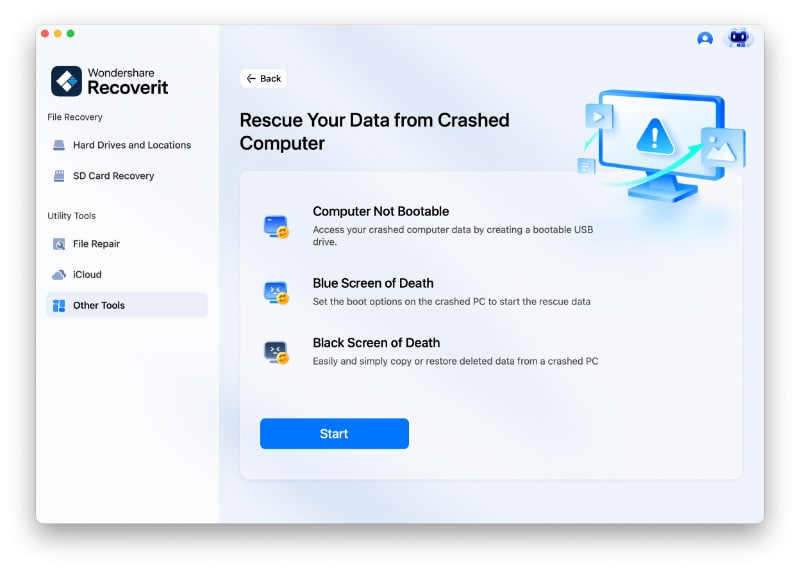
Launch Recoverit and select “System Crashed Computer” from the available recovery options. Click “Start” to begin creating the bootable recovery drive.
Step 2. Create the Bootable USB Drive
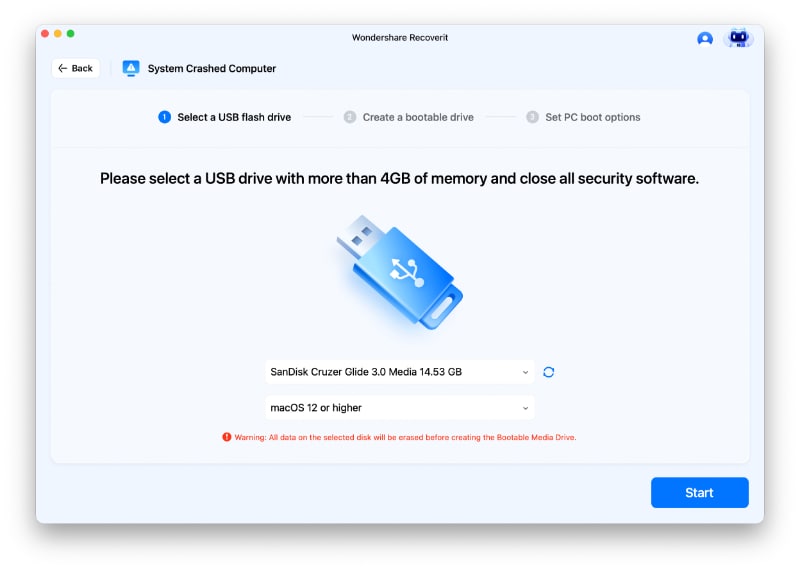
Select the connected USB drive from the drop-down menu and proceed with formatting. Recoverit will then download the required files and create the bootable USB drive.
Step 3. Boot the Mac and Recover Your Files
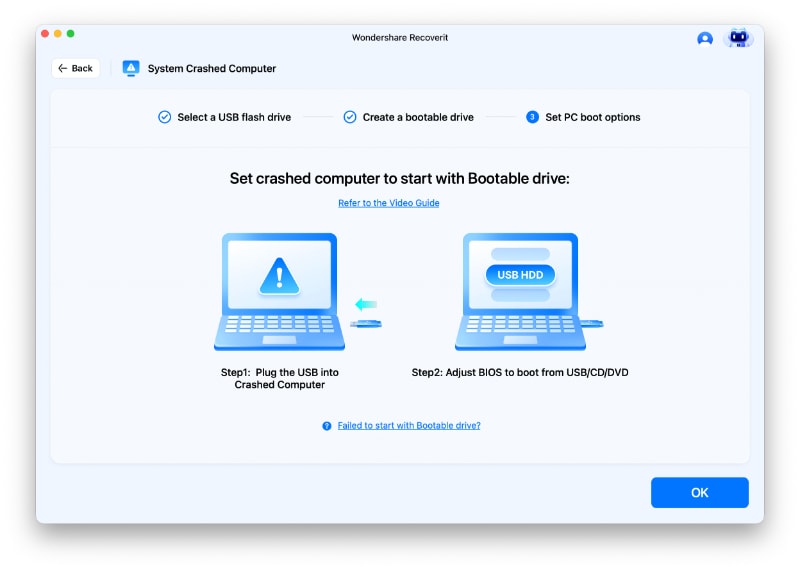
Connect the newly created bootable USB drive to the affected Mac and use the appropriate startup sequence for its processor. Select “Recoverit Bootable Media Drive,” locate the files you need, and recover them to a safe storage location.
Conclusion
To conclude, Mac battery draining fast can result from demanding apps, background activity, charging problems, or battery aging. Identify the cause first and apply the fix that matches the issue. If the Mac eventually stops starting and important files become inaccessible, Recoverit can be useful for recovering your data through bootable media before sending the device for service.
FAQ
-
What battery health percentage is bad for a MacBook Pro?
A maximum capacity below 80% indicates significant battery aging, especially near its expected cycle limit. If macOS shows “Service Recommended,” consider having the battery evaluated or replaced. -
Why is my MacBook Pro battery draining while plugged in?
Your MacBook Pro may lose battery while plugged in if its workload requires more power than the charger supplies. Using a compatible adapter with sufficient wattage can help prevent this during demanding tasks. -
How do I know if my Mac battery is dead or just fully discharged?
Connect the Mac to a known-working charger and give it time to respond. A deeply discharged battery may recover, while persistent charging problems or failure to run unplugged can indicate a battery issue. -
Why is my Mac battery draining fast after a macOS update?
A macOS update can temporarily increase battery use while background tasks like indexing, photo analysis, and syncing run. Battery life should improve once these processes finish.



