
 TL;DR:
Diagnose a randomly freezing Mac by pinpointing exactly when the lockup occurs, as freezes isolated to specific apps or logins require software and accessory troubleshooting, while system-wide lockups that persist in Safe Mode or macOS Recovery strongly indicate startup disk or hardware failures.
● If the freeze happens shortly after login or when connecting an external peripheral, temporarily remove third-party software in System Settings > General > Login Items & Extensions or test the Mac with all accessories disconnected, reconnecting them one at a time to isolate the trigger.
● For system-wide lockups, run Disk Utility First Aid starting with volumes, moving upward to containers, and finally checking the physical device; if the internal SSD disappears or reports unrepairable flash-storage errors, stop repeated repair attempts and arrange hardware service.
● Data recovery software like Wondershare Recoverit for Mac can only retrieve files lost during repeated forced shutdowns if the data was previously written to the drive and the storage remains readable; it cannot recover unsaved edits from volatile memory or scan an SSD that macOS cannot detect.
Ask AI for a summary
 ChatGPT
 Perplexity
 Gemini
 Claude
 Grok
Grok
Quick answer: When a Mac freezes randomly, first identify whether one app or the entire system stopped responding. Then note the trigger: shortly after login, in one app, after connecting a device, during a large transfer, or across unrelated tasks. That timing tells you whether to start with an app, login items, accessories, the startup disk, or hardware tests.
A random freeze feels unpredictable only when the events around it are missing. One MacBook user described repeated freezes after opening a music-production app. That detail matters: an app-specific freeze suggests a different path from a Mac that locks up before login or while copying files to an external drive.
Fact-checked on August 28, 2026: The procedures below were checked against Apple’s current macOS Tahoe 26 guidance and the current Recoverit for Mac workflow. Menu names can differ slightly on older macOS versions or managed workplace Macs.
Recover Important Files if Random Freezes Lead to Data Loss
 Security Verified. Over 7,302,189 people have downloaded it.
In this article
-
- Fix 1. Restart the Mac
- Fix 2. Update macOS and Your Apps
- Fix 3. Identify Problem Apps With Activity Monitor
- Fix 4. Disconnect External Devices and Accessories
- Fix 5. Remove Problematic Login Items
- Fix 6. Start Your Mac in Safe Mode
- Fix 7. Check and Repair the Startup Disk With First Aid
- Fix 8. Test Whether the Problem Continues in macOS Recovery
- Fix 9. Run Apple Diagnostics
- Fix 10. Reinstall macOS or Arrange Hardware Service
Part 1. What Does It Mean When a Mac Randomly Freezes?
“Mac freezes randomly” can describe several failures that look similar but need different responses. Classify the event before changing settings or forcing a shutdown.
| What happened | What still works | Best first action | Main risk |
| One app freezes | Pointer, menus, and other apps still respond. | Wait briefly, quit normally, then force quit only that app if needed. | Unsaved changes in that app. |
| Entire Mac locks up | Pointer, keyboard shortcuts, menus, and app switching do not respond. | Wait for active work to finish; restart normally if possible. | Unsaved work and interrupted file writes. |
| Mac restarts unexpectedly | The system reboots and may show a message about a problem. | Record what was running and connected; isolate software and peripherals. | Open documents and active transfers. |
| Mac stalls during startup | The desktop never appears or progress stops. | Disconnect accessories, then use Safe Mode or macOS Recovery. | Repeated startups can be unwise if storage is failing. |
One App Freezes vs the Entire Mac Locks Up
Try Command-Tab or click another app. If you can switch apps, open menus, and move the pointer, macOS is probably still running and one application is stalled. The right first response is to protect work in the responsive apps, then address the frozen one.
If app switching, the Force Quit window, the pointer, and system menus all fail, the problem is broader. A full lockup can still be caused by software, but storage delays, a faulty dock, a low-level extension, or hardware becomes more plausible.
Temporary Beachball vs Complete System Freeze
A spinning wait pointer does not automatically mean the app has crashed. Large exports, Spotlight indexing, Time Machine activity, photo analysis, and file transfers can keep an app or the system busy. Check whether a progress indicator, drive activity, or another app still changes before ending the process.
A complete freeze lasts beyond a short wait and ignores normal input. Do not repeatedly click or launch more apps; that adds work to an already congested system and makes the original trigger harder to identify.
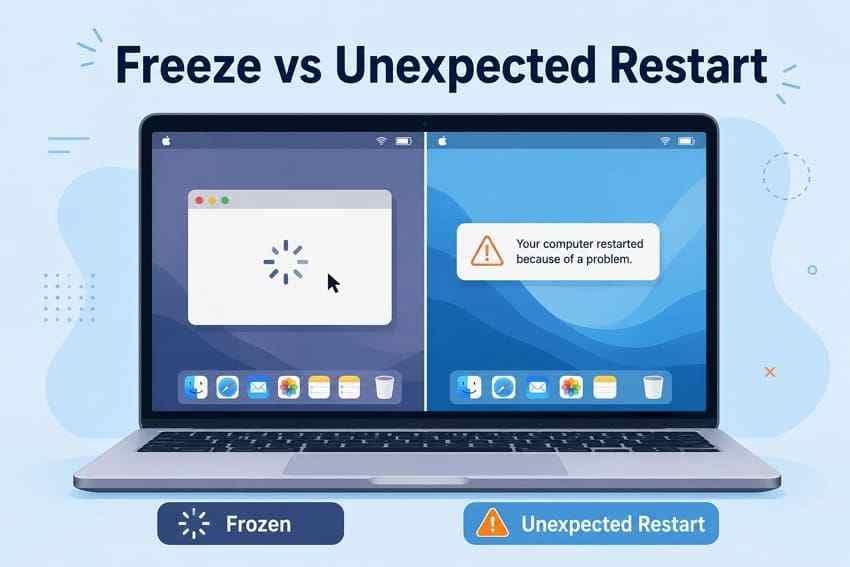
Random Freeze vs Unexpected Restart
A freeze leaves the Mac powered on and stuck until it recovers or you intervene. An unexpected restart resets the machine automatically. After a serious macOS failure, you may see “Your computer restarted because of a problem.” Apple’s current unexpected-restart guidance says installed software and connected devices are common areas to investigate, although hardware can also be responsible.
When Repeated Freezing May Signal a Hardware Problem
One app hanging once is weak evidence of hardware trouble. Concern increases when unrelated apps freeze, the Mac locks up in Safe Mode or Recovery, the internal storage disappears, First Aid cannot repair errors, or Apple Diagnostics returns a reference code. No single symptom proves the cause, so combine the pattern with controlled tests.
Part 2. Why Does Your Mac Keep Freezing Randomly?
The most useful explanation is the one that matches when the freeze occurs. These six cause groups cover the common patterns without treating every slow moment as a failing Mac.
- Problematic apps or background processes: One app, helper, damaged project, browser extension, or background process may stop responding or consume unusual resources. A freeze that follows one repeatable action should be investigated at the app level first.
- Incompatible login items, extensions, or plug-ins: VPN clients, sync tools, menu-bar utilities, audio plug-ins, display helpers, and security software can load after login. This group is especially relevant when the Mac locks up shortly after the desktop appears.
- Outdated macOS or application software: Old app builds, drivers, and plug-ins may conflict with a newer OS. Conversely, an OS update may expose an outdated third-party component that now needs its own update.
- External devices, hubs, or accessories: A dock, display, drive, cable, audio interface, printer, or power-delivery problem can trigger a freeze only while connected or under load.
- Startup disk or file-system problems: Formatting and directory-structure errors can cause unexpected behavior or prevent startup. Storage trouble is more plausible when freezes cluster around large reads, writes, imports, exports, or file copies.
- Hardware issues: Storage, memory, logic-board, power, thermal, or display faults can cause lockups across different apps and workloads. Apple Diagnostics can identify some component problems, but a clean result is not a guarantee that all hardware is healthy.
Avoid “cleaner” apps as a first fix. They change multiple variables, may remove useful caches or logs, and cannot repair failing storage or hardware.
Part 3. What to Do When Your Mac Locks Up
Use the least disruptive action that still works. This order protects unsaved work and avoids interrupting an active disk write unnecessarily.
- Try force quitting the unresponsive app: If macOS still responds, first use the app’s normal Quit command. If that fails, press Option-Command-Esc, select the app, and click Force Quit. Apple warns in its app-freeze guidance that unsaved changes may be lost.
- Wait for intensive work: Give a large file transfer, export, backup, or indexing task a reasonable chance to complete. A changing progress bar or responsive pointer suggests the Mac is busy rather than fully locked.
- Disconnect nonessential devices when safe: Remove a recently connected accessory if no transfer is active. Eject storage normally whenever possible; never pull a drive during an active write merely to test it.
- Restart normally if possible: Save work in responsive apps, stop transfers, and choose Apple menu > Restart.
- Force shut down only as a last resort: If the entire Mac remains unresponsive, hold the power button—or Touch ID button on a Mac laptop—for up to 10 seconds until it turns off. This can discard unsaved changes and interrupt open-file writes.
After restarting, write down the time, app, file, accessory, and task involved. Those notes turn an apparently random problem into a reproducible pattern.
Part 4. How to Fix a Mac That Freezes Randomly
Work from low-risk resets toward disk repair, diagnostics, and reinstallation. Test after each fix; changing several things at once removes the evidence needed to identify the cause.
Fix 1. Restart the Mac
A normal restart closes the current process state and creates a clean baseline. It may solve a one-time lockup, but a freeze that repeatedly returns still needs isolation.
- Save any responsive documents and choose Apple menu > Restart.
- After login, open only the app or workflow that was active before the freeze.
- Record how long the Mac remains stable and what changed immediately before any new lockup.
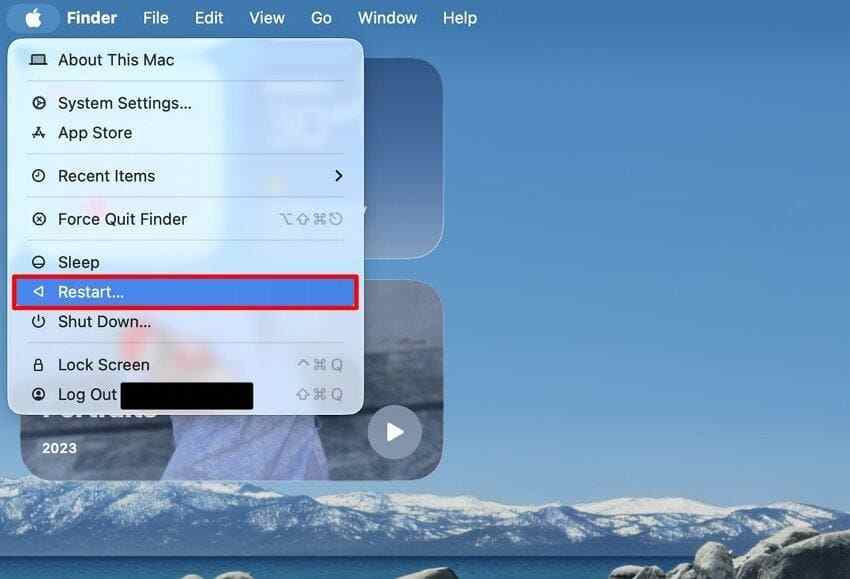
Result: If the freeze returns only after a particular app, login item, or accessory is restored, continue with that specific layer instead of repeating restarts.
Fix 2. Update macOS and Your Apps
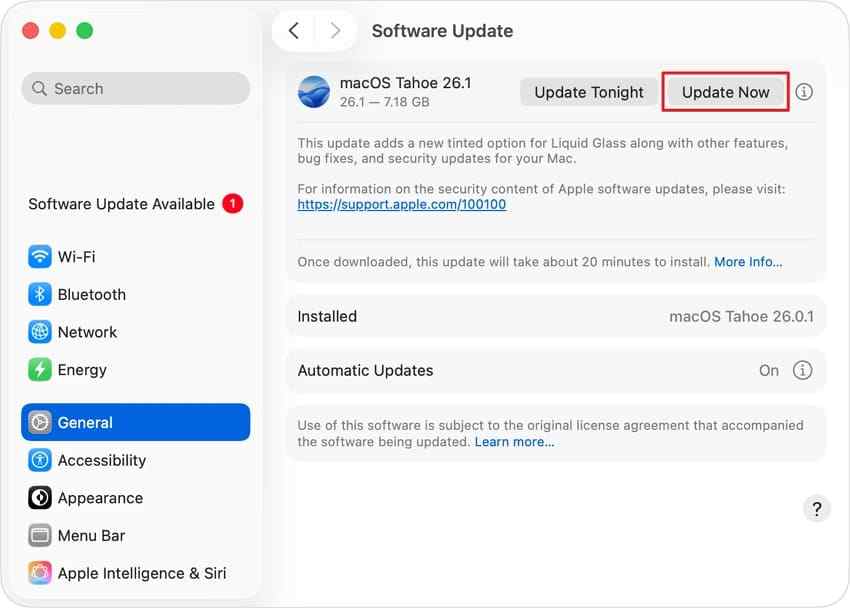
Updates can correct compatibility and stability problems. Apple recommends the latest macOS version compatible with the Mac, but back up first and update third-party apps and plug-ins as well.
Update macOS
- Connect the Mac to reliable power and internet.
- Open Apple menu > System Settings > General > Software Update.
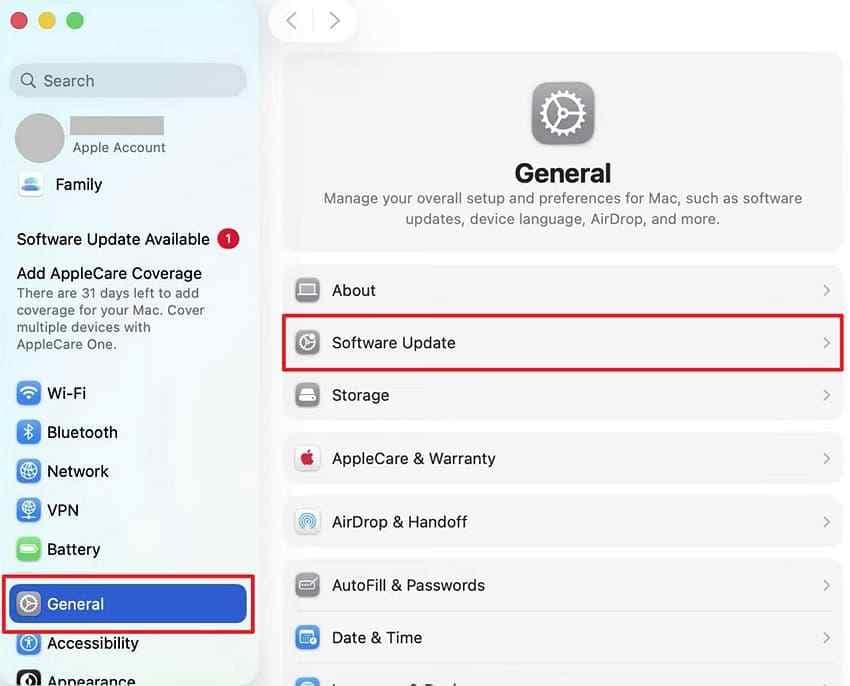
- Install the update offered for that Mac and allow all restarts to complete.
Update Installed Mac Apps
Open App Store > Updates and install available app updates. For software installed elsewhere, use the app’s updater or the developer’s official site. Apple’s current macOS update guide explains how Software Update selects compatible releases.
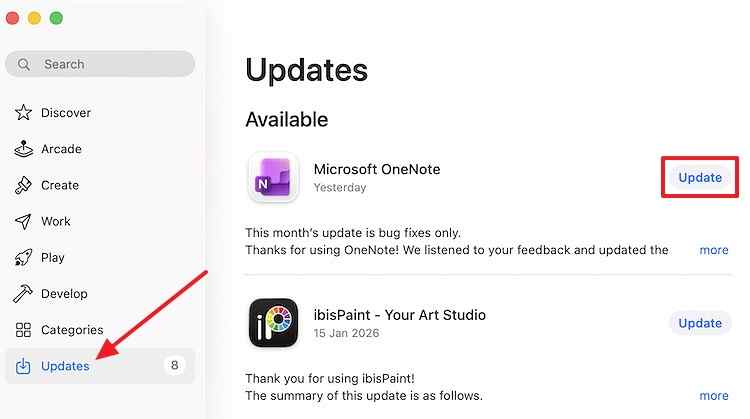
If freezing began after a macOS update, do not assume the OS itself is defective. A plug-in, driver, or helper built for the earlier release may now be the incompatible part.
Fix 3. Identify Problem Apps With Activity Monitor
Activity Monitor can reveal an app marked (Not Responding) and show CPU or memory activity. High usage is a clue, not proof: video exports, backups, indexing, and compilation can legitimately use substantial resources.
- Open Applications > Utilities > Activity Monitor.
- Check the CPU and Memory tabs. Sort a column if useful, and look for a known app marked (Not Responding).
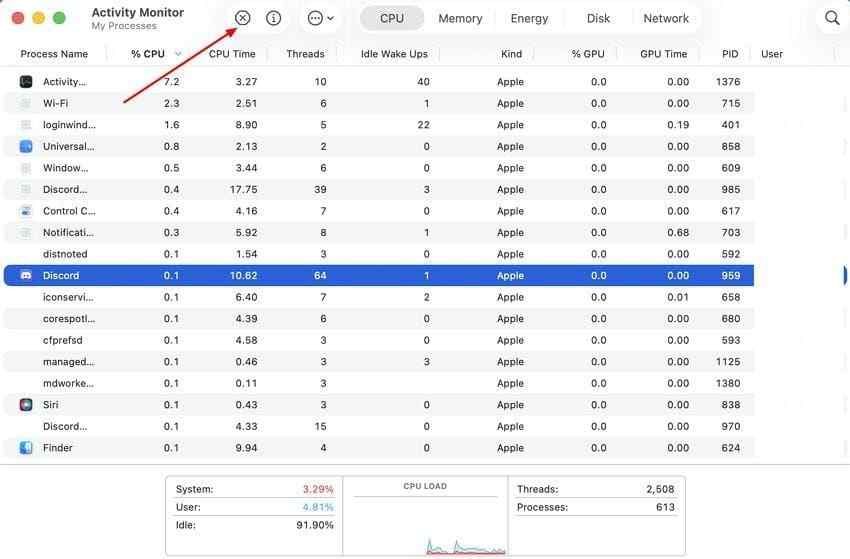
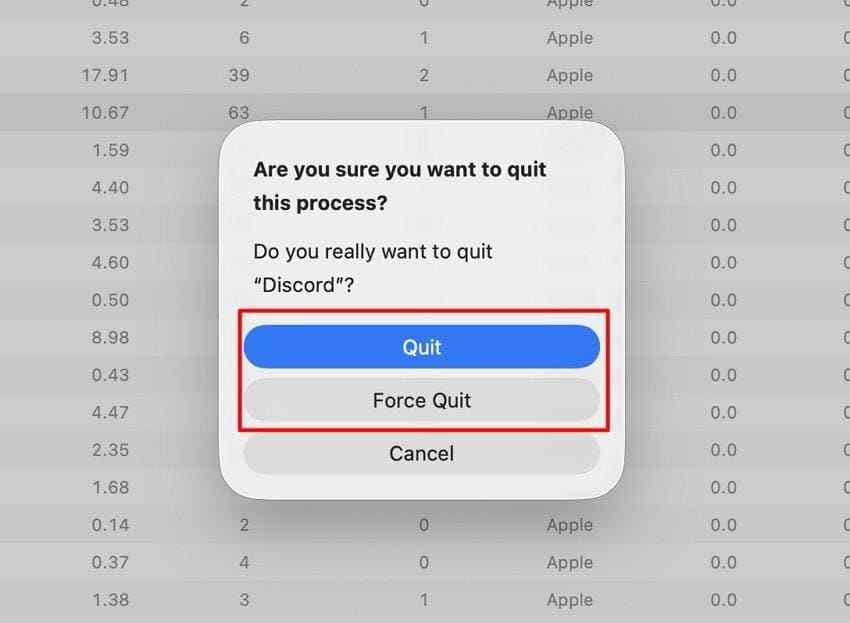
- Select the known app or process and click the Stop button. Choose Quit first; use Force Quit only if it will not close safely.
- For deeper evidence, select the process and use View > Sample Process, or open the More menu for diagnostic options. Apple documents Sample Process, Spindump, and System Diagnostics. Save the report for the developer or Apple Support.
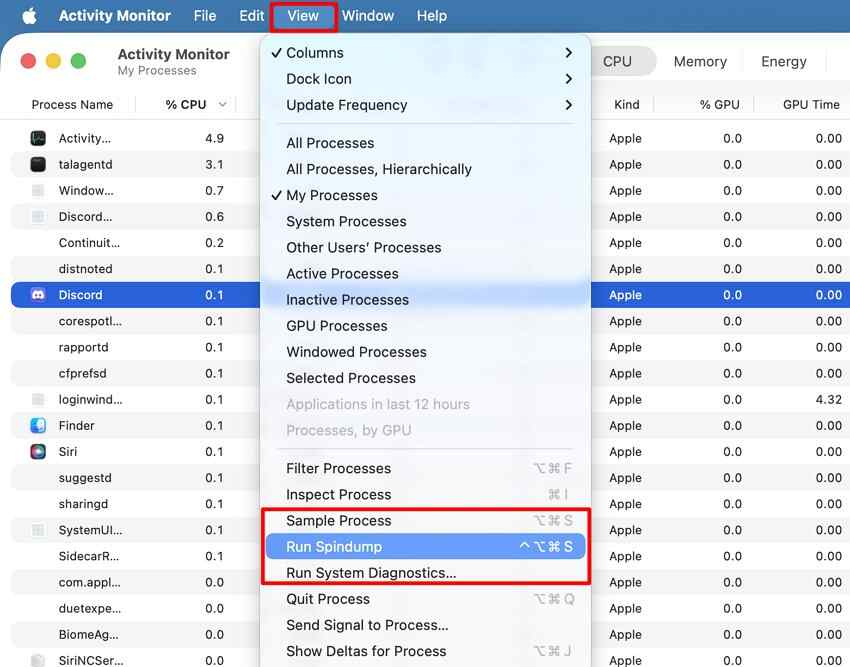
Do not force-quit unfamiliar system processes merely because their names or usage look unusual. Apple notes that a force-quit ends the process immediately and may affect open files or dependent processes.
Fix 4. Disconnect External Devices and Accessories
Use this test when the Mac locks up after a dock, display, drive, hub, printer, audio interface, or adapter is connected. The device itself, cable, firmware, driver, power delivery, or another accessory behind the hub can be the trigger.
- Stop active transfers, eject storage normally, and shut down the Mac.
- Disconnect nonessential hubs, drives, docks, displays, printers, and accessories. Keep only power and the input or display hardware required to test.
- Start the Mac and repeat the workload without them.
- If stable, reconnect one device at a time. Test after every addition until the freeze returns.
- For the suspected device, try another cable, port, power source, and current firmware or driver where applicable.

Apple uses the same one-device-at-a-time method for repeated unexpected restarts. It is more reliable than disconnecting and reconnecting everything as a group.
Fix 5. Remove Problematic Login Items
When the Mac freezes shortly after login, temporarily remove nonessential startup software. Keep a list or screenshot so you can restore the configuration accurately.
- Open System Settings > General > Login Items & Extensions.
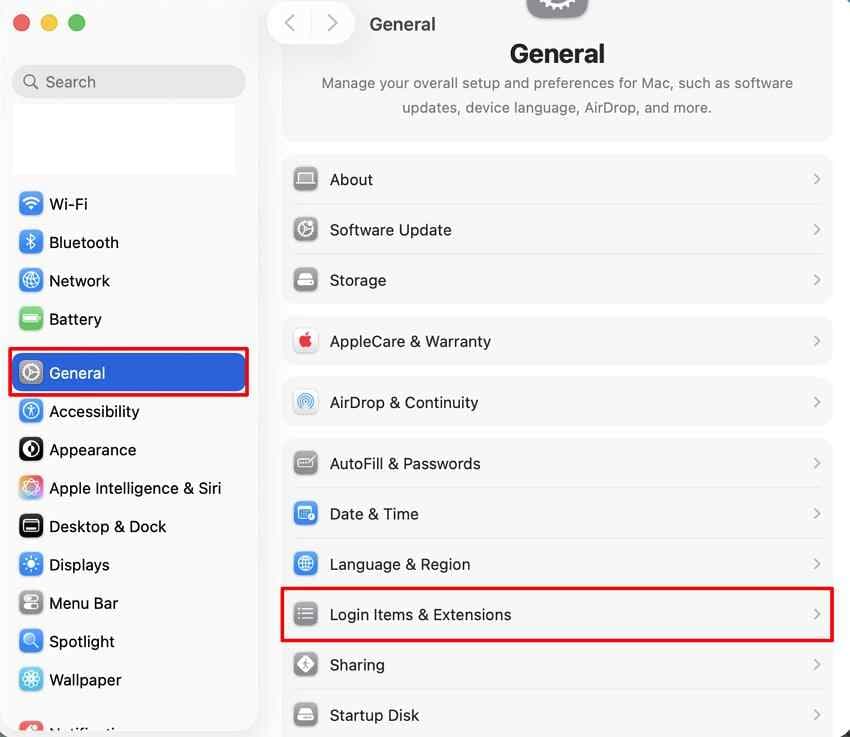
- Under Open at Login, select nonessential third-party items and click the remove button.
- Review optional background activity and extensions. On a managed Mac, do not disable required security or workplace software without approval.
- Restart and test for the usual freeze interval.
- If stable, add items back one at a time and retest until the problem returns.
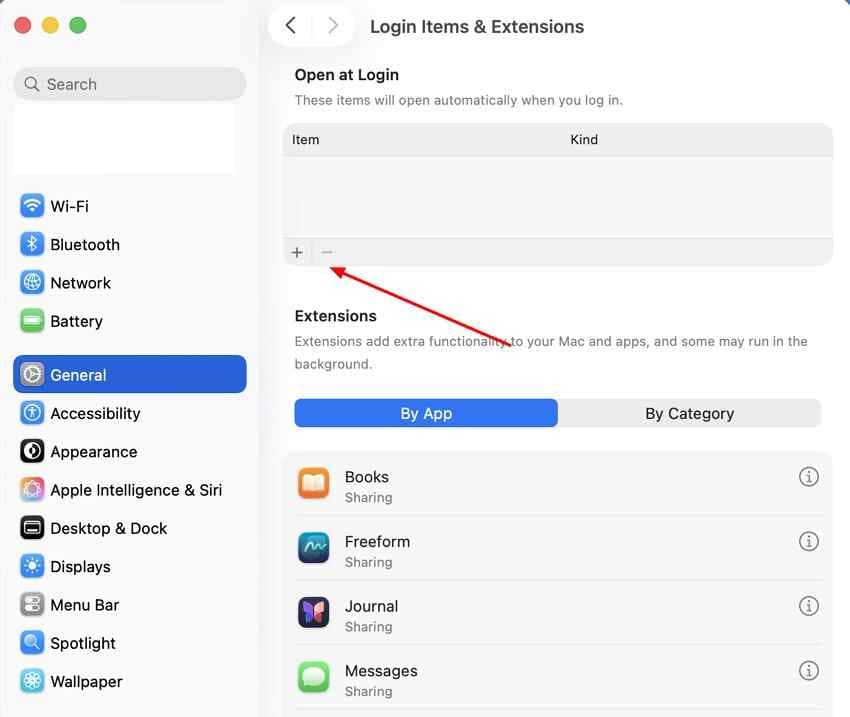
Apple’s login-item isolation procedure recommends removing items and restoring them individually. This preserves a clear cause-and-effect result.
Fix 6. Start Your Mac in Safe Mode
Apple says Safe Mode helps identify whether software that loads during startup contributes to the problem. It is an isolation test, not a repair and not a definitive hardware diagnosis.
Apple Silicon Macs
- Choose Apple menu > Shut Down and wait until the screen is black and all lights are off.
- Press and hold the power button until Loading startup options appears.
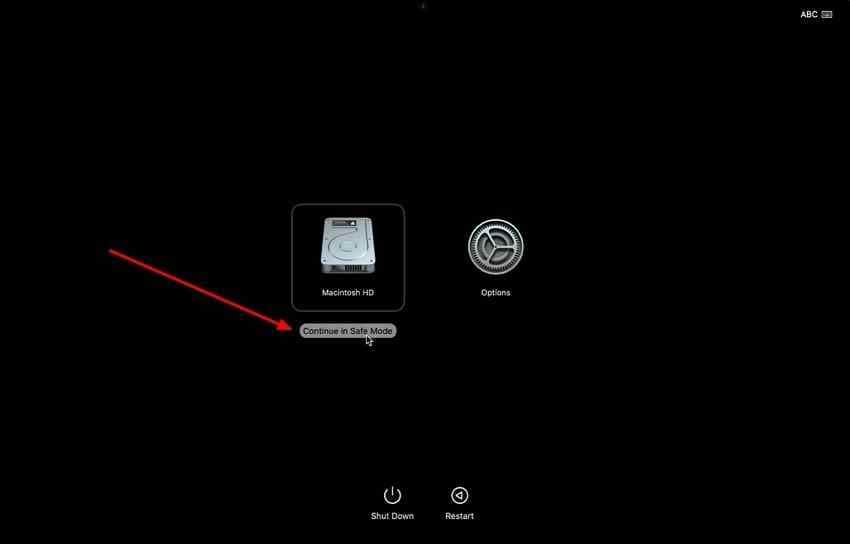
- Select the startup volume, hold Shift, and click Continue in Safe Mode.
- Log in and test the Mac for the usual trigger or time interval.
Intel Macs
- Turn on or restart the Mac and immediately hold Shift.
- Release Shift when the login window appears, then log in. You may be asked to log in again.
- Confirm Safe Boot appears in the menu bar or System Information, then test the original pattern.

Restart normally after the test. If the freeze disappears, focus on login items, extensions, plug-ins, and recently installed software. If it continues, move to storage and hardware checks. See Apple’s current Safe Mode instructions.
Fix 7. Check and Repair the Startup Disk With First Aid
Disk Utility can find and repair formatting and directory-structure errors that may cause unexpected behavior. Apple recommends a current backup first because First Aid cannot repair every disk problem.
- For a Mac that still starts normally, open Applications > Utilities > Disk Utility. If the startup disk cannot be checked normally, start in macOS Recovery and open Disk Utility there.
- Choose View > Show All Devices.
- Select the last volume under the startup device and click First Aid > Run.
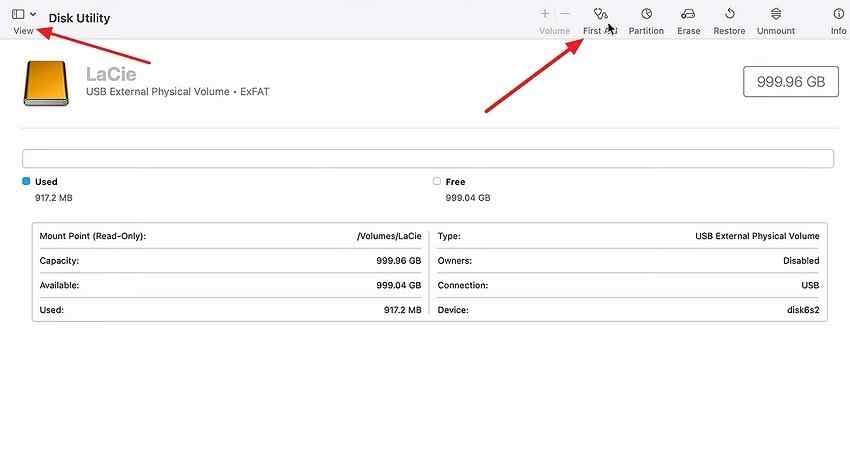
- Move upward through the sidebar, running First Aid on the remaining volumes, then each container, and finally the physical device.

- Restart and test after all checks finish. If Disk Utility reports an error it cannot repair, protect readable data before considering erase or service.
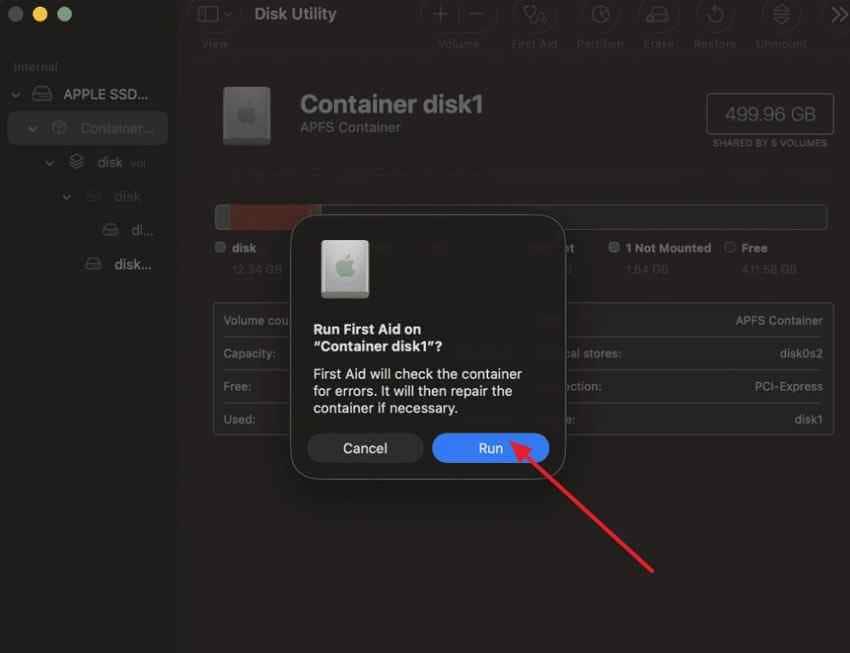
Follow Apple’s current First Aid order for volumes, containers, and devices. If the storage disappears from Disk Utility or macOS reports that the SSD needs service, repeated software repairs are not the right next step.
Fix 8. Test Whether the Problem Continues in macOS Recovery
macOS Recovery runs outside the user’s normal startup environment. If the Mac remains stable there, login software and the normal installation stay plausible. If it also freezes in Recovery, storage, firmware, or hardware deserves more attention. This is an inference from the isolation test—not proof of a failed component.
Apple Silicon Macs
- Shut down the Mac.
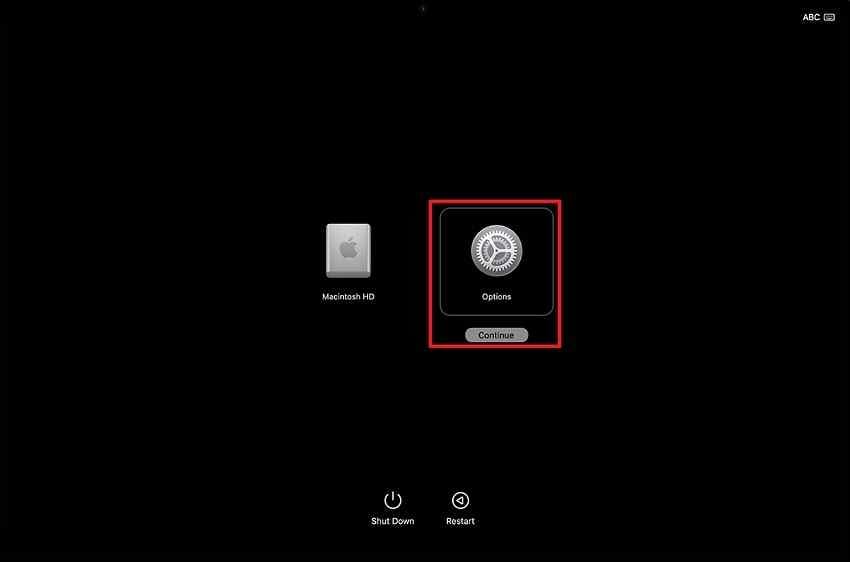
- Press and hold the power button until Loading startup options or the Options icon appears.
- Click Options > Continue. Select a volume and authorized user if prompted.
- Leave Recovery open long enough to cover the usual freeze interval without starting an erase or reinstall.
Intel Macs
- Turn on the Mac and immediately hold Command-R.
- Release the keys when the Apple logo or spinning globe appears.
- Complete any volume or user prompt, then observe whether Recovery stays responsive.
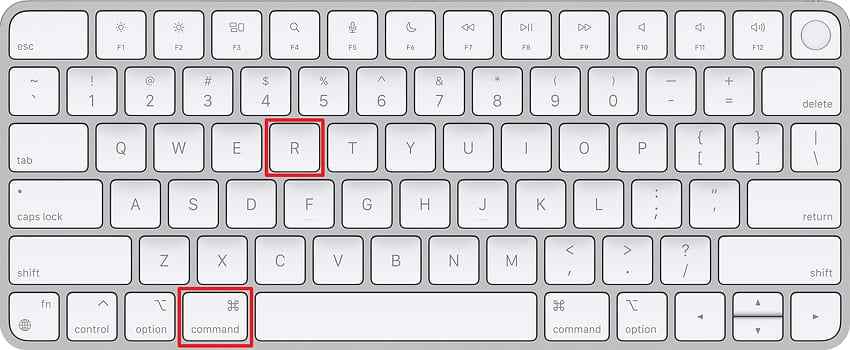
Apple’s current macOS Recovery procedure was updated in June 2026. Use Disk Utility or Reinstall macOS only when the earlier diagnostic steps justify it.
Fix 9. Run Apple Diagnostics
Apple Diagnostics checks for potential problems with internal hardware components. Prepare the Mac first so connected devices do not distort the test.
- Install available macOS updates if the Mac is stable enough, then shut it down.
- Disconnect external devices except required power, keyboard, mouse, display, or Ethernet.
- Apple silicon: Hold the power button until startup options appear, release it, then hold Command-D until the Mac restarts.
- Intel: Turn on the Mac and immediately hold D. Use Option-D if the built-in diagnostic does not start.
- Follow the onscreen instructions. If offered an offline test, choose Run Offline unless Apple Support or a technician initiated an online session.
- On macOS Tahoe 26 or later, choose the relevant component diagnostic when prompted. Record every reference code.
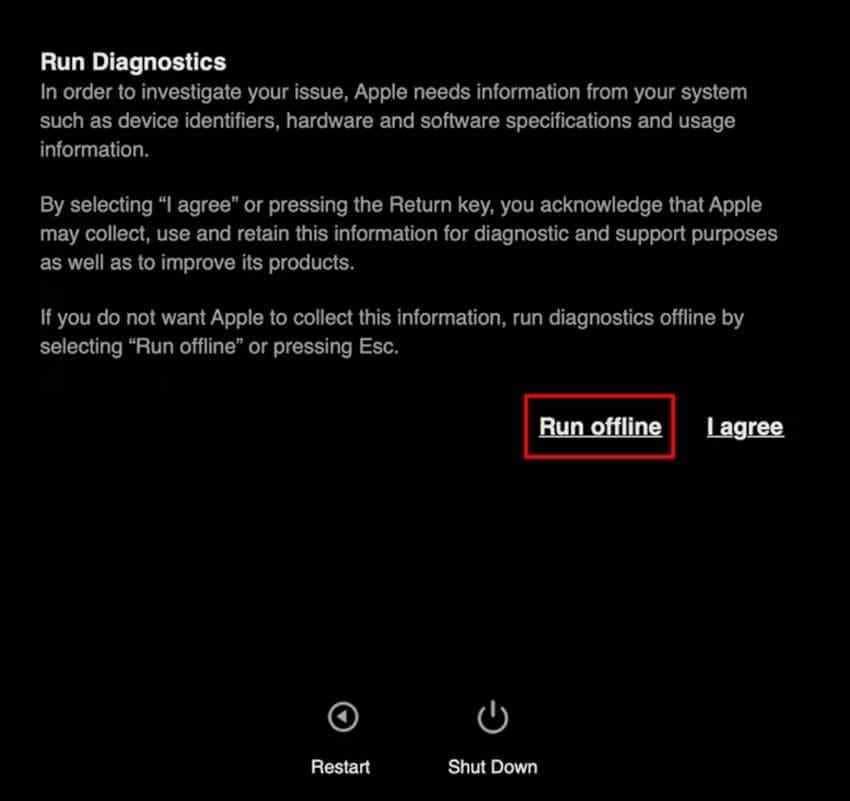
Use Apple’s current Apple Diagnostics instructions. A clean result lowers suspicion for the tested components but does not rule out every intermittent fault.
Fix 10. Reinstall macOS or Arrange Hardware Service
Reinstall after updates, accessory isolation, Safe Mode, and First Aid—not as the first response to a single freeze. Back up or recover important files before proceeding.
- Start in macOS Recovery using Fix 8.
- Choose Reinstall macOS and click Continue.
- Select the current macOS volume when prompted and follow the instructions. Do not erase the disk for this initial reinstall.
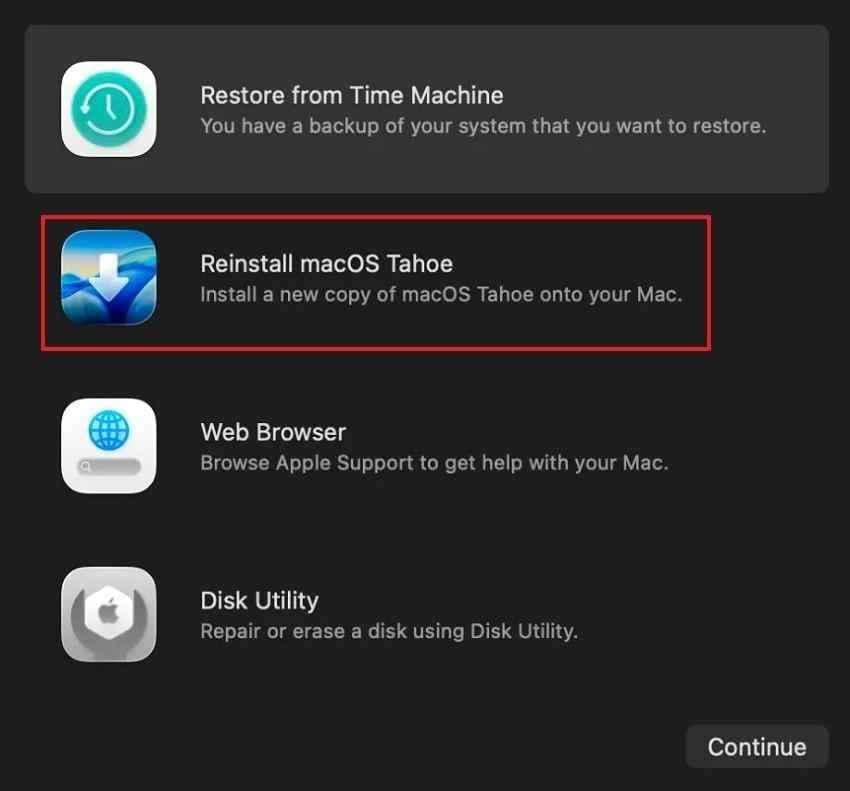
- Keep the Mac connected to power and do not close the lid during installation.
Apple’s June 2026 reinstall macOS guidance says reinstalling from Recovery does not remove apps or personal data, but still recommends a backup. If freezes continue with nonessential devices removed after a successful reinstall, arrange service and provide your Diagnostics codes, timestamps, and reproduction steps.
Part 5. Diagnose Random Mac Freezing by When It Happens
The table below turns timing into a troubleshooting decision. Start with the narrowest likely layer, make one change, and reproduce the same workload before escalating.
| When the Mac freezes | Likely area to check | Best first fix | Next step |
| Shortly after login | Login items, extensions, VPN, sync, security, or menu-bar software | Temporarily remove login items in Fix 5. | Test Safe Mode, then restore items individually. |
| While using one particular app | That app, plug-in, helper process, or the file being opened | Wait or force quit, update the app, and inspect Activity Monitor. | Test another file; reinstall only after backing up app data. |
| When connecting an external device | Device, cable, port, power, firmware, or driver | Disconnect it and test the Mac without accessories. | Reconnect one item at a time and change cable or port. |
| During large file transfers | Source or destination storage, cable, hub, file system, or normal heavy I/O | Wait for progress; if repeatable, back up and run First Aid. | Test another cable or drive; escalate if storage disappears or reports failure. |
| Across unrelated apps and tasks | System software, startup disk, memory, power, thermal, or logic-board issue | Test Safe Mode and remove peripherals. | Run First Aid and Apple Diagnostics. |
| Even in Safe Mode | macOS, startup disk, firmware, or hardware; third-party startup software is less likely | Back up, run First Aid, and use Apple Diagnostics. | Test Recovery, reinstall macOS, or arrange service. |
Do not overread one result. Safe Mode still uses macOS and hardware; Recovery still uses the Mac’s display, memory, storage interfaces, and firmware. Treat each result as evidence that shifts probability, not a final diagnosis by itself.
Part 6. When Random Mac Freezes May Indicate Hardware Failure
Hardware becomes more likely when several independent signs remain after software and accessory tests. Protect data before repeating stressful operations on suspect storage.
- Freezing continues in Safe Mode: Startup-loaded third-party software is less likely, although the test does not eliminate every software cause.
- Apple Diagnostics returns a reference code: Record the code and use Apple’s result guidance when arranging service.
- Disk Utility cannot repair or see the startup disk: If the internal disk disappears or First Aid reports unrepairable errors, stop repeated repair attempts and prioritize readable data.
- The Mac freezes across unrelated apps and workloads: A fault that appears during browsing, Finder use, light tasks, and heavy transfers is less consistent with one app.
- Freezing continues after macOS reinstallation: With peripherals removed, a correctly completed non-erasing reinstall that changes nothing strengthens the case for storage, firmware, power, memory, thermal, or logic-board investigation.
- The storage-service warning appears: Apple states that an SSD service notification reflects detected flash-storage errors that Disk Utility or a third-party app cannot fix. Back up and arrange service.
Apple recommends Apple Diagnostics when hardware is suspected and connected devices have been isolated. If the Mac or storage becomes unusually hot, clicks, repeatedly disconnects, or vanishes from Disk Utility, minimize further power cycles and discuss data recovery before repair.
Part 7. Recover Important Files if Random Freezes Lead to Data Loss
Repeated forced shutdowns can interrupt saves and transfers. Before reinstalling macOS, erasing a disk, or booking service, first check intact copies in Time Machine, iCloud Drive, the app’s AutoSave or recovery folder, and version history. Recovery software is relevant only when files were already written to storage and the device remains readable.
Recommended Tool: Wondershare Recoverit for Mac

Wondershare Recoverit for Mac can scan storage that macOS can access for deleted, lost, or inaccessible files whose recoverable data still remains. The current product page lists support for macOS 26, Apple silicon and T2 Macs, APFS, HFS/HFS+, and common external file systems.
Its role here is data recovery, not freeze diagnosis or macOS repair. Use it when repeated lockups or interrupted writes leave previously saved files missing, or when a readable external drive mounts but folders are inaccessible. Install and recover to a different volume whenever possible.
- Readable Mac and external storage: Scan a detectable internal volume, external HDD or SSD, USB drive, or memory card.
- Broad file-type coverage: Search documents, photos, video, audio, archives, email data, and other supported formats.
- Filters during scanning: Narrow results by file type, path, size, date, or status.
- Preview before recovery: Preview supported files to check whether their contents appear usable.
- Separate destination: Save recovered files to another drive so the source is not overwritten.
How to Recover Files After Repeated Forced Shutdowns
Keep the affected drive idle and prepare a separate destination. If the internal SSD is absent from Disk Utility or the Mac cannot remain stable long enough to scan, stop and seek service or professional recovery instead.
Step 1. Select the affected storage. Launch Recoverit for Mac, open Hard Drives and Locations, and choose the drive or location where the files were lost. Confirm it by capacity and name.

Step 2. Scan and filter the results. Start the scan, then use path, file type, status, date, or size filters to narrow the results. Avoid saving new data to the source while scanning.

Step 3. Preview and recover elsewhere. Preview supported files, select the items you need, click Recover, and save them to a different drive. Open the recovered copies before making an irreversible repair.

Recover Files After Repeated Forced Shutdowns
Security Verified. Over 7,302,189 people have downloaded it.
What Recoverit Can and Cannot Recover
Use these boundaries to decide whether software recovery is appropriate before reinstalling macOS or sending the Mac for service.
| Scenario after a freeze | Can Recoverit help? | Important boundary |
| A previously saved file was deleted or became inaccessible on readable storage. | Potentially, if recoverable data still exists. | Results depend on overwriting, SSD TRIM, encryption, and device condition. |
| A readable external drive mounts, but folders or files are missing. | Potentially; scan before formatting or adding data. | Recover to a different drive. |
| Unsaved edits existed only in memory when the Mac froze. | No direct recovery from volatile memory. | Check AutoSave, recovery folders, version history, cloud copies, and backups. |
| The internal SSD is not visible to macOS, Disk Utility, or another compatible system. | Software cannot scan storage the system cannot access. | Service or professional recovery may be required. |
| Storage blocks were overwritten or removed by SSD TRIM. | The original content cannot be reconstructed from those blocks. | Search Time Machine, cloud, exported, emailed, and other copies. |
| A FileVault-encrypted disk cannot be unlocked. | Not without legitimate access to the encrypted data. | Use the correct account, recovery key, or Apple-supported account-recovery path. |
Part 8. How to Reduce Random Mac Freezes
Prevention depends on removing repeatable triggers and keeping a verified copy of important data outside the Mac—not on running a generic optimizer.
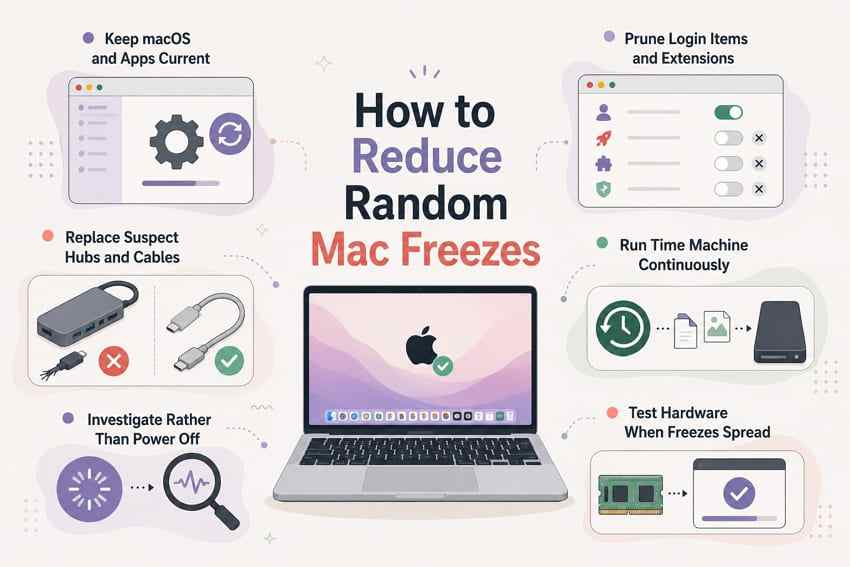
- Keep macOS and important apps updated: Install compatible updates after confirming a current backup.
- Remove outdated login items, extensions, and plug-ins: Use the developer’s removal procedure instead of deleting arbitrary folders in Library.
- Avoid faulty hubs, cables, and external devices: Replace accessories that repeatedly disconnect, reproduce freezes, or fail under load.
- Maintain regular Time Machine or other backups: Keep at least one copy separate from the Mac and periodically confirm that key files can be restored.
- Investigate recurring freezes: Record timestamps, triggers, accessories, and app names rather than relying on forced shutdowns.
- Run hardware diagnostics when the pattern spreads: Freezes across unrelated tasks, Safe Mode, or Recovery justify deeper tests and possible service.
- Preserve startup-disk working space: Leave enough room for updates, swap, caches, and active applications. Low free space can worsen performance, though it does not prove hardware failure.
Conclusion
When a Mac freezes randomly, the timing is the fastest route to a useful diagnosis. A freeze after login points toward startup software; one-app lockups keep attention on that app or file; device-triggered freezes call for accessory isolation; and failures across Safe Mode, Recovery, and unrelated workloads justify disk and hardware checks. Move from restart and updates to Activity Monitor, login items, Safe Mode, First Aid, Apple Diagnostics, and a non-erasing macOS reinstall. Protect or recover readable data before erasing the disk or arranging service, and keep Recoverit’s role separate from system repair.
FAQ
-
Why Does My Mac Freeze Randomly Without Showing an Error Message?
A full-system lockup can stop the interface before macOS can display or save an error. After restarting, note the exact time and check whether the pattern is tied to one app, login, wake, a transfer, or a device. Activity Monitor samples and diagnostic reports can help when the Mac remains responsive long enough to collect them. -
Can an External Monitor or USB-C Dock Cause Random Mac Lockups?
Yes. The trigger can be the dock, display, cable, power delivery, firmware, driver, or another device attached through the dock. Shut down, test without the accessories, then reconnect one item at a time. Eject storage normally and never disconnect it during an active write. -
Why Does My Mac Freeze Only After Waking From Sleep?
Wake-only freezes often point toward software or hardware that must reconnect after sleep, such as a dock, display, storage device, network extension, VPN, or background utility. Update macOS and the related software, test without accessories, and temporarily remove nonessential login items. A recurring wake issue can still require Apple Diagnostics or service if isolation does not identify a trigger. -
Can a Failing SSD Make a Mac Randomly Become Unresponsive?
Yes. Failed or delayed storage reads and writes can stall apps or macOS. Back up first, then run Disk Utility First Aid. If the SSD disappears, First Aid cannot repair it, or macOS reports that the storage needs service, stop repeated repair attempts and arrange service or professional recovery. Software cannot scan a device the system cannot access.


