

Need to restore a Mac from Time Machine? The right process depends on what is missing. A deleted document can often be restored from a dated backup without changing the rest of your Mac. A new MacBook, or a Mac that has been reinstalled, needs Setup Assistant or Migration Assistant to bring back backed-up accounts, applications, files, and settings.
If your Mac will not start, macOS Recovery provides separate troubleshooting and installation options. Crucially, a Time Machine backup contains user information, not a bootable copy of macOS itself. This guide explains which route to use, how to avoid replacing newer files, and when local file recovery is worth considering if the required item was never included in a usable backup.
In This Article
Part 1. Choose the Right Time Machine Restore Method
Quick answer: For a few files, open Time Machine and choose an earlier copy. For an entire account on a working or new Mac, use Migration Assistant or the transfer step in Setup Assistant. For a Mac that will not start, check the startup disk through macOS Recovery and reinstall macOS only if necessary. A Time Machine backup is not a macOS installation image.
| What you need | Use | What changes |
| One deleted file or an older version | Time Machine file browser | Restores the selected item to its original location; does not roll back the entire Mac |
| Apps, accounts, and settings on a new Mac | Setup Assistant during initial setup | Migrates selected information to the installed macOS on the new Mac |
| Most backed-up data on a Mac already set up | Migration Assistant | Transfers selected accounts and data; an existing account may need to be renamed or replaced |
| Mac fails to boot | macOS Recovery, followed by an appropriate restore or migration route | Diagnoses startup problems and can reinstall macOS separately from restoring user data |
| No backup contains the missing file | Other copies, then local data-recovery software if applicable | Searches remaining readable local data; cannot manufacture an earlier Time Machine backup |
Restore a Few Files Without Migrating a User Account
Use the file browser when a document was deleted or a previous version is needed. Apple's Time Machine file-restore instructions confirm that restored items ordinarily return to the folder where they were stored. If a current file has the same name, review the replace-or-keep-both prompt instead of overwriting it automatically.
Step 1. Make the backup disk available, if needed. In Finder, open the folder where the missing item belonged. Open Time Machine using Spotlight or choose Browse Time Machine Backups from the Time Machine menu, if that option is visible.
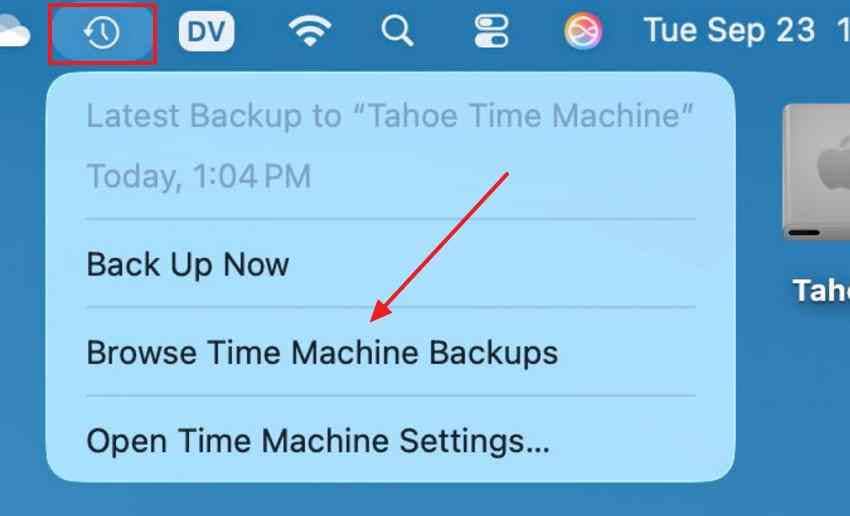
Step 2. Move through the dates or arrows to the last backup containing the desired item. Select it and click Restore; open the restored file to check that it is the version you need.
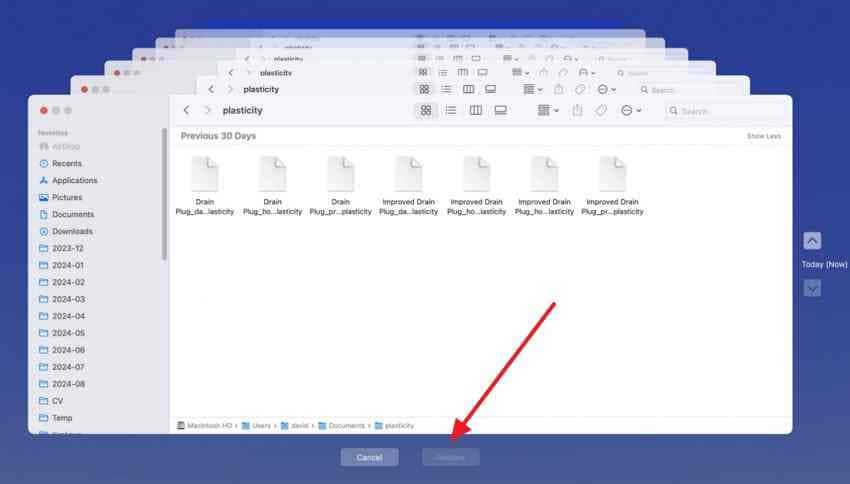
Important: If you need to preserve the current copy, duplicate it to a separate safe location first. Selective file restoration and restoring an entire user account have very different consequences.
Choose Setup Assistant, Migration Assistant, or macOS Recovery
Use Setup Assistant if a new Mac or freshly installed Mac is still showing its initial setup screens. Choose the option to transfer from a Mac, Time Machine, or startup disk. If initial setup is already complete, open Migration Assistant from Applications > Utilities or Spotlight. Apple's restore-from-backup guide describes this as a transfer of backed-up personal information, including apps and accounts.
Use macOS Recovery when the computer cannot reach the desktop. Recovery has utilities for disk checks, macOS installation, and supported Time Machine restoration on the original Mac. Do not use the Recovery restore workflow as a migration method for a different Mac; choose Setup Assistant or Migration Assistant there.
Plan macOS Installation Separately From Data Migration
Time Machine saves data such as documents, compatible third-party apps, account contents, and settings. It excludes the macOS system files and built-in apps that come with the operating-system installation. If macOS itself is damaged, install a working compatible macOS version and then transfer the backed-up information. If the Mac still boots and you only lost a folder, reinstalling macOS would be unnecessary.
If your immediate goal is to make future backups rather than recover existing ones, use the site's separate Time Machine setup and backup guide; the steps below focus on restoring existing data.
Part 2. Protect Your Current Data Before Restoring
Before choosing any backup date, confirm which information it contains and what will happen to files created since then. This matters most when replacing an existing user account or repairing a Mac that still holds files that were never backed up.
Confirm the Backup Date, Disk Access, and Encryption Password
| Check | How to verify | Reason to pause |
| Backup date | Check the Time Machine timeline or the backup selected in Migration Assistant | The backup predates the missing document or later edits |
| Disk access | Connect the drive directly or access the supported network location; check that it appears in Finder or Disk Utility | Repeated disconnects, missing disk, or read failures |
| Encryption | Locate the password used to encrypt the Time Machine backup disk | The backup cannot be unlocked; the Mac login password is not necessarily the disk password |
| Available space | Compare the selected migration categories with the destination Mac's free space | Not enough room for the selected accounts and applications |
Time Machine keeps multiple backup dates while space and retention allow. A usable backup from yesterday does not necessarily include changes made this morning. Apple's backup-disk compatibility guidance also distinguishes direct external storage from supported network destinations. Do not reformat a disk simply because the current Mac cannot open its backups immediately.
Preserve Newer Files Before Replacing an Existing Account
If the Mac has been used since the backup date, copy recent documents, downloads, current Photos or Mail data, and other important changes to independent storage before starting a large migration. When Migration Assistant finds a same-named account, choosing Replace can remove the existing account and install the backed-up one. Choosing to rename the incoming account can retain both accounts; Apple may also offer to place the replaced account's old data in Deleted Users.
Do not assume that a Time Machine file restore, a Migration Assistant account replacement, and a disk erase have identical effects. They do not. The exact confirmation screen should decide how cautiously you proceed.
Pause Reinstallation if Unbacked-Up Files Still Matter
Before erasing the startup disk, running repairs on unstable storage, or reinstalling macOS, ask whether any required files are missing from every available backup. If yes, protect those files first if the source can still be accessed safely. An Apple silicon Mac that does not start normally may offer Share Disk in macOS Recovery, allowing accessible files to be copied to another Mac; this is file transfer, not deleted-file recovery.
If the internal SSD is unreadable, FileVault cannot be unlocked, or the Mac shows hardware-failure signs, neither Time Machine nor third-party recovery software can promise access to data that is no longer readable. On modern SSDs, encryption and TRIM may also prevent undeleting data that was never backed up.
Part 3. Restore Apps, Accounts, and Files With Migration Assistant
Migration Assistant is the right tool for restoring most of a Mac's backed-up user information once macOS is working. It does not install an old copy of macOS over the current operating system. You can use it on the original Mac after a reinstall or on a different Mac when moving from a Time Machine backup.
Connect the Backup and Choose the Time Machine Transfer Option
Step 1. Connect the Time Machine disk directly to the Mac, or ensure that the supported network backup is reachable. Open Migration Assistant from Applications > Utilities or use Spotlight. You can also open it through System Settings > General > Transfer or Reset on macOS versions where that control is present.
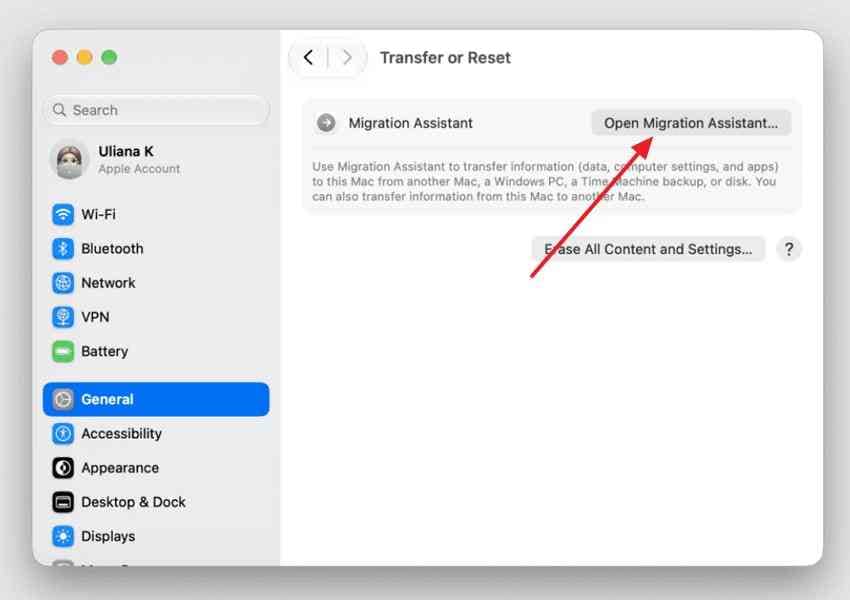
Step 2. Select the option labeled From a Mac, Time Machine, or startup disk, and click Continue. During initial setup, select the equivalent transfer option in Setup Assistant.
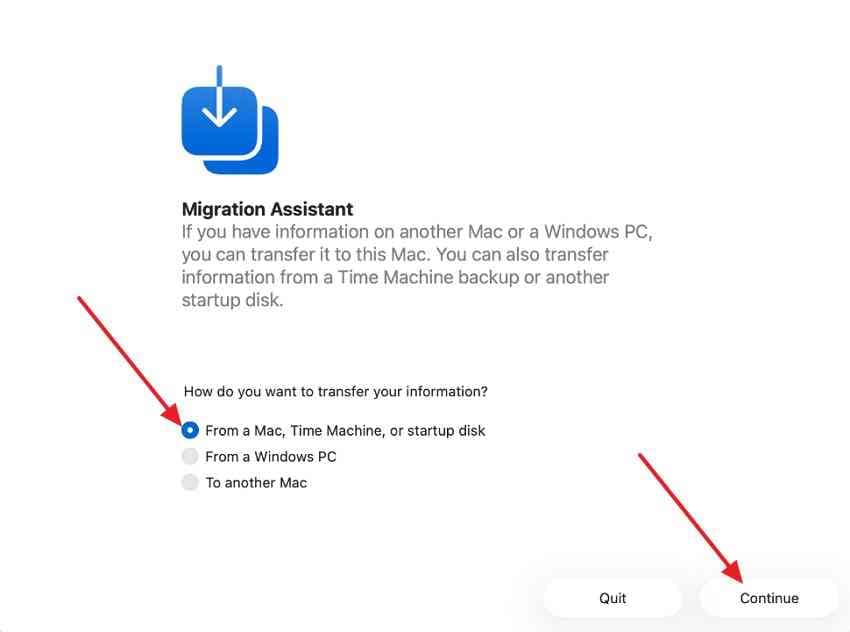
Step 3. Select the backup disk when it appears and click Continue. If prompted, enter the backup disk's encryption password, which may differ from the password of the Mac account you are restoring.
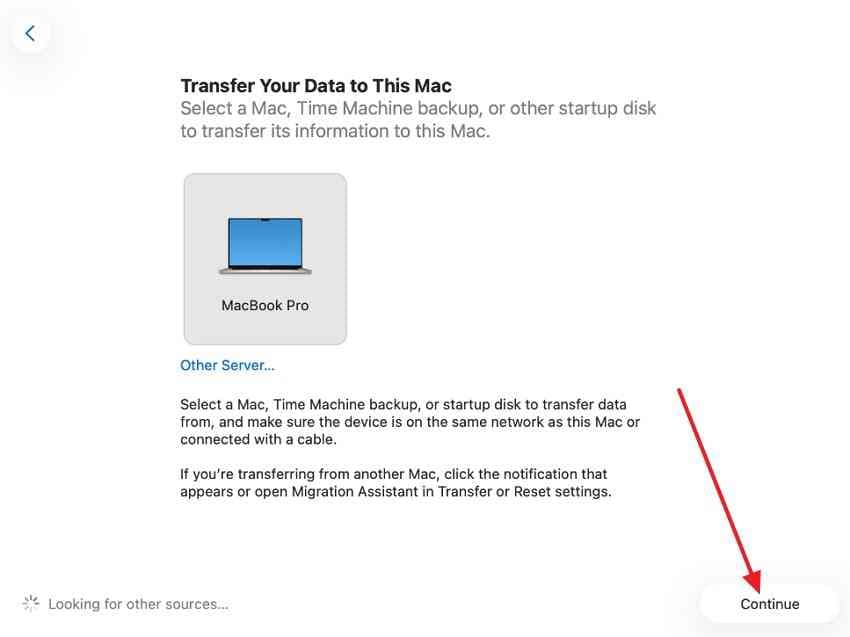
Select the Backup Date and the Categories to Migrate
Step 4. Choose the backup date. If the most recent backup is not the version you want, use the disclosure control next to its date to inspect earlier backups. Then select categories such as Applications, User Accounts, Other Files & Folders, and eligible settings. Apple's current Migration Assistant instructions explain that individual categories can be expanded before transfer.
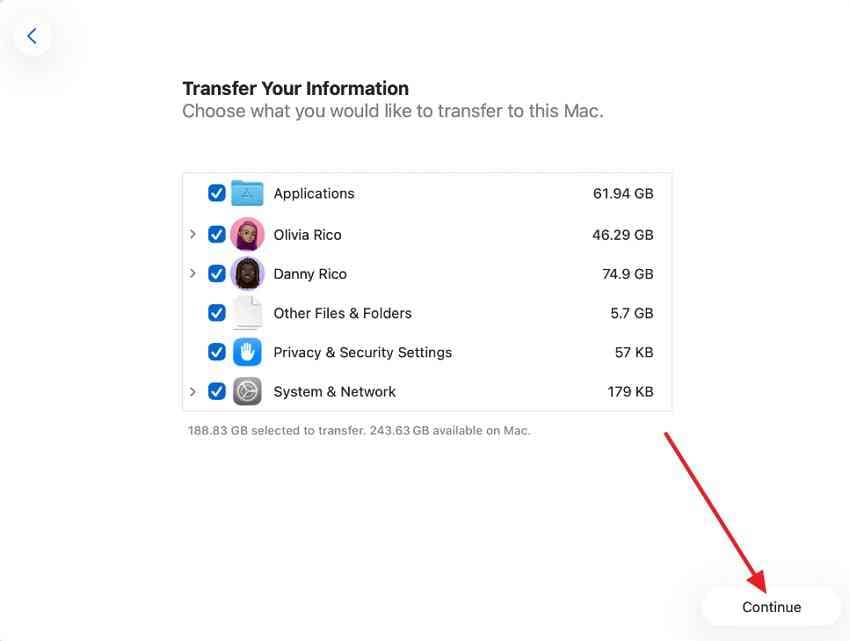
If destination space is limited, expand a user account and deselect unneeded categories before continuing. Do not erase the old backup to make more space.
Handle Account-Name Conflicts and Verify the Restored Data
Step 5. Set a password for a transferred administrator account when asked. Save any temporary standard-user passwords shown by Migration Assistant; they may be needed for the first login.
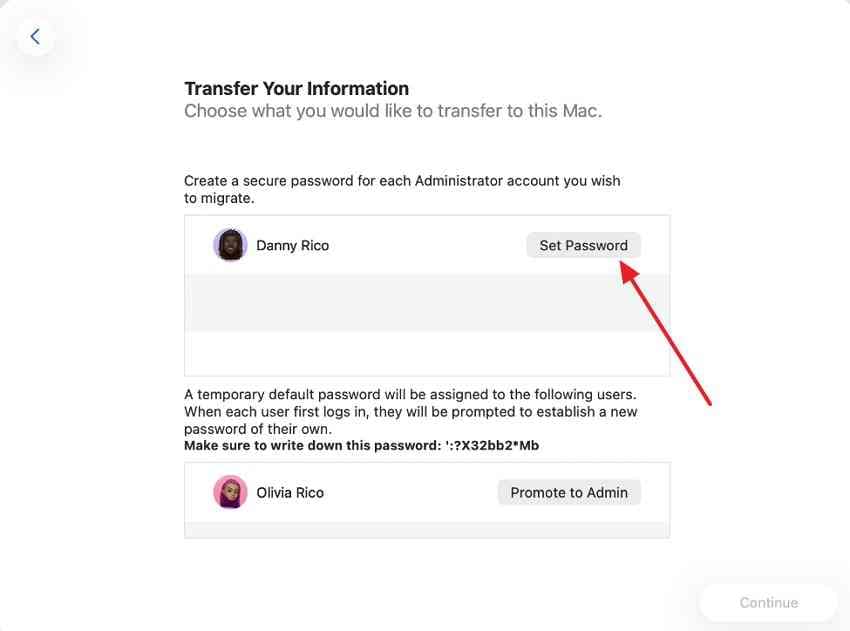
Step 6. If an account name already exists, read the choice carefully. Replace may remove current account data, whereas renaming the incoming account can keep both accounts. Choose the option that preserves what you still need.
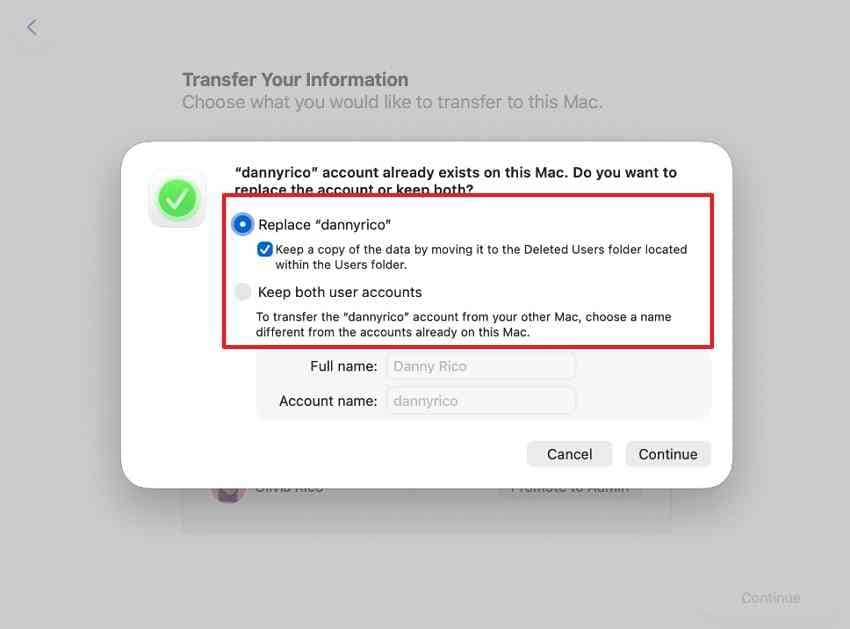
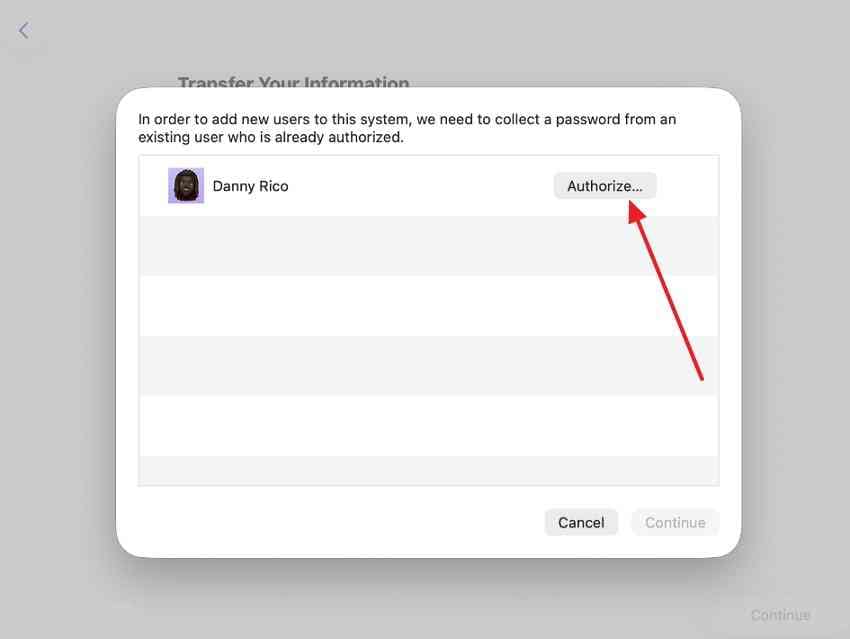
Step 7. If a password prompt asks an already-authorized Mac user to approve the migration, click Authorize and enter the requested credentials.
Step 8. Wait for the transfer to finish, then sign in to the migrated account. Check Documents, Desktop, Photos, Mail, and representative third-party apps. Apps may need updates or a fresh sign-in. Large transfers can take hours and sometimes appear paused even while copying data.
Part 4. Restore Time Machine Data When Your Mac Will Not Start
If a Mac cannot reach the desktop, first determine whether the problem is a startup failure or an inaccessible physical disk. macOS Recovery can help when the hardware remains functional; it does not guarantee the recovery of unbacked-up files from a failing SSD.
Enter macOS Recovery on Apple Silicon or Intel
Apple silicon Mac: Shut the Mac down completely. Press and hold the power button until startup options appear. Choose Options > Continue; if prompted, select the relevant startup volume or administrator account and enter its password. Follow Apple's Apple silicon Recovery guidance if the screen differs.
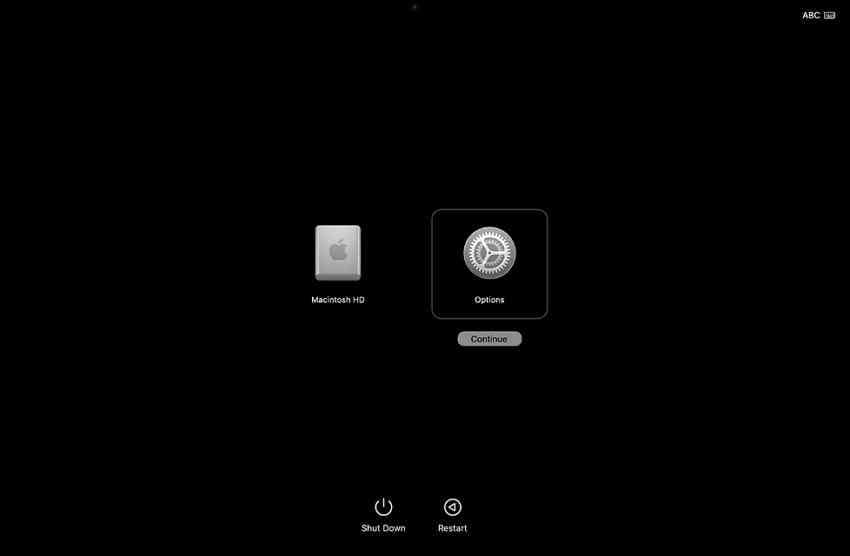
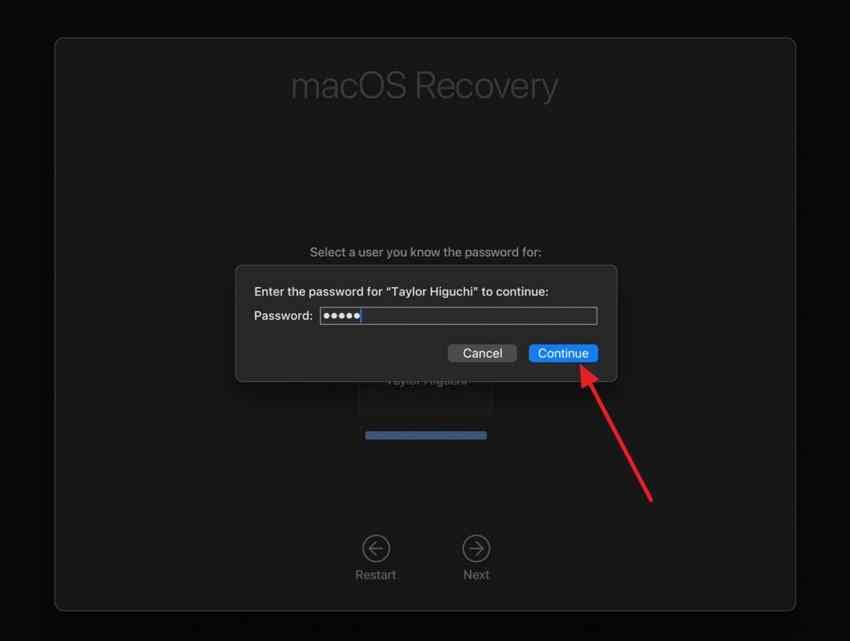
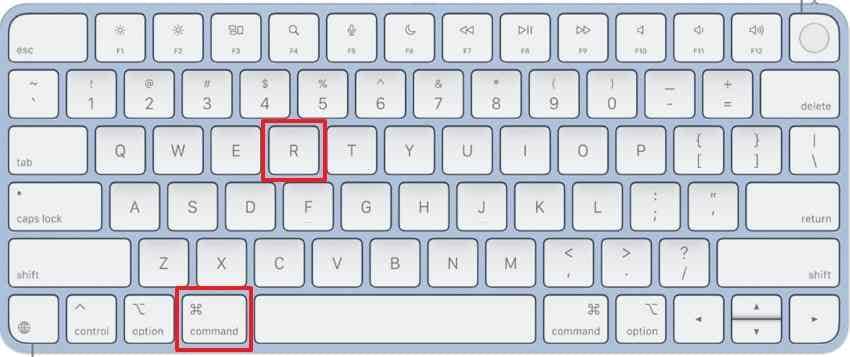
Intel-based Mac: Turn on or restart the Mac, then immediately hold Command-R to load local Recovery. If that is unavailable, Option-Command-R may open Internet Recovery. Apple's Intel Recovery instructions describe the supported startup methods.
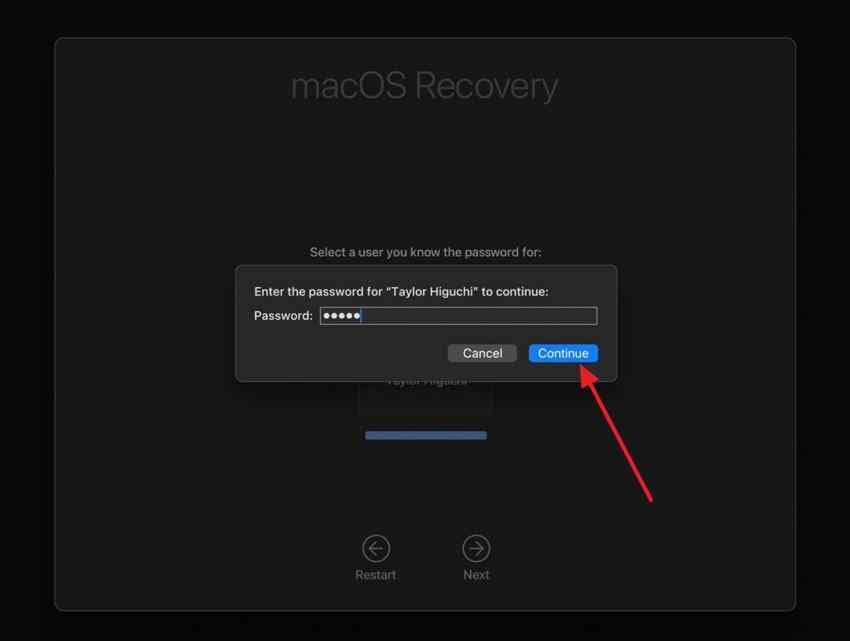
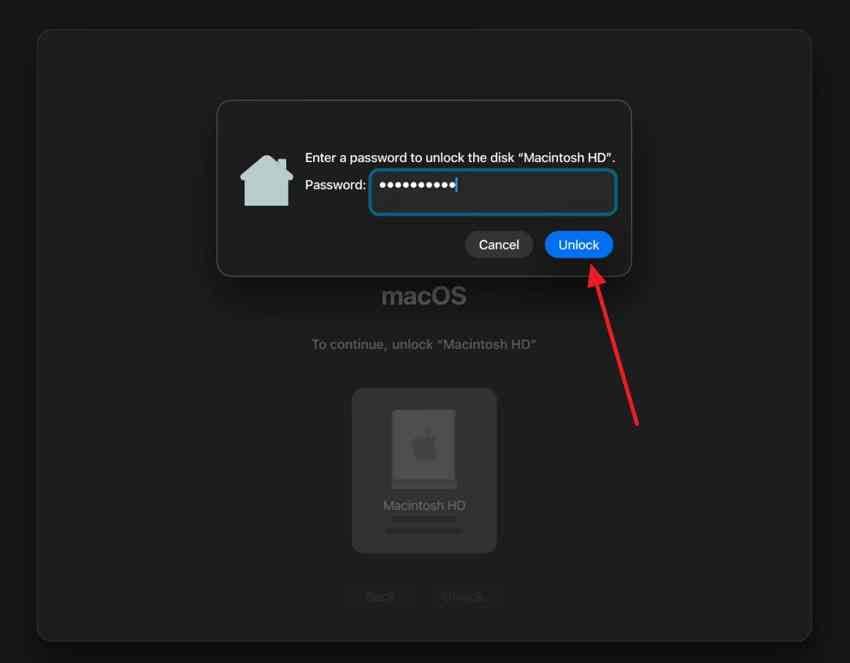
When required, join a network, select an administrator account, and unlock the system volume.
Assess the Startup Disk and Reinstall macOS Only When Necessary
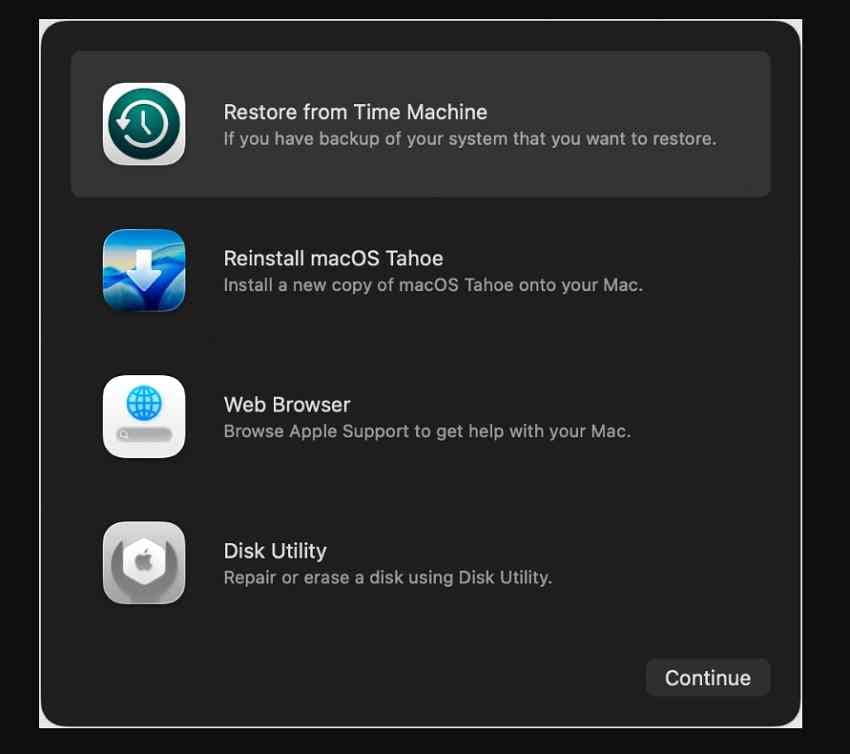
In Recovery, you may see options such as Restore from Time Machine, Reinstall macOS, and Disk Utility. The Recovery Time Machine option is for restoring information to the same Mac that created the backup. For a different Mac, use Migration Assistant instead.
If the system disk is visible but the Mac cannot start, use the least destructive viable route. When important files are not backed up, do not erase the disk to start troubleshooting. For a stable drive with protected data, Disk Utility First Aid can check and repair some file-system errors. Open Disk Utility, choose View > Show All Devices, then work from volumes upward to containers and finally the device, following Apple's recommended order.
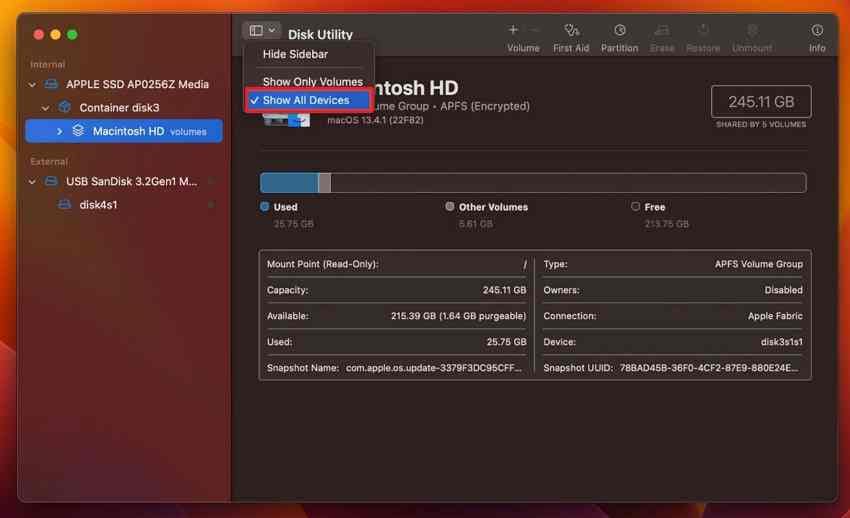
After confirming that required files are safe, select the appropriate volume and run First Aid if needed. Do not repeatedly run it on a disk that disconnects or reports hardware failure.
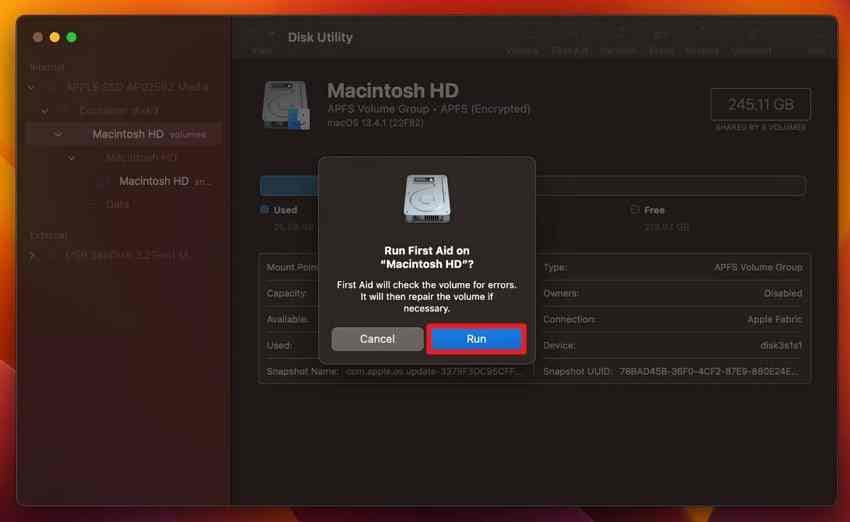
If macOS system files are damaged, reinstall macOS through Recovery on the existing system disk. An ordinary reinstall is designed to keep personal data when the disk is not erased, but any install or repair is risky if the disk is already failing; back up first wherever possible.
Transfer the Backup During Setup After macOS Is Available
After replacing or erasing the internal drive and installing macOS, use the transfer prompt in Setup Assistant to select the existing Time Machine backup before creating a new user account. If macOS was reinstalled without erasing the old installation and the existing account remains available, open Migration Assistant instead of repeating the operating-system installation.
Unlocking a FileVault-protected startup volume is separate from unlocking an encrypted Time Machine backup. This Recovery prompt is for the startup volume; enter the requested legitimate Mac credentials and do not confuse them with the backup-disk password.
Part 5. Troubleshoot an Unavailable or Failed Time Machine Restore
When the backup is missing or a migration fails, do not initialize, erase, or start replacing backups immediately. First determine whether the issue is connection, credentials, software compatibility, insufficient space, or deteriorating storage.
Check the Backup Disk Connection and Unlock an Encrypted Backup
- Direct USB or Thunderbolt disk: Confirm the power supply and cable, try one known-good port, and look for the physical device in Disk Utility with Show All Devices enabled.
- Encrypted disk: Use the password assigned to the backup disk. The current Mac login password may not unlock a backup created on a different machine.
- Network backup: Verify the server and Wi-Fi/Ethernet connection. The NAS must offer a Time Machine-compatible protocol. On macOS 27 or later, AFP network backups are no longer supported; check for SMB support before assuming the backup was lost.
- Disk space: Check that the destination Mac can hold the selected migration categories before assuming that the archive is damaged.
Apple's Time Machine troubleshooting checklist covers disk connection, supported destinations, network checks, and space-related problems. If a physical drive repeatedly drops offline or clicks, stop reattaching it for scans and seek specialist assessment.
Investigate an Unavailable Backup Without Erasing It
Verify whether another backup date, the original Mac, or a different supported connection can open the archive. If Time Machine proposes replacing the backup set or using a fresh empty disk, postpone that choice until the existing backup has been protected or its contents have been assessed.
For network Time Machine backups, Apple's Verify Backups feature is available through the Time Machine menu while holding the Option key. This is not a general verification command for every directly attached USB backup disk.
Do not change Backup Frequency to Manually merely as a routine restore fix. Apple's local-snapshot guidance explains that turning off automatic backups can cause local snapshots to be deleted after a short time. If those snapshots may contain your only remaining copy, avoid that change.
For a backup disk that is readable but shows file-system errors, preserve a separate copy or use a qualified professional before attempting repairs that could modify its structures. Avoid running First Aid repeatedly on a physically unstable backup disk.
Distinguish a Slow Migration From Repeated Read Errors
| Observation | More consistent with slow migration | Reason to stop or investigate |
| Progress | Transfers continue in bursts | Same read error or file fails repeatedly |
| Backup disk | Stays connected and available | Disconnects, disappears, or remounts often |
| Alerts | No disk-health warnings | I/O errors or failing-disk warnings |
| Next step | Allow sufficient time and power | Stop repeated attempts; protect source and obtain specialist help if needed |
A large Time Machine transfer can take several hours. Progress pauses alone do not prove the backup is corrupt. However, repeated I/O errors, abnormal noises, or disk loss are different signals; continued retries can make hardware failure worse.
Part 6. Find Files Still Missing After the Restore
Even a completed migration cannot recover a file that was never in the selected backup. Before scanning storage, check whether a different date, local snapshot, synced cloud copy, or another independent backup contains it.
Check Another Backup Date and Independent Copies
- Earlier Time Machine dates: Browse the folder before the file was deleted. A different backup date may contain the last usable version.
- Local APFS snapshots: If automatic Time Machine backups were enabled, a recent version may be available even without the external disk. Local snapshots are temporary and do not replace off-device backups.
- iCloud Drive or Photos: Check the appropriate Recently Deleted area when the files were synced or stored there. Availability depends on the service and retention period.
- Independent copies: Check another Mac, external drive, exported archive, shared folder, or app-specific version history before attempting a disk-level scan.
If you need a wider guide for undeleting local files rather than restoring a prepared backup, see the existing Recoverit Mac deleted-files recovery article.
Use Recoverit Only for Missing Files on Readable Local Storage

If no backup contains the file, Wondershare Recoverit for Mac can help scan a supported, readable internal or external disk for remaining lost-file data. This is a different process from using Time Machine: Recoverit does not reinstall macOS, recreate a missing backup version, bypass FileVault, or repair a failing SSD. Success depends on readable storage and whether the file's contents survived overwriting, SSD TRIM, or encryption-related loss.
On a currently working Mac, install the recovery application on a different healthy location when possible and connect another drive for saving recovered results. If the deleted files were on the startup SSD, continued use of the Mac may reduce the chance of recovery.
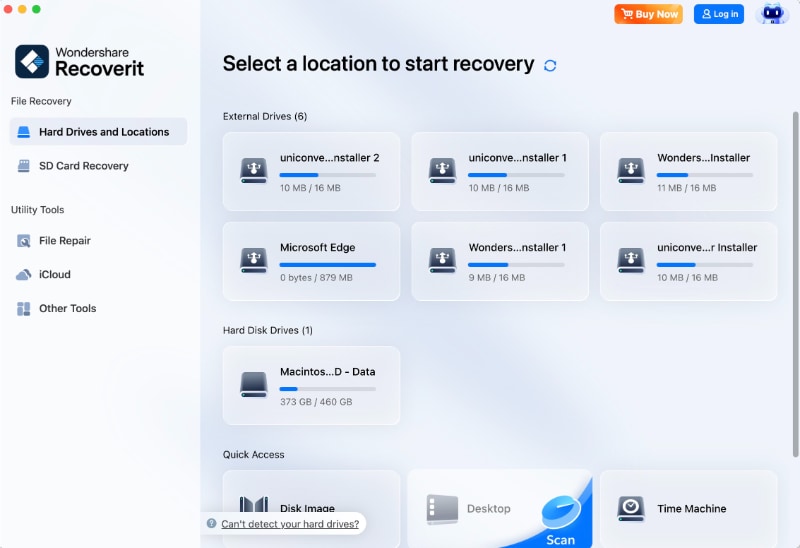
Step 1. Select the affected drive. Open Recoverit and choose the compatible source disk or location that formerly contained the file. If the drive is absent from the Mac's system-level disk list, software scanning is not yet an appropriate next step.
Step 2. Scan and review results. Let the scan run, use available file-type filters or search functions, and preview supported file types. Certain versions offer additional AI search features, but they are not necessary for the basic recovery workflow.
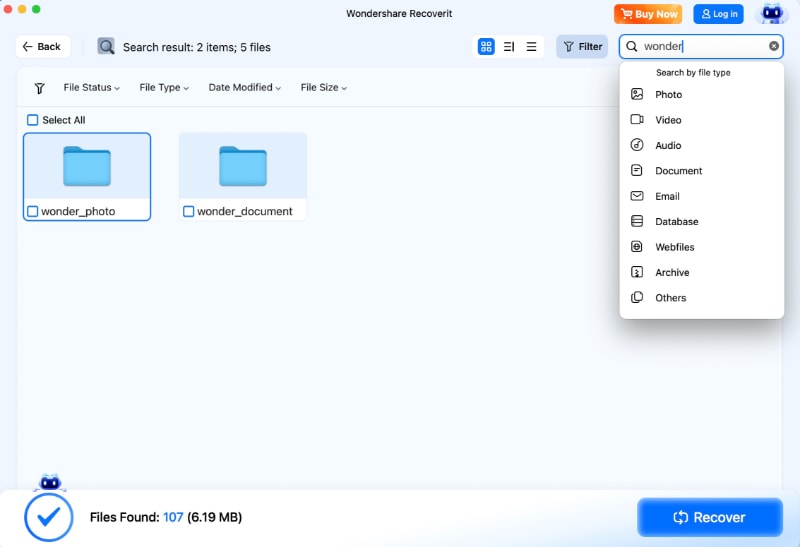
Step 3. Recover to separate storage. Select the files that can be previewed or otherwise identified, click Recover, and save them to a healthy external disk rather than the source being scanned. Verify the recovered files before deleting other copies.

For further details, consult the official Recoverit for Mac user guide. A Free Download is not a promise of unlimited free file saving; eligibility and limits depend on the current product edition.

Conclusion
To restore a Mac from Time Machine, match the method to the loss: use Time Machine for selected files, Migration Assistant for accounts and applications, and macOS Recovery when the Mac cannot start. Time Machine does not replace the macOS operating system. Always check backup dates, encryption passwords, and newer files before migration or reinstallation. If a needed file was never backed up, local recovery software may help on readable storage, but it cannot reverse overwritten data or physical damage.
FAQ
-
Can I Restore My Mac to an Earlier Date Using Time Machine?
Yes, if a Time Machine backup from that date is available. You can restore individual files or earlier versions without changing the whole Mac, or use Migration Assistant to transfer applications, user accounts, and settings from a selected backup. This does not automatically downgrade the installed version of macOS. Keep newer files safe before replacing any account. -
Does Restoring From Time Machine Erase Current Files on My Mac?
Restoring a single file ordinarily affects only that selected item, although you may be asked whether to replace an existing version. Migration Assistant can transfer an incoming account without deleting another account if you rename it, but selecting Replace can remove the existing account's data. Erasing a disk is a separate, destructive operation. Save recent changes before proceeding. -
Can I Restore a Time Machine Backup From One MacBook to Another?
Yes. During initial setup of the new MacBook, choose to transfer from a Time Machine backup using Setup Assistant. If the new MacBook has already been set up, open Migration Assistant and choose the backup as the source. Apple recommends Migration Assistant for transfers between Macs, rather than using the macOS Recovery restore option meant for the original source Mac. -
Can I Restore Time Machine Files Without Connecting the Backup Drive?
Sometimes. On supported Macs with APFS storage and available local Time Machine snapshots, you may be able to recover a recent version without the external backup disk. These snapshots are temporary and may already have expired or been removed to free space. Otherwise, reconnect the backup destination or check an independent copy such as iCloud. Local data-recovery software is a separate last resort for lost files still readable on the Mac.


