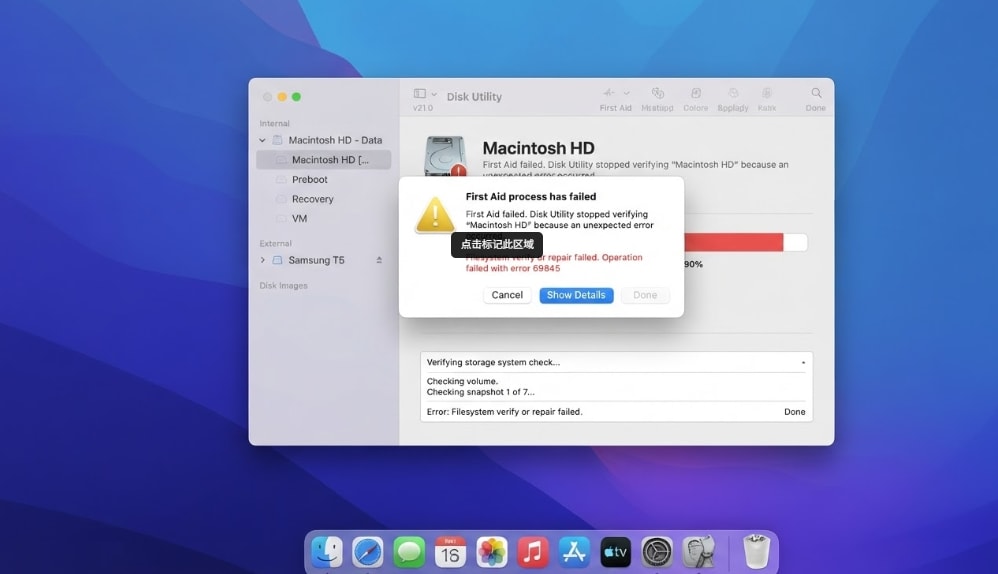

 TL;DR:
When a Mac displays the "unable to verify startup disk" error, it detects a boot drive but cannot validate its file system or security state, meaning you should recover your data via macOS Recovery before attempting repairs or erasing the drive.
● Unlike the "no startup disk found" hardware error, this verification issue is typically triggered by interrupted macOS updates, APFS volume damage, locked FileVault encryption, or restrictive external boot policies on Apple Silicon and T2-equipped Intel Macs.
● If utilizing Wondershare Recoverit for Mac to rescue data before an erasure, the storage device must still be readable in Disk Utility, and the software cannot bypass FileVault protections without the correct password or recovery key.
● Execute non-destructive repairs by starting in macOS Recovery, running First Aid in a specific hierarchy from the bottom data volumes up to the physical drive, and attempting a macOS reinstall prior to formatting the disk.
Ask AI for a summary
 ChatGPT
 Perplexity
 Gemini
 Claude
 Grok
Grok
The unable to verify startup disk Mac message often appears after an interrupted macOS update, file system damage, a FileVault unlock issue, a startup security setting, an external boot restriction, or a failing storage device. It is different from "no startup disk found" because the Mac may still see a possible boot disk, even though verification fails.
Before reinstalling or erasing macOS, protect your files. If the startup disk appears in Disk Utility, Time Machine, Share Disk, another working Mac, or a data recovery tool may help you copy or recover important data first. Wondershare Recoverit for Mac is useful in this workflow as a data recovery tool for detected storage, not as a macOS startup repair tool.
Try Recoverit to Perform Data Recovery
 Security Verified. 3,591,664 people have downloaded it.
In this article
Part 1. What Does "Unable to Verify Startup Disk" Mean on Mac?
The message means your Mac found a possible startup disk but failed one or more checks needed before it can start from that disk. The problem may involve the file system, APFS volume structure, macOS system files, startup security policy, FileVault unlock state, external boot authorization, or storage hardware.
It does not always mean the disk is dead. It also does not always mean your files are gone. The safest next step is to find out whether the disk is visible and readable before making repairs that could change the disk.
Unable to Verify vs No Startup Disk Found
| Message | What It Usually Means | First Thing to Check | Status |
| Unable to verify startup disk | The Mac can see a possible startup disk, but verification fails before boot. | Startup security, FileVault unlock, First Aid, backup or recovery options. | Needs Action |
| The startup disk could not be verified | The same general issue: macOS or startup security cannot trust or validate the selected disk. | Internet connection, Recovery options, startup security policy, disk health. | Needs Action |
| No startup disk found | The Mac cannot find a usable boot volume. | Disk Utility visibility, cable or port, internal drive detection, hardware service. | Hardware Risk |
| Security settings do not allow this Mac to use an external startup disk | The external disk may be blocked by startup security settings. | T2 Startup Security Utility or Apple silicon security settings. | Security Block |
Internal Disk vs External Startup Disk
An internal startup disk error often points to a macOS update problem, APFS file system damage, FileVault unlock trouble, startup disk selection, recovery issue, or internal storage failure.
An external startup disk error can also involve physical connection and authorization factors, such as:
- Loose USB-C, Thunderbolt, or USB-A cable.
- Unpowered hub, weak adapter, or unstable enclosure.
- External drive not receiving enough power.
- macOS version on the external drive is not compatible with the Mac.
- External boot is not allowed on a T2-equipped Intel Mac.
- The external operating system needs authorization on Apple silicon.
Apple Silicon, T2, and Intel Differences
Startup verification differs by Mac generation, so use the correct recovery path for the Mac in front of you.
| Mac Type | Verification Notes | Recovery Entry | Compatibility |
| Mac with Apple silicon | Uses modern signed system volume and per-OS security policy. Startup Options appears before Recovery. | Shut down, then hold the power button until startup options appear. | M1 / M2 / M3 / M4 |
| Intel Mac with Apple T2 Security Chip | Uses Startup Security Utility, including Secure Boot and external boot controls. | Restart and hold Command + R to enter macOS Recovery. | Intel T2 |
| Intel Mac without T2 | Does not use T2 Secure Boot, but can still have NVRAM, file system, startup disk, and hardware issues. | Restart and hold Command + R, or use internet recovery key combinations if needed. | Legacy Intel |
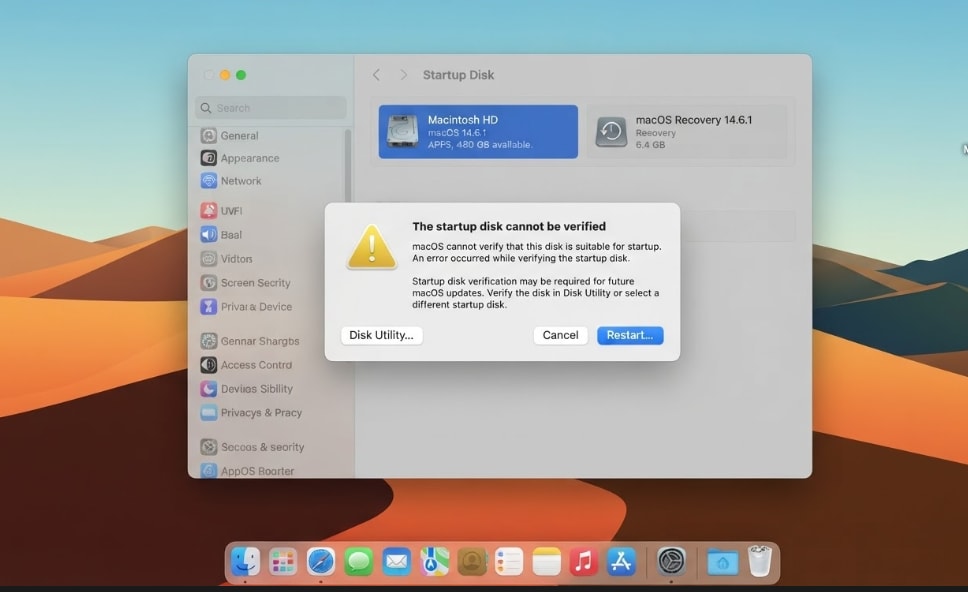
Part 2. Check the Startup Disk Before Troubleshooting
Do this quick decision check before trying repairs. It tells you whether to focus on recovery, First Aid, startup settings, or service.
| Disk Utility Result | What It Suggests | Safe Next Step | Data Risk |
| Disk appears and can be mounted or unlocked | The disk is readable enough for backup or file recovery. | Copy files, use Time Machine if available, or recover files before repairs. | Low Risk |
| Disk appears but will not mount | File system damage, encryption, or APFS volume issues may be present. | Unlock if encrypted, then recover files before repeated repair attempts. | Medium Risk |
| Disk appears with failure warnings | The storage may be physically failing or close to failure. | Back up or recover data, then replace or service the disk. | High Risk |
| External startup disk appears only sometimes | Cable, hub, port, enclosure, or power may be unstable. | Use a direct connection and recover files before rebuilding the external boot drive. | Medium Risk |
| Disk does not appear at all | macOS cannot see a target to repair or erase. | Check connection or seek service. Do not keep forcing repair. | Critical Risk |
Also note the exact wording and when the alert appears. Did it start after a macOS update, forced shutdown, FileVault prompt, external SSD boot attempt, or disk repair? Those details help separate security-policy issues from file system damage and hardware failure.
Part 3. Recover Files Before Erasing the Startup Disk
This is the most important step if you do not have a current backup. Erasing a startup disk deletes user accounts, apps, settings, and files. Disk repair can also fail or reveal deeper damage, so protect important data first whenever the disk is still detected.
When File Recovery Should Come First
Prioritize file recovery before repair if:
- You do not have a recent Time Machine backup.
- The Mac loops back to Startup Options or macOS Recovery.
- Disk Utility sees the disk but cannot mount the data volume.
- First Aid has failed or reported serious errors before.
- The disk asks to be erased, initialized, or reformatted.
- An external startup disk disconnects, mounts only sometimes, or appears unreadable.
- The disk contains business, school, creative, family, or legal files you cannot replace.
Do not keep running First Aid repeatedly on a drive that shows signs of failure. Each attempt can stress the disk or change file system structures.
Recover Files from a Detected Disk with Recoverit
Wondershare Recoverit for Mac is a data recovery tool, not a startup verification repair tool. Use it before erase, reformat, reinstall with erase, or disk replacement when the startup disk or external startup disk is still detected by macOS or another working Mac.
| Recoverit Can Help With | Recoverit Cannot Do | Feature Match | Data Risk |
| Scan readable Mac storage and external drives for lost files. | Fix the underlying startup disk verification error. | Supported | Low Risk |
| Recover files before erasing, reformatting, or reinstalling macOS with erase. | Repair macOS, firmware, Startup Security Utility, or the boot configuration. | Supported | Low Risk |
| Recover photos, videos, documents, audio files, archives, and other file types from detected storage. | Bypass FileVault, account passwords, or encryption protections. | Restricted | Password Protected |
| Recover files from a readable external startup disk, USB drive, SSD, hard drive, SD card, or memory card. | Recover from physically failed storage that is not detected. | Restricted | Hardware Failure |
- Stop using the problem disk. Avoid new downloads, installs, copies, or repair attempts on the source disk.
- Prepare a separate destination drive. Use an external SSD, external hard drive, or another safe storage device with enough free space.
- Run Recoverit from a safe location. If the issue is an external startup disk, run Recoverit on the working Mac and scan the external disk. If the issue is the internal disk, avoid saving recovered files back to it.
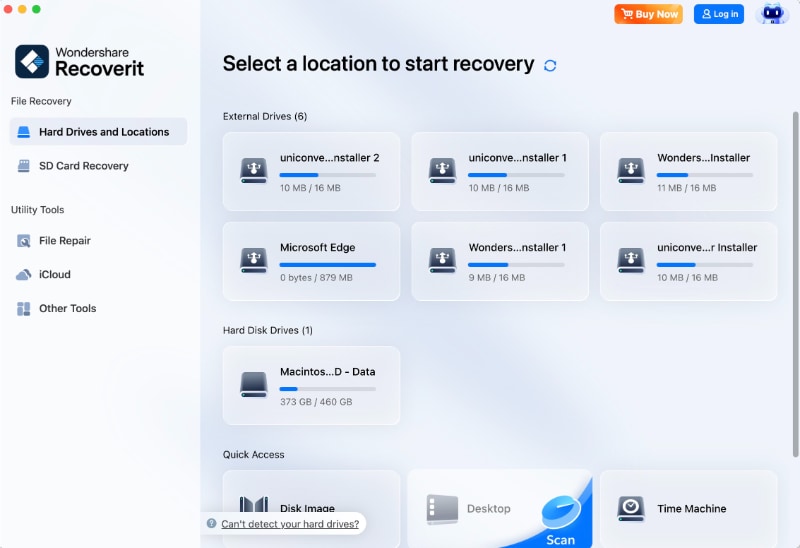
- Select the detected startup disk or volume. Choose the original location where the lost files were stored.
- Scan and preview. Let Recoverit search for recoverable files and preview important results when available.
- Recover to the separate destination. Save recovered files away from the source disk to avoid overwriting recoverable data.
Step 1. Select the File Disk
Step 2. Add Required File Filters
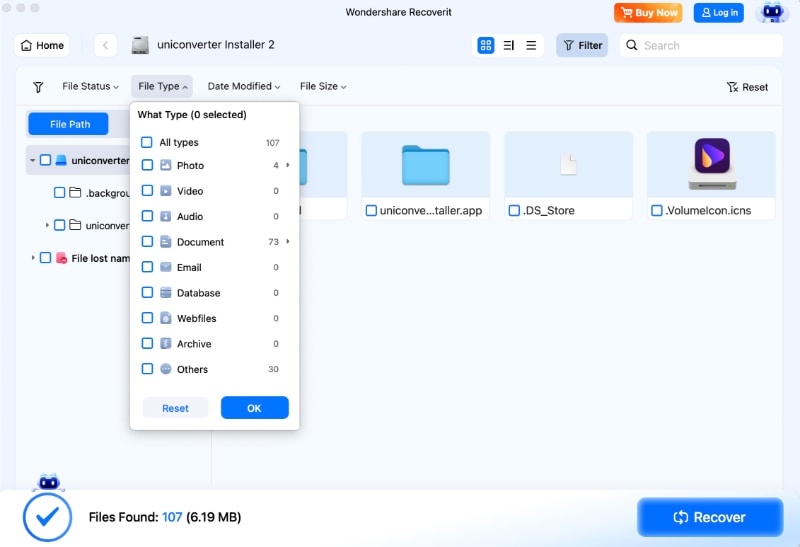
Step 3. Preview the Recovered Files Before Saving
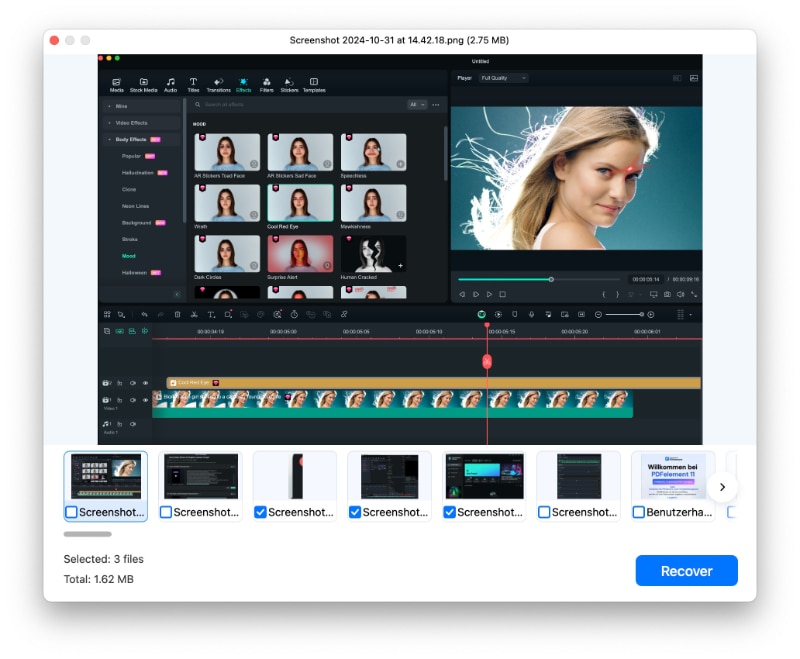
FileVault and Missing Disk Limits
Modern Mac storage security is designed to protect user data. If FileVault is enabled, you need the correct password or recovery key to unlock the encrypted volume before software can access user files. Recoverit cannot bypass FileVault or decrypt storage without legitimate credentials.
If the internal disk never appears in Disk Utility, or an external drive clicks, overheats, disconnects repeatedly, or reports hardware failure, stop DIY repair attempts. For important data, contact Apple Support, an authorized service provider, or a professional data recovery service.
Part 4. Try Non-Destructive Startup Fixes First
After files are safe or you have confirmed a current backup, try fixes that do not erase the disk.
Fix 1. Restart and Try Again Once
- Connect the Mac to reliable power.
- Connect to stable Wi-Fi or Ethernet if the message mentions internet verification.
- Click Try Again once if that option appears.
- Restart the Mac normally.
If the same alert loops repeatedly, stop retrying and move to Recovery or Disk Utility checks. Repeating the same failed boot attempt rarely changes the result.
Fix 2. Select the Correct Startup Disk
If more than one disk or macOS volume appears, the Mac may be trying to start from the wrong disk.
- Open Startup Options or macOS Recovery.
- Choose Startup Disk.
- Select the intended internal macOS volume or external startup disk.
- Click Restart.
If the Mac can still boot sometimes, you can also check System Settings > General > Startup Disk, select the correct disk, and restart.
Fix 3. Check External Drive Cable, Port, and Power
For an external startup disk, inspect the physical setup before changing software settings.
- Connect the external drive directly to the Mac.
- Try another USB-C, Thunderbolt, or USB-A port.
- Use a cable rated for data, not charging only.
- Avoid unpowered hubs and low-quality adapters.
- Use the drive's power adapter if it has one.
- Test whether the drive appears in Disk Utility on another Mac.
If another Mac can see the drive, copy or recover important files before rebuilding the external startup disk.
Fix 4. Reset NVRAM on Intel Macs
On Intel-based Macs, NVRAM stores certain startup-related settings. Resetting it may help if the Mac keeps choosing the wrong disk or behaves oddly during startup.
- Shut down the Intel Mac.
- Turn it on and immediately hold Option + Command + P + R.
- Keep holding for about 20 seconds, then release.
- Try selecting the startup disk again.
Do not use this as an Apple silicon fix. Apple silicon Macs use Startup Options, reached by holding the power button from a full shutdown.
Fix 5. Start in macOS Recovery
| Mac Type | How to Enter Recovery | Difficulty | Compatibility |
| Apple silicon | Shut down, then press and hold the power button until startup options appear. Click Options, then Continue. | Easy | M1 / M2 / M3 / M4 |
| Intel-based Mac | Restart and immediately hold Command + R. Use Option + Command + R for internet recovery options if needed. | Easy | Intel CPU |
From Recovery, you can use Disk Utility, Startup Disk, Time Machine restore, Reinstall macOS, and, on supported Macs, Share Disk or startup security tools.
Part 5. Repair the Startup Disk After Data Is Safe
Once important files are backed up or recovered, repair the disk in the least destructive order.
Run First Aid in the Right Order
Apple's Disk Utility guidance recommends using View > Show All Devices and running First Aid through the storage hierarchy, from volumes to containers to the physical device.
- Start in macOS Recovery if the Mac cannot boot normally.
- Open Disk Utility.
- Choose View > Show All Devices.
- Select the last volume under the startup disk, such as Macintosh HD - Data, and run First Aid.
- Repeat First Aid for each volume above it.
- Run First Aid on the APFS container.
- Run First Aid on the physical storage device last.
- Restart the Mac if Disk Utility reports that the disk appears OK or was repaired.
If Disk Utility reports that the disk is about to fail, back up or recover data and replace the drive. First Aid cannot repair physical failure.
Check Startup Security and External Boot Settings
On Intel Macs with the Apple T2 Security Chip, Startup Security Utility controls Secure Boot and whether the Mac can start from external or removable media. Full Security is the default and strongest setting. Lower security only when you understand why the startup disk is blocked and after data is safe.
On Apple silicon Macs, security policy is handled differently and can be set per installed operating system from Recovery. If a volume must be unlocked, use the legitimate administrator password, FileVault password, or recovery key.
Reinstall macOS Without Erasing
If First Aid succeeds but the Mac still cannot verify or boot from the startup disk, reinstall macOS from Recovery without erasing first. A standard reinstall is designed to keep files and user settings, but you should still protect data beforehand.
- Start in macOS Recovery.
- Connect to the internet using stable Wi-Fi or Ethernet.
- Choose Reinstall macOS.
- Select the current macOS disk when prompted.
- Follow the on-screen instructions.
If the installer cannot see the disk, return to Disk Utility and check whether the disk appears there. If Disk Utility cannot see or erase the disk, service may be needed.
Erase Only as a Last Resort
Erase the startup disk only after your files are backed up or recovered and non-destructive fixes have failed. Erasing deletes user accounts, apps, settings, and files.
- Start in macOS Recovery.
- Open Disk Utility.
- Use View > Show All Devices.
- Select the correct startup disk or volume group carefully.
- Erase as APFS for modern macOS.
- Quit Disk Utility and reinstall macOS.
Double-check the disk name, size, and connection type before clicking Erase, especially when external drives are connected.
Part 6. What If the Startup Disk Does Not Appear?
If the disk is missing from Disk Utility, treat the case as detection or hardware risk. You cannot repair or erase a disk macOS cannot see.
| Situation | What to Do | Urgency | Action Status |
| Internal disk is missing | Shut down, disconnect nonessential devices, start Recovery again, enable Show All Devices, then contact Apple Support or service if it still does not appear. | High | Contact Service |
| External startup disk is missing | Try another cable, port, enclosure, power source, and another Mac. Recover files if another Mac detects it. | Medium | Hardware Check |
| Disk appears but will not mount | Try unlocking it if encrypted. If it still will not mount and data matters, recover files before formatting. | High | Recover First |
| Erase fails | The cause may be severe file system damage, enclosure trouble, firmware issue, or hardware failure. Do not repeat erases endlessly. | Critical | Stop Erase |
| Drive disconnects or reports hardware errors | Stop using it and recover or service the drive before more repairs. | Critical | Stop Operations |
Apple revive or restore procedures for Apple silicon and T2 Macs can help in some firmware-related cases, but a restore can erase the Mac. Confirm the data consequences before using destructive recovery options.
Part 7. Prevent Startup Disk Verification Problems
You cannot prevent every startup disk failure, but these habits reduce the risk of disk verification errors and data loss.
- Keep macOS updated from trusted Apple update channels.
- Do not force shutdown during macOS updates, installations, or disk repairs unless the Mac is clearly frozen for a long time.
- Shut down or restart properly before disconnecting an external startup disk.
- Use reliable external SSDs, hard drives, enclosures, data cables, and power supplies.
- Keep Time Machine enabled and test restores periodically.
- Keep cloud or external backups for important Desktop, Documents, project, and media folders.
- For encrypted Macs, store recovery keys and backup access information safely.
Conclusion
The unable to verify startup disk Mac error is serious, but it does not mean you should erase immediately. First identify whether the disk is visible in Disk Utility, protect your files, and then move through non-destructive fixes: restart, select the correct startup disk, check external boot hardware, enter macOS Recovery, run First Aid, review startup security settings, and reinstall macOS without erasing if needed.
Use Wondershare Recoverit for Mac when the priority is recovering files from a detected disk before erase, reformat, service, or replacement. If the disk is missing, encrypted without a key, or physically failing, stop repeated DIY attempts and seek Apple or professional recovery support.
FAQ
-
What does "unable to verify startup disk" mean on Mac?
It means your Mac found a possible startup disk but could not confirm that the disk, operating system, encryption state, or startup security policy is valid enough to boot safely. The cause may be file system damage, a failed update, FileVault, security settings, an external boot issue, or storage failure. -
Is unable to verify startup disk the same as no startup disk found?
No. Unable to verify usually means a possible startup disk is visible but verification failed. No startup disk found usually means the Mac cannot find a usable boot volume, so disk detection and hardware checks become more important. -
Can Recoverit fix unable to verify startup disk Mac?
No. Recoverit is not a macOS startup repair or security policy tool. It is recommended to help recover files from a detected Mac drive or external startup disk before you erase, reformat, reinstall with erase, or send the device for service. -
Should I erase the startup disk to fix this error?
Erase only as a last resort after your files are backed up or recovered. Try non-destructive steps first, including selecting the correct startup disk, checking external drive connections, entering Recovery, running First Aid, reviewing startup security settings, and reinstalling macOS without erasing.



