

 TL;DR:
Resolve an unrecognized XQD card by first securing your files with recovery software like Recoverit, then systematically verifying USB 3.0 connections, assigning missing drive letters, or updating device drivers.
● If the card is missing from File Explorer but appears in Disk Management, right-click its partition and select "Change Drive Letter and Paths" to manually assign an identifier and restore access.
● As a strictly last resort for severe corruption, use Disk Management to format the card to the exFAT file system with "Quick Format" unchecked, which will permanently erase all existing data.
● Prevent future file system incompatibility and corruption by always formatting the XQD card directly within your camera instead of the computer, and keeping at least 10% of its storage capacity free.
Ask AI for a summary
 ChatGPT
 Perplexity
 Gemini
 Claude
 Grok
Grok
XQD cards are professional-grade memory cards. They store high-resolution photos and 4K videos. Many photographers and videographers rely on them daily. But sometimes, these cards stop showing up on your computer. This creates panic, especially when important files are at stake.
When your XQD card not showing up issue occurs, don't worry. The problem is usually fixable. Your data is likely still safe on the card. The issue often lies with your PC's settings or hardware connections. Understanding what causes this problem helps you fix it quickly.
This guide will walk you through every solution. You'll learn how to fix XQD card not showing up problems step by step. We'll cover simple fixes and advanced methods.
Table of Contents
Part 1: Why Is My XQD Card Not Showing Up on PC?
Before fixing the problem, you need to understand what causes it. Several factors can make your XQD memory card not showing up on PC. Some issues are hardware-related. Others involve software settings. Identifying the root cause helps you choose the right solution.
- Physical Connection Issues: Your card might not be properly inserted. Dust or debris can block the contacts. Even a slightly loose connection prevents detection.
- Outdated or Corrupted Drivers: Windows needs proper drivers to read XQD cards. Old or damaged drivers cause recognition failures. Your PC simply can't communicate with the card.
- No Drive Letter Assigned: Sometimes Windows doesn't assign a letter to your card. Without this letter, the card remains invisible. Your files exist but can't be accessed.
- File System Incompatibility: XQD cards use specific file systems. If your system doesn't support it, the card won't show. This happens with older Windows versions.
- Card Reader Malfunction: Your card reader might be faulty. Internal components can fail over time. A broken reader won't detect any card.
Part 2: How to Fix XQD Card Not Showing Up on PC?
Now let's solve your problem. These methods work for most XQD card not showing up issues. Start with Method 1 if data recovery is your priority. Otherwise, try them in order until your card appears.
Method 1: Use Recoverit to Recover Data
Data recovery should be your first priority. Before trying other fixes, secure your files. XQD card recovery software can retrieve your data even when the card doesn't show up. Recoverit is a powerful tool designed for this purpose.
This Sony XQD card recovery software works with all major brands. It recovers photos, videos, and documents. The software scans deep into your card's structure. It finds files that Windows can't detect normally.
How to use Recoverit:
Step 1: Download and install Recoverit on your computer. Launch the program and connect your XQD card reader.
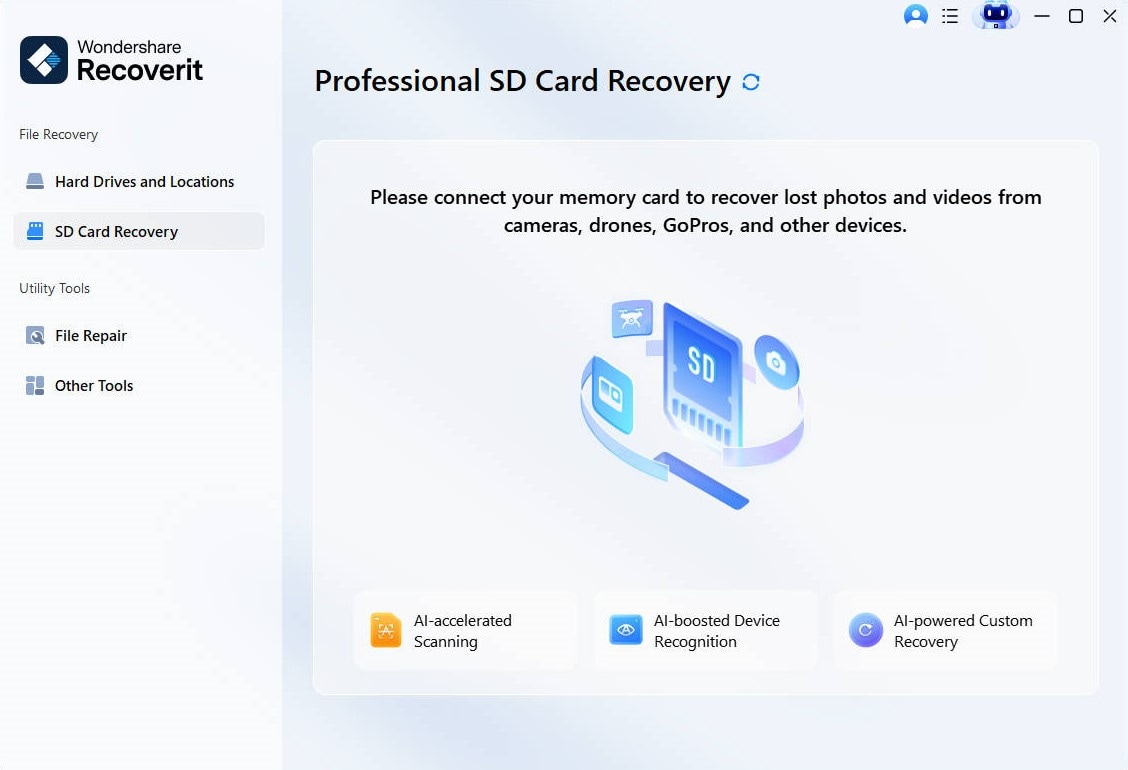
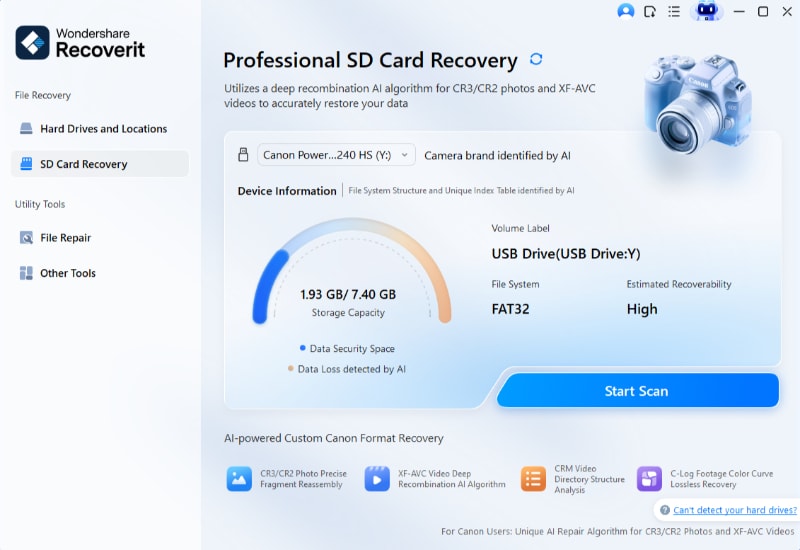
Step 2: Select your XQD card from the device list and click "Start Scan".
Step 3: Let the software complete its deep scan.
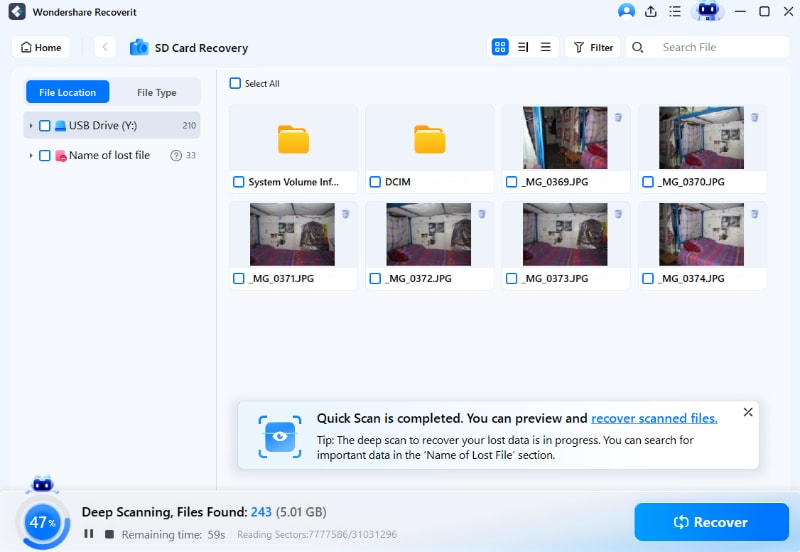
Step 4: Click Recover. Preview recoverable files before saving them to a safe location.

Video Tutorial: How to Recover Lost Files from SD Card?

Method 2: Try a Different Card Reader or USB Port
Sometimes the solution is surprisingly simple. Your card reader or USB port might be the problem. Testing different connections takes just minutes. This method eliminates hardware issues quickly.
Card readers have limited lifespans. They wear out from repeated use. Internal connections can loosen or break. USB ports also fail due to physical damage or power issues.
When to use this method:
- Other devices also fail to work with your current USB port
- Your card reader is old or has been dropped recently
- You haven't tried alternative connection methods yet
Step 1: Remove your XQD card and try a different USB port on your computer. Prefer USB 3.0 ports for better compatibility.
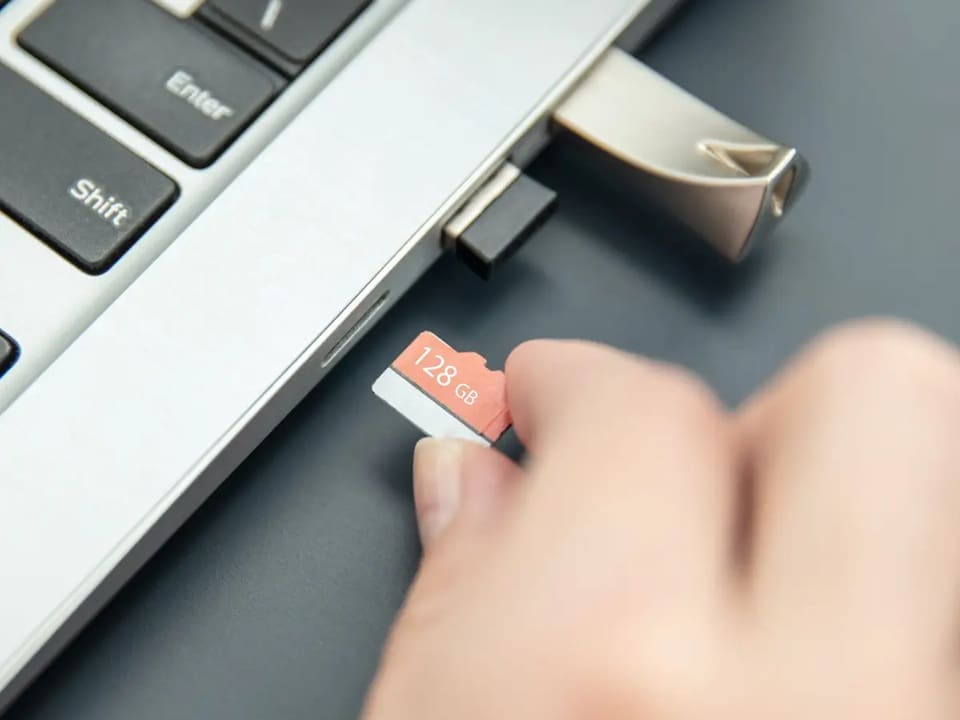
Step 2: If available, test with another card reader or use a different computer to confirm whether the issue is with your card or your hardware.
Method 3: Check Disk Management
Windows Disk Management reveals hidden drives. Your XQD memory card not showing up on PC might still be detected there. The card exists but isn't accessible through File Explorer. This tool shows all connected storage devices.
Disk Management provides detailed information about your drives. It displays partitions, file systems, and health status. Sometimes cards appear here but need manual intervention to become accessible.
When to use this method:
- Your card reader lights up, indicating a connection but nothing appears in File Explorer
- You suspect the card is detected but not properly mounted
- Other basic troubleshooting steps haven't revealed the problem
Step 1: Press Windows + X and select "Disk Management" from the menu. Wait for all drives to load completely.
Step 2: Look for your XQD card in the list of drives. Check if it shows as "Unallocated" or "No Media" and note any error messages displayed.
Method 4: Assign a New Drive Letter
Windows uses drive letters to identify storage devices. Your card might lack this crucial identifier. Without a letter, Windows can't display it. Assigning one manually solves this problem.
This issue occurs when Windows runs out of letters. It also happens after system updates or crashes. The card is detected but remains inaccessible without a letter.
When to use this method:
- Disk Management shows your card but without a drive letter
- The card appears as "Healthy" but isn't accessible in File Explorer
- You've recently connected many external drives to your computer
Step 1: In Disk Management, right-click on your XQD card partition and select "Change Drive Letter and Paths".
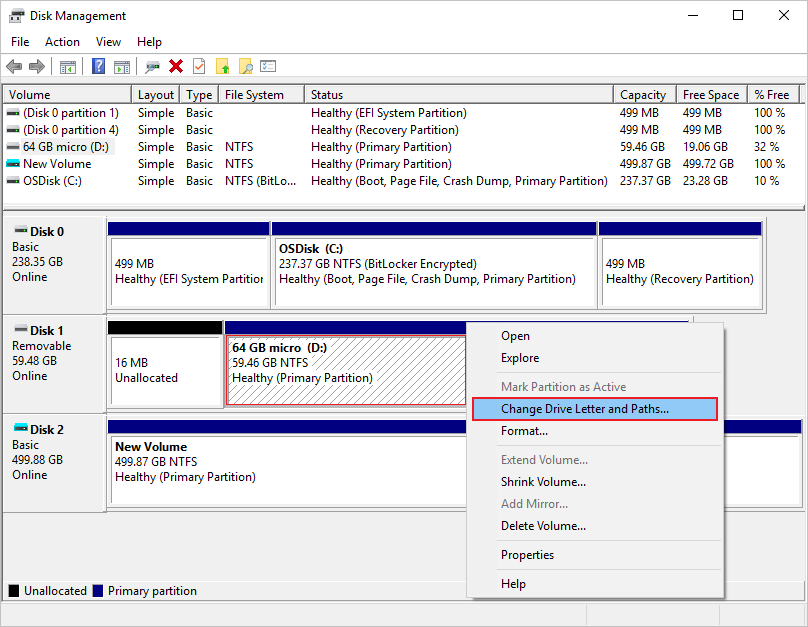
Step 2: Click "Add", choose an available letter from the dropdown menu, click "OK", and your card should immediately appear in File Explorer.
Method 5: Update or Reinstall Drivers
Drivers are software bridges between hardware and Windows. Outdated drivers cause recognition failures. Corrupted drivers create communication errors. Updating them fixes many XQD card not showing up problems.
Windows doesn't always install the correct drivers automatically. Third-party card readers need specific drivers. These drivers ensure proper communication with your XQD card.
When to use this method:
- Device Manager shows a yellow exclamation mark next to your card reader
- You recently updated Windows, and the card stopped working
- The card worked before, but suddenly stopped being recognized
Step 1: Right-click the Start button and select "Device Manager". Expand "Disk drives" or "Universal Serial Bus controllers" and locate your card reader.
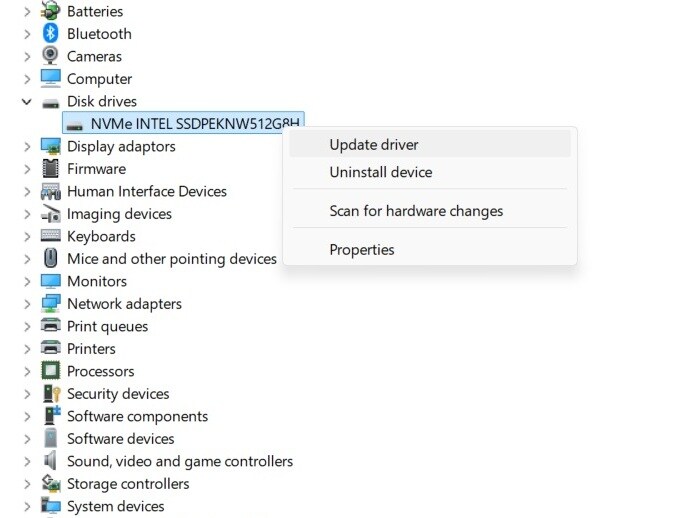
Step 2: Right-click the device, select "Update driver", choose "Search automatically for drivers", or select "Uninstall device", then reconnect your card reader to reinstall fresh drivers.
Method 6: Format the XQD Card (Last Resort)
Formatting erases everything on your card. Use this only after recovering your data. Formatting creates a fresh file system. It removes corruption and errors completely.
This method gives your card a clean slate. All problems disappear along with your files. That's why data recovery comes first. Once formatted, recovery becomes much harder.
When to use this method:
- You've already recovered all important data using XQD card recovery software
- All other methods have failed to make your card accessible
- The card is severely corrupted, and you're willing to start fresh
Step 1: Open Disk Management, right-click your XQD card, and select "Format". Choose exFAT as the file system for maximum compatibility.
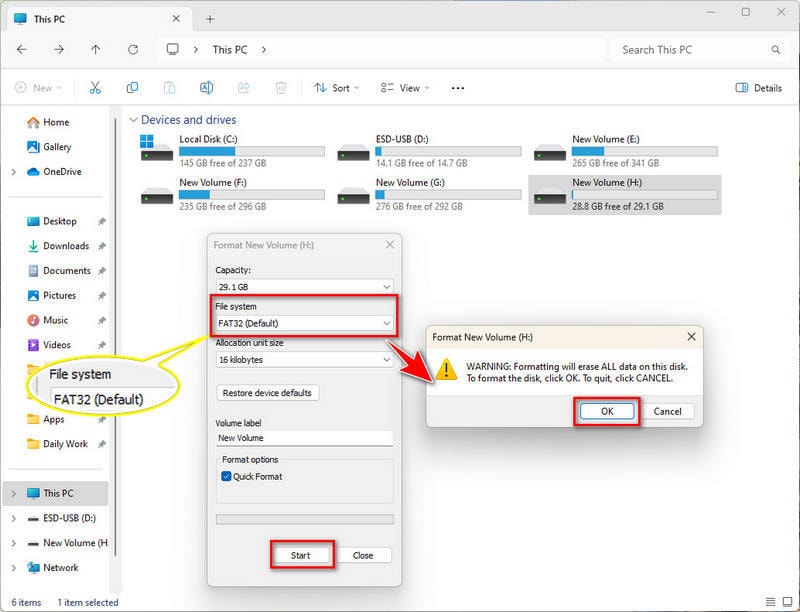
Step 2: Uncheck "Quick Format" for a thorough format, click "OK" to confirm, wait for the process to complete, and your card will be ready for fresh use.
Part 3: Pro Tips to Prevent XQD Card Errors
Following best practices protects your XQD card not showing up from happening again. These simple habits extend your card's lifespan. They also protect your valuable data from loss.
- Always Eject Properly: Never pull out your card while files are transferring. Use Windows' "Safely Remove Hardware" option. This ensures all write operations complete properly. Sudden removal corrupts file systems.
- Keep Firmware Updated: Camera and card reader manufacturers release firmware updates. These updates improve compatibility and fix bugs. Check for updates every few months.
- Use Quality Card Readers: Invest in reputable brand card readers. Cheap readers cause connection issues and data corruption. They also fail more frequently under regular use.
- Avoid Extreme Temperatures: Heat and cold damage XQD cards. Don't leave them in hot cars or freezing conditions. Store cards at room temperature when not in use.
- Format in Camera: Always format your card using your camera's format function. This ensures optimal compatibility. Computer formatting might use incompatible settings.
- Don't Fill Cards Completely: Leave some free space on your cards. Completely full cards develop errors more easily. Keep at least 10% space free.
- Handle with Clean Hands: Oils and dirt from fingers contaminate card contacts. Hold cards by the edges. Clean contacts gently with a soft cloth if needed.
- Backup Regularly: Copy your files to multiple locations immediately. Use cloud storage and external hard drives. Regular backups prevent total data loss during card failures.
Try Recoverit to Recover Lost Files from SD Card
 Security Verified. Over 7,302,189 people have downloaded it.
Conclusion
XQD card not showing up problems are frustrating, but solvable. Most issues stem from simple connection problems or driver issues. The solutions in this guide address all common causes. Start with the simplest fixes before moving to complex ones.
Remember to prioritize data recovery first. Use reliable XQD card recovery software like Recoverit before attempting fixes that might erase data. Once your files are safe, you can confidently try formatting or other drastic measures. Prevention through proper handling and regular backups keeps your work secure. With these tools and knowledge, you'll never lose important files to card recognition issues again.
FAQs
-
What is XQD card and why won't it show up on my PC?
What is XQD card? It's a high-speed memory card format designed for professional cameras. XQD cards offer faster read and write speeds than SD cards. They're ideal for 4K video and continuous burst photography. Cards may not show up due to driver issues, connection problems, or file system corruption. Your PC needs proper drivers and a compatible card reader to recognize XQD cards. Sometimes Windows simply fails to assign a drive letter, making the card invisible. -
Can I recover data from an XQD card that won't show up?
Yes, XQD card recovery software can retrieve your files even when the card doesn't appear in File Explorer. Professional tools like Recoverit scan the card at a deeper level than Windows. They can find and restore photos, videos, and documents from corrupted or unrecognized cards. The key is to stop using the card immediately when problems occur. Additional write operations might overwrite recoverable data. Always attempt recovery before trying formatting or other destructive fixes. -
How do I know if my XQD card is permanently damaged?
Check if your card appears in Disk Management or Device Manager. If it shows up anywhere in Windows, the card likely has fixable software issues. Try the card in different readers and computers. If no device recognizes it at all, physical damage is possible. Listen for unusual clicking sounds from the card reader. Physical cracks, bent pins, or visible damage on the card indicate hardware failure. Sony XQD card recovery software and professional data recovery services can sometimes help even with physically damaged cards.


