 TL;DR:
To safely recover lost files from an SD card, immediately stop saving new data to prevent overwriting, ignore OS prompts to format the drive, and use recovery software to extract the missing files to a separate storage device.
● Free utilities like Recuva, PhotoRec, and Windows File Recovery are suited for simple deletions on normally mounting cards, whereas Recoverit File Recovery handles formatted, RAW, or corrupted cards.
● Data extraction requires the SD card to be readable by File Explorer or Disk Management; completely unrecognized, physically damaged, or unstable cards necessitate a professional recovery lab.
● You must save all recovered data to a local computer drive or external storage before attempting any direct card repairs like the attrib command, CHKDSK, or reformatting.
Ask AI for a summary
 ChatGPT
 Perplexity
 Gemini
 Claude
 Grok
Grok
"My SD card was having a problem and I accidentally formatted it. Now all my pictures and videos are gone. I had at least 64 GB of footage and pictures, and I need them back for a deadline tomorrow."
If you need to know how to recover lost files on an SD card, stop using the card immediately. Lost files, deleted folders, and quick-formatted data may still be on the memory card until new photos, videos, downloads, or repair actions overwrite the same storage space.
This guide explains how to retrieve lost files on an SD card safely. You will learn what to do first, how to diagnose deleted, hidden, formatted, RAW, and inaccessible cards, when free tools can help, when Recoverit File Recovery is a better fit, and which fixes should only be tried after your files are recovered.
In this article
-
- Method 1. Recover Lost SD Card Files with Recoverit
- Method 2. Check the Recycle Bin or Recently Deleted
- Method 3. Restore Files from Cloud or Local Backups
- Method 4. Recover Files with Recuva for Free
- Method 5. Recover Files with PhotoRec or QPhotoRec for Free
- Method 6. Use Windows File Recovery
- Method 7. Recover from an SD Card Disk Image
Part 1. Can You Recover Lost Files from an SD Card?
Yes, you can often recover lost files from an SD card or memory card if the card is still detected and the missing data has not been overwritten. Normal deletion and many quick formats remove file references first. The original file data may remain on the card until new data replaces it.
Recovery becomes harder when the card is physically damaged, not detected by any reader, securely erased, or heavily reused after the loss. The safest first move is to stop using the card and scan it from a computer through a reliable card reader.
Deleted Files vs. Lost Files vs. Inaccessible Files
These situations look similar, but they call for different recovery choices.
| Situation | What it means | Best first step |
| Deleted files | Files were removed on purpose or by mistake. | Stop using the card and check Recycle Bin only if deletion happened on a computer. |
| Lost files | Files disappeared after formatting, a device error, a transfer failure, or a disconnected card. | Scan the card before saving anything new to it. |
| Inaccessible files | The files may still exist, but the card is RAW, corrupted, hidden, or blocked by an error. | Recover files first, then repair the card file system later. |
Formatted, RAW, or Unrecognized SD Card: What It Means
- Formatted: A quick format may leave recoverable data behind. A full overwrite or secure erase usually leaves little or nothing to recover.
- RAW: Windows cannot read the file system, so the card may look empty or ask to be formatted even though data may still exist.
- Unrecognized: The issue may be the reader, USB port, driver, card adapter, or a failing card. Test another reader before assuming the card is dead.
- Used space but no files: Files may be hidden, the directory table may be damaged, or malware may have changed file attributes.
When Free SD Card Recovery Works and When It May Fail
| Free recovery may work when | Recovery may fail when |
| The files were deleted recently and the card has not been reused. | New data has overwritten the missing files. |
| The SD card is detected normally by a computer. | The card is not detected by any computer, reader, camera, or phone. |
| Only a few files need to be restored. | The card has physical chip, controller, or connector damage. |
| The card was quick formatted but not used afterward. | The card was securely erased or fully overwritten. |
| You are comfortable with limited previews or command-line tools. | You need a guided workflow, file previews, RAW card scanning, or large file recovery. |
Part 2. Before You Recover Lost SD Card Files
The steps you take before scanning affect the outcome. Follow this checklist before trying to recover lost files on a memory card.
| Step | What to do | Why it matters |
| Stop using the card | Remove it from the camera, phone, drone, dash cam, or reader. | New files can overwrite lost data. |
| Check detection | Look in File Explorer and Disk Management to see whether the card appears. | This separates file loss from connection or hardware issues. |
| Try another connection | Use another card reader, USB port, adapter, or computer. | A faulty reader can look like an SD card failure. |
| Back up visible files | Copy any accessible files to another drive before deeper troubleshooting. | This protects the files that are still visible. |
| Cancel format prompts | Do not format the card even if Windows or macOS recommends it. | Formatting before recovery can reduce recovery chances. |
| Avoid repair commands first | Do not run CHKDSK, format, or partition repair before recovering important files. | Repair operations can change file system data and make recovery harder. |
| Recover to another drive | Save recovered files to your computer or external storage. | Saving back to the same card may overwrite remaining lost files. |
Part 3. Quick Diagnosis: Why Are Files Missing from Your SD Card?
Match the symptom to the likely cause before choosing a fix. The goal is to recover files first and repair the card afterward.
| Symptom | Likely cause | What to do first |
| Files were deleted or the card was formatted | File references were removed, but data may remain. | Run recovery software before reusing the card. |
| Files became hidden | Malware, device errors, or attribute changes may hide folders. | Copy visible files, scan for malware, then show hidden files. |
| The card shows errors or cannot be read | The file system may be corrupted or RAW. | Scan for recoverable files before formatting or CHKDSK. |
| The card looks empty but storage is used | The directory table may be damaged, or files may be hidden. | Use recovery software and then check hidden attributes. |
| The card is not detected | Reader, adapter, USB port, driver, or card hardware issue. | Try another reader and computer; use professional help if still undetected. |
| The card disconnects during scans | The card may be unstable or failing. | Create a disk image if possible, then scan the image instead of the card. |
If the files disappeared after formatting, a RAW warning, or a detection problem rather than simple deletion, use the SD card recovery decision guide to choose a safe next step before attempting repairs.
Part 4. How to Recover Lost Files from an SD Card
Choose the method based on the card condition. Start with the safest options, then move to deeper recovery if the files are still missing.
Method 1. Recover Lost SD Card Files with Recoverit
Recoverit File Recovery can help recover lost files from readable SD cards, microSD cards, camera cards, memory cards, USB drives, and other storage devices. It is useful when files were deleted, the card was quick formatted, folders disappeared, or the card shows RAW, corrupted, or inaccessible symptoms.
Key features for SD card file recovery:
- Broad file type support: Recover photos, videos, documents, audio files, archives, and other common files from memory cards.
- Preview before recovery: Preview recoverable files before saving them to another drive.
- Deep scan: Scan formatted, RAW, corrupted, or inaccessible cards more thoroughly than basic folder browsing.
- Readable storage focus: Recoverit scans storage that a computer can detect; it cannot repair physically dead cards or recover overwritten data.
Step 1. Select the SD card and start a scan. Connect the card through a reliable reader. Open Recoverit, choose the SD or memory card, and click Start Scan.

Step 2. Let Recoverit scan the card. Wait for the scan to finish. Use file type filters, file location view, or preview to find lost photos, videos, documents, and other files.

Step 3. Preview and recover to another location. Select the files you need, click Recover, and save them to your computer or another drive instead of the same SD card.

Method 2. Check the Recycle Bin or Recently Deleted
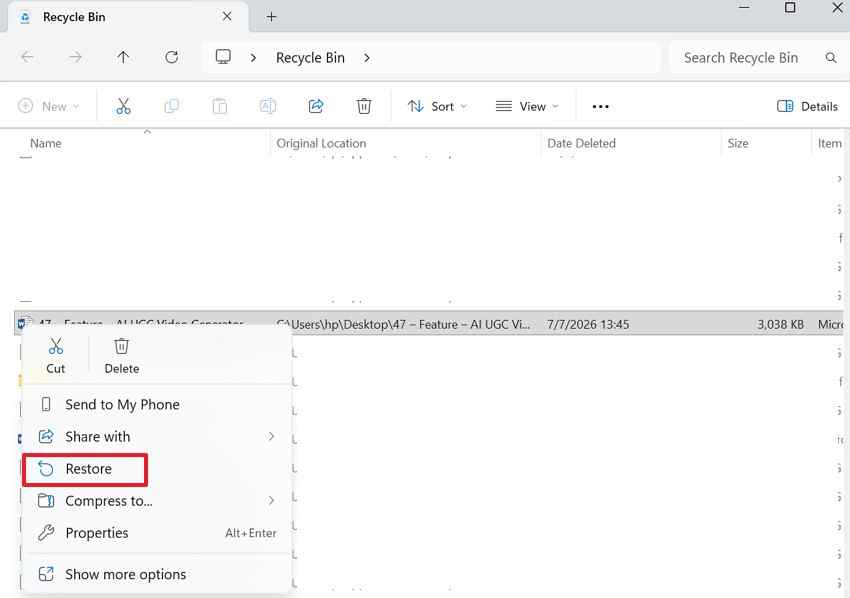
This works only if the files were deleted while the SD card was connected to a computer. Files deleted directly from a camera, phone, drone, or recorder usually do not go to the computer's Recycle Bin.
Instructions. Open Recycle Bin, locate the deleted file, right-click it, and select Restore.
Method 3. Restore Files from Cloud or Local Backups
If a backup exists, restore from it before scanning the SD card. This is the safest method because it does not write to the original card.
- Check Google Photos, iCloud Photos, OneDrive, Dropbox, or other cloud folders.
- Check computer import folders, the Photos app, editing project folders, external drives, NAS folders, and backup software.
- Check camera, drone, or phone companion apps if the card was used in a mobile device or camera.
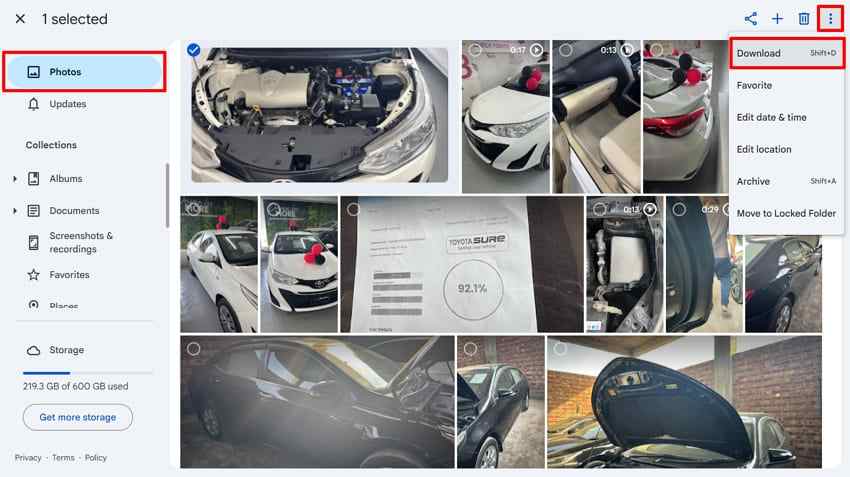
Example: Open Google Photos, select the files you want to restore, click the three-dot menu, and choose Download.
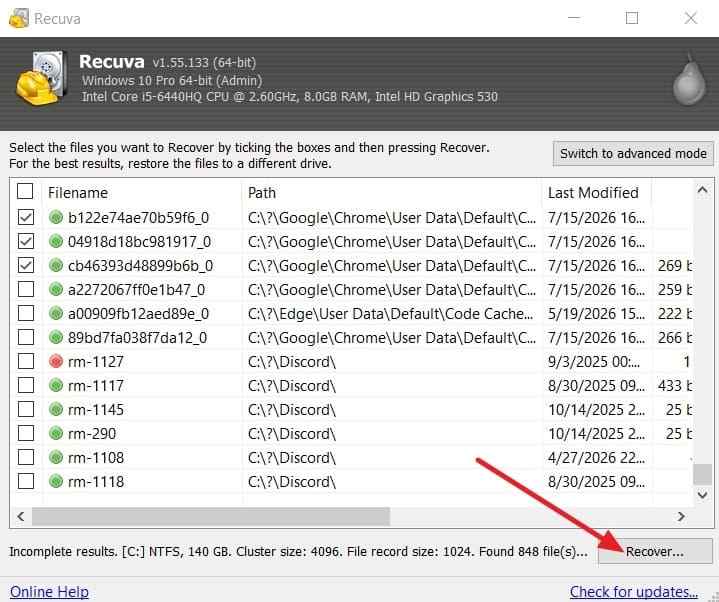
Method 4. Recover Files with Recuva for Free
Recuva is a free Windows recovery tool for simple deletion cases when the card mounts normally. It is less suitable for RAW, heavily corrupted, or unstable cards.
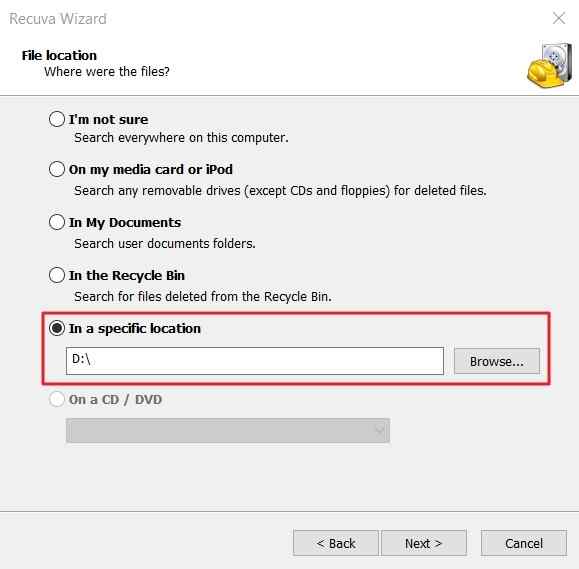
Step 1. Open Recuva, choose the file type, select the SD card location, and click Next.
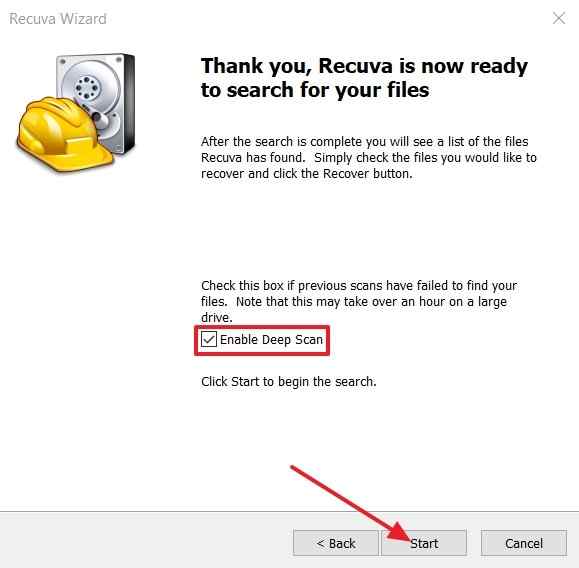
Step 2. Enable Deep Scan if the first scan does not find your files, then click Start.
Step 3. Choose recoverable files, click Recover, and save them to a different drive.
Method 5. Recover Files with PhotoRec or QPhotoRec for Free
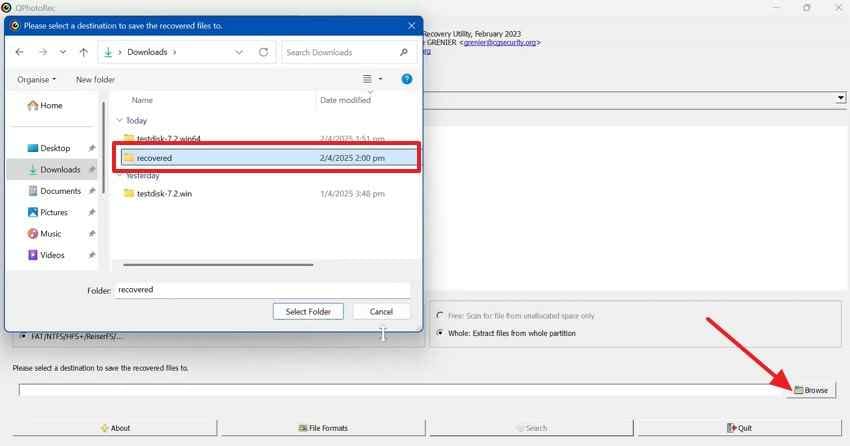
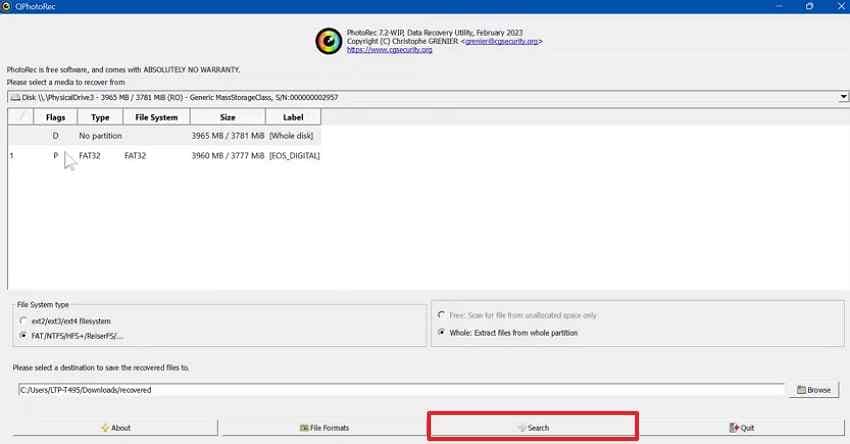
PhotoRec is an open-source recovery tool that scans raw data by file signatures instead of relying on the damaged file system. It can help with formatted, RAW, or corrupted cards, but original filenames and folder structure are usually lost.
Step 1. Open QPhotoRec, select the SD card and partition, click Browse, and choose a recovery folder on another drive.
Step 2. Click Search to start signature-based recovery. Review recovered files in the output folder afterward.
Method 6. Use Windows File Recovery
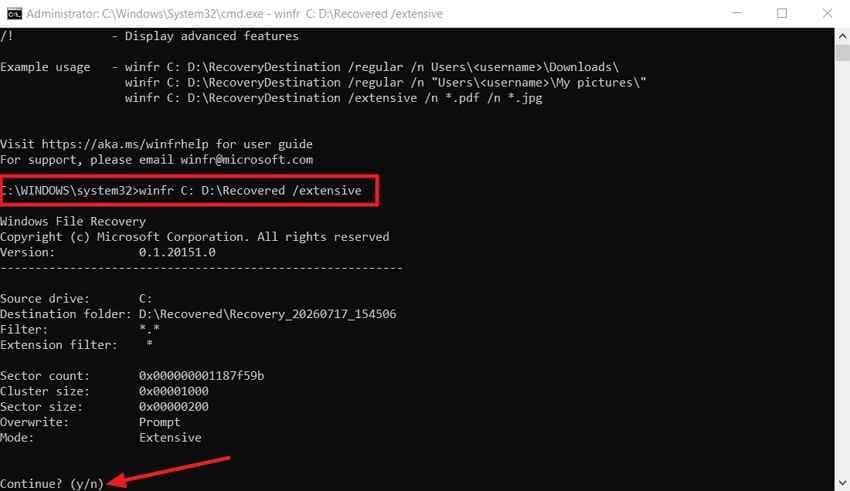
Windows File Recovery is Microsoft's command-line recovery tool. It can recover files from SD cards and memory cards when the card is detected by Windows. For FAT and exFAT cards, use Extensive mode.
Instructions. Install Windows File Recovery, open it as an administrator, and run a command like this. Replace E: with the SD card drive letter and D:\Recovered with a folder on another drive.
winfr E: D:\Recovered /extensive /n *.jpg /n *.jpeg /n *.png /n *.mp4 /n *.mov /n *.docxPress Y to confirm, then open the recovery folder and check the restored files.
Method 7. Recover from an SD Card Disk Image
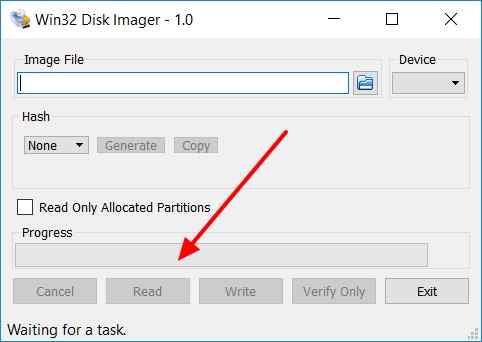
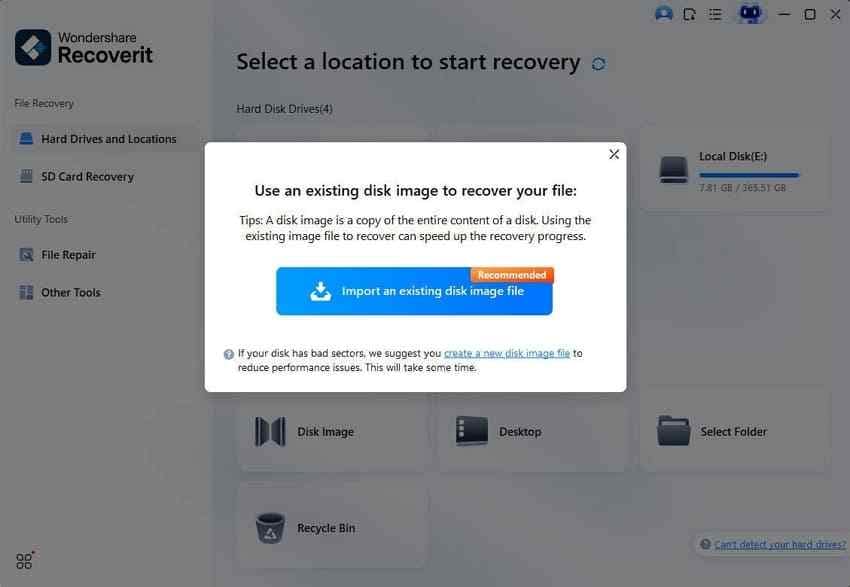
If the card disconnects during scans or seems unstable, repeated direct scans can increase the risk. Create a disk image first, then scan the image file when your recovery tool supports it.
Step 1. Create a disk image of the SD card with a disk-imaging tool and save the image to your computer or external drive.
Step 2. Open the disk image in a compatible recovery tool, scan it, select recoverable files, and save them to another location.
Part 5. How to Fix an SD Card That Shows No Files After Recovery
If you have already recovered or backed up important files, you can try the fixes below to make the card usable again. Do not start here if the missing files are still only on the SD card.
Show Hidden Files in File Explorer
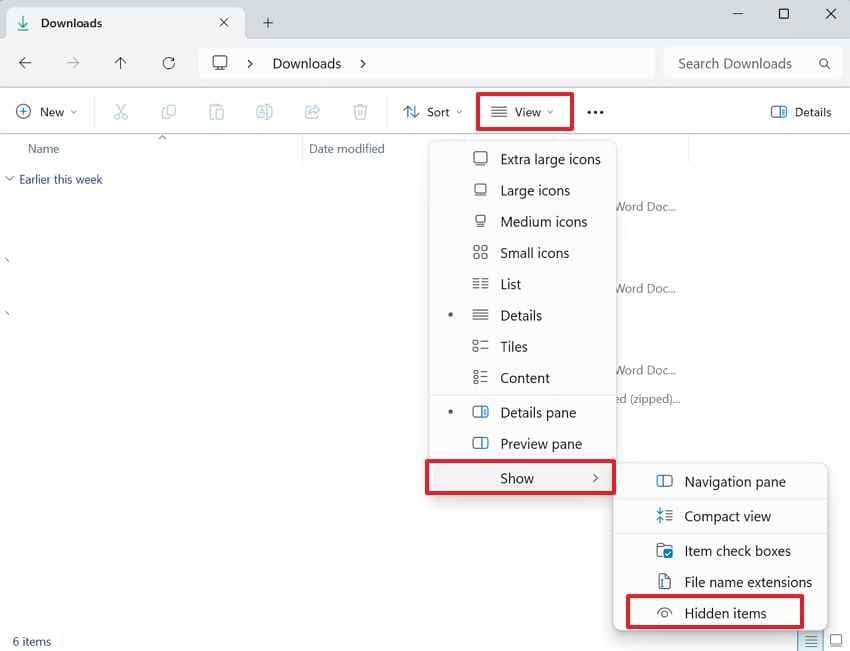
Open File Explorer, select View or View > Show, and enable Hidden items to reveal files that may be hidden.
Remove Hidden Attributes with Command Prompt
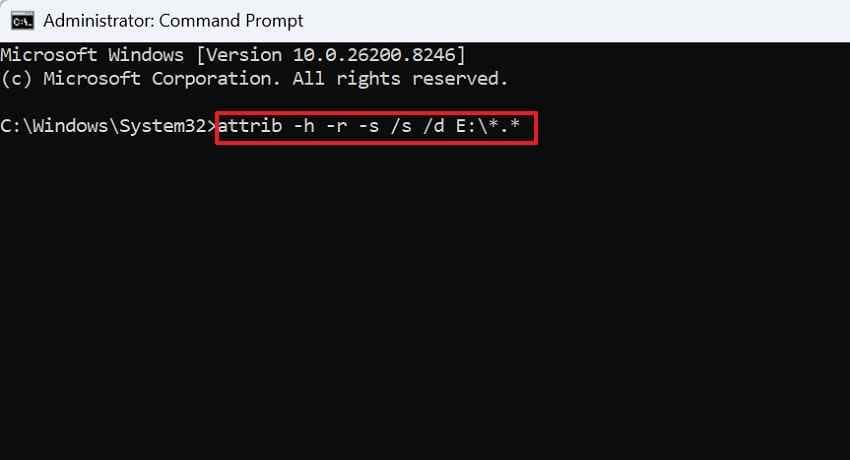
Run Command Prompt as administrator and use this command. Replace E: with your card drive letter.
attrib -h -r -s /s /d E:\*.*This removes hidden, read-only, and system attributes that malware or transfer errors may leave behind.
Assign a Drive Letter in Disk Management
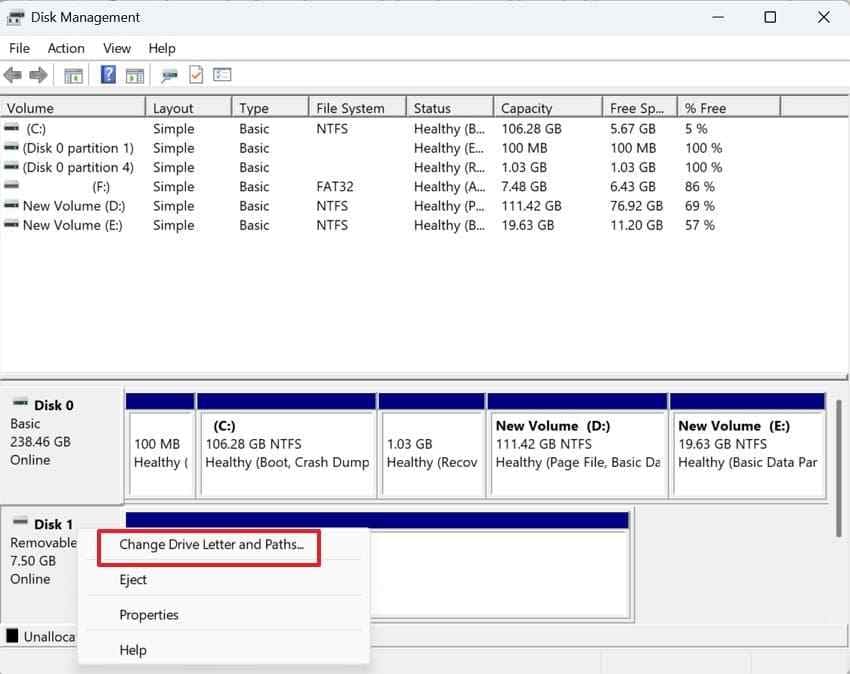
If the card appears in Disk Management but not in File Explorer, right-click its partition, choose Change Drive Letter and Paths, and assign a drive letter.
Repair File System Errors with CHKDSK
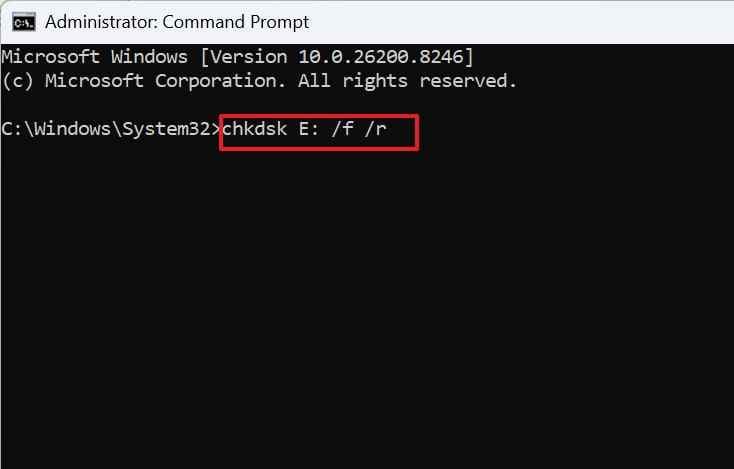
Run CHKDSK only after recovering important files. On corrupted cards, repair commands can change file system records and make later recovery harder.
chkdsk E: /f /rReplace E: with your card drive letter.
Scan the Card for Malware
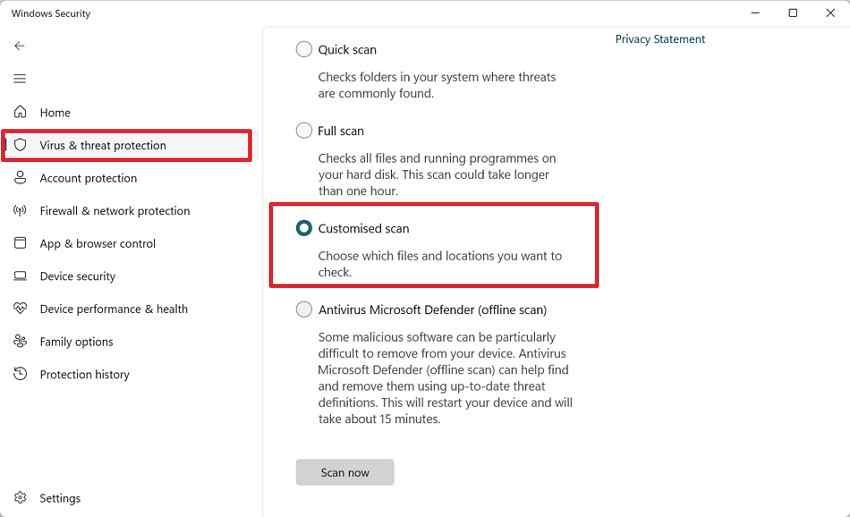
Use Windows Security or your trusted antivirus tool to scan the SD card. In Windows Security, go to Virus & threat protection > Scan options > Custom scan, choose the SD card, and start the scan.
Reformat the Card After Recovering Files
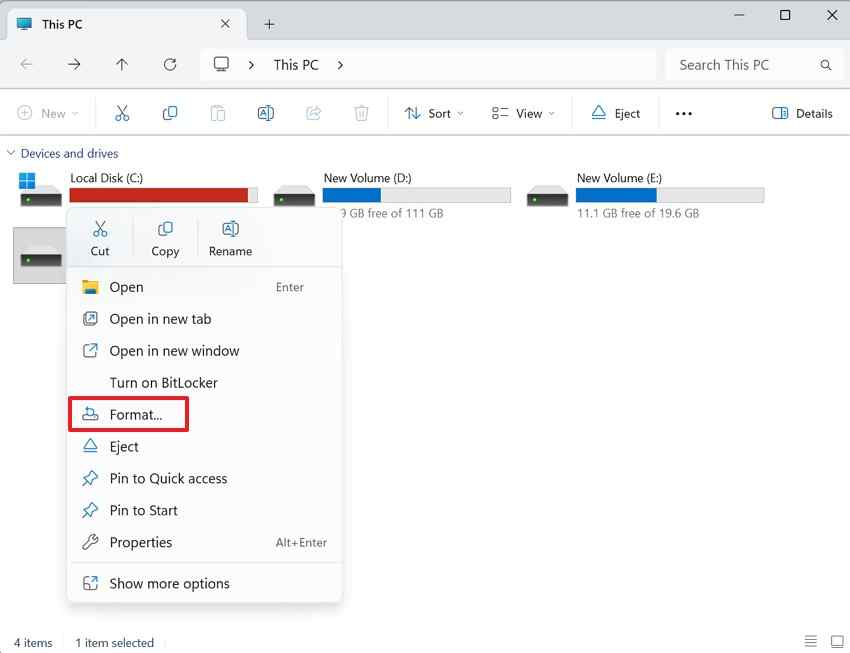
After important files are safely recovered and backed up, format the SD card to rebuild a clean file system. You can use File Explorer or the official SD Memory Card Formatter.
In Windows, press Windows + E, open This PC, right-click the SD card, and select Format.
Part 6. Free vs. Paid SD Card File Recovery: What Should You Choose?
Every method above can help in the right case. The best choice depends on whether the card is readable, how the files were lost, and whether you need previews, folder structure, or advanced scanning.
| Option | Cost | Ease of use | Preview before recovery | Best for |
| Free tools | Free | Moderate; some require command-line use | Limited | Recently deleted files from readable SD cards |
| Paid software such as Recoverit | Free scan, paid recovery features | Easy guided interface | Yes | Formatted, RAW, corrupted, hidden, or inaccessible cards that are still detected |
| Professional recovery service | Highest | No technical skill required | Depends on the service | Physically damaged or undetectable cards |
Best Free Options for Simple Deletion
If the card still mounts normally and the files were deleted recently, start with Recuva, PhotoRec, or Windows File Recovery. These tools can recover lost files on an SD card free of charge, but previews and folder recovery may be limited.
Paid Software for Saving Time and Reducing Risk
Use Recoverit when the card is formatted, RAW, corrupted, difficult to browse, or when free tools do not find the files you need. The guided scan and preview flow can reduce guesswork, especially when you need many file types from one memory card.
When Professional Recovery Is Safer
Use a professional recovery lab when the card is physically damaged, not detected by any reader, or contains irreplaceable business, legal, medical, wedding, travel, or deadline-critical files. If the card disconnects repeatedly, stop DIY attempts and avoid formatting.
Part 7. How to Prevent Future File Loss on an SD or Memory Card
After you recover lost files from a memory card, change the workflow that caused the loss.
- Eject before removing: Use Eject or Safely Remove Hardware before unplugging the card.
- Back up regularly: Copy important files to a computer, external drive, cloud service, or NAS.
- Use the 3-2-1 backup rule: Keep three copies, on two storage types, with one off-site or cloud copy.
- Avoid switching one card between many devices: Different devices may format or write to cards differently.
- Format only after backup: Format the card after confirming files are copied and open correctly.
- Use reliable cards: Choose genuine cards with the right capacity and speed class for your device.
- Replace aging cards: Retire cards that show repeated errors, slow saves, missing files, or formatting prompts.
Conclusion
Learning how to recover lost files on an SD card starts with protecting the card from new writes. Stop using it, avoid formatting and repair commands, and recover files to another drive. Free tools can help with simple deletion, while Recoverit is a stronger option for formatted, RAW, corrupted, hidden, or inaccessible cards that are still detected. If the card is physically damaged or not detected anywhere, use a professional recovery service instead of repeated DIY scans.
FAQ
-
Can I recover lost files on an SD card for free?
Yes. Recuva, PhotoRec, and Windows File Recovery can recover files for free in simple cases, especially when the SD card is readable and the files were deleted recently. Formatted, RAW, corrupted, or inaccessible cards may need paid recovery software. -
Why does my SD card show used storage but no files?
The files may be hidden, the file table may be damaged, or malware may have changed file attributes. Recover or back up important files first, then show hidden files, remove hidden attributes, scan for malware, or repair the file system. -
Will formatting an SD card permanently delete files?
A quick format may leave recoverable data until it is overwritten, while full overwrite or secure erase makes recovery much less likely. Do not format again or save new files to the card before recovery. -
Can Recoverit recover files from a formatted SD card?
Yes, Recoverit can scan formatted SD cards and look for recoverable files that still remain on readable storage. Recovery depends on whether the original data has been overwritten and whether the card is still detected by the computer. -
Should I run CHKDSK before recovering lost SD card files?
No. Run recovery software or back up accessible files first. CHKDSK can change file system records on a corrupted card and may make later recovery harder. -
What should I do if my SD card is not detected by any computer?
Try another card reader, USB port, adapter, and computer. If the card is still not detected, software cannot scan it reliably. Stop repeated attempts and contact a professional data recovery service.



