Accidentally deleted photos, formatted your SD card, or found that your camera videos have disappeared? Some files may still be recoverable if the card remains readable and the original data has not been overwritten. The safest next step depends on what happened to the card, not simply on which recovery tool you choose.
Start here: stop recording or copying files to the card and cancel any format prompt. On Windows, check whether the card is detected and stays connected before you scan. This guide covers deleted photos and videos, formatted cards, RAW errors, the Recoverit recovery workflow, and how to check that saved files actually open.
In This Article
Part 1. Can SD Card Data Be Recovered?
Before trying recovery software, check whether the SD card is stable enough to read. The table below separates common data-loss situations from hardware warning signs so you can choose a safer next step.
Check three things before scanning: does Windows Disk Management detect the card, does its reported capacity look correct, and does it stay connected without read errors? A card missing from File Explorer but shown at the expected size in Disk Management is different from one reporting No Media. Use this distinction before attempting repair or initialization.
| SD card condition | What it means for recovery | Safest next action |
| Deleted files on a detectable card | File contents may remain if their storage blocks have not been reused. | Stop using the card; check backups; scan a stable card. |
| Quick-formatted SD or microSD | The original file entries may be gone, while some file data may remain. | Do not format again or record new files; recover to another drive. |
| RAW file system or format prompt | Windows cannot interpret the volume normally; this does not prove it is blank. | Cancel the prompt and confirm the device and capacity without changing the file system. |
| Card absent from File Explorer but visible in Disk Management | A missing drive letter, partition issue or unreadable file system may be involved. | Identify the device and reported capacity; do not initialize or create a new volume. |
| 0 bytes / No Media, frequent disconnects or broken hardware | Software may not have stable access to the underlying memory. | Stop repeated scans; seek specialist assessment if the files matter. |
| Fully overwritten files | The replaced bytes generally cannot be reconstructed by software. | Check backups, duplicate copies, cloud accounts and other recording devices. |
Preserve the Original SD Card Before Any Recovery Attempt
As soon as files disappear, keep the card out of recording use. If the photos or videos are still visible and the card reads normally, copy accessible originals to another healthy disk first. A recovery scan should read from the affected card, never use it as a destination for new files.
- Do not create new data: no new camera footage, test photos, downloads or transferred files.
- Cancel formatting and repair prompts: postpone CHKDSK, DiskPart, initialization, First Aid and formatting until the files are protected.
- Use a compatible reader: check the correct card type and expected capacity without guessing which removable drive is yours.
- Prepare a separate destination: make sure another internal or external drive has enough free space to hold recovered files.
Know When to Stop and Use a Data Recovery Specialist
If the card is cracked, hot, repeatedly disconnects, reports No Media, or shows a clearly wrong capacity, stop testing it with recovery software. You can rule out an obvious reader problem with one known-good compatible reader, but continued errors on an irreplaceable card call for a qualified specialist. Android adoptable-storage cards also require a different approach because they are encrypted for the original device.
If you need the broader background behind these situations, see the guide to recovering lost files from an SD card.
Part 2. Recover SD Card Files with Wondershare Recoverit on Windows
If Windows detects your card reliably, you can try the SD Card Recovery workflow documented for Wondershare Recoverit V15. It has three steps: select the source card, scan for files, and save the results to another drive. The official Windows guide shows the current controls; a scan cannot guarantee that missing files are intact.
Step 1. Connect the Card and Select SD Card Recovery
Connect the card through a compatible SD or microSD reader. Open Recoverit and choose SD Card Recovery from the left sidebar. Select the card that matches the device and its capacity. If it is missing, reports No Media or disconnects, stop here instead of attempting a scan of a different disk.

Step 2. Scan the Card and Review the Results
Select the correct SD card and click Scan. If the connection stays stable, let the scan finish before deciding that a file is missing. Browse the folder and file-type views; the files may not appear under their old names. A familiar filename or thumbnail is a clue, not proof that the entire photo or video survived.

Looking for one particular shoot? Recoverit V15 adds capture-time, original-folder, thumbnail and list views for SD card scans. If your installed version shows these options, compare the results with the day of the shoot or the camera folder you remember. The V15 release notes list extra filtering and AI search features for SD Card Pro; not every edition has the same controls.
If nothing useful appears: check that you selected the correct card, remove overly narrow filters, and review the completed results. Do not format the source or run a repair command to force a second scan. If reads fail or the device disconnects, stop and reassess its condition before continuing.
Step 3. Preview, Recover to Another Drive and Check the Files
Preview supported photos and videos, select the files you need, and click Recover. Choose a different healthy computer or external drive as the destination. After export, open full-size photos, use a compatible viewer for camera RAW images, and play video clips at several positions.
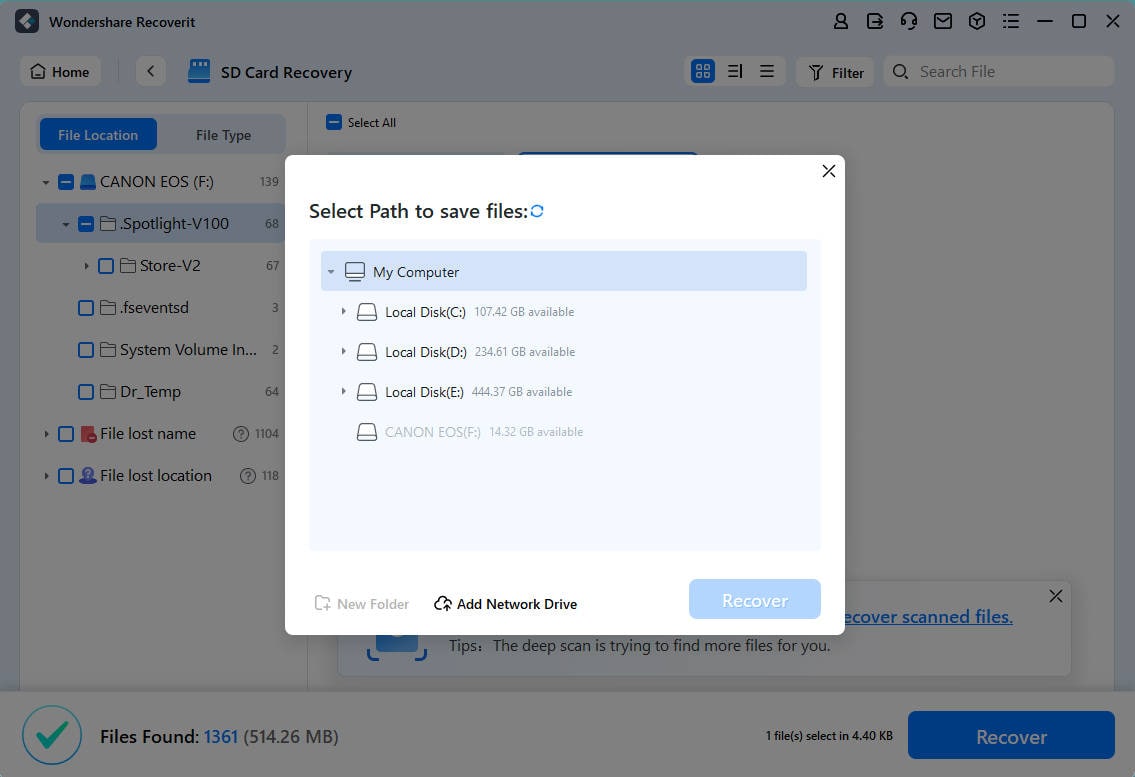
Keep the original card unchanged until you have checked the exported files. Scan results and previews do not guarantee that every recovered photo, RAW image, or video will open. Available previews and export limits depend on file type and product edition.
Prefer to watch the steps? This official Recoverit video shows the general SD card connection, scanning, preview and export workflow. It was recorded before V15, so menu labels may differ from the current Windows guide.
For supported memory card families and current product details, visit Recoverit Memory Card Recovery.
Part 3. Recover Deleted Photos and Videos from an SD Card
Deleted photos and videos may remain on a readable SD card until new recordings reuse their storage space. That is why you should stop using the card as soon as files disappear. Photos and videos also need different checks once they are restored.
Recover Deleted Photos From SD Cards
First look for intact copies on your computer, in the camera companion app, or in a backup. If none exists, scan the unchanged SD card using the Windows steps above. After recovery, open JPEG files at full resolution. Check camera RAW files in a viewer that supports the exact camera format; an embedded thumbnail can look fine even when the full image is incomplete.
See the deleted photos from a memory card guide for photo-specific recovery paths. Never assume that every proprietary RAW variant can be previewed or restored identically.
Recover Deleted Videos and Assess Fragmented Footage
Save the recovered video to another disk and open it in a compatible player. Check the total duration, seek to the middle and near the end, and listen for audio if the recording has a sound track. A valid-looking MP4 or MOV filename and file size do not prove that all video fragments or metadata were recovered.
For the ordinary workflow, follow the deleted SD card video recovery tutorial. If high-bitrate or fragmented camera footage is involved, Recoverit V15 documents an Enhanced Recovery option that may be relevant for supported video scenarios; use the current official feature instructions and check the output rather than assuming every 4K/8K recording can be reconstructed.
Part 4. Recover Files from a Formatted SD Card
Formatted an SD card by mistake? Recovery may still be possible, but the result depends on how the card was formatted, whether it has been reused, and whether it can still be read. The word formatted alone cannot tell you how much data remains.
Quick Format and Overwrite Format: Why They Differ
The SD Association formatter FAQ explains that its Quick Format initializes file-system entries without overwriting every file's data, while its Overwrite Format overwrites the user data area. This distinction describes those formatter modes; do not assume your camera's format menu behaves the same way without device-specific documentation. Even a quick format does not guarantee that every file will be recoverable.
After an accidental format, do not record another clip, take a test photo, or choose "format again" to investigate. If the card reads stably, scan it and evaluate what can actually be opened after recovery.
Formatted in a camera? Write down the camera model, the exact format menu or setting, whether you recorded anything afterward, and the original file types (such as JPEG, RAW or MP4). The SD Association describes its own formatter; a camera manufacturer may implement formatting differently.
What to Do After an Accidental Camera or Windows Format
- Stop recording immediately. Remove the card safely from active use, and keep the original unchanged.
- Note what happened. Record the device and format action if known; check the card capacity without initializing it.
- Check existing copies. Look for a backup or duplicate before scanning the card.
- Scan and save elsewhere. Recover candidates to a separate drive, then verify several full photos and complete videos.
For the complete procedure and platform-specific considerations, continue with the formatted SD card recovery guide. Save the recovered photos and videos away from the formatted card and confirm that the output opens before using the card again.
Part 5. Recover a Corrupted, RAW or Unreadable SD Card
A corrupted SD card might have unreadable file-system records even though its memory can still be read. A hardware fault can cause similar symptoms. Check the reported capacity and connection stability to decide whether software recovery is a reasonable next step.
Corrupted SD Card: Recover Data Before Repairing the File System
If Windows detects the card at the expected capacity and the connection remains stable, try a known-good reader. Copy any still-accessible files to another drive. When the original files are inaccessible, use a recovery scan without repairing the file system first. Once the recovered copies are opened and checked, you can decide whether to repair, reformat or replace the card.
The corrupted SD card data recovery guide covers this logical-damage case and explains why a repair attempt should come after data protection, not before it.
RAW SD Card: Do Not Convert or Format It Before Recovery
Windows may label a volume RAW when it cannot interpret the file system. RAW is not proof that the card contains no recoverable bytes. If the card is stable and visible at a plausible capacity, record the symptoms, avoid CHKDSK or file-system conversion, and recover needed files to another drive first.
Use the RAW SD card recovery guide for more detailed diagnosis. A device that instead reports No Media, 0 bytes or repeated disconnects is a different situation and may require professional evaluation.
Part 6. Fix Common SD Card Errors Without Losing Data
Two SD card errors can look similar but need different responses. Use the symptom you actually see in Windows to find the right next action, and protect important files before changing partitions or running file-system repairs.
| What you see | Your first safe action | Detailed Recoverit guide |
| "You need to format the disk" | Cancel the prompt; check the reader and reported capacity without formatting. | SD card asks to be formatted |
| "Windows was unable to complete the format" | Stop repeated format attempts; protect any files that still matter. | SD card cannot be formatted |
| Card missing from File Explorer | Try one compatible reader or port; inspect Disk Management without initializing. | SD card not detected |
| Used space but no visible files | Check view settings and existing folders; avoid writing a test file. | SD card not showing files |
| Write-protected card | Check the physical adapter lock switch and reader before software changes. | SD card write protection |
| Repair warning or inaccessible folders | Separate file retrieval from commands intended to make the card usable again. | SD card repair tool guide |
Used space but no visible files? If File Explorer opens the card, turn on Hidden items and check whether the missing folders reappear. If the originals open normally, copy them to another drive; a recovery scan may not be needed. If the folders are still inaccessible, follow the relevant missing-file guide without writing test data to the card.
How to Decide Between Recovery, Repair and Replacement
If files remain readable, copy them first. If files are missing but the card reads consistently, attempt recovery to another disk. If the card repeatedly disconnects or cannot identify itself as storage, stop DIY scans. Only after the files are safe should you consider CHKDSK, formatting or replacing the card for future use.
That sequence matters because file recovery retrieves accessible content, while file-system repair may modify the original card. A successful repair is not evidence that missing photos or videos have been restored.
Part 7. SD Card Recovery by Device and File Type
An SD or microSD card can hold very different kinds of storage. A camera card, an Android portable card, and encrypted Android adoptable storage cannot always be scanned in the same way, even if the cards look alike.
Android SD Cards: Portable and Adoptable Storage
If the microSD card was configured as portable storage and is not separately encrypted, a compatible Windows reader may provide access to its files. See the microSD recovery overview for card-specific checks, the Android SD card file recovery tutorial for deleted mobile media, and the corrupted Android SD card guide when the phone reports errors.
Exception: Android adoptable storage is encrypted and tied to the device that adopted it. Google's Android storage documentation explains why simply removing that card and scanning it on a computer does not expose ordinary portable files. Preserve the original phone and seek device-specific advice if its storage is damaged.
Camera, Drone and Action-Camera Videos
A camera SD card may store JPEGs, RAW photos, MP4/MOV videos or manufacturer-specific media and metadata. Keep the card unchanged and use a compatible application to verify recovered footage. Do not assume that finding a large file means a complete, playable video was reconstructed.
For a specific recording workflow, read the Insta360 SD card video recovery guide. Exact proprietary formats, high-bitrate codecs and fragment-recovery outcomes still depend on product support and the original file condition.
Part 8. Choose an SD Card Recovery Method or Free Alternative
Choose the simplest option that fits your situation. If you have a verified backup, use it before scanning the original card. Otherwise, the decision depends on whether Windows detects the card and whether you prefer a guided interface or a command-line tool. Free to download does not always mean free to export every recovered file.
| Recovery option | When it makes sense | What to keep in mind |
| Backup or camera/cloud copy | You have an accessible earlier copy of the missing files. | Verify it first; this can avoid scanning the original card altogether. |
| Recoverit on Windows | A stable card is detected and you prefer a guided scan and previews. | Available exports and supported previews depend on file type and edition. |
| Windows File Recovery | You are comfortable with a Microsoft command-line recovery tool on Windows. | Microsoft documents Extensive mode for FAT/exFAT and requires a different destination drive. |
| Other tools such as Recuva or PhotoRec | You want to compare alternative deletion recovery or file-carving approaches. | Supported file systems, names/folders and workflow differ; do not expect identical results. |
| Professional data recovery service | The device is physically damaged, unstable or not recognized as media. | The lab must assess the problem; recovery is not assured. |
Recoverit and Other SD Card Recovery Software
Recoverit offers the graphical Windows workflow shown above. Before selecting any software, check that it recognizes the correct SD card, supports the files you need and lets you save output away from the source. For a separate comparison of utilities, see five SD card recovery software options. Pricing, free-use limits and test claims should always be checked against current product documentation.
Free and Command-Line Options: What Changes?
Microsoft's Windows File Recovery guidance states that FAT and exFAT recovery uses Extensive mode and that source and destination drives must differ. Recuva and other tools use different recovery methods; consult the Recuva SD card recovery guide if that approach fits your case. Neither a graphical interface nor a command line can recreate overwritten blocks or decrypt Android adoptable storage without its original device context.
Part 9. Verify Recovered Files and Know What to Try Next
A successful scan is only the beginning. The real test is whether your exported photos open at full resolution and your videos play with their expected content. Keep the original SD card unchanged until you have checked the results on a different healthy drive.
How to Confirm That Recovered Files Are Usable
- JPEG photos: open images at full resolution and inspect different parts for missing sections, corruption or unexpected colors.
- RAW photos: open them in an application compatible with the camera format; embedded thumbnails can hide incomplete RAW data.
- Videos: check the duration, play the beginning and end, seek through the middle, and verify audio when applicable.
- Documents and file sets: open representative files, compare expected filenames, sizes, folders and counts against a backup or known inventory.
Count usable files, not just scan matches. Record each stage separately. If an original copy exists, a SHA-256 checksum comparison can confirm byte-for-byte identity. Without an original, opening photos and playing videos provides a useful functional check, not a guarantee of identical data.
| Stage | What it tells you |
| Expected | Files you know were on the card before the loss, based on a prior inventory or backup. |
| Found in scan | Potential file matches detected by the software; this is not a recovery-success count. |
| Exported | Files that were actually saved to a healthy destination drive. |
| Opened and checked | Photos, RAW images or videos that work in an appropriate application after export. |

The Recoverit preview above is an example of a file visible inside the app. It is not proof that the exported original-size image is intact; check the saved file separately.
If a picture is present but refuses to open, that is different from a deleted photo. Follow the guide to pictures that will not load from an SD card to distinguish damaged files from missing ones.
What If the Scan Finds Nothing, or the Recovered Video Will Not Play?
No files found: confirm that you scanned the intended SD card, remove any restrictive file filters, and allow a stable scan to finish. Check backups and other devices before trying a different recovery path. Avoid formatting or creating a new test file on the source.
Found but incomplete: a thumbnail may survive when full photo data is missing, and an MP4 or MOV may be missing video fragments. If the card is stable, check whether your current Recoverit edition supports an appropriate enhanced video recovery workflow, then verify any new export. File repair cannot recreate overwritten source data.
Device becomes unstable: repeated read errors, unexpected capacity, No Media or disconnects are reasons to stop software retries. Preserve the card and consult a qualified specialist for irreplaceable recordings. An incomplete recovery is not a reason to run CHKDSK on the only source.
Conclusion
For deleted, formatted or logically corrupted SD cards, follow a safe order: stop new writes, check whether the card is stably detected, recover to another drive, and verify the exported files. If the card is physically failing or the relevant data has been overwritten, the usual software workflow may not help.
If your card is stable and recognized by Windows, Recoverit Memory Card Recovery offers a guided way to look for missing files. For other troubleshooting topics, browse the SD card solutions article archive.
FAQ
-
Can deleted photos be recovered from an SD card?
Sometimes. If the card is readable and the space containing those images has not been overwritten, a recovery scan may retrieve some or all of the files. Stop using the card and check the full restored images. -
Does a quick format permanently erase an SD card?
Not necessarily. The SD Association says its Quick Format resets file-system entries without overwriting all file data, unlike its Overwrite Format. Other devices can behave differently, and later writes may prevent recovery. -
Should I run CHKDSK before SD card recovery?
Not while important files remain unprotected. CHKDSK is a file-system repair tool, not a substitute for making a safe copy or recovering lost files to a different drive. -
What if the card is visible in Disk Management but not File Explorer?
Record the listed device and capacity and check the reader. A missing drive letter or unreadable volume can cause this symptom. Avoid initializing or formatting the card to make it appear. -
Why does the recovery scan show files that will not open?
A scan may recover filenames, thumbnails or partial file contents without all required data or metadata. Open photos fully and play videos at multiple positions; keep the original card unchanged until verification is complete. -
Can Windows File Recovery scan FAT32 and exFAT SD cards?
Microsoft documents Extensive mode for FAT and exFAT. It is a command-line method, and the source and destination drives must be different. -
Can I scan an Android adoptable-storage microSD card on Windows?
Not as ordinary portable media. Adoptable storage is encrypted for the Android device that adopted it. Preserve the original phone and avoid reformatting or migrating the card. -
What if the SD card reports No Media or 0 bytes?
Try a known-compatible reader once if the connection is uncertain. If the device still cannot identify itself as storage or disconnects repeatedly, stop repeated scans and consider specialist help. -
Does a free Recoverit download mean I can restore every file free?
No. Download, scan, preview and export allowances depend on the current product edition and file types. Check the official product terms before deciding whether a license is needed.



