
 TL;DR:
To maximize the chance of recovering files from a VPG1600 CFexpress card, immediately stop recording to prevent overwriting deleted data and never initialize or format the drive when prompted by your computer.
● Verify your physical hardware compatibility before troubleshooting, as the VPG1600 performance guarantee specifically applies to CODEX CFexpress 4.0 Type B Elite cards and requires a different reader than Type A media.
● Software tools like Recoverit Camera Recovery can only function if the card remains visible in Windows Disk Management or macOS Disk Utility; if the media repeatedly disconnects or is entirely absent, a professional data recovery lab is required.
● Always save the recovered output to a completely separate storage volume, keeping in mind that restored 8K or 12K clips might still remain unplayable if the original recording header was incomplete, which necessitates a separate video repair process.
Ask AI for a summary
 ChatGPT
 Perplexity
 Gemini
 Claude
 Grok
Grok
A CFexpress card used for 8K or 12K production can hold a day's work in a small piece of removable media. When the card suddenly appears empty, asks to be formatted, disconnects during an offload, or disappears from a reader, the first response matters more than the card's advertised speed.
CODEX's current professional media lineup includes CFexpress 4.0 Type A and Type B cards and a USB4 CFexpress reader. The release is aimed at high-throughput cinema capture and offload workflows, but faster media does not change the basic recovery rule: preserve the card before you troubleshoot it.
Stop recording to the card, do not initialize or format it, and do not save recovered files back to it. If the computer can still detect the card, a careful scan may recover deleted clips, formatted-card data, photos, and other camera files. If the card is absent from every compatible reader and computer, the problem may be physical rather than a normal file-deletion event.
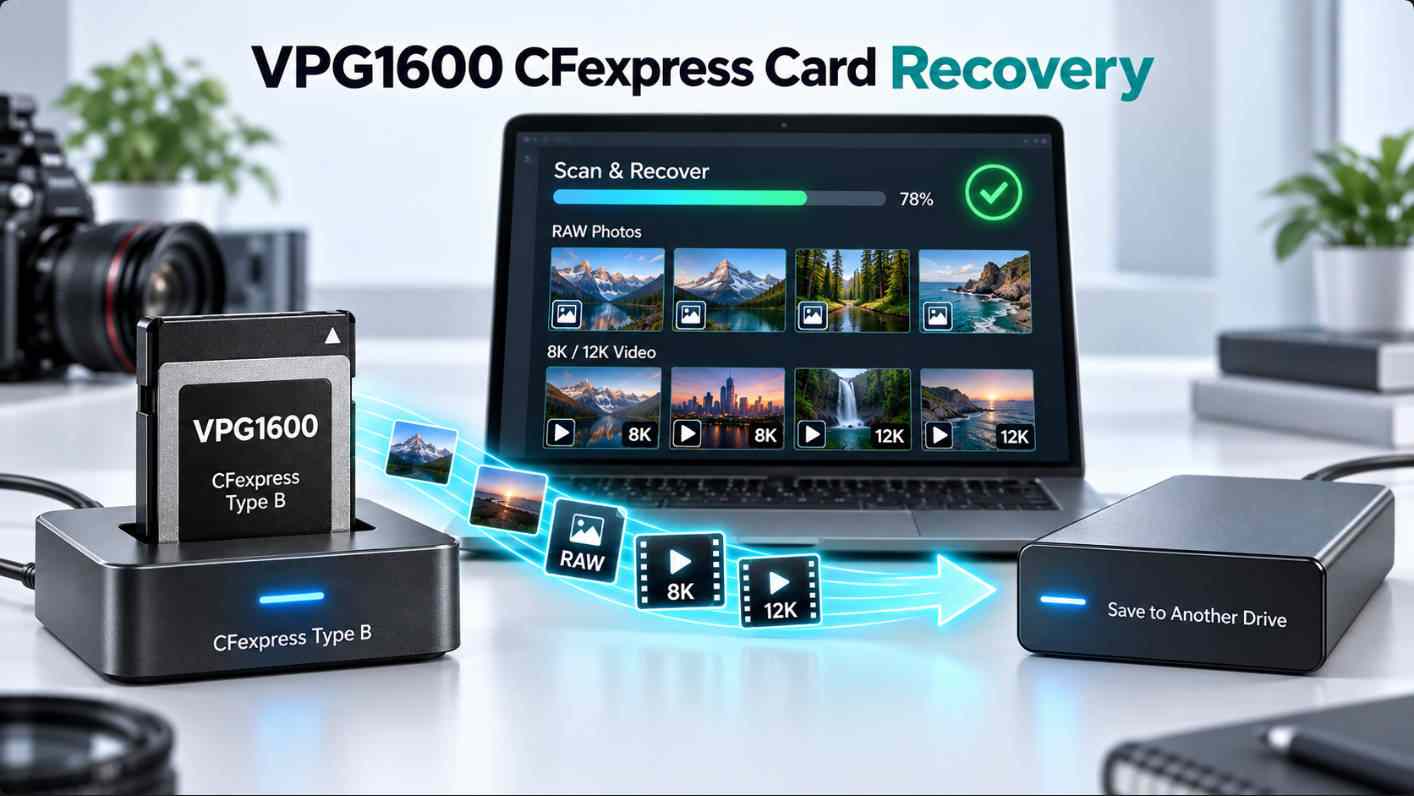
For readable camera media, Recoverit Camera Recovery provides a graphical workflow for scanning a camera card, previewing results, and saving recovered files to another drive.
In This Article
What VPG1600 Means for CFexpress Recovery
VPG stands for Video Performance Guarantee. The CompactFlash Association's VPG-5 profile defines VPG800 and VPG1600 classes for CFexpress cards, with sustained write requirements of 800 MB/s and 1,600 MB/s respectively. Sustained write performance helps a compatible camera keep recording high-bitrate video without its buffer overflowing and dropping frames. It is a recording-performance guarantee, not a backup or data-recovery feature.
That distinction matters when a card fails after a shoot. A VPG label does not prevent accidental deletion, an interrupted copy, file-system corruption, unsafe removal, a damaged recording header, or controller failure. The CompactFlash Association's VPG-5 announcement also notes that the newer VPG800 and VPG1600 profile is not backward-compatible with VPG200 and VPG400 performance guarantees. Camera and card compatibility should therefore be checked before a production, not after a recording problem.
CODEX VPG1600 Media: The Important Model Distinction
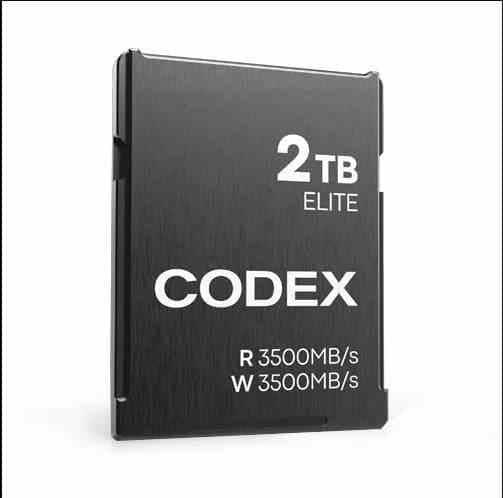
As of September 9, 2026, CODEX's official product pages list VPG1600 under the CFexpress 4.0 Type B Elite range. The page lists 1TB and 2TB Type B Elite cards. CODEX's Type B Excel range is listed as VPG400. CODEX's Type A page lists Excel cards supporting VPG400 and Elite cards supporting VPG400 and VPG800; it does not list VPG1600 for Type A on that page.
This is why "VPG1600 CFexpress card" should not be used as a synonym for every new CODEX card. A Type A card and a Type B card have different physical form factors, and the camera or reader must support the correct one.
| CODEX media or reader | Officially listed detail | Recovery implication |
| CFexpress 4.0 Type B Elite | VPG1600; 1TB and 2TB options are listed. | Designed for demanding recording, but deleted or corrupted data still needs a separate recovery workflow. |
| CFexpress 4.0 Type B Excel | VPG400; 512GB, 1TB, and 2TB options are listed. | Do not confuse the Excel and Elite performance classes when checking camera compatibility. |
| CFexpress 4.0 Type A | Excel supports VPG400; Elite supports VPG400 and VPG800. | Type A requires a compatible camera and Type A reader or adapter; it is not automatically VPG1600 media. |
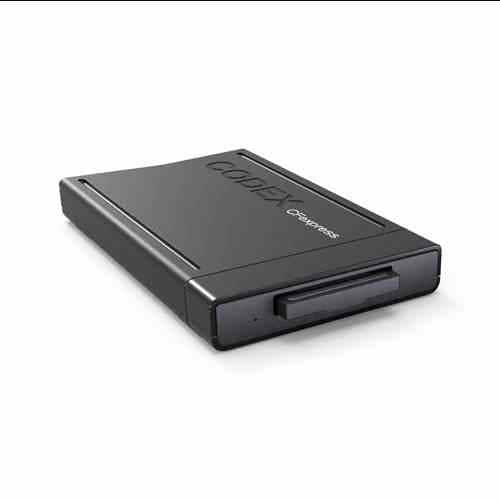
| CODEX CFexpress Type B Reader | USB4 connectivity at 40Gbps and read speeds up to 5000MB/s; Type B support is native and Type A support requires an adapter. | A fast reader can improve offload speed, but it cannot repair a damaged card or restore overwritten data. |
CFexpress cards use PCIe and NVMe technologies. Type A and Type B are not interchangeable simply because both use the CFexpress name. The CompactFlash Association card-type reference explains the form factors and their intended host compatibility.
What to Do Before You Touch the Card
Every new write can overwrite part of a deleted clip. A format, repair command, or camera re-initialization can also change the file-system information that points to the original files. Preserve the source media before troubleshooting.
- Stop recording immediately and remove the card from the camera only after the camera has finished writing.
- Do not choose Format, Initialize, Repair, or New Volume when the computer or camera displays those prompts.
- Do not run CHKDSK, First Aid, or another repair operation on the original card before recovering irreplaceable footage.
- Use the correct Type A or Type B reader and connect it directly to the computer rather than through an unreliable hub.
- Try one known-good cable, reader, or computer only when necessary to separate a connection problem from a card problem.
- Save recovered files to a different internal drive, external SSD, or verified production volume.
- Keep the original card unchanged if the first scan does not find the required clips.
When the footage is valuable, make a sector-level image or clone of a stable, readable card before repeated scans. Work from the copy whenever your imaging tool can complete the operation without causing the card to disconnect. Do not attempt to clone a card that is repeatedly failing without first considering a professional lab.
How to Tell Whether the Card Is Still Readable
"The CFexpress card is not detected" can mean several different things. The location where the card disappears determines whether software recovery is reasonable.
| What you see | What it usually indicates | Next action |
| The reader appears, but the card does not | The card may be loose, the reader may support the wrong type, or the adapter may be incompatible. | Confirm Type A or Type B compatibility and test one known-good reader. |
| The card appears in Disk Management or Disk Utility but not in File Explorer or Finder | The partition, mount point, or file system may be damaged. | Do not initialize or erase it. Scan the readable device before changing its structure. |
| The card appears as RAW, unallocated, or without a drive letter | The operating system cannot interpret the normal file-system structure. | Use a recovery workflow before formatting; see Recoverit File Recovery. |
| The card disconnects during a scan or copy | There may be a power, thermal, controller, reader, or hardware problem. | Stop repeated attempts and consider imaging or professional recovery. |
| The card is absent from multiple compatible readers and computers | The failure may be at the controller or hardware level. | Consumer recovery software cannot scan media that the operating system cannot address. |
Windows Check
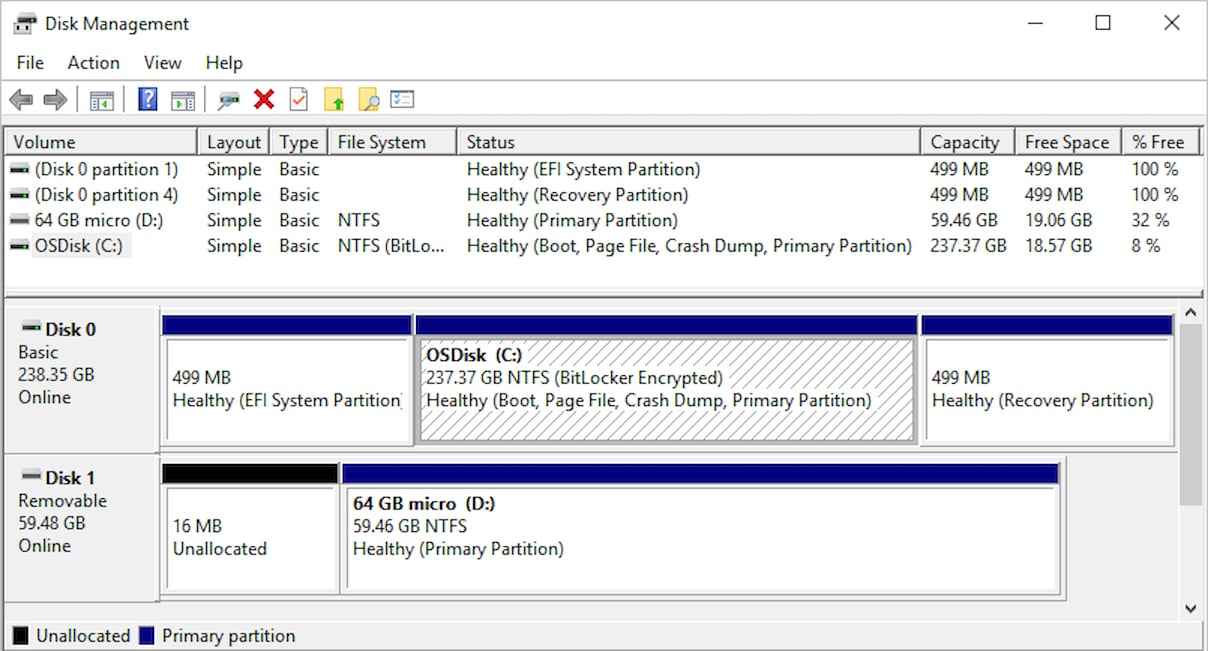
On Windows, press Win + X and open Disk Management. Look for a removable device with the expected capacity. Do not click Initialize Disk, Format, or New Simple Volume just to make the card appear in File Explorer. Microsoft documents the Disk Management interface in its official storage-management guide.
Mac Check
On macOS, open Disk Utility and choose View > Show All Devices. If the physical card is listed but its volume is not mounted, do not erase it. First determine whether the card contains the only copy of the footage. See Apple's Disk Utility User Guide for the current interface and controls.
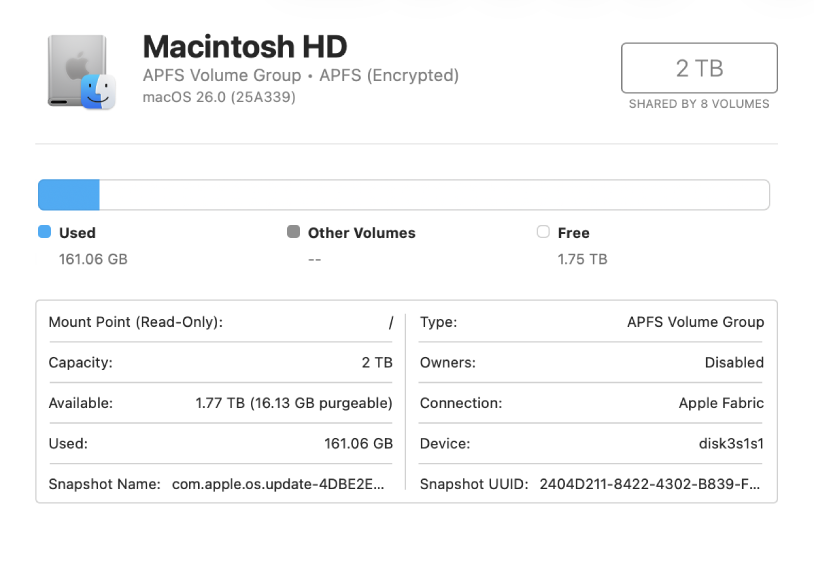
If the card is visible in either utility, software recovery has a meaningful starting point. If it is not visible anywhere, changing file extensions or installing another recovery application will not make a failed controller readable.
How to Recover Files from a VPG1600 CFexpress Card
Use this workflow when the card is visible to the computer and remains stable long enough to scan. The Recoverit screenshots in Steps 1-4 are genuine camera-recovery interface images from Wondershare's official page. Interface labels can vary by operating-system version and product release.

Step 1. Connect the Card Through a Compatible Reader
Insert the CFexpress card into a reader that matches its form factor. For a Type B card, the CODEX reader's official specification lists native Type B support and USB4 connectivity; Type A use requires the stated adapter. Connect the reader directly to a reliable port and avoid moving the card while it is being scanned.
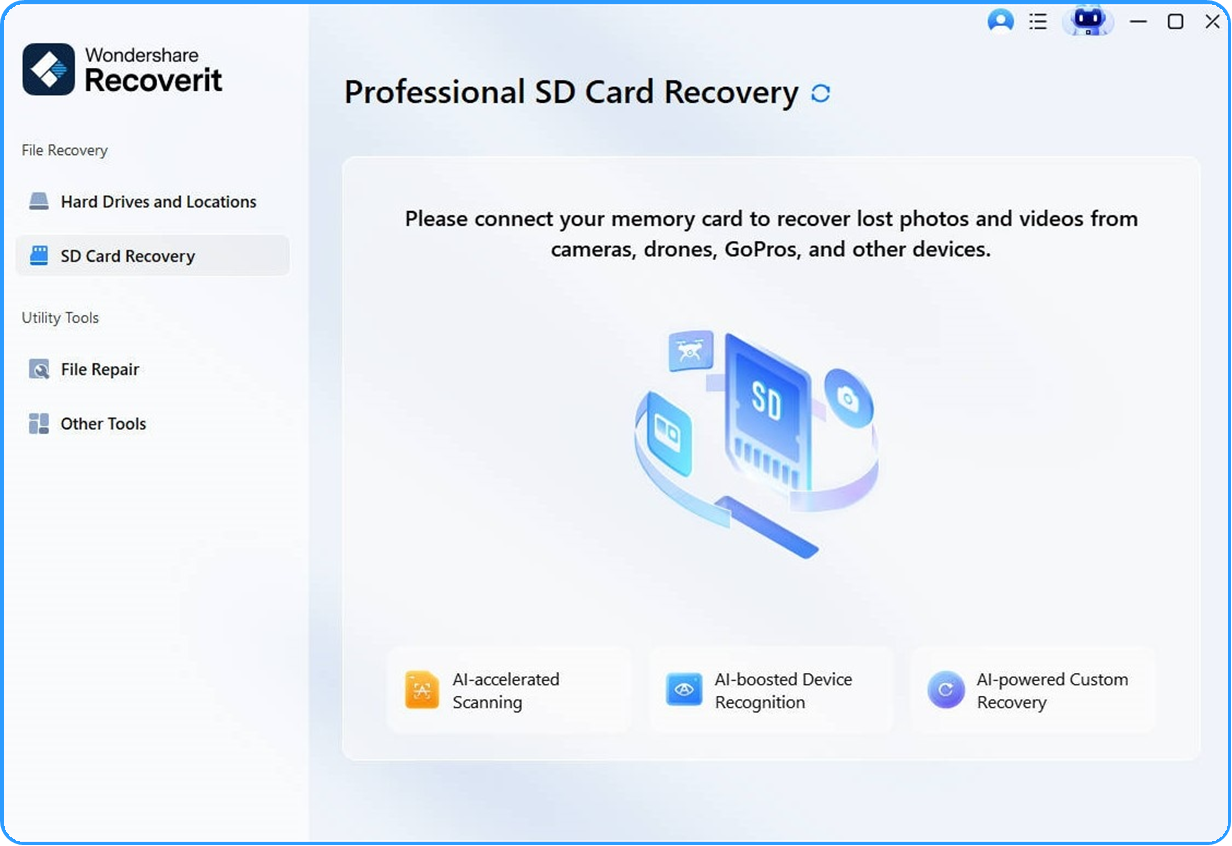
Step 2. Select the CFexpress Card in Recoverit
Open Recoverit Camera Recovery and select the connected camera card under the available storage locations. If the card has no normal volume label, select the removable device that matches its capacity rather than selecting the destination drive.
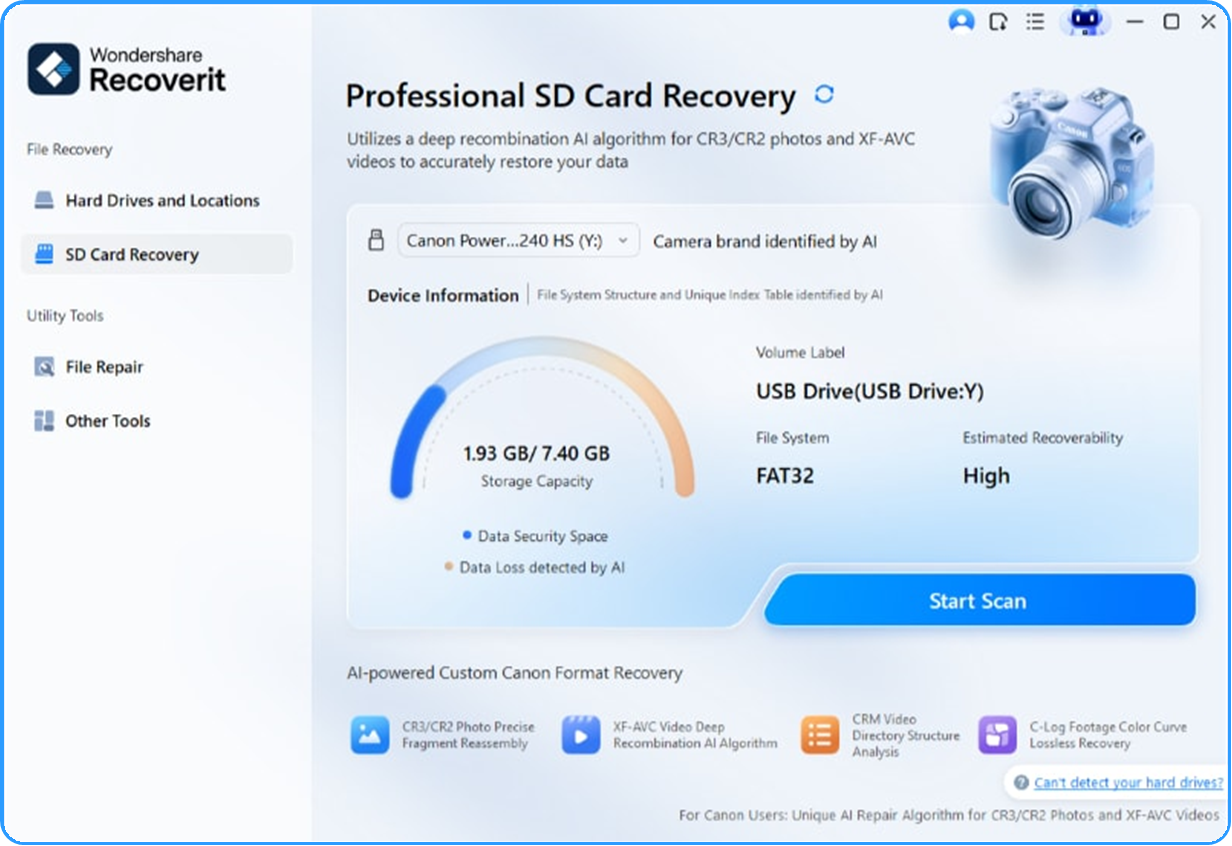
Step 3. Scan for Deleted or Lost Files
Start the scan and let it continue while the card remains stable. A normal scan may retain folder names and filenames. A deeper scan can take longer and may return files by type when the original directory structure is damaged.
Filter the results using the formats that the camera actually recorded. Depending on the camera system, you may see .mp4, .mov, .mxf, .dng, JPEG, or another camera-specific format. CODEX supplies the storage media; it does not determine the file format. Do not assume a particular CODEX card creates MXF, ProRes, RAW, or any other format without checking the camera's recording settings.
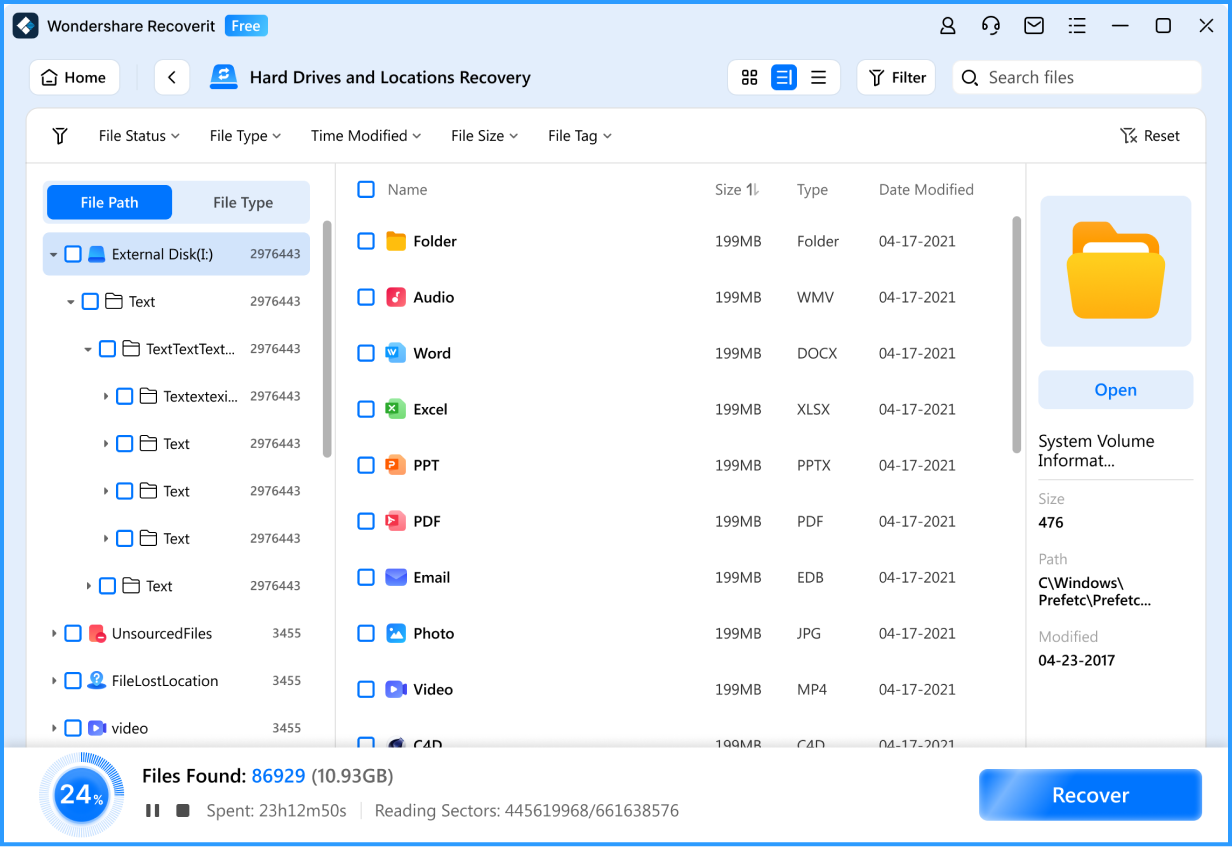
Step 4. Preview the Results
Preview files whenever the application supports the format. For large 8K and 12K clips, check more than the filename: look at the file size, duration, thumbnail, and whether the preview reaches the expected part of the recording. A file with the right extension is not necessarily a complete master clip.
Prioritize the original camera folders when they are available. If the file system is damaged and the results are grouped by file type, record the recovered filenames and folder relationships before saving.

Step 5. Save the Recovered Files to Another Drive
Choose a separate internal drive, external SSD, or production storage volume as the destination. Never save the recovered results to the source CFexpress card. After saving, open representative clips and verify their duration, file size, audio, metadata, and playback in the editing application used for the project.
For a more general removable-media workflow, see Recoverit File Recovery. For clips that are recovered but still damaged, use the separate Recoverit Video Recovery resource to evaluate the next step. Recovery and video repair are different operations.
How to Recover Files from a Formatted CFexpress Card
A quick format often removes or rebuilds file-system records without immediately overwriting every data block. That can leave a recovery opportunity, but continued recording reduces it. If the card was formatted by the camera or computer, stop using it immediately.
The Recover Files From Formatted Memory Card guide covers the same core principle for removable camera media: scan before reformatting again and write the recovered data to another storage device. The page uses memory-card examples, but the preservation rule also applies to a readable CFexpress card.
| Formatting event | Recovery outlook | Safest response |
| One quick format, no new footage recorded | Some original data may remain recoverable. | Stop using the card and scan it as soon as possible. |
| Format followed by new recording | Some deleted clips may be overwritten; others may remain. | Do not record anything else and scan for the remaining files. |
| Repeated formats or secure erase | The recovery outlook is substantially worse. | Stop experimenting if the footage is irreplaceable. |
| The camera wants to format the card, but the computer can read it | The file system may be damaged even though data is still addressable. | Cancel the prompt and recover the card before formatting. |
What to Do When Recovered 8K or 12K Video Will Not Play
A successful file listing does not prove that a video is complete. A camera that loses power or a card removed during recording can leave a clip with an incomplete header, index, or data range. Recovery software may restore the file entry or available data without rebuilding every part of an unfinished recording.
Keep the first recovered copy unchanged, then check:
- Whether the file extension matches the camera's actual recording format.
- Whether the recovered file size is plausible compared with other clips recorded with the same settings.
- Whether the duration is correct or displays as zero.
- Whether the camera maker's player or the project's editing application can read the file.
- Whether related audio, proxy, metadata, or sidecar files were recovered from the same card.
Changing .mp4 to .mov, or changing one camera-specific extension to another, does not restore missing video data. If the clip remains unplayable, evaluate a video-repair workflow using a duplicate of the recovered file. Do not test repair tools on the only recovered copy.
When Software Recovery Is Not the Right Next Step
Do not keep scanning when the card repeatedly disconnects, becomes unusually hot, makes the reader reset, or disappears from every compatible system. These symptoms can indicate a failing controller, damaged contacts, unstable NAND storage, or another hardware problem.
Software recovery is also a poor fit when the card contains the only copy of commercially critical footage and the media is not stable enough to image. A professional data recovery lab may be able to work with a failing device using specialist hardware and a controlled process. Avoid opening or physically modifying the card yourself; those actions can reduce the options available to a lab.
If the card remains consistently visible and readable, a software scan is a reasonable first step. If it is not detected anywhere, no application can scan sectors that the host system cannot address.
How to Protect Future Cinema Card Offloads
Keep the Card Until the First Copies Are Verified
Do not format a card immediately after an offload. Open several clips from the destination, compare the expected file count, and verify that the files play. For a critical production, keep the source card until at least two independent copies have been checked.
Use a Checksum-Verified Offload
Copying a folder and comparing its apparent size is not the same as verifying every file. A checksum-verified offload can identify a changed or incomplete destination file before the card is reused. This is particularly important for long, high-bitrate 8K and 12K recordings.
Separate Camera Originals From Working Media
Keep camera originals, edit-ready media, proxies, and project files on clearly labeled storage. Do not use a CFexpress card as a general-purpose transfer disk after the shoot.
Match the Card, Camera, and Reader
Confirm the camera's supported CFexpress type and VPG profile before recording. Label Type A and Type B readers separately. A USB4 reader can remove an offload bottleneck, but the card, reader, cable, host port, operating system, and destination drive all affect real-world transfer speed.
Retire Media That Behaves Unreliably
If a card repeatedly disconnects, produces damaged clips, or becomes readable only after repeated formatting, do not trust it with another production. Recover and verify the current footage, then replace the unstable media.
Conclusion
VPG1600 helps a compatible camera sustain high-speed recording; it does not make a CFexpress card immune to deletion, corruption, interrupted transfers, or hardware failure. CODEX currently lists VPG1600 in its CFexpress 4.0 Type B Elite range, while its Type A offerings use different VPG profiles. Confirm the exact card type, camera support, and reader compatibility before a shoot.
When a VPG1600 card is formatted, empty, or showing a camera error, stop writing to it first. If the computer can still detect the card, use a compatible reader, scan the source with Recoverit Camera Recovery, preview the results, and save them to another drive. If the card is missing from every compatible system or disconnects repeatedly, stop testing and consider professional recovery.
The safest order is simple: preserve the card, confirm whether it is readable, recover before formatting or repair, and verify the recovered footage before the original media is reused.
FAQ
FAQ
-
Can Recoverit recover files from a VPG1600 CFexpress card?
Recoverit can scan a CFexpress card when the computer detects it as readable storage. It may recover deleted, formatted, or inaccessible files, but it cannot bypass a failed controller or scan media that is not detected anywhere. -
What should I do if my CFexpress card is not detected?
Confirm whether the card is Type A or Type B, use a compatible reader, try one known-good cable or computer, and check Disk Management on Windows or Disk Utility on Mac. Do not initialize or format the card before recovery. -
Does VPG1600 guarantee that footage can be recovered?
No. VPG1600 describes a sustained write-performance class for video capture. It does not provide backup, deletion protection, file-system repair, or data recovery. -
Can I recover deleted 8K or 12K footage?
Possibly. The outcome depends on whether the card remains readable and whether new data has overwritten the deleted footage. Stop recording and save recovered files to another drive. -
Can I format the card when the camera displays a card error?
If the footage matters, cancel the format prompt and recover the card first. Formatting can change the file-system information needed by recovery software and may be followed by overwriting. -
Why does a recovered video still fail to play?
The file may be incomplete or may have damaged recording metadata. File recovery does not always repair an interrupted video. Keep the recovered original unchanged and test any repair process on a duplicate. -
Are CODEX Type A and Type B cards interchangeable?
No. They have different physical form factors and host requirements. Use the card type supported by the camera and a compatible reader; Type A and Type B should not be swapped based only on the CFexpress name.