

 TL;DR:
To safely recover lost SD card data on a Mac, immediately stop using the card to prevent overwriting, check built-in locations like Mac Trash or Time Machine, and use local recovery tools if the card is formatted, corrupted, or unreadable.
● Do not run Disk Utility First Aid, format the storage, or save recovered files back to the affected SD card, as these actions can alter damaged directory records or permanently overwrite remaining data.
● Choose the open-source PhotoRec if you are an advanced user comfortable with command-line interfaces and losing original file names, or use Recoverit for a beginner-friendly visual preview, noting that Recoverit requires a paid license for large file volumes.
● Software recovery cannot restore files if the sectors were securely erased, fully overwritten by new media, or if the card has physical hardware damage preventing macOS detection.
Ask AI for a summary
 ChatGPT
 Perplexity
 Gemini
 Claude
 Grok
Grok
Losing SD card files on Mac does not always mean they are gone forever. Deleted photos, formatted camera cards, corrupted SD cards, and unreadable memory cards may still contain recoverable data if you stop using the card quickly.
Quick Answer: To recover data from an SD card on Mac, stop using the card first. Check Photos, iCloud Drive, Mac Trash, Time Machine, Finder hidden files, and safe Terminal listing commands. If the SD card was deleted, formatted, corrupted, RAW, or unreadable, use local recovery software such as Recoverit or PhotoRec and save recovered files to another drive. Do not run First Aid, format, or erase the card before recovering important files.
In this article
Part 1. Quick Diagnosis: Which Mac SD Card Recovery Method Fits Your Case?
Before choosing a way to recover files from an SD card on a Mac for free, match your exact card issue with the safest recovery path below:
| SD Card Case | What It Usually Means | Free Option To Try First | When To Use Recoverit |
| Accidentally Deleted Files | Files were removed, but recoverable data may still remain | Check Trash first | Use a scan if Trash is empty |
| Formatted SD Card | The file index was reset | No built-in Mac deep recovery | Use deep scan recovery before saving new files |
| Card Shows Empty | Files may be hidden or the directory may be damaged | Reveal hidden files in Finder | Use recovery software if files still do not show |
| RAW or Corrupted Card | macOS cannot read the file system correctly | Check Disk Utility only | Recover files before repair or format |
| Card Not Recognized | Reader, port, adapter, or hardware issue | Try another reader or Mac | Use software only if the card is detected |
| Used in a Camera, Drone, or Phone | Device format or folder structure may cause access issues | Check imported copies and Photos | Scan the card for camera files |
| Need Free Recovery Without Uploading | You want local recovery without online upload | PhotoRec or free scan tools | Use Recoverit for easier scan and preview |
| Only Some Files Recovered | First scan missed deeper or damaged files | Try another scan mode/tool | Use deeper scanning and save elsewhere |
| Files Were Previously Copied To Mac | Copies may exist locally | Check Photos, iCloud, Trash, Time Machine | Use Recoverit if local copies are missing |
| SD Card Is Physically Damaged | Hardware may be unstable | Stop DIY attempts | Professional recovery may be safer |
Part 2. Before You Recover: Stop Overwriting SD Card Data
Your first actions matter. A deleted or formatted file may remain recoverable until new data overwrites it.
- Stop Using The SD Card: Remove the SD card from the camera, drone, phone, or reader. Do not take new photos, record new videos, or copy files to it.
- Do Not Format Or Erase The Card: If macOS asks whether you want to initialize, erase, or format the card, do not proceed if the files matter. Formatting can rebuild the card structure and make recovery harder.
- Do Not Run First Aid Before Recovery If Files Matter: Disk Utility First Aid can repair file system errors, but it is still a repair operation. If the SD card is corrupted or unreadable and contains important files, recover the files first, then repair the card later.
- Do Not Save Recovered Files Back To The SD Card: Always save recovered files to your Mac, an external hard drive, or another healthy storage device. Saving files back to the same SD card can overwrite remaining recoverable data.
- Use A Reliable Card Reader: A weak adapter, faulty hub, or unstable reader can interrupt scans. Use a reliable SD card reader connected directly to your Mac when possible.
Part 3. Why Data Gets Lost From SD Cards Used On Mac
Now that basics are covered, let us explore why data loss happens and how to recover files from an SD card on a Mac for free.
- Accidental Deletion: You may delete files from Finder or a camera folder by mistake. If the files were deleted from the SD card on Mac, check Trash first.
- Formatting Without Backup: A quick format resets the file system index. The original data may still exist until overwritten, so stop using the card and scan it.
- Unsafe Ejection: Removing the card during transfer can corrupt folders, file tables, or partially written video files.
- SD Card Corruption: Power loss, interrupted recording, reader failure, or file system errors can make photos and videos inaccessible.
- Hidden Files in Finder: Some files may be hidden by macOS settings, dot-name folders, or device-created folder structures.
- Cross-Device File Errors: Cards used across cameras, drones, phones, Windows PCs, and Macs may develop compatibility or folder structure issues.
- Physical SD Card Damage: Heat, water, bent contacts, drops, or aging memory cells can make the card unstable or unreadable.
- Overwritten Card Data: New photos, videos, or copied files can overwrite deleted sectors and reduce recovery chances.
Part 4. Free Built-In Mac Checks Before Using SD Card Recovery Software
Start with these free checks before using paid recovery software. They work best when files were imported, hidden, backed up, or deleted through Finder.
1. Check Imported File Copies
Your missing photos or videos may already exist on your Mac.
Check:
- Photos app
- Finder Downloads
- Desktop
- Pictures folder
- iCloud Drive
- Camera import folders
- Recently opened folders
Search by file type, date, camera name, or folder name.
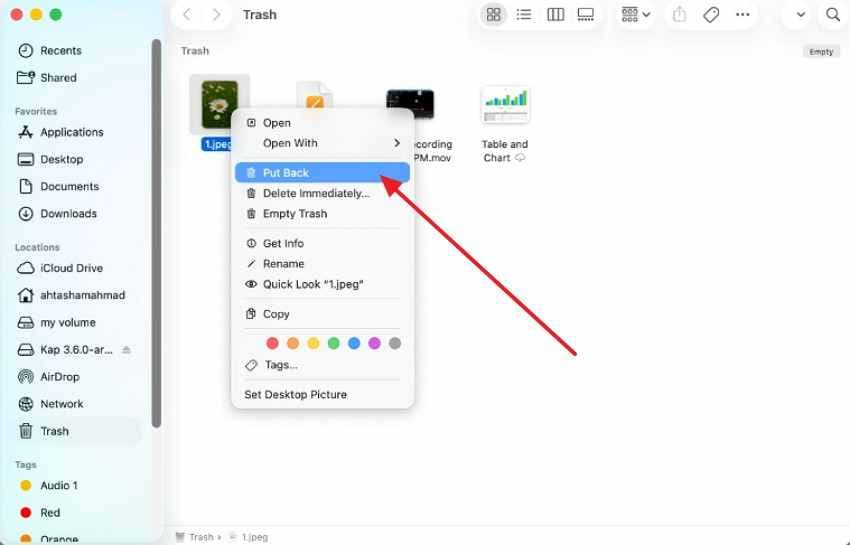
2. Check Mac Trash Folder
Deleted SD card files may move to the Trash when deleted through Finder on a Mac.
- Access “Trash,” search for the file name or folder, then restore items to a safe location.
- Then, right-click the “Found Files > Put Back.”
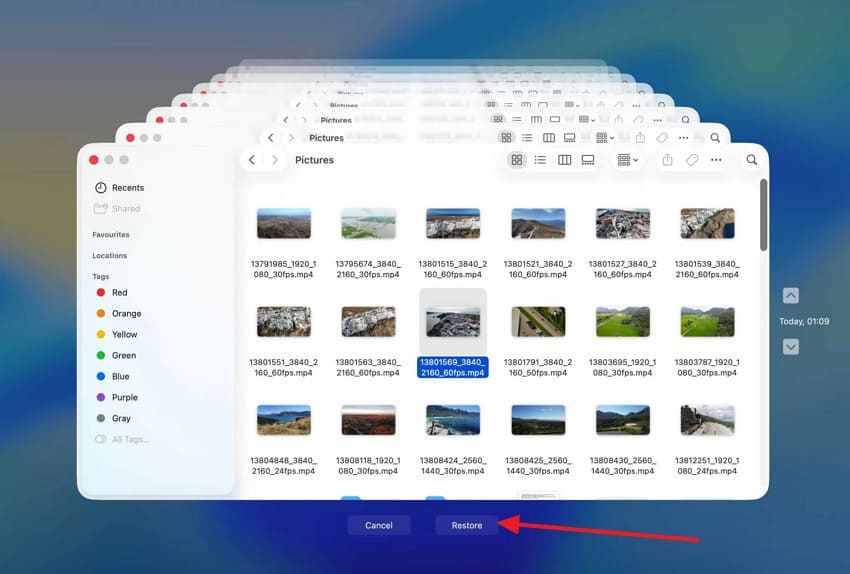
3. Check Time Machine Backups
Time Machine helps only if the SD card files were copied to your Mac or backed up before loss. It cannot recover files from an SD card that was never backed up.
- Connect your backup drive, choose “Time Machine,” and check the folder where files were saved.
- Afterward, press “Time Machine Icon > Older Backup Date > Select Missing Files > Restore.”
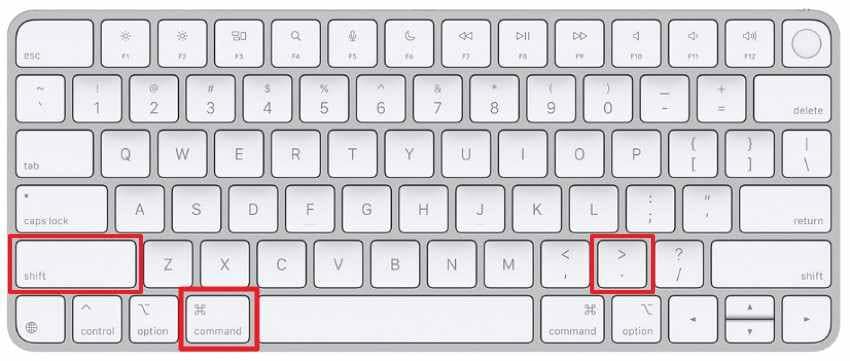
4. Reveal Hidden Finder Files
Finder may hide files with dot names, system attributes, or device-created folder settings. In Finder, press “Command + Shift + Period” to reveal hidden items.
5. List Hidden Terminal Files
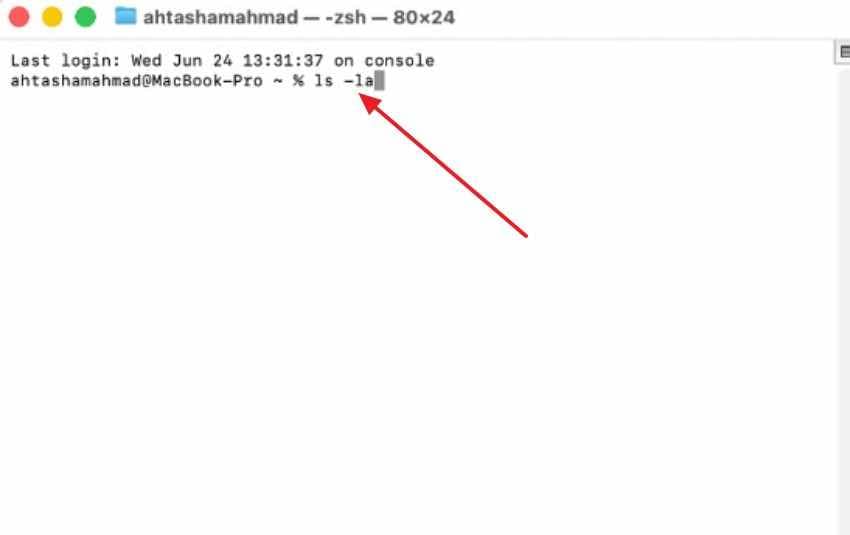
Terminal can show hidden files, but wrong commands may confuse or damage file access. Use “ls -la” only to list contents, and avoid delete, repair, or format commands. Furthermore, follow the instructions below to list hidden Terminal files:
- Access Launchpad > Other > Terminal > Type “ls /Volumes” > Press “Return” to view connected drives.
- Afterward, type “ls -la /Volumes/CardName” > Replace “CardName” with your SD card name > Press “Return.”
6. Know Built-In Recovery Limits
Mac built-in checks can help when files are:
- In Trash
- Imported to Photos
- Synced to iCloud Drive
- Backed up by Time Machine
- Hidden in Finder
- Still visible through Terminal
They usually cannot deeply recover files after formatting, RAW errors, severe corruption, or overwritten sectors. For those cases, use recovery software.
Part 5. Recover SD Card Data on Mac Using Recoverit
When built-in checks cannot find the files, use local SD card recovery software. This is especially useful when the card was deleted, formatted, corrupted, RAW, unreadable, or emptied from Trash.
Recoverit for Mac scans SD cards connected to your Mac, previews recoverable files, and helps save selected results to another drive. The free version may allow scan, preview, and limited recovery depending on the current license, so check the product terms before recovery.
When Recoverit Is A Good Fit
Use Recoverit when:
- SD card files were deleted and Trash is empty.
- The SD card was formatted.
- The card shows empty but should contain files.
- The SD card is corrupted or RAW.
- macOS detects the card but cannot open it.
- Camera, drone, GoPro, or phone files are missing.
- Free checks cannot find the files.
- You want a beginner-friendly scan and preview interface.
What Recoverit Can Recover From SD Cards On MacKey Features
| File Type | Examples |
| Photos | JPG, PNG, HEIC, TIFF, RAW, CR2, CR3, NEF, ARW, DNG |
| Videos | MP4, MOV, AVI, MTS, M2TS, MXF, INSV, 3GP |
| Audio | MP3, WAV, AAC, FLAC, M4A |
| Documents | DOCX, XLSX, PPTX, PDF, TXT, CSV |
| Storage Devices | SD, SDHC, SDXC, microSD, camera cards, drone cards, GoPro cards |
Step- by-Step Guide to Recover SD Card Data on Mac
When the card is safely connected, follow these steps to scan, preview, and recover SD card data on Mac:
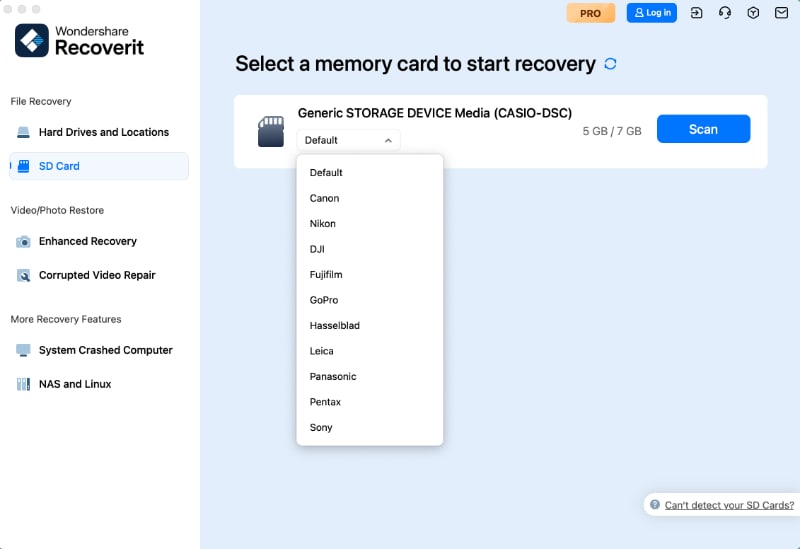
Step 1. Choose the SD Card for Scanning
Connect the SD card to your Mac through a stable card reader. Open Recoverit, go to “SD Card Recovery,” select the detected SD card, and click “Start Scan.”
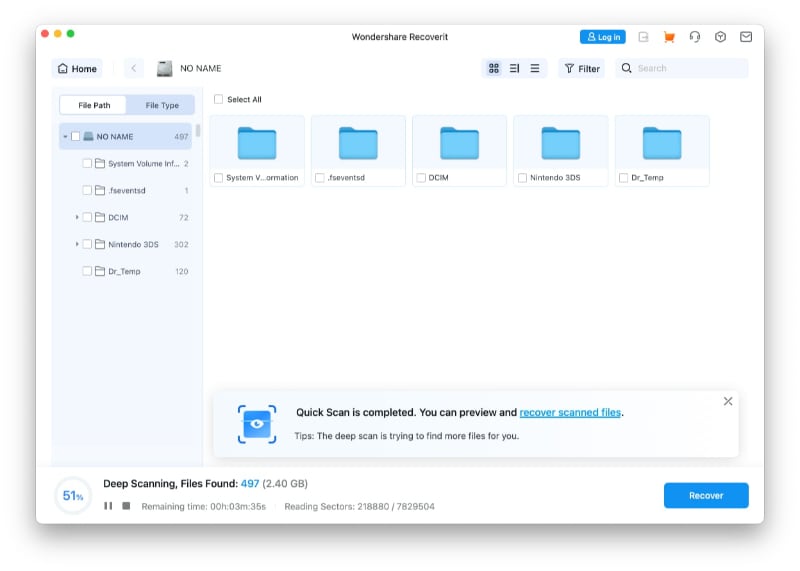
Step 2. Let Recoverit Find Lost Files
After results appear, check files by “File Path” or “File Type,” then preview recoverable items.
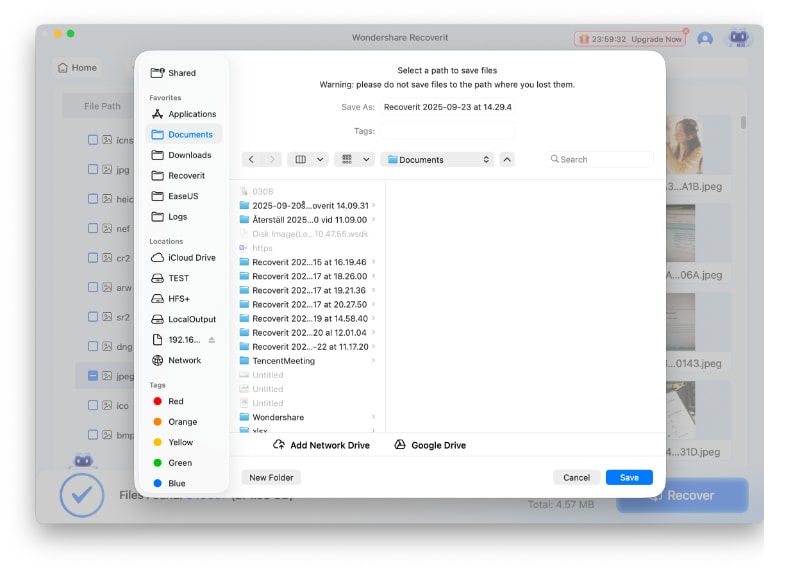
Step 3. Save Files Away from the SD Card
Select the files you want back and press “Recover.” Choose a safe folder on your Mac or another external drive, then press “Save” to avoid overwriting card data.
Part 6. Free SD Card Recovery Software For Mac: What Is Actually Free?
Many users search for free SD card recovery software for Mac. The key is knowing what “free” means.
Free Check Vs Free Scan Vs Free Preview Vs Free Recovery
| Term | What It Means | Limitation |
| Free Check | Built-in Mac checks such as Trash, Photos, Time Machine, Finder, Terminal | Works only if files still exist somewhere accessible |
| Free Scan | Software scans the SD card and shows found files | Saving may require a license |
| Free Preview | You can preview found files before recovery | Some damaged or large files may not preview |
| Free Recovery Limit | You can save a limited amount of data for free | Larger recovery may need an upgrade |
| Fully Free Recovery | Tool can recover without payment | May be command-line or less beginner-friendly |
PhotoRec: Free And Open-Source SD Card Recovery For Mac
PhotoRec is a free, open-source tool from CGSecurity. It recovers files by searching for file signatures, which can help after deletion, formatting, or corruption.
Best For: Advanced users who want fully free recovery.
Limits:
- Command-line interface
- Original file names are often lost
- Folder structure may not be restored
- Results can be harder to sort
- Less beginner-friendly than visual recovery software
TestDisk: Free Partition Recovery Tool
TestDisk is also from CGSecurity. It is useful for lost partitions and partition table repair, but it is not the easiest option for normal photo recovery.
Best For: Advanced users dealing with lost partitions.
Limits:
- Command-line tool
- Not beginner-friendly
- Wrong partition operations can create confusion
- Not the first choice for simple deleted photos
Recoverit Free Scan And Preview
Recoverit is easier for beginners because it provides a visual interface, file filters, previews, and guided recovery steps.
Best For: Users who want easier SD card recovery on Mac with preview before saving.
Limits:
- Free recovery may be limited by the current version or license.
- Larger recoveries may require an upgrade.
- Always check the current product terms before recovery.
Which Free Option Should You Try?
| Situation | Best Free Or Low-Cost Option |
| Deleted through Finder | Check Trash |
| Files copied to Mac earlier | Check Time Machine |
| Photos imported earlier | Check Photos or iCloud |
| Files hidden | Reveal hidden Finder files |
| Need fully free recovery and accept command line | Try PhotoRec |
| Need preview and beginner-friendly interface | Try Recoverit scan and preview |
| Lost partition or partition table issue | TestDisk for advanced users |
Part 7. Recover SD Card Data When Mac Cannot Recognize or Mount the Card
When the card does not appear normally, below are the safest ways to recover data from an SD card on a Mac:
- Check Disk Utility or System Information: Open Disk Utility and System Information to see whether macOS detects the card or reader. This first check helps you recover data from an SD card on a Mac without guessing blindly.
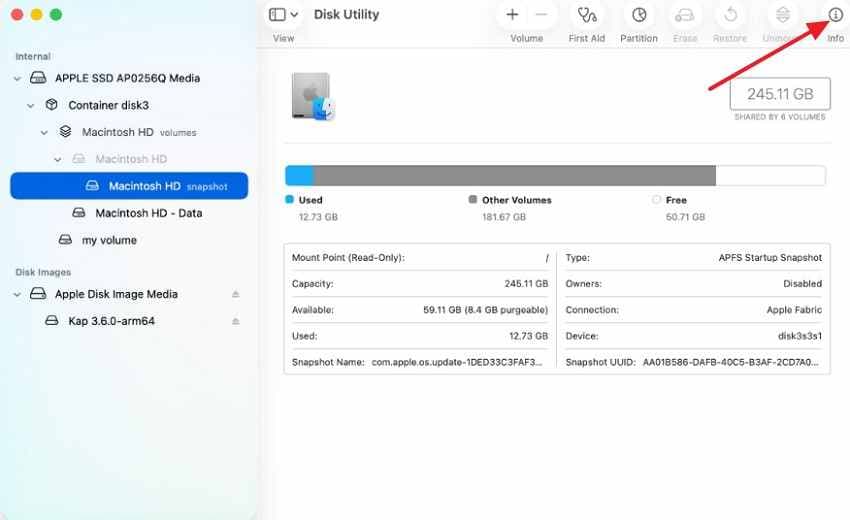
- Try Another Reader, Port, or Mac: A weak adapter, dusty USB port, or faulty hub often blocks card access. Test another reader or Mac before treating the SD card as damaged.
- Avoid Formatting or First Aid Early: Do not format the card when macOS asks, even if it looks unreadable. To recover files from an SD card on a Mac for free, protect existing data before repair attempts.
- Use Recovery Software for Inaccessible Files: Choose recovery software when the card appears, yet folders refuse to open. Scan first, preview found items, then save results to another safe location.
- Run First Aid After File Safety: First Aid checks file system errors, but repairs may change damaged directory records. Use free photo recovery software for Mac SD card first, then repair afterward.
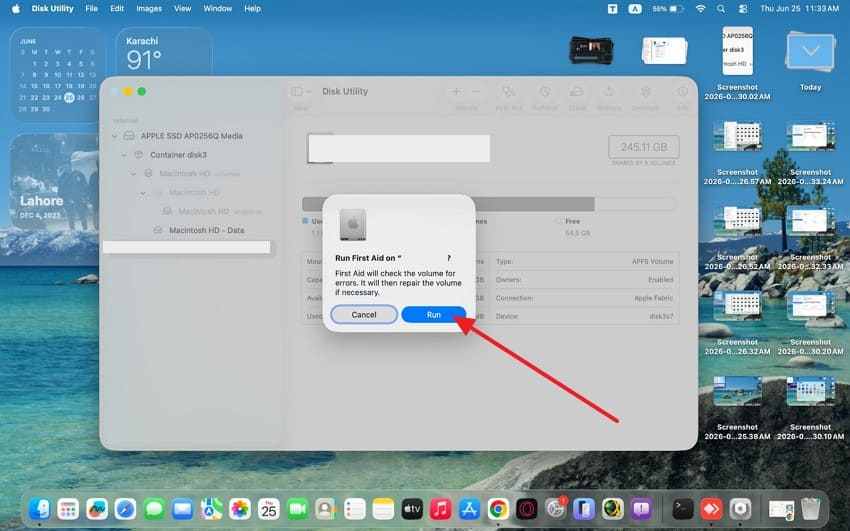
- Use Terminal Only with Care: Terminal commands help inspect disks, identifiers, and mount status with more detail. Wrong commands create confusion, so avoid them unless you understand disk paths.
- Contact Professional Recovery Experts: Professional services are safer for cracked cards, burnt chips, or severely bent contacts. They inspect hardware directly instead of forcing software scans on unstable storage.
Part 8. When SD Card Recovery on Mac May Not Work
At this point, understanding SD card recovery limits on Mac becomes just as important as recovery itself.
- Deleted Files Were Overwritten: New photos, videos, or copied files may replace deleted sectors. Once overwritten, the original content cannot usually be restored.
- No Device Detects The Card: If every reader, Mac, camera, or Windows PC fails to detect the card, the controller or memory hardware may be damaged.
- The Card Shows The Wrong Capacity: A 0-byte card or wrong capacity reading may indicate severe partition, controller, or hardware failure.
- The Card Is Physically Damaged: Bent contacts, cracks, heat, water, or broken plastic can prevent stable access.
- The Scan Keeps Disconnecting: Repeated disconnects interrupt recovery scans and may stress unstable storage.
- Files Were Securely Erased Or Fully Overwritten: Secure erase or full overwrite replaces old file content with new data, making recovery unrealistic.
- Professional Recovery Is Needed: If files are business-critical, legal, or irreplaceable, stop repeated DIY scans and contact a professional recovery lab.
Part 9. How to Protect SD Card Data When Using a Mac Going Forward
The good habits below help prevent future data loss and make it easier to recover data from an SD card on a Mac if problems occur again.
| Prevention Tip | Improved Quick Action |
| Safe Ejection | Eject the SD card through Finder before removal. |
| Regular Backup | Back up files after each use. |
| Right Formatting | Format the SD card in the device that uses it most. |
| Device Consistency | Avoid switching the SD card between multiple devices frequently. |
| macOS Updates | Keep macOS updated for the latest storage compatibility. |
| Stable Reader | Use a reliable, high-quality card reader. |
| Safe Storage | Store SD cards in a dry, protective case. |
| Early Replacement | Replace slow or unreliable SD cards promptly. |
Conclusion
To recover data from an SD card on Mac, start with the safest options first. Stop using the card, check Photos, iCloud Drive, Mac Trash, Time Machine, Finder hidden files, and safe Terminal listing commands.
If the files are deleted, formatted, corrupted, RAW, or inaccessible, use local recovery software before running First Aid, formatting, or erasing the card. PhotoRec is a fully free but technical option. Recoverit is easier for beginners because it scans locally, previews recoverable files, and helps save selected results to another safe drive.
The most important rule is simple: do not save anything new to the SD card, and never save recovered files back to the same card. Once your files are safe, you can repair, reformat, or replace the card if needed.
FAQs
-
1 Can I Recover Data From An SD Card On Mac For Free?
Yes, in some cases. You can check Trash, Photos, iCloud Drive, Finder hidden files, and Time Machine for free. PhotoRec is also fully free, but it is technical and may not keep original file names or folder structure. Some commercial tools offer free scan, preview, or limited recovery. -
2 How Do I Recover Deleted Files From An SD Card On Mac?
Stop using the card, check Mac Trash first, then use SD card recovery software if Trash is empty. Save recovered files to your Mac or another external drive, not the SD card. -
3 Can Mac Trash Recover Deleted SD Card Files?
Yes, if the files were deleted from the SD card through Finder and Trash has not been emptied. If Trash is empty, use recovery software. -
4 Can Time Machine Recover SD Card Files?
Only if the SD card files were copied to your Mac or included in a backup before they were lost. Time Machine cannot recover files from an SD card that was never backed up. -
5 Is PhotoRec Really Free For Mac SD Card Recovery?
Yes. PhotoRec is free and open-source. However, it uses a command-line interface, and recovered files may lose original names and folder structure. -
6 What Does Recoverit Free Version Allow?
Recoverit may allow free scanning, previewing, and limited recovery depending on the current version and license. Check the current product terms before recovery, especially for large SD card recovery jobs. -
7 Should I Run First Aid Before SD Card Recovery?
Not if the files are important and the card is corrupted or unreadable. Recover files first, then run First Aid after your data is safe. -
8 Should I Format An Unreadable SD Card Before Recovery?
No. Formatting or erasing an SD card can remove visible file records and reduce recovery chances. Recover files first, then format the card if needed. -
9 Why Is My SD Card Not Showing On Mac?
The cause may be a faulty reader, hidden Finder setting, damaged file system, unsupported format, bad adapter, or physical card damage. Check Disk Utility, System Information, and another reader before recovery. -
10 Where Should I Save Recovered SD Card Files?
Save recovered files to your Mac, an external hard drive, or another healthy storage device. Do not save recovered files back to the same SD card.


