

 TL;DR:
Excel AutoRecover files are primarily stored in hidden system folders, specifically the AppData folder on Windows and the Library container on Mac, and their exact paths can be found within Excel's Save settings.
● **Windows Location**: On Windows, the default recovery path is usually `C:\Users\[name]\AppData\Roaming\Microsoft\Excel\`, which can be accessed quickly by pasting `%AppData%\Microsoft\Excel` into the Run dialog.
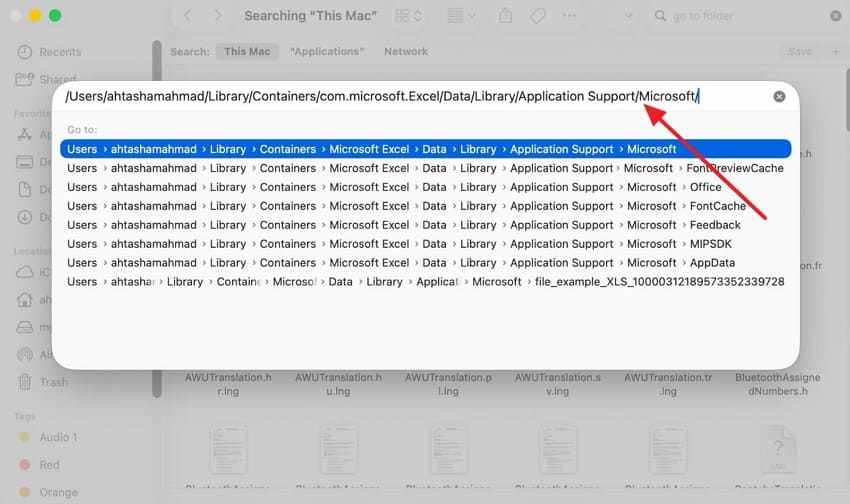
● **Mac Location**: On Mac, recovered files are typically saved in `/Users/[username]/Library/Containers/com.microsoft.Excel/Data/Library/Application Support/Microsoft`, accessible via the Finder's "Go to Folder" feature.
● **Prerequisites & Limitations**: AutoRecover only works for active sessions if the setting is enabled before a crash, and files may disappear if you click "Don't Save," save the workbook manually, or if the time interval between saves hasn't passed.
● **Alternative Recovery Methods**: If AutoRecover folders are empty, check the Document Recovery Pane upon reopening Excel, use "Recover Unsaved Workbooks" under the File > Info tab for unnamed drafts, search temporary files (`%temp%`), or check OneDrive Version History for cloud-based files.
● **Last Resort for Data Loss**: If built-in methods, temporary files, and cloud versions fail due to deletion, formatting, or drive crashes, third-party software like Recoverit can scan the drive for remaining traces of the lost workbook.
Ask AI for a summary
 ChatGPT
 Perplexity
 Gemini
 Claude
 Grok
Grok
Excel recovery becomes easier when users verify the correct path before replacing the workbook data.
- Main Location: The Excel AutoRecover file location appears inside Save settings, not random folders.
- Windows Path: AppData often stores crash snapshots after forced closures or shutdowns.
- Mac Path: Library containers usually hold recovered workbook files in hidden storage.
- Extra Recovery: Unsaved Workbooks, temporary files, OneDrive history, and backups can help.
- Last Option: Recoverit scans drives when Excel recovery folders show nothing useful.
Losing spreadsheet work feels stressful when formulas, reports, or deadlines matter. Excel still gives users several recovery paths before third-party tools become necessary. Thus, this guide explains the Excel AutoRecover file location on Windows and Mac. It also shows how to find unsaved workbooks, temporary files, and older versions.
Since recovery files are often stored in hidden folders, users should avoid saving new changes over the same workbook too quickly. Moreover, checking the correct AutoRecover path first can help restore missing Excel data safely.
Quick Answer: Where Are Excel AutoRecover Files Stored?
- Windows usually saves AutoRecover files in Excel's AppData folder. The exact folder path appears in Excel's Save settings.
- On Mac, recovered Excel files are usually stored inside the hidden user Library container, which opens faster through Go to Folder.
In this article
Part 1. Start Here First: What Are You Actually Looking For?
Excel can store recovery data in different places depending on the loss type. The points below clarify which location matches each missing workbook scenario:
- Windows AutoRecover Path: Windows often keeps recovery copies inside Excel's roaming AppData folder after crashes. Check this route first when recent workbook edits disappear after a crash.
- Excel Options Panel: Excel's Save settings show the active recovery folder selected for that device. This path matters when users need the exact Excel AutoRecover location quickly.
- Mac Library Container: Mac usually stores recovered Excel data inside hidden Library containers. Use Go to Folder when Finder hides the recovery path manually.
- Direct Path Search: Pasted folder paths reach hidden recovery areas faster than manual clicking. This helps users find auto-recover Excel files after crashes or shutdowns.
Part 2. What Excel AutoRecover Does and Does Not Do
Excel recovery sounds simple, yet several features behave differently during file loss. Understanding these limits helps users search for the right Excel recovery location first.
What AutoRecover Is
AutoRecover is Excel's built-in safety feature for interrupted editing sessions. It saves temporary workbook snapshots at set intervals while Excel remains open. These snapshots can help restore recent changes after crashes, freezes, or shutdowns. However, AutoRecover is not permanent backup storage, so users should save recovered files to another safe folder. The comparison below clarifies why AutoRecover and AutoSave should not be treated alike:
| Feature | AutoRecover | AutoSave |
| Main Purpose | Restores work after crashes or unexpected closures | Saves cloud files automatically during editing |
| Storage Type | Temporary local recovery copies | Live cloud-based file updates |
| Best For | Crash recovery and unsaved editing sessions | OneDrive or SharePoint workbook changes |
| User Control | Works through Excel Save settings | Works when cloud storage supports it |
| Main Limit | May disappear after saving or closing choices | Can overwrite changes quickly if enabled |
When AutoRecover Works
AutoRecover works when Excel stays open long enough to save backup copies. Its settings must also be turned on before a crash happens. It may help after freezes, forced shutdowns, or power cuts. Still, it only protects open workbooks, and changes after the last backup may be lost forever.
When AutoRecover Files Disappear
However, recovery copies are temporary, so Excel may remove them later. AutoRecover files can disappear when settings are off before a crash. They may vanish after users click "Don't Save" or save manually. Hidden folders and long intervals can also make recent snapshots harder to find.
Part 3. Excel AutoRecover File Location on Windows and Mac
After identifying the recovery type, users should verify the exact storage path. The Excel AutoRecover file location changes across Windows, Mac, and custom Excel settings.
Common Windows AutoRecover Path
C:\Users\[name]\AppData\Roaming\Microsoft\Excel\
On Windows, Excel commonly stores recovery copies inside the Roaming Microsoft folder. Therefore, paste %AppData%\Microsoft\Excel\ into Run to open that folder directly.
Default Mac AutoRecover Path
/Users/[username]/Library/Containers/com.microsoft.Excel/Data/Library/Application Support/Microsoft
Mac usually places recovered Excel data inside its hidden Library container folder. Instead of browsing Finder manually, use Go to Folder for direct access.
Why the Path May Be Different on Your Device
Settings, Office versions, user profiles, and storage choices can change recovery paths. However, the Excel AutoRecover file location may move when users change the Save settings. Older Office builds or separate accounts may use different hidden folders. Cloud files often rely on version history instead of local recovery storage during access.
Part 4. 3 Fast Ways to Find Excel AutoRecover Files
Default paths give direction, but direct checks confirm the actual recovery folder. Below are 3 quick routes for finding AutoRecover files after Excel interruptions:
Method 1. Check the Path Through Excel Options
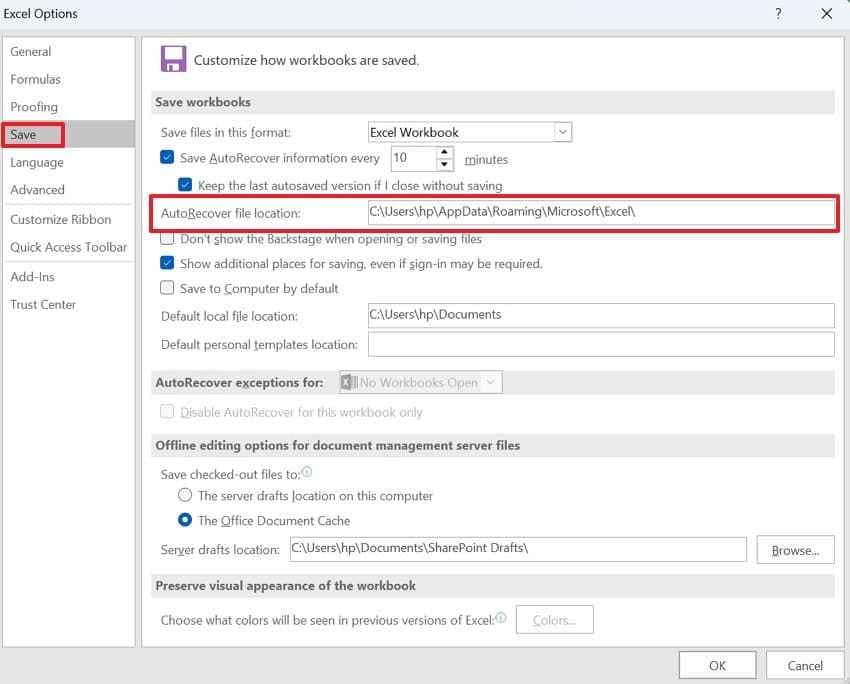
Start with Excel's own settings when copied paths create confusion. The Save panel reflects the real Excel AutoRecover file location chosen for that device, not a generic online folder. So, it fits changed settings, older Office builds, or company-managed recovery folders. Follow the steps below to confirm the exact recovery folder shown inside Excel settings:
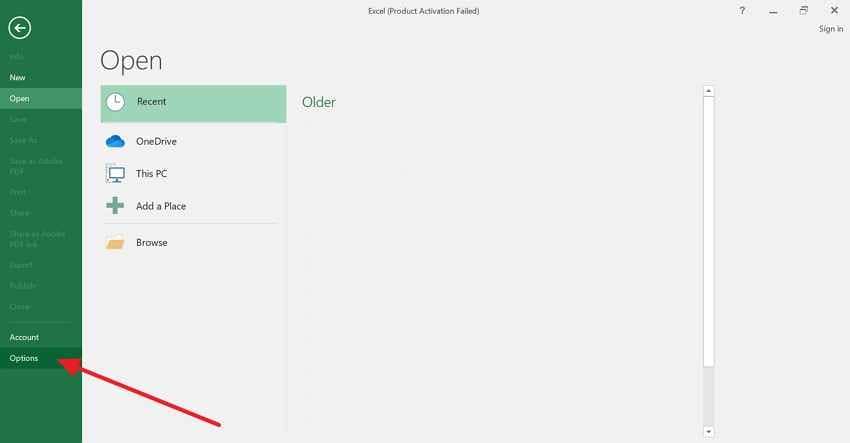
Step 1. First, open Excel, navigate to "File," tab, and choose "Options," to continue.
Step 2. After that, open the "Save" settings, where the "AutoRecover File Location" field shows the active recovery folder for that device. Now, copy the full folder path shown inside the AutoRecover location field. Then, paste it into "File Explorer" and check recovery copies before editing.
Method 2: Use %AppData% or Known Windows Folders
Windows users often need a faster route when Excel closes before showing recovery prompts. The AppData area can reveal AutoRecover Excel files left behind after crashes, forced restarts, or frozen sessions.
Moreover, known Office folders help when unsaved workbooks never reach the normal saved locations. Now use these instructions to open common Windows recovery folders without browsing manually:
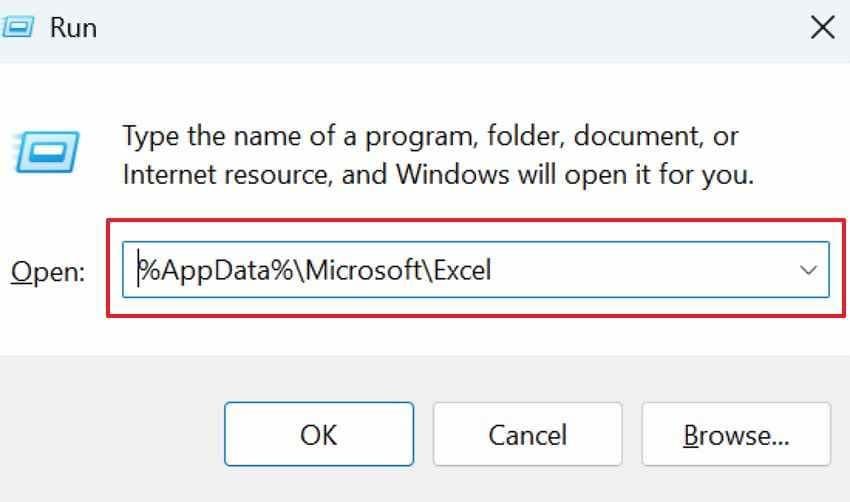
- To start, press "Windows + R" to open the Run dialog.
- Then type "%AppData%\Microsoft\Excel" and press "Enter" to open Excel's recovery folder.
- Next, check the folder for files that match your missing workbook.
- Afterward, search nearby Microsoft or Office folders when this location appears empty.
Method 3: Use Go to Folder on Mac for Hidden Folders
Mac recovery searches are harder because Library folders stay hidden during browsing. Go to Folder opens Excel's recovery storage path directly, without manual Finder searching. Therefore, follow these steps when visible folders show no recoverable workbook files:
Step 1. Start by accessing "Finder," selecting "Go," and choosing "Go to Folder." Alternatively, press "Shift + Command + G" to open the same folder search box.
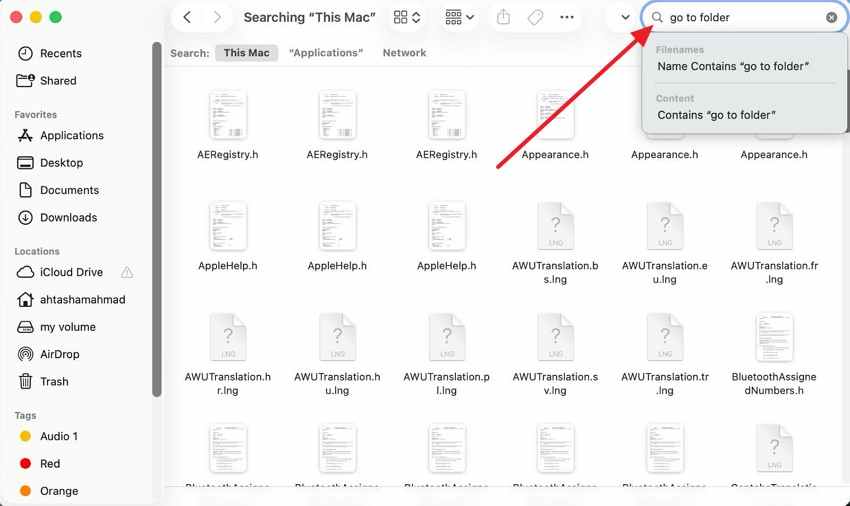
Step 2. Next, paste "/Users/<username>/Library/Containers/com.microsoft.Excel/Data/Library/Application Support/Microsoft" into the search box. Then, replace <username> and check the available Excel recovery files carefully.
Part 5. Why Excel AutoRecover Files Are Missing: 5 Common Reasons
Recovery gaps usually happen before users reach the correct folder. The following causes explain why the AutoRecover Excel files may be missing from expected locations:
- AutoRecover Turned Off: Disabled settings stop Excel from creating recovery snapshots during active workbook sessions. Without those copies, hidden folders will not show any recoverable traces of workbooks.
- Don't Save Selection: Choosing Don't Save signals Excel that the recovery version is unnecessary afterward. That choice often clears temporary files before users revisit the recovery folder.
- Manual Workbook Save: A normal save can replace older snapshots with the latest workbook version. Excel then removes outdated recovery copies from its temporary storage area quietly.
- Hidden or Custom Folder: Custom paths move recovery files away from familiar Desktop or Documents locations. Hidden folders also make available copies look missing during manual browsing.
- No Recent Snapshot: Excel saves recovery data by interval, not after every workbook change. Recent edits disappear when an interruption happens before the next snapshot forms.
Part 6. If You Cannot find the AutoRecover File, Try These Recovery Methods Next
When the main folder shows nothing, the following recovery methods can still help locate missing workbook copies:
1. Document Recovery Pane
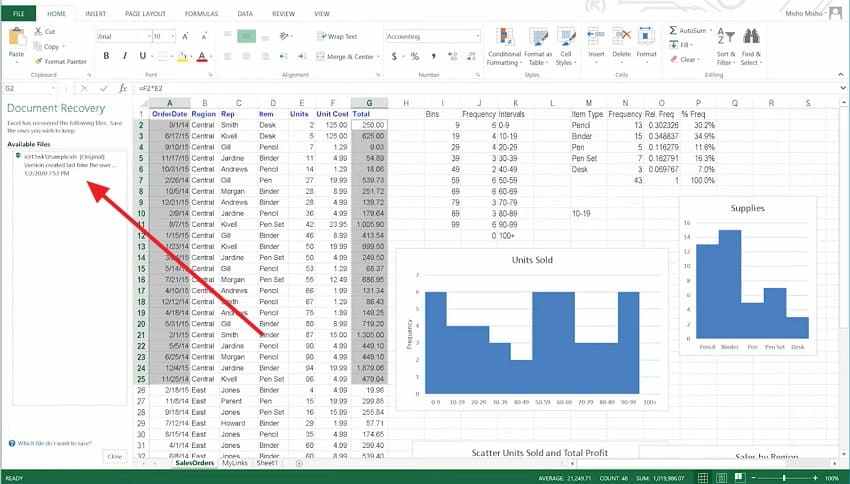
Crash sessions often trigger this pane before manual searching becomes necessary. It may reveal versions linked to the Excel AutoRecover file location. However, its value is strongest right after Excel reopens. This option suits freezes, forced closures, and sudden shutdowns.
Recovered versions should be checked carefully before replacing saved workbook files. Use the instructions below to inspect recovered workbook versions before saving changes:
- In Excel, check whether the "Document Recovery" pane appears on the left.
- Next, the recovered file is shown in the pane and then compared to its timestamp and content.
- After confirming the correct version, save it separately to avoid replacing the wrong file.
2. Recover Unsaved Workbooks
New spreadsheets sometimes disappear before receiving names or saved locations. This recovery area supports cases where the Excel AutoRecover location looks empty. Therefore, it matters most for drafts closed without manual saving.
These copies belong to temporary Excel storage, not regular folders. Such recovery is useful when fresh workbook work disappears unexpectedly. Next, follow these steps to open unnamed workbook drafts from Excel's recovery area:
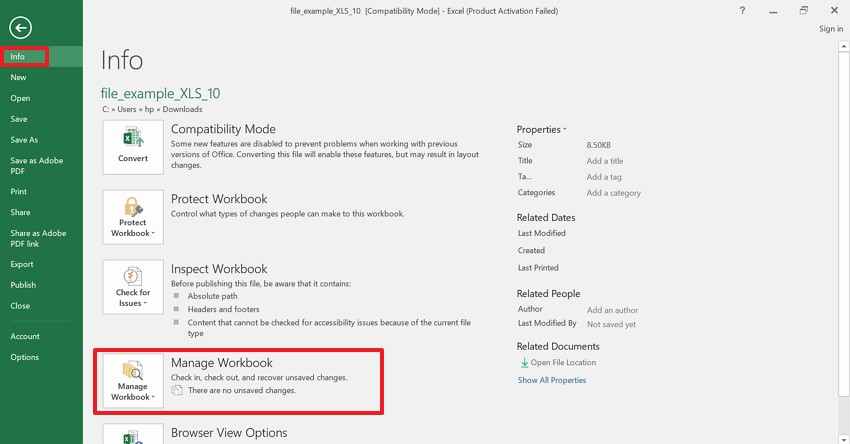
Step 1. To begin, select "File," choose the "Info" tab, and click "Manage Workbook."
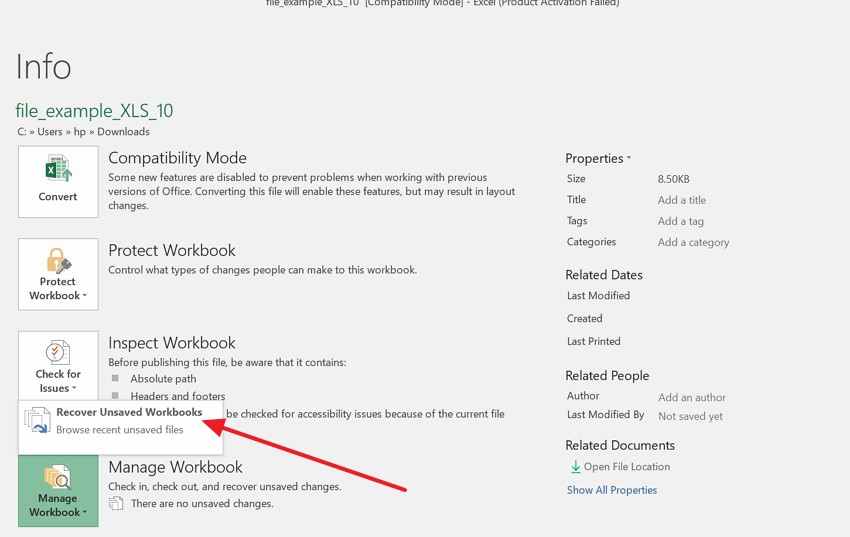
Step 2. From there, choose "Recover Unsaved Workbooks," open the draft, and save it separately.
3. Temporary Excel Files
System folders may keep traces beyond Excel's standard recovery paths. Meanwhile, AutoRecover Excel files are not the only possible clue. Temporary copies depend on timing, editing activity, and cleanup settings.
They matter when Excel menus show no usable recovery version. This route suits files interrupted during editing, exporting, or saving. Try this route next when Excel menus show no recoverable workbook version:
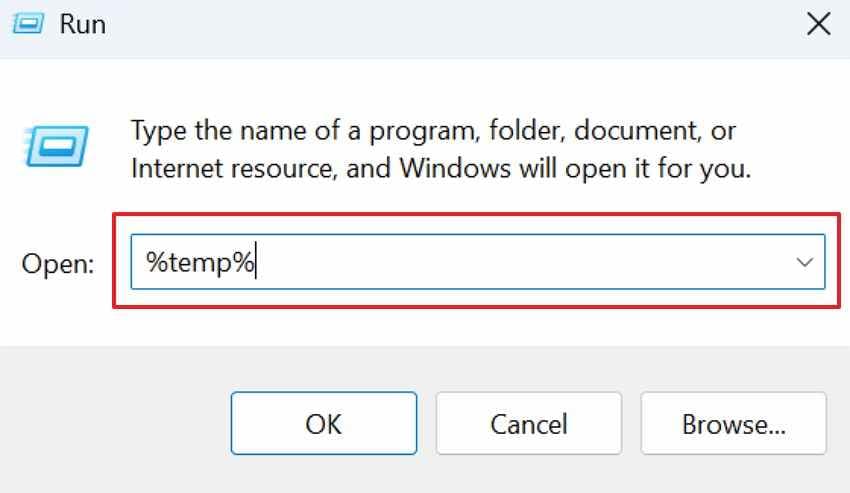
Step 1. Press "Windows + R," type "%temp%," and review recently changed Excel-related files.
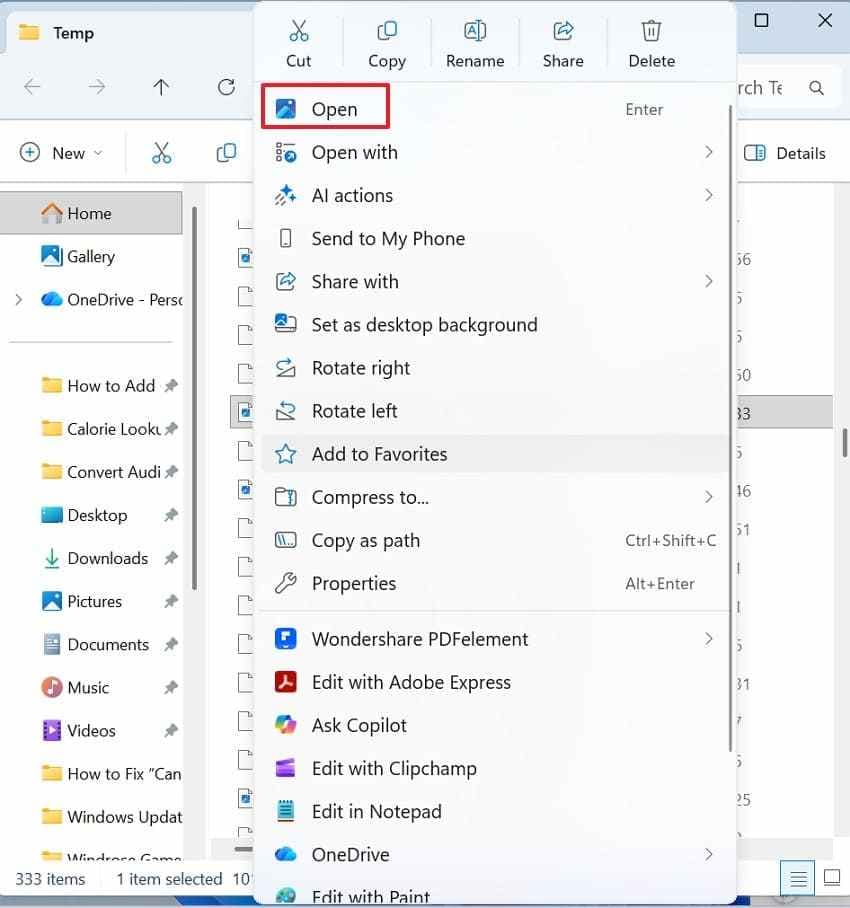
Step 2. When a possible match appears, right-click to choose "Open," then open it carefully and save another copy immediately.
4. OneDrive Version History
Cloud workbooks follow a different recovery logic than local spreadsheets. Earlier versions remain available through OneDrive's online version records. This option matters after overwrites, deletions, or formula changes. It works best for files stored in OneDrive or SharePoint. Use these instructions when cloud versions may hold earlier workbook changes online:
- Firstly, sign in to OneDrive, then locate the affected workbook. Then right-click the workbook and select "Version History" to restore the required version.

5. Windows Previous Versions
Backed-up folders may preserve workbook states outside Excel recovery storage. Furthermore, this helps when the Excel AutoRecover file location stays empty. Older snapshots depend on File History or restore point settings.
This option fits saved workbooks, not completely unnamed drafts. Its success depends on whether Windows backup protection was active. Check these steps when Windows backups may contain older saved workbook copies:
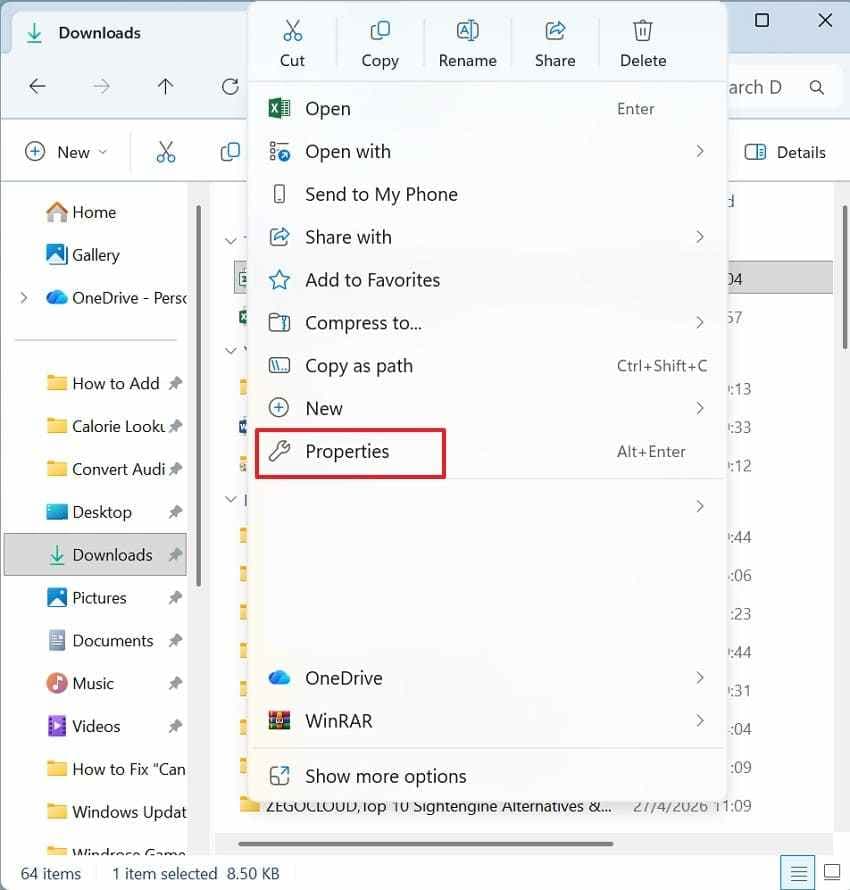
Step 1. To begin the backup check, right-click the folder where the workbook was saved and select "Properties."
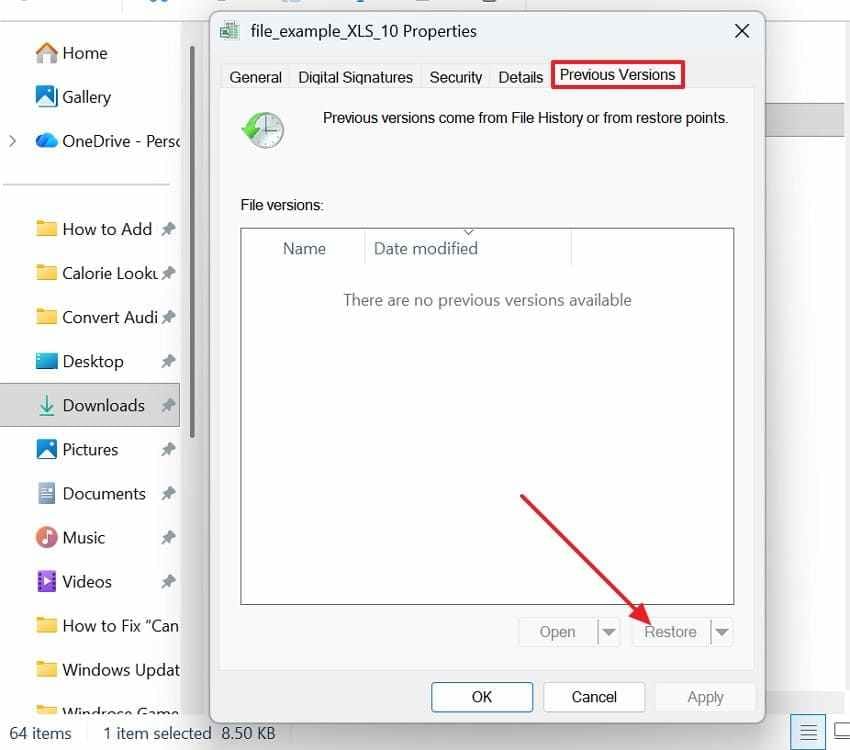
Step 2. After opening the folder settings, choose "Previous Versions," select a suitable backup, and press "Restore" to retrieve it carefully.
Part 7. When AutoRecover Fails Completely, Use Recoverit
At this point, Excel's usual recovery routes have already been checked carefully. The Document Recovery pane, Temp folder, backups, and version history showed nothing. Even the Excel AutoRecover file location returned no usable workbook copy. This means the issue may sit beyond Excel's own snapshot system.
Recoverit Excel Recovery is suitable for this situation when workbook data may still remain in storage. The tool can help after deletion, formatting, drive errors, or crash-related file loss. Its deep scan checks hidden storage areas where lost workbook traces may still survive. Still, results depend on overwriting, workbook damage, and overall disk condition.
When to Use It
Recoverit becomes useful only when Excel, backups, and visible folders show no workbook copy. Below are the use cases where it fits naturally after the built-in recovery fails:
- Deleted Workbook: Deleted workbooks can leave storage traces after the Recycle Bin cleanup removes them. Scan when Excel panes and recent lists show no available copy.
- Formatted Drive: Formatted drives often hide workbook folders while storage still responds normally afterward. Scan after partition changes, remove workbook paths and recovery folders together unexpectedly.
- Empty AutoRecover Folder: Empty AutoRecover folders suggest that Excel created no reachable snapshot for that session. Check storage traces when built-in routes return no workbook version at all.
- Crashed Storage Device: Drive errors can block workbook access while files still remain present underneath. Scan the affected drive when folders open slowly, freeze, or show errors.
- Accidental File Loss: Cleanup tools, transfer mistakes, and shutdowns can suddenly move workbooks beyond visibility. Scanning makes sense when no folder trail explains where files went afterward.
Why It Fits This Scenario
Recoverit fits this stage after Excel's own checks narrow the problem. When the Excel AutoRecover file location and other recovery paths are empty, a disk‑level scan becomes reasonable. Lost workbook data may still remain outside Excel's temporary recovery system. Recoverit targets that gap without replacing built-in or cloud recovery routes. This keeps the recommendation connected to actual Excel recovery failure cases rather than suggesting it as the first option.
Built-in Excel recovery sometimes ends before missing workbook files are actually gone. The steps below show how Recoverit scans storage for recoverable Excel files:
Step 1. Choose the Location to Scan
Upon launching Recoverit and staying on "Hard Drives and Location." Then, select the lost file location, such as a local disk, USB drive, Desktop, or Select Folder.

Step 2. Scan and Filter Recoverable Files
After selecting the location, Recoverit starts scanning the chosen drive or folder. Next, use "File Location," "File Type," "Filter," or "Search File" to narrow workbook results.

Step 3. Preview and Recover the Workbook
Once Excel files appear, preview the matching workbook and check its name, date, and content. Finally, click "Recover" and save the file to another safe location.

Conclusion
To conclude, Excel recovery works best when users follow each path patiently. Start with built-in tools, then compare backups, temporary files, and saved versions. Checking the Excel AutoRecover file location first reduces risky searches and overwriting. When Excel shows nothing, Recoverit can support deeper workbook recovery attempts afterward. Overall, careful order matters more than rushing between scattered recovery folders.
Frequently Asked Questions
-
Where is the Excel AutoRecover file location on Windows?
After a sudden crash, Windows usually keeps Excel recovery copies inside the AppData folder. Still, Excel Options shows the exact recovery path currently selected on that device. -
How can users find AutoRecover files that Excel saved after closing suddenly?
Reopen Excel first, since recovery prompts often appear after interrupted editing sessions. Afterward, check the saved recovery path before searching hidden folders or temporary files. -
Why are AutoRecover Excel files missing from the expected folder?
AutoRecover files disappear when settings, timing, saving choices, or folders change unexpectedly. A missing folder result does not always mean recovery is completely impossible. -
Can Recoverit help when Excel recovery paths show nothing useful?
Recoverit can scan storage when Excel, backups, and temporary folders show nothing. It should be used after checking built-in recovery routes and cloud versions.


