

 TL;DR:
To recover a missing Excel tab, first verify if the sheet is merely hidden or disabled in settings, and if genuinely deleted, immediately press Ctrl + Z before saving, or restore a previous version using cloud history, AutoRecover, or local backups.
● Check visibility options by right-clicking an existing tab to select "Unhide" or navigating to File > Options > Advanced to enable "Show Sheet Tabs" before attempting any data restoration.
● If the file was saved or closed after the tab disappeared, recover the worksheet by accessing older workbook states through OneDrive/SharePoint Version History or the AutoRecover folder, accepting that this will discard any edits made after that specific backup point.
● Rely on third-party data recovery tools like Recoverit exclusively when the entire Excel workbook file is permanently deleted from your storage drive, as built-in Excel features cannot restore a tab if its parent file is missing.
Ask AI for a summary
 ChatGPT
 Perplexity
 Gemini
 Claude
 Grok
Grok
A missing Excel tab can come from deletion, hidden settings, sync conflicts, or lost workbook files. These points help identify the safest recovery direction before changing the workbook:
- Confirm the Issue: The tab may be hidden, disabled, overwritten, or actually deleted.
- Act Before Saving: Ctrl + Z works best before closing, saving, or editing further.
- Check Stored Versions: AutoRecover, backups, and cloud history may contain the missing worksheet.
- Recover the Workbook: Recoverit only fits when the complete Excel file is deleted.
- Protect Future Tabs: Keep versioned backups before making major workbook structure changes.
Deleting or losing a worksheet tab can feel stressful, especially when the workbook contains formulas, reports, or tracked changes. In many cases, the tab is not gone forever; it may be hidden, unsaved, overwritten, or available through a backup version. Knowing how to recover a deleted tab in Excel helps users act quickly before the workbook updates further.
Thus, this guide explains practical recovery routes for missing worksheets without making the file harder to restore. It covers safe checks, built-in Excel options, and recovery paths that suit different deletion situations.
Quick Answer: How to Get a Deleted or Missing Excel Tab Back
Check whether the worksheet is hidden, then review recent versions, backups, or AutoRecover copies. If the tab was deleted and saved over, recover it from a previous workbook version.
In this article
-
- Way 1. Use Ctrl + Z Immediately
- Way 2. Unhide the Worksheet
- Way 3. Turn Sheet Tabs Back On
- Way 4. Close Without Saving and Reopen
- Way 5. Use Document Recovery After a Crash
- Way 6. Recover Unsaved Workbooks
- Way 7. Restore from Version History in OneDrive or SharePoint
- Way 8. Restore Previous Versions in Windows
- Way 9. Recover from AutoRecover or Backup Copies
- Way 10. Use Recoverit If the Entire Excel File Was Deleted
- Way 11. Check Shared Copies, Email Attachments, or Team Backups
Part 1. Deleted, Hidden, or Just Not Showing? Identify the Problem First
A missing worksheet tab does not always mean permanent deletion. Sometimes, Excel only hides the sheet, disables tab display, or opens an older workbook version. In other cases, the tab may be removed after saving changes. Therefore, users should identify the exact situation before trying recovery steps. Use the comparison below to understand which worksheet problem matches your workbook situation:
| Issue | What It Means | Common Signs | First Check |
| Deleted Tab | The worksheet was removed from the workbook. | The sheet name no longer appears anywhere. | Check undo, backups, or previous versions. |
| Hidden Sheet | The worksheet still exists but is not visible. | Other sheets show, but one expected tab is missing. | Use the Unhide option in Excel. |
| Missing Sheet Tabs | Excel's tab display setting may be disabled. | No worksheet tabs appear at the bottom. | Check Excel display settings first. |
When Recovery Is Possible and When It Gets Harder
Recovery is easier when the workbook is still open, AutoRecover is enabled, or earlier versions exist. It gets harder after saving, closing, overwriting, or cleaning temporary files. For how to recover deleted Excel tab cases, act before making new edits, because fresh saves can replace useful recovery data.
Part 2. Why Excel Tabs Disappear
Before trying to recover deleted Excel tab content, users should understand the real cause first. The following causes explain why a worksheet tab may vanish from view or disappear completely:
- Accidental Deletion: A sheet can be removed when users mistakenly choose Delete from the tab menu. This often happens while renaming, moving, or reorganizing multiple worksheets quickly.
- Hidden Worksheets: A worksheet may still exist inside the workbook but remain invisible on screen. Shared files, protected reports, or organized templates often contain intentionally hidden sheets.
- Disabled Sheet Tabs: Excel can stop showing worksheet tabs when the workbook display setting is turned off. The bottom tab area then disappears, although the workbook may still contain sheets.
- Saved Workbook Changes: A deleted worksheet becomes harder to notice after the workbook is saved again. The latest saved copy may no longer reflect the earlier worksheet arrangement.
- Unexpected Excel Crash: A crash can interrupt workbook updates before Excel stores recent worksheet changes properly. Newly created, renamed, or moved sheets may disappear after reopening the file.
- Cloud Sync Conflict: OneDrive, SharePoint, or Google Drive may replace the workbook with another synced version. This can make a worksheet vanish when different copies overwrite each other.
- Deleted Excel File: Sometimes the tab is not missing alone because the entire workbook is deleted. In that case, the worksheet seems to be gone because its source file is unavailable.
Part 3. How to Recover a Deleted Tab in Excel
After identifying why the worksheet disappeared, the next step is choosing the right recovery path. Below are the methods that explain how to recover a deleted tab in Excel without making the workbook harder to restore:
Way 1. Use Ctrl + Z Immediately
Ctrl + Z is the fastest option when a deletion happens during the current Excel session. It reverses the last worksheet action before users save, close, or continue editing the workbook. Users checking how to recover a deleted Excel tab should try it first, because it needs no backup, tool, or version history.
Way 2. Unhide the Worksheet
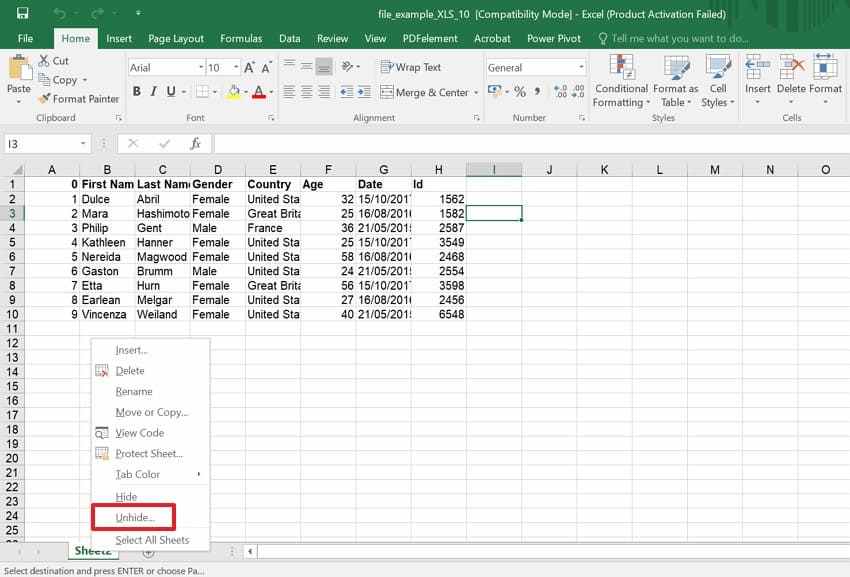
A missing worksheet may still exist if someone used Excel's Hide command earlier. This often happens in shared files, protected reports, or workbooks with supporting calculation sheets. The tab is invisible instead of removed, so users should confirm the sheet list before assuming permanent data loss. Follow the steps below to confirm whether the worksheet is only hidden:
Step 1. Right-click any visible worksheet tab at the bottom, then choose "Unhide" from the menu.
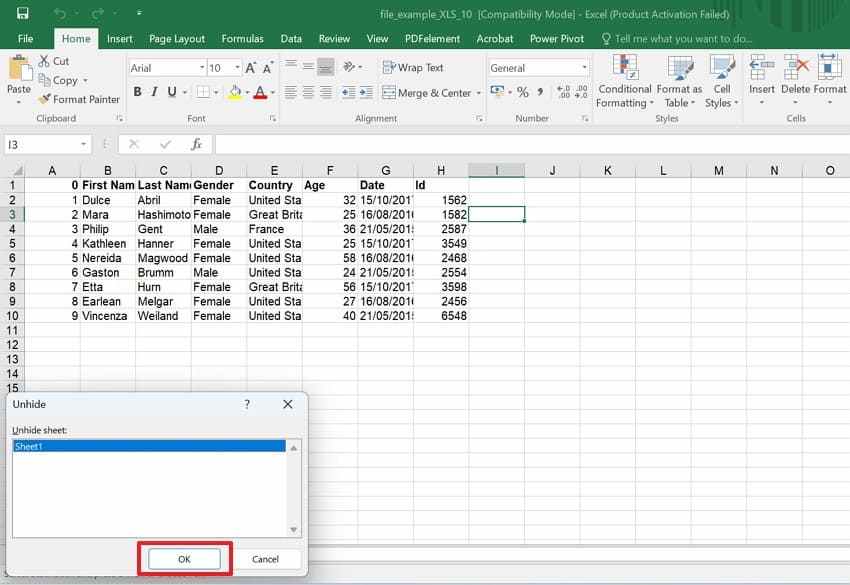
Step 2. Afterward, choose the missing worksheet name from the list, then click "OK" to restore visibility.
Way 3. Turn Sheet Tabs Back On
Excel can hide the bottom sheet tab bar through its display settings. When this happens, users may think all workbook sheets disappeared together. Anyone learning how to recover a deleted tab in Excel should check this setting early, because the issue may involve visibility rather than deletion. Use the settings path below to restore worksheet tab visibility properly:
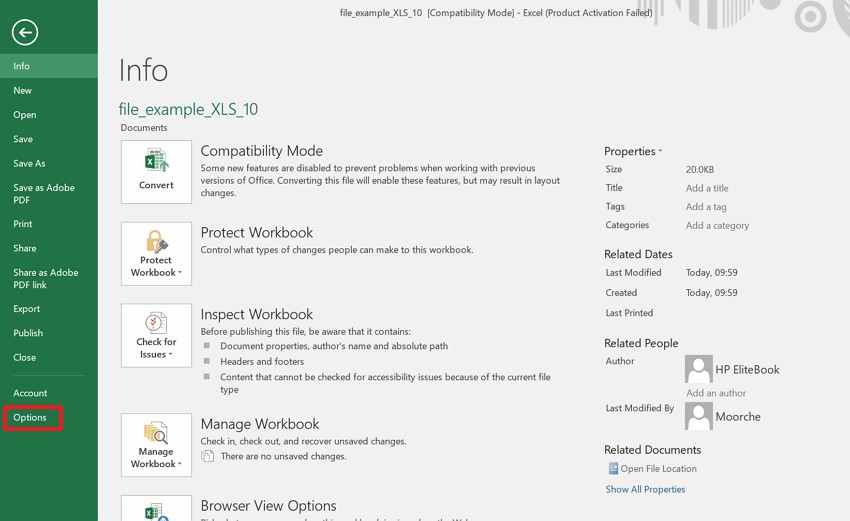
Step 1. Start by navigating to "File > Options > Advanced" and then scroll to workbook display settings.
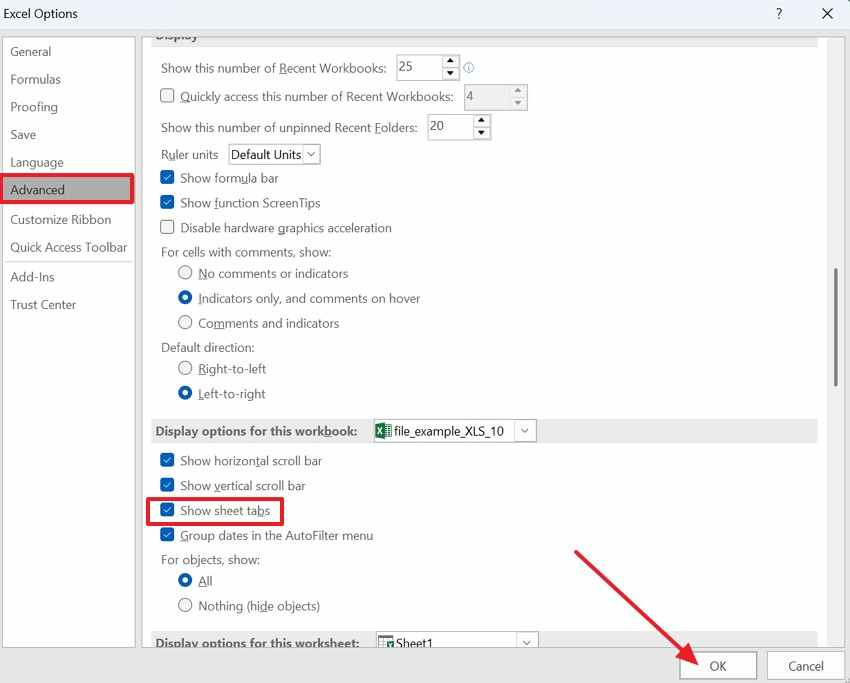
Step 2. Next, make sure to check the "Show Sheet Tabs," press "OK," then check the bottom worksheet area again.
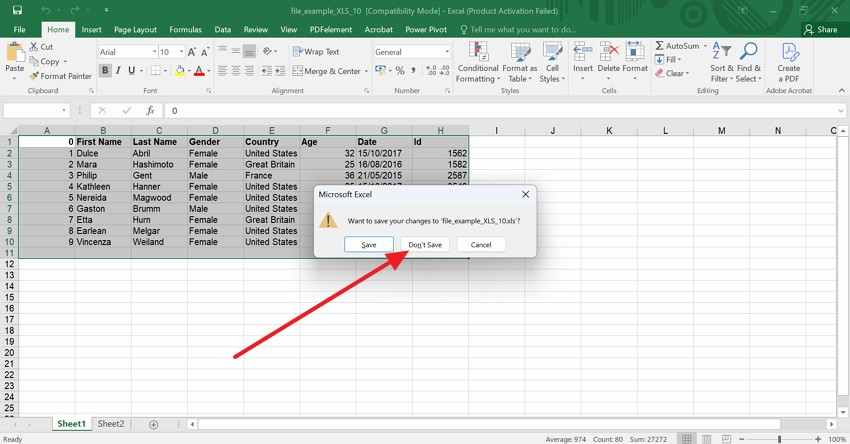
Way 4. Close Without Saving and Reopen
Closing without saving can help when the worksheet was deleted after the last saved version. Excel discards recent workbook changes and reloads the earlier saved file state. Therefore, this option only suits users who can afford to lose later edits made after that saved point. Try this only after deciding that losing recent edits is acceptable. Adhere to the instructions to close without saving and reopen:
- First, close the workbook immediately, then choose "Don't Save" when Excel asks for confirmation.
- Then, open the workbook again from its saved location or Excel's recent files list.
Way 5. Use Document Recovery After a Crash
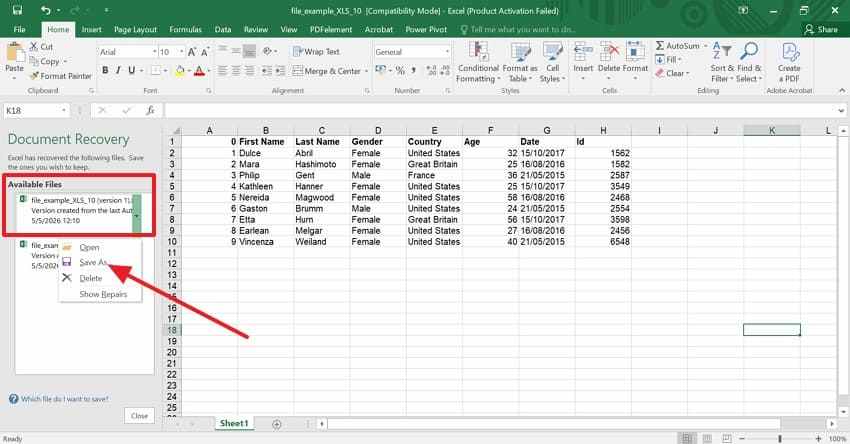
Document Recovery appears after crashes, forced shutdowns, or sudden Excel interruptions. Users asking how to recover a deleted tab in Excel should inspect recovered copies before saving anything new. Moreover, a recovered workbook may still include the missing worksheet, formulas, and recent layout changes. Below are the instructions to check the Document Recovery pane after a crash:
- Launch Excel again and check whether the "Document Recovery" pane appears automatically.
- After that, open each recovered workbook copy, then choose "Save As" for the version containing the missing worksheet.
Way 6. Recover Unsaved Workbooks
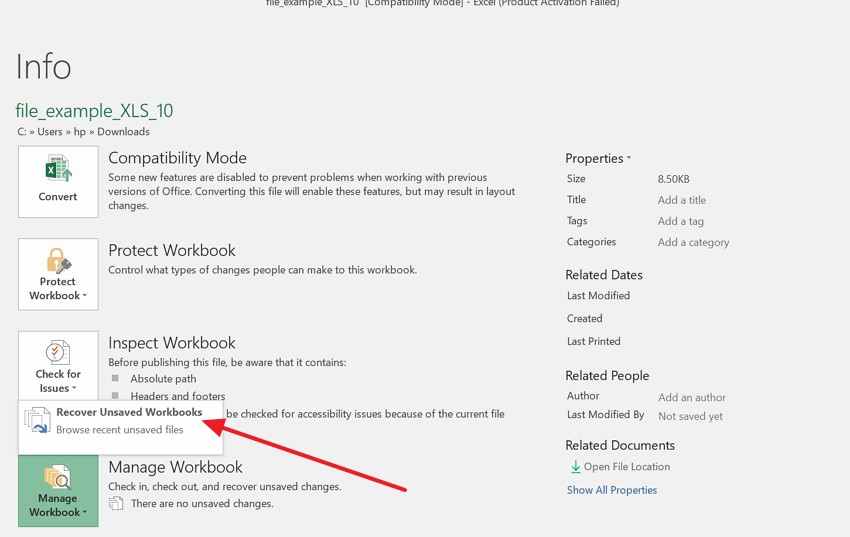
Recover Unsaved Workbooks helps when Excel is closed before the file is saved correctly. It searches temporary workbook drafts created during active editing sessions. Thus, this method fits new workbooks, recent worksheet additions, or unfinished edits that disappeared before normal saving. Try the route below when the workbook was never saved correctly:
Step 1. First, go to "File," choose "Info," and select "Manage Workbook."
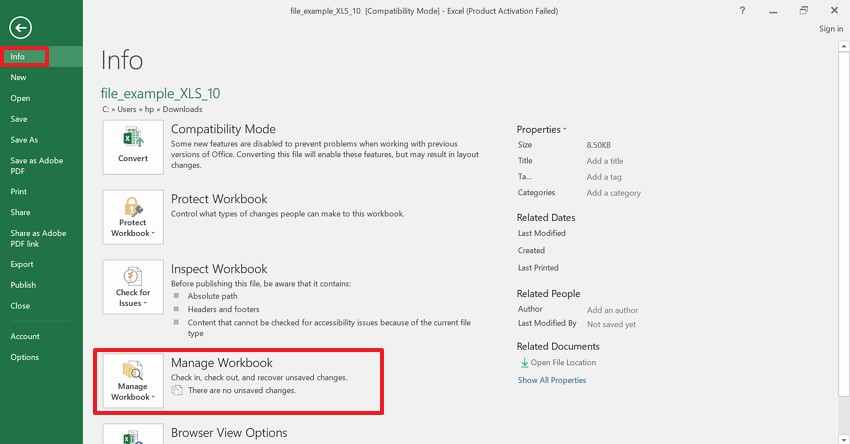
Step 2. Next, select the "Recover Unsaved Workbooks," open it, then save it with a clear filename.
Way 7. Restore from Version History in OneDrive or SharePoint
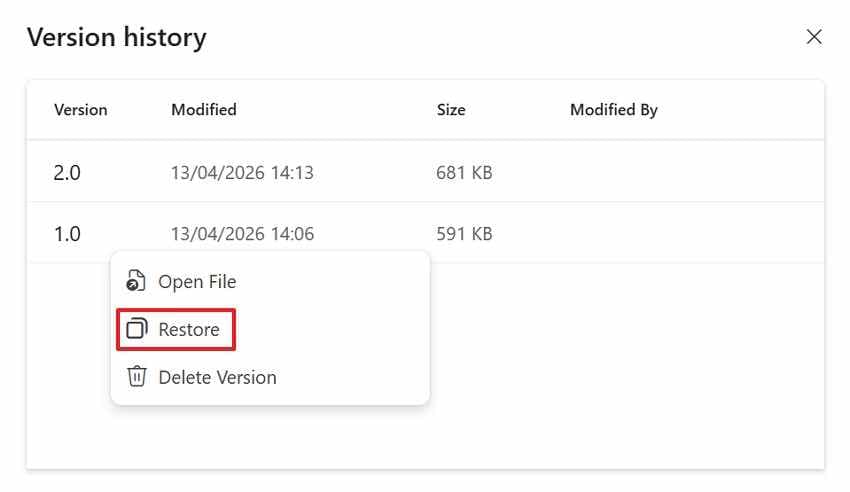
OneDrive and SharePoint often keep older copies when workbook syncing is active. Users needing to recover deleted tab Excel data can review earlier versions without changing the current workbook. It suits cases where the file was saved after the worksheet disappeared. The following guided steps help users restore from the version history in OneDrive:
Step 1. First, access the workbook from OneDrive or SharePoint, then choose "Version History" from file options.
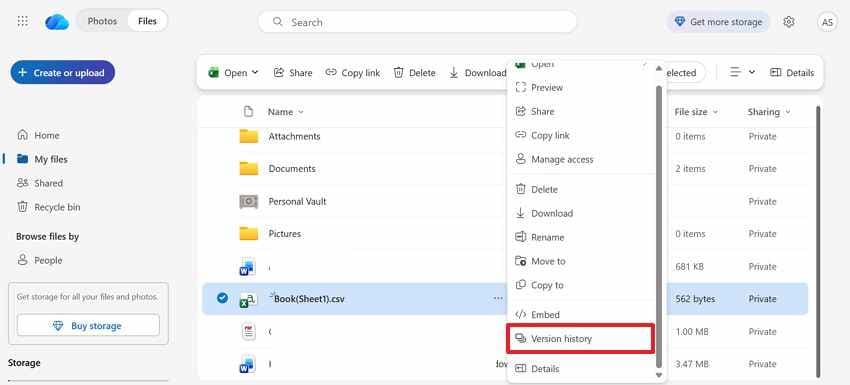
Step 2. Review older versions, select the copy, right-click, and select "Restore" or download it.
Way 8. Restore Previous Versions in Windows
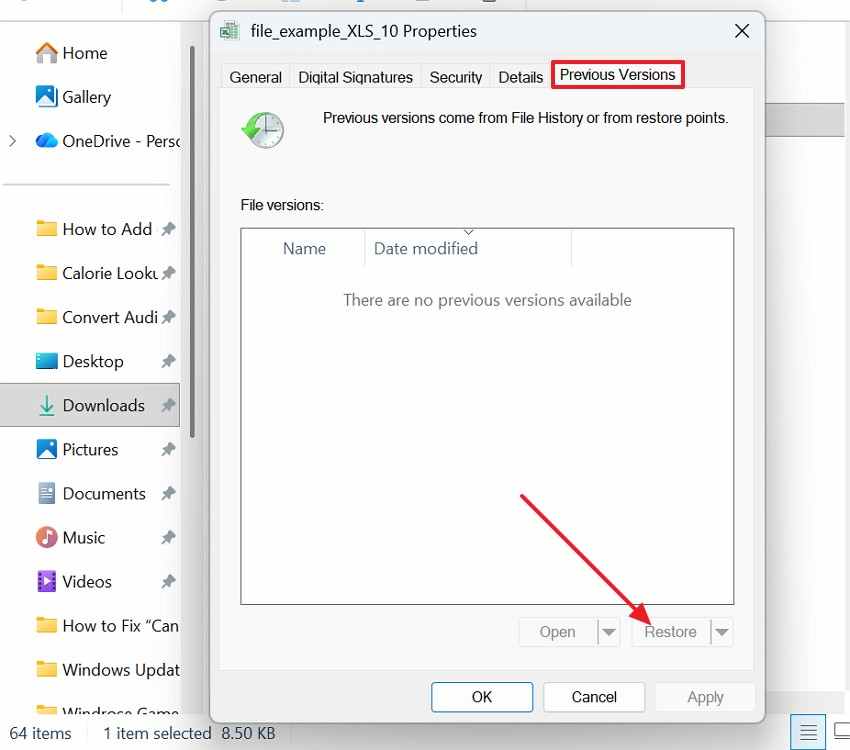
Windows may keep earlier workbook states through File History, restore points, or backup settings. Users can review those stored copies when the file was saved locally. Furthermore, this option is useful when the missing worksheet existed before later edits changed the workbook. Now, check the saved Windows versions with the steps below:
Step 1. To start, right-click the workbook or its folder, then choose "Properties > Previous Versions."
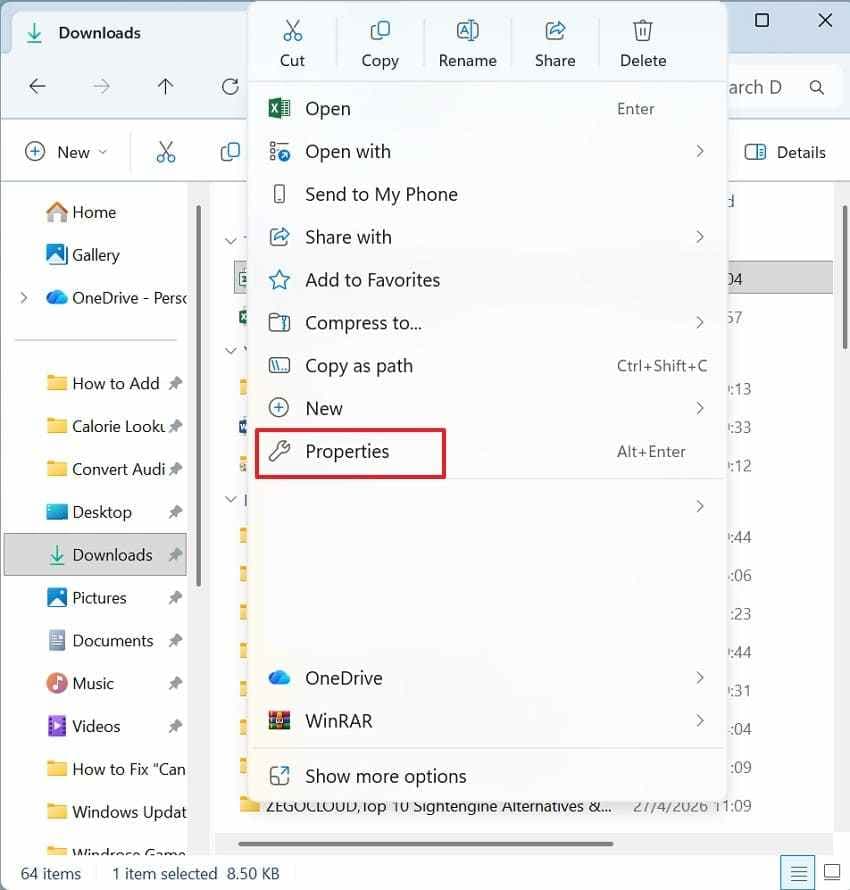
Step 2. After that, in the previous version, choose the version and press the "Restore" button.
Way 9. Recover from AutoRecover or Backup Copies
AutoRecover and backup copies may preserve an earlier workbook state before the worksheet disappeared. To learn how to recover a deleted tab in Excel, check these saved copies before rebuilding the sheet manually. Older files may still contain formulas, charts, formatting, and linked worksheet data. Use the instructions below to check backup files before recreating the missing sheet:
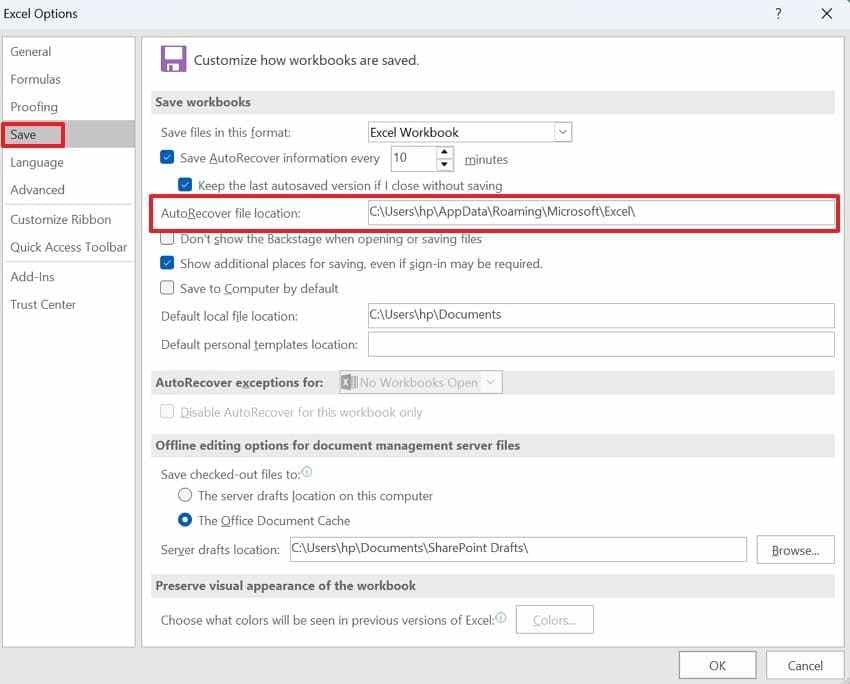
- Upon accessing the Excel, go to "File > Options" from the left menu. This opens the main settings window where Excel keeps recovery preferences.
- Later, select "Save," then find the "AutoRecover File Location" shown in that section.
- Copy that path and open it in File Explorer to check available recovery files.
Way 10. Use Recoverit If the Entire Excel File Was Deleted
A deleted workbook changes the recovery path completely because Excel cannot restore a worksheet that no longer has a source file. When the workbook does not appear in its usual folder, the Desktop, or the Recycle Bin, the issue is no longer about a single missing tab but about a lost Excel file.
In that situation, recovering the deleted tab in Excel methods inside Excel will not help until the workbook itself is restored. A dedicated data recovery tool such as Recoverit becomes relevant here because it scans the selected drive for deleted or lost Excel workbooks that Windows no longer lists in File Explorer.
Key Features
- Deep Drive Scan: Finds deleted Excel files (.xlsx, .xls) even after permanent deletion or formatting.
- Recycle Bin Recovery: Restores Excel workbooks removed from the Recycle Bin or deleted using Shift + Delete.
- External Device Recovery: Recovers Excel files from USB drives or external disks where workbooks were stored or transferred.
When the workbook itself is missing, Excel's built-in worksheet options cannot restore the tab. Follow the guide below to recover the deleted Excel file first, then check the restored workbook:
Step 1. Mark the Workbook's Last Location
Launch Recoverit and remain in the "Hard Drives and Locations" section. Choose the disk, Desktop, USB drive, or folder where the Excel workbook disappeared.

Step 2. Refine the Scan Results
Recoverit automatically scans the selected location for recoverable files. Now, use "File Location" and "File Type" to find Excel results faster.

Step 3. Save the Restored Workbook Safely
Lastly, preview the workbook that matches the missing file name, date, or content. After that, press the "Recover" button and export it to another secure storage location.

Way 11. Check Shared Copies, Email Attachments, or Team Backups
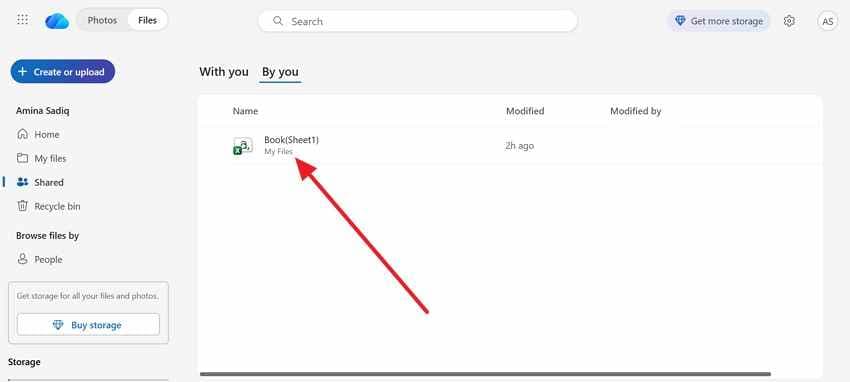
Finally, another saved workbook may still contain the worksheet removed from the current file. Earlier attachments, shared folders, chat uploads, or team backup locations can preserve versions created before the deletion.
This option works best for collaborative workbooks in which several people downloaded, reviewed, or saved the file at different editing stages.
Part 4. What to Do If You Still Cannot Recover the Deleted Tab
If every Excel route fails, stop editing the workbook immediately and avoid saving fresh changes. Extra edits can overwrite older workbook states that may still contain useful worksheet data. Instead, create a duplicate copy for testing, then restore an older version from local backups, cloud history, or shared storage. This keeps the current file safe while preserving possible recovery evidence.
When users still cannot recover deleted tab content, rebuilding becomes the practical fallback. Check exported PDFs, emailed reports, dashboards, CSV files, or printed records for missing values and formulas. Team members may also have another workbook copy with the sheet intact. Comparing their version against the current file helps rebuild the tab accurately without guessing critical worksheet details.
Part 5. How to Prevent Losing Excel Tabs Again
A recovered worksheet is only useful if the next workbook remains safe. Build these habits into daily Excel work to reduce accidental tab loss later:
- Turn On AutoRecover: AutoRecover creates timed workbook snapshots while Excel stays open during active editing. Shorter intervals reduce losses when crashes remove recent worksheet changes suddenly.
- Save to OneDrive or SharePoint: Cloud storage records version history when workbook changes sync across signed-in devices. That history can reveal older sheets after accidental deletion or overwrite events.
- Keep Versioned Backups: Name backup copies with dates before changing important workbook structures significantly again. Clear version labels make the correct worksheet easier to identify later quickly.
- Protect Important Workbooks: Workbook protection prevents casual edits from removing sheets during shared review sessions. Use permissions carefully, so trusted editors can still update required content safely.
- Save Duplicate Copies: Create duplicate files before sorting, deleting, merging, or restructuring worksheet tabs. That extra copy provides fallback data when major edits go wrong.
Conclusion
To conclude, recovering a missing worksheet becomes easier when you first confirm whether it was hidden, deleted, overwritten, or tied to a lost workbook. This guide has explored how to recover a deleted tab in Excel through safe Excel checks, older versions, backups, and shared copies. For full workbook loss, Recoverit is a practical option to restore the source file safely.
Frequently Asked Questions
-
Can a deleted Excel tab be recovered after saving?
Yes, recovery is possible when backups, AutoRecover, or older versions still exist. Start by checking hidden sheets first before assuming permanent worksheet deletion occurred. -
Can Ctrl + Z restore a deleted Excel tab?
Ctrl + Z works only during the same unsaved Excel editing session without closing. Once the workbook closes, older versions become the safer recovery route. -
Why do Excel tabs disappear without being deleted?
Tabs may disappear when worksheets are hidden or tab display settings change. Shared workbooks can also show missing sheets after sync conflicts happen. -
What if the complete Excel file was deleted?
Recover the workbook first before checking whether the worksheet still exists. Recoverit can help locate deleted Excel files from storage devices safely.


