

 TL;DR:
To recover an unsaved XLS file, immediately check Excel's built-in Document Recovery Pane or the Manage Workbook menu for autosaved drafts, and rely on OneDrive Version History or data recovery tools like Recoverit for overwritten or corrupted data.
● If Excel crashed before you ever named the file, navigate to the AutoRecover file location or the Windows Temp folder to salvage `.asd`, `.tmp`, or `.xlsb` temporary cache files.
● For files overwritten during cloud synchronization conflicts, right-click the document on the OneDrive or SharePoint website to access and restore previous iterations via Version History.
● Utilize Recoverit to extract raw data fragments directly from disk sectors when built-in methods fail, specifically if temporary folders were cleared, the workbook's internal code is corrupted, or a sync error replaced your progress with a blank version.
Ask AI for a summary
 ChatGPT
 Perplexity
 Gemini
 Claude
 Grok
Grok
- Identify the Loss: Determine if the file was never saved, a crash occurred, or recent edits were lost from an existing file.
- Built-In Recovery: Check the Document Pane first, then use Recover Unsaved Workbooks or Manage Workbook versions in Excel to find autosave drafts.
- Manual Search: Look in the Windows Temp Folder or the AutoRecover file location for temporary .tmp files.
- Professional Tools: Use Recoverit if temp files are deleted, the file is corrupted, or the drive was formatted.
- Prevention: Enable AutoRecover, set shorter save intervals, and use cloud syncing to avoid future data loss.
Many users question, "I just lost hours of work because Excel crashed before I could press the save. Is there any way to recover the unsaved XLS file?" Anyone can face this frustrating realization when working with important, sensitive data. Nonetheless, a vanished file does not always mean that the data is gone forever.
From hidden temporary folders to built-in version history, there are several reliable ways to rescue your work and restore your progress quickly. So, review this detailed guide, explore the 7 recovery solutions, and know how to secure the data in the future.
Quick Answer: How to Recover an XLS File Not Saved
To recover an unsaved Excel file, check the Document Recovery pane upon restarting or go to File > Info > Manage Workbook to find the unsaved drafts. For the lost or deleted files, check your OneDrive Version History or use data recovery tools like Recoverit.
In this article
-
- Way 1. Use the Document Recovery Pane
- Way 2. Use Recover Unsaved Workbooks
- Way 3. Check Manage Workbook Versions
- Way 4. Check AutoRecover and Excel Temp Tiles
- Way 5. Restore from OneDrive or SharePoint Version History
- Way 6. Restore from Windows Previous Versions
- Way 7. Use Recoverit for Unsaved, Lost, Or Deleted Excel Files
Part 1. Identify What Kind of XLS Loss You Are Dealing With
Before you deal with the recover XLS file that is not saved issue, it's important to know what XLS loss you are having. Thus, review the mentioned points and determine the XLS loss type to choose the right recovery solution:
- The File Was Never Saved: This occurs when you start a new workbook and close it, or it crashes before you ever give it a name. In this case, no physical file exists on your hard drive yet, meaning you are looking for a temporary cache rather than a document.
- Saved File, Recent Changes Lost: The main documents are saved on the computer, but the last hour of data entry or formula update is missing. This occurs when you accidentally click the "Don't Save" option on the file that already has a permanent location in your folder.
- Excel Crashed or Closed Unexpectedly: A sudden system freeze, power failure, or software error forced the program to shut down while you were mid-task. Here, the file is currently stuck in the AutoRecover state, waiting for the application to reboot and recognize the interrupted sessions.
- File Stored in OneDrive or SharePoint: Loss here usually involves a synchronization error or a save conflict where one version of the file overrode another in the cloud. Hence, this type of loss is unique because the data usually exists in the cloud's history rather than on your local machine's temporary storage.
Part 2. Why Unsaved XLS Files Get Lost
While learning how to recover XLS file that was not saved, get to know why this occurs in the first place via the mentioned points:
- Crash or Forced Close: When Excel freezes or a system error occurs, the program terminates before it can finalize the writing processes to your hard drive. This sudden interruption leaves the data in a volatile state, preventing the standard "Save" command from executing successfully.
- Power Outage: A sudden loss of power instantly cuts off the electricity required for your RAM to hold active data, wiping everything that hasn't been committed to long-term storage. Unlike a soft crash, a hard power failure gives the software zero time to perform a final emergency backup.
- Accidental Close Without Saving: Choosing "Don't Save" when prompted is a deliberate command that tells Excel to purge the temporary memory buffers associated with your current situation. Since you have explicitly instructed the software to discard the changes, it assumes the data is no longer wanted and clears it.
- AutoRecover Failure: If the internal timer hasn't reached its set interval before a crash happens, the last edit will never be captured in a recovery file. Additionally, if the AutoRecover feature is disabled in the settings, Excel simply doesn't create the background snapshots needed for restoration.
- Sync or Overwrite Issues: When working with cloud-linked files, a poor internet connection can cause a sync conflict in which a blank or older version of the file overwrites your local progress. This occurs because the cloud misinterprets which version is the most current, leading to the accidental deletion of your latest work.
Part 3. 7 Fast Ways to Recover an Unsaved XLS File
Those who seek simple ways to recover unsaved XLS files, this section offers 7 simple, practical solutions to try:
Way 1. Use the Document Recovery Pane
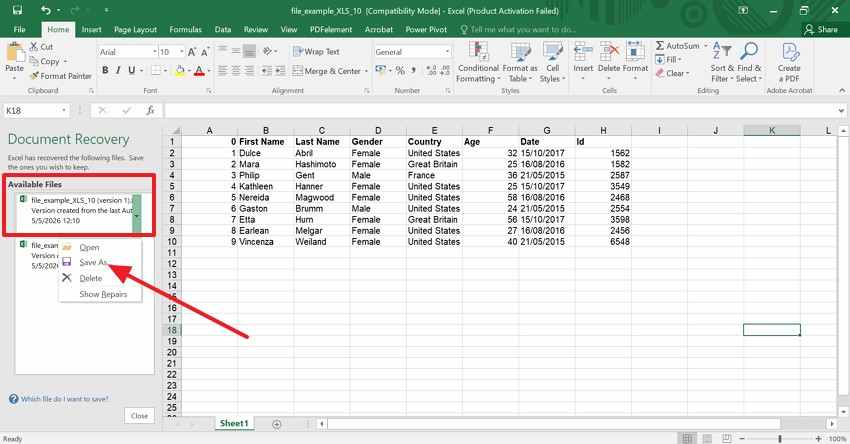
The Document Recovery Pane automatically opens when you restart Excel and shows all recovered files in one place with names and timestamps. Hence, you can easily choose the latest version and save it normally without any technical steps. Since it uses Excel's built-in AutoRecover or AutoSave feature, the file is readable and shows multiple unsaved workbooks, as guided below:
- Relaunch Excel, and the Document Recovery pane should automatically appear on the left side of the screen.
- Simply click the version you want to recover and then choose the "Save As" option.
Way 2. Use Recover Unsaved Workbooks
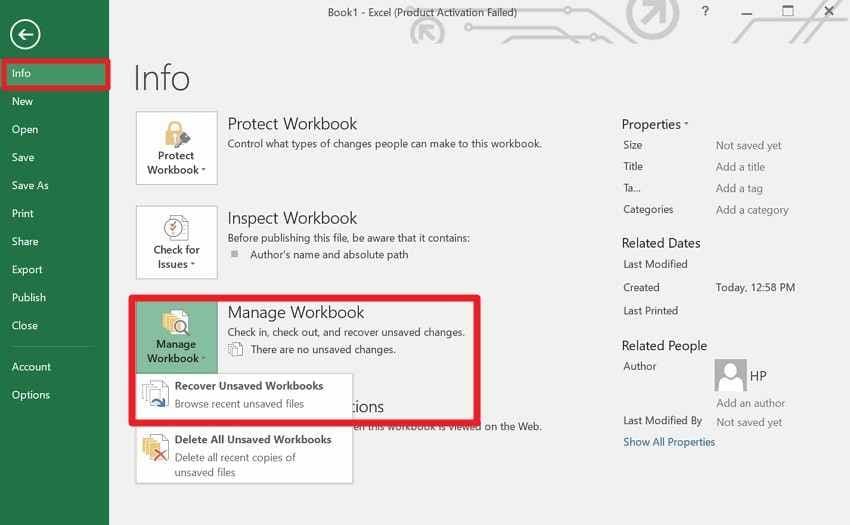
To recover XLS files that are not saved, this feature helps you get back the files you created but never saved. Through this, you can locate the lost drafts directly in Excel and open them via the File menu to navigate the list of unsaved versions it has automatically stored. This also works using Excel's built-in AutoRecover system, so the recovery is safe, as demonstrated:
- Press the "File" option and in the "Info" tab, click the "Manage Workbooks" option to pick "Recover Unsaved Workbooks."
- When the folder appears, find the file and open it immediately to save the brand‑new workbooks you never saved even once.
Way 3. Check Manage Workbook Versions
If you still wonder how to recover an XLS file that is not saved, this fix helps when you make a mistake, overwrite the data, or save changes you didn't want. Thus, you can restore the old state instead of starting over and can recover the file if it was closed without saving. When accessed via the right steps, Excel will list the saved versions and timestamps to choose and save the right one.
Note: For workbooks that were saved earlier but you later overwrote or closed without saving, locate the previous autosaved versions of an existing file by following Way 2.
Way 4. Check AutoRecover and Excel Temp Tiles
As another way to recover an unsaved XLS file, use this option to recover files that don't appear in the recovery pane or unsaved workbook options. AutoRecover saved the backup copies at regular intervals, so you may still locate the newer versions in these folders. Additionally, this does not need third-party tools and is guided in detail:
Use the AutoRecover folder (Windows)
Step 1. After pressing the "File," go to the "Options" tab to pick the "Save" option. There, copy the "AutoRecover File Location" path.
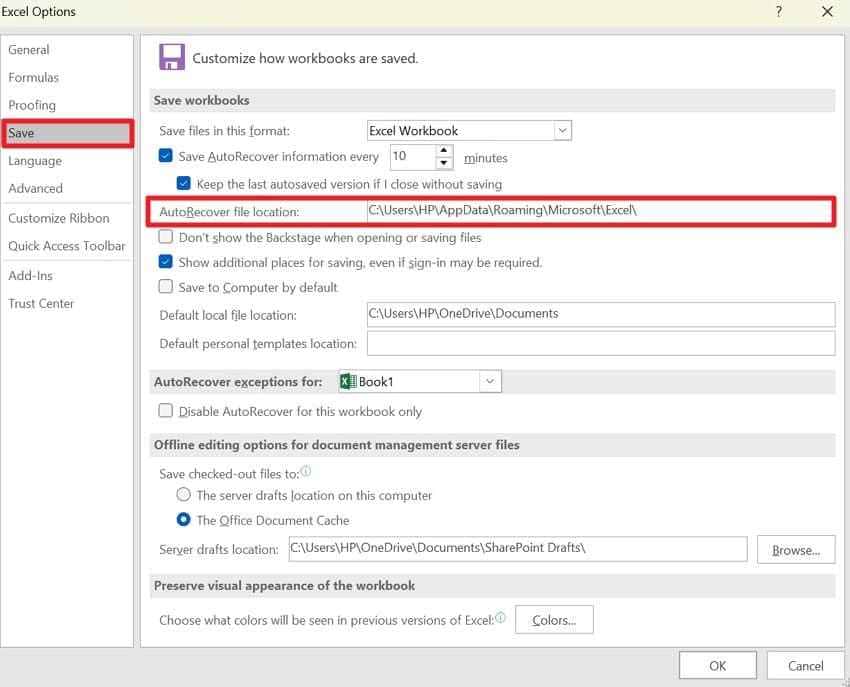
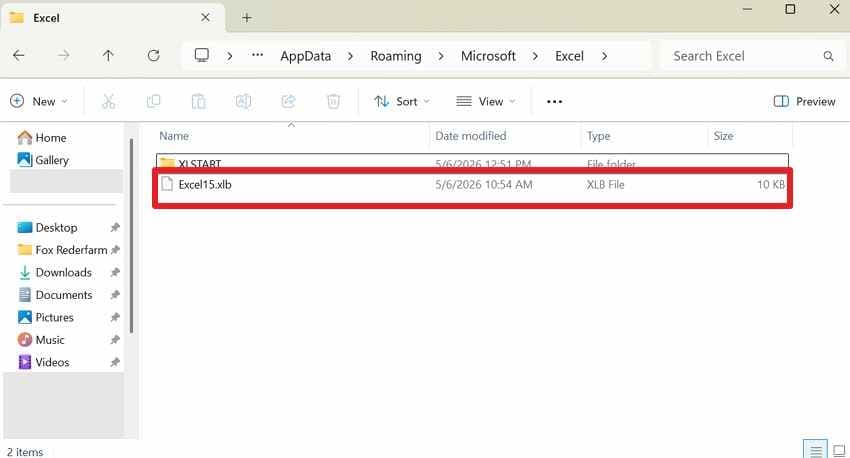
Step 2. Paste it into File Explorer, and if you find a file with the .asd, .xlsb, or .xlsx extension that matches the time you were working, open it and save.
Check the General Temp Folder (Windows)
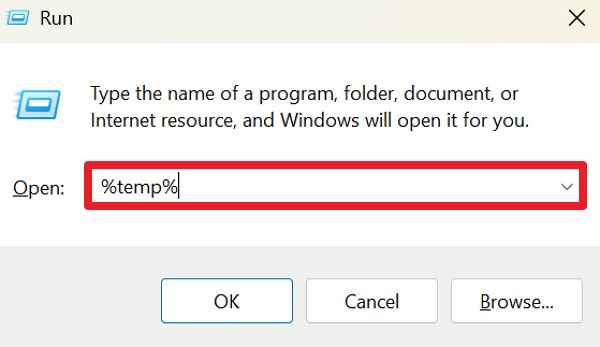
- Press the "Win + R" and type "%temp%" to find files with a .tmp extension, or look for files created at the time of your crash.
- Otherwise, simply navigate to "C:\Users\YourUsername\AppData\Local\Microsoft\Office\UnsavedFiles" directory and save the file as you find it.
Way 5. Restore from OneDrive or SharePoint Version History
For Excel users, it's another safe method to deal with the recover XLS file not saved problem stored in the cloud. You can access it online, and the solution also works if Excel crashes or the file becomes corrupted. In addition, it's also effective for the shared files, and it's a built-in Microsoft 365 feature that is described below:
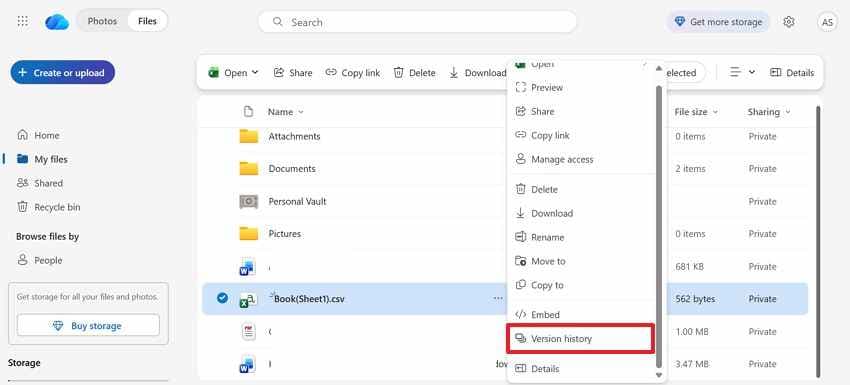
Step 1. On the OneDrive website, locate the Excel file and right-click to choose the "Version History" option.
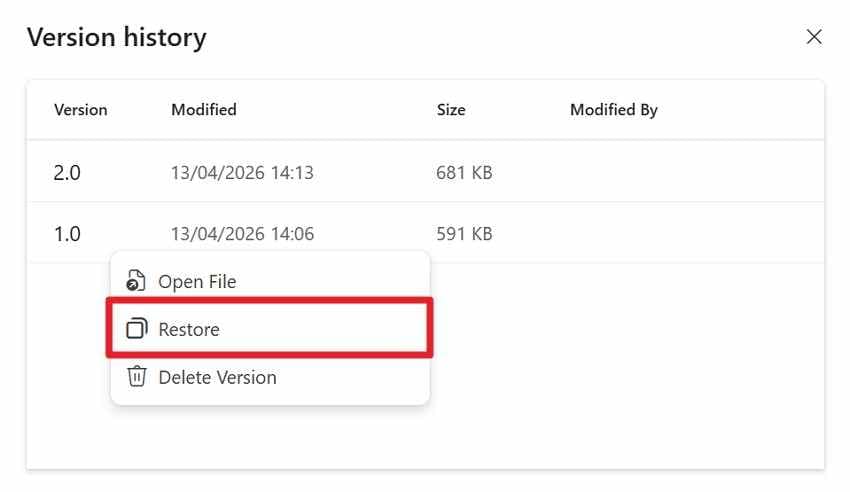
Step 2. After that, tap the "Ellipsis" next to the version you want to get back and click the "Restore" button.
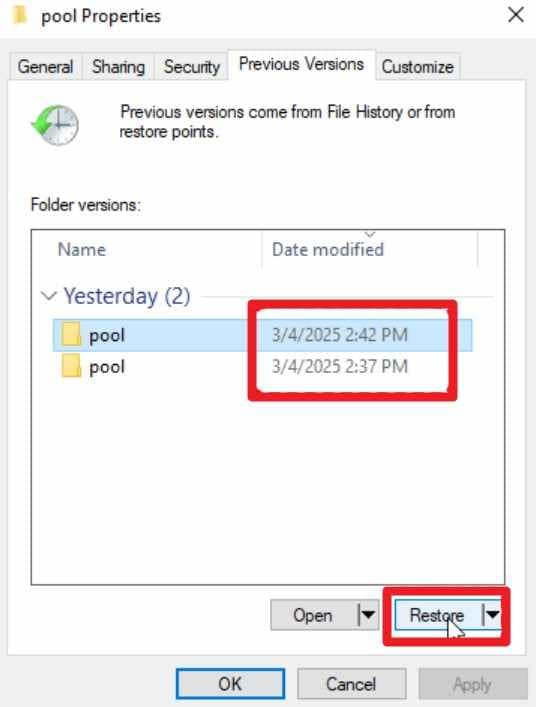
Way 6. Restore from Windows Previous Versions
If the file was already saved but has been overwritten, damaged, or partially lost, this solution lets you revert to an earlier saved copy using Windows features like File History. This is useful even if Excel cannot open the file or says it is corrupted, because it works outside Excel itself. It works for files stored on local drives or network locations and relies on built-in Windows backup tools, as shown:
Step 1. Right-click on the file in File Explorer and choose the "Properties" option.
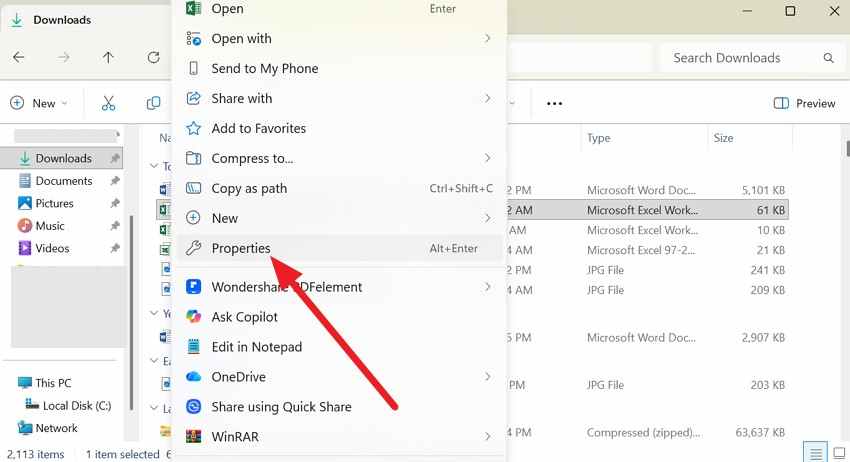
Step 2. Then, go to the "Properties" tab and select a version dated before the file was overwritten or corrupted. Tap the "Restore" button to revert the file to its original state or save it to a new location.
Way 7. Use Recoverit for Unsaved, Lost, Or Deleted Excel Files
When the file is deleted or overwritten on an external drive, use recovery tools like Recoverit Excel Recovery to recover an XLS file that was not saved. This tool can scan the entire drive or a partition using the Quick Scan option to find deleted or missing XLS/XLSX files. Beyond recovery, it can detect temporary, raw Excel data on disk and help in cases where Excel crashes and the file is lost.
Regarding the Excel recovery, it can extract data from internal hard drives, SSDs, USB sticks, memory cards, and even some NAS/network storage. After scanning and extracting the data, users can preview or filter during the scan to save the specific ones. You can access this software on Windows and Mac and can easily recover Excel files in 3 simple steps.
Key Features
- Bootable Media Creator: Allows you to create a recovery USB drive to rescue Excel files from a computer that cannot boot due to a system crash or OS failure.
- Supported File Formats: In addition to Excel, it can simultaneously recover related project assets, such as CSVs, PDFs, and macro-enabled workbooks.
- Pause and Resume Scan: Offers the flexibility to pause a long, deep scan at any point and resume later.
If you wonder how to recover an XLS file that was not saved using this tool, in this section, the tool is tested. So, determine the success rate and accuracy via the 3 simple steps mentioned below:
Step 1. Determine the Location for Lost Excel Files
Within the "Hard Drives and Locations" tab, choose the external drive where you have lost the Excel file and press the "Start" button.

Step 2. Filter the Excel Files During the Scan
The tool will start the Quick Scan, and during that, you can filter the files by size and name.

Step 3. Preview the Files and Recover from the Tool
When it ends, preview the recovered Excel files, then click "Recover" and "OK" to save.

Part 4. When Recoverit Makes More Sense Than Built-In Excel Recovery
Unlike other ways, if you want to know what makes Recoverit a better choice for recovering an XLS file that was not saved, review the mentioned points:
- When Temp Files are Gone: Built-in recovery fails if Windows clears the temporary folder or AutoRecover files are deleted. Here, Recoverit bypasses these folders to find raw data fragments directly on the hard drive.
- When the Workbook is Corrupted: Standard Excel tools often cannot open files with corrupted internal code or unreadable content. This software extracts and rebuilds the underlying data structure, making the file accessible again.
- When Overwritten or Lost After Sync: Cloud sync errors can replace your progress with a blank version, making version history unavailable. Thus, Recoverit scans deep into disk sectors to find previous, locally stored versions before they were overwritten.
- Basic Recovery Steps: Simply select the drive where the files were stored and initiate an all-inclusive deep scan for Excel formats. Once the scan completes, preview the recovered Excel files and save the better version to a new location.
Part 5. How to Protect Your Work and Prevent XLS File Loss?
Now that you know how to recover an XLS file that was not saved, it's important to keep the data secure, as recovery success rates can vary. So, to avoid having repeated Excel recovery attempts, follow the 5 tips given ahead:
| Tip | Action to Take |
| Enable AutoRecover | Set the interval to 1 or 5 minutes in Excel Options to minimize data loss. |
| Use AutoSave | Save files to OneDrive or SharePoint for real-time, cloud-based protection. |
| Frequent Saving | Use the Ctrl + S shortcut habitually after every major change or data entry. |
| Maintain Backups | Keep a secondary copy on an external drive or separate cloud service. |
| Version Control | Use "Save As" to create dated versions (e.g., v1, v2) during large projects. |
Conclusion
To sum up, losing hours of progress to a crash or accidental click can be stressful, but you can recover an unsaved XLS file. To that end, this guide has listed 7 simple solutions, ranging from Excel's built-in AutoRecover to cloud-based version history to professional tools like Recoverit. Since the Excel option can be less effective for corrupted or permanently deleted data, Recoverit ensures smooth recovery of XLS files not saved in critical situations.
Frequently Asked Questions
-
Can I recover an unsaved Excel file on a Mac?
Yes, while the interface looks slightly different on Mac, users can use the AutoRecover folder located in the Library. Additionally, users can use Time Machine or Recoverit to restore their system or recover corrupted or permanently deleted XLS files. -
Does Excel AutoRecover work if I have never saved the file?
Yes, Excel saved temporary drafts of unnamed workbooks in a specific folder. You can find these by navigating to File > Info > Manage Workbook > Recover Unsaved Workbooks, where they are usually kept for a few days. -
Why is my AutoRecover file missing some data?
AutoRecover only saves the data based on your set intervals, with a default time of 10 minutes. So, any data entered after the last snapshot but before the crash will be lost. To prevent this, change your settings to save every 1 minute.


