


 TL;DR:
To recover a lost PowerPoint presentation, first check the Recycle Bin and PowerPoint's built-in AutoRecover features, and if those fail, use system backups or dedicated recovery software like Recoverit for permanently deleted files.
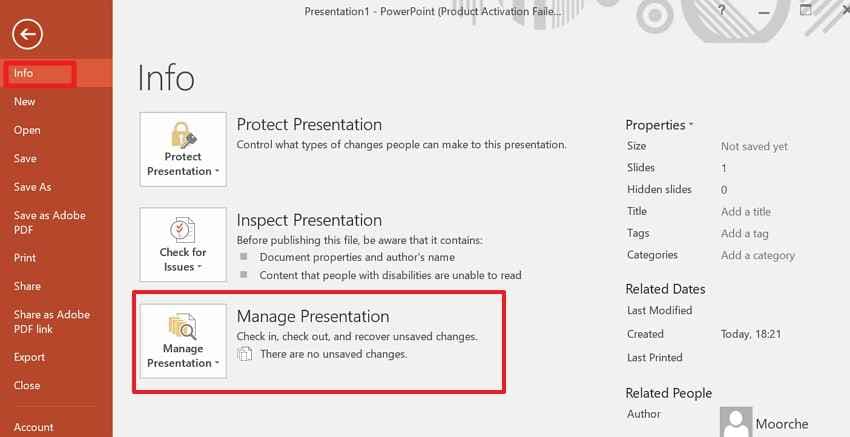
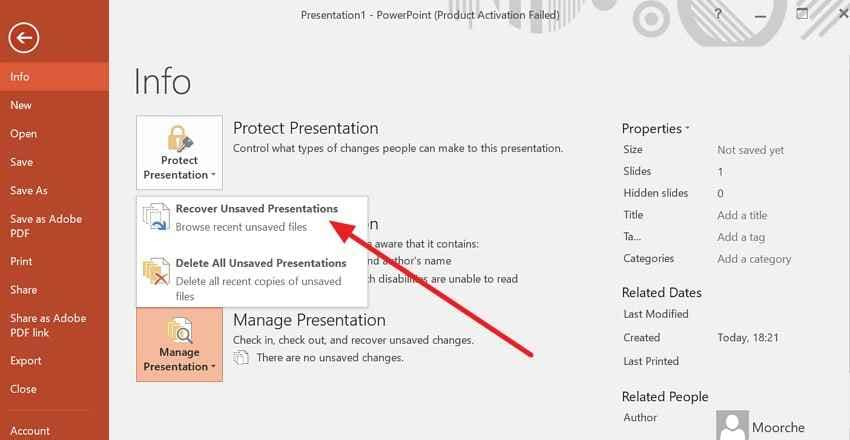
● Access temporary AutoRecover copies by navigating to "File > Info > Manage Presentation > Recover Unsaved Presentations", though this only works if the feature was actively enabled before the program crashed or closed.
● Retrieve overwritten or previous versions of a file using Windows File History, Mac Time Machine, or the Trash folder within connected cloud storage accounts like Google Drive or OneDrive.
● Use Recoverit to scan the sector level of PCs, USBs, or SD cards to recover PPT or PPTX files lost to formatting, permanent deletion, or drive corruption, ensuring you do not save new data to the original location to prevent overwriting.
Ask AI for a summary
 ChatGPT
 Perplexity
 Gemini
 Claude
 Grok
Grok
TL;DR
- Quick Checks: Review Recent presentations, search PPT or PPTX files, and check the Recycle Bin or Trash first.
- Built-in Recovery: Use AutoRecover, Document Recovery Pane, File History, cloud Trash, or Time Machine when available.
- Device Recovery: For deleted, formatted, or missing storage files, recovery software should scan the original location.
- Recoverit Support: Recoverit helps recover lost PPT files from drives, USBs, SD cards, and external storage.
- Prevention Tips: Enable AutoRecover, keep backups, avoid USB editing, check sync, and name files clearly.
Quick Answer: To learn how to recover a lost PowerPoint file, start with Recent files, Recycle Bin, Trash, and AutoRecover. Moreover, check the Document Recovery Pane, backups, cloud Trash, and temporary folders. Use Recoverit when storage scanning becomes necessary for lost PPT copies.
PowerPoint files can disappear at the worst moments, particularly after crashes, accidental deletion, sudden shutdown, or storage error. In cases of a significant presentation that's lost, a fast response is key; lost data may be harder to recover due to data being overwritten. Thus, this guide explains how to recover a lost PowerPoint file using built-in PowerPoint options, system folders, backups, and safer recovery methods.
However, recovery is not only about finding one missing PPT file. It also means checking where PowerPoint stores temporary copies, understanding AutoRecover limits, and choosing the right method before the file becomes harder to restore later.
In this article
-
- Way 1. Recover PowerPoint Files Using AutoRecover
- Way 2. Restore Files Through the Document Recovery Pane
- Way 3. Use Previous Versions or File History
- Way 4. Recover Deleted PowerPoint Files from Cloud Storage
- Way 5. Recover Lost PPT Files Using Time Machine and Temporary Files
- Way 6. Recover Lost PowerPoint Files with Recoverit
Part 1. Where Do Lost PowerPoint Files Usually Go?
Before starting recovery, users should understand where a missing PowerPoint file may still exist. It can remain in AutoRecover, temporary folders, cloud backups, Recycle Bin, Trash, or elsewhere.
Where Are Unsaved or Lost PowerPoint Files Stored?
PowerPoint files that are unsaved or lost may exist in AutoRecover folders, temporary system folders, Trash, cloud storage, backups, or the original saved location. Users should first try these locations before attempting to recover their lost PPT presentations with any other presentation recovery software from any storage device.
Can PowerPoint Recover Unsaved Presentations Automatically?
PowerPoint can recover unsaved presentations automatically when AutoRecover is already enabled properly beforehand. It may show recovered versions after crashes, freezes, or sudden shutdowns. However, recovery depends on save intervals, editing time, and temporary file availability. Users should open recovered copies immediately, then save them with clear names safely.
How Long Do Temporary PPT Files Stay Available?
Temporary PPT files have no fixed availability period, so users should check quickly. They may disappear after PowerPoint closes, restarts, cleans up, or newer temporary data. For lost PowerPoint file recovery, check the temp folders before overwriting. Early action improves the chance of finding usable presentation copies.
Part 2. 8 Common Reasons PowerPoint Files Get Lost
After checking where missing presentations usually go, users should understand what caused the file loss first. Below are the common causes that can make a PowerPoint file lost or difficult to find:
- Sudden PowerPoint Crash: A crash interrupts PowerPoint while users are still editing slides or saving. Recent work remains incomplete when the program closes before writing changes properly.
- Accidental File Deletion: During cleanup, users sometimes accidentally remove presentations with duplicates or old drafts. Careless selection moves important PPT files away from their expected folder.
- Wrong Save Location: PowerPoint stores files in unexpected folders during downloads or attachment editing sessions. Searching only familiar folders makes the saved presentation look completely lost later.
- Sudden Shutdown or Power Failure: Sudden shutdowns stop PowerPoint before the file-saving process finishes in the background. Recent slide changes become partial when power loss interrupts active storage updates.
- USB or External Drive Removal: Editing from USB storage becomes risky when the connection drops during work. Interrupted transfers leave presentation data incomplete, unreadable, or missing in storage afterward.
- Cloud Sync Failure: Cloud sync fails when the internet drops, storage fills up, or accounts pause uploads. Older versions remain visible, while newer edits never upload properly online.
- Overwritten Presentation Version: Using the same filename accidentally replaces earlier presentations with newer slide content. Original material disappears once the updated file completely overwrites it.
- Storage Errors or Formatting: Drive faults, bad sectors, or formatting errors silently damage file system records. Stored presentations vanish when storage no longer accurately tracks their locations.
Part 3. What Are Quick Checks Before Starting PowerPoint Recovery?
Before learning how to recover lost PPT files through deeper methods, users should check simple locations first. These quick checks can confirm whether the presentation is misplaced, recently opened, deleted, or saved somewhere unexpected:
Check 1. Check the Recent Presentations List
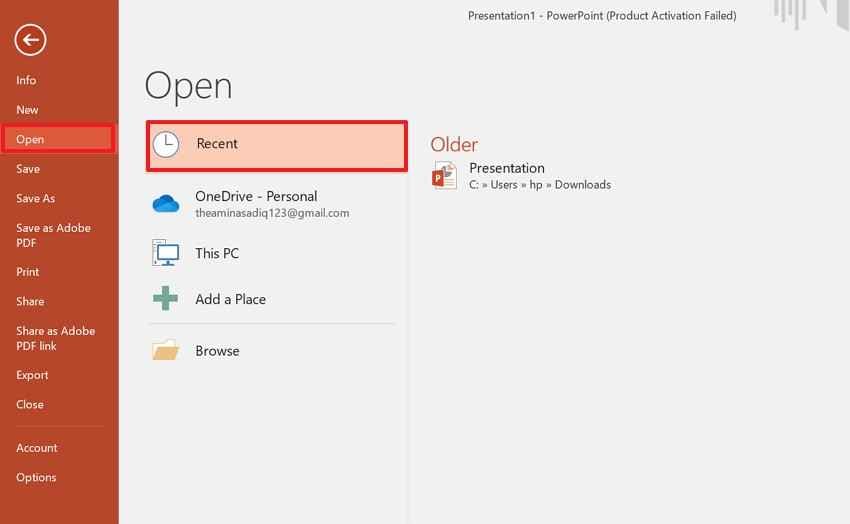
First, the Recent Presentations list helps users confirm whether PowerPoint opened the file recently. Moreover, it is useful when the presentation was saved in another folder, renamed, or moved from its usual location without the user noticing. To begin with this basic check, follow these instructions:
- Access the Microsoft PowerPoint and click the "File" tab from the top menu.
- Then, choose "Open" and select "Recent" to view recently opened presentations.
- If the missing file appears, open it and save a new copy safely.
Check 2. Search Your Computer for PPT or PPTX Files
If the file is not in Recent, users should search the device. Sometimes the presentation is still on the computer, but in an unanticipated folder or with a slightly different file name. Now, in order to search the computer properly, follow the steps according to the device:
Search for Lost PPT Files on Windows
Step 1. Navigate to "File Explorer," select "This PC," and type .ppt or .pptx in the search bar.

Step 2. Now, press "Enter," then sort results by "Date Modified" to find the latest matching presentation.

Search for Lost PPT Files on Mac
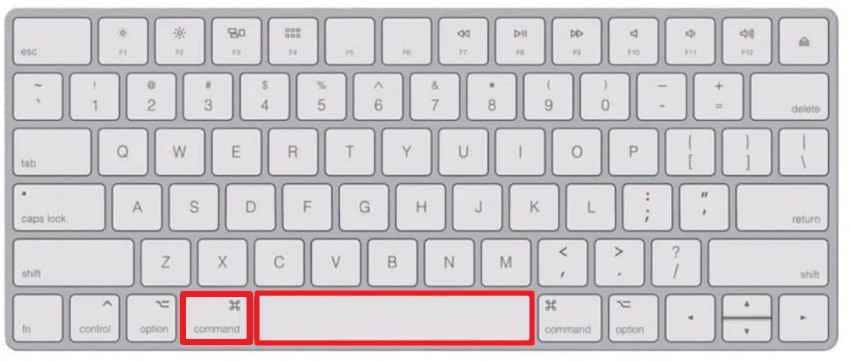
Instructions. To search for all PowerPoint files, press "Command+Space" to open Spotlight, then search for .ppt and .pptx files.
Check 3. Look in the Recycle Bin or Trash Folder
Finally, check the Recycle Bin or Trash when a presentation was deleted during cleanup, duplicate removal, or folder sorting. This step can help recover lost PowerPoint files before permanent deletion. To review deleted presentations properly, follow these simple instructions carefully on your Windows or Mac:
For Windows
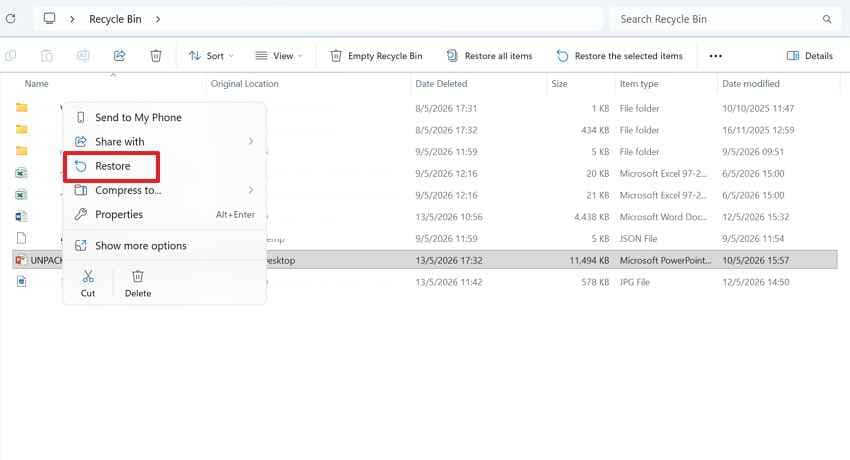
- From the desktop screen or the Windows search bar, open the "Recycle Bin."
- Next, look for the missing PowerPoint file using its name, .ppt or .pptx extension.
- If the presentation is displayed, right-click on it and select "Restore" to return it.
For Mac
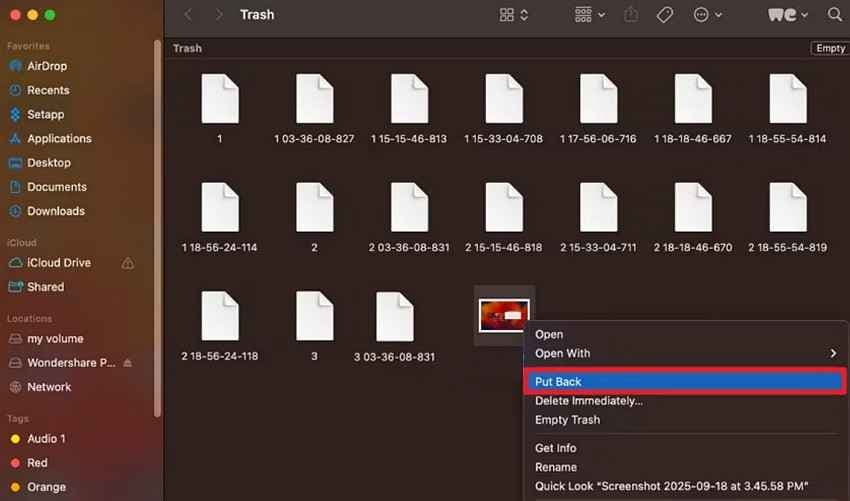
- Once you get to "Trash" in the Dock, take a look at the deleted items.
- Optionally, you can search for the PowerPoint file by name, by .ppt file extension, or by .pptx file extension.
- After the file is restored, it will show up, control-click it, and choose "Put Back" to place it back in the folder it came from.
Part 4. How to Recover Unsaved PowerPoint Files When Checks Fail?
When quick checks do not reveal the missing presentation, users should move to recovery options built for crashes, unsaved sessions, backups, and deeper file loss situations. These methods help locate PowerPoint copies that are not visible through Recent files, normal search, Recycle Bin, or Trash:
Way 1. Recover PowerPoint Files Using AutoRecover
When PowerPoint closes while editing, AutoRecover is the first place to check. It saves temporary copies according to the settings already active in PowerPoint. Therefore, users learning how to retrieve lost PowerPoint after a crash, freeze, shutdown, or accidental closure should check this option before trying deeper recovery methods. Start with the steps below to check available AutoRecover copies:
Step 1. Upon launching the PowerPoint, navigate to the "File" tab, then move towards "Info" and choose "Manage Presentation."
Step 2. Next, select the "Recover Unsaved Presentations" to access the available AutoRecover copy.
Way 2. Restore Files Through the Document Recovery Pane
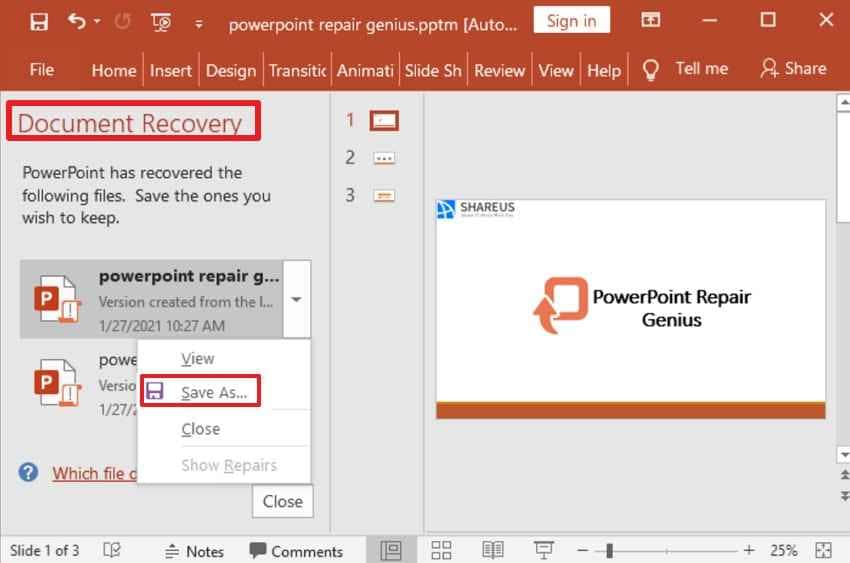
After an unexpected crash, PowerPoint sometimes opens with the Document Recovery Pane on the side. This pane shows recovered versions from the interrupted session, helping users compare available copies. However, it appears only when PowerPoint created recovery data before the program closed unexpectedly. Follow these instructions when the recovery pane appears after reopening PowerPoint:
- Restart PowerPoint after the crash, and see if the Document Recovery Pane opens automatically.
- Check the versions that have been retrieved and select the latest useful one, and press "Save As" to save it in a secure folder with a descriptive file name.
Way 3. Use Previous Versions or File History
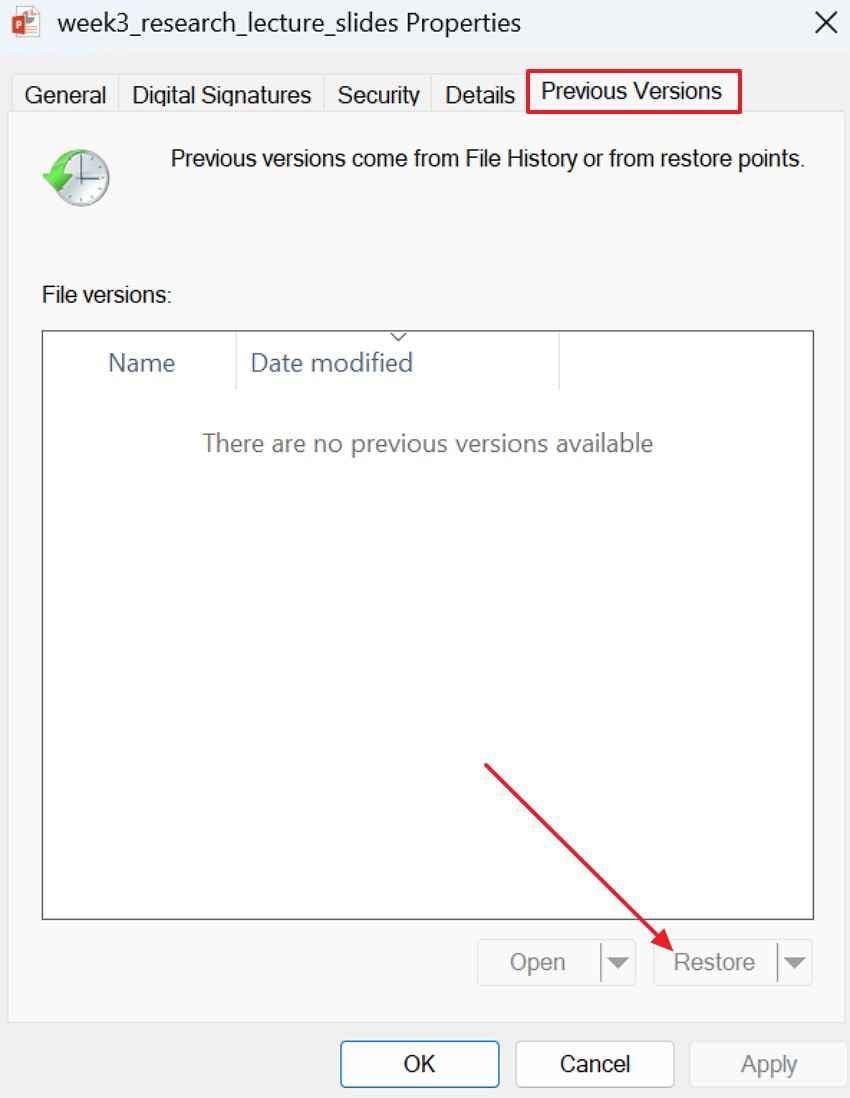
A saved presentation can disappear after overwriting, deletion, or mistaken editing. Previous Versions and File History help restore earlier copies from Windows backup records. Moreover, this method supports lost PowerPoint file recovery only when File History, restore points, or backup settings were enabled before the file changed. Use these steps when an earlier saved version is needed:
Step 1. Right-click the folder where the PowerPoint file was previously saved, then choose "Restore Previous Versions."
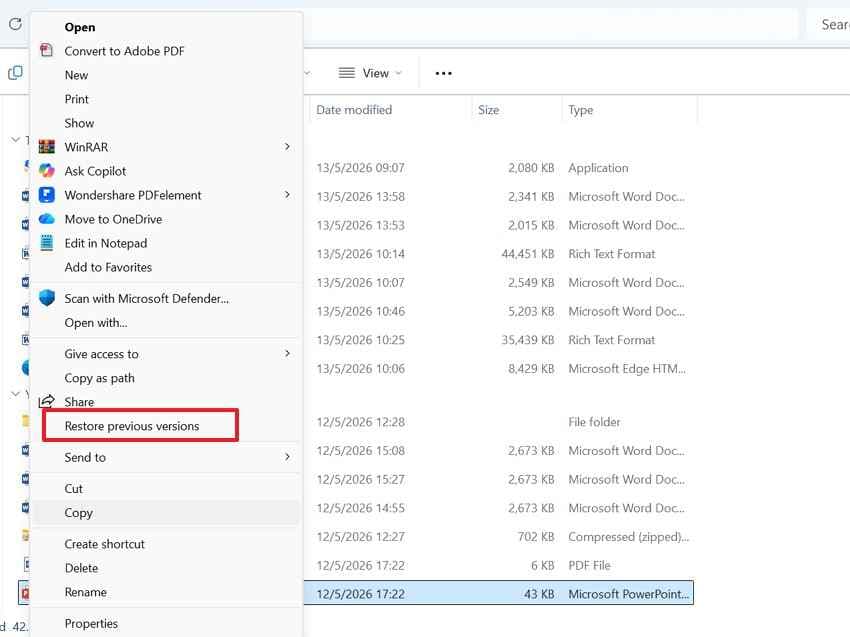
Step 2. Afterward, select an earlier available version from "Previous Versions," then press "Restore" to retrieve the needed PPT/PPTX file.
Way 4. Recover Deleted PowerPoint Files from Cloud Storage
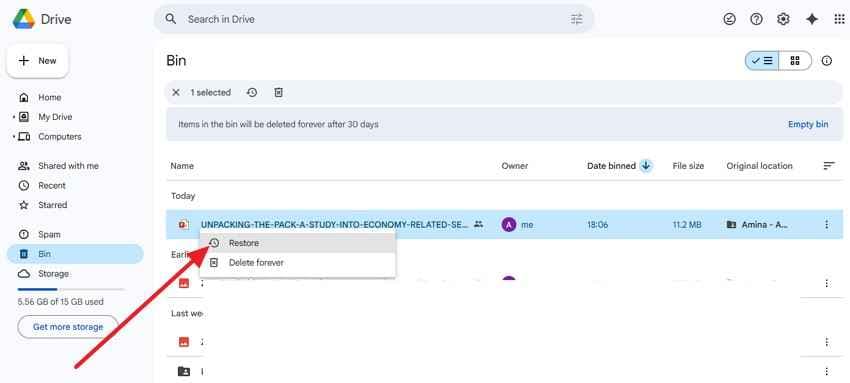
Cloud storage is useful for saving, syncing, deleting, or overwriting PowerPoint files online. OneDrive, Google Drive, Dropbox, and SharePoint often keep deleted items or version records temporarily. Meanwhile, users can recover lost PowerPoint copies if the file was synced successfully before removal or replacement. Check cloud storage carefully using the following instructions:
- Sign in to Google Drive with the Google account used for the presentation.
- Then, go to "Trash," then right-click the PPT file and choose "Restore."
Way 5. Recover Lost PPT Files Using Time Machine and Temporary Files
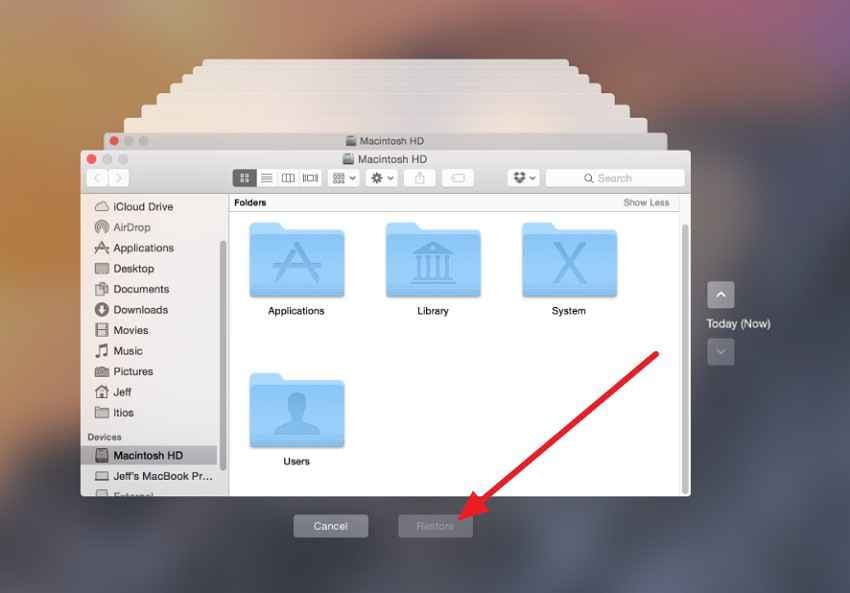
For Mac users, Time Machine and temporary folders cover two different recovery needs. Time Machine restores backed-up presentation versions, while Mac temporary folders sometimes keep interrupted PowerPoint data. Additionally, this method can recover lost PPT files after deletion, failed saving, crashes, or unexpected PowerPoint closure. Review Mac backup and temporary file locations through these steps:
For Time Machine
- Plug the Time Machine backup drive into the Mac and open the folder in which the PowerPoint file was previously saved.
- Then, click on the "Time Machine" icon, go through previous versions, select the required PPT or PPTX file, and select "Restore."
For Temporary Files
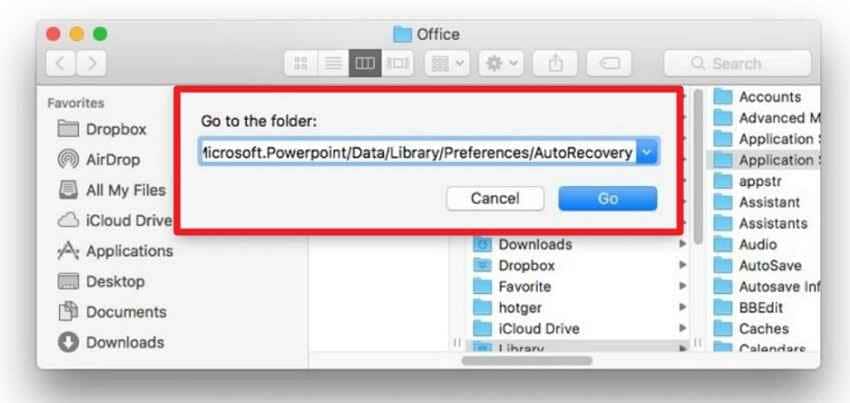
- Open Finder, select "Go > Go to Folder," then enter the PowerPoint AutoRecovery folder path.
- Paste: ~/Library/Containers/com.microsoft.PowerPoint/Data/Library/Preferences/AutoRecovery, press "Enter," and check whether any temporary PowerPoint recovery copy is available.
Way 6. Recover Lost PowerPoint Files with Recoverit
A presentation can vanish beyond the places PowerPoint normally checks. It might be deleted from an external drive, removed after formatting, or missing because storage records changed. Recent files and AutoRecover handle only limited situations, while backups depend on earlier setup. When none of those paths contain the PPT, users need a tool that searches the original storage location carefully.
Therefore, Recoverit PowerPoint Recovery fits this stage because it scans hard drives, folders, USBs, SD cards, and external devices for recoverable PPT or PPTX files. It is not an online repair shortcut for uploaded damaged files. Instead, it even supports users who need to recover lost PowerPoint files by previewing available results and saving the correct copy safely elsewhere without overwriting data.
Key Features
- Sector Level PPT Recovery: Scans drive sectors to find PPT or PPTX files hidden after formatting, corruption, or deletion.
- Multi-Device Recovery Support: Recovers presentations from PCs, USB drives, SD cards, external HDDs, SSDs, and other storage devices.
- Crash and Inaccessible Drive Recovery: Finds PowerPoint files after system crashes, virus attacks, RAW drives, partition loss, or improper removal.
How to Recover Lost PowerPoint Files Using Recoverit
For deeper recovery, start from the place where the presentation was last stored. These steps explain how Recoverit checks that location and brings back the needed PPT or PPTX file:
Step 1. First, choose the drive, folder, USB, SD card, or external device where the PPT/PPTX file was last stored in the "Hard Drives and Locations" tab.

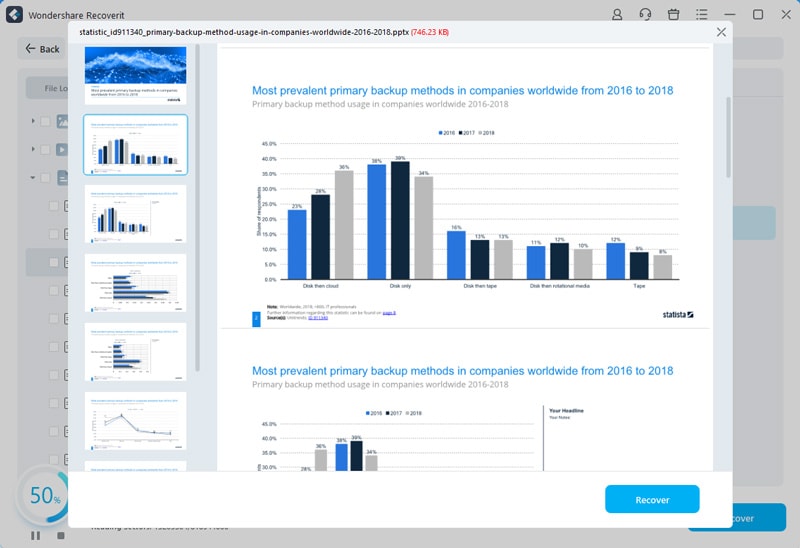
Step 2. Once the scanning starts, the recoverable PowerPoint files will appear in the "File Location" tab, under the "Name of Lost Files" folder.

Step 3. Review the recoverable PowerPoint file to confirm the correct slides, title, or version. Then choose the "Recover" button to complete the recovery.
Part 5. How to Prevent Losing PowerPoint Files Again
After learning how to recover a lost PowerPoint file, prevention should become the next priority. The following habits reduce future file loss and make lost PowerPoint file recovery less stressful later:
- Enable AutoSave and AutoRecover: Turn on AutoSave and AutoRecover before starting important PowerPoint presentation work daily. Shorter save intervals better protect recent slide edits during crashes or shutdowns.
- Keep Backup Copies: Save one extra copy before making major changes or edits to slides. A separate backup prevents panic when the working file disappears unexpectedly later.
- Avoid Editing Directly from USB: Move presentations to the computer before editing them from external storage. USB disconnection during saving often leaves PowerPoint files incomplete or unreadable.
- Use Clear File Names: Name presentations with project titles, dates, and version numbers for clarity. Clear naming helps users avoid overwriting important slides with newer drafts.
- Check Cloud Sync Status: Confirm that cloud syncing finishes before closing PowerPoint or shutting down devices. Unfinished syncing can leave older versions online and newer edits missing.
- Keep Storage Healthy: Ensure there is enough free space on drives used for PowerPoint editing. Low storage increases saving errors, temporary file issues, and corruption risks.
Conclusion
To conclude, lost presentations become easier to handle when users check saved locations, deleted folders, AutoRecover data, cloud history, and backup versions in the right order. Each method fits a different situation, from accidental deletion to Mac temporary copies. For deeper cases, especially formatted drives or missing storage paths, Recoverit offers a practical way to recover lost PPT files safely again later.
Frequently Asked Questions
-
Can I recover a PowerPoint file that was not saved?
Yes, PowerPoint can restore unsaved presentations when AutoRecover has already created a temporary copy. Check Recover Unsaved Presentations quickly, then save the recovered file immediately after opening. -
Where are lost PowerPoint files usually stored?
Lost PowerPoint files can remain in AutoRecover, temporary folders, cloud storage, or backups. Deleted copies usually move to the Recycle Bin, Trash, or cloud deleted folders first. -
Can I recover a permanently deleted PowerPoint file?
Yes, recovery software can scan storage devices when built-in recovery options fail completely. Recovery chances decrease after overwriting, formatting, or saving new files onto drives. -
Can online tools recover lost PowerPoint files from my computer?
No, online tools cannot directly scan someone's computer for missing PowerPoint files. They usually repair uploaded damaged files, not recover deleted files from storage.


