
![How to Recover Lost Word Document After Deletion [Tested Methods]](https://images.wondershare.com/recoverit/article/recover-lost-word-document-1.jpg)

 TL;DR:
The correct recovery method for a missing Word document depends strictly on the loss scenario: rely on AutoRecover and .asd files for unsaved crashes, use OneDrive Version History for overwritten text, and run disk-level recovery software only when built-in folders fail.
● Search File Explorer for .asd or .tmp extensions to locate recoverable drafts from unexpected shutdowns, keeping in mind that .wbk backup files are only available if the "Always create backup copy" feature was actively enabled before the loss.
● Restoring a file is significantly harder if you clicked "Don't Save" because Word intentionally discards the session, but if a synced document is merely missing recent edits, utilizing OneDrive Version History or Windows Previous Versions can revert it to an earlier state.
● Deploy third-party software like Recoverit exclusively as a last resort to scan the specific drive or USB for deleted DOC or DOCX traces, making sure to save any recovered data to a separate storage location to prevent overwriting.
Ask AI for a summary
 ChatGPT
 Perplexity
 Gemini
 Claude
 Grok
Grok
Instead of treating every missing Word file the same way, recovery should follow the file's situation. These key points summarise the safest recovery direction.
- Unsaved Drafts: Check Word recovery prompts, AutoRecover data, and ASD files after sudden closures.
- Deleted Files: Review the Recycle Bin, OneDrive Recycle Bin, and older stored versions first.
- Missing Locations: Search by file name, extension, date, or original folder path.
- Changed Content: Use version history when the file exists, but important text has disappeared.
- Failed Built-in Recovery: Try Recoverit when Word folders and backups show no usable copy.
Losing an important Word file can feel stressful, especially after a crash, deletion, or sudden shutdown. Sometimes, the document is not gone permanently; it may still exist in AutoRecover, temporary folders, backups, or cloud version history. That is why the right recovery path matters before trying random fixes.
Therefore, this step-by-step guide explains how to recover a lost Word document using simple and safe methods. You will learn where to check first, which built-in Word options to use, and when deeper file recovery becomes necessary for missing documents.
In this article
-
- Way 1. Document Recovery Pane (Auto-Opens After Crash)
- Way 2. Restart Word to Trigger AutoRecover
- Way 3: Check the Recycle Bin
- Way 4. Check AutoRecover File Location Manually
- Way 5. Search .Asd Files in Windows
- Way 6. Check the Temporary Files Folder
- Way 7. Search .Wbk Backup Files
- Way 8. Restore from OneDrive Recycle Bin
- Way 9. Restore from OneDrive Version History
- Way 10. Restore From Windows Previous Versions
- Way 11. Use Third-Party Recovery Software (Recoverit)
Part 1. Common Scenarios Where Word Documents Go Missing
Before learning how to recover lost Word files, users should identify the exact loss situation first. The following scenarios explain where Word documents usually disappear and why recovery paths differ:
- Unsaved Drafts: Word sometimes closes before a new document receives a saved file name. In such cases, AutoRecover keeps session copies from interrupted writing work.
- Accidental Deletion: Documents often disappear when folders, shortcuts, or desktop items are removed. For this reason, Recycle Bin checking should come before deeper storage scans.
- System Crashes: Power cuts or freezes interrupt Word before recent edits save properly. Afterward, recovery copies usually stay inside AutoRecover, temporary folders, or hidden backups.
- Moved Documents: Files seem to be missing after transfers, folder renames, or messy desktop changes. Instead of assuming deletion, Windows search often finds them in unexpected locations.
- Cloud Sync Errors: OneDrive sometimes delays uploads, replaces versions, or hides recent changes to documents. When this happens, version history helps restore earlier copies from sync conflicts.
Part 2. Why Word Documents Get Lost: Common Causes
Lost Word documents often come from hidden saving conditions, not only obvious deletion. These causes explain why "how do I recover a lost Word document" becomes difficult:
- Don't Save Clicked: Selecting Don't Save tells Word to discard the active writing session. Once confirmed, Word treats the unsaved draft as intentionally closed work.
- Low Storage Space: A nearly full drive interrupts Word while it writes file data. This creates incomplete saves, missing changes, or damaged document versions afterward.
- Temporary Files Cleared: Cleanup tools sometimes remove Word's temporary data during system maintenance. That erases draft traces Word usually depends on after unexpected closure.
- File Overwritten Accidentally: Saving another document with the same name replaces the older version. The original content disappears because Word keeps only the most recent saved copy.
- Drive File Errors: Bad sectors or file system errors disturb how documents are stored. As a result, Word files become unreadable, hidden, or partly damaged.
Part 3. How Can I Recover a Lost Word Document? Complete Ways Explained
Once the cause is clear, recovery becomes easier to handle without repeating random checks. The following methods explain how to recover a lost Word document through practical recovery paths:
Way 1. Document Recovery Pane (Auto-Opens After Crash)
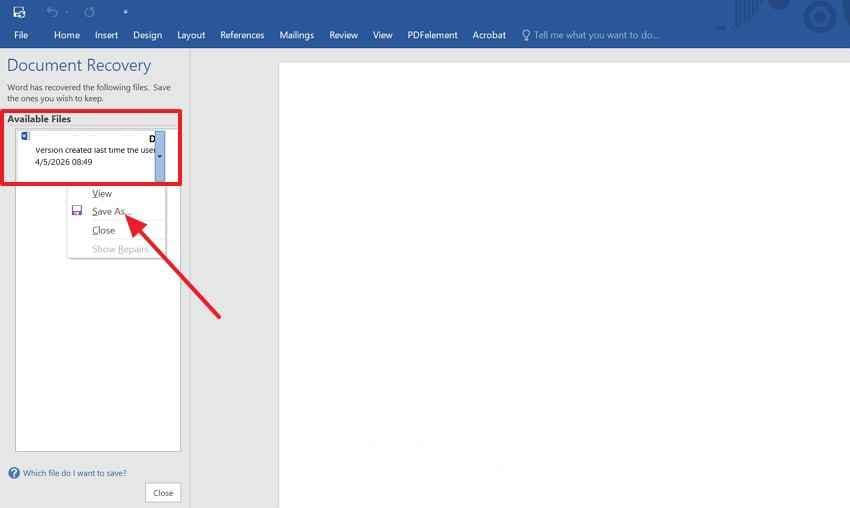
The Document Recovery pane usually appears after Word closes during active editing. It lists recovered drafts from the last interrupted session, so users avoid searching hidden folders immediately. Therefore, anyone learning how to recover a lost Word document should check this pane before moving toward deeper file locations. Next, use the guide below to review available recovered drafts:
- After Word reopens, check the "Document Recovery" pane on the left side.
- Next, select each recovered draft and review the content, date, and latest saved changes.
- Now, click "File > Save As" and save the recovered document in a safe folder.
Way 2. Restart Word to Trigger AutoRecover
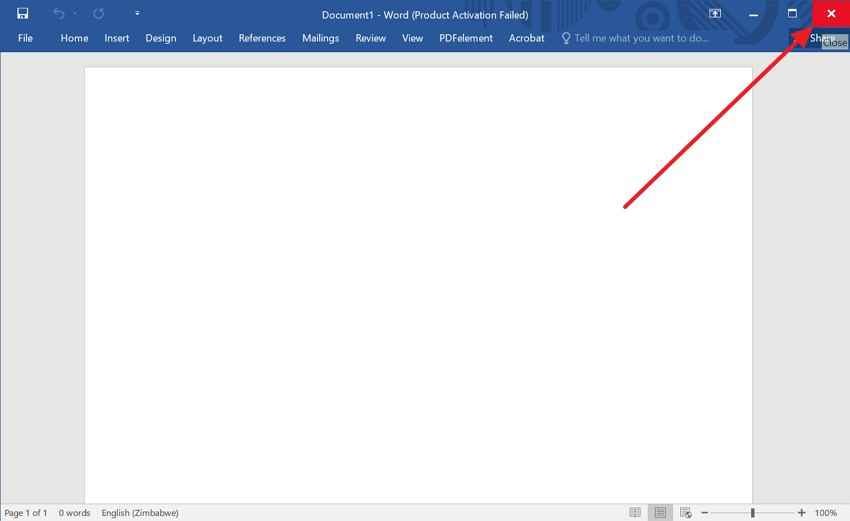
Restarting Word can refresh recovery checks when the pane does not appear at first launch. Close Microsoft Word completely, reopen it from the Start menu or desktop shortcut, and wait a few seconds. If AutoRecover finds session data, Word may automatically display recovered drafts, allowing users to open the correct version and save it safely.
Way 3: Check the Recycle Bin
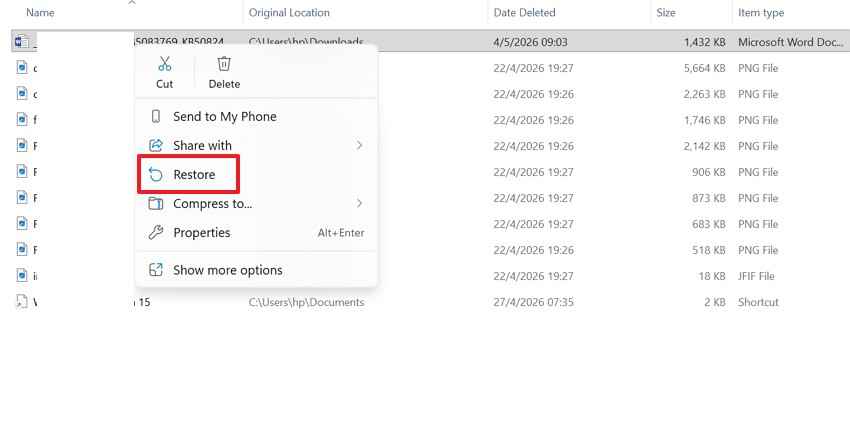
Deleted Word documents often stay in the Recycle Bin until users empty it manually. The file name, deletion date, and original location help confirm the correct document. As a result, anyone wondering how I can recover a lost Word document should review deleted files before using advanced tools. Afterward, use these steps to restore the correct Word document:
Step 1. Double-click the "Recycle Bin" on the desktop and search for the missing Word file.

Step 2. Next, review the file name, deletion date, and original location before restoring it. Then, right-click the correct file and choose "Restore" to return it automatically.
Way 4. Check AutoRecover File Location Manually
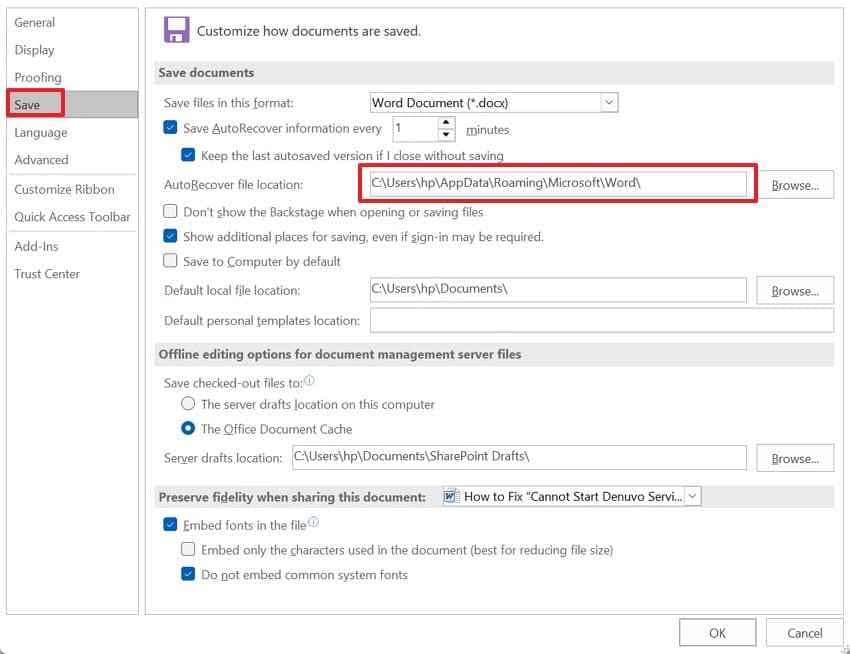
Inside Word's hidden recovery path, background copies sit with names that rarely look familiar. These files depend on AutoRecover settings, so modified dates, extensions, and recent activity matter more than document titles. Since this route only works when AutoRecover was active before the interruption, it best suits crashes or forced closures rather than permanently deleted files. From here, use the steps below to inspect the AutoRecover folder manually:
Step 1. Open Word and go to "File > Options > Save" to copy the AutoRecover location.
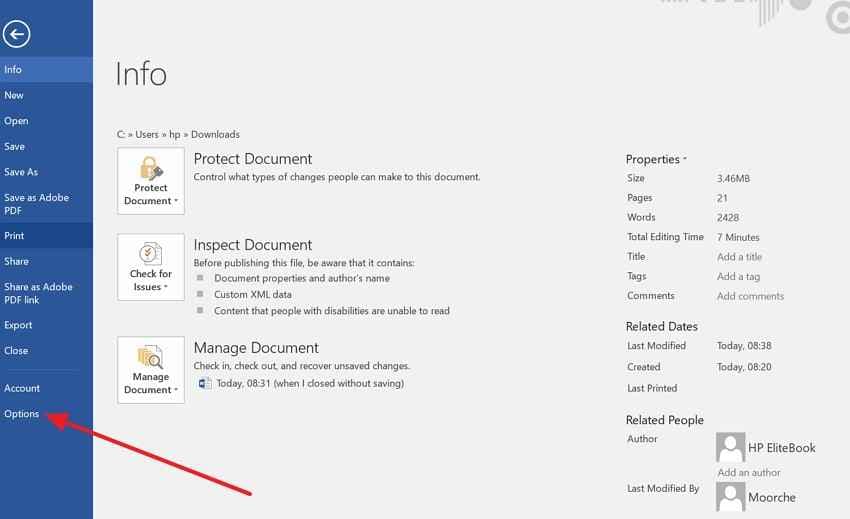
Step 2. Then, paste the copied path into File Explorer and press "Enter" to access it.
Way 5. Search .Asd Files in Windows
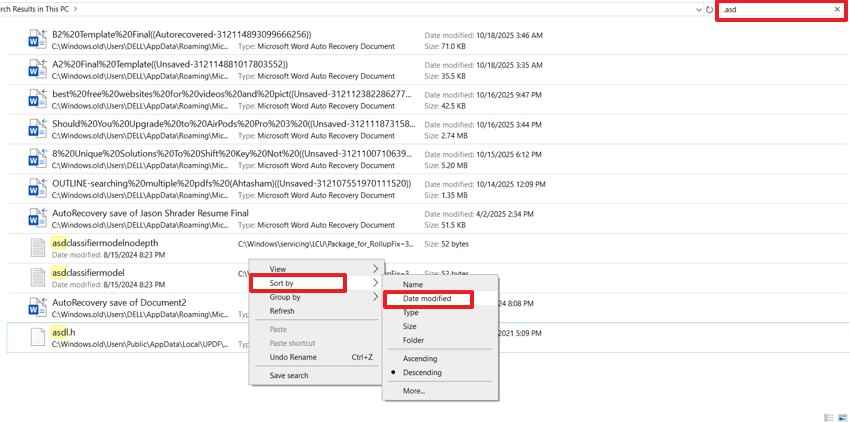
ASD files are Word's AutoRecover drafts, usually created during active writing sessions before normal saving. In this situation, users asking how to recover a lost Word document should search the system by extension instead of relying only on visible Word menus. The method helps when recovery copies exist but remain hidden inside Windows folders. Follow these steps to locate available .asd recovery files:
Step 1. Open File Explorer and search for .asd or *.asd in "This PC." Then, right-click inside the results, choose "Sort by," and select "Date Modified" to find the latest recovery file.
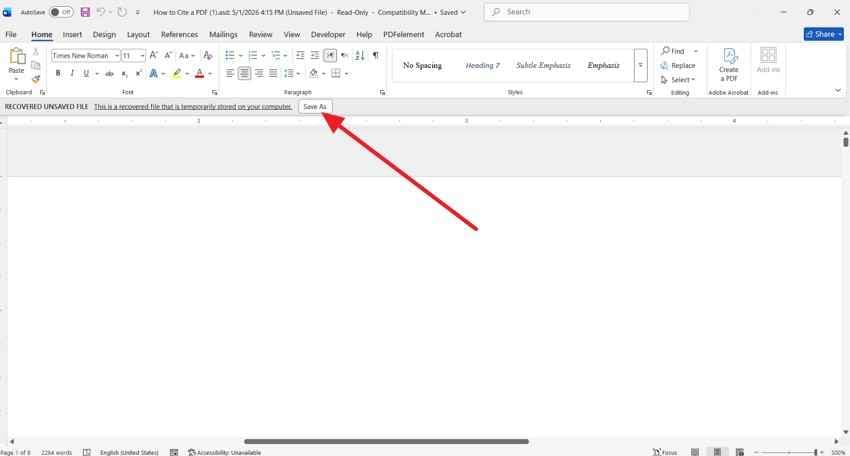
Step 2. Next, open the most relevant ASD file in Microsoft Word. When Word shows the recovered file message, click "Save As" immediately and store the document in a safe folder.
Way 6. Check the Temporary Files Folder
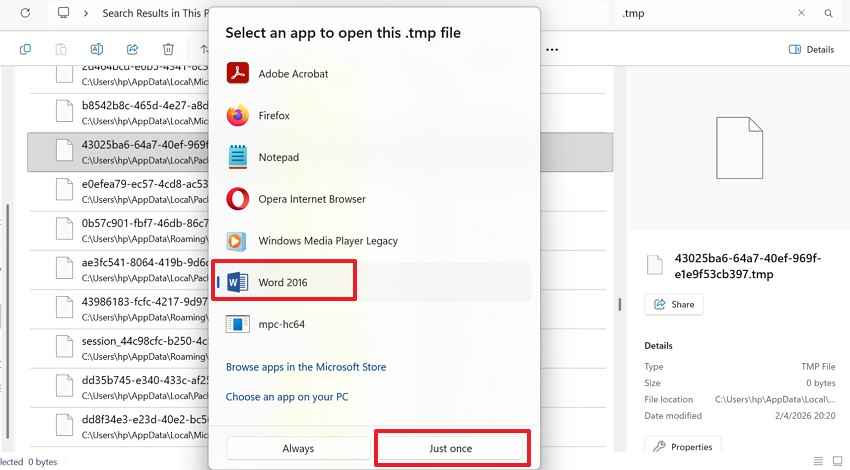
Temporary folders store short-term system and application data created while Word is running. At times, a crash leaves document fragments there even when the main file never saves properly. These files often use unclear names, so sorting by date, size, and file type helps identify recent Word-related traces. Adhere to the steps below to check temporary file locations:
Step 1. To start, press "Windows + R," type "%temp%," and press "Enter."
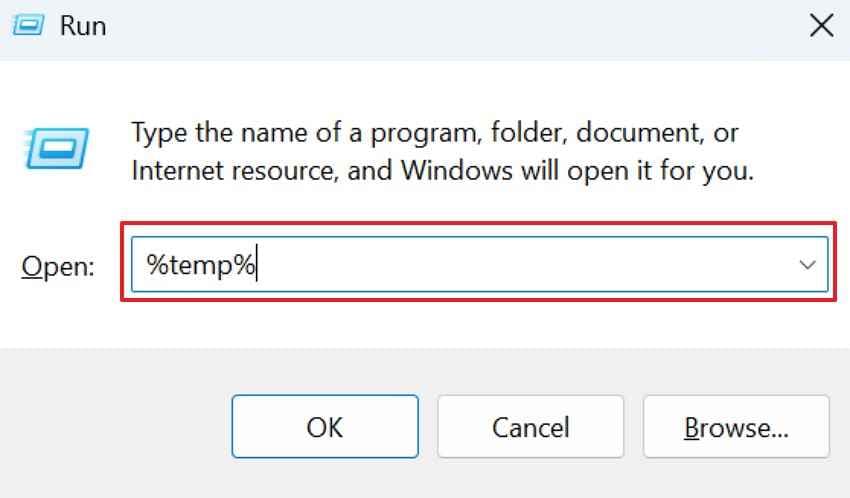
Step 2. Afterward, sort files by date and look for recent .tmp files linked to Word activity. Next, open likely files with "Word" and save any readable content as a new document.
Way 7. Search .Wbk Backup Files
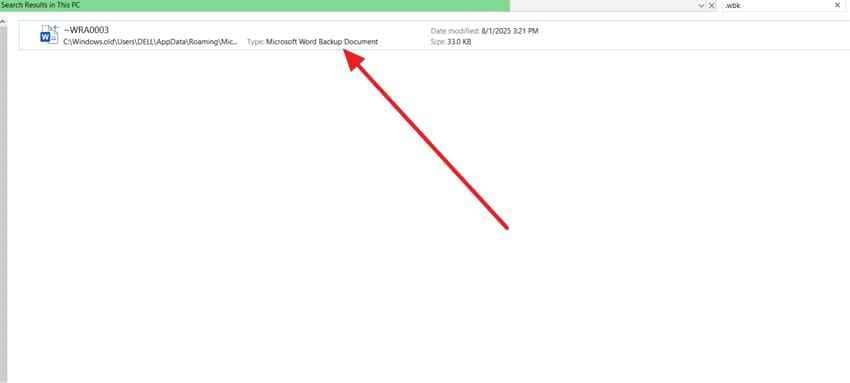
WBK files belong to Word's backup copy feature, not its crash recovery system. They appear only when "Always create backup copy" was enabled before the file went missing. For users comparing ways around "how can I recover a lost Word document," this method is more suitable for overwritten, edited, or damaged saved files than unsaved drafts. After checking that backup copies were enabled, follow the instructions below to find available .wbk files:
- Search ".wbk" in File Explorer and review the backup results carefully.
- Next, check file dates, folder names, and locations linked to the original document.
- Afterward, launch the matching .wbk file in Word, then save it as DOCX.
Way 8. Restore from OneDrive Recycle Bin
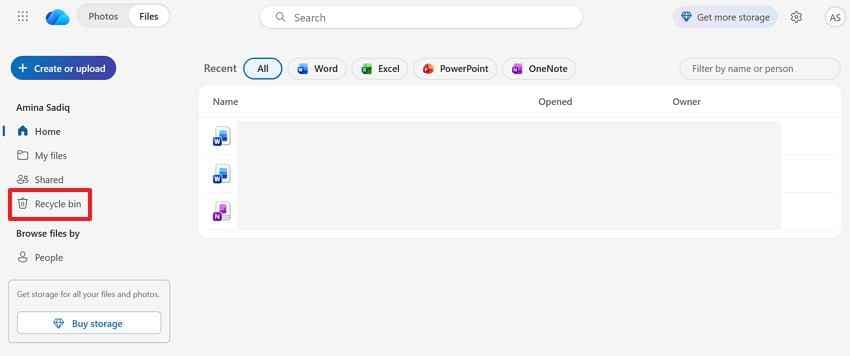
OneDrive keeps deleted cloud files in its online Recycle Bin, separate from the Windows desktop bin. Unlike local recovery, this route helps when a synced Word document was removed from OneDrive, another device, or the web account. It is especially useful when the file disappeared from a synced folder after cloud cleanup. Now, follow this guide to restore the document from OneDrive Recycle Bin:
Step 1. Firstly, sign in to OneDrive, then select the "Recycle Bin" from the sidebar and search for the deleted Word document.
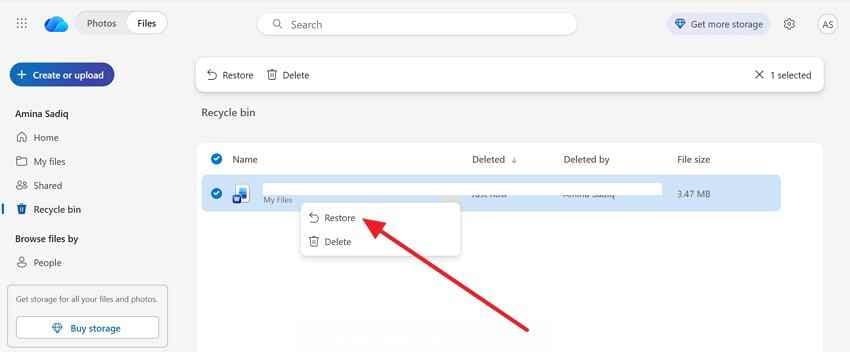
Step 2. After that, choose the correct document and press "Restore" to return it to OneDrive.
Way 9. Restore from OneDrive Version History
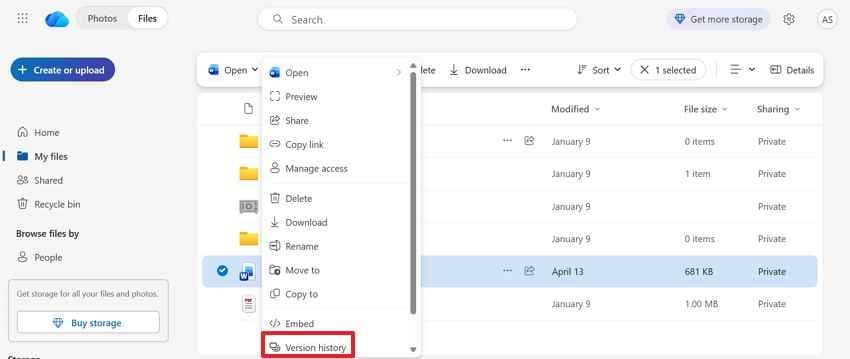
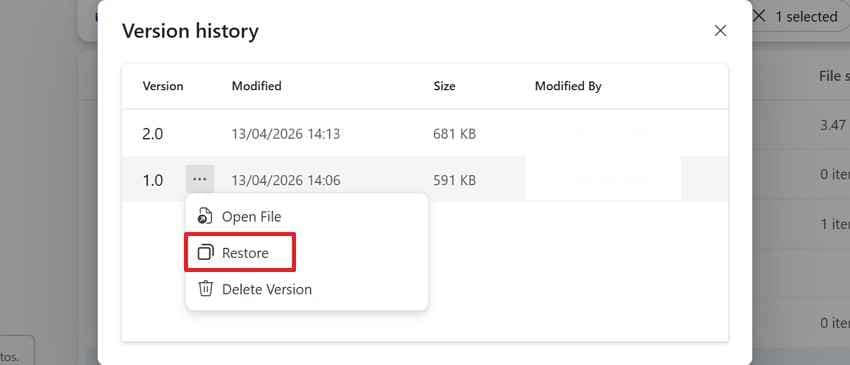
When a synced file still opens, but the needed content is missing, version history becomes useful. It lets users compare earlier saves before replacing the current document blindly. For anyone asking, "how do I recover a lost document in Word?" This method fits overwritten edits, sync delays, and unwanted changes in shared Word files. After comparing the saved versions, use these steps to restore the required copy:
Step 1. Open OneDrive and find the Word document that still exists online. Then, right-click the file and select "Version History" from the available options.
Step 2. Preview earlier versions, choose the correct one, and press "Restore."
Way 10. Restore From Windows Previous Versions
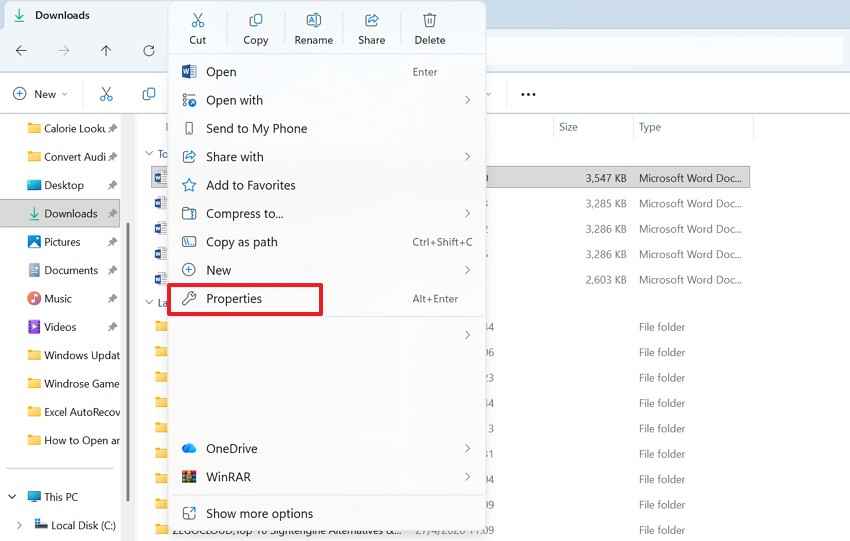
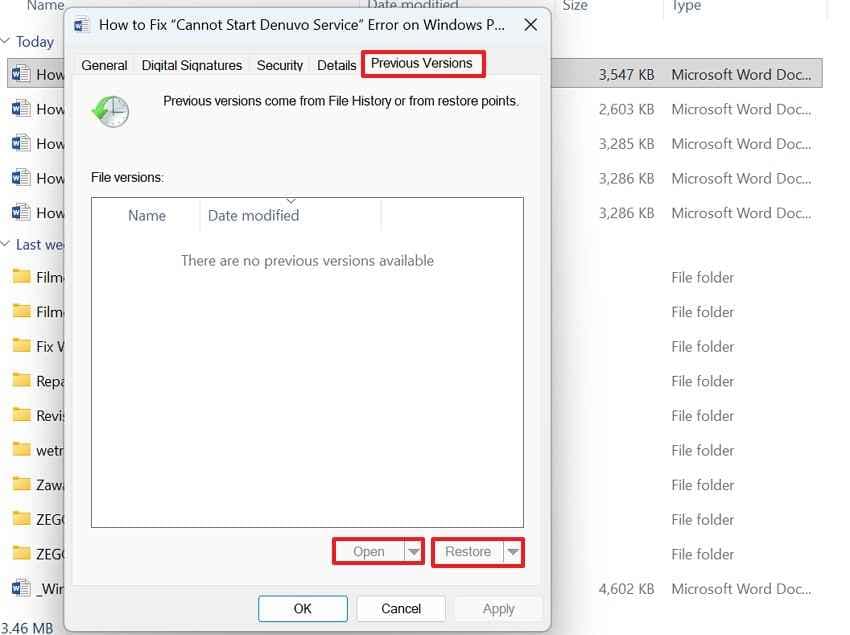
Windows Previous Versions restores earlier copies of files or folders when File History, restore points, or system protection were active. Finally, this method helps when a document was changed, deleted, or damaged before the user noticed. It works through Windows storage snapshots, so availability depends on backup settings configured before the loss. Follow the steps mentioned below to restore from Windows previous versions:
Step 1. Go to the folder where the Word document was previously stored. After that, right-click the folder or file and choose "Properties" to further select the "Previous Versions."
Step 2. Next, select an available version, then choose "Restore" or "Open" to copy it.
Way 11. Use Third-Party Recovery Software (Recoverit)
When Word's built-in recovery paths return no usable copy, the issue usually shifts from Word recovery to storage recovery. The document may have been deleted, overwritten, removed from cloud sync, or left behind as recoverable data after a failed save. At this point, repeating AutoRecover, temporary file, or version-history checks often wastes time and creates confusion for users already stuck.
Recoverit Word Recovery becomes relevant only after those standard routes are exhausted, because it scans the actual drive, folder, or external device where the Word file existed. It can locate deleted DOC, DOCX, and related file traces before recovery, so users can preview results first. In short, this Word recovery software offers a more focused way to recover lost Word document content.
Key Features
- Exact Location Scan: Selects the last saved drive, folder, or USB, focusing recovery where the document originally existed earlier.
- Word File Filtering: Filters scan results by document formats, helping users avoid unrelated videos, images, and system files easily.
- Separate Save Location: Restores files to another drive, reducing the risk of overwriting the original storage during recovery.
When Word's own recovery folders show no useful draft, deeper file recovery becomes the next option. Follow this guide to locate, preview, and restore missing Word files with Recoverit:
Step 1. Point Recoverit to the Original Location
Start Recoverit and choose "Hard Drives and Locations" from the left panel. Pick the exact place where the Word file was last seen, such as a drive, Desktop folder, or specific project folder.

Step 2. Let the Scan Organize Recoverable Files
Recoverit will begin checking the selected location for missing data. While results appear, use the "File Type" or "File Location" filters to narrow to DOC, DOCX, and other document results.

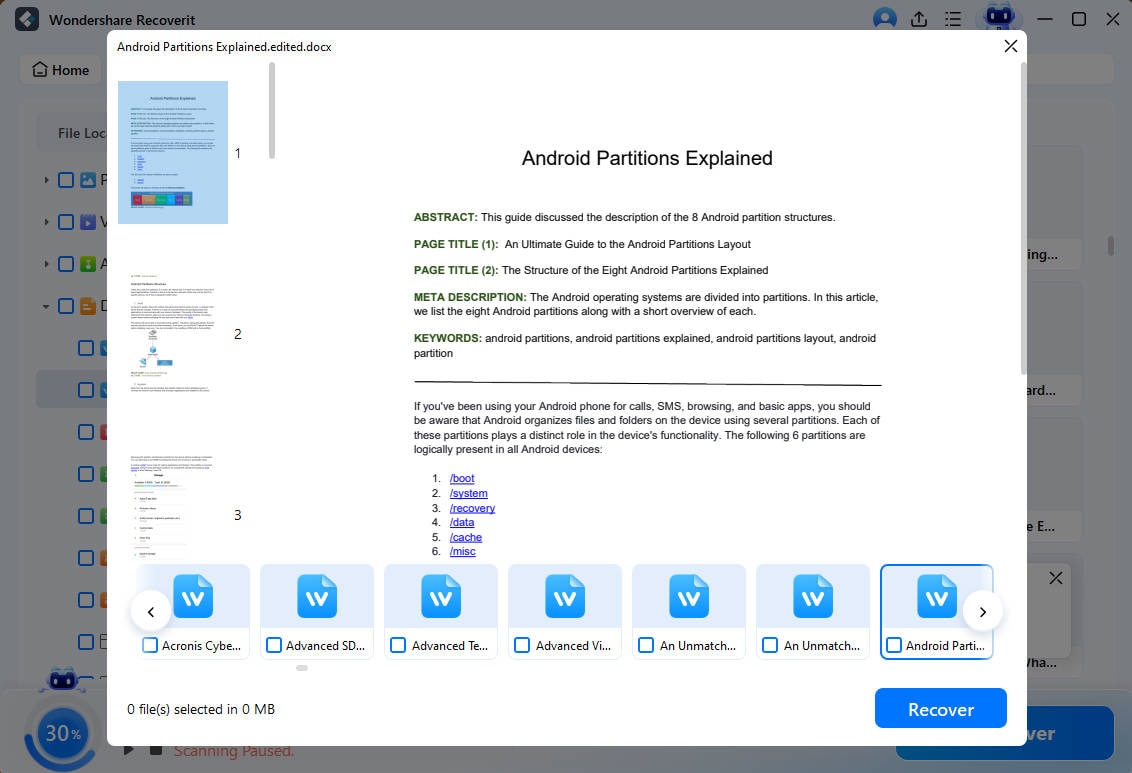
Step 3. Confirm the Document Before Saving
Check the preview and once the correct document is confirmed, select "Recover" and save the restored file to another safe location.
Part 4. Tips to Prevent Losing Word Documents Again
After learning how to recover lost Word files, prevention becomes a safer habit. These tips reduce document loss before Word recovery becomes necessary again:
- Shorten Save Intervals: Set the AutoRecover interval lower when working on long or important documents. Five minutes usually protects more edits than Word's longer default recovery timing.
- Use Cloud AutoSave: Save important files in OneDrive when steady internet access is available. This keeps recent changes synced across devices during active document editing.
- Create Backup Copies: Enable Word's backup copy option for documents needing extra protection. It creates separate versions when the main saved file changes unexpectedly.
- Avoid Quick Closures: Read Word's closing prompts carefully before selecting any final option. Clicking Don't Save removes session changes that recovery cannot always rebuild.
- Save Before Transfers: Save and close documents before moving folders or external drives. This prevents broken paths, incomplete writes, and confusing missing-file situations.
Conclusion
To conclude, losing a Word document does not always mean the file is permanently gone. A clear recovery approach improves the chance of finding missing, deleted, unsaved, or changed content safely. When standard options no longer help users recover lost Word document data, Recoverit can be considered as a practical final support for deeper file recovery.
Frequently Asked Questions
-
Can I recover a Word document after closing without saving?
Start with Word recovery prompts before searching hidden folders or external recovery tools. Recent crashes often leave drafts where Word can still reopen them safely. -
What happens if I click "Don't Save" in Word?
Recovery becomes difficult because Word treats that choice as intentional session removal afterward. Still, temporary traces or deeper storage scans might reveal remaining document fragments. -
Why is my Word document missing after OneDrive sync?
Sync delays, version conflicts, or account changes can hide recent document updates. Version history may show earlier copies with the content that disappeared unexpectedly. -
Can Recoverit help when Word recovery options fail?
Yes, Recoverit scans storage locations when Word's built-in recovery paths return nothing. It helps locate traces of deleted, missing, or formatted DOC and DOCX files.


