

 TL;DR:
Online PDF recovery tools can only repair damaged files that you can still upload; they cannot scan your device to retrieve permanently deleted or missing documents.
● Local safeguards like the Recycle Bin, Windows File History, Previous Versions, and Mac Time Machine should be your first step to restore recent copies.
● Desktop data recovery software like Recoverit is required to deep-scan storage drives, USBs, or memory cards if bins are empty or the drive was formatted.
● Uploading confidential files such as contracts or IDs to online platforms poses a privacy risk, making offline, device-based recovery the safer choice for sensitive data.
Ask AI for a summary
 ChatGPT
 Perplexity
 Gemini
 Claude
 Grok
Grok
TL;DR
- Online Limit: Online tools repair uploaded damaged PDFs, but cannot search for deleted files on devices.
- Local Checks: Recycle Bin, backups, File History, Previous Versions, and Time Machine come first.
- Privacy Risk: Confidential PDFs should stay offline, especially contracts, IDs, invoices, and client records.
- Better Recovery: Recovery software helps when bins are empty, backups fail, or drives are formatted.
- Future Safety: Named folders, automatic backups, clear filenames, and separate copies prevent repeated PDF loss.
Quick Answer: PDF file recovery online tools can repair damaged PDFs that users still have, but they cannot scan devices for deleted files. Check Trash, backups, File History, Previous Versions, or Time Machine; when these fail, Recoverit can scan storage for missing PDFs.
Losing a PDF document can interrupt work, study, legal tasks, or client communication within minutes. Many users now search for browser-based options because they want a quick fix without installing software. However, online tools usually work best for damaged or corrupted PDFs that can still be uploaded, not files fully deleted from a device.
This guide explains whether online PDF file recovery methods can truly help in 2026. It also clarifies their limits, safer use cases, privacy concerns, and when desktop recovery software becomes a better option for missing or permanently deleted PDF documents.
In this article
Part 1. 8 Common Reasons PDF Files Get Lost or Deleted
Before trying any online PDF recovery method, users should first understand the following reasons why PDF files disappear or get deleted unexpectedly:
- Accidental Deletion: Users may delete PDF files while clearing downloads, duplicates, or old folders. They often notice the mistake only after manually emptying the Recycle Bin.
- Wrong Save Location: A PDF may be saved in unexpected folders during exports or downloads. Later searches fail when users check only their usual document locations first.
- System Crash: Sudden crashes can interrupt saving and leave PDF documents incomplete or missing. Some files disappear when restarts happen before storage updates finish properly.
- Drive Formatting: Formatting a drive removes stored PDFs along with folders, labels, and indexes. Recovery becomes harder once new files overwrite the same storage area.
- Virus or Malware Attack: Malware can hide, delete, rename, or damage important PDF files without warning. Infected drives may appear empty, while hidden data still exists beneath the surface.
- Failed File Transfer: PDFs can disappear when USB transfers stop during copying, moving, or exporting. Connection drops may leave partial files instead of complete, readable documents.
- Cloud Sync Error: Cloud storage may fail when the internet drops or storage limits are reached. Newer PDF versions may stay offline while older copies remain visible.
- Corrupted Storage Device: Bad sectors, damaged memory cards, or weak drives can make PDFs inaccessible. The file may still exist, but the system cannot read it.
Part 2. Can Online PDF Recovery Tools Restore Lost PDF Files?
After knowing why PDFs disappear, users should check what PDF file recovery online tools can actually do. Most online tools repair uploaded damaged PDFs, but they cannot scan a device for lost files.
Difference Between PDF Recovery and PDF Repair
PDF recovery and PDF repair may sound similar, yet the table below explains how they work differently for lost, deleted, or damaged files:
| Aspect | PDF Recovery | PDF Repair |
|---|---|---|
| Main Purpose | Finds lost, deleted, or missing PDFs. | Fixes damaged or corrupted PDFs. |
| File Condition | File is missing, deleted, or inaccessible. | File exists but does not open properly. |
| Where It Works | Computers, USBs, memory cards, and drives. | Uploaded damaged PDF files. |
| Online Tool Limit | Online tools cannot scan devices for lost PDFs. | Online tools may repair uploaded PDFs. |
| Best Tool Type | Device-based recovery software. | PDF repair software or online repair tools. |
| Best For | Deleted, formatted, or misplaced PDF files. | Broken, unreadable, or corrupted PDF files. |
What Online PDF Recovery Tools Can and Cannot Do
Online PDF recovery tools can help when users upload damaged PDF files for repair, password removal, or basic readability fixes. However, they cannot scan a computer, USB, phone, or cloud folder for deleted PDFs. For real file loss, users need device-based recovery software that searches storage locations directly and restores recoverable documents safely after deletion.
Are Online PDF Recovery Websites Safe?
Users' safety relies on the content they share and its management by the website. A trusted platform must employ HTTPS, transparent privacy policies, and auto-deletion. Contract, ID, invoice, or client records are better stored offline for sensitive PDFs. In case the files are deleted, it is generally safer to use secure desktop recovery software than to upload the files to unknown sites on the internet.
Can Deleted PDF Files Really Be Recovered Online?
A deleted PDF cannot usually be recovered through a website alone. Online platforms cannot scan a computer, USB, memory card, or phone storage for removed files. They only work when users already have a damaged PDF to upload. Deleted PDF recovery needs device-based software that scans storage sectors and finds recoverable file traces.
Part 3. How to Restore Lost PDF Files Without Online Tools
When a PDF is truly deleted or missing, recovery should start from the device where the file was stored. Below are the methods users can try to restore lost PDF files without relying on online tools:
Way 1. Check the Recycle Bin or Trash
Deleted PDFs often remain closer than users expect, especially when removal was recent. Instead of relying on PDF file recovery online tools, the Recycle Bin or Trash checks files still stored temporarily on the device. Furthermore, it is effective to remove PDFs from the Desktop, Downloads, Documents, or internal folders. To restore the PDF from the Recycle Bin or Trash: use the instructions below:
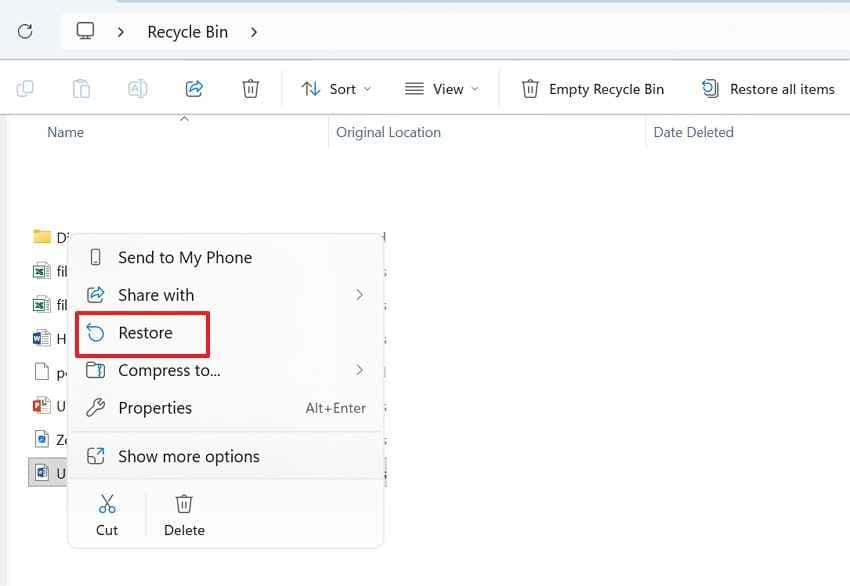
For the Recycle Bin
- Go to the Desktop and double-click the "Recycle Bin" icon. Next, search by file name, date deleted, or type .pdf in the search bar.
- After that, right-click the PDF and choose "Restore" to return it to its original folder.
For Mac Trash
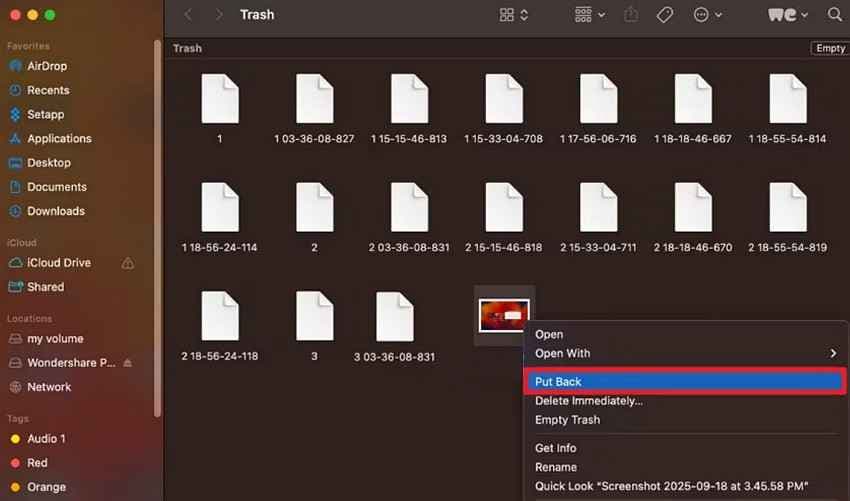
- Start by selecting the "Trash" on the Dock to open recently removed files.
- Afterward, pick the PDF file, right-click, and select "Put Back" to recover it.
Way 2. Use File History on Windows
File History helps restore earlier PDF copies when Windows backup was enabled beforehand. It can recover files from saved libraries, the Desktop, Documents, or selected folders. Therefore, this method is useful when a PDF was deleted, overwritten, or changed accidentally, but only if Windows had already backed up that location. Follow the guide below to recover PDFs through Windows File History:
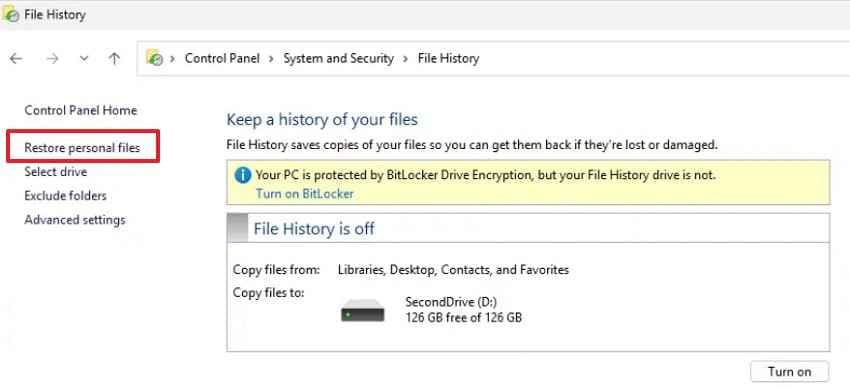
Step 1. Navigate to "Control Panel > System and Security > File History," then choose "Restore Personal Files" from the left panel.
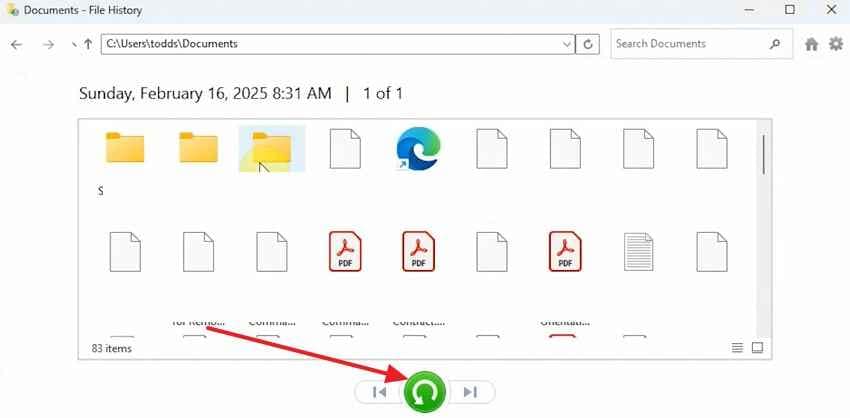
Step 2. Then, browse the backed-up folder, choose the needed PDF version, and click the green "Restore" button to return it.
Way 3. Recover PDFs Using Previous Versions
A missing PDF may still have an older copy saved inside Windows backup snapshots. Instead of trying PDF recovery online for free, users can check local Previous Versions linked to folders or restore points. Moreover, this method helps when PDFs are replaced, removed, or become inaccessible after recent changes. Now, adhere to the stepwise guide below to check and restore available Previous Versions:
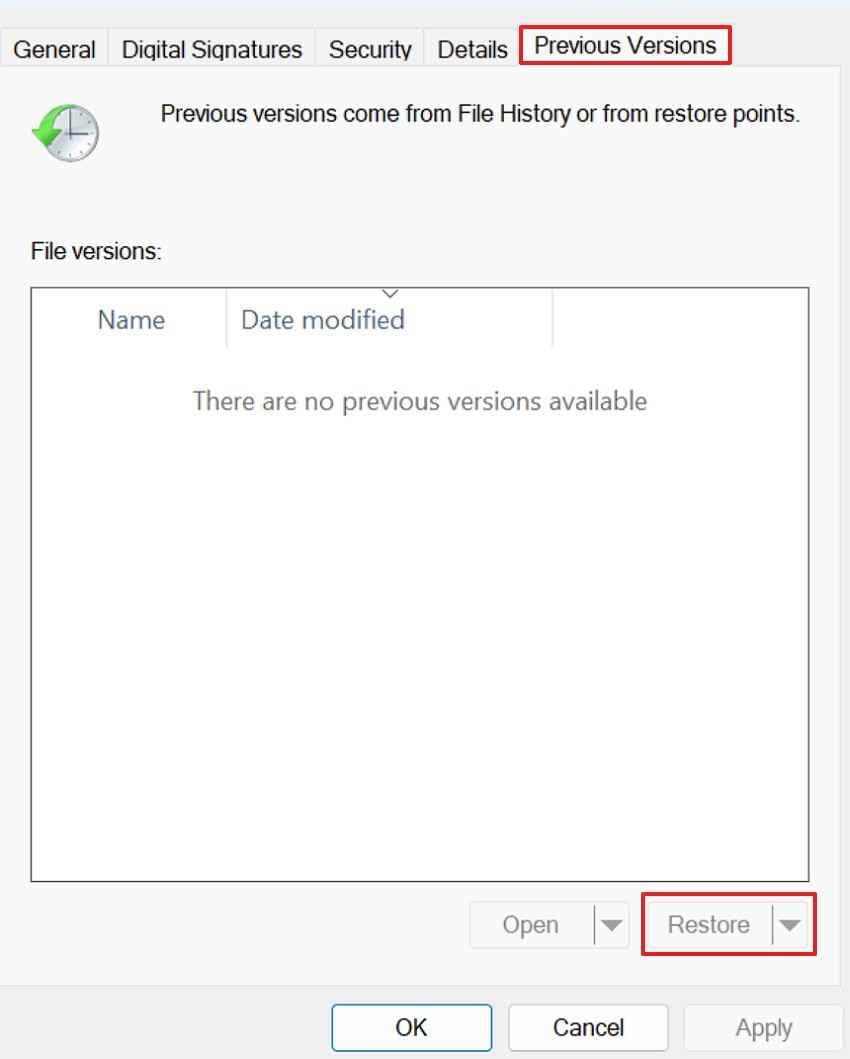
Step 1. First, right-click the folder where the PDF was saved, then select "Properties > Previous Versions" to view available backup snapshots.
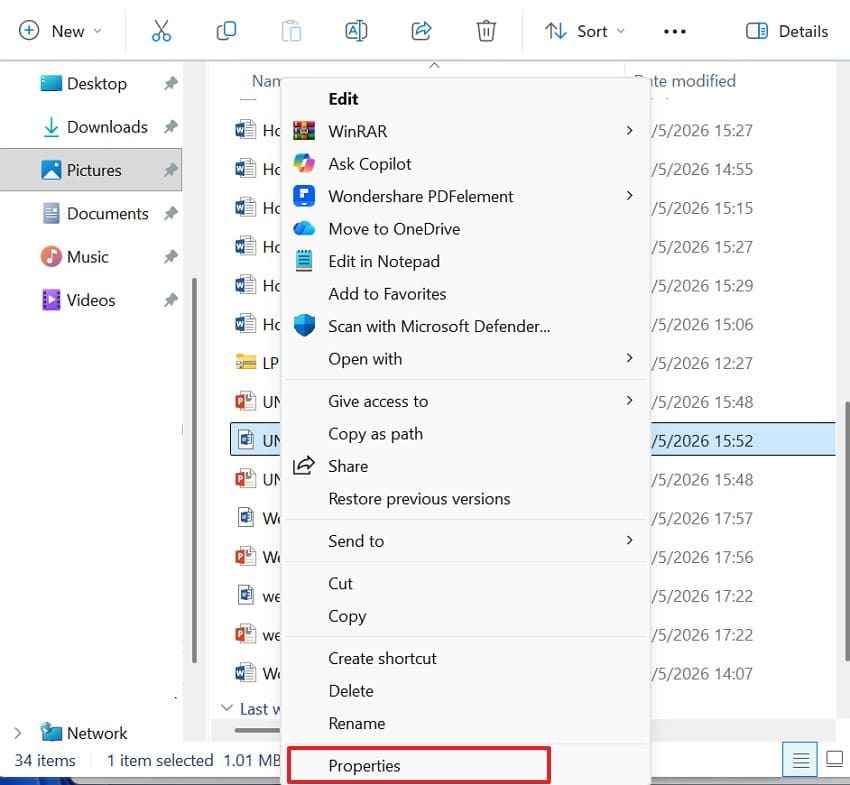
Step 2. Next, choose a version dated before the PDF disappeared, click "Open" to check it, then select "Restore" to retrieve it.
Way 4. Recover Lost PDF Files with Time Machine on Mac
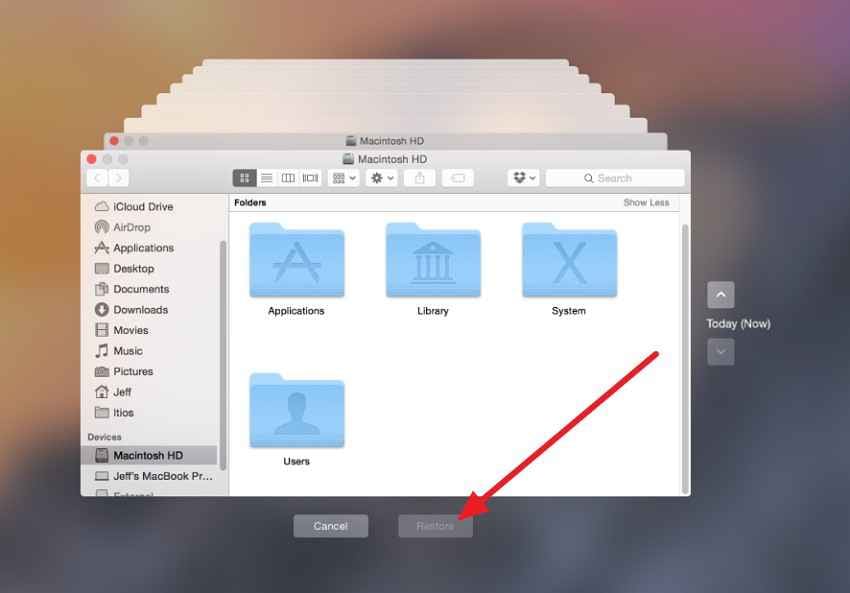
On Mac, Time Machine can restore lost PDFs if backups were active before deletion. Users can revisit an earlier folder view and recover the needed PDF from a saved date. Similarly, this method works for Desktop, Downloads, Documents, external drives, or synced folders included in the backup plan. Try the following instructions to restore PDFs with Time Machine:
- Access the folder where the PDF was saved, enter "Time Machine," choose an earlier backup date, select the missing PDF, and press "Restore."
Way 5. Use System Restore Points
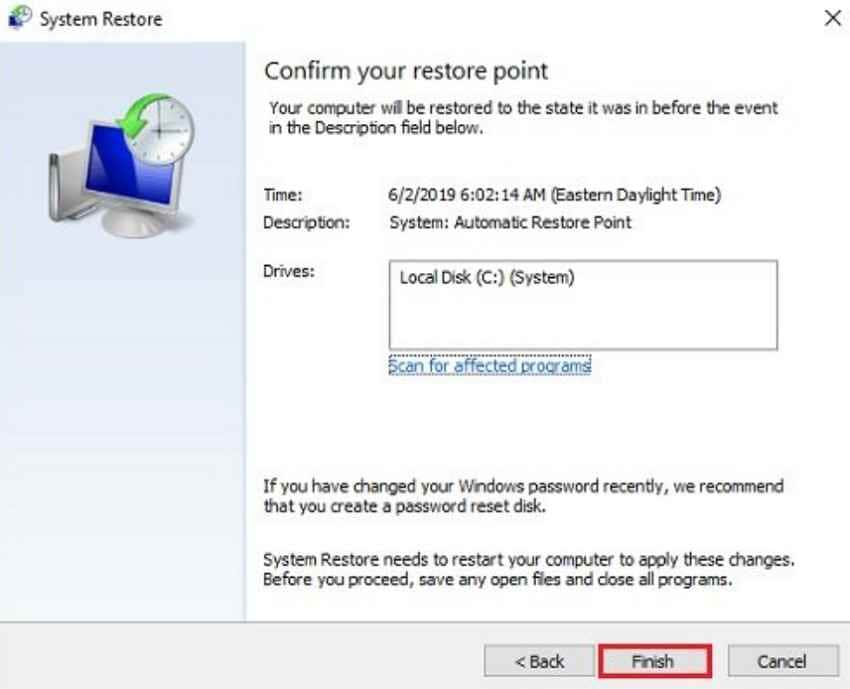
When folders, drives, or file access are impacted by updates, drivers, or software changes, System Restore will restore Windows to a previous known working state. It is not a direct recovery program for PDFs, but it can assist if the PDF is still present, just Windows cannot display or locate the file. Follow the steps below to restore a Windows state:
Step 1. Press "Windows + R," type "rstrui.exe," and choose "OK" to open the System Restore wizard.
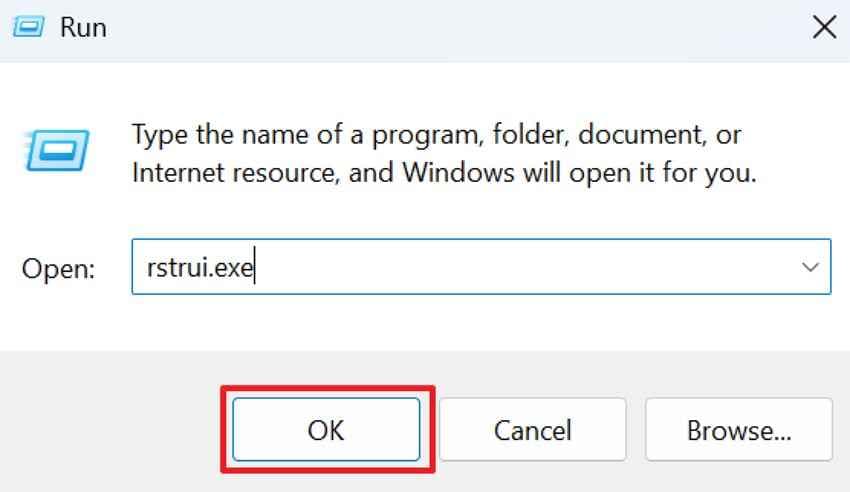
Step 2. After that, select a restore point from before the PDF got lost, review details, and press "Finish" to restore Windows.
Way 6. Recover Deleted PDF Files with Data Recovery Software
Built-in methods sometimes stop at an empty Recycle Bin, missing File History backup, unavailable Previous Versions, or expired Time Machine snapshot. In that situation, the PDF is no longer visible through normal folders, yet traces may still remain on the storage device. This is where professional recovery software becomes useful for deeper scanning without visiting uncertain websites again.
Recoverit PDF Recovery is recommended because it scans selected drives, folders, USBs, memory cards, and external storage for deleted, formatted, or inaccessible PDF files. Instead of depending on online PDF file recovery claims, users can preview recoverable documents first and restore the needed version to a safer location. Moreover, its filtered results help users find PDFs faster during urgent document recovery cases.
Key Features
- Quick and Deep Scan: Quick and deep scan modes help find PDFs when normal folders or backups fail completely.
- Recover During Scanning: Users can recover detected PDF files during scanning instead of waiting for all results first.
- Private Secure Recovery: Local processing keeps recovered PDFs private while avoiding exposure to uncertain website uploads during recovery.
How to Recover Lost PDF Files Using Recoverit
For deeper PDF recovery, Recoverit lets users scan the original drive or storage device where the lost file was last saved. Below are the steps to recover a lost PDF file using Recoverit:
Step 1. Navigate to "File Recovery > Hard Drives and Locations." Under this section, choose the drive, USB, Desktop, Recycle Bin, or Select Folder where the PDF was last stored.

Step 2. Once scanning starts, check results under "File Location" or switch to "File Type." Use the "Filter" option or the "Search File" bar to narrow results and find PDF documents faster.

Step 3. Open the detected PDF under the preview window to confirm its content. Then tick the correct file and choose "Recover" to save it to another safe location.

Why Recovery Software Works Better Than Online Recovery Tools
Recovery software gives users more control through drive selection, file filters, and previews. On the other hand, online tools are limited because they only process files that users can upload, not missing documents hidden inside storage records. Therefore, software suits formatted drives, emptied bins, failed transfers, and PDFs lost after crashes while reducing unnecessary online document exposure.
Part 4. How to Prevent PDF File Loss in the Future
Preventing PDF loss is easier than searching for an online PDF recovery option later. The tips below help users protect important PDF documents across devices, backups, and storage locations:
- Save PDFs in Named Folders: Keep important PDFs inside labeled folders instead of scattered Desktop locations everywhere. A clear folder structure reduces confusion during urgent searches and backups later.
- Turn On Automatic Backups: Enable File History, Time Machine, or cloud backups for document folders regularly. Regular backup versions protect PDFs after deletion, crashes, or accidental overwriting events.
- Use Clear File Names: Rename PDFs clearly before moving them between folders, drives, or client projects. Vague names make duplicates harder to identify when recovery becomes necessary later.
- Avoid Editing from USBs: Copy PDFs to the computer before editing, signing, or converting them. Direct USB editing increases loss risks during disconnection, errors, or transfer failure.
- Check Cloud Sync Status: Confirm cloud sync finishes before closing apps, browsers, or shared folders. Paused uploads can leave newer PDF versions missing from online storage.
- Store Copies Separately: Keep one PDF copy locally and another in trusted backup storage. Separate copies reduce damage when one device fails, formats, or disappears.
Conclusion
To conclude, PDF file recovery online tools can support damaged file repair, but they cannot usually restore PDFs deleted from a device. Users should first check backups, Trash, File History, Previous Versions, or Time Machine. When these options fail, Recoverit offers a stronger recovery path by scanning storage locations and restoring recoverable PDF files safely.
Frequently Asked Questions
-
Can PDF file recovery online restore deleted PDFs?
Usually, online PDF tools cannot restore deleted files missing from device storage directly. They mainly repair uploaded damaged PDFs, not documents no longer locally visible anywhere. -
Are online PDF recovery websites safe for sensitive documents?
Safety depends on encryption, privacy rules, file deletion policies, and provider trust levels. Confidential PDFs are safer offline because uploads expose documents to third-party servers unnecessarily. -
Which built-in options should users try first?
Users should check the Recycle Bin, backups, File History, Previous Versions, or Time Machine. Microsoft and Apple confirm that these backup tools can restore deleted or earlier files. -
When should users choose PDF recovery software instead?
Choose recovery software when backups fail, bins are empty, or drives are formatted. Local recovery tools can scan hidden storage sectors to find deleted files beyond the Recycle Bin.


