

 TL;DR:
You can recreate a missing Windows 10 or 11 EFI System Partition to resolve startup failures by using the Diskpart utility to allocate and format a new FAT32 boot volume.
● Prior to modifying drives, create a full system image backup and use the `list partition` command in Diskpart to verify you actually lack a small FAT32 volume labeled System or EFI.
● To build the replacement partition, run Command Prompt as Administrator, launch `diskpart`, select your system disk, and execute `create partition efi` followed by `format quick fs=fat32`.
● Never remove the EFI partition from your primary OS disk as it will permanently break the UEFI boot sequence; deleting it via the `delete partition override` command is only safe on secondary or external drives.
Ask AI for a summary
 ChatGPT
 Perplexity
 Gemini
 Claude
 Grok
Grok
Learning how to create efi partition windows 10 or create efi partition windows 11 may seem difficult initially. The EFI partition holds boot files and keeps your computer running smoothly every time. If it's deleted or damaged, your system may fail to load properly again. Restoring it quickly restores a smooth, secure boot-up to your PC.
Additionally, you will also discover in this guide how to put the EFI partition back together, step by step. It explains clear actions to repair boot files, fix startup errors, and restore stability. You’ll also understand when recreating the EFI partition becomes vital for system reliability.
Try Recoverit to Perform Partition Data Recovery
 Security Verified. 3,591,664 people have downloaded it.
In this article

Part 1. What Is an EFI Partition in Windows 10/11?
An EFI partition, also called the efi system partition windows 10, assists your computer in booting correctly. It contains valuable boot files that inform Windows how to boot the system. Without it, your PC cannot find the right startup path and may show boot errors. Every modern Windows computer with UEFI firmware uses this small but vital partition.
Can You Create an EFI Partition?
Yes, Windows programs such as Diskpart and Command Prompt can be used to create efi partition. It is not a risky procedure when carried out correctly and not on personal files. You will require unoccupied space on your drive to install it accordingly.
When Windows is rebooted, it should start booting back to normal, and the process of starting your system will go back to what it was before. Once you have those fundamentals, the next thing to know is when you need to use an EFI partition with Windows 10 or 11 to regain normal booting operation:
Part 2. When You Need to Create an EFI Partition for Windows 10/11
Once you have those fundamentals, the next thing to know is when you need to create efi partition to restore proper boot function:
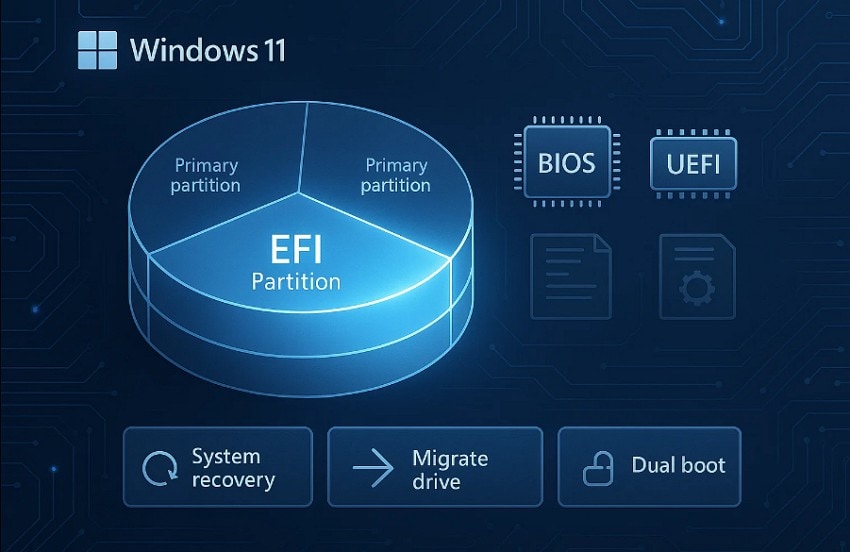
- UEFI Requirements: Windows 10 and 11 require an EFI partition to boot in UEFI mode. It stores essential boot files that help the system launch correctly each time.
- Corruption Recovery: If the EFI partition gets deleted or damaged, the system may fail. Recreating it restores missing boot data and prevents startup errors from recurring.
- Drive Migration: When moving Windows to a new SSD or HDD, EFI must exist. Creating it ensures the new drive boots properly using the GPT format.
- Dual Boot: Dual systems like Windows and Linux need separate EFI partitions for stability. Each OS uses its own boot loader, avoiding conflicts during updates or startup.
- Missing Partition: Some devices lack an EFI partition, or have an undersized one, after major Windows upgrades. Building a new, correctly sized EFI partition safely resolves installation and booting issues.
Part 3. How to Check If EFI Partition Exists in Windows 10/11
Before creating one, it is important to confirm whether the EFI partition already exists. Follow the steps below to check the EFI partition in Windows 10 or 11:
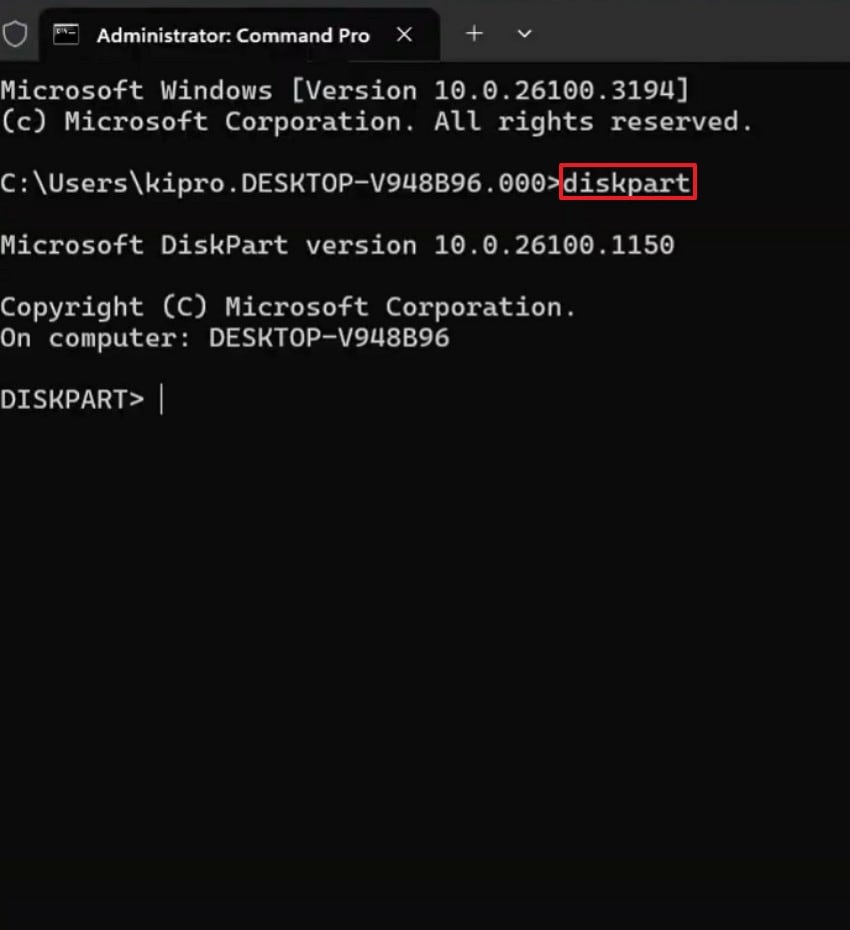
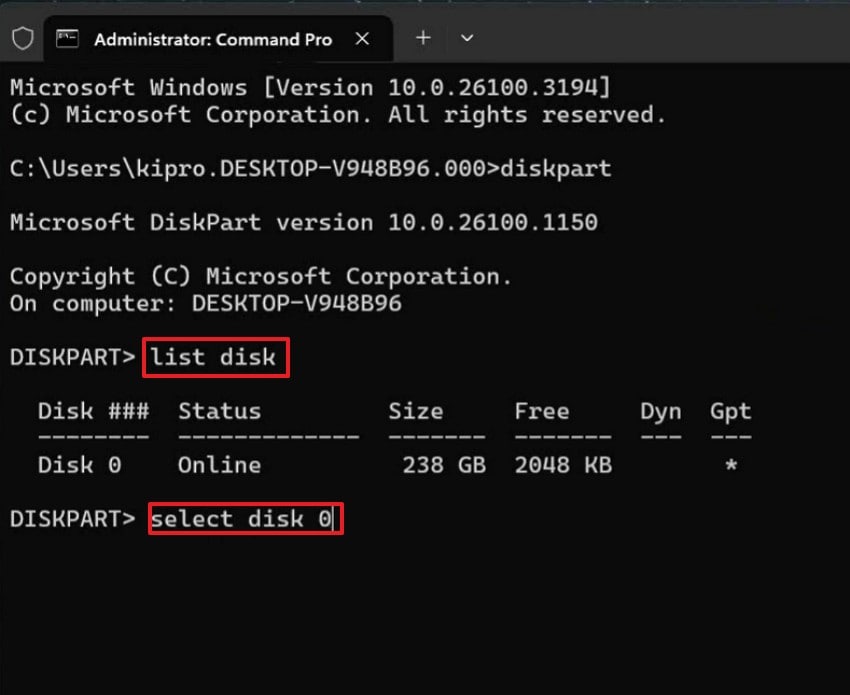
- First, open the "Command Prompt" and select "Run as Administrator." Then type "diskpart" and press "Enter" to launch the tool.
- Next, type "list disk", press "Enter", then type "select disk 0" to choose your main drive. Replace "0" with your actual system disk number if needed.
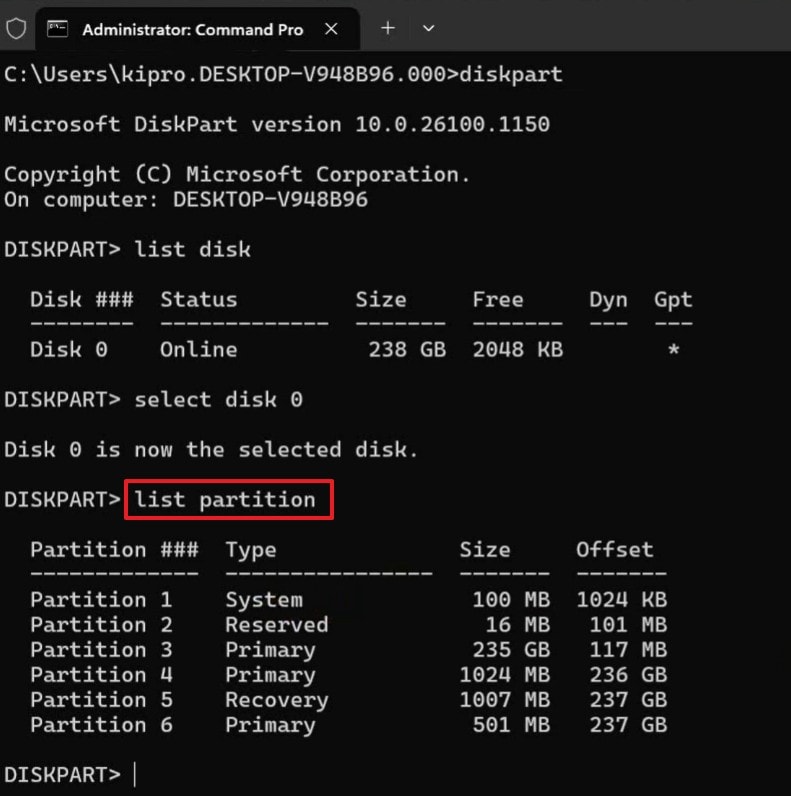
- Lastly, enter the prompt "list partition" to view all entries, look for a small FAT32 partition labelled System or EFI, which confirms its presence.
Part 4. Backup Before You Create EFI Partition Windows 10/11
Remember that, regardless of your experience, it is always advisable to back up your system before create efi partition windows 11. The EFI partition holds the essential information on how your system is booting, so its loss will result in no functioning system. A full backup will give you a tested backup that you can restore all your installation, system files, and personal data if something goes wrong.
How to Create a Backup For Securing Data
Adhere to the guide below for a backup before you create the EFI partition in Windows 10/11:
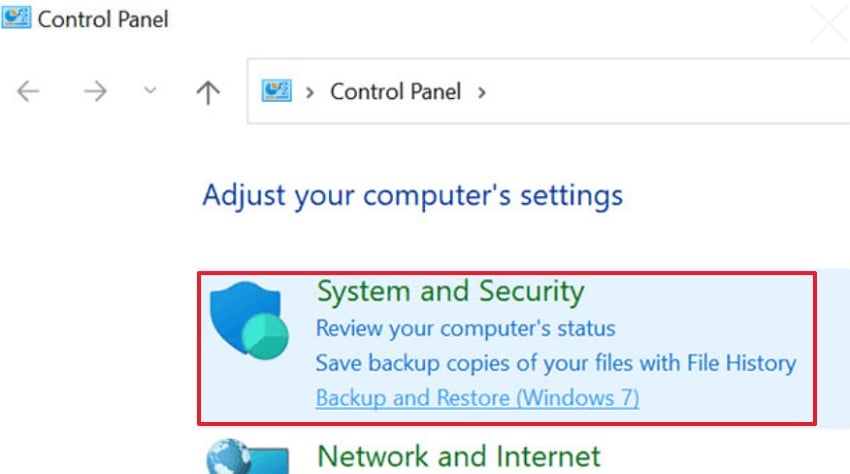
- First, access the "Control Panel > System and Security" to later select the "Backup and Restore (Windows 7)" option.
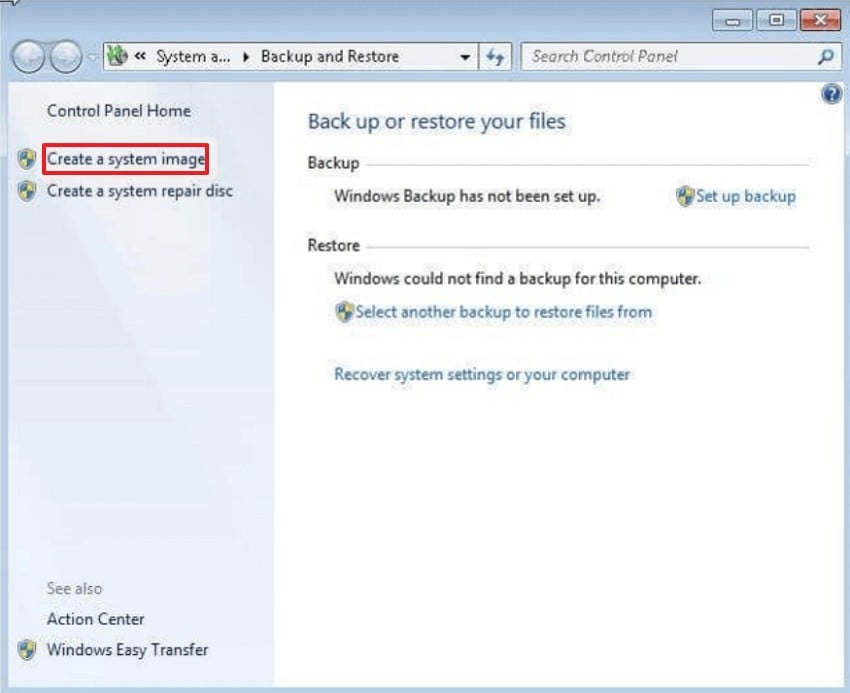
- Next, choose the "Create a System Image" option, then choose your preferred backup location, such as an external hard drive or another partition.
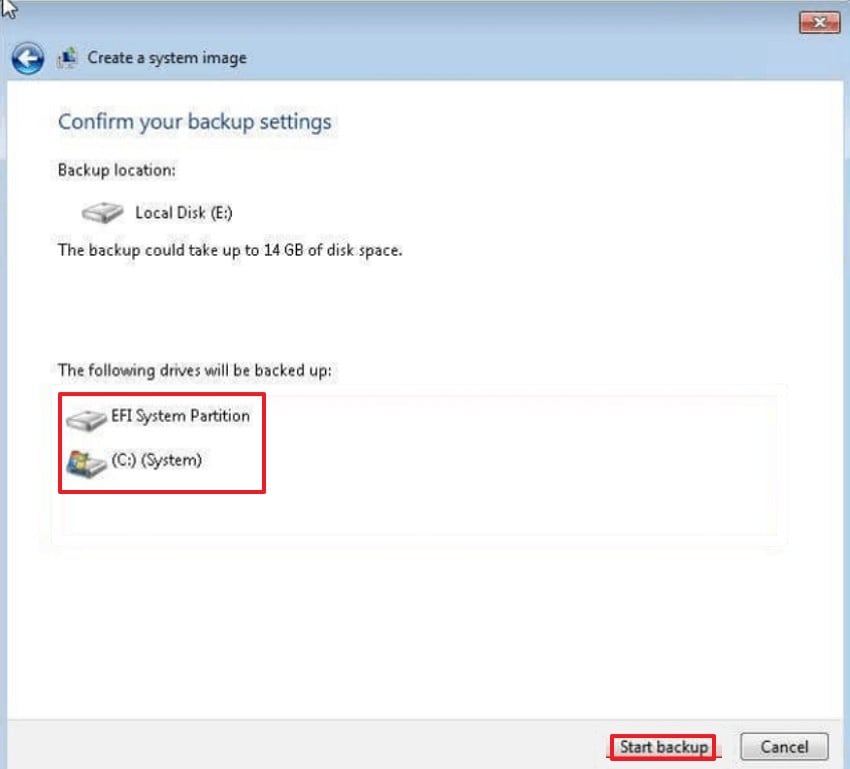
- Lastly, ensure both "EFI System Partition" and "C: (System)" are selected, then click "Start backup" to begin the process.
Part 5. How to Create EFI Partition Windows 10/11
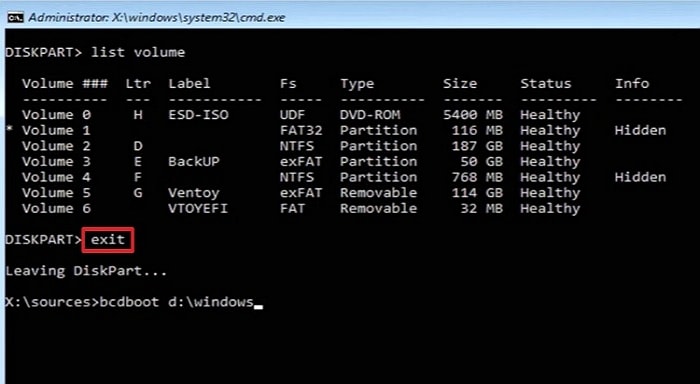
Diskpart via Command Prompt is the best method of create efi partition windows 10 or create efi partition windows 11. Use the step-by-step instructions below to safely create the EFI partition:
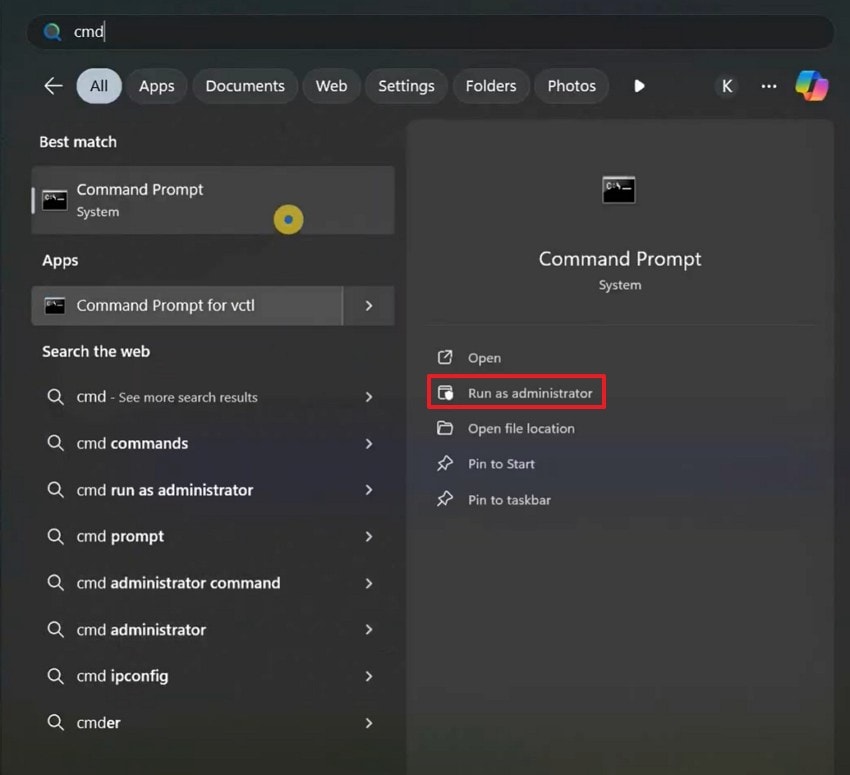
- Open "Command Prompt" and click on "Run as Administrator." Then type "diskpart" command and press "Enter" to open the utility.
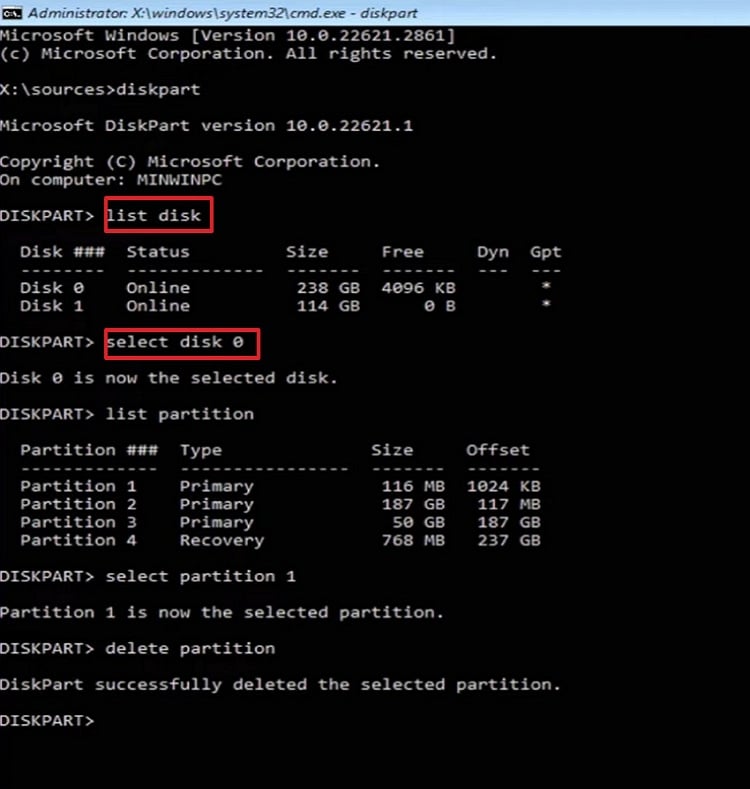
- Next, enter the prompt "list disk" and press "Enter" to view all drives. Later type "select disk 0" and replace "0" with your system disk number.
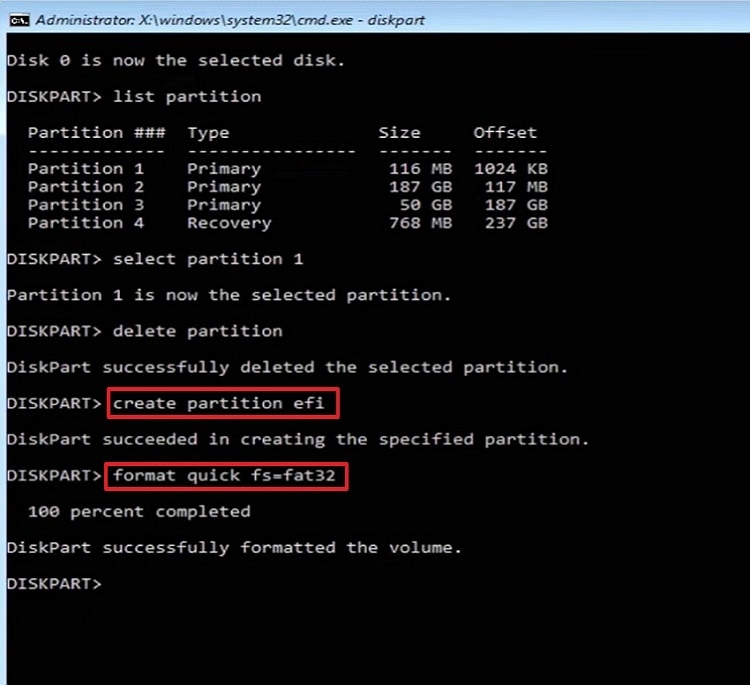
- After that, enter "create partition efi", then type "format quick fs=fat32" to format the new partition.
- Lastly, after confirming the EFI partition has been created and formatted, type "exit" and press "Enter".
Part 6. How to Delete EFI System Partition (ESP) in Windows
Before removing the efi system partition windows 10, ensure you have backed up your data and that it is not on your system drive. After that, follow the steps below carefully to delete it safely using Diskpart:
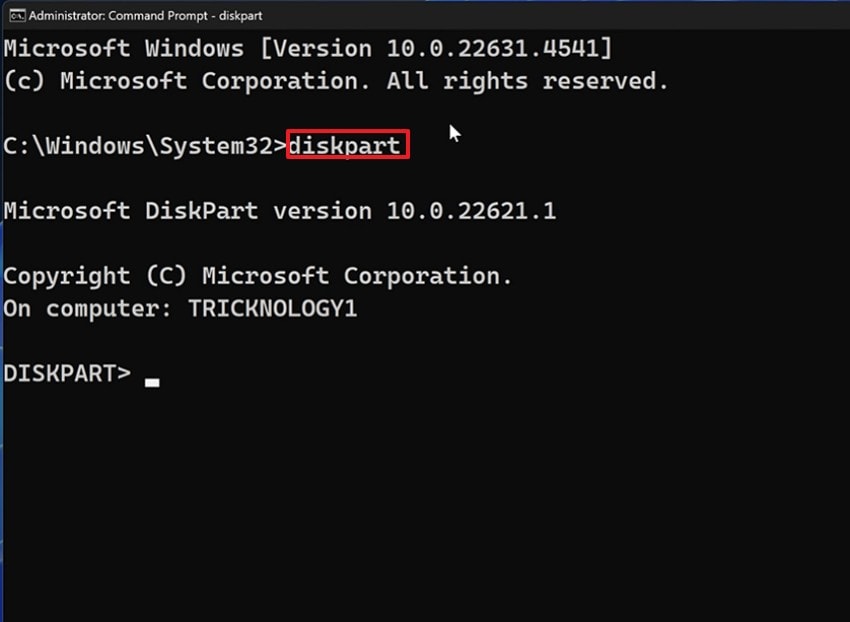
- First, select the "Command Prompt" and type "diskpart" and hit "Enter" to start the Diskpart tool.
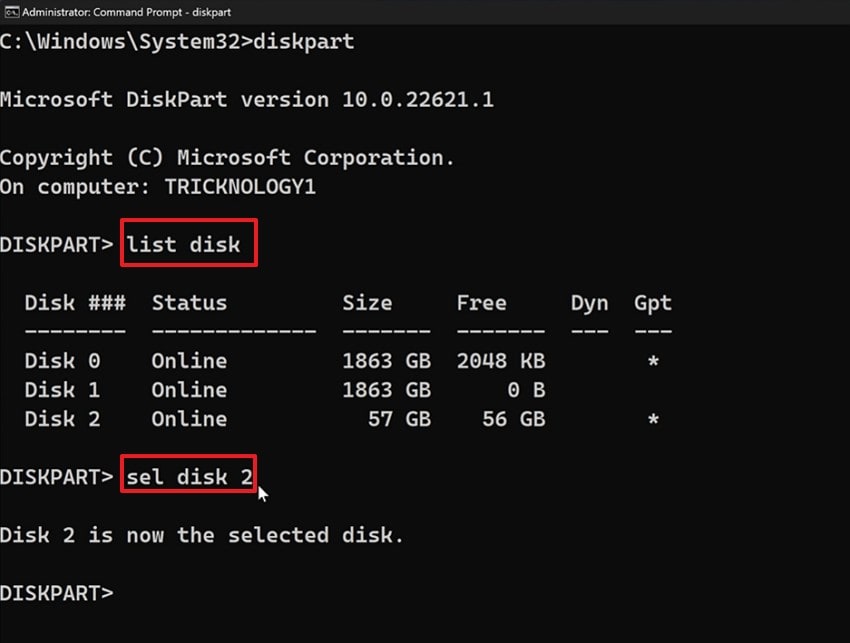
- Afterwards, type "list disk" to press "Enter" later, then enter "sel disk 2". After that, replace "2" with the disk number that holds the EFI partition.
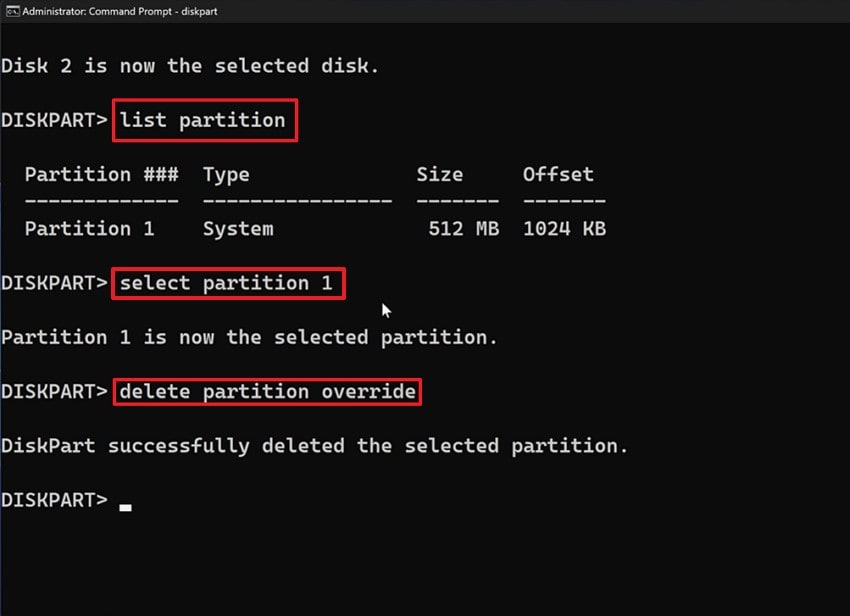
- Finally, type "list partition" to view partitions, then identify the EFI System Partition. Afterwards, enter the command "select partition x" and press "Enter," then type "delete partition override" and hit "Enter."
Is It Safe to Delete the EFI System Partition?
Removing the EFI partition is not safe when it is on your main system disk since Windows requires it in order to boot. There is no harm in removing it from an external or secondary drive, as long as it is not required to boot. A system backup should always be done prior to any change to avoid loss of data or start-up errors.
Pro Tip. Recover Accidentally Deleted Data from EFI System Partition
When you accidentally lose crucial boot files while trying to create efi partition in Windows 10 or 11, Recoverit offers a dependable recovery solution. It is concerned with rebuilding deleted, lost, or formatted partitions, and the EFI System Partition (ESP). Recoverit can locate lost files in the system by its intuitive design and deep-scan engine without altering the existing Windows data.
Moreover, this tool will combine thorough scanning, smart preview of files, and robust disk repair in a single convenient interface. It is also compatible with EFI-related file systems like FAT32 and NTFS hence nothing is lost. Recoverit helps users regain control, safety and serenity by getting their system back on track by recovering damaged drives and deleted partitions
Key Features
- Preview Before Recovery: This gives you access to preview files before recovery so that you recover the right information.
- Bootable Media Creation: Allows you to make a bootable USB memory so that you can retrieve data on systems that are not booting.
- Deep Disk Scan: Retrieves information on deleted EFI drives with precision so that lost boot files are recovered.
Guide to Recover Accidentally Deleted Data From EFI System Partition
Let’s walk through the steps below to restore your lost EFI files safely using Recoverit:
- Select the Location for Recovery
First, navigate to the "Hard Drives and Locations" option in the left sidebar to initiate the recovery process.

- Start the Scanning Process
After the scanning begins, all recoverable files will appear under the "Name of Lost Files" folder, under the "File Location" tab.

- Preview and Recover
Lastly, preview the files and select the "Recover" option to complete the recovery process.

Conclusion
In conclusion, it is important to learn how to create efi partition windows 10 to be able to fix boot problems and maintain your system stability. We explain the meaning and significance of the EFI partition, and clearly show how to rebuild it without damaging it in this article. If your EFI partition is damaged or lost, Recoverit can help recover the data on your system.
FAQ
-
1. What does the EFI partition do in Windows 10/11?
The EFI partition contains critical boot files that ensure Windows boots properly every time. Your system will fail to boot without it, as it does not know where to find startup data. -
2. How do I safely create an EFI partition in Windows 10 without losing data?
Generate a new partition for EFI correctly using Diskpart under Command Prompt. Every time when setting up the system, it is a good practice to back up system files so as not to make any errors or to lose data. -
3. What happens if I delete the EFI partition accidentally?
Formatting the EFI partition destroys important boot files, leaving your PC unable to boot. You will have to repartition or restore it with data recovery software. -
4. Can I recover data lost from a deleted EFI partition?
Yes, it is possible to retrieve the lost EFI partition data with the help of the deep scanning option of Recoverit. It recovers lost/ deleted system partitions and key files without risking your existing installation.


