

 TL;DR:
Wiping the cache partition on a Samsung device safely resolves slow performance, app crashes, and boot issues by deleting corrupted temporary system files without affecting your personal photos, contacts, or apps.
● The most reliable method across all Samsung models is Recovery Mode, accessed by completely turning off the phone and holding the Volume Up, Home, and Power buttons together until the logo appears.
● Users with newer models can alternatively use the Samsung Members app under "Device Care" for a simpler interface, while advanced users can execute ADB commands via a PC with USB debugging enabled if the phone screen is broken.
● Perform this wipe every 2 to 3 months or after major Android updates to prevent software conflicts, and only proceed to a Factory Reset—which will permanently erase all user data—if cache clearing fails to fix severe system problems.
Ask AI for a summary
 ChatGPT
 Perplexity
 Gemini
 Claude
 Grok
Grok
Is your Samsung phone running slow? Does it freeze or crash often? You might need to wipe cache partition on Samsung. This simple process can fix many performance issues. It clears temporary files that slow down your device.
Many Samsung users don't know about cache partition wiping. It's a safe way to speed up your phone. You won't lose photos, contacts, or apps. This guide shows you exactly how to wipe cache partition of a Samsung phone step by step.
Table of Contents:
Part 1: What Is the Cache Partition and Why Wipe It?
The cache partition stores temporary files on your Samsung phone. Apps save data here to load faster. Over time, these files pile up. They can become corrupted or outdated. This causes your phone to slow down.
Understanding what does wipe cache partition mean is important. It's different from clearing app cache. Wiping cache partition removes system-level temporary files. It doesn't delete your personal data. Your photos, messages, and apps stay safe.
Why should you wipe cache partition on Samsung?
- Fixes app crashes: Corrupted cache files make apps stop working. Wiping them solves this problem.
- Speeds up your phone: Old cache files slow down your device. Removing them improves speed.
- Solves boot problems: Your phone might not start properly. Cache issues often cause this.
- Clears update errors: After Android updates, cache files can conflict. Wiping them prevents errors.
- Frees up storage: Cache takes up valuable space. Clearing it gives you more room.
- Improves battery life: A clean cache means apps run better. This uses less battery power.
Part 2: How to Wipe Cache Partition on Samsung?
Learning how to wipe cache partition helps maintain your Samsung device. There are several methods to do this. Each one works for different situations. Choose the method that fits your needs best.
Method 1: Use Recovery Mode
Recovery mode is the most common way to clear cache partition of Samsung phone. This built-in feature works on all Samsung models. It's completely safe and doesn't require any apps.
Recovery mode gives you direct access to system functions. You can wipe cache partition without booting into Android. This method works even when your phone has serious problems. It's the most reliable option available.
How this method helps:
- Works on all Samsung Galaxy phones
- No apps or tools needed
- Safe for your personal data
- Fixes most performance issues
Steps to wipe cache partition using Recovery Mode:
Step 1. Turn off your Samsung phone completely. Press and hold Volume Up + Home + Power buttons together. Hold them until the Samsung logo appears. Let go of all the buttons once the Android recovery screen appears.

Step 2. Press the Volume Down button to navigate to "Wipe cache partition," then use the Power button to confirm your selection. Once the process completes, choose "Reboot system now" to restart the device.
Method 2: Use Samsung Members App (Limited Models)
Some newer Samsung phones include the Samsung Members app. This app offers device care features. You can use it to clear cache on certain models. It's easier than recovery mode for beginners.
Samsung Members provides a user-friendly interface. You don't need to press button combinations. The app guides you through each step. However, this feature isn't available on all Samsung devices.
How this method helps:
- Simple interface for beginners
- No button combinations needed
- Built into newer Samsung phones
- Includes other device care tools
Steps to clear the cache on a Samsung phone using the Members App:
Step 1. Open the Samsung Members app. Tap "Get Help" at the bottom. Select "Device Care" from the menu.
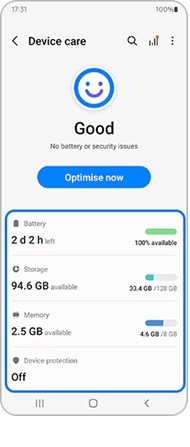
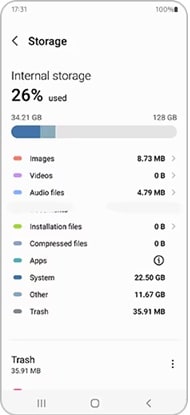
Step 2. Tap "Storage" and look for cache options. Follow the on-screen instructions to clear the cache. Restart your phone after completion.
Method 3: Use ADB Commands (Advanced Users)
ADB (Android Debug Bridge) offers advanced control over your Samsung device. This method requires a computer and a USB cable. It's perfect for tech-savvy users. You can wipe cache partition remotely.
ADB commands give you precise control. You can automate the cache wiping process. This method works even when your screen is broken. However, you need to enable USB debugging first.
How this method helps:
- Works with broken screens
- Allows remote device management
- Perfect for multiple devices
- Gives detailed error messages
Steps to wipe the cache partition using ADB:
Step 1. Enable USB debugging in Developer Options. Plug your Samsung phone into the computer using a USB cable. Open the command prompt and type "adb devices" to confirm the connection.

Step 2. Type "adb reboot recovery" and press Enter. Once in recovery mode, use volume buttons to select "Wipe cache partition." Confirm and reboot your device.
Method 4: Perform a Soft Reset Before Cache Wipe
A soft reset clears RAM and closes all running apps. It prepares your phone for cache wiping. This extra step makes the process more effective. Your phone starts fresh before the main cleaning.
Soft resets close apps that might interfere with cache wiping. They don't delete any data. Think of it as restarting your phone properly. It ensures the cache wipe works smoothly.
How this method helps:
- Prepares phone for cache wiping
- Closes interfering background apps
- Makes cache wipe more effective
- Takes only a few seconds
Steps to perform a soft reset before cache wipe:
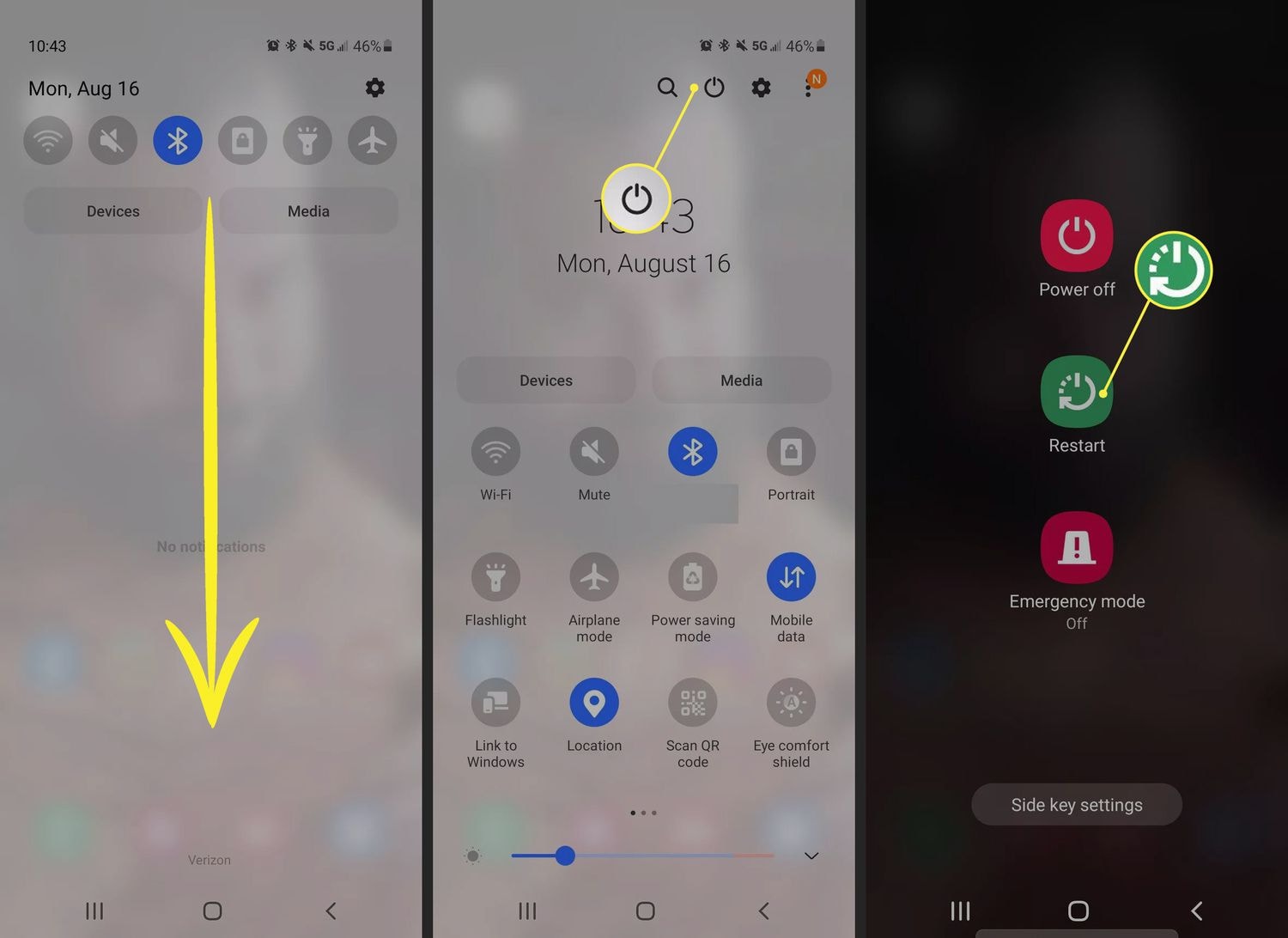
Step 1. Press and hold the Power button on your Samsung phone. Tap "Restart" from the menu. Wait for your phone to reboot completely.
Step 2. After the restart, immediately proceed to wipe the cache partition. Use the recovery mode method for best results.
Method 5: Check for Software Updates After Cache Wipe
Software updates often fix cache-related problems. Checking for updates after wiping the cache ensures optimal performance. New updates might include bug fixes. They work better with a clean cache partition.
Updates and cache wiping complement each other. A clean cache helps updates install properly. Updates provide new optimizations. Together, they keep your Samsung running smoothly.
How this method helps:
- Fixes bugs causing cache issues
- Improves system stability
- Optimizes performance further
- Prevents future cache problems
Steps to check for updates after cache wipe:
Step 1. Open Settings on your Samsung phone. Scroll to the "Software update" option. Tap "Download and install" to check for updates.
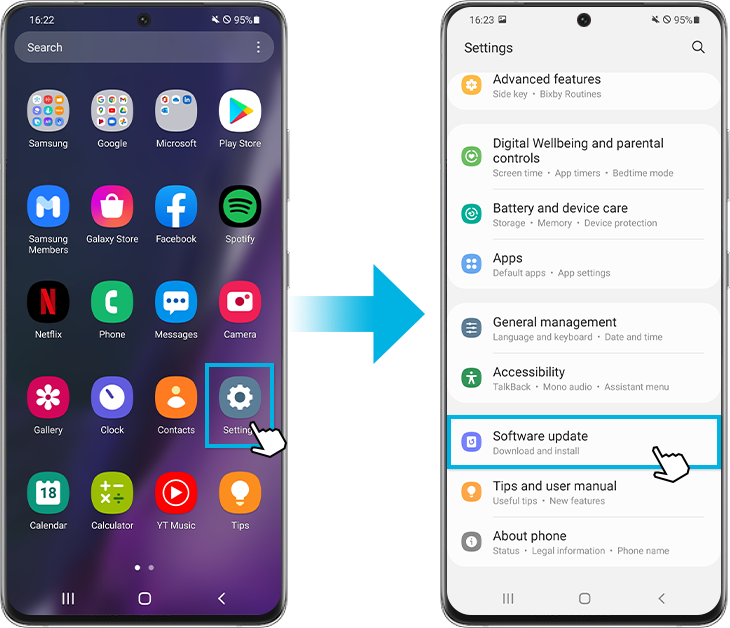
Step 2. If updates are available, download and install them. Restart your phone after installation completes. Your device is now fully optimized.
Method 6: Factory Reset (Only If Cache Wipe Fails)
Factory reset is the last resort option. Use it only when wiping cache doesn't solve your problems. This erases all data from your phone. It returns your Samsung to its original settings.
A factory reset solves deep system issues. It removes everything, including corrupted system files. Back up your data before trying this method. You'll lose photos, apps, and settings otherwise.
How this method helps:
- Solves severe system problems
- Removes all corrupted files
- Gives your phone a fresh start
- Works when nothing else does
Steps to perform a factory reset:
Step 1. Back up all important data to Samsung Cloud or a computer. Go to Settings > General management > Reset. Select "Factory data reset."
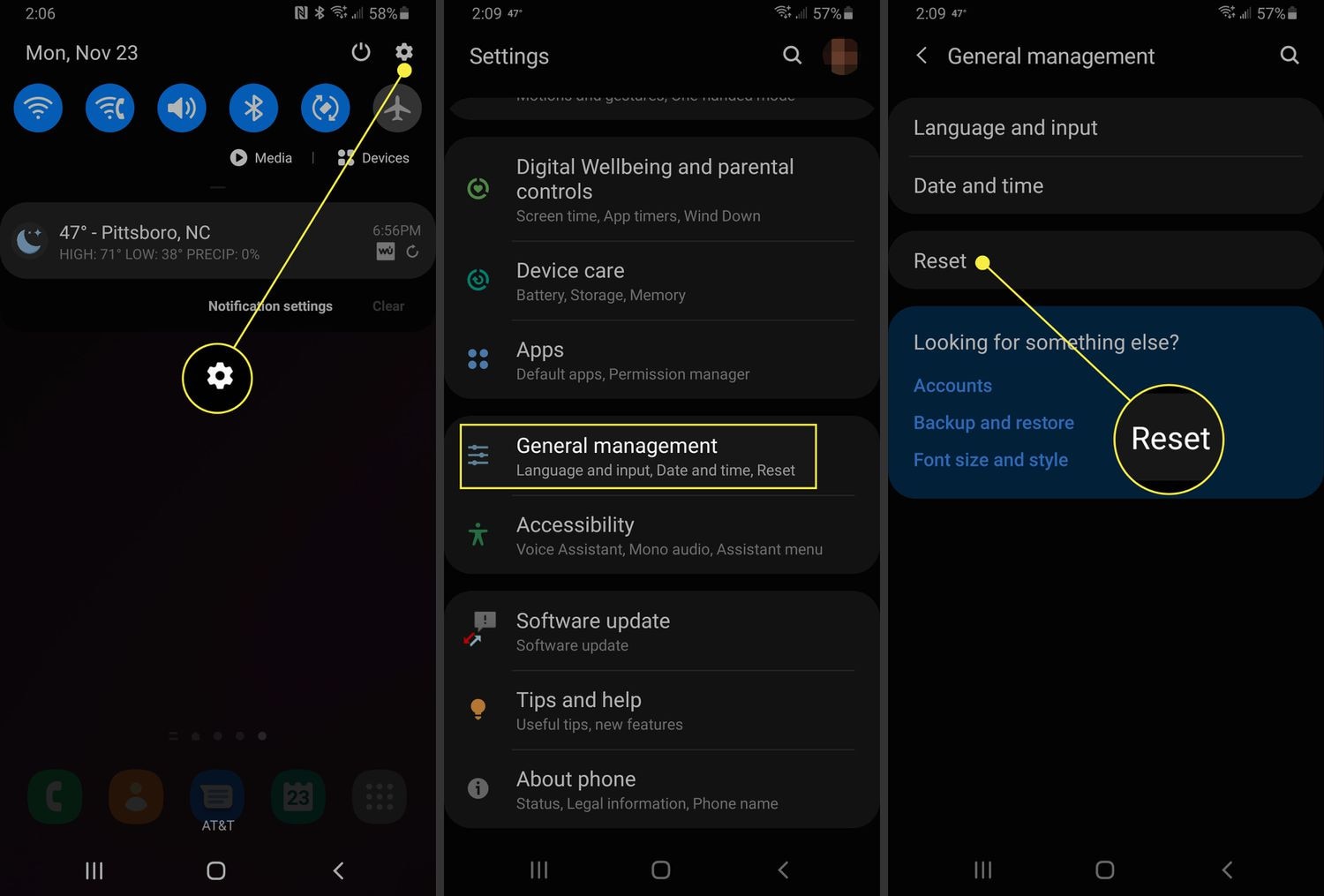
Step 2. Read the warning and tap "Reset." Enter your PIN or password. Tap "Delete all" to confirm. Wait for the process to finish.
Part 4: Pro Tips for Maintaining Samsung Device Performance
Knowing how to clear cache partition of Samsung phone is just the start. Regular maintenance keeps your device running smoothly. These tips help prevent problems before they start. Your Samsung will perform better for longer.
- Clear app cache regularly: Go to Settings > Apps and clear cache for individual apps monthly. This prevents buildup without wiping the entire partition.
- Restart your phone weekly: A simple restart clears RAM and closes stuck apps. It's like a mini-refresh for your device.
- Uninstall unused apps: Apps you don't use take up space and resources. Remove them to free up storage and improve speed.
- Update apps and system software: Updates include performance improvements and bug fixes. Always install them when available.
- Use Device Care feature: Samsung's built-in Device Care optimizes battery, storage, and memory. Run it weekly for best results.
- Avoid filling storage completely: Keep at least 10% of storage free. Full storage slows down your phone significantly.
- Disable unnecessary animations: Go to Developer Options and reduce animation scales. This makes your phone feel faster.
- Monitor battery-draining apps: Check which apps use the most battery. Restrict background activity for apps you rarely use.
Conclusion
Learning how to wipe cache partition is essential for Samsung users. This simple process fixes many common problems. It speeds up your phone and improves stability. Best of all, will wiping cache delete the photos? No, your personal data stays completely safe.
How often should I wipe the cache partition? Do it every few months or when problems appear. Regular cache wiping keeps your Samsung running like new. Combine it with the pro tips above for best results. Your device will thank you with better performance and longer life.
Remember, if you ever lose data, tools like Recoverit can help you recover it quickly.
Try Recoverit to Recover Lost Data
 Security Verified. Over 7,302,189 people have downloaded it.
FAQs:
-
What does wipe cache partition mean?
Wipe cache partition means clearing temporary system files from your Samsung phone. These files help apps load faster but can become corrupted over time. The process removes only temporary data, not your personal files. Your photos, contacts, messages, and apps remain untouched. -
How often should I wipe cache partition?
You should wipe cache partition every 2-3 months for optimal performance. If your phone runs slowly or crashes frequently, do it immediately. After major Android updates, wiping cache prevents conflicts. Some users do it monthly if they install many apps. There's no harm in doing it more often. -
Will wiping the cache delete the photos?
No, wiping the cache partition will not delete your photos or any personal data. The cache partition only stores temporary system files. Your photos, videos, contacts, messages, and apps are stored in different areas. They remain completely safe during the process. However, always back up important data as a safety precaution.


