

 TL;DR:
The most effective way to recover lost Android photos is to first check Google Photos Trash or cloud backups, as third-party no-root recovery apps are heavily restricted by the operating system and rarely guarantee full-resolution recovery from internal storage.
● Free no-root apps like DiskDigger are suitable for quick internal storage scans, but due to Android 11+ storage restrictions, they typically only recover lower-quality cached thumbnails rather than original photos.
● If the missing photos were stored on a removable SD card, immediately remove the card from the phone and scan it on a computer using a desktop recovery tool like Recoverit, which is highly recommended for corrupted or formatted external memory.
● Photo recovery directly from internal storage after a factory reset is usually unlikely without a prior cloud backup (such as Google One or Samsung Cloud) due to modern Android device encryption.
Ask AI for a summary
 ChatGPT
 Perplexity
 Gemini
 Claude
 Grok
Grok
Losing important Android photos can feel awful, especially when they are family pictures, work images, travel memories, or screenshots you still need. The good news is that some deleted photos may still be recoverable. The best recovery method, however, depends on where the photos were stored, how they were deleted, and whether the phone or SD card has been used since deletion.
Quick answer: Before installing any Android photo recovery app, check Google Photos Trash, your phone’s Gallery Trash, and cloud backups first. If the photos were recently deleted from internal storage, a no-root Android recovery app may help, but results can be limited. If the photos were stored on a removable Android SD card, remove the card and scan it on a computer with a desktop recovery tool like Recoverit instead of continuing to use the phone.
Google Photos keeps backed-up deleted items in Trash for 60 days and unbacked-up items deleted from Android 11+ devices for 30 days, according to Google’s Android help page. Android 11+ storage restrictions also limit what apps can access, so no-root photo recovery apps should not be treated as guaranteed full-resolution recovery tools.
In this article
Quick Picks: Best Android Photo Recovery Method by Situation
| Situation | Best Option | Free? | Root Needed? | Key Limit |
| Photos were recently deleted from Google Photos | Google Photos Trash | Yes | No | Works only before Trash expires or is emptied |
| Photos are still in phone Gallery Trash / Recently Deleted | Built-in Gallery restore | Yes | No | Retention period depends on phone brand |
| Need a free no-root Android recovery app | DiskDigger Photo Recovery | Basic scan available | No for basic scan | No-root scans may recover thumbnails or cached images only |
| Want to prevent future accidental deletion | Dumpster | Free tier available | No | Works best after it has already been installed |
| Need selective photo recovery with preview | Dr.Fone: Photo & Data Recovery | Trial/limited options | Usually no | Deep recovery may require desktop tools or paid features |
| Need to recover photos, videos, and documents | File Recovery - Photo Recovery | Free/IAP | No | Ads, scan quality, and export limits may vary |
| Photos were stored on an Android SD card | Recoverit for Windows/Mac | Free scan/preview | No phone root | Requires a computer and card reader |
| SD card is formatted, corrupted, or unreadable | Recoverit SD Card Recovery | Free scan/preview | No phone root | Software cannot fix severe physical card damage |
| Phone was factory reset without backup | Check Google Photos, Google One, or other cloud backups | Usually free | No | Internal storage recovery is usually unlikely |
How We Chose These Android Photo Recovery Options
We reviewed these Android photo recovery options based on the situations most users face after losing photos:
- Whether the app can work without root.
- Whether it supports preview before recovery.
- Whether it is useful for internal storage, SD cards, or both.
- Whether the free version can actually restore files or only scan them.
- Whether it is better for photos only or for mixed files such as videos, audio, PDFs, and documents.
- Whether the tool is more suitable for simple recent deletion or complex SD card recovery.
- Whether the recovery claims match known Android storage limitations.
This is a practical comparison guide, not a lab benchmark. App names, pricing, ads, free limits, and Google Play availability can change, so check the current app listing before installing any recovery app.
Part 1. Before Installing Any Recovery App, Check These First
Installing new apps or saving new files after deleting photos can reduce your recovery chances. Before trying any best image recovery app for Android, go through these checks.
1. Check Google Photos Trash
Open Google Photos and go to:
Google Photos > Collections > Trash
If the deleted photo or video is still there, select it and tap Restore. Google says backed-up photos and videos stay in Trash for 60 days, while unbacked-up items deleted from Android 11 and later devices stay for 30 days if Trash has not been emptied.
2. Check Your Phone Gallery Trash or Recently Deleted Folder
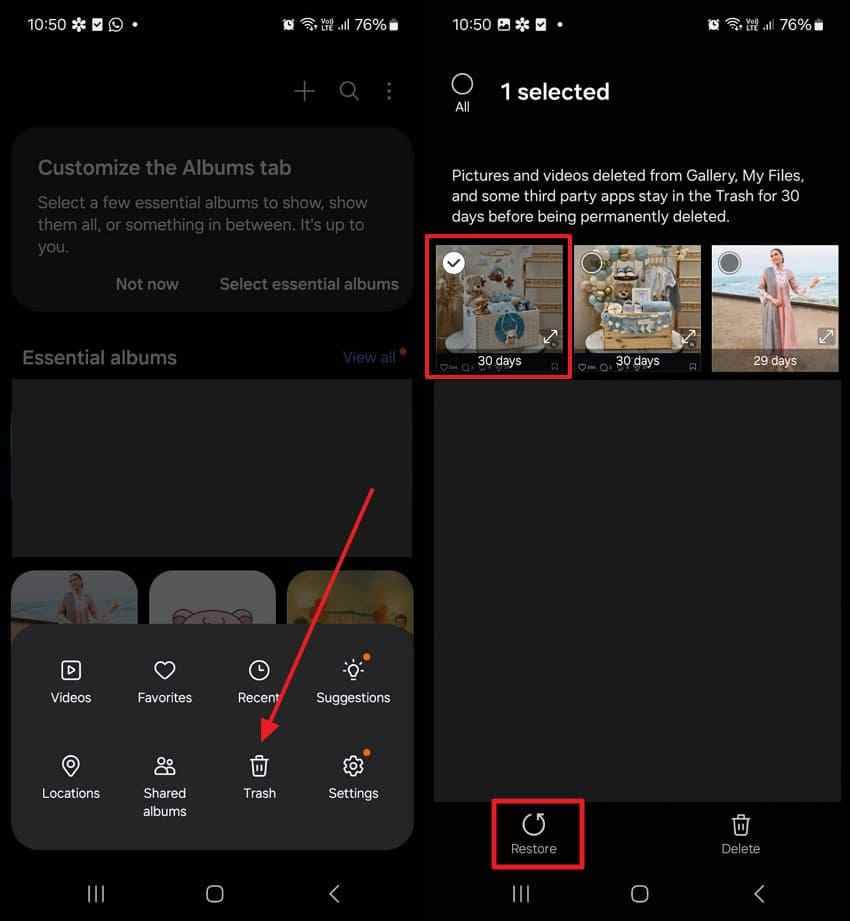
Many Android brands, such as Samsung, Xiaomi, OPPO, Vivo, OnePlus, and Motorola, include a Trash, Recycle Bin, or Recently Deleted folder inside the Gallery app.
Try this path:
Gallery > Albums > Trash / Recycle Bin / Recently Deleted > Select photo > Restore
The exact folder name and retention period vary by device brand.
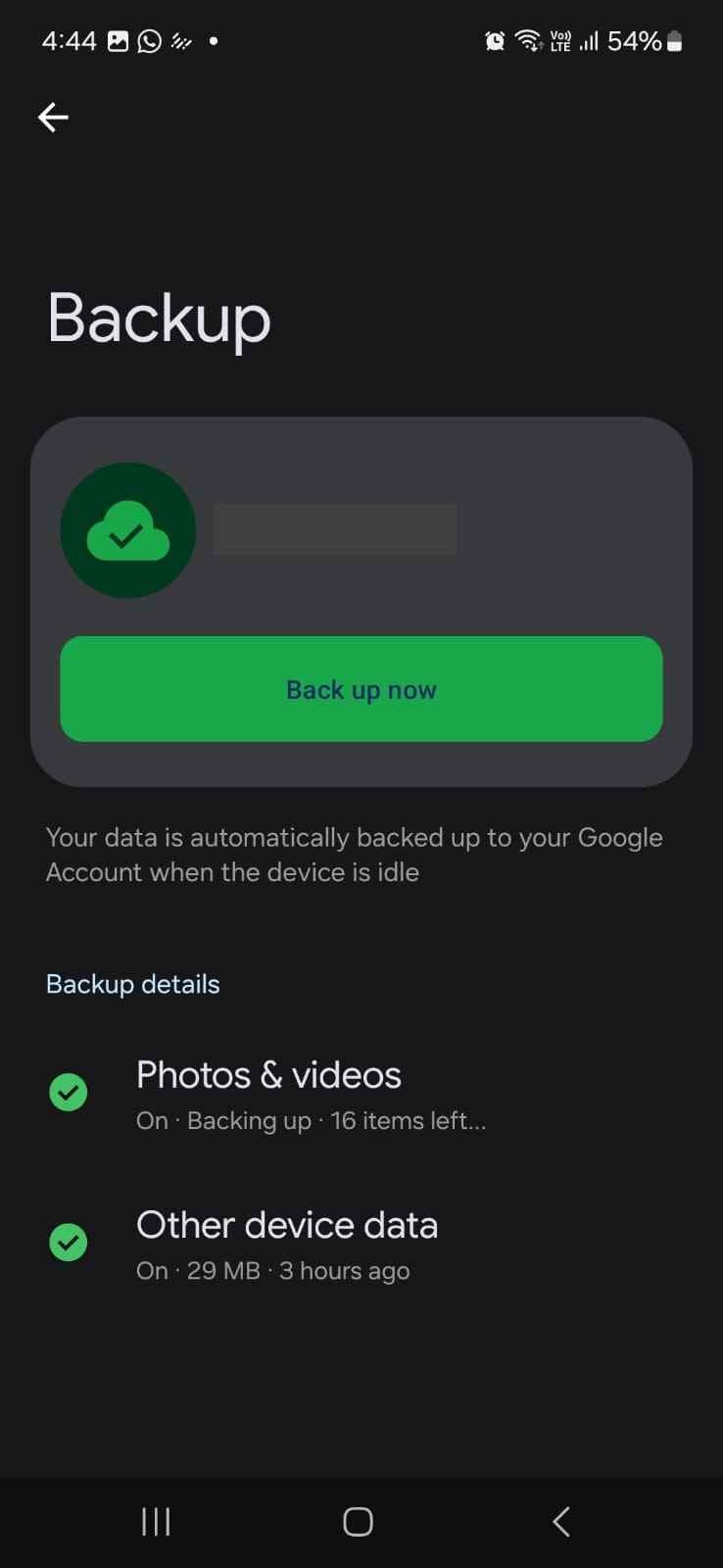
3. Check Cloud Backups
If backup was enabled, your photos may still be available in:
- Google Photos
- Google One backup
- Samsung Cloud
- OneDrive
- Dropbox
- Amazon Photos
- Your phone brand’s cloud service
Make sure you are signed in with the same Google or cloud account that was used before the photos disappeared.
4. Check WhatsApp, Instagram, Telegram, or App Folders
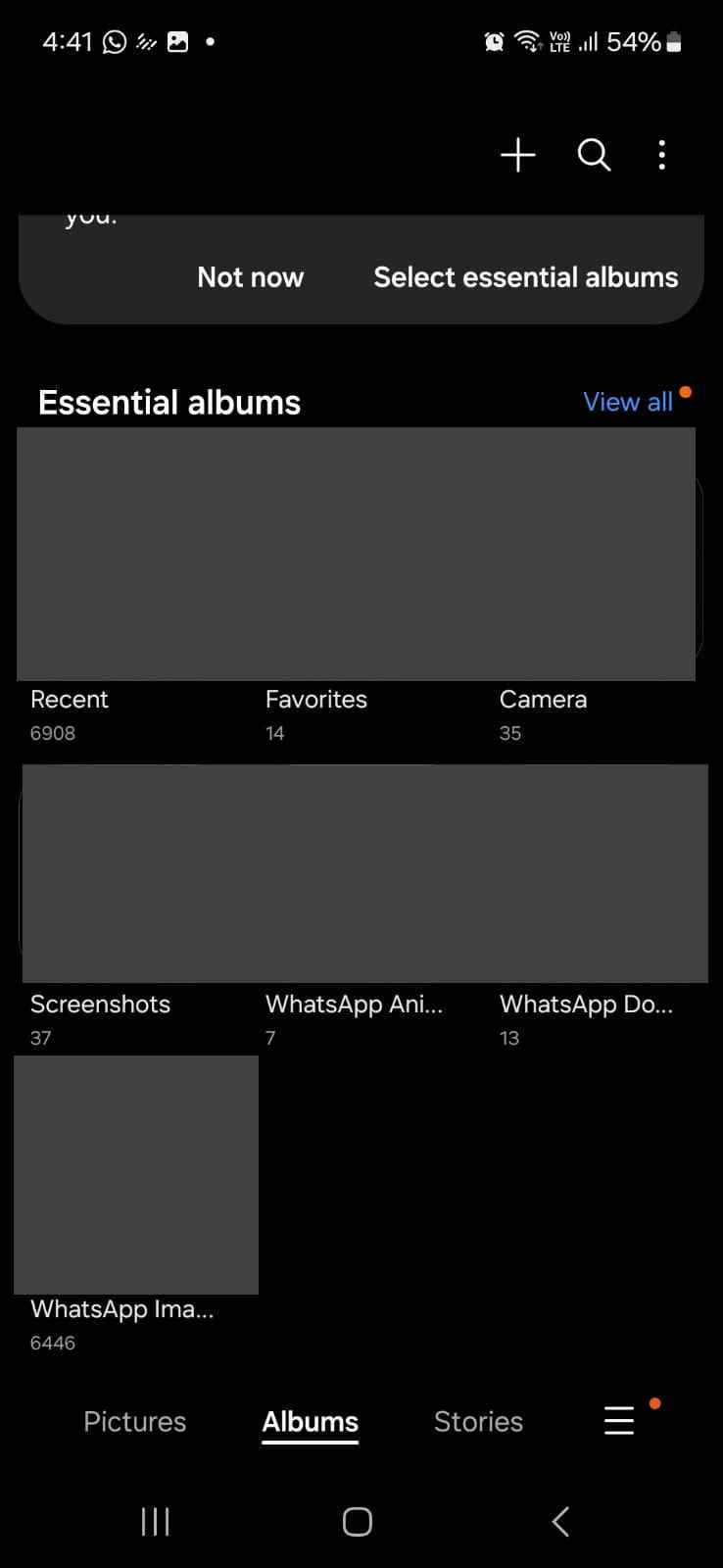
Some images may not be stored in your main Gallery. They may still be inside the original app folder.
Check:
- WhatsApp Images
- WhatsApp Sent
- Telegram Images
- Instagram downloads
- Messenger media folders
- Downloads folder
- Screenshots folder
You can also open the Files app and search for image file types such as JPG, JPEG, PNG, HEIC, or WEBP.
5. If Photos Were on an SD Card, Stop Using the Card
If the missing pictures were stored on a removable Android SD card, stop using the card immediately. Do not take new photos, do not format the card, and do not save recovered files back to the same card. Remove it from the phone and connect it to a computer with a card reader for a safer recovery workflow.
Part 2. Why Do Photos Get Deleted or Go Missing on Android?
Photos can disappear from Android for several reasons. Understanding the cause helps you choose the right recovery method.
1. Accidental Deletion: You may delete photos by mistake in Gallery, Files, or Google Photos. In many cases, they first go to Trash or Recently Deleted.
2. Trash or Recently Deleted Expired: If deleted photos stay in Trash too long, the app may permanently remove them after the retention period.
3. Backup Was Turned Off: Some users delete local photos because they assume everything is already backed up. If Google Photos backup was paused, full, or disabled, the images may never have been uploaded.
4. Factory Reset or Phone Change: A factory reset can erase photos stored in internal memory. On modern Android devices, internal storage is also protected by encryption, which is good for privacy but makes post-reset recovery far more difficult without a backup. Android’s official documentation explains that Android uses device encryption methods to protect user data.
5. SD Card Corruption: A corrupted SD card may show used space but hide photos from Gallery. In some cases, the phone may ask you to format the card. Do not format it before recovery.
6. Cleaner Apps Deleted Media Folders: Some storage cleaner or duplicate cleaner apps may remove cached images, screenshots, downloads, or media folders if users approve a cleanup too quickly.
7. App Images Were Not Saved to Gallery: Photos received through WhatsApp, Instagram, or other apps may remain inside the app instead of being saved to the phone Gallery.
8. System Update or Gallery Index Error: After an Android update, some albums may temporarily disappear because Gallery is reindexing media files. Restarting the phone or checking the Files app may help confirm whether the photos still exist.
Part 3. Android Photo Recovery Reality Check: What Apps Can and Cannot Do
Many users search for the best photo recovery app for Android free because they want a fast fix. That is understandable, but modern Android recovery has real limits.
- No-Root Recovery Has Limits: Most Android phones are not rooted. Without root access, recovery apps usually cannot perform a true low-level scan of internal storage. They may find cached images, thumbnails, or files that are still accessible through Android media storage.
- Android 11+ Storage Restrictions Matter: Android 11 and later enforce stronger storage access controls. Android documentation explains that Android 11 introduced storage changes and scoped storage improvements to better protect app and user data on external storage.
- Full-Resolution Recovery Is Not Guaranteed: Some no-root apps may recover only thumbnails or cached versions of lost photos. These can look like the original photo in preview but may be much smaller or lower quality.
- Internal Storage and SD Card Recovery Are Different: Internal storage recovery is harder because Android permissions, encryption, and overwriting can block deep scanning. A removable SD card is different: you can remove it from the phone, connect it to a computer, and scan it as a storage device. That is why desktop recovery software is usually a better option for Android SD card photo recovery.
- Factory Reset Recovery Is Usually Unlikely Without Backup: If the phone was factory reset and there was no Google Photos, Google One, Samsung Cloud, or other backup, photo recovery from modern Android internal storage is usually not realistic. Check cloud backups first.
Part 4. Best Free Image Recovery Apps for Android
The following apps can help in different Android photo loss situations. Free limits, ads, and recovery results vary, so treat them as first-step tools rather than guaranteed recovery solutions.
1. Data & Photo Recovery
Best for: Quick scans for recently deleted photos, videos, or documents
Works without root: Usually yes
Free limit: Often free scan only; restore may require payment
Best storage type: Internal storage and SD card, depending on device access
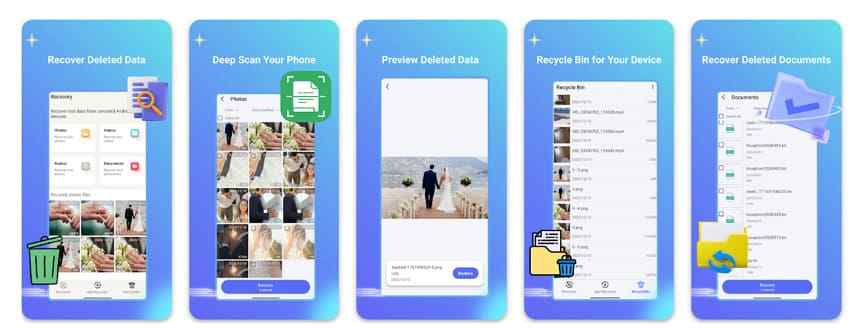
Data & Photo Recovery is designed to scan Android storage and list deleted media files that may still be recoverable. It is useful when you want a simple scan interface and do not know whether your photos are still available.
Pros
- Can scan for deleted photos, videos, and documents.
- Simple interface for users who need a quick first check.
- May support internal storage and SD card scanning.
Cons
- The recovered file list may include thumbnails, duplicates, or files that are not truly recoverable.
- Some versions may require payment to preview, export, or restore files.
- Deep recovery from internal storage is limited without root access.
Use it when: Photos were deleted recently and you want to check whether anything is still visible.
Avoid relying on it when: The phone was factory reset, heavily used after deletion, or the SD card is corrupted.
2. Photo Recovery: Video Recovery
Best for: Simple no-root media recovery
Works without root: Usually yes
Free limit: Free to download; ads or in-app purchases may apply
Best storage type: Internal storage and card storage, depending on permissions
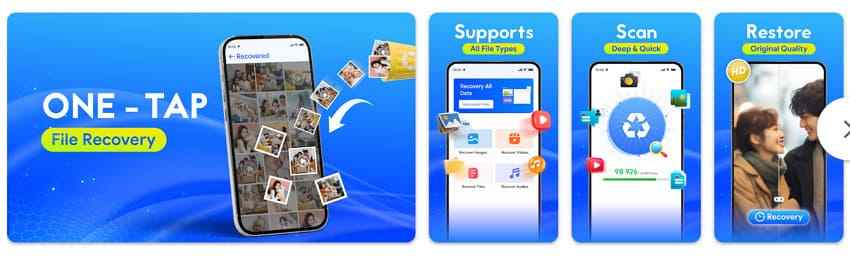
Photo Recovery: Video Recovery groups found items by file type, such as images, videos, and audio. It is a convenient choice for users who want to preview media before restoring.
Pros
- Can preview found photos before recovery.
- Supports multiple media types.
- Useful for quick, no-root scans.
Cons
- Cannot recover photos that have already been overwritten.
- Older deletions and SD card corruption may require stronger desktop recovery.
- Scan results may include cached or low-quality images.
Use it when: You recently deleted photos and want a quick no-root recovery attempt.
Avoid relying on it when: The original full-resolution photo is required and only thumbnails appear in the scan.
3. Dr.Fone: Photo & Data Recovery
Best for: Selective recovery with preview
Works without root: Usually yes for supported recovery modes
Free limit: Trial or limited functions; full recovery may require payment
Best storage type: Internal storage and SD card, depending on recovery mode
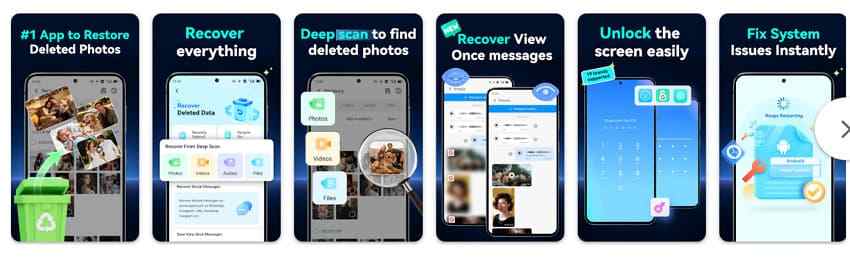
Dr.Fone: Photo & Data Recovery is a more structured recovery option that lets users choose data types, scan for recoverable content, preview files, and recover selected results.
Pros
- Lets users preview recoverable photos before saving them.
- Supports selective recovery instead of restoring everything.
- Useful for users who want a guided recovery interface.
Cons
- Deeply deleted internal storage files may not be recoverable.
- Scans can take longer when many files are present.
- Some recovery functions may require paid plans or desktop software.
Use it when: You want a guided app experience with preview and selective recovery.
Avoid relying on it when: The phone was reset or the files were overwritten.
4. DiskDigger Photo Recovery
Best for: Free no-root first scan
Works without root: Yes for Basic scan; root needed for Full scan
Free limit: Basic photo recovery available; advanced features may vary
Best storage type: Internal storage, cache, thumbnails, and storage areas accessible to the app
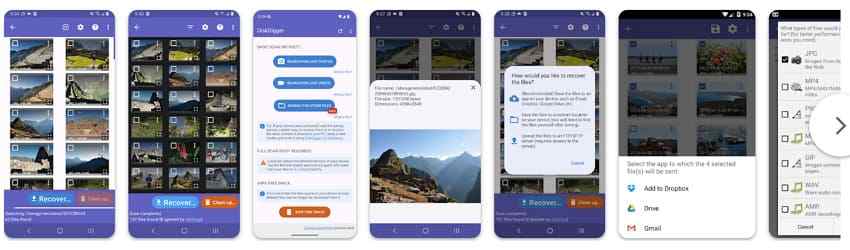
DiskDigger is one of the most commonly mentioned Android photo recovery apps. It can scan for lost photos and help restore recoverable images. Its official Android documentation says Basic scan works without root, while Full scan is available only on rooted devices.
Pros
- Good first try for a free photo recovery app for Android.
- Basic scan does not require root.
- Allows preview before saving.
- Can filter scan results to find useful images faster.
Cons
- No-root scans may recover thumbnails or cached versions instead of original photos.
- Full scan requires root, which most users do not have.
- Rooting can create security, warranty, and data-loss risks.
Use it when: You need a free no-root first attempt for recently deleted photos.
Avoid relying on it when: You need guaranteed full-resolution recovery from internal storage.
5. Dumpster: Photo/Video Recovery
Best for: Preventing future accidental photo loss
Works without root: Yes
Free limit: Free tier available; premium features may apply
Best storage type: Files deleted after Dumpster has been installed
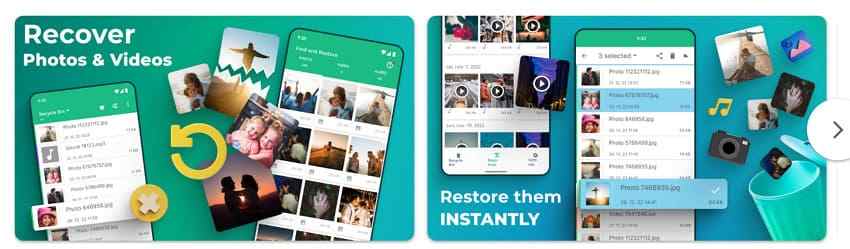
Dumpster works more like a Recycle Bin for Android. It is useful for users who want an extra safety layer for future deletions. If Dumpster was already installed before the photo was deleted, recovery can be much easier.
Pros
- Helps recover deleted photos without root.
- Works like a recycle bin for supported files.
- Useful for preventing future photo loss.
Cons
- It may not recover photos deleted before the app was installed.
- Deep scan and cloud features may require a premium plan.
- Not ideal for formatted, corrupted, or unreadable SD cards.
Use it when: You want a recovery safety net for future accidental deletions.
Avoid relying on it when: You lost photos months ago and Dumpster was not installed at the time.
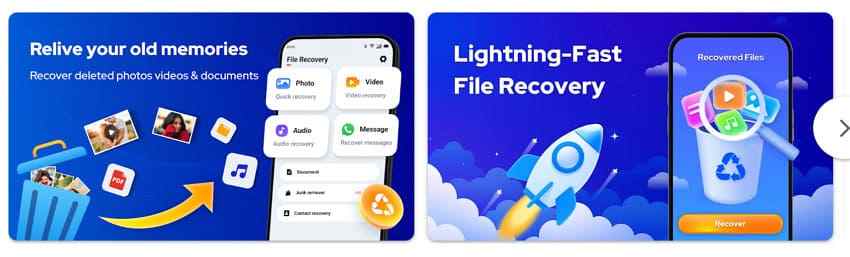
6. File Recovery - Photo Recovery
Best for: Recovering photos, videos, audio, and documents
Works without root: Usually yes
Free limit: Free core functions with ads or in-app purchases
Best storage type: Internal storage and SD card, depending on permissions
File Recovery - Photo Recovery is useful when you want to scan for more than just images. It can search for photos, videos, audio files, PDFs, Word documents, and other file types.
Pros
- Supports multiple file types, not only photos.
- May include filters by date, size, folder, or file type.
- Useful when you lost mixed media and documents.
Cons
- Deep scans can be slow on large phones.
- Ads and in-app purchases may affect the experience.
- Like other no-root tools, internal storage recovery has limits.
Use it when: You want to recover photos together with videos, audio, or documents.
Avoid relying on it when: The SD card is corrupted or the phone storage was heavily overwritten.
Part 5. Android Image Recovery App Comparison Table
The comparison below helps you quickly choose the right Android photo recovery option based on your situation.
| App / Method | Best For | Free Option | Root Needed | Preview | Storage Type | Key Limit |
| Google Photos Trash | Recently deleted backed-up photos | Yes | No | Yes | Cloud / synced photos | Works only before Trash expires or is emptied |
| Gallery Trash / Recently Deleted | Photos deleted from phone Gallery | Yes | No | Yes | Phone Gallery | Retention period depends on device brand |
| Data & Photo Recovery | Recent photo and media scans | Often free scan | No | Both | Internal / SD card | Restore may require payment |
| Photo Recovery: Video Recovery | Simple no-root media recovery | Free download | No | Yes | Internal / SD card | May recover thumbnails or limited files |
| Dr.Fone: Photo & Data Recovery | Selective recovery with preview | Trial / limited | Usually no | Yes | Internal / SD card | Some features may be paid |
| DiskDigger Photo Recovery | Free no-root first try | Basic scan | No for Basic; yes for Full | Yes | Accessible storage / cache | Full scan requires root |
| Dumpster | Future deletion protection | Free tier | No | Yes | Files deleted after setup | Not ideal for old deleted files |
| File Recovery - Photo Recovery | Photos, videos, and documents | Free + IAP | No | Yes | Internal / SD card | Ads, IAP, and scan limits |
| Recoverit for Windows/Mac | Android SD card recovery | Free scan / preview | No phone root | Yes | Removable SD card | Requires PC and card reader |
Part 6. Best Way to Recover Deleted Photos from an Android SD Card with Recoverit
If your Android photos were stored on a removable SD card, a desktop recovery tool is often a safer and stronger option than installing another app on your phone.
Important: Recoverit is not an Android phone app in this workflow. It is a Windows/Mac data recovery tool used to scan a removable Android SD card through a computer.
Recoverit can recover deleted files, videos, photos, and other file formats from storage devices including SD cards, HDDs, external devices, crashed computers, Windows/Mac, NAS, and Linux, and it advertises a 99.5% recovery rate across supported scenarios. Its Memory Card Recovery page lists support for many card types, including SD, MiniSD, MicroSD, SDHC, SDXC, MicroSDHC, and MicroSDXC.
When Recoverit Is a Good Fit
Use Recoverit when:
- Photos were stored on a removable Android SD card.
- The SD card was accidentally formatted.
- The SD card is corrupted or asks to be formatted.
- The phone cannot read the SD card.
- Gallery shows missing photos but the card still has used space.
- You want to preview recoverable files before saving them.
- You need to recover photos, videos, documents, or other file types from the card.
When Recoverit Is Not the Right First Choice
Recoverit is not the first solution when:
- The photos are still in Google Photos Trash.
- The photos are still in Gallery Recently Deleted.
- The photos were stored only in encrypted internal phone storage after a factory reset.
- The SD card is physically broken, cracked, or not detected by any device.
- The SD card was formatted as internal/adoptable storage and cannot be read outside the original phone.
Key Features
- SD Card and Memory Card Recovery: Recoverit can scan removable storage devices such as SD cards, microSD cards, USB drives, and external drives.
- Quick Scan and Deep Scan: Recoverit can scan the selected card for lost, deleted, formatted, or inaccessible files.
- Photo Preview Before Recovery: After scanning, you can preview found photos before recovering them.
- Save Recovered Files Safely: Recovered photos should be saved to your computer or another storage device, not back to the same SD card.
Quick Guide to Recover Deleted Android Photos from an SD Card
Follow the guidelines and learn how to recover Android pictures from an SD card with Recoverit:
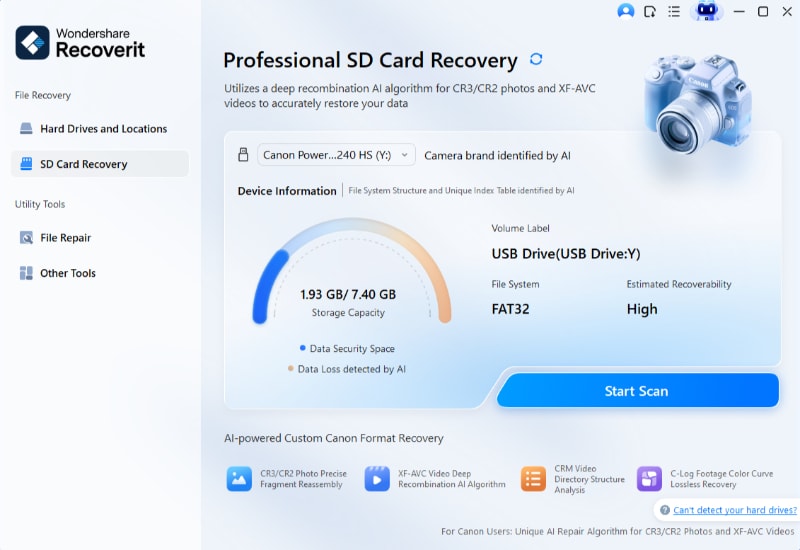
Step 1. Connect Your Android SD Card to PC
Remove the SD card from the Android > Connect to PC > Access the “SD Card Recovery” feature > Press “Start Scan.”
Step 2. Start the Android SD Card Scan
Photo recovery starts automatically > Locate your files during the process.
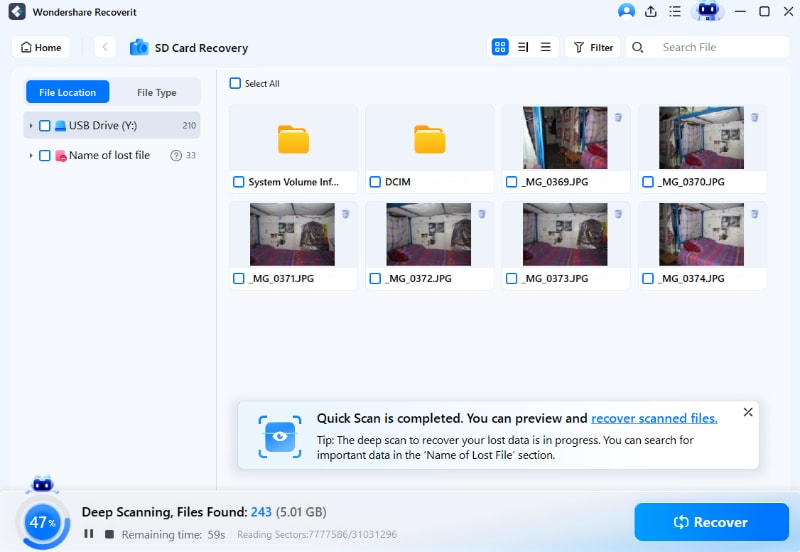
Step 3. Examine and Recover SD Card Photos
After your Android’s SD card scan > Preview your lost photos > Click “Recover” to save files.

Part 7. When Android Photo Recovery Apps or Methods May Not Work
Even the best photo recovery app for Android free cannot recover every deleted photo. Recovery may fail in these situations.
- The Photos Were Overwritten: If you took new photos, downloaded files, installed apps, or recorded videos after deletion, new data may have overwritten the old photo space.
- Only Thumbnails Are Left: Some Android apps find small cached images or thumbnails instead of the original full-resolution photo.
- The Phone Was Factory Reset: If the photos were stored in internal memory and the phone was factory reset without backup, recovery is usually unlikely on modern Android devices.
- The SD Card Is Physically Damaged: If the SD card is cracked, bent, burned, water-damaged, or not detected by any computer, software recovery may not work. Professional data recovery service may be required.
- Android Permissions Block Access: Android storage permissions, scoped storage, and lack of root access can prevent apps from scanning certain locations. This is especially important on Android 11 and later.
- Trash or Cloud Backup Was Emptied: If Google Photos Trash, Gallery Trash, and all cloud backups are empty, recovery depends on whether the original file data still exists and has not been overwritten.
Part 8. How to Prevent Android Photo Loss in the Future
Although the best image recovery app for Android helps photo recovery easier, consider taking preventive measures for the future:
| Measures | What to Do |
| Enable Google Photos Backup | Open Google Photos and make sure Backup is turned on for important folders. |
| Confirm Backup Before Deleting | Before deleting local copies, check that Google Photos says backup is complete. |
| Back Up SD card to the PC/Drive | If your phone uses an SD card, copy important photos to a computer, external drive, or cloud storage regularly. |
| Use Trash/Recently Deleted | Do not permanently delete photos immediately unless you are sure they are backed up. |
| Be Careful with Cleaner Apps | Avoid tapping “Clean All” without checking which folders will be deleted.” |
| Keep a Second Backup | For important albums, keep at least two copies: one cloud backup and one local backup. |
| Replace Old or Unstable SD Cards | If an SD card disconnects often, becomes slow, or asks to be formatted, back it up and replace it. |
Conclusion
The best Android photo recovery option depends on where your photos were stored and how they were lost.
Start with Google Photos Trash, your phone’s Gallery Trash, and cloud backups. If the photos were deleted recently from internal storage, try a reputable no-root Android recovery app such as DiskDigger, but remember that no-root scans may only find thumbnails or cached images. If the photos were stored on a removable Android SD card, especially one that was formatted, corrupted, or unreadable, remove the card and scan it on a computer with Recoverit for a safer recovery workflow.
FAQs
-
1 What is the best free photo recovery app for Android?
DiskDigger is a common first try because its Basic scan can work without root. However, no-root scans may recover limited results, such as thumbnails or cached images. For SD card photo recovery, a desktop tool like Recoverit is usually a stronger option. -
2 Can I recover deleted photos on Android without root?
Sometimes, yes. If the photos are still in Google Photos Trash, Gallery Trash, cloud backup, app folders, or accessible media storage, you may recover them without root. But deep internal storage recovery usually has limits without root. -
3 Do Android photo recovery apps recover full-resolution photos?
Not always. Some apps may recover full-size photos, but many no-root scans only find thumbnails, cached versions, or lower-quality copies. -
4 Is DiskDigger really free?
DiskDigger offers a Basic scan that can work without root. Its official Android guide says Full scan is available only on rooted devices. -
5 Can I recover photos after a factory reset on Android?
If the photos were stored only in internal memory and there was no backup, recovery after a factory reset is usually unlikely on modern Android devices. Check Google Photos, Google One, Samsung Cloud, OneDrive, or other backups first. -
6 Can Recoverit recover photos from Android internal storage?
This guide recommends Recoverit mainly for removable Android SD cards. Internal Android phone storage is affected by Android permissions, encryption, and device access limits. If your photos were stored on a removable SD card, remove the card and scan it on a computer with Recoverit. -
7 What should I do if my Android SD card asks to be formatted?
Do not format it before recovery. Remove the card, connect it to a computer with a card reader, and scan it with SD card recovery software. Formatting may reduce your recovery chances. -
8 Is Dumpster a real photo recovery app?
Dumpster works more like a Recycle Bin for Android. It is helpful if it was installed before the photo was deleted. It is less useful for old deletions, formatted SD cards, or photos lost before installation. -
9 Are Android photo recovery apps safe?
Some are safe, but you should be careful. Check the developer, reviews, permissions, ads, payment terms, and privacy policy. Avoid apps that request unrelated permissions or promise guaranteed recovery. -
10 Which is better: Android recovery app or PC recovery software?
For recent internal-storage deletion, an Android app is more convenient. For removable SD cards, formatted cards, corrupted cards, or unreadable storage, PC recovery software is usually a better choice because it can scan the card directly.


