
 TL;DR:
Free SD card photo recovery is highly possible for recently deleted or quick-formatted files, provided you immediately stop taking new photos on the card to prevent irreversible data overwriting.
● Choose Recuva for simple photo deletions on Windows, PhotoRec for heavily corrupted or RAW cards (note that it restores files without original names or folder structures), and TestDisk strictly for recovering lost partitions.
● You must select a completely separate computer drive or external disk as the destination path for your extracted files, because saving data back onto the affected SD card will destroy the remaining hidden photos.
● Be aware that commercial software like Recoverit, EaseUS, or Disk Drill offers user-friendly photo previews and better folder organization, but their free versions typically restrict the actual export volume, acting primarily as free scanners.
Ask AI for a summary
 ChatGPT
 Perplexity
 Gemini
 Claude
 Grok
Grok
Losing photos from an SD card is stressful, especially when the card contains family memories, travel photos, camera shots, drone footage, or important work images. Many users want to recover photos from an SD card for free before paying for recovery software.
The good news is that free SD card photo recovery is possible in many common cases. If the photos were recently deleted, the card was quick formatted, or the file system is damaged but the photo data has not been overwritten, free tools may help. The key is to stop using the SD card immediately and save recovered files to another drive.
This guide explains what “free recovery” really means, which free tools are worth trying, when free scan is different from free recovery, and when a guided tool such as Recoverit may be useful if free tools are too technical or limited.
In this article
-
- Option 1. Use PhotoRec for Free Signature-Based Photo Recovery
- Option 2. Use Recuva for Simple Windows SD Card Recovery
- Option 3. Use TestDisk When the Partition or File System Is Lost
- Option 4. Use DMDE Free for Limited File Recovery
- Option 5. Check Free Recovery Limits in Disk Drill, EaseUS, or Similar Tools
Part 1. Can You Really Recover Photos from an SD Card for Free?
Yes, you can recover photos from an SD card for free in many cases, especially if the photos were recently deleted and the card has not been reused. PhotoRec is fully free and powerful for signature-based recovery. Recuva is easier for simple deleted photo recovery on Windows. TestDisk can help when partitions or file system access are lost. DMDE Free can recover a limited number of files per operation.
However, “free” does not always mean unlimited recovery. Some tools offer free scanning and preview but limit how much data you can export. Others are fully free but technical and may recover photos without original names or folders.
Start with free options if the card is healthy and the loss is simple. If free tools are too hard to use, cannot preview results clearly, fail to find photos, or lose too much folder structure, you can consider a guided recovery tool such as Recoverit.
Part 2. Free SD Card Photo Recovery: What “Free” Really Means
Free picture recovery from an SD card can mean different things depending on the tool. Some programs are fully free. Some offer free scan only. Some allow limited free recovery. Others let you preview recoverable photos but require payment to export all files.
Free Scan vs Free Recovery: Know the Difference
Before choosing a recovery tool, understand the difference between free scan and free recovery.
| Feature | Free Scan | Free Recovery |
|---|---|---|
| Main Purpose | Finds deleted or lost files on the SD card. | Saves found files to another storage location. |
| Cost | Usually available without payment. | May be fully free or limited by file size or count. |
| File Preview | Often allows previewing recoverable photos. | Lets you export selected photos after scanning. |
| Limitation | The recovery button may be locked behind a paid plan. | Export amount may be limited in free versions. |
| Best Use Case | Checking whether photos are still recoverable. | Restoring photos after confirming scan results. |
A fully free tool may require more technical steps. A beginner-friendly tool may provide free scan and preview but limit the amount of data you can recover without upgrading.
Free Tool Limits at a Glance
When Deleted Photos Can Still Be Recovered
Deleted photos remain recoverable when their storage sectors stay untouched afterward. The card must not be used for new photos or videos. Most accidental deletions and simple formatting cases respond well to free tools. On Reddit, some users say that there are 50% chances of recovering more than half of the files if the card is imaged.
Part 3. Stop First: What to Do Before Any SD Card Recovery
Anyone hoping to recover deleted photos from an SD card for free must act carefully first. You need to follow these 5 critical steps prior to attempting any recovery:
- Stop Usage: Don’t use the SD card the moment you notice missing photos. Continued use overwrites deleted file data and reduces recovery chances.
- Avoid Capture: Avoid taking new photos or videos on the affected SD card. Every new file written reduces the space available for recovering deleted images.
- Skip Format: Never format the SD card again prior to completing your recovery. This process overwrites the file system and destroys remaining recoverable photo data.
- Safe Saving: Set up a separate hard drive for storing your rescued data. Never save extracted photography folders back onto the exact same damaged card.
- Prepare Reader: Connect your memory card using a functional and high-quality external card reader. Moreover, ensure you have an independent computer storage location ready for target files.
Part 4. Quick Diagnosis: Choose the Right Free Recovery Method
Different photo loss situations need different tools. Use this table to choose the safest free-first path.
| Your Situation | Likely Cause | Best Free First Step |
|---|---|---|
| Photos Were Just Deleted | Accidental deletion from camera or computer. | Try Recuva on Windows or PhotoRec for deeper recovery. |
| SD Card Was Formatted by Mistake | Quick format or file system rebuild. | Stop using the card and try PhotoRec or deep scan tools. |
| SD Card Shows Blank or Needs Formatting | File system corruption or missing directory records. | Do not format. Scan the card first with PhotoRec, DMDE, or a recovery tool. |
| SD card appears RAW or unreadable. | Damaged file system structure. | Try signature-based recovery or DMDE before repair. |
| SD card was used again after deletion. | New data may have overwritten old photos. | Try deep signature scanning, but expect partial recovery. |
| You need original file names and folders. | File system metadata may still exist. | Try tools that read file system records before signature recovery. |
| Partition or file system access is lost. | Lost partition table or damaged file system. | Try TestDisk carefully and copy files out before writing changes. |
| SD card has physical damage or connection problems. | Faulty card, reader, port, or hardware failure. | Try another reader once. If still unstable, seek professional help. |
Important: If the SD card asks to be formatted, do not repair or format it first. Recover or copy the photos first, then repair the card later.
Part 5. Best Free Tools to Recover Photos from an SD Card
Several free tools can help recover lost photos from SD cards. Choose based on your technical comfort level and the type of data loss.
Option 1. Use PhotoRec for Free Signature-Based Photo Recovery
PhotoRec is a free, open-source tool that recovers photos by scanning storage data for known file signatures. It can work even when the file system is damaged or unavailable.
PhotoRec is a strong choice for:
- Deleted photos
- Formatted SD cards
- RAW or unreadable cards
- Damaged file systems
- Free open-source recovery
- Cases where file names are less important than getting photos back
However, PhotoRec is not very beginner-friendly. It may recover photos with generic names and may not preserve original folders, dates, or file organization.
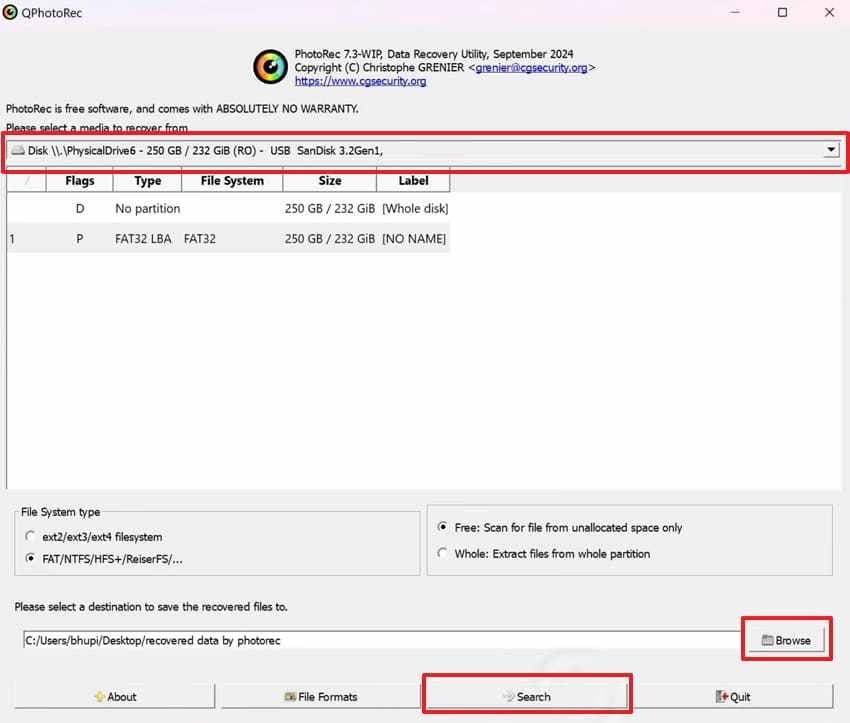
Step 1. Select your “SD Card” > Click “Browse” to choose the output folder > Press the “Search” button.
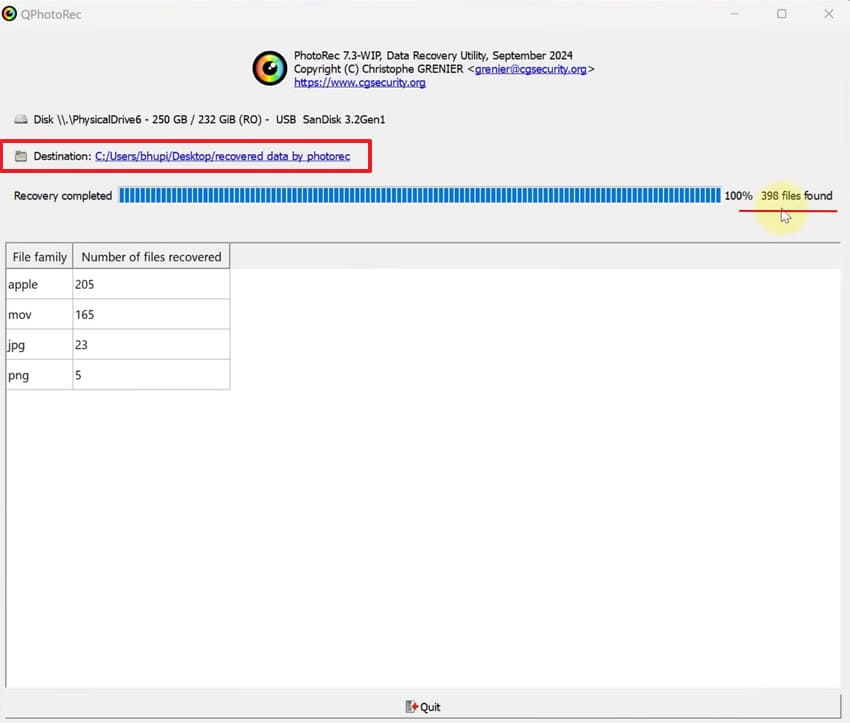
Step 2. Upon retrieving your deleted SD card files, click the "Destination” path to view them.
Option 2. Use Recuva for Simple Windows SD Card Recovery
Recuva is a lightweight Windows recovery tool with a free version. It is easier than many open-source tools and works well for simple deleted photo recovery.
Recuva is a good option when:
- Photos were deleted recently.
- The SD card is readable in Windows.
- The card is not severely corrupted.
- You want a simple graphical interface.
- You want to scan for common image files.
It is less suitable for RAW cards, severe corruption, lost partitions, or complex recovery cases.
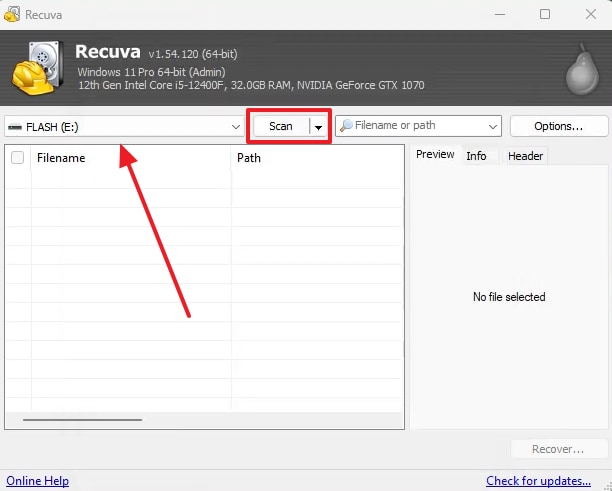
Step 1. From the main screen, choose your “SD Card” and press the “Scan” button.
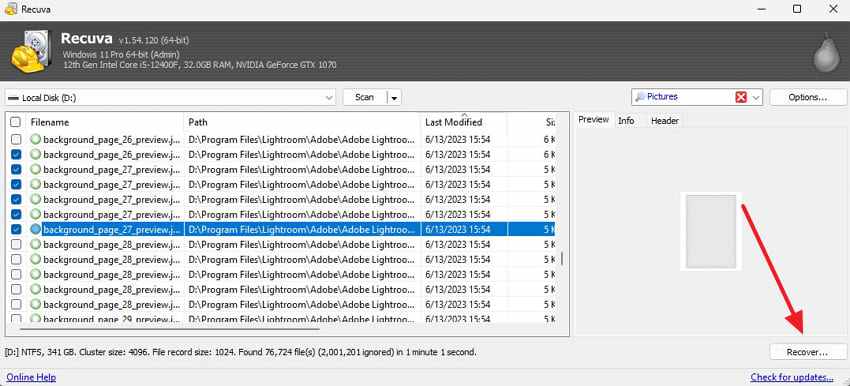
Step 2. As your photos are recovered by Recuva, tick them and click “Recover.”
Option 3. Use TestDisk When the Partition or File System Is Lost
TestDisk is a free tool for lost partitions, damaged partition tables, and file system access problems. It is not always the first choice for simple deleted photos, but it can help when the SD card appears RAW, unreadable, or missing a partition.
Use TestDisk carefully. If you are not sure what to do, copy files out instead of writing partition changes back to the card.
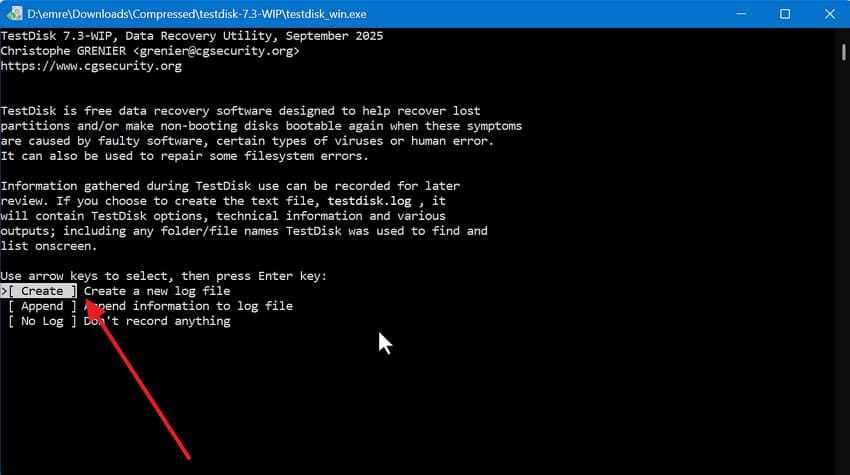
Step 1. Choose “Create” by pressing “Enter” > Select your SD card from the drive list > Choose the correct “Partition Table” type.
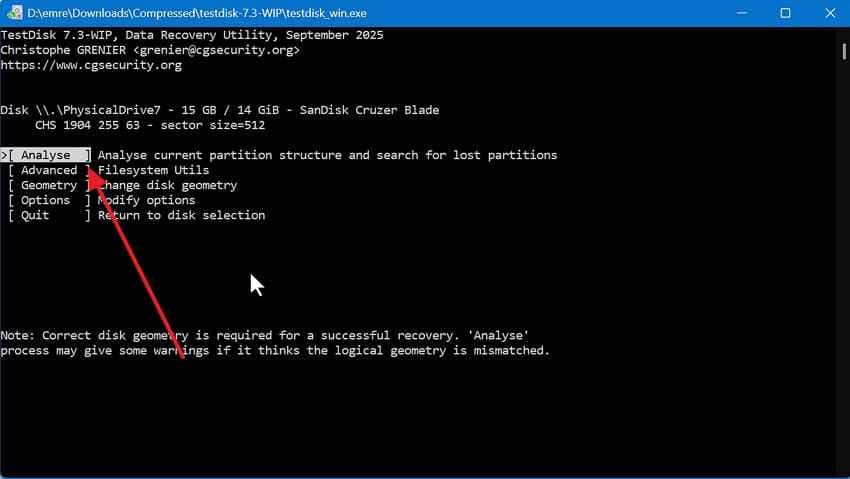
Step 2. Users will then need to opt for “Analyse” > Select “Quick Search” to find lost partitions.
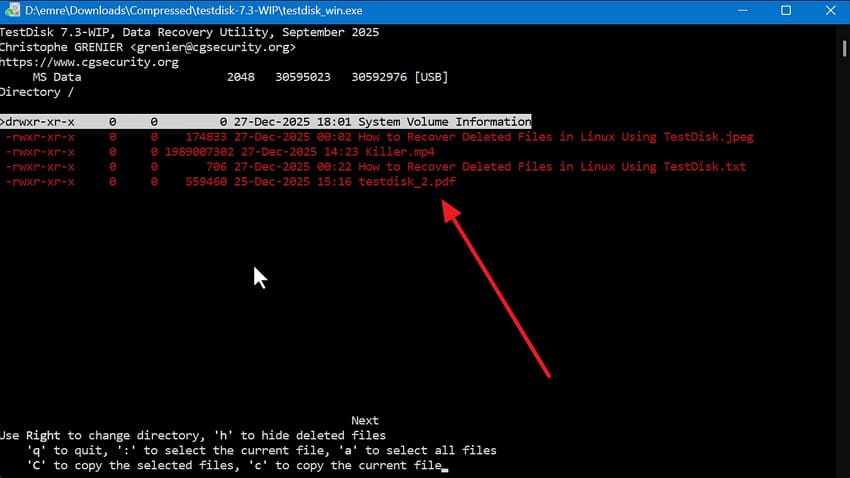
Step 3. As the partition appears, press “P” to list recoverable files and hit “C” to copy the recovered image.
Option 4. Use DMDE Free for Limited File Recovery
DMDE is a lightweight tool for disk editing, file system access, and data recovery. Its free edition can be useful for advanced users who need to recover a limited number of files per operation.
DMDE may help when:
- The SD card file system is damaged.
- You want to inspect detected partitions.
- You need limited free recovery.
- You are comfortable with a more technical interface.
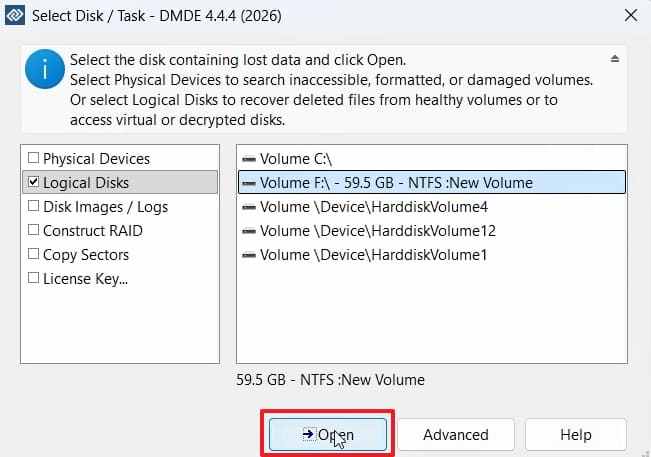
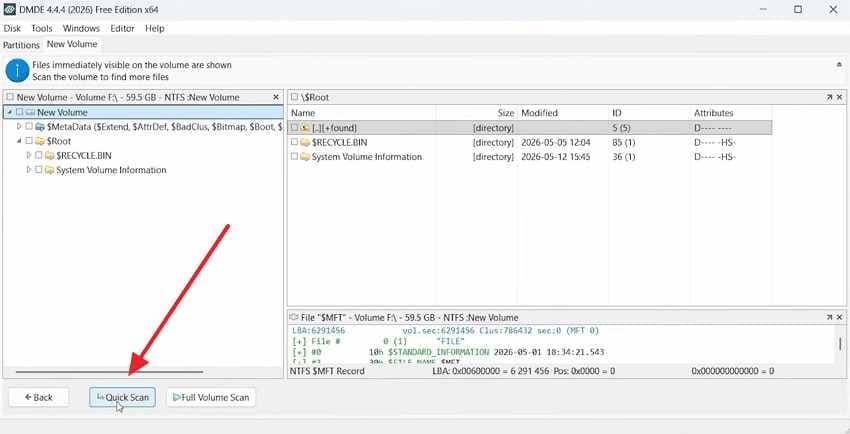
Step 1. Run DMDE > Select your SD card from the drive list > Click “Open.”
Step 2. Choose the detected partition > Click “Open Volume” > Press “Quick Scan” > Locate lost photos > Click “Recover.”
Option 5. Check Free Recovery Limits in Disk Drill, EaseUS, or Similar Tools
Commercial recovery tools such as Disk Drill, EaseUS, and similar programs often provide free scanning and preview. Some may also offer limited free recovery, depending on the version, region, operating system, and current plan.
Use these tools when:
- You want an easier interface than PhotoRec or TestDisk.
- You want to preview files before deciding.
- You only need to recover a small amount of data.
- You are willing to check the current free export limit before relying on the tool.
Always confirm the latest official free recovery limit before starting, because limits can change.
Part 6. Use Recoverit for SD Card Photo Recovery When Free Tools Are Not Enough
Free tools are worth trying first, especially when the photo loss is simple and the SD card is still healthy. However, free tools may not be enough in every situation. Some are too technical. Some cannot preview results clearly. Some recover photos with generic names and lost folders. Some struggle with RAW, formatted, corrupted, or large SD cards.
Recoverit can be a practical option when you need a more guided SD card photo recovery workflow.
Use Recoverit when:
- Free tools are too difficult to use.
- You need to preview photos before recovery.
- You want to filter by file type, date, size, or name.
- PhotoRec recovers too many files without clear organization.
- The SD card is RAW, inaccessible, unreadable, or formatted.
- You need to recover many photos from a large SD card.
You want a visual scan and recovery process.
You need support for SD, microSD, SDHC, SDXC, CF cards, USB drives, or other storage devices.
Key Features
- SD Card Compatibility: Supports recovery from SD cards, microSD cards, SDHC, SDXC, CF cards, and other memory cards.
- RAW File System Recovery: Scans cards that appear RAW, inaccessible, or unreadable.
- Photo Preview: Lets you check recoverable images before saving them.
- File Filters: Helps locate photos by file type, date, size, or extension.
- Deep Scan: Searches for lost photos that quick scans may miss.
- Safe Export: Saves recovered photos to another drive to avoid overwriting data.
Guide to Use Recoverit for SD Card Photo Recovery
Follow these steps to recover photos from an SD card with Recoverit.
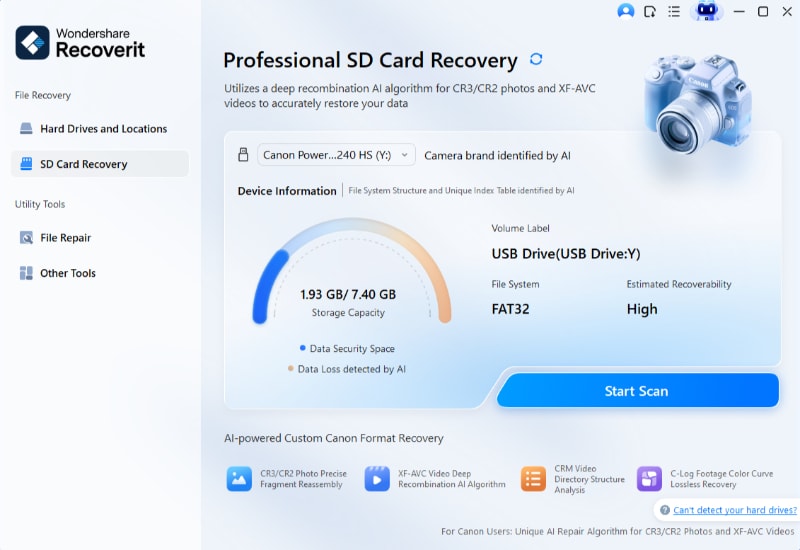
Step 1. Load the SD Card to Retrieve Photos
Open the “SD Card Recovery” tab and connect the memory card through a card reader. Once the card appears in the list of available devices, select it and click “Scan.”
Step 2. Analyze the Card for Lost Image Files
The recovery tool will automatically examine the SD card and locate inaccessible or missing pictures. While the scan runs, you can monitor its progress and view the images detected.
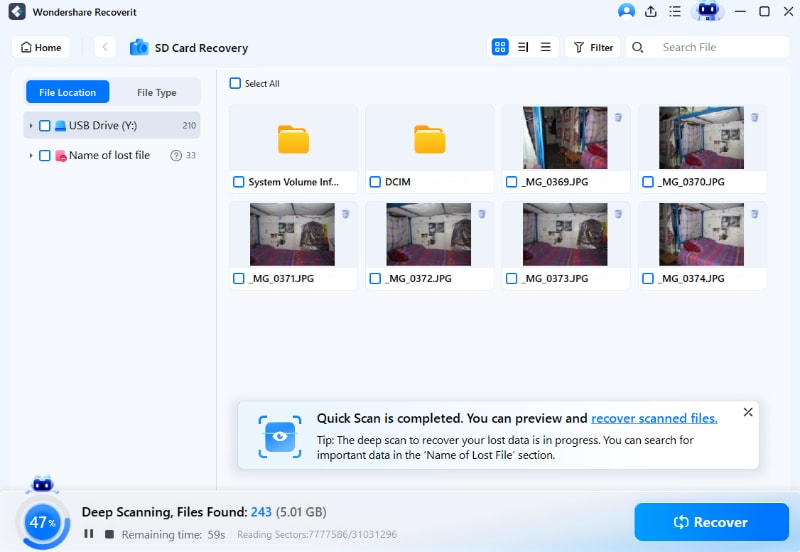
Step 3. Check the Recovered Photos to Export Them
After the scan finishes, inspect the found photos to confirm they are intact. Choose the images you want to restore and click “Recover” to save them to a different storage device.

Part 7. Why Recovered SD Card Photos May Be Missing Names, Folders, or Quality
Recovered photos sometimes look different from how they originally appeared on the SD card. This is normal in many recovery cases, especially when using signature-based tools or recovering from formatted cards.
| Issue | Why It Happens | What It Means for You |
|---|---|---|
| Missing original file names | Directory entries or metadata were deleted or damaged. | Files may be renamed with generic names. |
| Lost folder structure | Recovery extracted photos without original directory records. | Photos may appear in one folder or grouped by file type. |
| Missing dates or camera metadata | EXIF or file system metadata is unavailable. | Sorting by original date may be harder. |
| Reduced image quality | Some photo data was overwritten or fragmented. | Photos may appear blurry, gray, or incomplete. |
| Corrupted files | Actual image data was partially damaged. | Some photos may not open correctly. |
| Duplicate files | Multiple file signatures or fragments were recovered. | You may need to review and delete duplicates manually. |
If the photo itself is damaged after recovery, a photo repair tool may help, but repair and recovery are separate steps.
Part 8. How to Prevent SD Card Photo Loss Next Time
Learning to recover lost pictures from an SD card for free helps, but prevention saves more time. Review the tips listed below to safeguard your upcoming photography:
- Regular Backups: Copy photos to another drive before deleting or formatting any card. Regular backups protect your images even if the card fails completely.
- Verify Imports: Always confirm photos transferred successfully before clearing space on the card. Checking imports prevents accidental deletion of photos that were never saved.
- Multiple Cards: Use separate SD cards for important shoots instead of one single card. Splitting files across cards reduces risk if one card fails unexpectedly.
- Avoid Errors: Individuals should stop using cards that show repeated error messages or warnings. Faulty cards corrupt files more often and risk permanent photo loss.
- Cloud Storage: Synchronize your recovered folders with automated secure cloud storage. Storing media files on platforms like Google Drive ensures continuous access from any device.
Conclusion
You can recover photos from an SD card for free in many cases, especially when the photos were recently deleted and the card has not been reused. Start by stopping all card use, avoiding formatting, and saving recovered files to another drive.
PhotoRec is a powerful fully free option for signature-based recovery. Recuva is easier for simple deleted photo recovery on Windows. TestDisk can help with lost partitions or file system access problems. DMDE Free can help advanced users recover a limited number of files per operation. Commercial tools may offer free scan, preview, or limited free recovery, but export limits vary.
If free tools are too technical, cannot preview results clearly, or fail on RAW, formatted, corrupted, or large SD cards, Recoverit can provide a more guided SD card photo recovery workflow. Whatever method you choose, do not save recovered photos back to the same card, and back up important photos before reusing the card.
FAQs
-
Q1. Can I recover photos from an SD card for free?
Yes, if the SD card is detected and the photo data has not been overwritten. Free tools such as PhotoRec, Recuva, TestDisk, and DMDE Free may help depending on the case. -
Q2. What is the best free SD card photo recovery tool?
It depends on your situation. PhotoRec is powerful and fully free for signature-based recovery. Recuva is easier for simple Windows deletion. TestDisk helps with lost partitions. DMDE Free is useful for advanced limited recovery. -
Q3. What is the difference between free scan and free recovery?
Free scan means the tool can search for recoverable files. Free recovery means you can actually export and save those files without paying. Some tools offer free scan only, while others allow limited free export. -
Q4. Can I recover deleted photos from an SD card after taking new photos?
Maybe, but chances drop because new photos may overwrite deleted data. Stop using the card immediately and scan it as soon as possible. -
Q5. Can I recover photos from a formatted SD card for free?
Sometimes. PhotoRec or deep scan tools may recover photos from a formatted SD card if the original image data has not been overwritten. -
Q6. Can PhotoRec recover original file names and folders?
Usually not reliably. PhotoRec is signature-based, so it may recover photos with generic names and lost folder structure. -
Q7. Should I save recovered photos back to the same SD card?
No. Always save recovered photos to another drive, external disk, or computer folder. Saving them back to the same card can overwrite other recoverable data. -
Q8. When should I use Recoverit instead of free tools?
Use Recoverit when you need an easier interface, preview, filters, or better handling of RAW, formatted, corrupted, or large SD card recovery cases. It is also useful when free tools are too technical or recover files without clear organization.



