

 TL;DR:
PhotoRec is the strongest truly free, open-source photo recovery software for Mac SD cards, whereas Recoverit provides the best beginner-friendly guided experience with free file previews before requiring a paid upgrade.
● Stop using the SD card immediately, do not run Disk Utility First Aid, and cancel any macOS prompts to initialize or format the unreadable card, as new data or structural repairs will permanently overwrite the lost photos.
● Commercial tools like Recoverit, Disk Drill, and EaseUS generally limit their free versions to scanning and previewing, meaning you must purchase a license to actually save the recovered JPG, PNG, or RAW files to a separate drive.
● While PhotoRec allows you to bypass payment by scanning file signatures directly, its technical interface lacks a preview function, and the recovered photos will lose their original file names and folder structures, requiring manual sorting.
Ask AI for a summary
 ChatGPT
 Perplexity
 Gemini
 Claude
 Grok
Grok
SD cards are still widely used in cameras, drones, dashcams, action cameras, Android devices, and other recording equipment. When photos disappear on a Mac because of deletion, formatting, failed import, corruption, or a not-readable card warning, the first question is usually simple: can free photo recovery software for Mac SD cards bring them back?
Sometimes, yes. Photo recovery may be possible if the lost pictures have not been overwritten and the card is still readable enough to scan. However, not every “free” Mac recovery tool is fully free. Some tools offer free scan or preview only, while others allow limited free recovery or require a paid version to save recovered files.
This guide explains what to do before scanning, how Mac SD card photo recovery works, what “free” really means, which tools are best for different users, and how to recover deleted photos from an SD card on Mac with Recoverit.
In this article
Quick Answer: What Is the Best Free Photo Recovery Software for Mac SD Cards?
If you need a truly free technical option, PhotoRec is one of the strongest choices because it is open source and can recover files by scanning file signatures. However, it is less beginner-friendly and recovered photos may lose original names and folders.
If you want an easier guided recovery experience with scan, preview, filters, and a Mac-friendly workflow, Recoverit is a stronger option for most general users. It is especially useful when you want to preview photos before recovery and save selected files to your Mac or another drive.
Before using any tool, stop using the SD card immediately. Do not take new photos, copy files, format the card, run repair tools, or save recovered files back to the same card.
Part 1. Before You Try Any Mac SD Card Photo Recovery Software
The first steps matter. A few wrong actions can overwrite lost photos and make recovery harder.
- Stop Using the Card: As soon as you notice photos are missing, remove the SD card from your camera, drone, dashcam, phone, or Mac. Every new photo, video, or file can overwrite the storage space where deleted images may still exist.
- Don’t Save New Files: Do not take test photos or copy files to the SD card before recovery. New data may be written over deleted photos and destroy them permanently.
- Don’t Recover Back to the Card: When using recovery software, save recovered photos to your Mac, an external drive, or another safe storage device. Do not save them back to the same SD card, because that can overwrite other recoverable files.
- Don’t Format or Repair Yet: If macOS says the disk is not readable or asks you to initialize the card, do not click Initialize or Erase. If a camera asks to format the card, cancel the prompt. Avoid running Disk Utility First Aid before photo recovery if the card contains important lost photos. Repair tools may modify file system structures that recovery software needs to inspect.
- Use a Reliable Card Reader: A loose adapter or unstable reader can interrupt scans. Use a reliable card reader and a stable USB port. If the card appears and disappears, try another reader, another port, or another Mac.
- Decide What “Free” You Need: Some Mac SD card recovery tools let you scan for free but charge to save files. Others allow preview only, limited free recovery, or fully free technical recovery. Decide whether you need a free preview, a small free restore, or a tool that can recover without payment.
Part 2. Can You Recover Deleted Photos from an SD Card on Mac?
With basic safety steps, lets cover how image recovery for Mac really works and whether your pictures can actually be recovered:
How Photos are Deleted
When photos are deleted from an SD card, the file content is not always wiped immediately. The file system may simply mark the space as available. Until new data overwrites that space, recovery software may still find the photo content.
When Recovery is Possible
Recovery is more likely when:
- You stopped using the card immediately.
- The photos were deleted recently.
- The card was quick formatted but not reused.
- The card is still detected with the correct capacity.
- The card does not disconnect during scanning.
- Lost files have not been overwritten.
- The card has no severe physical damage.
When Photos May Be Lost
Recovery becomes harder or impossible when:
- You continued shooting after deletion.
- Large videos were recorded after formatting.
- The card was fully overwritten.
- The card has physical damage.
- The card repeatedly disconnects.
- The card shows the wrong capacity.
- The lost photo sectors were overwritten by new data.
What Mac SD Card Photo Recovery Can and Cannot Do
| Mac SD Card Photo Recovery Can Do | It Cannot Do |
| Recover deleted photos if not overwritten. | Recover photos overwritten by new files. |
| Recover photos after quick format in many cases. | Guarantee full recovery from every formatted card. |
| Find JPG, PNG, RAW, and video files by scanning. | Always restore original names and folders. |
| Preview recoverable photos in some tools. | Repair physically damaged SD cards by software alone. |
| Recover from readable SD and microSD cards. | Safely scan cards that keep disconnecting or overheating. |
What Does “Free” Really Mean in Mac Photo Recovery Software?
The word “free” can mean different things. Check this before choosing a tool.
| Free Type | What It Means | What to Watch For |
| Free scan | The tool can scan your SD card for free. | You may need to pay to save recovered photos. |
| Free preview | You can preview recoverable photos before purchase. | Preview does not always mean free recovery. |
| Free recovery limit | You can save a limited amount of data for free. | Limits may be small or plan-dependent. |
| Truly free recovery | You can recover files without payment. | The tool may be more technical or less convenient. |
| Free trial | You can test the tool before buying. | Export or full recovery may be locked. |
If you only want to confirm whether photos are recoverable, free scan and preview may be enough. If you need to save all recovered files without payment, choose a truly free tool such as PhotoRec, but expect a more technical workflow.
Part 3. Quick Diagnosis: Choose the Right Recovery Method for Your Situation
Moving forward, it’s time to figure out your situation to make photo recovery for Mac much easier and convenient:
| Situation | Best Tool or Method | Avoid |
| Deleted photos, card not reused. | Recoverit or PhotoRec scan. | Taking new photos. |
| Formatted SD card. | Deep scan or signature scan. | Formatting again. |
| Mac does not recognize card. | Try another reader, port, or Mac. | Initialize, erase, or First Aid before recovery. |
| Card asks to be formatted. | Click Ignore or Cancel, then scan or image the card. | Erasing the card. |
| Photos missing after failed transfer. | Scan the SD card directly. | Repeating failed import many times. |
| Card disconnects or gets hot. | Stop and consider disk image or professional recovery. | Repeated full scans. |
| Need truly free recovery. | PhotoRec. | Expecting easy preview and original names. |
| Need easy preview and guided recovery. | Recoverit, Disk Drill, EaseUS, or Stellar. | Assuming all are fully free. |
| Need RAW photo recovery. | Recoverit, Stellar, R-Studio, PhotoRec, or other RAW-aware tools. | Using a tool without checking format support. |
Part 4. Free Ways to Check for Lost Photos on Mac Before Using Recovery Software
Before installing photo recovery software, check whether the photos already exist in a Mac or cloud location.
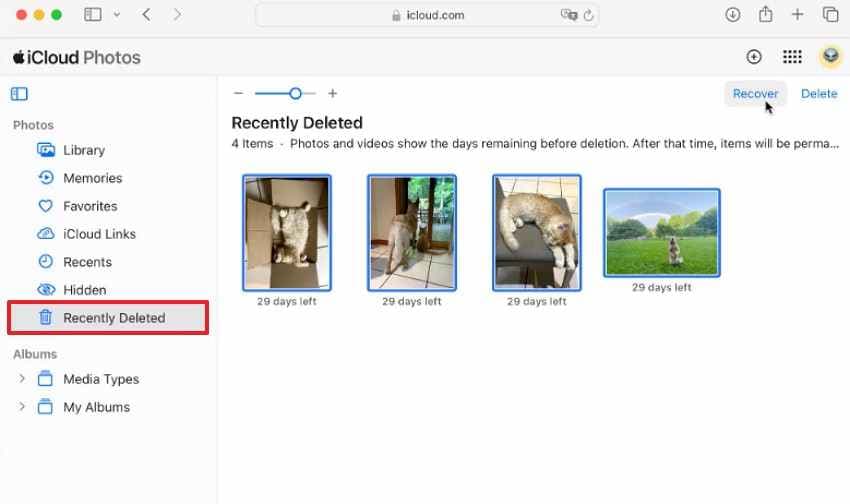
1. Check the Photos App
If the pictures were imported into Apple Photos, open the Photos app and check the Recently Deleted album. Photos may remain there for a limited time before permanent removal.
This method helps only if the photos were already imported into the Photos library.
>
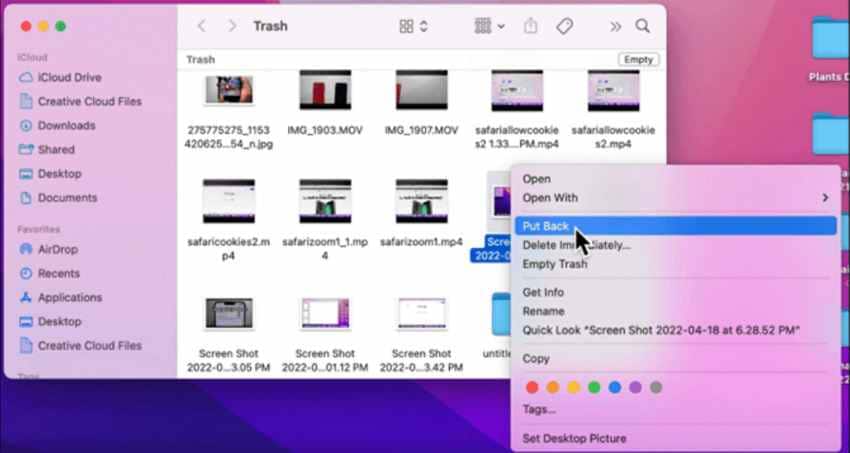
2. Check Mac Trash
If you deleted photos from Finder, they may still be in Trash. Open Trash, search for the missing photo names or file types, and restore them if found.
Trash helps only if the files were deleted from Finder and Trash has not been emptied.
3. Check Time Machine Backups
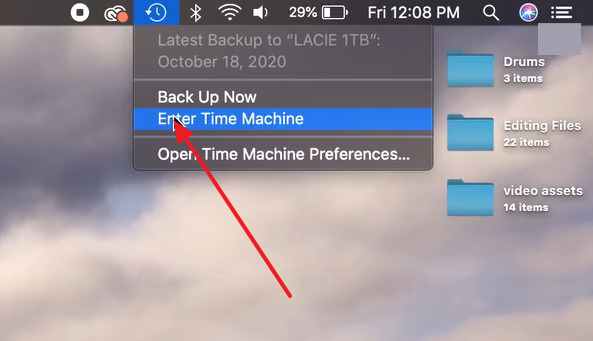
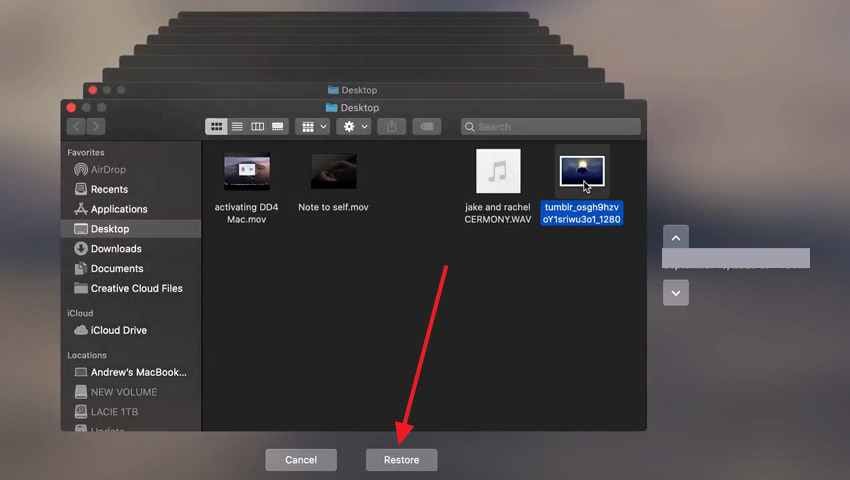
If Time Machine was enabled, you may be able to restore photos from an earlier backup. Time Machine helps only if the missing files or photo library were included in the backup.
Step 1. Click the Time Machine icon > Choose the "Enter Time Machine” option.
Step 2. Navigate to the date of deletion > Access specific folder > Select photo > Click “Restore.”
4. Check iCloud Photos
If iCloud Photos was enabled before the loss, sign in to iCloud and check your library, Recently Deleted, and synced devices. Missing photos may still exist online or on another Apple device.
5. Check the Original Import Location
Photos may look missing because they were imported to a different folder or app. Check:
- Pictures folder
- Downloads folder
- Desktop
- Photos Library
- Image Capture import folder
- Lightroom catalog folder
- Capture One session folder
- External drive import folder
When Free Mac Methods Are Not Enough
Move to recovery software when:
- Photos are not in Recently Deleted.
- Trash is empty.
- Time Machine has no copy.
- iCloud Photos was not enabled.
- The only copy was on the SD card.
- The card was formatted or corrupted.
- The card asks to be initialized or formatted.
Part 5. Best Free and Paid Photo Recovery Software for Mac SD Cards
Different tools serve different users. Some are easier, some are truly free, and some are better for advanced recovery.
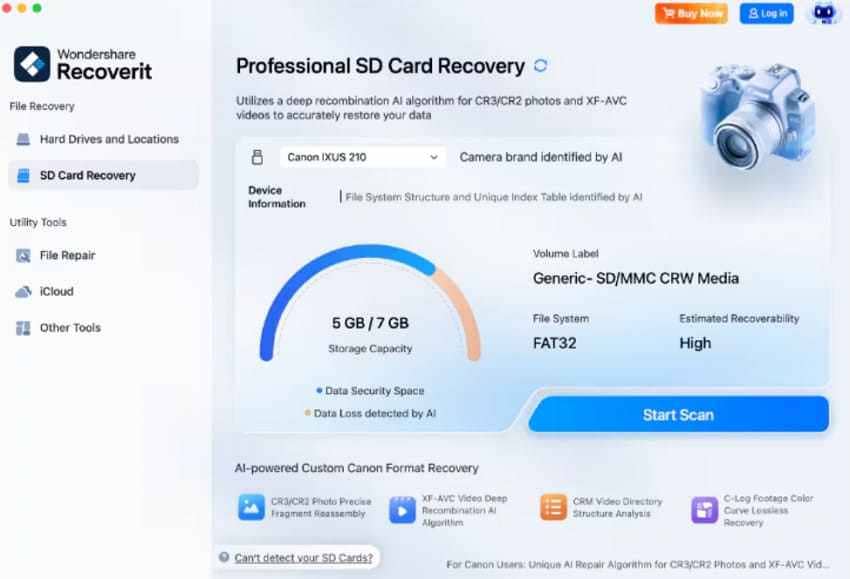
1. Recoverit Photo Recovery
Recoverit is a guided Mac SD card photo recovery option for users who want an easier scan, preview, and recovery workflow. It can help recover lost photos and videos from SD cards used in cameras, drones, action cameras, dashcams, Android devices, and other storage devices.
Best for
- General Mac users
- Photographers who want preview before recovery
- Users who prefer a guided interface
- SD card deletion or formatting cases
- JPG, PNG, RAW photo, and video recovery
Key Features
- Broad File Support: Helps recover photos, videos, documents, RAW files, and other formats.
- Preview Before Recovery: Lets users check recoverable photos before saving.
- File Filters: Groups results by type, size, and date to reduce manual searching.
- Guided Workflow: Easier for beginners than terminal-based recovery tools.
- Safe Save Path: Lets users save recovered files to Mac or another drive instead of the SD card.
Limit
- Some recovery features may require a paid version.
- Recovery depends on overwrite, SD card condition, and file fragmentation.
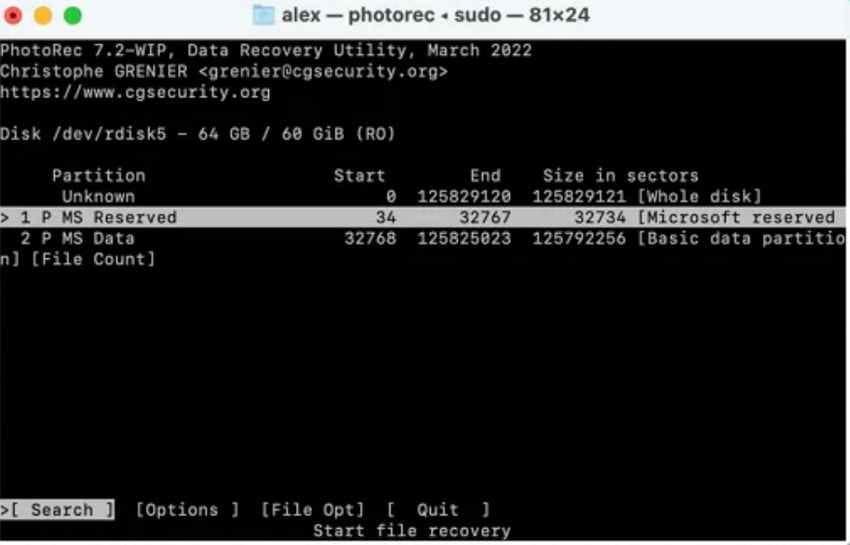
2. PhotoRec
PhotoRec is a free and open-source recovery tool. It scans file signatures directly and can work even when the file system is damaged or formatted.
Best for
- Users who need truly free recovery
- Technical users
- Formatted cards
- Damaged file systems
- Cases where file names are less important
Pros
- Completely free and open source.
- Can recover many file types.
- Useful when file system records are lost.
Limits
- Interface is more technical.
- Preview is limited.
- Original names and folder structure may be lost.
- Recovered files may need manual sorting.
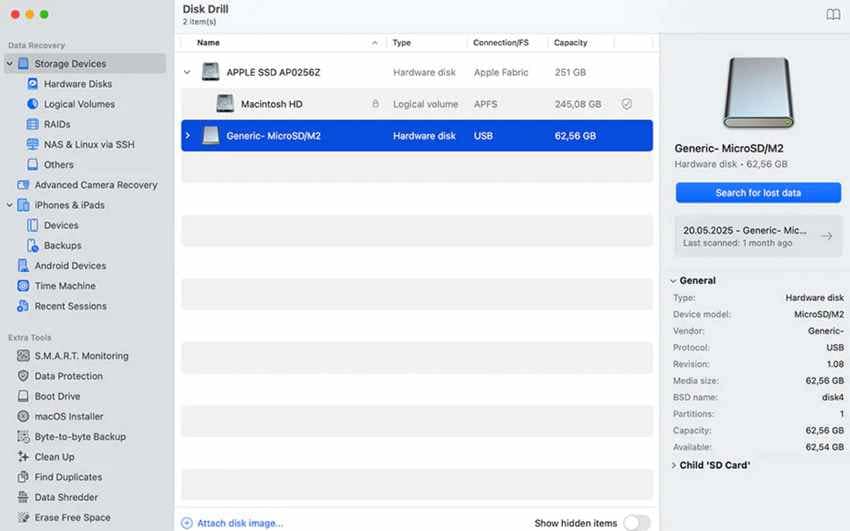
3. Disk Drill
Disk Drill offers a polished Mac interface with scan and preview features. It is popular among users who want a clean visual workflow.
Best for
- Mac users who prefer a polished interface
- Users who want scan and preview before deciding
- Common image and media recovery
Pros
- Clean Mac-style interface.
- Multiple scan methods.
- Preview support.
Limit
- Free scan or preview does not always mean free recovery. Saving recovered files may require a paid version unless specific protection features were enabled earlier.
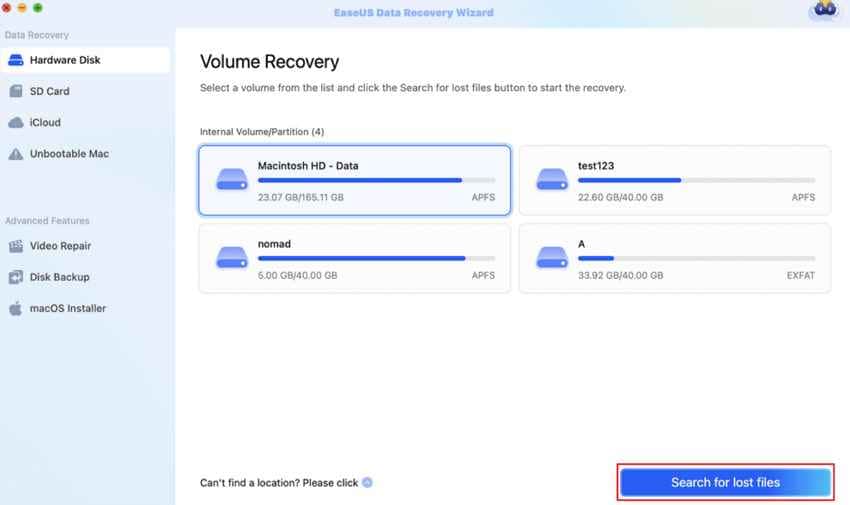
4. EaseUS Data Recovery Wizard for Mac
EaseUS Data Recovery Wizard for Mac is a general data recovery tool for deleted photos, formatted cards, emptied Trash, and other data loss cases.
Best for
- General Mac users
- Deleted files and formatted card cases
- Users who want a simple interface
Pros
- Easy workflow.
- Supports common photo and video formats.
- Offers scan and preview.
Limit
- Free recovery limits or paid upgrade requirements may apply depending on the current plan.
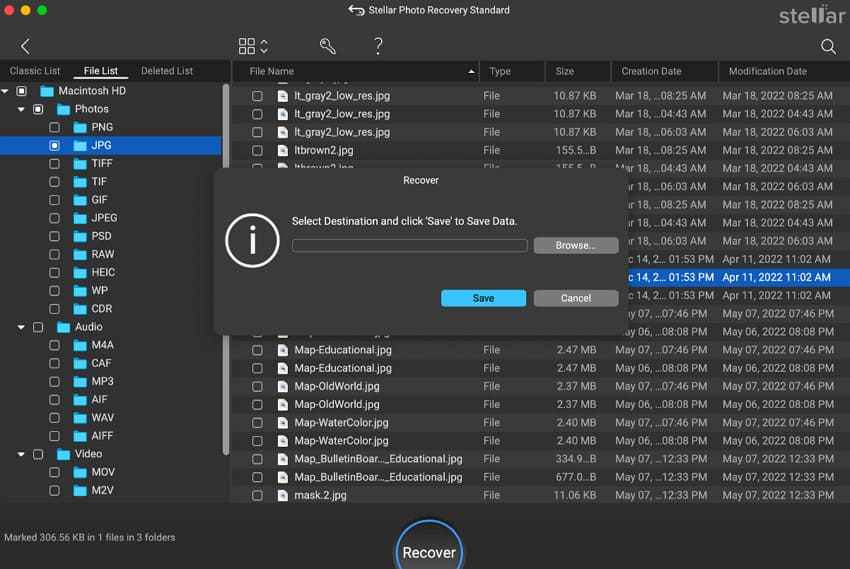
5. Stellar Photo Recovery
Stellar Photo Recovery focuses on photo, video, and audio recovery. It supports many camera cards and media formats.
Best for
- Photographers
- Camera card users
- Users with many media formats
- RAW photo recovery
Pros
- Media-focused recovery.
- Supports many photo and video formats.
- Preview available in many cases.
Limit
- Full recovery features usually require a paid license.
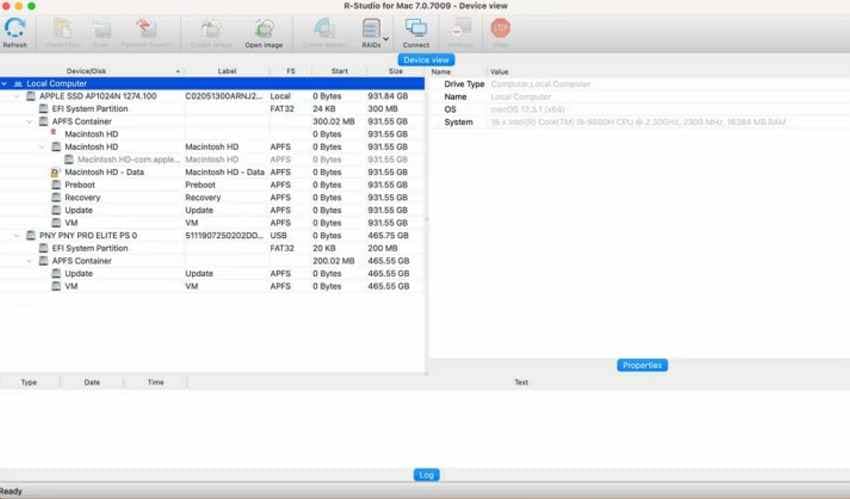
6. R-Studio for Mac
R-Studio for Mac is an advanced data recovery tool with deeper technical options, including custom scan areas and imaging workflows.
Best for
- Advanced users
- Technicians
- Complex data loss
- Disk image workflows
- Damaged partitions
Pros
- Powerful advanced recovery controls.
- Supports many file systems and devices.
- Useful for more complex cases.
Limit
- Interface can be complex for beginners.
- Demo or free recovery limits apply.
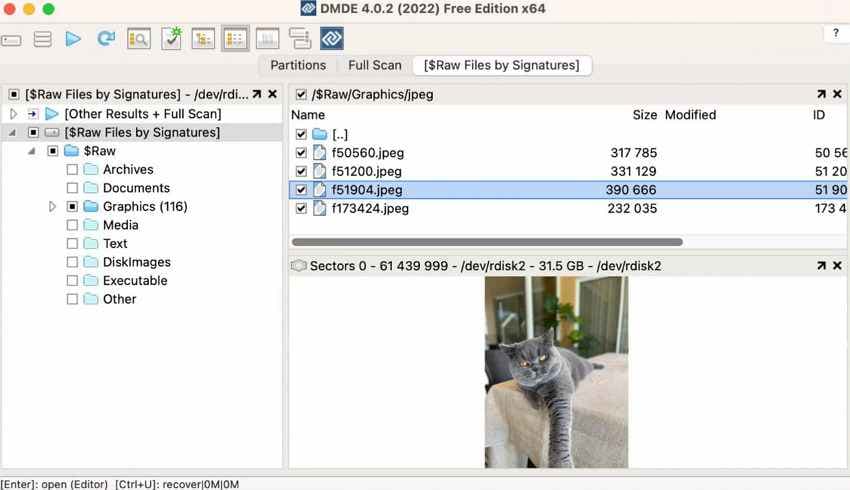
7. DMDE
DMDE is a technical recovery tool that can help restore files and folders lost after deletion, formatting, or file system issues.
Best for
- Technical users
- Low-cost advanced recovery
- Partition and file system analysis
Pros
- Powerful for advanced users.
- Can handle difficult file system cases.
- Free mode may help with limited recovery.
Limit
- Interface is not beginner-friendly.
- Batch recovery or file count limits may apply in free mode.
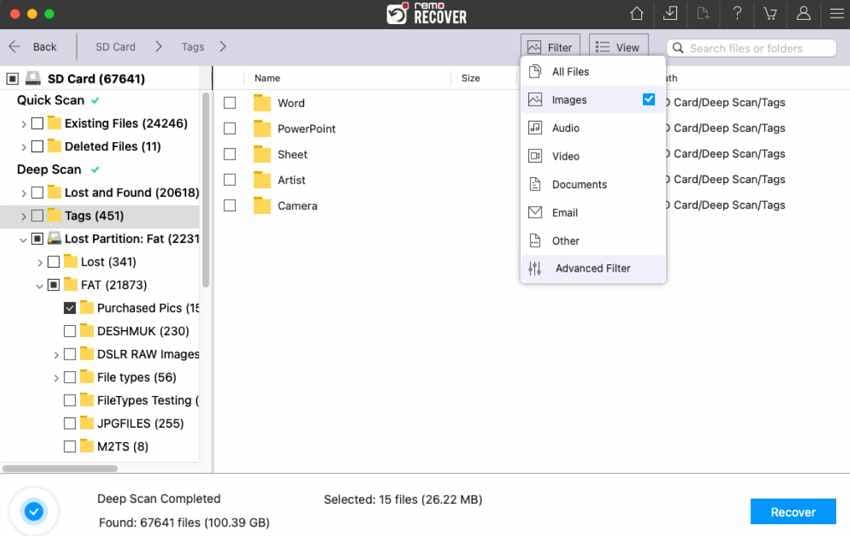
8. Remo Recover Mac
Remo Recover Mac provides a guided recovery process for home users and supports photo, video, and document recovery.
Best for
- Home users
- Simple guided recovery
- Common media file recovery
Pros
- Easy to follow.
- Supports many media formats.
- Scan session features may help with larger scans.
Limit
- Full recovery usually requires a paid version.
Part 6. Mac SD Card Photo Recovery Software Comparison Table
To make the choice easier, review the table below, which compares some picture recovery software Mac options:
| Photo Recovery Software | Free Option/Free Trial | Best For | Photo Formats | Preview Option | Ease of Use | Limitation |
| Recoverit | Yes | Photographers and general users | 1000+ file formats | Yes | Very Easy | Some advanced features require a paid version |
| PhotoRec | Free and open source | Technical users comfortable with terminal tools | Hundreds of file types | Limited | Harder | No selective recovery or thumbnail preview |
| Disk Drill | Free scan and preview | Mac users wanting an intuitive interface | Popular image formats | Yes | Easy | Free recovery on Mac requires a paid version |
| EaseUS | Free scan and preview | General Mac users | Popular image formats | Yes | Easy | Free recovery limits apply |
| Stellar Photo Recovery | Free trial | Photographers and creators | 100+ photo formats | Yes | Easy to Moderate | Full features require a paid version |
| R-Studio | Free demo | Advanced users | Supports many file formats | Yes | Complex | Recovery is limited in the demo version |
| DMDE | Free mode | Technical users | Many file formats | Basic | Hard | Batch recovery limits apply in free mode |
| Remo Recover Mac | Free trial | Home users | 500+ file types | Yes | Easy | Full recovery requires a paid version |
Verdict: Recoverit is the more beginner-friendly guided option for most Mac users who want preview and a clear workflow. PhotoRec is the strongest truly free technical option if you are comfortable with a less visual recovery process. For unstable or physically damaged SD cards, consider disk imaging or professional recovery before repeated scans.
Part 7. How to Recover Deleted Photos from an SD Card on Mac with Recoverit
Use Recoverit when the SD card is detected by your Mac and you want a guided recovery process with preview and filters.
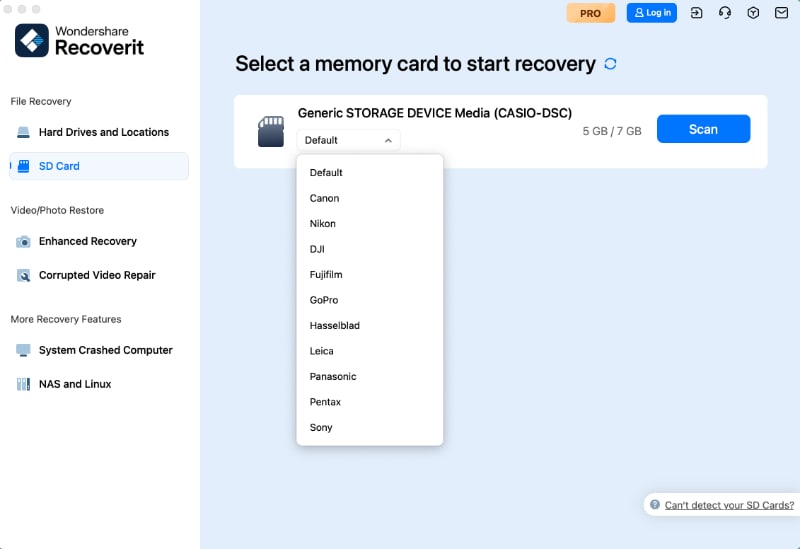
Step 1. Connect the SD Card and Install Recoverit
Connect your SD card to your Mac > Download Recoverit > Access "SD Card Recovery” > Choose SD card device.
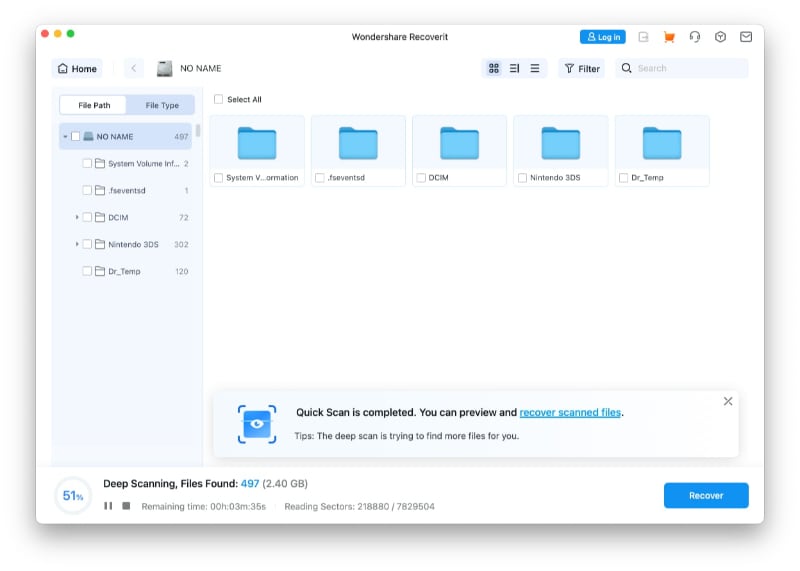
Step 2. Start the Deep Scan on SD Card
This AI-powered SD card recovery software will perform a deep and quick scan to recover deleted or lost data.
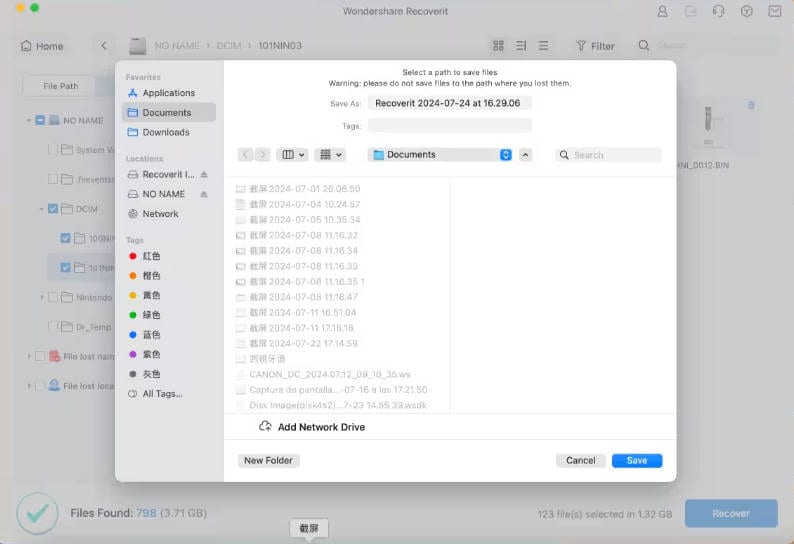
Step 3. Choose the SD Card Pictures to Recover Them
Once the SD card scan is completed, select pictures for recovery and click the “Recover” button.
Part 8. How to Choose the Best Photo Recovery Software for Mac SD Cards
When using your photo recovery software for Mac, consider the following factors, explained with respect to each platform:
Pick Recoverit for Guided and Preview-Based Recovery
Choose Recoverit if you want an easier Mac workflow, preview before recovery, file filters, and support for many photo and video formats.
Pick PhotoRec for Truly Free Technical Recovery
Choose PhotoRec if you need a free recovery tool and can handle a more technical interface. Expect more manual sorting after recovery.
Pick Disk Drill or EaseUS for a Polished Mac UI
Choose these if you want a clean Mac-style interface and scan/preview features. Check current free recovery limits before relying on them to save files.
Pick R-Studio or DMDE for Advanced Recovery
Choose these if you are comfortable with technical recovery, custom scans, disk images, or file system analysis.
Prefer Tools That Preview Photos
Preview helps confirm that a recovered photo opens and looks correct before you save or purchase recovery.
Confirm macOS Support First
Before installation, check whether the tool supports your macOS version and Apple Silicon if you use an M-series Mac. Some tools may also require Full Disk Access or removable volume permissions to scan external media correctly.
Part 9. How to Protect Your SD Card Photos from Future Loss
Review the simple habits discussed in this section to save you from needing the Mac recovery image tools repeatedly:
| Practices to Consider | What to Follow |
| Import Quickly | After a shoot, copy photos from the SD card to your Mac. |
| Multiple Backups | Keep at least 2 extra copies of important photos |
| Use Time Machine | Turn on Time Machine to back up the picture folders. |
| Use iCloud Photos | Enable iCloud Photos to sync new images from the photo library. |
| Eject Safely | Always eject the SD card before pulling it out. |
| Replace Weak Cards | Cards with errors or those heavily used should be replaced. |
Conclusion
Lost pictures from an SD card on a Mac can be worrying, but recovery may still be possible if the photos have not been overwritten. Stop using the card immediately, avoid formatting or repair tools, and do not save recovered files back to the same card.
For free checks, look in Photos Recently Deleted, Trash, Time Machine, iCloud Photos, and original import folders first. For software recovery, PhotoRec is the strongest truly free technical option, while Recoverit is a more beginner-friendly guided option with scan, preview, filters, and broad format support. Other tools such as Disk Drill, EaseUS, Stellar, R-Studio, DMDE, and Remo may also help depending on your needs and budget.
Choose the tool based on your situation, not just the word “free.” Free scan is not the same as free recovery, and no software can recover overwritten photos.
FAQs
-
Q1. What is the best free photo recovery software for Mac SD cards?
PhotoRec is one of the strongest truly free technical options. Recoverit is easier for guided scanning, preview, and selective recovery, but full recovery features may require a paid version. -
Q2. Can free Mac photo recovery software save recovered photos for free?
Some tools can, but many only offer free scan or preview. Check whether the tool provides free recovery, limited free recovery, or paid export before relying on it. -
Q3. Can I recover photos from a formatted SD card on Mac?
Yes, recovery may be possible if the photos have not been overwritten. Stop using the card and scan it from your Mac with recovery software. -
Q4. Should I run Disk Utility First Aid before photo recovery?
Not before recovering important photos. First Aid may modify file system structures. Recover or image the card first when the photos are important. -
Q5. Why are recovered photos missing file names or folders?
Some recovery tools use signature scanning, which can restore file content without original file names, dates, or folder paths. -
Q6. Can Mac recovery tools recover RAW photos like CR3, NEF, ARW, or DNG?
Many tools support RAW photo recovery, but support varies by software. Check the supported format list before scanning. -
Q7. What should I do if Mac says the SD card is not readable?
Do not initialize or erase it. Try another card reader, USB port, or Mac. If the card is detected, scan or image it before repair. -
Q8. Can overwritten photos be recovered?
No normal recovery software can recover photos after their storage space has been overwritten by new data.


