 TL;DR:
To recover corrupted photos, first attempt to restore them from existing cloud backups, and if unavailable, utilize format conversion, built-in Windows repair tools, or dedicated recovery software like Recoverit.
● Converting the unreadable image to a different format like PNG or JPG can quickly bypass surface-level header damage without requiring technical skills.
● Running the built-in Windows error checking tool provides a free, immediate method to repair basic file system errors that may be blocking the image from opening.
● Advanced users can utilize a Hex Editor to manually rewrite broken file headers, though this method carries a high risk of further file damage and requires strict knowledge of file coding rules.
Ask AI for a summary
 ChatGPT
 Perplexity
 Gemini
 Claude
 Grok
Grok
Many people store pictures on phones, laptops, and memory cards. These images show important events and daily life. When a photo becomes unreadable, it causes stress. You try to open the file. You may only see a black screen. Some users cannot open the photo at all. They try to move the image to another folder. It still fails. They begin to worry.
You are not alone. Many people work every year to recover corrupted photos. Some use simple steps. Others use software. A few ask experts to restore corrupted images. The goal is the same. They want their memories back.
This guide explains what causes a file to break. It also explains how to recover and repair damaged images. You will learn many methods. Some are easy. A few are advanced. You can pick the method that fits your problem. With patience, many users complete corrupt photo recovery at home. They save the pictures they care about.
Try Recoverit to Recover Lost Data
 Security Verified. Over 7,302,189 people have downloaded it.
Table of Contents:
How to Recover Corrupted Photos?
You can fix photo issues in many ways. Start simple. Move to stronger tools only if needed. These steps help you recover damaged images at home. Some tasks need time. Do not rush. Take each step with care. You can often finish corrupted image file recovery after a few tries.
Method 1: Use Recoverit Data Recovery Software
Recoverit helps you find and repair lost or broken photos. It scans internal drives. It scans memory cards. It also scans USB sticks. Recoverit finds unreadable images. It can recover and repair corrupt images from many devices. You do not need deep skills. The design is simple. Many users can restore corrupted pictures with a few clicks.
Recoverit has strong scanning power. It checks large folders fast. You can pause or stop at any time. It shows previews. You can decide if a file is useful. The tool suits new users. It also suits experts. Many users finish corrupt photo recovery in one run. Some recover corrupted photos even after a long time. This makes it helpful for old albums. You can save results to safe storage. You can also keep the raw file for study.
How to Use Recoverit:
- Install and open Recoverit. On the home screen, you’ll see a list of available drives and recovery options. Select the drive where your corrupted photos were stored. This could be an internal hard disk, external USB, SD card, or any connected storage device.

- Recoverit uses AI-powered deep scanning to search for over 1000+ file types, including damaged or deleted images. The scan may take a few minutes, depending on the size and condition of the drive.

- After the scan completes, Recoverit will display a list of recoverable files. Use the preview feature to check the integrity of your photos before recovery. Select the photos you want to restore and click “Recover”.

How to Recover Deleted Pictures From Laptop?

Method 2: Use Built-in Windows File Repair Tools
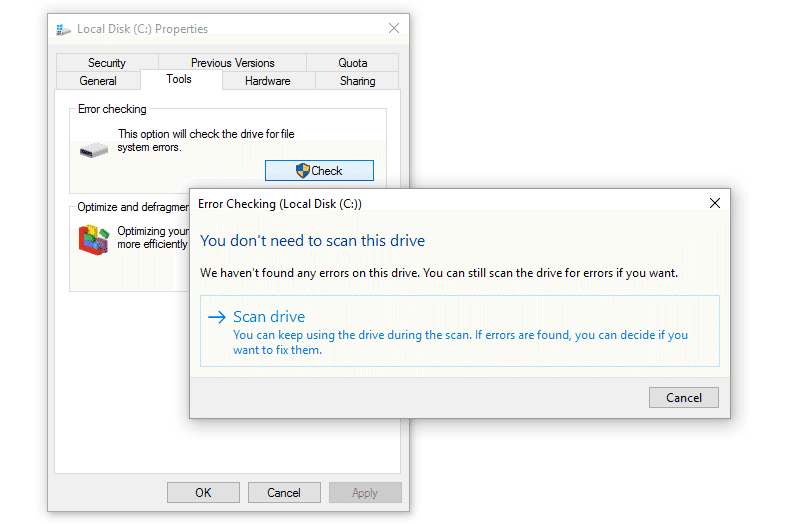
Windows has tools to check and fix basic issues. If your disk has errors, these tools help recover corrupted photos. They also help corrupted picture recovery when the damage is small. Many users start here. It is free. It is easy. You do not need to get new software.
Windows runs a check. It looks for broken parts. If it finds a problem, it tries to fix it. After the fix, you can try to open your pictures again. This tool works well when file system errors cause trouble. It helps users restore corrupted images at home. It may not fix all problems. But it is a good start. The scan takes a few minutes. You can do other tasks while waiting.
How to Use Built-in Windows File Repair Tools
- Open Windows error check.
- Fix and try to view photos.
Method 3: Convert the File Format to Restore Viewability
Some images break only at the surface. The core data remains safe. In this case, conversion may help. Change the format. Try PNG. Try JPG. When a header is damaged, changing format helps restore corrupted pictures. Many users try this early. It works fast. It helps many users recover corrupt images even when the preview is gone.
You can find many safe tools. Some are online. Some are on your computer. The process is simple. You pick a file. You pick a new format. Then you save. When done, you open the new file. If you see the photo, you are done. If not, try another format. This step is free. It works without deep skill. You can complete corrupted photo recovery even with basic knowledge.
How to Convert the File Format to Restore Viewability:
- Go to a trusted online image converter like Cloud Convert. Click the “Select File”. Select the image you want to convert from your device. Most tools support formats like JPG, PNG, BMP, TIFF, HEIC, and more.
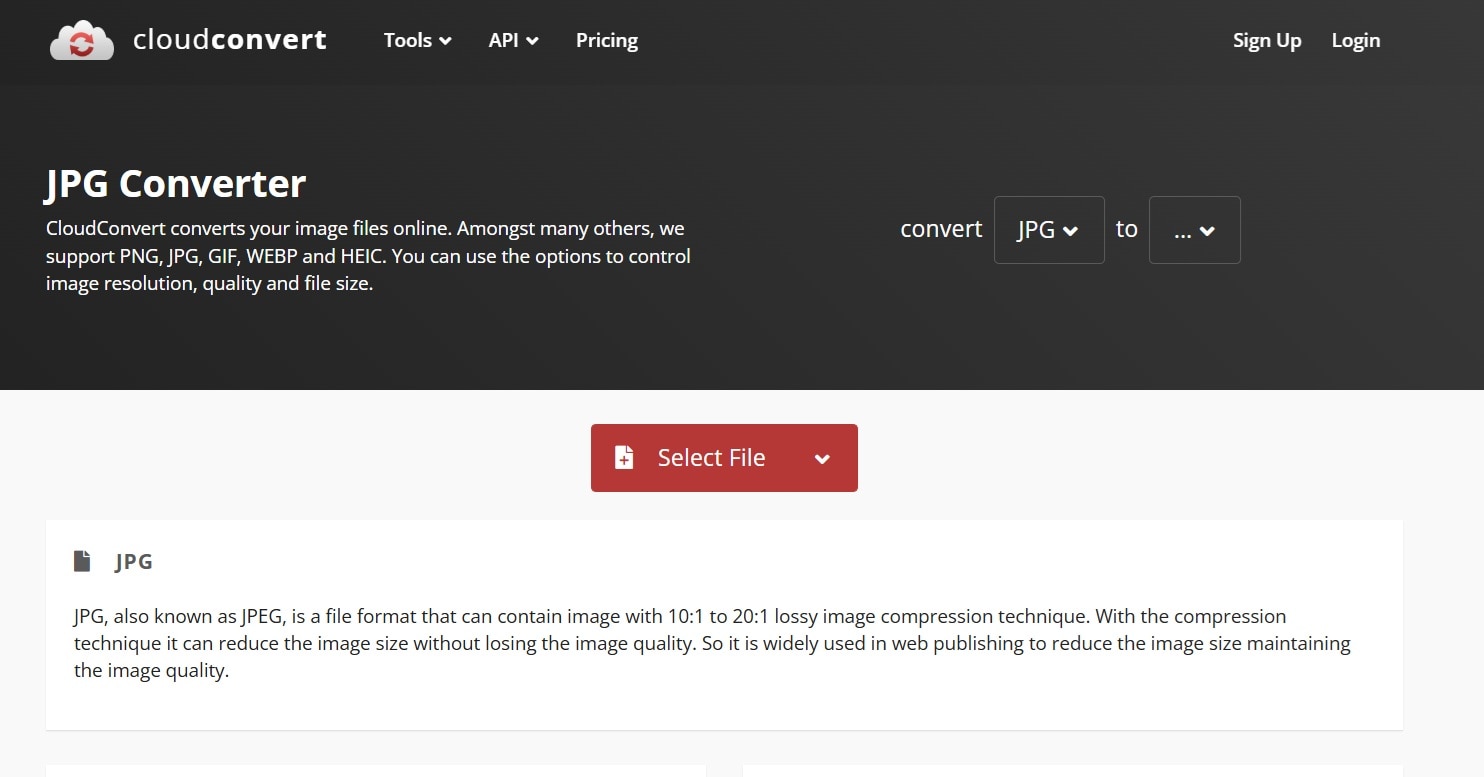
- Select your desired output format (e.g., PNG, JPEG, WebP) from the dropdown menu. Some tools offer optional settings like resizing, compression level, or color filters. Click “Convert”. Once the conversion is complete, download the converted image to your device.
Method 4: Restore from Backup or Cloud Storage
Backups save time. If you keep extra copies, you can recover corrupted photos fast. Many phone users save to the cloud. Many computer users save to the drive. You open the backup. You pick the image. Your corrupted picture recovery finishes. You move on. No repair needed.
This method is safe. You do not change broken files. You use the copy. Some users keep many copies. One on the phone. One on the laptop. One in the cloud. This helps them restore corrupted images at any time. They can recover damaged images after a crash. This is helpful for trips. You keep photos with you. If one fails, the backup saves the day.
How to Restore Corrupted Photos from Backup or Cloud Storage:
- Open your backup folder on the drive or Google Drive.
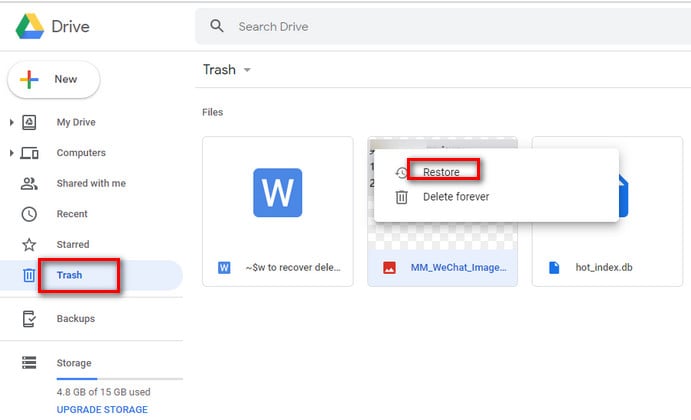
- Restore the image to your device.
Method 5: Use Hex Editor for Manual Repair (Advanced)
A hex editor shows data as numbers. Experts use it to fix broken files. This is hard. You must know file rules. You can break more if you change the wrong data. Only try this if you understand risk. This step helps in deep corrupted image file recovery. It helps when all other ways fail.
This method suits users who know file headers. They read the first part of the file. They compare with a good photo. They find changes. They fix the code. Then they save. It takes time. But some users can recover corrupt images. They can restore corrupted pictures even when all tools fail. Think before you try. You can always ask a pro.
How to Use Hex Editor for Manual Corrupted Photo Repair
- Open the file in the hex tool.
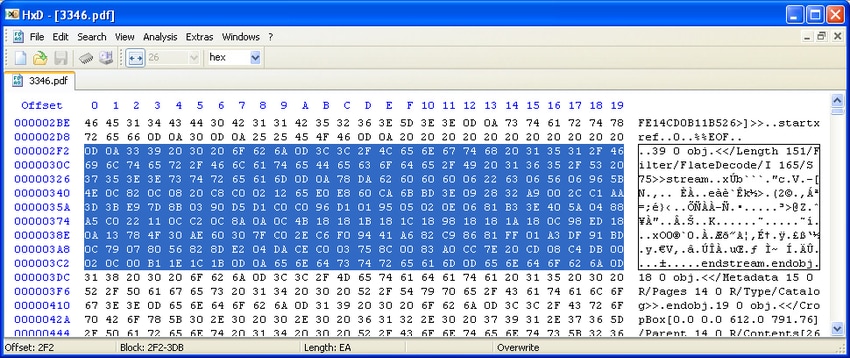
- Fix the header. Save.
Conclusion
Photos are important. They show your life, your small moments, and your big days. When they stop working, it can be upsetting. You try to open them and see errors. You worry they are gone. But many times, you can fix them. There are tools that help recover broken photos. Some ways are quick. Some take more effort. You can start with tools in Windows. You can change the photo format. You can check your cloud storage. You can also restore photos from backups or use special software.
Many people fix their broken photos in one afternoon. Others may need more time. If you do not have a copy, try a recovery tool. Recoverit is one option. It works with many photo types and is easy to use. If nothing helps, you can ask a photo expert. They know how to fix damaged files and recover pictures from old drives. The most important thing is to stay calm. Try one method at a time. Save your recovered photos in a safe place. Many people succeed. You can too.
Try Recoverit to Recover Lost Data
Security Verified. Over 7,302,189 people have downloaded it.
FAQs
-
Can I fix broken photos myself?
Yes. You can use simple steps. You can use Windows tools. You can use a format change. Many users can restore corrupted images at home. -
Why do I need a backup?
Backups save time. They let you recover corrupted photos fast. You avoid repair. You use the copy. This reduces stress. -
When should I call an expert?
Call an expert when all steps fail. They use strong tools. They help corrupt photo recovery. They also help corrupted picture recovery on old disks.



