
 TL;DR:
If your photos are no longer in the iCloud Recently Deleted album, they are permanently erased from Apple's cloud servers and can only be recovered by locating an independent copy on an offline device, local drive, or older backup.
● Keep offline Apple devices disconnected from the internet to prevent the deletion from syncing, and only restore from an older device backup if it was created before iCloud Photos synchronization was turned on.
● Third-party software like Recoverit cannot restore purged files from iCloud servers directly; it is only useful for scanning local storage drives, SD cards, or previously downloaded Windows or Mac folders where the local image data has not been overwritten.
● If your iCloud storage was full at the time of deletion, photos may bypass the standard 30-day recovery window immediately, but independent copies might still survive in Shared Albums since they operate under different library permissions.
Ask AI for a summary
 ChatGPT
 Perplexity
 Gemini
 Claude
 Grok
Grok
If you are searching for how to recover permanently deleted photos from iCloud, the first answer is direct: if the photos were removed from Recently Deleted and no longer exist in iCloud Photos, ordinary iCloud recovery cannot bring them back from Apple's cloud. Apple gives users a limited Recently Deleted window, and after permanent deletion the realistic recovery path is to find another copy.
That copy may be on an offline Apple device, a Mac Photos Library, Time Machine, iCloud for Windows, the Windows Recycle Bin, an older device backup made before iCloud Photos was enabled, an SD card, an external drive, Messages, email, or another cloud app. Recoverit Photo Recovery can help only when the lost photos existed as local files on readable storage. It cannot directly restore purged photos from iCloud servers or bypass Apple Account protection.
In this article
Part 1. Can Permanently Deleted iCloud Photos Be Recovered?
Sometimes, but only from the right place. iCloud Photos is mainly a sync service: it keeps the same photo library updated across devices signed in to the same Apple Account. That means deleting a photo in one synced location can remove it everywhere else after sync completes.
For true iCloud permanently deleted photos recovery, the key question is not "which tool can scan iCloud?" It is "where else did this photo exist before iCloud removed it?" The answer determines whether you should use Apple's Recently Deleted album, a backup, an offline device, or local photo recovery software.
The Short Answer for iCloud Photo Recovery
If the photos are still in Recently Deleted, recover them there first. If they were permanently deleted from Recently Deleted, or the recovery period has expired, iCloud itself usually cannot restore them for a personal user. Your best chance is an independent copy: a local Mac library, a Time Machine backup, a Windows Recycle Bin item, a downloaded iCloud Photos folder, an original camera SD card, an exported folder, or a device that has not synced the deletion yet.
Recently Deleted vs Permanently Deleted Photos
Deleting a photo first moves it to Recently Deleted. Permanently deleted usually means one of three things: you manually deleted it from Recently Deleted, the recovery period expired, or iCloud storage behavior removed it without keeping it available for recovery. Apple's Photos guide for Mac says items are permanently deleted from Recently Deleted after 30 days and cannot be restored through that album after that point.
| Status | Where It May Still Exist | Best Next Step |
| Deleted but still in Recently Deleted | Photos app or iCloud Photos on iCloud.com | Recover it immediately from Recently Deleted. |
| Removed from Recently Deleted manually | Not normally recoverable from iCloud Photos | Check offline devices, backups, exports, and local storage copies. |
| 30-day recovery period expired | Not normally recoverable from iCloud Photos | Search for copies outside iCloud Photos. |
| Deleted while iCloud storage was full | May not be available in Recently Deleted | Check local copies and external backups first. |
How the 30-Day Recovery Period Works
Apple says deleted photos and videos are sent to Recently Deleted for 30 days before permanent deletion. The iCloud User Guide also says that when you delete a photo or video from Photos on iCloud.com, you have 30 days to recover it before it is permanently deleted.
There is one important exception. Apple's iCloud storage guidance says that if you exceed your iCloud storage limit, deleted photos and videos may be removed immediately and may not be available in Recently Deleted. If your iCloud storage was full when the photos disappeared, do not wait. Move straight to local devices, backups, and downloaded copies.
How iCloud Photos Syncs Deletions Across Devices
Apple's iCloud Photos guidance explains that deleting a photo or video on one device also deletes it on other devices where you are signed in with the same Apple Account and iCloud Photos is enabled. An offline device can be valuable because it may still hold a copy that has not received the deletion event.
Shared spaces have their own rules. In an iCloud Shared Photo Library, any participant can delete photos and videos, but only the person who added an item can permanently delete it before the 30-day period ends. Shared Albums are separate from your main library, so a shared copy may survive even if your personal library copy is gone.
Why iCloud Photos Is Different From iCloud Device Backup
This is where many failed recovery attempts start. Apple says iCloud Photos are not included in nightly iCloud Backup when iCloud Photos is turned on. Apple's iCloud Backup overview explains the same sync-versus-backup rule: data that already syncs to iCloud is not stored again in the device backup, while photos and videos may be included when iCloud Photos was not enabled.
So restoring an iCloud Backup made yesterday will not usually restore iCloud Photos deleted last month. The restored device will simply sync the current iCloud Photos library, including deletions that already reached iCloud.
Part 2. What to Check Before Trying Photo Recovery
Do these checks before you erase a device, restore a backup, reconnect an offline device, repair a Photos Library, or save new files to a drive that may contain deleted local copies.
| Check | Why It Matters | What to Do |
| Verify the correct Apple Account | Photos may belong to another account used on an old device or family computer. | Check iCloud Photos, devices, and backups for each Apple Account you have used. |
| Check Recently Deleted everywhere | Recovery from this album is the cleanest option when the 30-day window is still open. | Check iPhone, iPad, Mac, and iCloud.com Photos. |
| Keep offline devices disconnected | Reconnecting can sync the deletion and remove a surviving local copy. | Turn on airplane mode or disconnect Wi-Fi before opening Photos. |
| Search local folders and libraries | Exports, downloads, camera imports, and edited copies may exist outside iCloud Photos. | Check Mac Pictures, Downloads, Desktop, external drives, SD cards, and Windows Pictures. |
| Check other apps | Photos sent through Messages, Mail, WhatsApp, Drive, Dropbox, or social apps may still exist there. | Search conversations, attachments, uploads, downloads, and shared albums. |
| Avoid overwriting storage | Deleted local photo files can be overwritten by new data. | Stop using the affected drive or memory card until recovery is done. |
Part 3. 6 Places to Find Deleted iCloud Photos
Use this section as a recovery checklist. Start with places Apple still recognizes, then move to independent local copies.
| Place to Check | What It Can Hold | Time Limit or Risk |
| Recently Deleted album | Deleted photos and videos still recoverable through Photos | Usually up to 30 days, unless removed earlier or affected by storage-limit behavior. |
| Mac Photos Library or Time Machine | Earlier Photos Library state or original files downloaded to the Mac | Depends on backup date and whether originals were downloaded locally. |
| Windows Recycle Bin | Photos deleted from the iCloud Photos folder on the PC | Until the Recycle Bin is emptied or files are permanently deleted. |
| External drives and SD cards | Camera originals, exported folders, or copied albums | While the files remain or deleted data is not overwritten. |
| Offline iPhone, iPad, or Mac | Local copy not yet updated by iCloud deletion | Only until the device reconnects and syncs. |
| Older device backup | Photo Library or Camera Roll from before iCloud Photos was enabled | Only if the backup was made while photos were included in backups. |
Recently Deleted Album
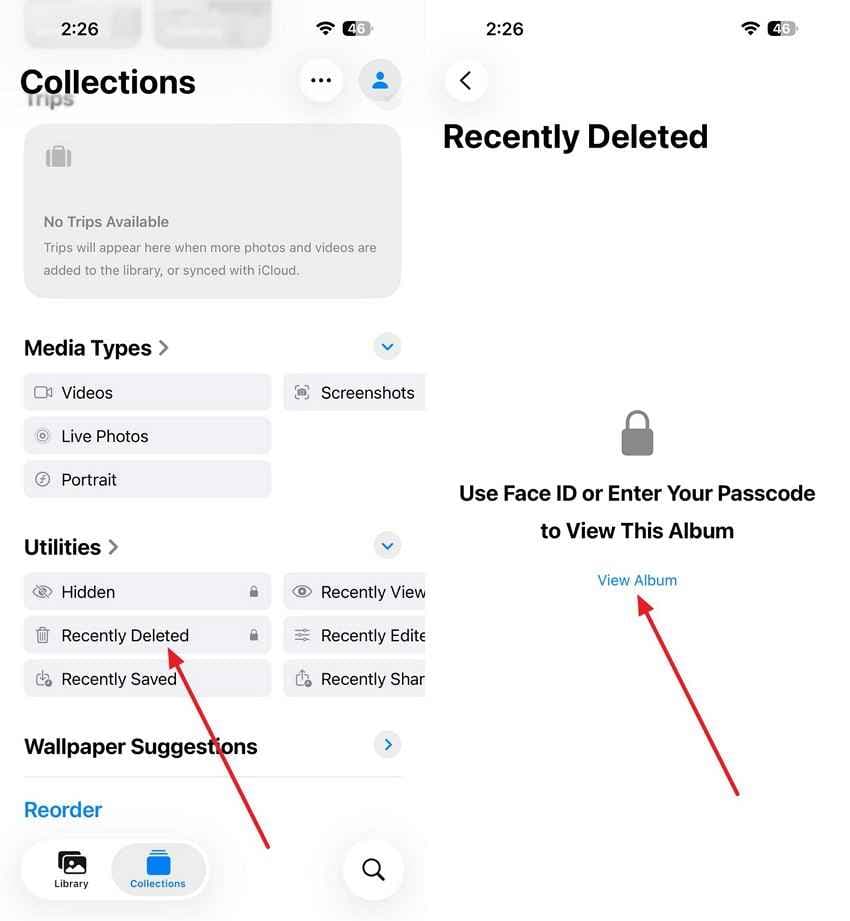
The Recently Deleted album is the first place to check because it restores photos back into the Photos library without needing third-party software. On iPhone or iPad, open Photos, go to Collections > Utilities > Recently Deleted, unlock the album with Face ID, Touch ID, or passcode, then select the photos you want to keep.
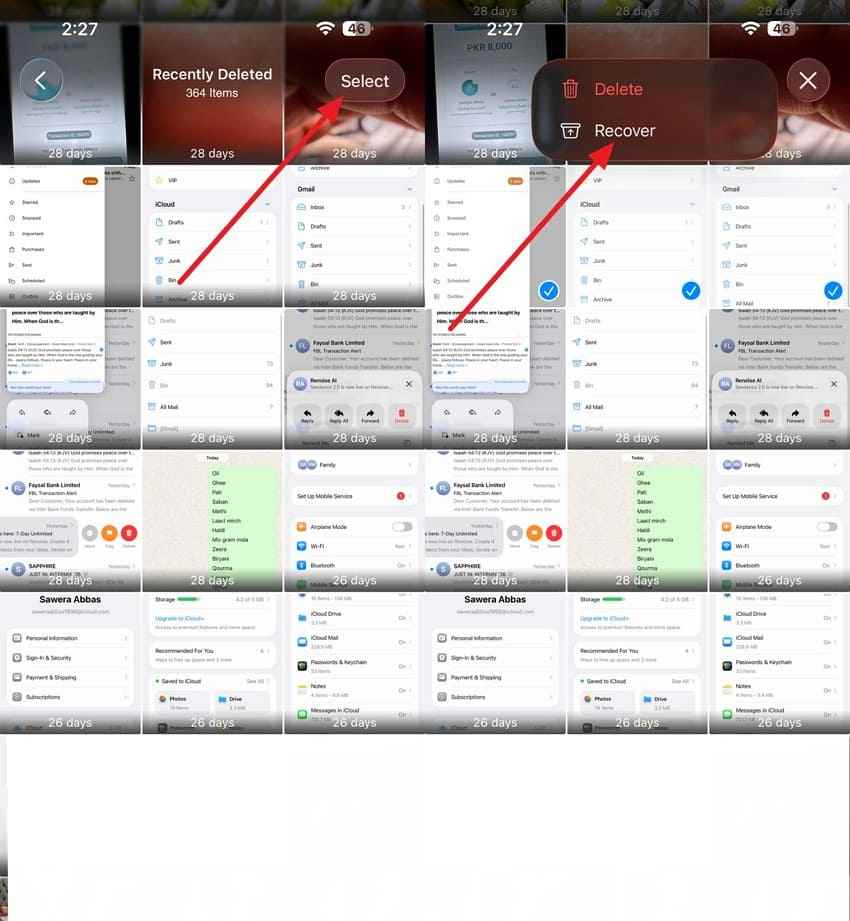
Tap Select, choose the photo or video, tap the More button, then tap Recover. Confirm the recovery so the item returns to your library.
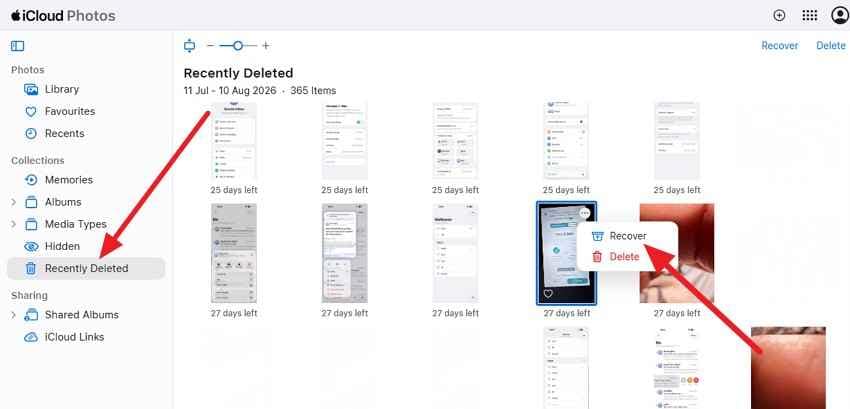
Also check iCloud.com because the browser view may make it easier to sort and select items. Sign in to iCloud.com, open Photos, choose Recently Deleted, select the files, and click Recover.
Mac Photos Library, Trash, or Time Machine Backup
A Mac may have an independent Photos Library, exported originals, edited files, or a Time Machine backup from before the deletion. Check the Photos app, the Pictures folder, Trash, Downloads, Desktop, and any external drive used for photo storage.
If Time Machine was running, Apple's Photos guide says you can restore a photo library to the state it had when the backup was made. The same guide warns that if Optimize Mac Storage was enabled, Time Machine may not have backed up the original full-resolution files. In that case, a backup may contain a library shell or smaller local versions, not every original.
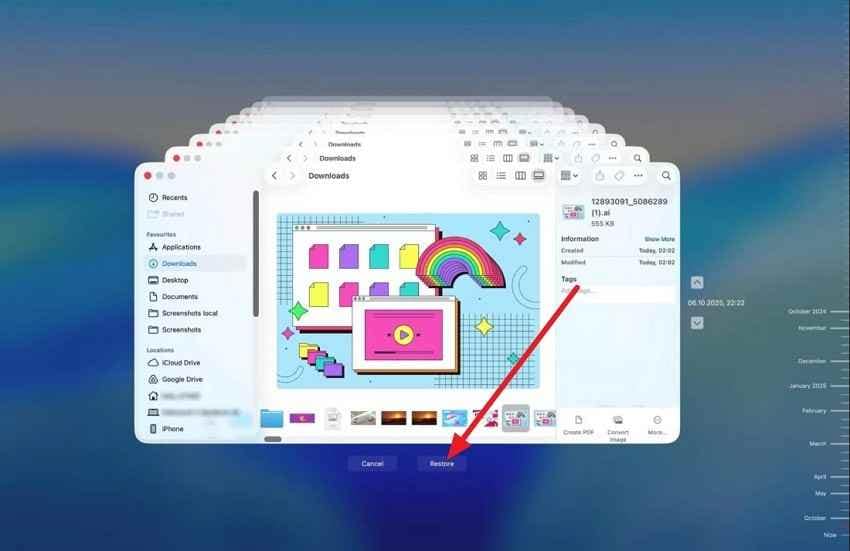
Step 1. Quit Photos. Click the Time Machine status icon in the menu bar and choose Enter Time Machine, or open Time Machine from System Settings.
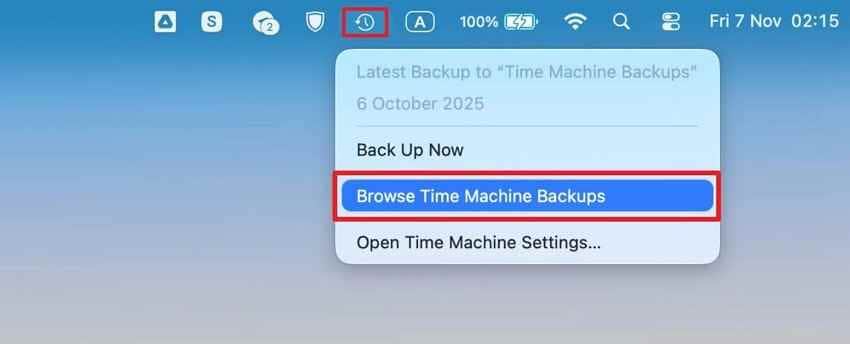
Step 2. Navigate to a backup date before the photos were deleted, select the Photos Library, and click Restore. If you do not want to replace your current library, restore to another safe location first and inspect it separately.
Windows Recycle Bin and Downloaded iCloud Photos
If iCloud for Windows was installed, the deleted photo may have had a downloaded copy on your PC. Apple's iCloud for Windows guide says that if you deleted the photo or video on a Windows computer, you should check the Recycle Bin and restore it from there.
Open Recycle Bin, search or sort by date, right-click the photo or video, and choose Restore. Then copy the restored file to a non-iCloud folder so it is not immediately affected by another sync action.

External Drives, SD Cards, and Exported Photo Folders
Many "permanently deleted iCloud photos" still exist outside iCloud because they started somewhere else. Search camera SD cards, microSD cards, USB drives, external hard drives, old phones, old laptops, photo-editing folders, downloaded iCloud Photos folders, and exported albums.
If you find a folder that used to contain the photos but the files are now deleted, stop using that storage device. New writes can overwrite recoverable image data. This is the point where local recovery software may help, not iCloud recovery.
Offline iPhone, iPad, or Mac Before It Syncs
An Apple device that has not connected to the internet since the deletion may still have a local copy. Keep it offline. Open Photos only after Wi-Fi and cellular data are disabled, then copy, AirDrop, export, or cable-transfer anything important before reconnecting to iCloud.
Warning: Reconnecting the device before exporting can sync the deletion and remove the only remaining copy.
Older Device Backup When iCloud Photos Was Disabled
An iPhone or iPad backup can help only if Photos were included in that backup. Apple's iCloud Backup documentation says photos and videos may be included when iCloud Photos was not turned on. If iCloud Photos was enabled, restoring the device usually syncs the current cloud library instead of restoring removed photos from that backup.
Use this option carefully because restoring a backup can replace current device data. Back up the device first, and check whether the older backup was created before iCloud Photos was enabled.
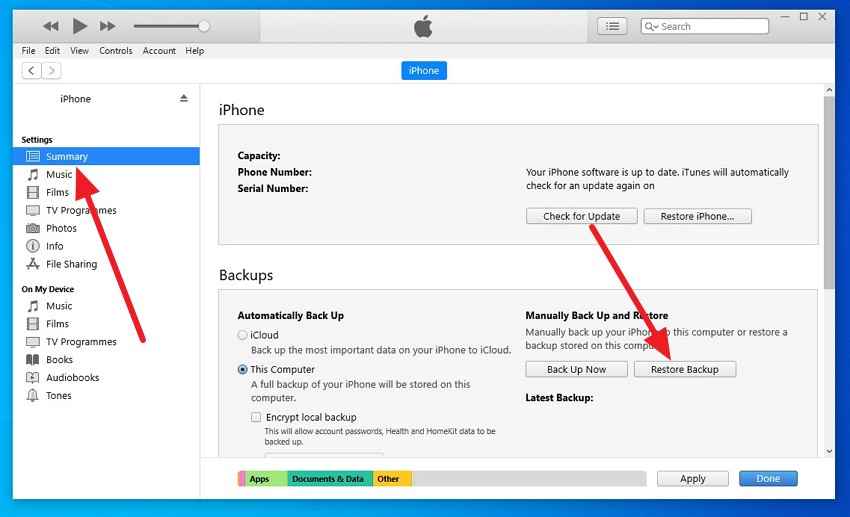
Step 1. Connect the iPhone to the computer, trust the computer on the iPhone, open Finder, Apple Devices, or iTunes depending on the computer, select the device, and choose Restore Backup.
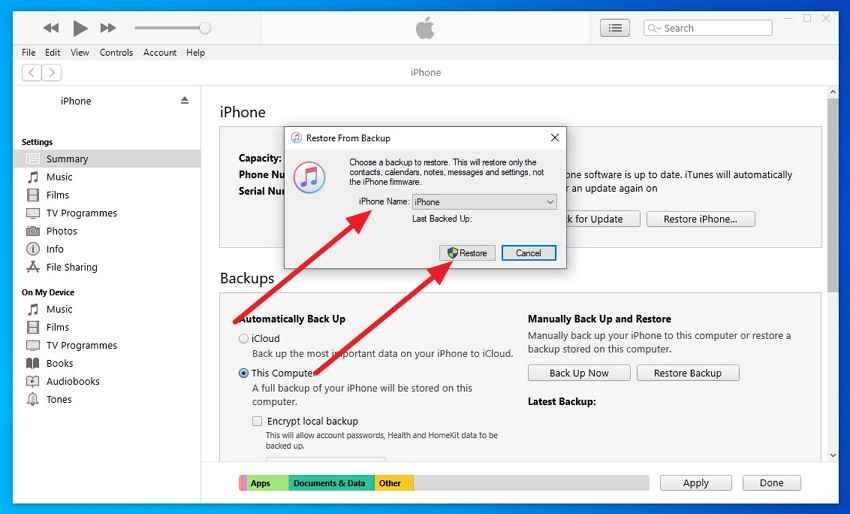
Step 2. Choose the backup created before the photos were deleted and click Restore. Wait for the process to finish before checking the Photos app.
Part 4. Recover Deleted Local Photo Copies With Recoverit
After the iCloud checks are exhausted, the task changes. You are no longer recovering from iCloud. You are trying to recover a local photo file that once existed on a computer, external drive, SD card, camera card, USB drive, or downloaded folder.
When Local Photo Recovery Is Possible
Local recovery is possible when the deleted image data still remains on readable storage and has not been overwritten. This can apply to exported iCloud Photos folders, iCloud for Windows downloads, Mac folders, Time Machine-restored libraries, camera cards, external drives, and old backup disks.
It is less likely when the storage is physically damaged, encrypted without the key, trimmed by SSD garbage collection, overwritten by new files, or available only as a cloud record that never existed locally.
Recover Photos From a Computer, External Drive, or SD Card
Use Wondershare Recoverit Photo Recovery only for recoverable local storage. Select the drive or memory card that held the missing photos. If the loss happened on your computer's system drive, install recovery software on another drive when possible to reduce overwrite risk.
Step 1. Select the drive or memory card.
Open Recoverit, choose the local disk, external drive, SD card, USB drive, or folder where the photo copy used to exist, and start the scan.

Step 2. Filter by photo type and date.
Filter scan results by image formats such as JPEG, PNG, HEIC, TIFF, or camera RAW where available. Date, file type, and location filters help you find the missing photo set faster.

Step 3. Preview before recovery.
Preview recoverable photos to confirm the right files before saving. If a recovered standard JPEG opens with visible damage, use a dedicated repair workflow rather than assuming cloud recovery can fix it. You can also review Recoverit's guide to repairing standard JPEGs after recovery.

Try Wondershare Recoverit to Perform Data Recovery
 Security Verified. Over 7,302,189 people have downloaded it.
Save Recovered Photos to Another Drive
Do not save recovered photos back to the same drive or memory card you scanned. Save them to another internal disk, external drive, or cloud folder after the files are recovered. Then open several photos to verify that they are complete before deleting scan results or reformatting the original storage.
Why Recoverit Cannot Directly Restore Deleted iCloud Cloud Photos
Recoverit scans local and connected storage. It cannot scan Apple's iCloud servers, access a deleted cloud object, restore a photo removed from Recently Deleted, bypass an Apple Account, decrypt iCloud data without legitimate access, or reverse a synced deletion after the only remaining copy is gone. That boundary is important: use Recoverit for lost local files, not for direct cloud-side iCloud restoration.
For broader local file-loss cases, Recoverit's data recovery workflow can help scan readable drives and removable storage for deleted files before you overwrite them.
Part 5. Why Some iCloud Photo Recovery Methods Do Not Work
Some popular iCloud photo recovery advice fails because it treats sync, backup, local storage, and cloud deletion as the same thing. They are not the same.
| Method | Why It May Not Work | What to Do Instead |
| Restore an iCloud Backup | Photos synced through iCloud Photos are not included in nightly iCloud Backup. | Check independent copies or backups made before iCloud Photos was enabled. |
| Restore a Finder, Apple Devices, or iTunes backup | The backup may not contain the photo library if iCloud Photos was enabled at the time. | Confirm the backup date and whether iCloud Photos was disabled then. |
| Reconnect an offline device | Reconnection can sync the deletion and remove a surviving local copy. | Export available photos while the device is still offline. |
| Ask Apple Support to restore permanently deleted photos | Apple's user-facing recovery path is Recently Deleted; permanent deletion has hard limits. | Recover from Recently Deleted within 30 days or search local copies. |
| Use browser-based iCloud recovery tools | Third-party websites cannot directly scan deleted iCloud Photos storage. | Use Apple recovery options, backups, local devices, and local file recovery. |
| Assume Optimize iPhone Storage kept originals locally | Optimized storage may leave smaller local versions while full-resolution originals are in iCloud. | Check whether another Mac or PC downloaded originals before deletion. |
Part 6. Mistakes to Avoid After Losing iCloud Photos
Avoid these mistakes while trying to recover permanently deleted iCloud photos. Several of them can destroy the last recoverable copy.
- Do not empty Recently Deleted before checking it: Manually clearing the album removes the best Apple-supported recovery path.
- Do not reconnect an offline device too early: Export photos first, then reconnect after the copy is safe.
- Do not erase an iPhone, iPad, or Mac without checking backup contents: A backup may not include iCloud Photos if syncing was enabled.
- Do not save new files to a drive that held deleted local copies: New writes can overwrite recoverable image data.
- Do not install recovery software onto the affected drive if you can avoid it: Use another disk or another computer when possible.
- Do not assume shared photos behave like your main library: Shared Albums and Shared Photo Library have separate rules and permissions.
- Do not trust tools claiming direct access to deleted iCloud storage: Legitimate recovery focuses on Apple's recovery window, backups, local files, and independent copies.
Part 7. How to Prevent Permanent iCloud Photo Loss
The best fix is to stop treating iCloud Photos as the only copy. iCloud Photos is useful, but synced deletion is not the same as a separate backup.
| Prevention Method | Why It Helps | When to Do It |
| Download full-resolution originals to a Mac or PC | Creates local files that are easier to back up and recover. | Before major cleanup, device trade-in, or iCloud storage changes. |
| Back up the local Photos Library | Time Machine or another backup can preserve earlier library states. | Continuously, especially before deleting large batches. |
| Keep a separate external copy | Protects important albums from synced deletion and account problems. | For family photos, client work, travel photos, and camera originals. |
| Export before bulk deletions | Gives you a fallback if you delete the wrong items. | Before library cleanup or storage reduction. |
| Check Recently Deleted before day 30 | Prevents accidental loss after the recovery period expires. | After every large deletion. |
| Understand Advanced Data Protection | Advanced Data Protection improves iCloud encryption but does not replace backups. | Before relying on iCloud as your only archive. |
Conclusion
Once iCloud Photos are permanently deleted from Apple's recovery window, the practical recovery path is outside iCloud. Check Recently Deleted first, then search offline devices, Mac Photos Libraries, Time Machine, Windows Recycle Bin, iCloud for Windows downloads, older backups made before iCloud Photos was enabled, external drives, SD cards, Messages, email, and other cloud apps.
Recoverit is useful only when a photo existed as a local file and that local file was deleted, lost, or formatted from readable storage. It cannot directly restore purged iCloud cloud photos. For future safety, keep at least one full-resolution local photo copy and back it up separately from iCloud Photos.
FAQ
-
Does Optimize iPhone Storage affect photo recovery?
Yes. Optimize iPhone Storage can leave smaller local versions on the device while full-resolution originals are stored in iCloud. If the iCloud original has been permanently deleted, an offline device may only provide a lower-resolution local copy unless it previously downloaded the original. -
Can Family Sharing members restore my deleted iCloud photos?
Not from your personal iCloud Photos library. Family Sharing does not give another member access to restore your deleted personal library items. A family member may still have a copy if you sent it to them, shared it in an album, or saved it to a shared location. -
Do photos remain in Shared Albums after being deleted from my library?
Often, yes. Shared Albums are separate from your main iCloud Photos library, so a photo posted to a Shared Album may remain there after the original is deleted from your personal library. However, album permissions matter: the album owner can remove items, and subscribers can remove items they added. -
Does Advanced Data Protection change the 30-day deletion period?
No. Advanced Data Protection changes how many iCloud data categories are protected with end-to-end encryption, including Photos, but it does not turn Recently Deleted into a long-term backup or extend the normal photo recovery period. You still need independent backups.



