 TL;DR:
Recovering pictures from an iCloud backup depends entirely on your settings: if "iCloud Photos" was disabled before the loss, your images are stored within the device backup and require a full iPhone erase to restore, whereas enabled sync excludes photos from backups and requires retrieving them directly from iCloud.com or the Recently Deleted folder.
● For devices with iCloud Photos enabled, deleted images are only held in the Recently Deleted folder for up to 30 days, and removing a photo on one device automatically deletes it across all synced Apple hardware.
● Restoring an older iCloud backup requires erasing all current iPhone content during setup, making it critical to manually copy any new files or photos created after the target backup date to a computer or separate drive first.
● If images still appear missing immediately after a successful restore, keep the iPhone connected to Wi-Fi and power, as background library syncing can temporarily pause due to low battery and often takes hours to finish downloading.
Ask AI for a summary
 ChatGPT
 Perplexity
 Gemini
 Claude
 Grok
Grok
“I had to reset my phone for a send in apple repair. It does look like some of my photos are on icloud but most of them are not. I have a backup from before resetting my phone. Would this recover those photos? They are really important photos.”-AutisticGiraffee
Photos can disappear from view after an iCloud restore for more than one reason. How to recover pictures from iCloud backup comes down to the iCloud Photos setting used before the loss. If it was on, pictures synced separately and should be checked in Recently Deleted or iCloud.com.
If it was off, a full backup restore may return them. The steps below explain each recovery path and how Recoverit can help check recoverable iCloud data when Apple’s standard options are insufficient.
Recover iCloud Photos With Wondershare Recoverit
 Security Verified. Over 7,302,189 people have downloaded it.
In This Article
Part 1. Are Your Photos in iCloud Backup or iCloud Photos?
Apple handles photos through 2 separate systems, so how to recover photos from iCloud backup starts with knowing where your library was stored. Use the table below to identify which system applies to your photos and the recovery route to follow:
| Photo Situation | Where Photos Are Stored | Best Recovery Option |
| iCloud Photos Was Enabled | Apple's servers, synced continuously | iCloud.com or Recently Deleted |
| iCloud Photos Was Disabled | On the device; may also be included in iCloud Backup | Restore an eligible backup, Part 3 |
| Deleted Within 30 Days | Recently Deleted, synced across devices when iCloud Photos is enabled | Recover in the Photos app |
| Missing After a Restore | May still be restoring or syncing in the background | Wait and check sync, Part 5 |
How iCloud Photos Sync Works
Turn on iCloud Photos and the library is handled through iCloud itself, not through the regular device backup. The same photos then appear on other devices signed in with that Apple Account. Apple’s iCloud Backup documentation confirms that photos already synced this way are left out of the backup.
Delete a photo on one device, and iCloud Photos removes it from the others as well. Apple keeps the deleted item in Recently Deleted for up to 30 days before permanent removal.
How iCloud Backup Handles Photos Instead
If iCloud Photos was off when the backup was created, Apple says the backup may include photos and videos stored on the device. Restoring that backup may therefore return them. Anyone asking how to recover pictures from iCloud backup should first determine which system held the photos.
To check the current setting, open Settings, tap your name, choose iCloud, then Photos, and check whether Sync this iPhone is enabled.
Part 2. How to Recover Photos Directly From iCloud Photos
If sync was enabled, this is your route, and it needs no reset of any kind. These 5 checks answer how to recover photos from iCloud backup situations where sync held the library:
Recover From Recently Deleted
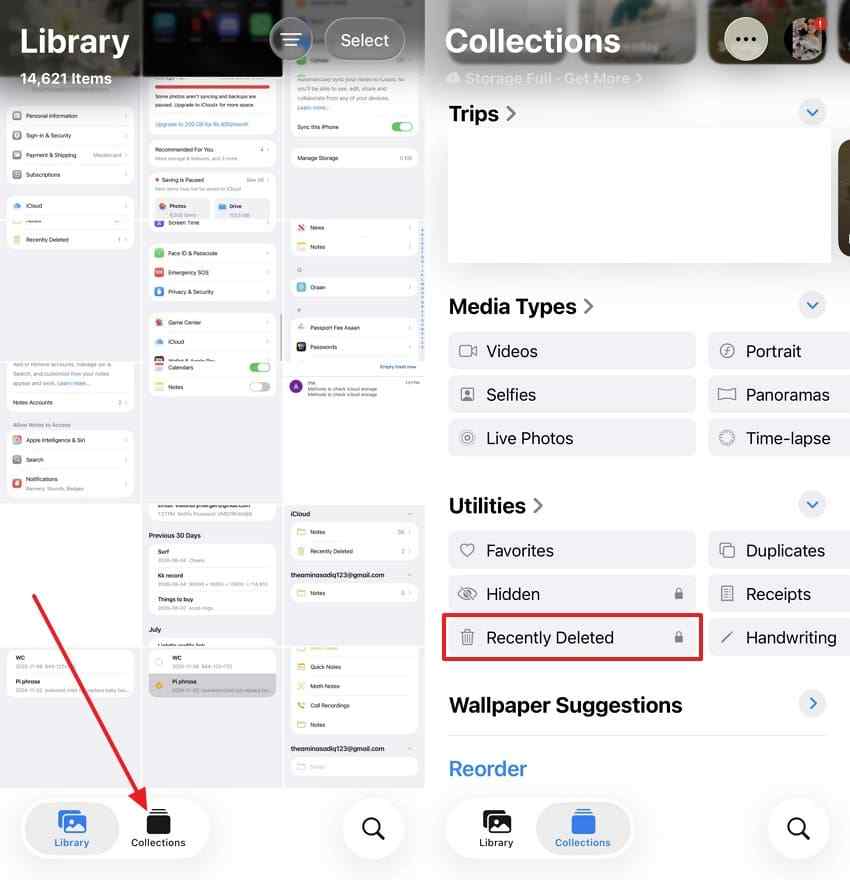
Apple keeps deleted photos and videos in Recently Deleted for up to 30 days. Restore one from there and, if iCloud Photos is turned on, it goes back into your library and appears again on your other synced devices. If the photo is still there, use these steps:
Step 1. Open “Photos” > Tap “Collections” > Open “Recently Deleted” under Utilities.
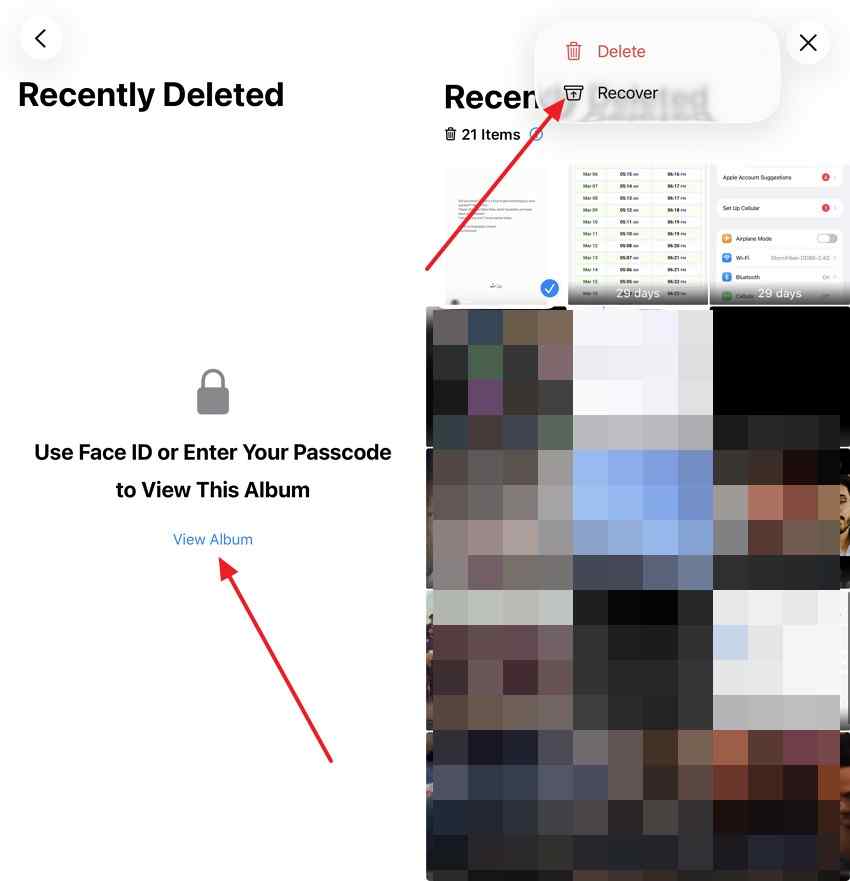
Step 2. Tap “View Album” and unlock it > “Select” > Choose the photos you want > Tap “Three Dots” > Select “Recover.”
Download Photos From iCloud.com
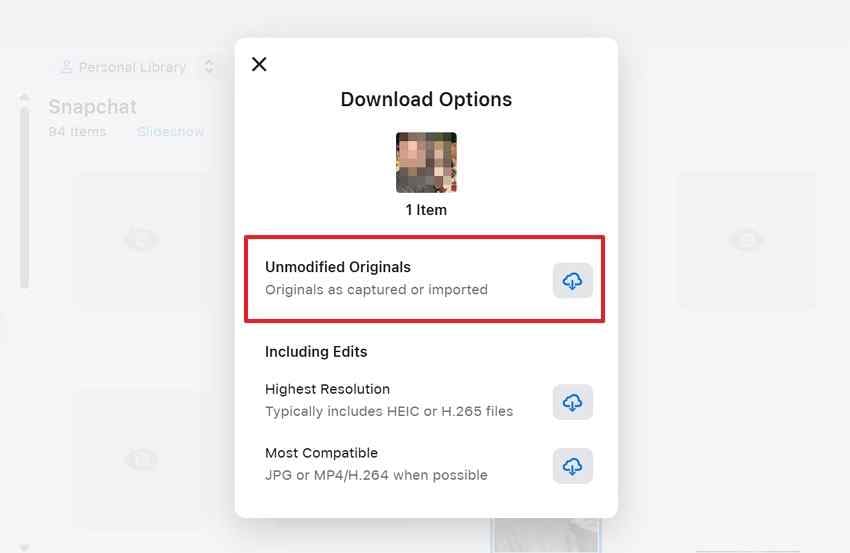
If the photos were synced instead of stored in the backup, how to retrieve pictures from an iCloud backup starts at iCloud.com. From there, you can see what is still in the library and download it as an Unmodified Original, Highest Resolution file, or Most Compatible copy. To save an available photo directly from iCloud, use this route:
Step 1. Go to “icloud.com/photos” > Sign in > Select the photos you want to download > “More Download Options.”
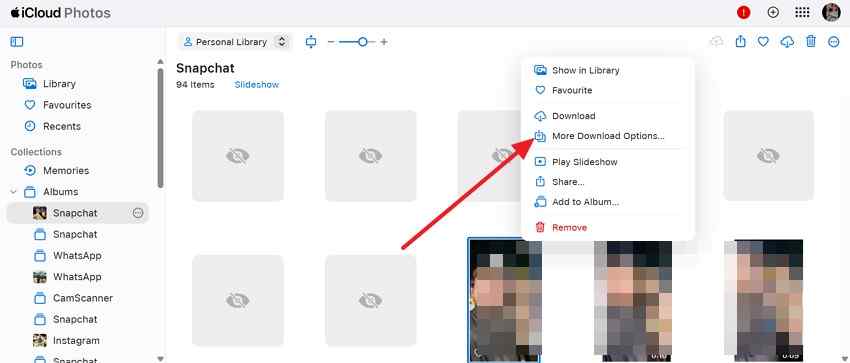
Step 2. Choose “Unmodified Originals” if needed > Tap “Download.”
Confirm the Correct Apple Account
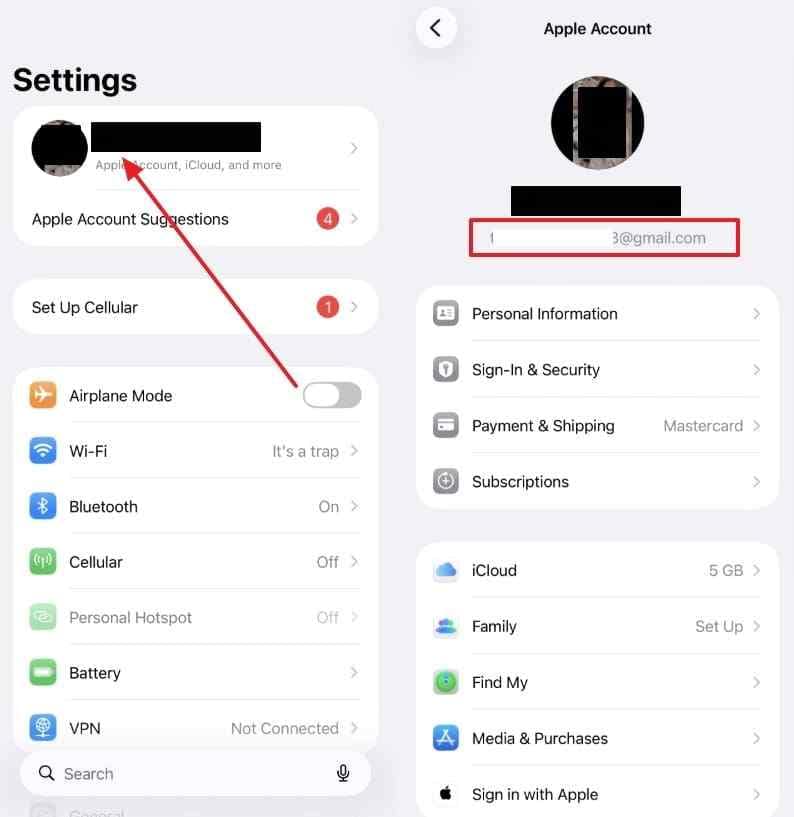
iCloud Photos stays updated only across devices using the same Apple Account. If another account is active, the expected library may appear missing even though the photos still exist under the Apple Account that originally synced them to iCloud. Before trying another recovery method, confirm the account first with the instructions:
Instructions. In “Settings,” tap your name > Read the “Apple Account Email” > Match it with the Apple Account previously used for iCloud Photos > Switch if needed.
Check Shared Albums and Shared Library
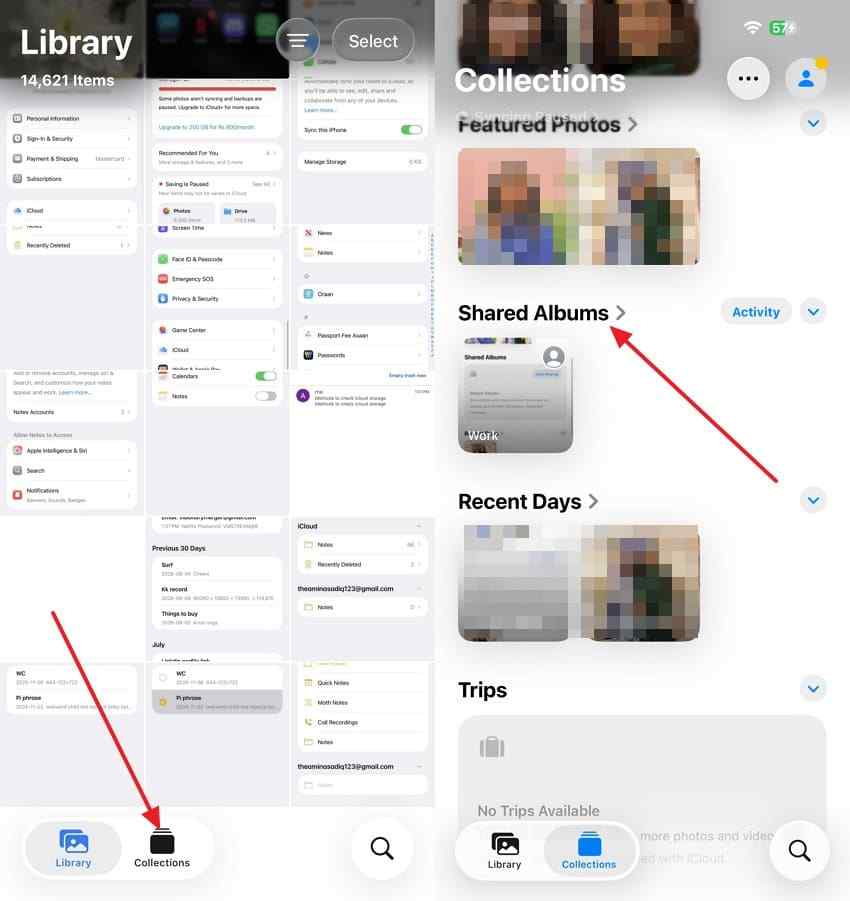
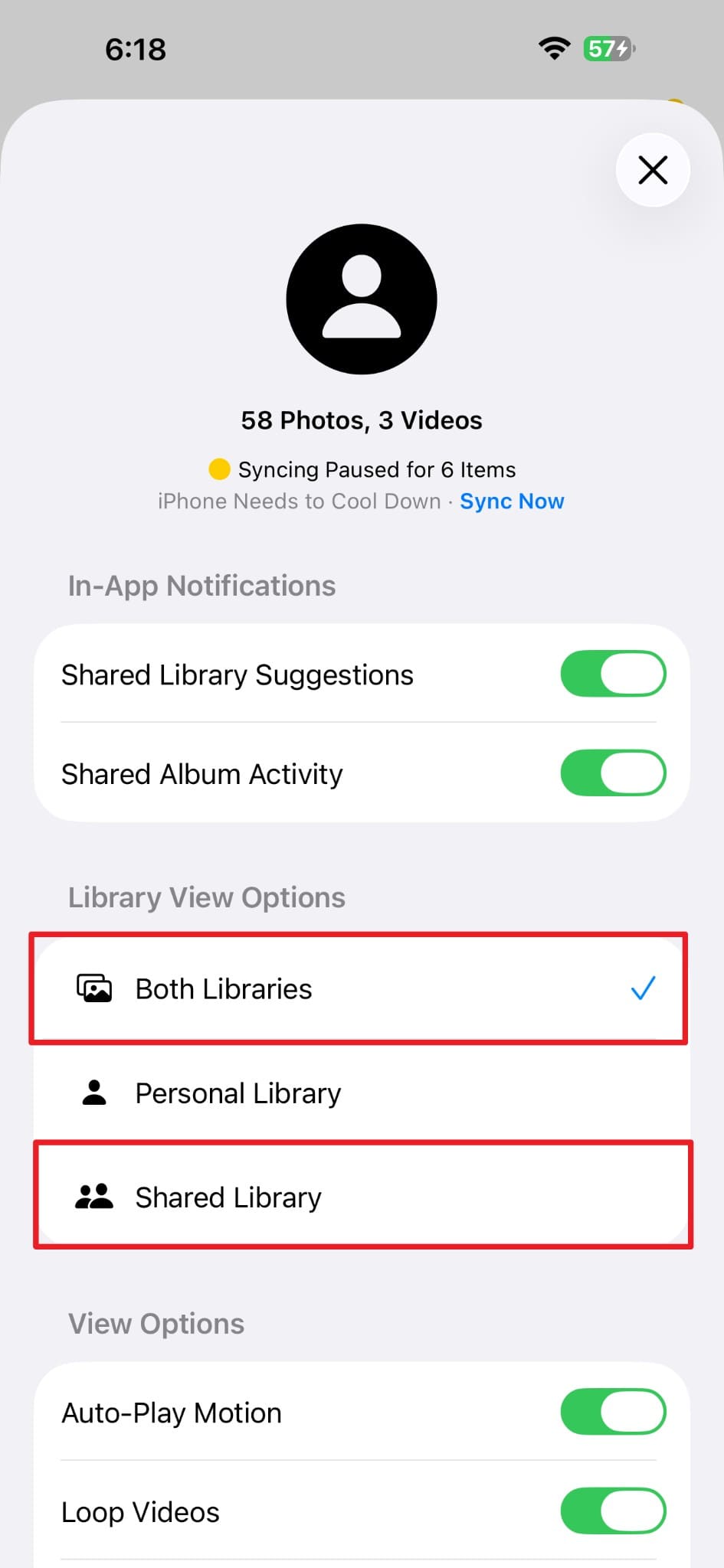
When checking how to recover pictures from iCloud backup, review Shared Albums and Shared Library separately. Shared Albums store uploaded copies, while photos contributed to iCloud Shared Photo Library move out of Personal Library and may appear missing there. Check both sharing locations separately with the steps below:
For Shared Albums
Step 1. Access “Photos” > Tap “Collections” > Open “Shared Albums.”
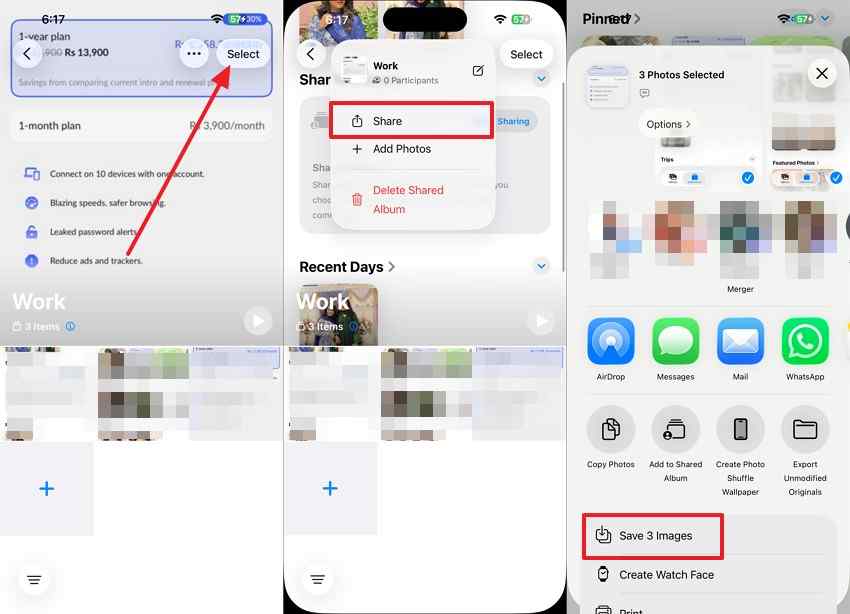
Step 2. Select the photo you need > Tap the “Share” button > Choose “Save Image.”
Shared Library
Instructions. In “Photos” > Open “Library View Options” > Choose “Shared Library” or “Both Libraries.” Select the photo > Tap “More” > “Move to Personal Library” if you want it returned there.
Wait for Sync to Finish
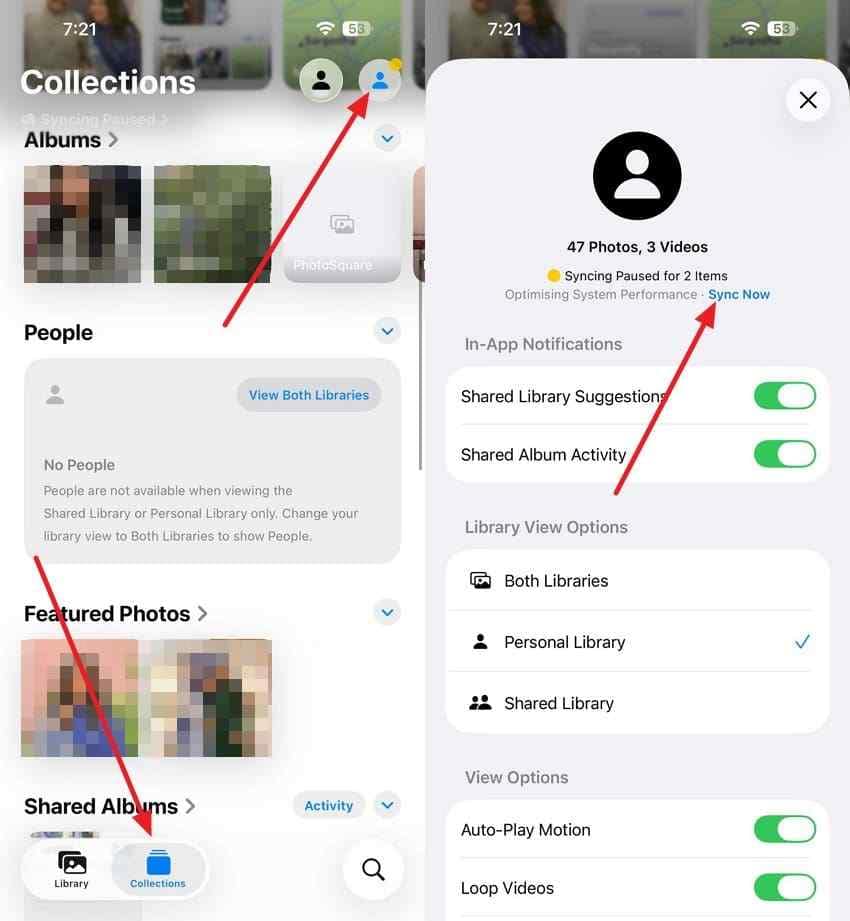
A newly signed-in device may need time to finish syncing a large iCloud Photos library. Apple says syncing can pause because of low battery, Low Power Mode, poor network conditions, overheating, or full iCloud storage. To check whether syncing is still in progress, follow these instructions:
Instructions. From “Photos” > Tap “Collections” > Select your profile button to view the “Library Sync” status. Connect the iPhone to power and Wi-Fi > Follow any sync message shown > Allow the process to finish.
Part 3. How to Restore Photos From an Actual iCloud Backup
When iCloud Photos was turned off, the missing images may be inside the device backup. In that case, how to restore photos from iCloud backup means restoring the whole iPhone rather than choosing photos one by one. Check the backup date first, since the phone must be erased before you can use it.
Step 1. Check the Backup Date
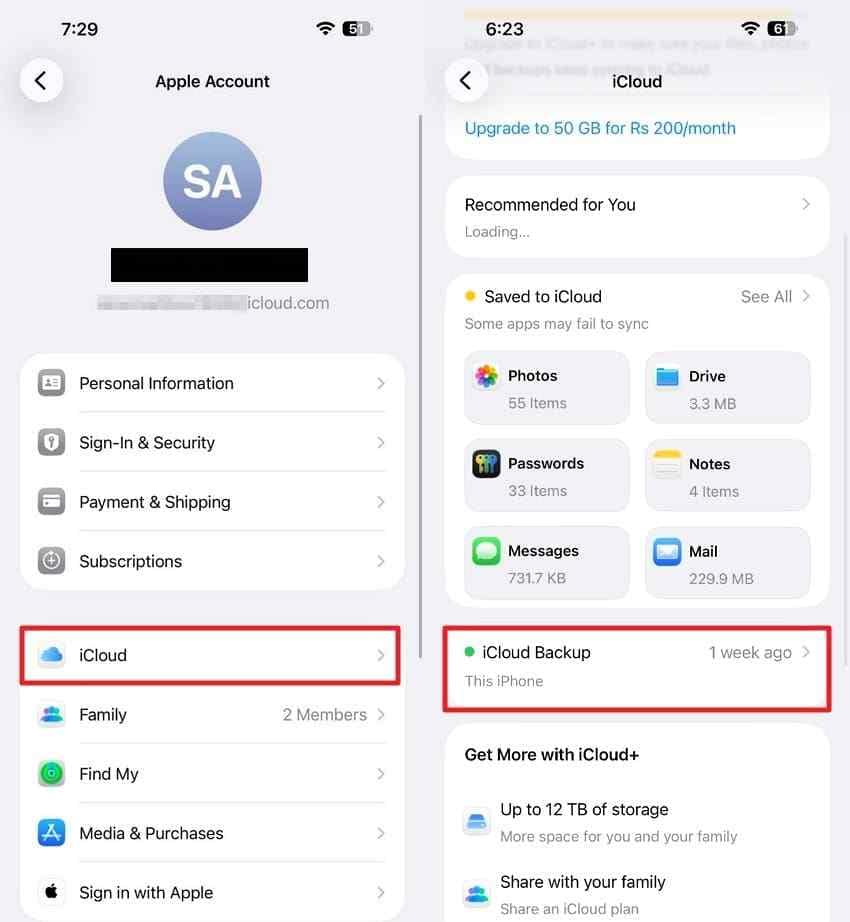
The backup date helps determine whether it could contain the missing photos. A backup made after the photos disappeared may not help, while an earlier backup may contain them if iCloud Photos was off and the images were included. Follow the instructions below to check the backup date:
Instructions. Open “Settings” > Tap your name > “iCloud” > “iCloud Backup” > Check the current backup information first, then compare the available backups by date and size.
Step 2. Save Anything Created Since
Before deciding how to get photos back from iCloud backup, protect anything added after the backup date. Erasing the iPhone removes locally stored data, and newer content may not return unless it was synced to iCloud or saved elsewhere. Copy anything important to a computer, iCloud, or another trusted location before continuing.
Step 3. Erase the iPhone
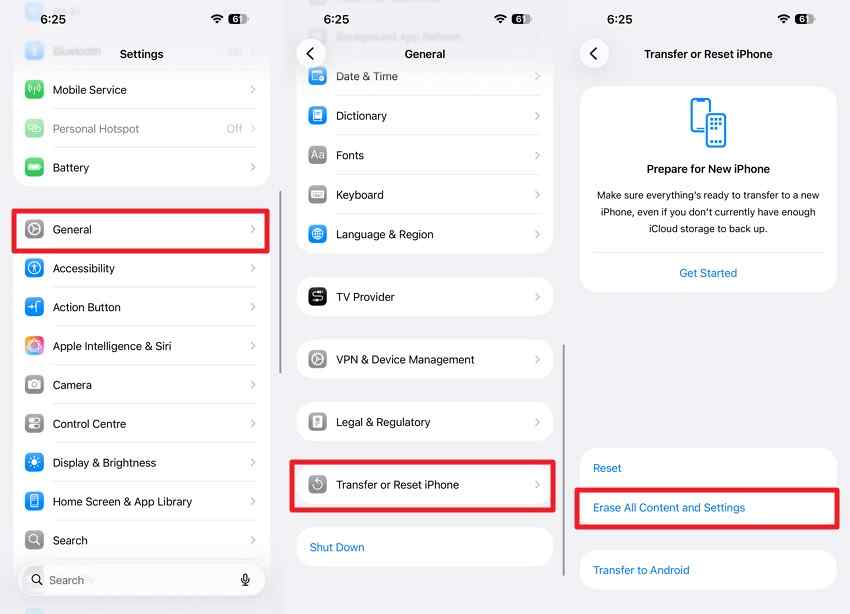
Apple explains that you can restore from iCloud during device setup. If the iPhone is already configured, you must erase it first before you can select and restore an older iCloud backup. Follow these steps to erase the device safely:
Instructions. From “Settings > General > Transfer or Reset iPhone > Erase All Content and Settings,”> Follow the prompts to erase the device.
Step 4. Restore From the Backup
After the iPhone restarts, setup provides the option to restore from iCloud. Sign in to the Apple Account containing the backup, then compare the available backups by date and size before choosing one. Use the instructions below to restore from backup:
Instructions. Start the iPhone setup and go to “Transfer Your Apps & Data” > Tap “From iCloud Backup.”
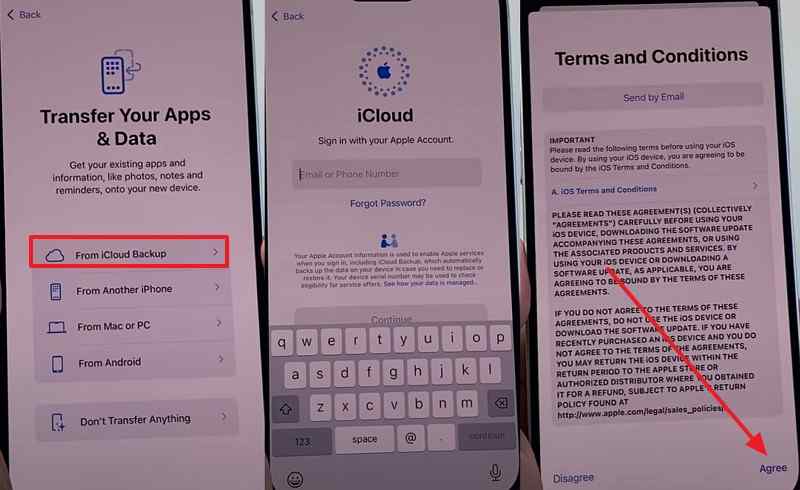
Step 2. Sign in to your Apple Account > Choose the appropriate backup > “Continue.”
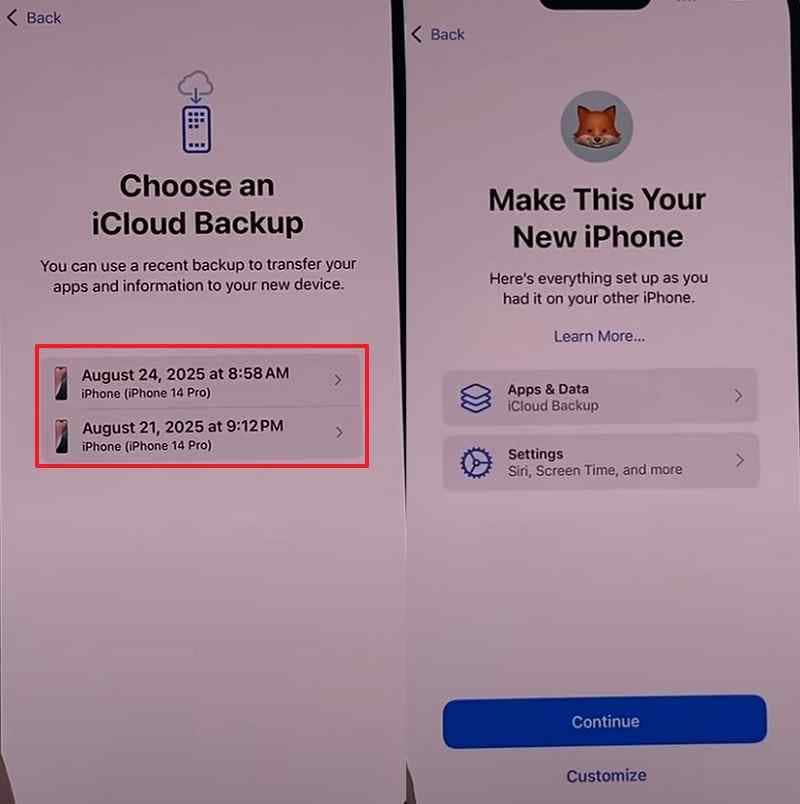
Note: Only use this method if the missing photos may actually be stored in that backup. Apple confirms that photos synced with iCloud Photos are not included in the iCloud Backup.
Part 4. How to Recover iCloud Photos With Wondershare Recoverit

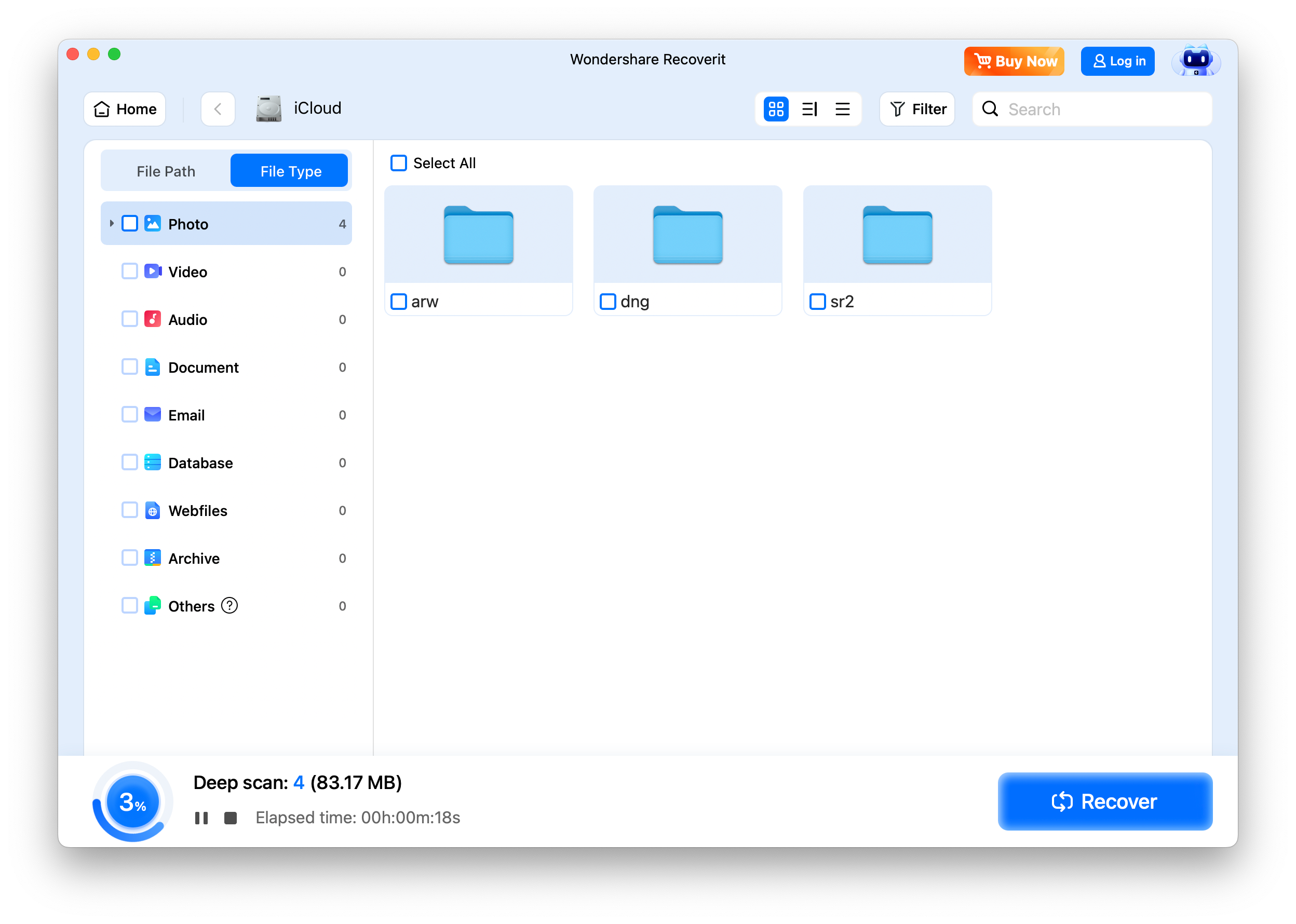
When Apple's standard recovery options no longer show the missing photos, Recoverit for Mac provides another way to check data that may still be available through iCloud. Its iCloud Recovery mode lets users sign in with their Apple Account, complete two-factor verification, and scan supported iCloud data and the Photos App for recoverable photos and videos.
Recoverit then allows users to filter the scan results, preview available files, and recover the items they need. The tool can also help when copies were previously stored on a Mac, although local computer recovery uses a separate scan workflow. Recovery still depends on what data remains accessible, so permanently deleted photos cannot be guaranteed.
Key Features
- iCloud Account Scanning: Signs in with your Apple ID and scans the account directly, including two-factor verification during setup.
- File-Type Filtering: Narrows a large scan to photos and videos specifically, rather than returning every recoverable file at once.
- Full-View Photo Preview: Shows each image with minimal overlay obscuring it, so a photo can be identified before recovery.
- High-Bitrate Video Preview: Plays 4K and 8K clips during preview, which matters for libraries holding recent iPhone video.
- Plain-Language AI Search: Finds an image by describing what it shows, working alongside the format and date filters.
How to Scan iCloud for Deleted Photos with Recoverit
Keep your iPhone nearby before you begin, as Apple may send a two-factor authentication code during sign-in. Once you are ready, follow the steps below to scan available iCloud data for recoverable photos with Recoverit:
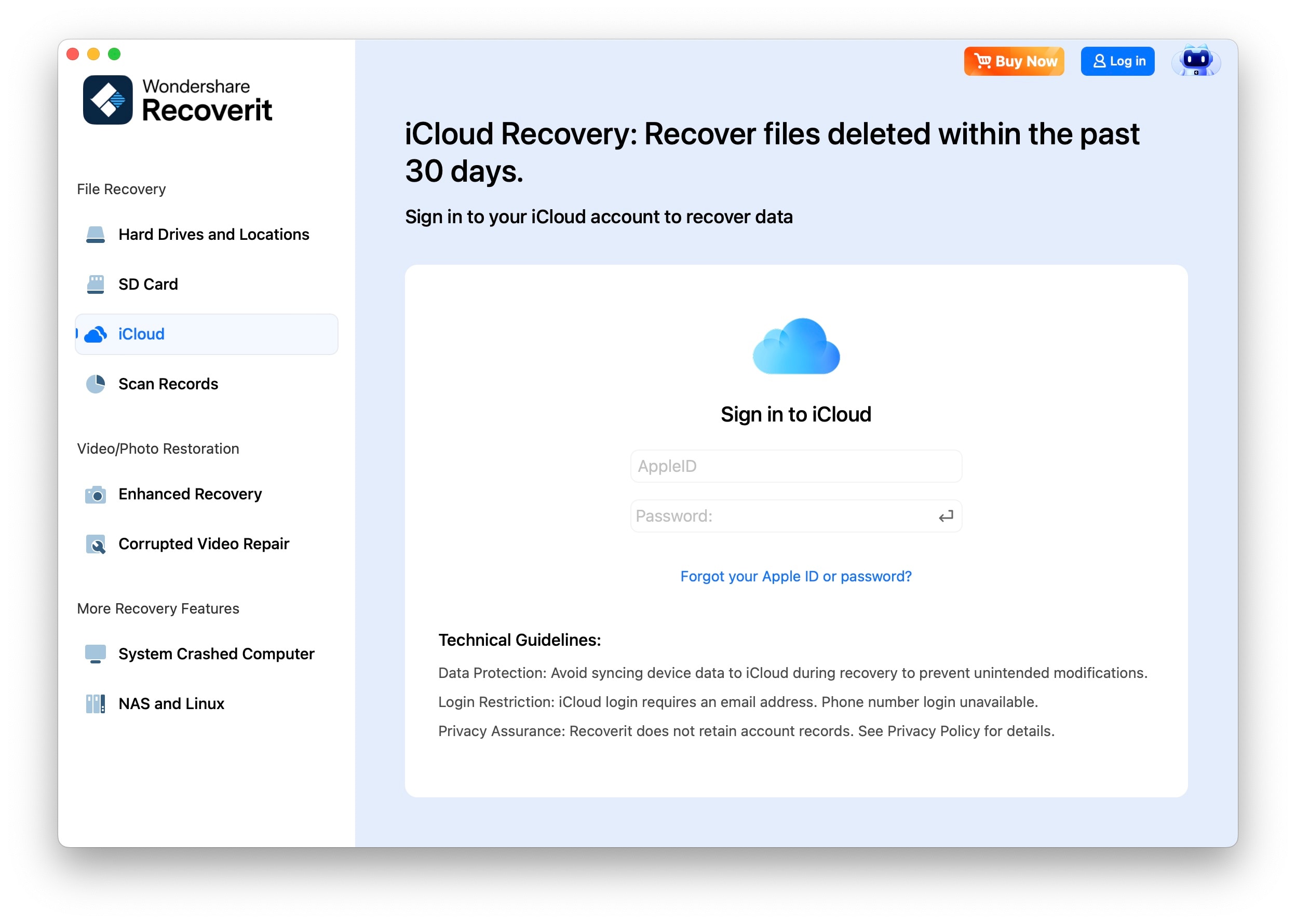
Step 1. Access iCloud Through Recoverit
Launch “Recoverit” and choose “iCloud” from the left panel. Enter your Apple Account credentials > Connect the program to your iCloud data.
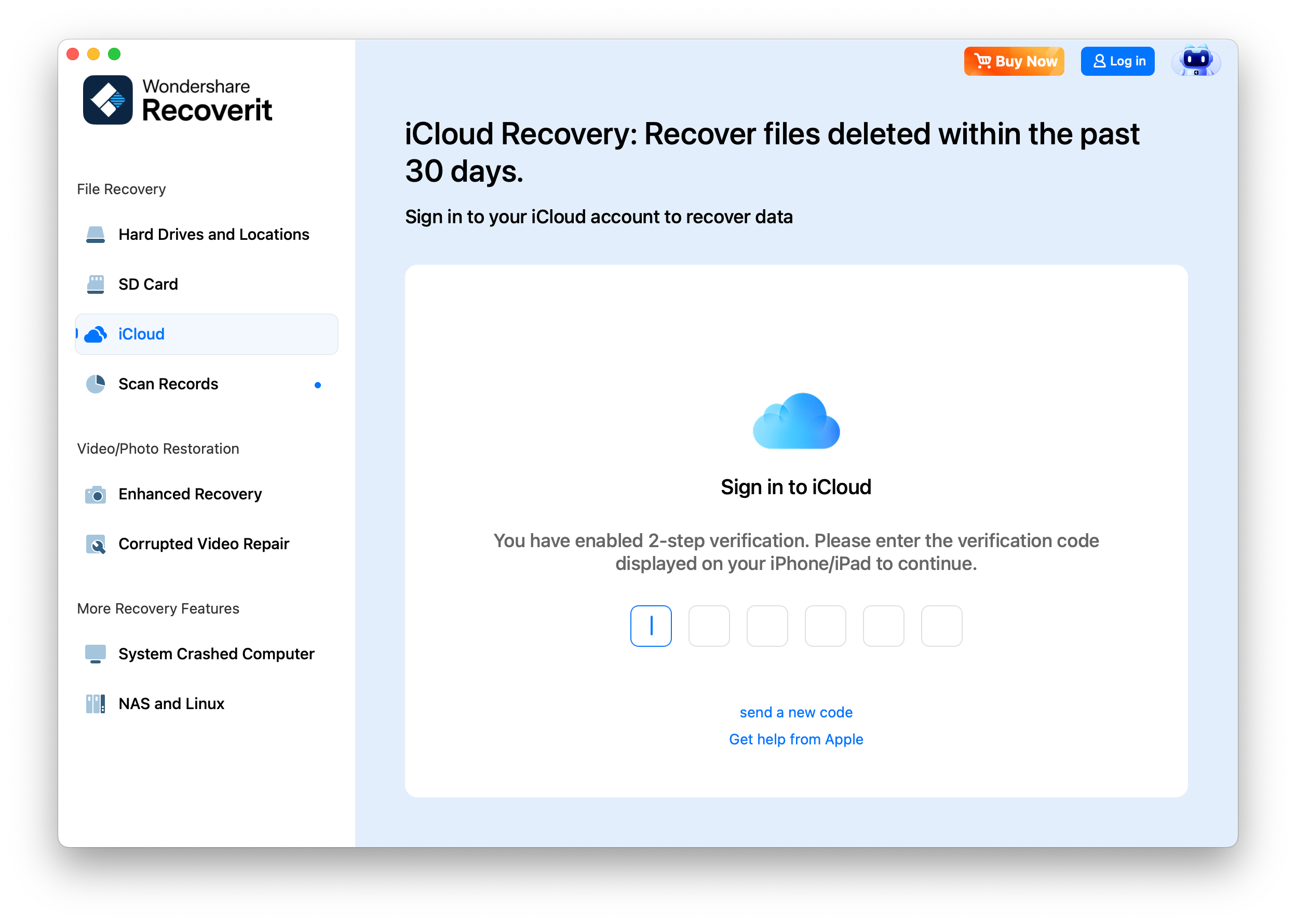
Step 2. Verify Your Apple Account
If two-factor authentication is active, enter the “Verification Code” sent by Apple to one of your trusted devices.
Step 3. Find and Recover the File
Allow Recoverit to scan iCloud. Use the available “Filter” options to narrow the results, select the file you need, and click “Recover” to restore it.
Scan iCloud for Deleted Photos with Recoverit
Security Verified. Over 7,302,189 people have downloaded it.
Part 5. What if Photos Are Missing After Restoring the Backup?
If photos are still missing after a restore, how to retrieve pictures from iCloud backup starts with these checks:
- Finish the Restore: Background restoration can continue for hours or even longer, so give the process enough time before assuming photos are missing.
- Check iCloud Photos: If iCloud Photos was enabled, the photo library syncs separately from the device backup and may still be downloading.
- Stay on Wi-Fi and Power: Keep the iPhone connected to a stable Wi-Fi network and power so restoration and photo syncing can continue.
- Confirm the Apple Account: Make sure the iPhone is signed in to the same Apple Account previously used for the missing photos.
- Check iCloud.com: If the missing photos appear on iCloud.com, they are still stored in iCloud, and the iPhone may simply need more time to sync.
Part 6. Other Places to Look for Missing iCloud Photos
Before giving up, how to retrieve pictures from iCloud backup should include checking places where copies may remain:
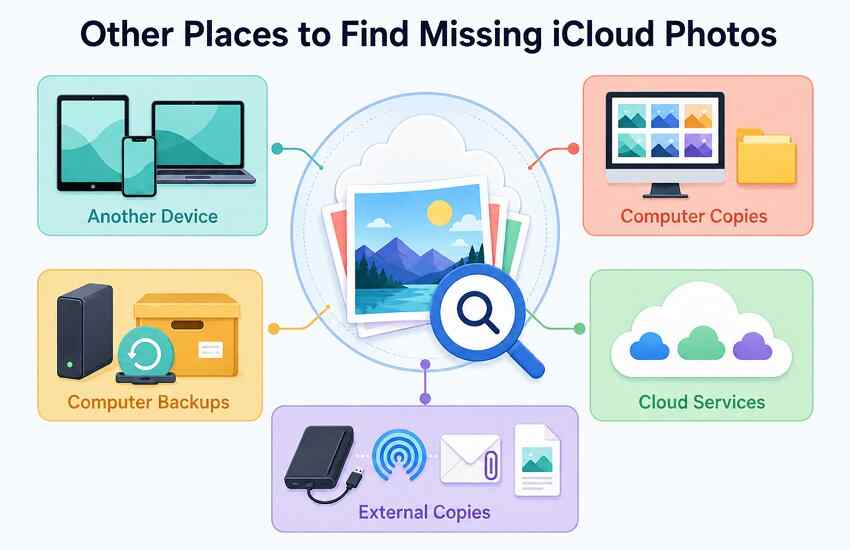
- Check Another Device: Look on an iPad or Mac for a saved copy, especially a device that has not synced since the photo was deleted.
- Check Computer Copies: Review the Photos app on Mac or iCloud Photos on Windows for photos that were previously downloaded or imported.
- Review Computer Backups: Finder, Apple Devices, or iTunes backups may contain older photos if they were included when the backup was created.
- Check Other Cloud Services: Review Google Photos, OneDrive, Dropbox, or other cloud services that may have automatically backed up or uploaded your photos.
- Search External Copies: Check external drives, previous exports, AirDrop transfers, and email attachments for copies saved before the original photos disappeared.
Part 7. Which Photo Recovery Method Should You Use?
Choosing how to recover photos from iCloud backup depends on where the images were stored. Match your situation to the table below to rule out methods that do not apply:
| Situation | Best Method | Requires iPhone Reset | Main Limitation |
| Photos Still In iCloud Photos | Part 2, sync or iCloud.com | No | None if sync is working |
| Deleted Within 30 Days | Recently Deleted | No | Window closes at 30 days |
| Included in an Old Backup | Part 3, full restore | Yes | May affect newer data that wasn't synced or saved elsewhere |
| Selective Recovery is Enough | Part 4, Recoverit scan | No | Depends what remains available |
| Missing After a Restore | Part 5, wait and check | No | Can take hours or days |
| Saved Somewhere Else | Part 6, other locations | No | Copies may be lower quality |
The third option involves the biggest trade-off. How to restore photos from iCloud backup through a full device restore requires erasing the iPhone first, so it makes sense to try selective recovery methods before taking that route.
Part 8. When iCloud Photo Recovery May Not Work
Some situations leave few recovery options, so how to recover pictures from iCloud backup starts with checking these limits:
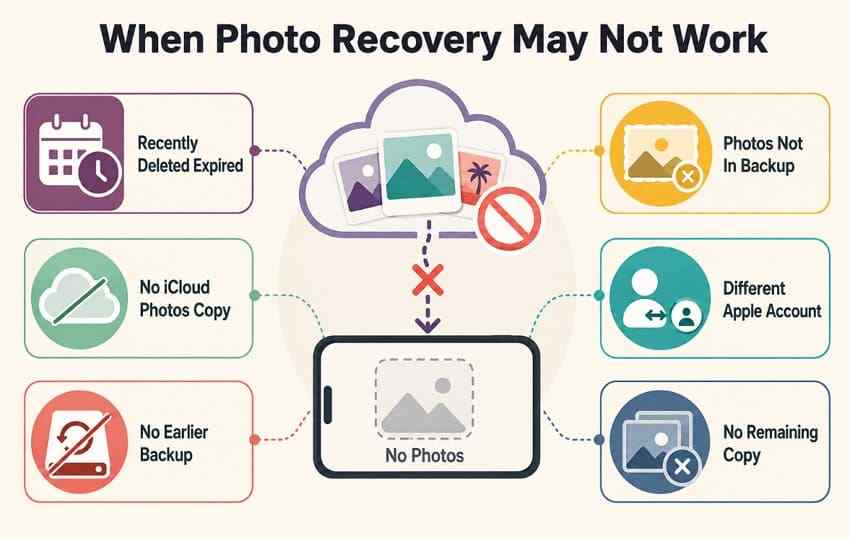
- Recently Deleted Expired: After 30 days, or after permanent deletion from Recently Deleted, the photo can no longer be recovered through iCloud Photos. Another saved copy would be needed.
- No iCloud Photos Copy: If iCloud Photos was never enabled, the missing images will not exist in the synced iCloud Photos library.
- No Earlier Backup: A backup created only after the photos disappeared is unlikely to contain the missing images.
- Photos Not in Backup: When iCloud Photos was enabled, photos already synced to iCloud were not included again in the regular iCloud device backup.
- Different Apple Account: Photos may appear missing if the device uses another Apple Account. Check the account previously used with iCloud Photos.
- No Remaining Copy: If the photos are missing from iCloud, backups, other devices, and saved copies, recovery options become very limited.
Part 9. How to Avoid Losing iCloud Photos
A few simple habits can reduce the risk of permanent photo loss and make how to recover photos from iCloud backup far less likely to become necessary:
- Keep iCloud Photos Enabled When Needed: Use iCloud Photos for synchronized access, but remember that deletions also sync across connected devices.
- Check Before Switching iPhones: Confirm the new iPhone shows the complete photo library before erasing, resetting, or trading in the old device.
- Keep Extra Copies: Save important photos in another cloud service, on a computer, or on an external drive for added protection.
- Review Recently Deleted: Check this album regularly so accidental deletions can be recovered before Apple’s 30-day recovery period ends.
- Back Up Regularly: Keep iCloud Backup enabled to protect eligible device data that is not already syncing separately through iCloud.
- Export Important Photos: Save irreplaceable images to a computer or external drive so another copy remains available if sync or account problems occur.
Conclusion
To conclude, how to retrieve pictures from iCloud backup depends on whether the photos were synced through iCloud Photos or included in a backup. Use Recently Deleted, iCloud.com, or an eligible iCloud Backup based on where the missing photos were stored. If Apple’s options do not reveal them, Recoverit can scan supported iCloud data for photos that may still be recoverable.
FAQ
-
1. Can I recover photos from an iCloud backup without resetting my iPhone?
Not through Apple's full iCloud Backup restore. Restoring that backup requires a new or erased iPhone. However, photos still available through iCloud Photos or another saved copy can be retrieved separately without resetting the device. -
2. Why are my photos not showing after an iCloud restore?
Usually because the restore is still running. Apple states content continues downloading for hours or days. If sync was on, the library also downloads separately from the backup. -
3. Can an older iCloud backup contain photos no longer on my iPhone?
Yes, if iCloud Photos was off and those photos were included when the backup was created. When iCloud Photos was enabled, the synced photo library wasn't included again in iCloud Backup. -
4. Does deleting a photo from iPhone also delete it from iCloud?
Yes. If “iCloud Photos” is enabled, deleting a photo on your iPhone also deletes it from iCloud and other synced devices. It remains in “Recently Deleted” for up to 30 days.


