

 TL;DR:
To recover missing photos from a Google account, immediately check the Trash folder, where backed-up items are retained for 60 days, and the Archive section before verifying your active profile.
● Photos often appear missing if they are misfiled under incorrect date metadata, linked to a different Google account, or stored in local device folders that were never synced to the cloud.
● If the images are absent from Google Photos, search Google Drive for separately stored files or use Google Takeout to verify and export your existing cloud data.
● When photos are permanently deleted from Google's servers or were never backed up, you must attempt recovery directly from the original hardware or external drives using software like Dr.Fone or Recoverit.
Ask AI for a summary
 ChatGPT
 Perplexity
 Gemini
 Claude
 Grok
Grok
- Quick Checks: Look for Trash, Archive, account, and dates; if nothing is there, you must recover from devices or backups, not from Google.
- Reasons for Missing Photos: They might be invisible because of account mix-ups, no backup, Trash/Archive, or permanent deletion.
- How to Recover from Google: Use Trash, search tools, Archive, old synced devices, Takeout exports, and Google Drive.
- Pro Tip: When Google cannot restore your photos, scan phones or storage drives using tools like Recoverit to attempt recovery of deleted photo files.
Photos represent some of life's most meaningful experiences; memories that hold both emotional and historical value. If they become inaccessible due to accidental deletion, device changes, or synchronization issues, their immediate recovery is essential. Since digital memories are stored across multiple Google services, you should know how to recover my old photos in Google account.
In this context, Google provides several recovery pathways, including backup archives, Trash recovery, or account restoration. However, the right approach may vary depending on your circumstances, while the objective remains the same. To follow the recovery measures promptly and maximize the chances of retrieval, keep reading the guide.
Quick Answer: How to Recover Old Photos in a Google Account?
Simply open the Google Photos app while signed in to your Google account, then check the Trash/Bin folder. Once you have found your desired picture there, tap Restore (they stay there for about 60 days if backed up). If you don't see them there, look in Archive, other synced devices, or old backups for recovery.
In this article
-
- Way 1. Check Google Photos Trash or Bin
- Way 2. Search Google Photos by Date, Keyword, or Recently Added
- Way 3. Check Google Photos Archive
- Way 4. Check Device Folders and Old Synced Devices
- Way 5. Use Google Takeout to Export Your Current Photo Archive
- Way 6. Check Google Drive Only if the Photos Were Stored There
- Way 7. Contact Google Support or Community
- Way 8. Use Photo Recovery Software if Google No Longer Has the Files
Part 1. Start Here First: Are Your Old Photos Really Deleted?
Instead of trying advanced recovery methods, first confirm whether your photos have actually been removed or are just hidden. For this, take the listed initial steps and proceed to the correct way to recover photos from an old Google account:
- Check the Correct Google Account: Ensure you're signed in to the same Google account you used to back up photos. This quickly recovers photos that look missing but are actually safe in a different Google profile.
- Check Backup Status: Open Google Photos, then check if backup is turned on and shows "Backup Complete." After rechecking the backup settings, the recent photos started uploading online and reappeared across all devices.
- Check Wrong Dates and Timestamps: Some pictures may have the wrong date, thus appear far back or forward in your timeline. Scrolling by year/month or searching by place/person can help reveal them, and you can then edit the date correctly.
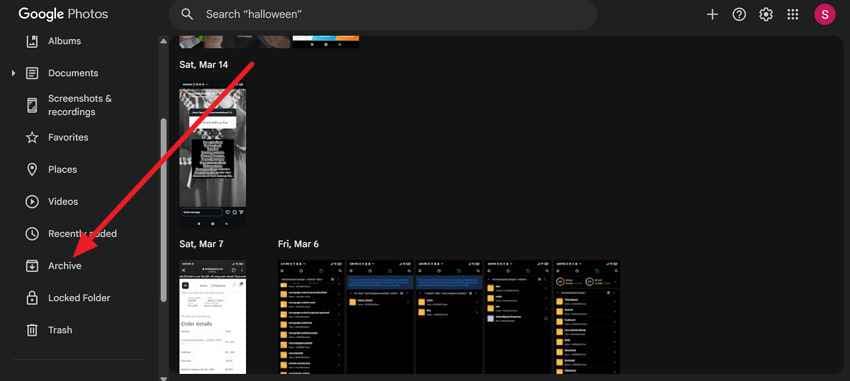
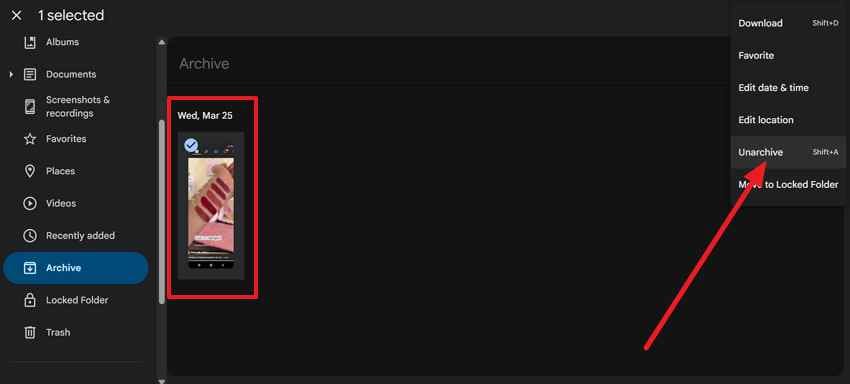
- Check Archive: Once a picture is archived, it disappears from the main Photos feed, but it is not deleted. Simply open Google Photos, go to Library/Collections, and check the Archive there; you can unarchive pictures to bring them back.
- Check Device Folders: On phones, some images may live only in the local device folder and not appear in the main Photos view. Go to Library/Collections, access "On this Device," open each folder, and turn on backup for the right folder.
Part 2. Why Old Photos in a Google Account Seem Missing
As we move forward with Google's old photos recovery, it's time to review possible reasons behind missing photos:
- Wrong Account: If you're signed into the wrong Google account, your photos will disappear because each account has its own separate library. One Reddit user thought all their photos were gone, only to find they were linked to the wrong Google Photos account.
- No Backup: The pictures never backed up from your phone and camera; they simply don't exist in Google Photos. In this case, Google's cloud has nothing to display because the images only ever live on the original device.
- Trash or Archive: Items moved to Trash or Archive are removed from the main Photos view and appear to have disappeared. According to Google community posts, users accidentally delete or archive large batches of photos, thinking Google has lost them.
- Wrong Date Metadata: Incorrect or changed data information makes photos appear under the wrong year or month, as discussed above. However, pictures are still in the account, but they're "misfiled" on a different part of the timeline.
- Device-Only Photos: When photos remain in local device folders and are never synced, they appear on the device but not in the cloud library. You might think Google has lost them, when in reality, they were never uploaded to your Google account.
- Permanently Deleted Content: Once photos are permanently deleted from Google Photos (including Trash), they are removed from the account entirely. Google's Help Center says items stay in Trash for 60 days (30 days if not backed up) before being permanently deleted.
Part 3. How to Recover Old Photos from a Google Account
Even when photos seem permanently gone, several built-in tools and recovery methods can help with Google's old photo recovery. Thus, go through the section and follow the right solution based on your situation to restore valuable memories:
Way 1. Check Google Photos Trash or Bin
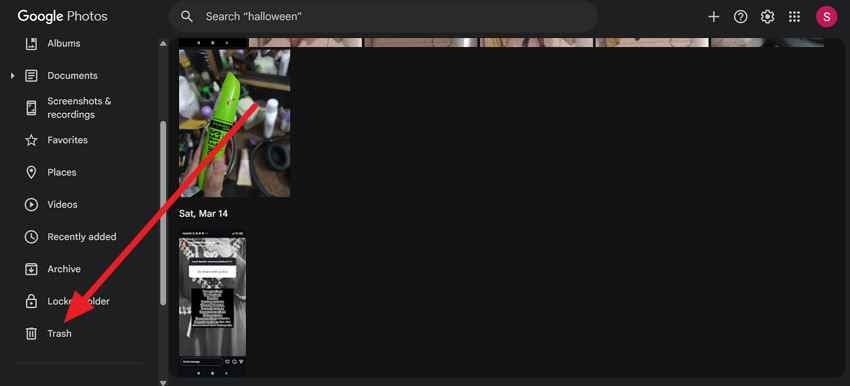
Trash/Bin is a temporary storage that acts as a safety net, giving users enough time to recover accidentally deleted photos. To restore images without affecting their quality and exactly where they were originally stored, follow the guidelines:
Step 1. Go to photos.google.com in your browser and sign in to your Google account. After this, locate the "Trash" section in the left panel to check for your desired picture.
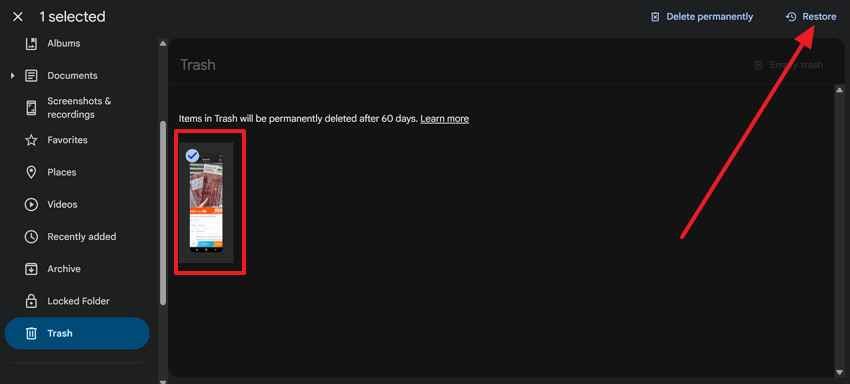
Step 2. Now select the photo and click the "Restore" button to return it to your library.
Way 2. Search Google Photos by Date, Keyword, or Recently Added
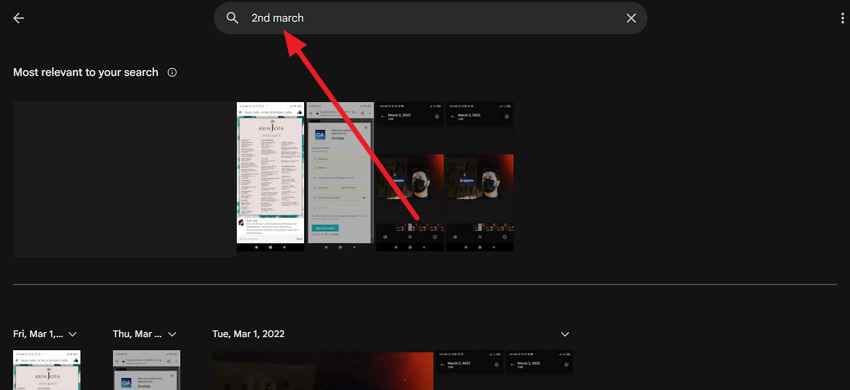
This step helps quickly locate hidden or misplaced photos without requiring deletion recovery from Google Photos. Read the tutorial to save manual scrolling time and use smart organization measures to recover photos from an old Google account:
Instructions. Browse Google Photos on your browser, sign in to your account, and use the search bar at the top. Type a date, place name, or keyword to search for a specific missing picture.
Way 3. Check Google Photos Archive
Archived photos are not deleted; they are simply removed from the main photo feed to keep the gallery organized and clutter-free. To bring back hidden photos to the main gallery again without any recovery process, follow and check the Archive folder:
Step 1. Enter Google Photos, then look at the left sidebar and click the "Archive" folder
Step 2. Next, find your photo, select it, and then press the "Three Dots" in the top right. Later, choose the "Unarchive" option to return it to the main Photos view.
Way 4. Check Device Folders and Old Synced Devices
Many times, photos still exist locally on your older devices, even if they are no longer visible in Google Photos. To recover my old photos in Google Account, simply access your old devices and open the File Manager or Gallery folders. Plus, look into the DCIM, Camera, or Screenshots folders, then enable backup to sync photos again.
Way 5. Use Google Takeout to Export Your Current Photo Archive
Google Takeout is a tool that allows users to export and download a complete copy of their data stored across Google services. For a complete backup copy and verification of what's still available in your Google account, follow the given guidelines:
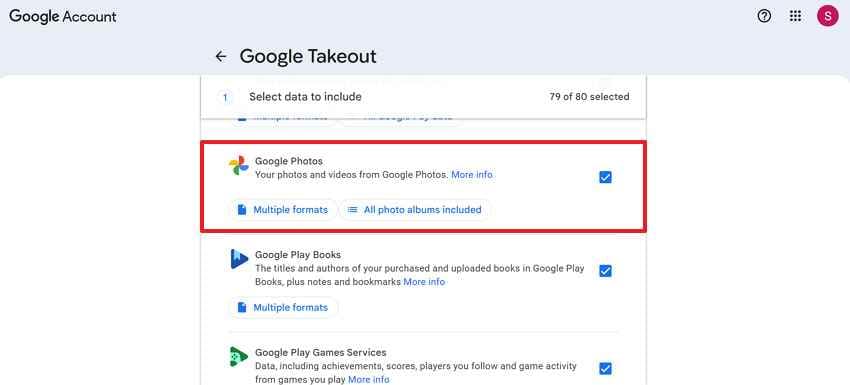
Step 1. Initially, visit Google Takeout while signed in, and in the product list, select the "Google Photos" option. Once done, press the "Next Step" button to proceed with the export.
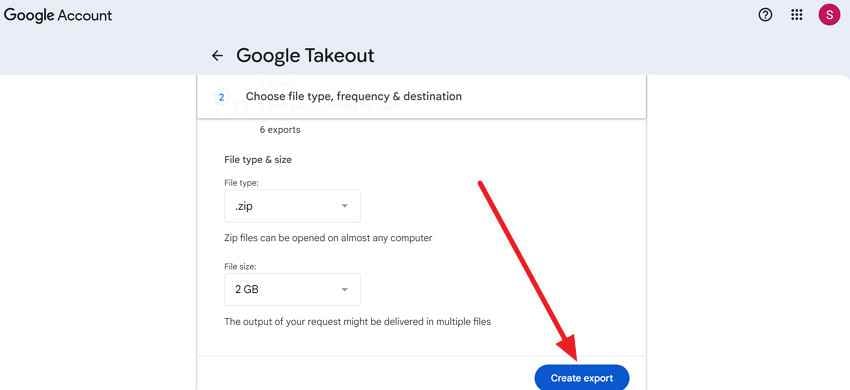
Step 2. Move forward, specify the export options (Destination, File Type, Size), then click "Create Export." Following this, download a complete copy of your current photo archive to your computer for safekeeping.
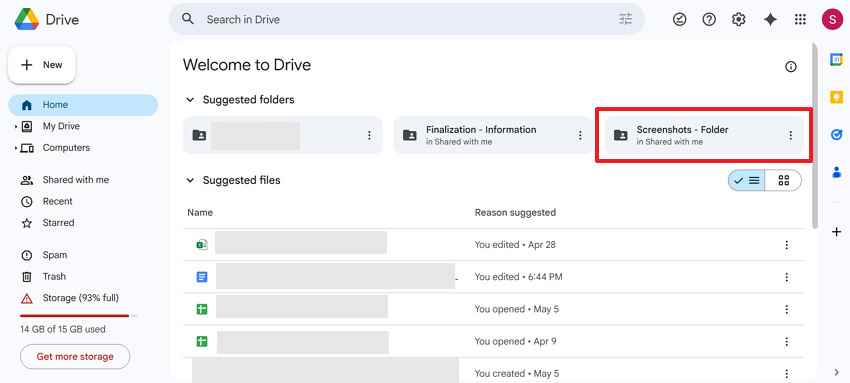
Way 6. Check Google Drive Only if the Photos Were Stored There
For Google old photos recovery, check Google Drive to locate files that are not visible in Google Photos but are stored in the cloud. Uncover older backups or manually saved images that were stored separately, through Google Drive, as guided:
Instructions. Go to drive.google.com and log in with the same Google account. Afterward, look for the Photos or "Screenshots Folder" and search by file type (images) or date.
Way 7. Contact Google Support or Community
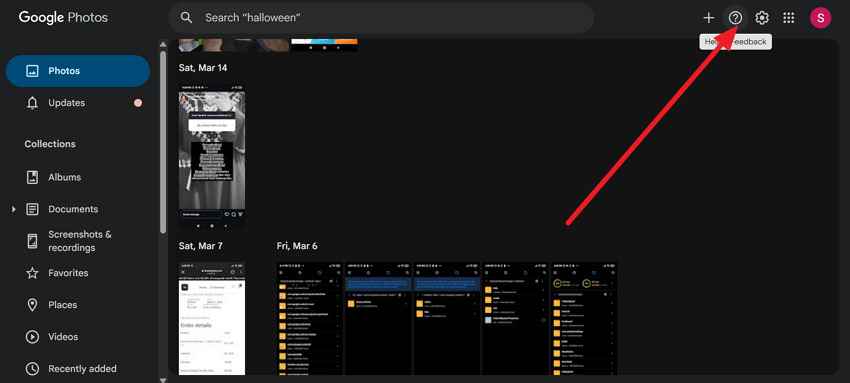
When standard recovery methods do not work, reach out to Google Support for account recovery or advanced troubleshooting. You can even consider the Google Photos Help icon or Help & Feedback, then contact the Google Support team. Besides this, open Help Community from the Help menu and post your problem, as demonstrated below:
Instructions. Access Google Photos, then click the "Help" icon and choose "Send Feedback" or "Ask Community Help."
Way 8. Use Photo Recovery Software if Google No Longer Has the Files
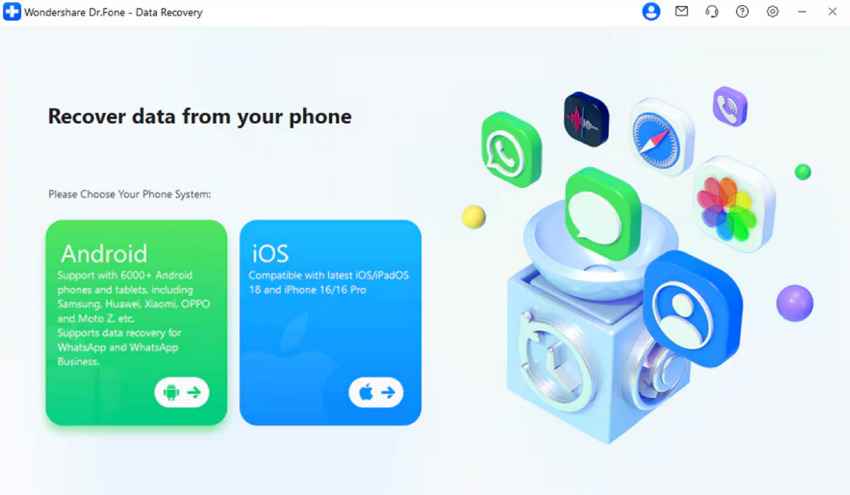
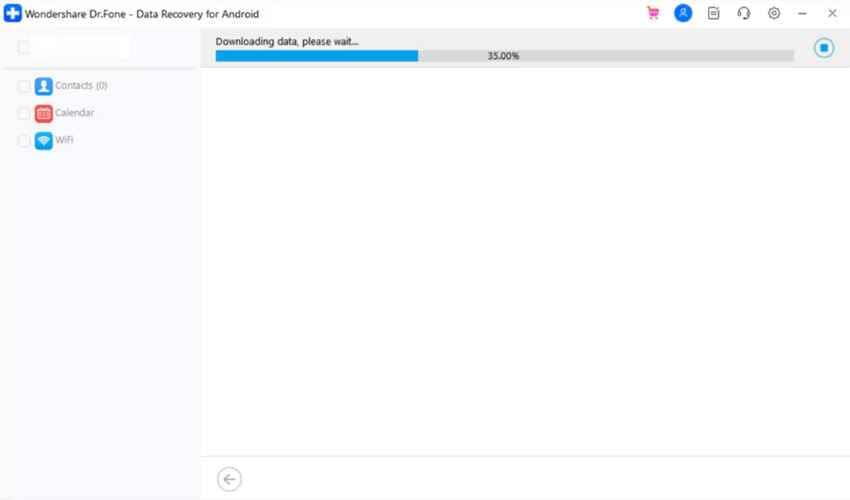
You can use dedicated recovery software like Dr.Fone to recover Google Drive photos, including WhatsApp data. During the process, you're offered the option to Recover Device Data, such as call history, contacts, messages, and more. To proceed with how to recover photos from an old Google account, follow the step-by-step tutorial by Dr.Fone:
Step 1. First, choose "Data Recovery" from the Toolbox, then select the "Android" option to continue.
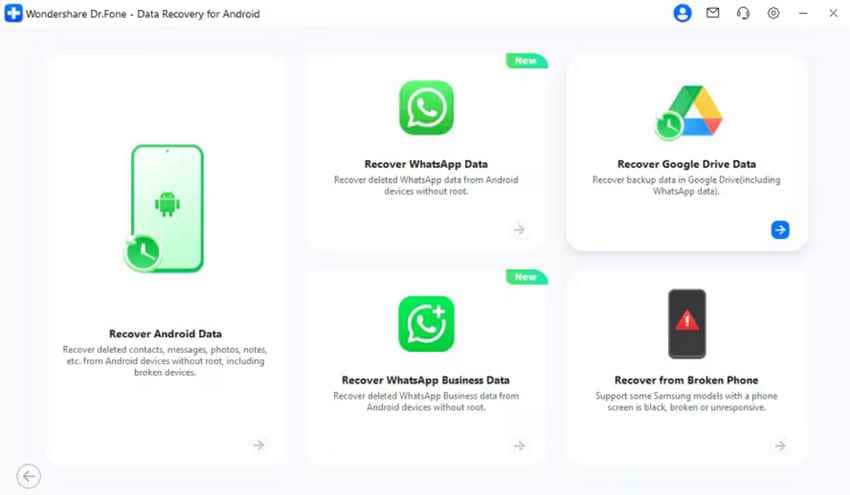
Step 2. Now, press the "Recover Google Drive Data" to proceed with the data recovery process. Later, sign in to your Google Drive account, and choose "Recover Device Data."
Step 3. Next, select the file types, click the "Download" button, and analyze the progress bar.
Part 4. Recover Permanently Lost Photos from Old Devices
If you're done following the standard Google recovery methods, now look beyond cloud-based options to recover my old photos in the Google account. For your assistance, this section covers all possible reasons when Google cannot restore the images, along with a professional solution:
- When a photo has been deleted from Google Photos and then removed from Trash.
- Google cannot restore images that were never backed up to Google Photos initially.
- If your remaining copies are only stored on an old device, not in the Google account.
- Also, when the Google account itself has been deleted, all photo data tied to it will be removed.
- Corruption or overwriting during sync can cause an earlier version of an image to be replaced.
Recoverit Photo Recovery is a single solution for all these reasons. The software supports recovery from many sources, including computer hard drives or external HDDs/SSDs. This is valuable when your old Google-synced photos used to live on a phone card or an old laptop drive. Impressively, it can work even after formatting or file system errors during sync.
Key Features
- Support Many Photo Formats: The platform can restore a large range of photo formats, such as JPG, JPEG, and more.
- Quick Scan and Deep Scan Options: It offers different scan modes, including a fast scan for recently deleted pictures and a deep scan to find more heavily lost data.
- Batch Recovery and Preview: Recoverit lets you preview found photos and then recover them in batches, rather than saving every single file.
Following the provided guidelines ensures complete photo recovery, even if your chances of restoring them are less:
Step 1. Choose a Location to Start Recovery
At first, select a location from your device and click the "Start" button to begin the scan.

Step 2. Scan the Chosen Location
After this, the program will start an all-around scan automatically at your chosen location. Meanwhile, you'll see the real-time scanning results on the screen, allowing you to check the result at the moment.

Step 3. Preview and Recover Your Desired Photos
Once the scan completes, press the "Preview" button in the prompt window and "Recover" them after confirmation.

Part 5. Best Practices to Protect Old Google Photos from Loss
The following section reveals a few essential protection practices that can help secure your photo library and avoid Google's old photo recovery:
- Keep Backup On: Try to keep Google Photos backup enabled so your new photos are automatically copied to your Google account.
- Save a Second Copy: Store another copy of your photo library on an external hard drive to protect it if anything happens to your Google account.
- Export with Google Takeout Regularly: Use Google Takeout to export your whole Google Photos library every few months and have a complete offline copy.
- Keep Old Devices Until Recovery is Confirmed: If you switch or clean phones often, keep the old phone until you've checked that all pictures appear in your Google account.
- Monitor Trash Retention Windows: Check Trash before the restore window expires, as it gives you a last chance to recover anything you delete by mistake.
- Organize with Albums and Archives: Put important pictures into named albums and use Archives for clutter to make finding them easier.
Conclusion
In conclusion, not being able to see your old photos in your Google account doesn't mean they are permanently lost. In many cases, missing images can be restored through built-in recovery options, such as Trash or Archive, as demonstrated throughout the article. When every Google recovery option has been exhausted, use Recoverit to scan old devices or storage drives and support efforts to recover my old photos in the Google account.
Frequently Asked Questions
-
Q1. Can I recover photos deleted years ago from my Google account?
Recovery depends on whether the photos still exist in backup, archived storage, or exported files. Once they are permanently deleted long ago, direct recovery from the Google account might not be possible. -
Q2. How do I check if my Google Photos backup was enabled?
To do so, simply open Google Photos, go to Settings, and check the Backup & Sync section to confirm. This will show whether automatic backups were active and help you determine if your photos were uploaded to your Google account. -
Q3. How do I know if photos were permanently deleted?
If pictures are missing from Trash, Archives, and exported account data, they might have been permanently removed. To recover photos from an old Google account, check synced devices or use recovery software like Recoverit for direct retrieval from the device.


